


 Video Converter Ultimate
 บันทึกหน้าจอ
 ซ่อมวิดีโอ
 ดาวน์โหลดอย่างปลอดภัย
วิธีบันทึก GIF เป็นวิดีโอบน iPhone ด้วย 5 วิธีอันเหลือเชื่อ
ใครจะคิดว่าผู้คนสามารถโต้ตอบกันอย่างมีอารมณ์ผ่านโลกออนไลน์ด้วยไฟล์ Graphics Interchange Format หรือ GIF ได้? แต่เดิมไฟล์เหล่านี้ถูกออกแบบมาด้วยความละเอียดหน้าจอขนาดเล็กและเป็นคลิปวิดีโอแบบเคลื่อนไหว ไม่ว่าคุณจะอยากใส่ลูกเล่นให้ข้อความตลก ๆ หรือส่งกอดให้คนที่คุณรัก GIF ก็จะเป็นเพื่อนคู่ใจของคุณ ในบทความนี้ เราได้คัดสรรเว็บไซต์โซเชียลมีเดียหลายแห่งที่คุณสามารถเข้าถึง GIF ได้เป็นพัน ๆ ไฟล์ และสอนคุณว่าจะบันทึก GIF แบบเคลื่อนไหวใน iPhone ได้อย่างไร.

ส่วนที่ 1: วิธีบันทึก GIF บน iPhone [iOS16/17]
1. ซาฟารี
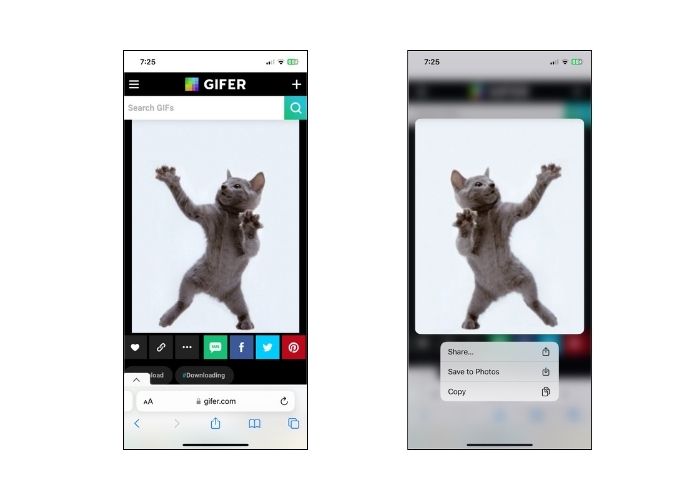
อย่าไปทางอื่นและเริ่มต้นด้วยเบราว์เซอร์ดั้งเดิมของ iPhone รุ่นใดก็ได้ Safari ทำตามขั้นตอนเกี่ยวกับวิธีการบันทึก GIF บน iPhone จาก Safari
ขั้นตอนที่ 1. เปิดแอป Safari บนโทรศัพท์ของคุณแล้วค้นหา GIF ที่คุณต้องการ.
ขั้นตอนที่ 2. แตะค้างที่ GIF เป้าหมายจากเว็บไซต์แชร์ GIF ที่คุณเลือก.
ขั้นตอนที่ 3. จากนั้นแตะ Save to Photos จากเมนู แล้ว GIF จะถูกบันทึกลงในแอป Photos ของคุณ.
2. ทวิตเตอร์
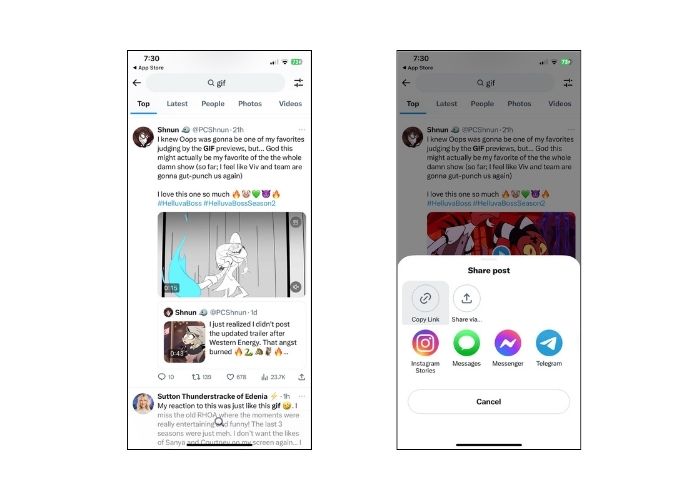
หากคุณต้องการค้นหา GIF ที่มีเอกลักษณ์และแสดงออก การลองใช้เว็บไซต์โซเชียลเน็ตเวิร์กออนไลน์ เช่น Twitter หรือที่รู้จักในชื่อ X ในปัจจุบัน ถือเป็นตัวเลือกที่ยอดเยี่ยม จากทวีตของผู้คน คุณจะมีตัวเลือกที่ครอบคลุมว่าจะเลือกอันไหน จะบันทึก GIF บน iPhone จาก Twitter ได้อย่างไร ทำตามคำแนะนำด้านล่าง
ขั้นตอนที่ 1. เปิดแอป Twitter บน iPhone ของคุณ แล้วเลื่อนไปยัง GIF ที่คุณต้องการ.
ขั้นตอนที่ 2. หลังจากเลือกทวีตที่มี GIF เป้าหมายแล้ว ให้แตะ Menu และคัดลอกลิงก์.
ขั้นตอนที่ 3. สุดท้าย วางลิงก์ลงในเว็บหรือแอปดาวน์โหลด GIF แล้วกด Save to Library.
3. กูเกิล
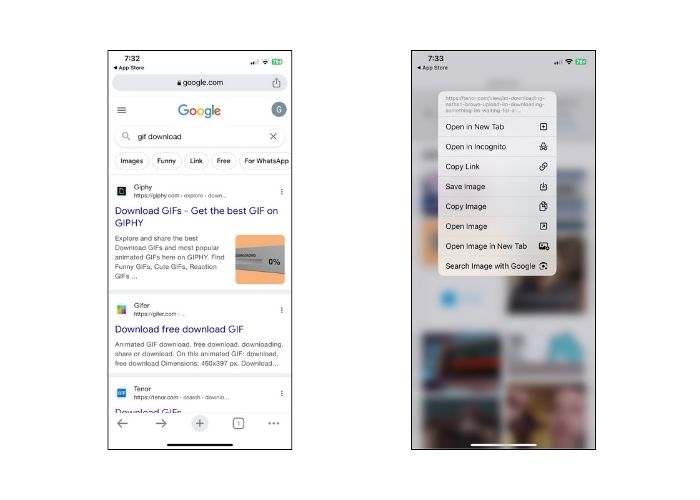
ในส่วนของเครื่องมือค้นหา Google อาจได้รับการยกย่องว่าเป็นหนึ่งในเครื่องมือค้นหาที่ได้รับความนิยมมากที่สุดในโลก ยิ่งไปกว่านั้น เสิร์ชเอ็นจิ้นนี้ยังช่วยให้คุณดู GIF นับล้านบนเว็บและมอบสิ่งที่คุณต้องการอีกด้วย นี่คือวิธีการบันทึก GIF บน iPhone จาก Google
ขั้นตอนที่ 1. เปิด Google Chrome บน iPhone ของคุณ ในแถบค้นหาให้พิมพ์ชื่อ GIF ที่คุณต้องการบันทึก.
ขั้นตอนที่ 2. เมื่อคุณพบ GIF แล้ว ให้แตะ Menu แล้วกด Save Image.
ขั้นตอนที่ 3. จากนั้นจะมีหน้าต่างแจ้งเตือนถามว่าคุณจะอนุญาตให้เพิ่ม GIF ลงในแอป Photos หรือไม่ ให้แตะ OK เพื่อดำเนินการต่อ.
4. ยิปซี
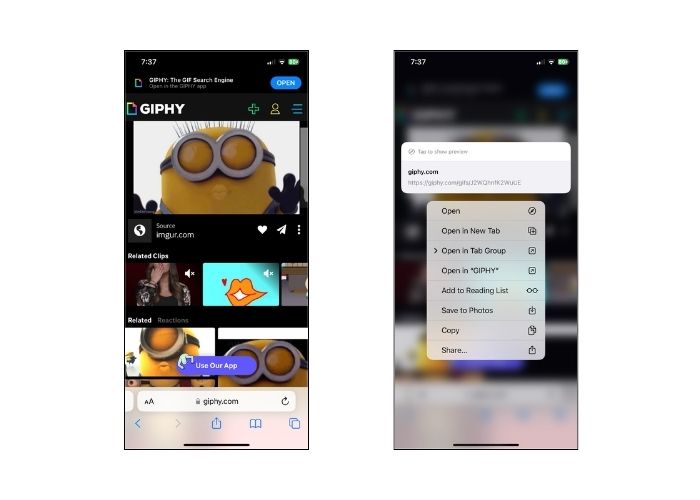
GIPHY เป็นเว็บไซต์ออนไลน์ที่ให้ผู้คนเข้าถึง GIF มากมายได้ทุกโอกาส หากคุณต้องการทราบวิธีบันทึก GIF จาก GIPHY บน iPhone ให้ทำตามคำแนะนำด้านล่าง
ขั้นตอนที่ 1. เปิดเว็บเบราว์เซอร์ของคุณแล้วเข้าเว็บไซต์ทางการของ GIPHY จากนั้นค้นหา GIF เป้าหมายด้วยคีย์เวิร์ดหรือเลือกหมวดหมู่เฉพาะจากรายการ.
ขั้นตอนที่ 2. หลังจากเลือก GIF แล้ว ให้แตะค้างที่ GIF จนกว่าจะมีเมนูตัวเลือกปรากฏขึ้น.
ขั้นตอนที่ 3. สุดท้าย เลือก Save to Photos แล้ว GIF จะถูกเพิ่มไปยังที่เก็บไฟล์ในเครื่องของคุณ.
5. วอตส์แอปป์
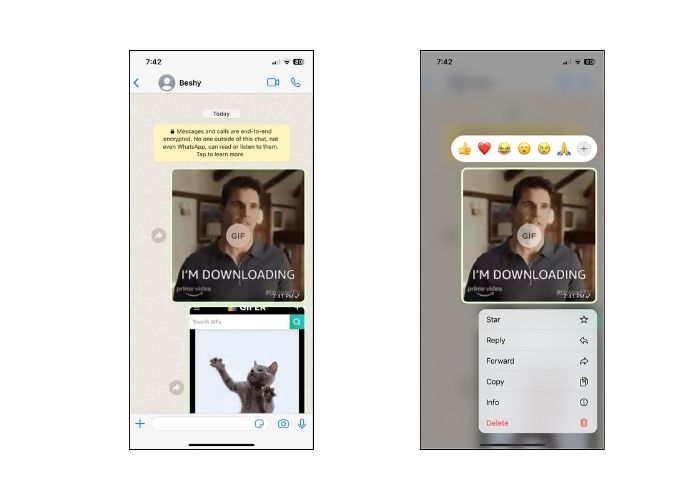
อีกหนึ่งแพลตฟอร์มการสื่อสารออนไลน์ที่โด่งดังอย่างกว้างขวางในปัจจุบันคือ WhatsApp เช่นเดียวกับเครื่องมือสื่อสารดิจิทัลอื่นๆ WhatsApp ยังดีที่สุดในการรับ GIF จากเพื่อนและคนที่คุณรัก เรายังได้รับความคุ้มครองเกี่ยวกับวิธีบันทึก GIF จาก WhatsApp บน iPhone อีกด้วย
ขั้นตอนที่ 1. ไปที่ห้องแชทหรือกลุ่มที่มี GIF นั้นอยู่.
ขั้นตอนที่ 2. เมื่อเลื่อนดู Media หรือแชทที่บันทึกไว้แล้ว ให้แตะที่ GIF แล้วกดค้างประมาณ 3 วินาทีจนกว่าเมนูจะแสดงขึ้นมา.
ขั้นตอนที่ 3. เลือก Save เพื่อเพิ่ม GIF ลงในไฟล์ของคุณ.
ส่วนที่ 2: เหตุใดฉันจึงบันทึก GIF บน iPhone ไม่ได้
ต้องพิจารณาปัจจัยหลายประการเมื่อพยายามบันทึก GIF ลงใน iPhone ไม่สำเร็จ ดูเหตุผลต่อไปนี้ด้านล่างแล้วลองพิจารณาว่าใครคือผู้กระทำผิด
1. หากคุณไม่สามารถบันทึก GIF บน iPhone ได้ อาจเป็นเพราะการเชื่อมต่ออินเทอร์เน็ตของคุณมีปัญหา ในกรณีนี้ ให้ตรวจสอบว่าอินเทอร์เน็ตใช้งานได้หรือไม่โดยเข้าไปที่ Settings > Wi-Fi.
2. หากคุณไม่สามารถดาวน์โหลดหรือถ่ายภาพหน้าจอได้ ให้ลองรีสตาร์ท iPhone ของคุณ ในกรณีนี้ โทรศัพท์ของคุณจะถูกรีเซ็ต
3. การบังคับให้ออกจากแอปอาจช่วยได้เช่นกัน มีหลายกรณีที่ข้อผิดพลาดจะได้รับการแก้ไขหลังจากออกจากแอป
4. สุดท้าย ตรวจสอบที่เก็บข้อมูลของคุณ หากคุณเต็มไปด้วยไฟล์ คุณอาจต้องเพิ่มพื้นที่ว่างโดยการลบรูปภาพ วิดีโอ และแม้แต่ถอนการติดตั้งแอพบางตัวที่ไม่ได้ใช้
ส่วนที่ 3 วิธีบันทึก GIF บน iPhone เป็นวิดีโอ
1. Video Converter Ultimate
บางครั้งเราจำเป็นต้องแปลง GIF ให้กลายเป็นวิดีโอ แต่ไม่ใช่โปรแกรมทำ GIF ทุกตัวที่จะทำแบบนี้ได้ นั่นจึงเป็นเหตุผลที่เราขอแนะนำแพลตฟอร์มที่ยอดเยี่ยมนี้ Video Converter Ultimate เป็นเครื่องมือที่ใช้การเร่งด้วย GPU เพื่อแปลง GIF ให้เป็นไฟล์วิดีโอได้อย่างลื่นไหลและรวดเร็ว คุณยังสามารถแปลงวิดีโอเป็นนามสกุลไฟล์อื่นได้ เช่น MOV, FLV, MP4, ASV และอื่น ๆ นอกจากนี้ เครื่องมือนี้ยังโดดเด่นในการรักษาคุณภาพวิดีโอของคุณให้คงสัดส่วน 1:1 ได้อย่างยอดเยี่ยม.
ขั้นตอนที่ 1. ติดตั้งตัวแปลง GIF เป็นวิดีโอที่ดีที่สุด
ก่อนอื่น ให้ไปที่ปุ่ม Download ด้านล่างที่ตรงกับระบบปฏิบัติการของคุณ จากนั้นรันไฟล์เพื่อติดตั้งและเปิดใช้งานบนคอมพิวเตอร์.
ดาวน์โหลดฟรีสำหรับ Windows 7 ขึ้นไปดาวน์โหลดอย่างปลอดภัย
ดาวน์โหลดฟรีสำหรับ MacOS 10.7 หรือใหม่กว่าดาวน์โหลดอย่างปลอดภัย
ขั้นตอนที่ 2. นำเข้าไฟล์ GIF
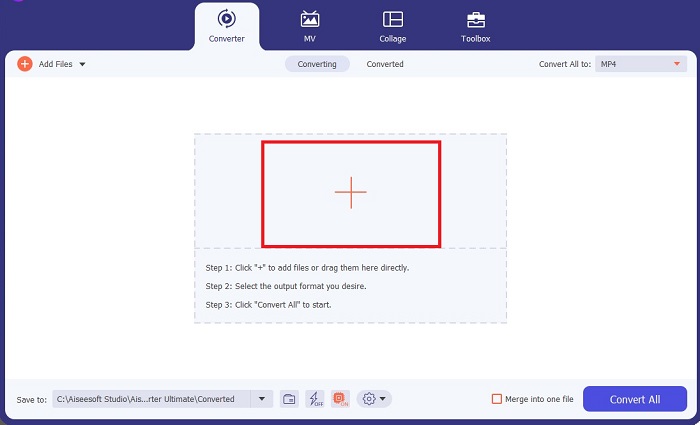
เพื่ออัปโหลดไฟล์ GIF ของคุณ ให้คลิกปุ่ม Plus ตรงกลางหน้าจอ คุณยังสามารถแปลงไฟล์ GIF ได้ครั้งละหลายไฟล์โดยอัปโหลดเป็นโฟลเดอร์.
ขั้นตอนที่ 3. เลือกรูปแบบวิดีโอ
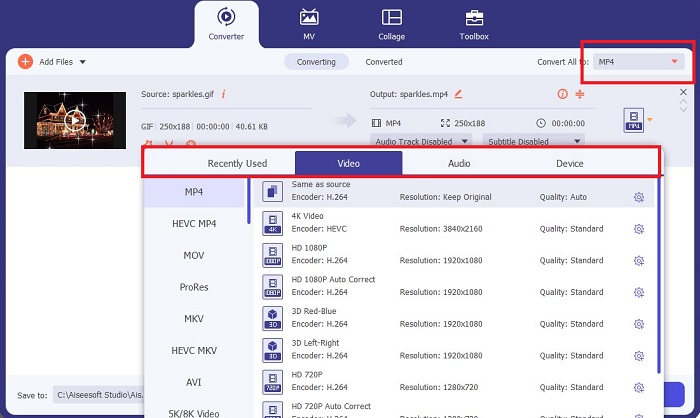
เมื่อ GIF ของคุณปรากฏบนหน้าจอแล้ว ให้คลิกที่แท็บ Output เพื่อดูรายการรูปแบบวิดีโอทั้งหมด หากต้องการรักษาความเข้ากันได้ของไฟล์ ให้เลือกรูปแบบ MP4.
ขั้นตอนที่ 4. บันทึกโปรเจกต์
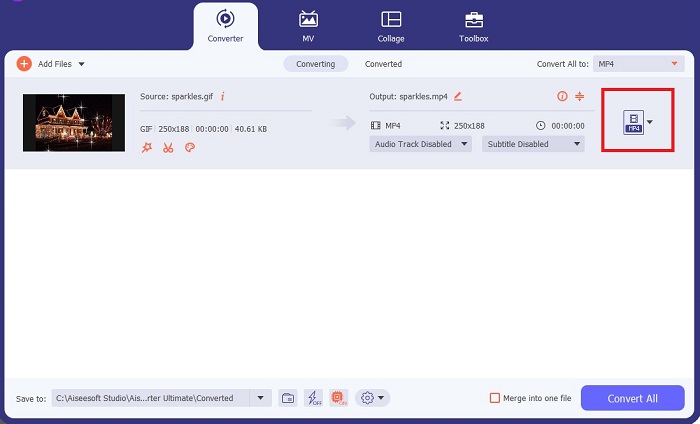
สุดท้ายให้กดปุ่ม Convert ด้านล่างหน้าจอเพื่อเริ่มการแปลง คุณยังสามารถตรวจสอบไฟล์ของคุณได้โดยคลิกที่ไอคอนโฟลเดอร์เพื่อเข้าไปยังไดเรกทอรีในเครื่องที่บันทึกไฟล์ GIF ที่แปลงแล้ว.
อ่านเพิ่มเติม:
วิธีเพิ่มข้อความลงใน GIF ที่ไม่มีวันแพ้ (รองรับทุกแพลตฟอร์ม)
การลบพื้นหลัง GIF ด้วยเครื่องมือที่มีประสิทธิภาพและใช้งานได้จริง
ส่วนที่ 4 คำถามที่พบบ่อยเกี่ยวกับวิธีการบันทึก GIF ของ iPhone
คุณสามารถบันทึก GIF บน iPhone ของคุณจากอีเมลได้หรือไม่?
อย่างแน่นอน! คุณสามารถบันทึก GIF ใดๆ จากอีเมลลงใน Camera roll ของคุณได้ เพียงแตะไอคอนแชร์บนอีเมลของคุณแล้วคลิกบันทึกไฟล์
ฉันสามารถโพสต์ GIF บน Twitter บน iPhone ของฉันได้หรือไม่
GIF สามารถแชร์บนไซต์โซเชียลมีเดีย รวมถึงทวีตเตอร์ คุณสามารถทำได้ด้วยวิธีที่คุณโพสต์ภาพ
จะค้นหา GIF ที่บันทึกไว้บน iPhone ได้ที่ไหน
เมื่อคุณบันทึก GIF แล้ว คุณสามารถไปที่ File Explorer บน iPhone หรือรีเฟรชแอป Photos ได้
ฉันสามารถบันทึก GIF ลงในม้วนฟิล์มบน iPhone ได้หรือไม่
อย่างแน่นอน! หากคุณต้องการบันทึกไฟล์ GIF ลงในม้วนฟิล์ม คุณสามารถบันทึกได้เช่นเดียวกับที่คุณทำกับภาพทั่วไป กดที่ภาพเป็นเวลา 3 วินาทีหรือแตะเมนู หลังจากนั้นให้คลิกบันทึกรูปภาพ
จะบันทึก Reddit gif บน iPhone ได้อย่างไร?
คุณสามารถบันทึก GIF จาก Reddit ได้โดยใช้ขั้นตอนเดียวกับที่กล่าวไว้ข้างต้น หลังจากบันทึก GIF ของคุณบนกล้องแล้ว การเปิดไดเร็กทอรีไฟล์เป็นวิธีที่ดีที่สุดในการค้นหา GIF ที่บันทึกไว้ใน iPhone นี่เป็นสิ่งที่สะดวกที่สุดที่จะทำ เนื่องจากมีกรณีที่รูปภาพหรือ GIF ที่ดาวน์โหลดมาไม่ปรากฏในแอปรูปภาพ
สรุป
การรู้วิธีจัดการไฟล์ GIF รวมถึงการแปลงให้เป็นวิดีโอ เป็นสิ่งจำเป็นหากคุณต้องการโดดเด่นในยุคดิจิทัล และนี่ก็คือวิธีต่าง ๆ ในการบันทึก GIF บน iPhone ผ่านมุมมองของเว็บไซต์และแอปโซเชียลมีเดียหลากหลายแพลตฟอร์ม.
-
 วิธีแปลงวิดีโอเป็น GIF เพื่อสร้าง GIF ที่สะดุดตา
 ค้นพบวิธีแปลงวิดีโอของคุณเป็น GIF ที่น่าสนใจอย่างง่ายดายด้วยเครื่องมือแปลงวิดีโอเป็น GIF ที่คัดสรรมาอย่างดีและกระบวนการแปลงวิดีโอเป็น GIF ที่ทำตามได้ง่าย
-
 การตรวจสอบคุณสมบัติและทางเลือก Ezgif ที่ครอบคลุม
 หากคุณเคยใช้ Ezgif และยังไม่ทราบว่ามีอะไรเกิดขึ้นบ้าง บทวิจารณ์ Ezgif นี้จะช่วยคุณในเรื่องข้อกังวลนั้น อ่านเพื่อเรียนรู้เพิ่มเติม.
-
 สุดยอดคอมเพรสเซอร์ GIF 10 อันดับสำหรับผู้ใช้เดสก์ท็อปและออนไลน์
 ในโพสต์นี้ คุณจะได้เรียนรู้เกี่ยวกับโปรแกรมบีบอัด GIF ที่ดีที่สุดเพื่อช่วยคุณแก้ไขปัญหาเกี่ยวกับไฟล์ GIF ขนาดใหญ่ ลองตรวจสอบและรับข้อมูลเชิงลึกที่ดีที่สุด
