


 Video Converter Ultimate
 บันทึกหน้าจอ
 ซ่อมวิดีโอ
 ดาวน์โหลดอย่างปลอดภัย
วิธีปรับขนาด GIF โดยใช้โปรแกรมที่เชื่อถือได้และอัปเดต
ภาพ GIF เป็นประเภทหนึ่งของรูปภาพที่ได้รับความนิยม แต่บางครั้งอาจมีองค์ประกอบที่ไม่เหมาะสมต่อการรับชมสื่อ เช่น แถบดำ อัตราส่วนหน้าจอที่เล็กเกินไป และอื่น ๆ อีกมากมาย ผลก็คือ ผู้ใช้จำนวนมากต้องการหาโปรแกรมที่สามารถปรับขนาด GIF ได้อย่างง่ายดาย ตรงนี้เองที่โปรแกรมปรับขนาด GIF เข้ามาช่วยได้เป็นอย่างดี ลองดูแอปที่เรารวบรวมไว้พร้อมเคล็ดลับวิธีใช้แอปเหล่านี้สำหรับการปรับขนาด GIF ซึ่งจะช่วยให้ผู้ใช้เช่นคุณเข้าใจมากยิ่งขึ้น และมีพื้นฐานเกี่ยวกับการใช้งานโปรแกรมเหล่านี้.

ส่วนที่ 1: ทำไมต้องปรับขนาด GIF
การปรับขนาด GIF นั้นเป็นงานที่สนุกและน่าสยดสยองในเวลาเดียวกัน หากไม่มีแอปพลิเคชันหรือโปรแกรมให้ใช้งาน การเพิ่มประสิทธิภาพ GIF เพียงอย่างเดียวก็เป็นไปไม่ได้ เหตุใดจึงต้องปรับขนาด GIF ของคุณ GIF มีอัตราส่วนขนาดคงที่เมื่อสร้างขึ้น ด้วยเหตุนี้ เมื่อมีคนส่ง GIF ให้กับคุณ GIF อาจไม่พอดีกับหน้าจอของคุณหรือมีคุณภาพต่ำด้วยซ้ำ นั่นเป็นสาเหตุที่ผู้ใช้จำนวนมากปรับขนาด GIF ของตนทางออนไลน์
เคล็ดลับในการปรับขนาด GIF:
◆ ใช้แอปพลิเคชันและซอฟต์แวร์ที่เชื่อถือได้
◆ รู้ผลลัพธ์ที่คุณต้องการ
◆ ห้ามสร้างจำนวนพิกเซลที่ต่ำกว่า 720×1280p
ส่วนที่ 2 วิธีปรับขนาด GIF บนเดสก์ท็อปโดยใช้แอปพลิเคชันที่มีประสิทธิภาพ
1. Video Converter Ultimate
Video Converter Ultimate คือเครื่องมือขั้นสุดยอดสำหรับแทบทุกงานที่คุณนึกถึง แอปนี้ช่วยให้การปรับขนาด GIF เป็นเรื่องง่าย ปราศจากความยุ่งยาก โดยไม่ทำให้คุณภาพพิกเซลของภาพลดลง และยังมีคำแนะนำอัตราส่วนพิกเซลที่เหมาะสม มอบไฟล์ GIF เคลื่อนไหวที่ปรับแต่งมาอย่างดีที่สุดตามขนาดที่คุณต้องการ จึงเป็นแอปพลิเคชันที่เชื่อถือได้และสะดวกต่อการใช้ในการแก้ไข GIF ของคุณ.
ขั้นตอนที่ 1. ดาวน์โหลดและติดตั้งแอป
ก่อนอื่นให้ดาวน์โหลดโปรแกรมโดยคลิกปุ่ม ดาวน์โหลดฟรี ที่ให้ไว้ด้านล่าง เมื่อดาวน์โหลดเสร็จแล้วให้ติดตั้งลงในคอมพิวเตอร์ของคุณ เพียงคลิกลิงก์ให้ตรงกับอุปกรณ์ที่คุณใช้ หลังจากติดตั้งแล้ว ให้ทำความคุ้นเคยกับแอปพลิเคชันเพื่อจะได้ใช้งานเครื่องมือต่าง ๆ ได้อย่างคล่องตัว.
ดาวน์โหลดฟรีสำหรับ Windows 7 ขึ้นไปดาวน์โหลดอย่างปลอดภัย
ดาวน์โหลดฟรีสำหรับ MacOS 10.7 หรือใหม่กว่าดาวน์โหลดอย่างปลอดภัย
ขั้นตอนที่ 2. เปิดใช้งานเครื่องมือ
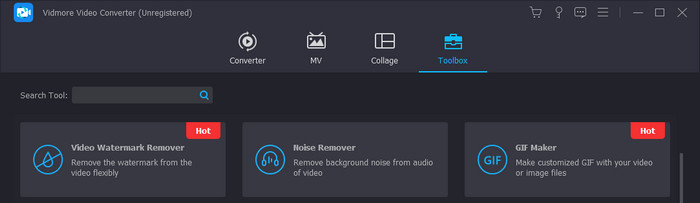
เปิดแอป Video Converter Ultimate บนพีซีของคุณ จากนั้นคลิกตัวเลือก กล่องเครื่องมือ (Toolbox) แล้วเลือก GIF Maker หรือคุณจะพิมพ์ค้นหาชื่อฟีเจอร์ก็ได้ เมื่อเลือกตัวเลือกนี้แล้ว ผู้ใช้จะสามารถปรับขนาด GIF ได้อย่างง่ายดาย.
ขั้นตอนที่ 3. เลือกกระบวนการ
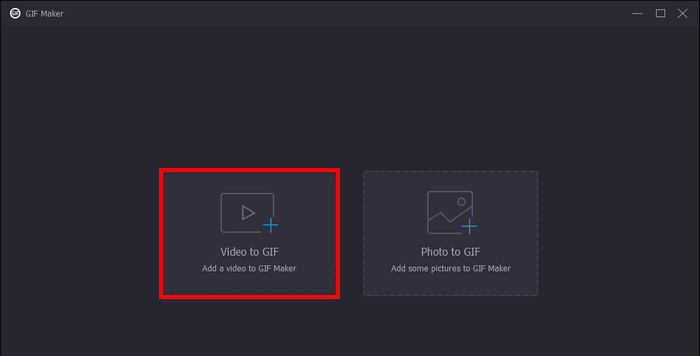
หลังจากคลิก GIF Maker แล้ว คุณสามารถเลือกกระบวนการที่ต้องการทำได้ ให้เลือก Video to GIF ฟีเจอร์นี้จะทำให้คุณสามารถนำเข้าไฟล์ GIF เพื่อปรับขนาดได้ นำเข้าไฟล์โดยเลือกจากโฟลเดอร์ไดเรกทอรีของคุณ.
ขั้นตอนที่ 4. ปรับขนาดและสร้าง GIF
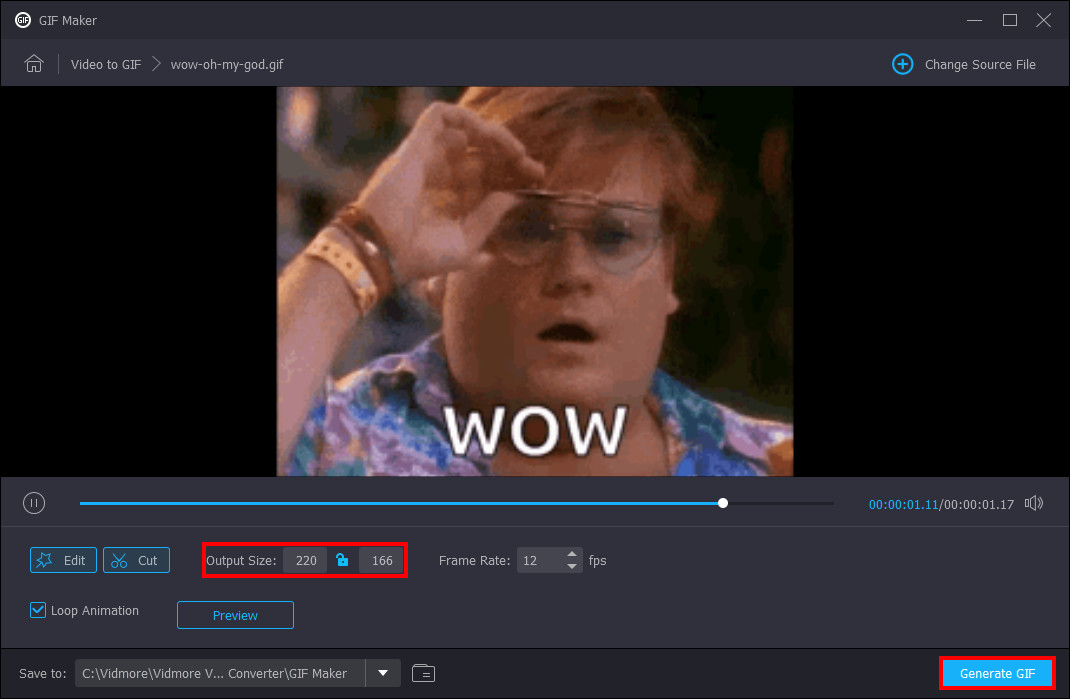
สุดท้าย ตอนนี้คุณสามารถปรับขนาด GIF ได้แล้ว ให้ปรับขนาดโดยใส่ขนาดที่คุณต้องการลงในพาเนลขนาดที่อยู่ด้านล่าง GIF ของคุณ หลังจากปรับขนาด GIF เสร็จแล้ว คุณสามารถบันทึกและสร้าง GIF ได้ทันที เพียงคลิกปุ่ม Generate GIF ที่มุมล่างขวาของแอปพลิเคชัน.
2. Photoshop
Photoshop เป็นแอปพลิเคชั่นที่สร้างขึ้นสำหรับการแก้ไขและออกแบบรูปภาพ และตอนนี้ ผู้ใช้ยังใช้ Photoshop เพื่อปรับขนาดและครอบตัดรูปภาพอีกด้วย แอปนี้ยังทำให้ไฟล์ GIF มีขนาดเล็กลงเพื่อการจัดการดิสก์ที่ดีขึ้น
ขั้นตอนที่ 1. หลังจากเปิดคอมพิวเตอร์แล้ว ให้คลิกขวาที่ไฟล์ GIF ของคุณ เลือก เปิดด้วย (open with) และคลิก Photoshop.
ขั้นตอนที่ 2. จากนั้นให้เลือกภาพของคุณ จากนั้นกด Ctrl + T บนแป้นพิมพ์ ปรับขนาด GIF ตามต้องการโดยการลากปรับขนาด.
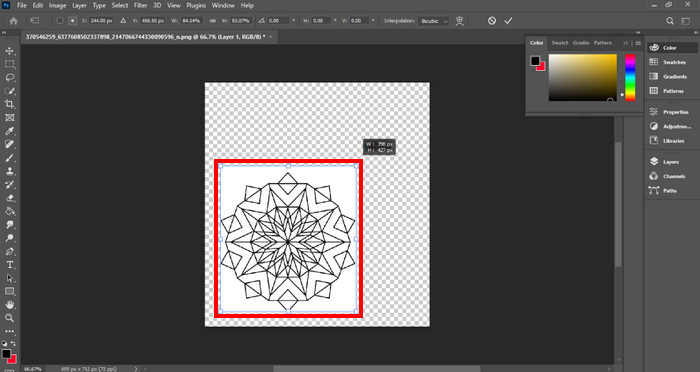
ขั้นตอนที่ 3. หลังจากปรับขนาด GIF แล้ว เพียงกด OK เพื่อยืนยันและใช้การเปลี่ยนแปลงทั้งหมด.
3. ดูตัวอย่าง
การแสดงตัวอย่างเป็นแอปที่ติดตั้งไว้ล่วงหน้าภายในระบบปฏิบัติการ Mac จัดทำขึ้นเพื่อการแก้ไขและการรับชม ดูตัวอย่างยังมีเครื่องมือในการทำให้ GIF มีขนาดไฟล์เล็กลง มีเฉพาะบนแล็ปท็อป Mac และเดสก์ท็อปเท่านั้น
ขั้นตอนที่ 1. เมื่อลงชื่อเข้าใช้ Mac แล้ว ให้เปิดไฟล์ของคุณด้วยการคลิกขวา จากนั้นคลิก Open With และเลือกแอป Preview.
ขั้นตอนที่ 2. หลังจากนำเข้า GIF แล้ว ให้เลือกเมนู Tools จากแถบเมนูด้านบน แล้วเลือก Adjust Size เพื่อปรับขนาด GIF แบบเคลื่อนไหว ที่นี่คุณสามารถปรับ Width และ Height ของ GIF ได้ แก้ไขตามความต้องการของคุณ.
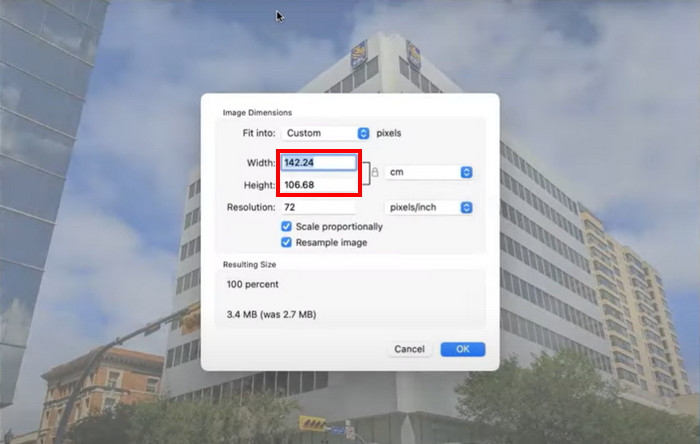
ขั้นตอนที่ 3. คลิก OK เพื่อใช้การเปลี่ยนแปลงทั้งหมด จากนั้นกด cmd + S เพื่อบันทึก GIF ที่แก้ไขแล้วของคุณ.
ส่วนที่ 3 วิธีทำให้ GIF เล็กลงด้วยเครื่องมือออนไลน์ฟรี 5 อันดับแรก
1. EZGIF
โปรแกรมนี้เป็นโปรแกรมออนไลน์ที่เป็นประโยชน์สำหรับผู้ที่ไม่มีพื้นที่บนอุปกรณ์เพียงพอ แต่อาจเป็นเรื่องยุ่งยากสำหรับผู้ใช้ที่ไม่มีอินเทอร์เน็ตที่บ้าน EZGIF มาพร้อมกับเครื่องมือปรับขนาดและเอฟเฟกต์ที่สามารถแก้ไขและปรับขนาด GIF ได้ด้วยการคลิกเพียงไม่กี่ครั้ง ติดตั้งเครื่องมือครอบตัดขั้นสูงที่จะทำให้กระบวนการแก้ไขของคุณมีประสิทธิภาพมากขึ้น
ขั้นตอนที่ 1. เมื่อเปิดลิงก์แล้ว คุณจะเห็นตัวเลือกต่าง ๆ ที่เกี่ยวข้องกับ GIF ให้คลิก Resize เพื่อเปิดให้คุณอัปโหลดรูปภาพ คลิกปุ่ม Upload หลังจากเลือกไฟล์ของคุณแล้ว.
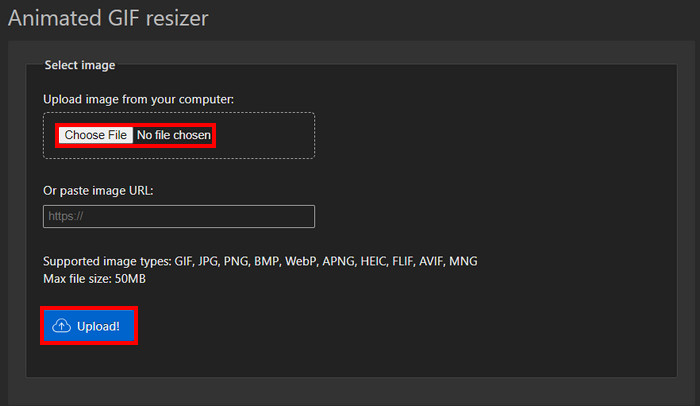
ขั้นตอนที่ 2. หลังจากอัปโหลด GIF แล้ว คุณสามารถแก้ไขและปรับขนาด GIF ได้ทันที เพียงกรอกขนาดที่คุณต้องการในพาเนล Width และ Height.
ขั้นตอนที่ 3. เมื่อแก้ไข GIF เสร็จแล้ว คุณสามารถดาวน์โหลด GIF ของคุณได้เลย เพียงคลิก Convert ระบบจะดาวน์โหลด GIF ให้คุณโดยอัตโนมัติ.
2. Veed.io
Veed.io เป็นโปรแกรมบนเว็บที่สามารถลดขนาด GIF ได้ด้วยการคลิกเพียงไม่กี่ครั้ง ให้เอฟเฟกต์พิเศษที่ผู้ใช้สามารถนำไปใช้กับไฟล์ GIF ของตนได้ ผู้ใช้จะมีความสนุกสนานในการแก้ไขในโปรแกรมบนเว็บนี้
ขั้นตอนที่ 1. เมื่อลงชื่อเข้าใช้เว็บไซต์แล้ว คุณจะเห็นปุ่ม Try It ขนาดใหญ่ ให้คลิกปุ่มนี้ ซึ่งจะพาคุณไปยังหน้าอื่นที่คุณสามารถอัปโหลด GIF ได้.
ขั้นตอนที่ 2. อัปโหลดไฟล์ของคุณโดยคลิกปุ่ม Upload ขนาดใหญ่ ระบบจะเปิดหน้าต่างโฟลเดอร์ให้คุณเลือกไฟล์ GIF.
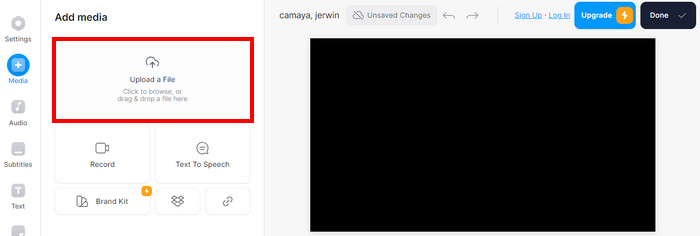
ขั้นตอนที่ 3. เพื่อปรับขนาด GIF ให้เลื่อน แถบเลื่อน (slider) ใกล้กับรูปภาพของคุณ หลังจากปรับแถบเลื่อนจนได้ขนาด GIF ที่ต้องการแล้ว คุณสามารถดาวน์โหลด GIF โดยการคลิก Done และ Download.
3. แคนวา
Canva เป็นเครื่องมือออนไลน์ที่อัดแน่นไปด้วยเทมเพลตมากมายสำหรับ GIF และงานนำเสนอ การปรับขนาดไฟล์ GIF ทำได้ง่ายด้วยซอฟต์แวร์ที่มาพร้อมกับเครื่อง กระชับด้วยเทมเพลตจำนวนมากที่ปรับขนาด GIF
ขั้นตอนที่ 1. เปิด Canva บนเบราว์เซอร์ของคุณ จากนั้นคลิก Create Design เพื่อสร้างดีไซน์ใหม่ หลังจากนั้นให้นำเข้า GIF ที่คุณต้องการปรับขนาดโดยคลิก Upload File.
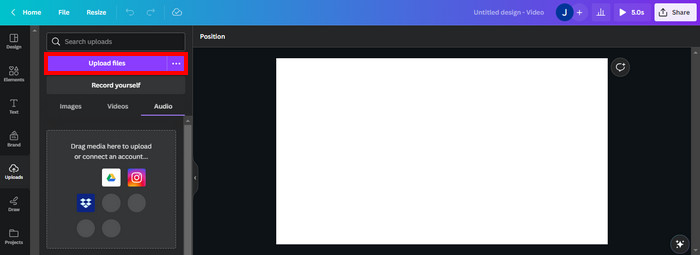
ขั้นตอนที่ 2. ในส่วนนี้ Canva จะแสดงการตั้งค่าที่คุณสามารถปรับได้เพื่อแก้ไข GIF ของคุณ คลิก Resize เพื่อดูและเลือกตัวเลือกขนาดที่มีให้สำหรับ GIF ของคุณ.
ขั้นตอนที่ 3. หลังจากเลือกขนาด GIF แล้ว คุณสามารถใช้ขนาดนั้นได้โดยคลิก Done จากนั้นระบบจะเปิดแท็บใหม่ที่คุณสามารถดาวน์โหลด GIF ได้โดยคลิกปุ่ม Download ที่มุมขวาบน.
4. RedKetchup - ตัวปรับขนาด GIF
RedKetchup ถูกสร้างขึ้นเป็นเครื่องมือบนเว็บที่สามารถปรับขนาดและเปลี่ยนขนาด GIF สำหรับการสร้างเนื้อหาได้ อัดแน่นไปด้วยเครื่องมือที่มีประโยชน์สำหรับการปรับขนาด GIF เป็นเครื่องมือที่เชื่อถือได้และสะดวกในการใช้สำหรับการปรับขนาด GIF
ขั้นตอนที่ 1. เมื่อเข้าสู่เว็บไซต์ คุณจะพบกับเครื่องมือต่าง ๆ ที่มีให้ใช้งาน ให้คลิก Image Resizer ซึ่งเป็นเครื่องมือที่จะช่วยให้คุณปรับขนาด GIF ได้ฟรี.
ขั้นตอนที่ 2. หลังจากเลือก Image Resizer แล้ว ให้คลิก Upload เพื่ออัปโหลด GIF ของคุณ ระบบจะพาคุณไปยังโฟลเดอร์อื่นที่แสดงไฟล์ GIF ของคุณ.
ขั้นตอนที่ 3. หลังจากอัปโหลด GIF แล้ว ให้เลื่อนลงมาจะเห็นพาเนลที่คุณสามารถกรอกขนาดที่ต้องการได้ ให้กรอกขนาดตามที่ต้องการ.
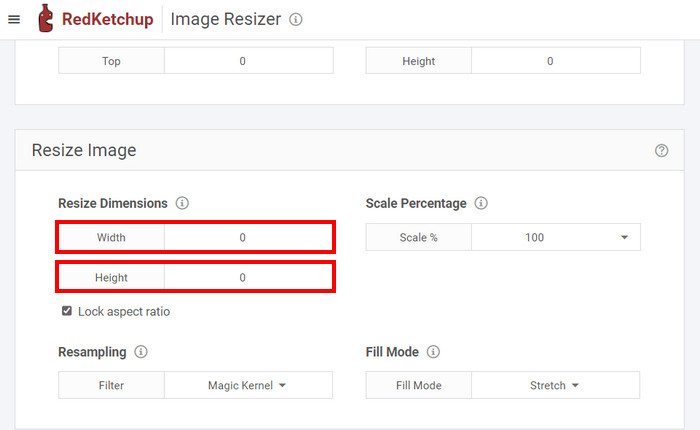
ขั้นตอนที่ 4. หลังจากปรับขนาด GIF แล้ว คุณสามารถดาวน์โหลดได้โดยเลื่อนลงไปด้านล่างสุด จากนั้นคลิก Download เพื่อดาวน์โหลด GIF ของคุณ.
5. Iloveimg.com - ปรับขนาด GIF
Iloveimg.com มียูทิลิตี้ที่ช่วยให้คุณเรียนรู้วิธีปรับขนาดไฟล์ GIF ให้เหมาะสม เป็นโปรแกรมเฉพาะทางอินเทอร์เน็ตที่คุณสามารถใช้เพื่อปรับขนาดภาพ GIF ของคุณได้
ขั้นตอนที่ 1. เมื่อเปิดเว็บไซต์ออนไลน์แล้ว จะปรากฏเครื่องมือต่าง ๆ ที่มีให้บนไซต์นี้ ให้คลิก Resize Image เพื่อปรับขนาด GIF ของคุณ.
ขั้นตอนที่ 2. ในส่วนนี้ คุณสามารถอัปโหลดไฟล์ GIF ได้โดยคลิก Select Image ระบบจะเปิดหน้าต่างโฟลเดอร์อีกหน้าต่างหนึ่งขึ้นมาให้คุณเลือกไฟล์ GIF เพื่ออัปโหลด.
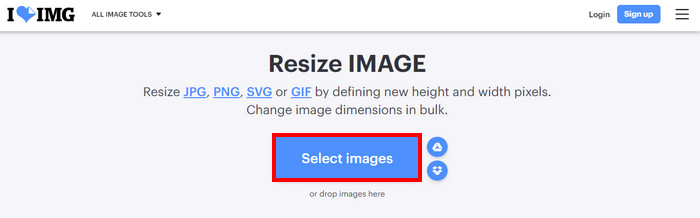
ขั้นตอนที่ 3. หลังจากอัปโหลดแล้ว ให้ปรับขนาด GIF โดยกรอกขนาดที่ต้องการลงในพาเนล Width และ Height ที่อยู่ด้านขวา เมื่อต้องการดาวน์โหลดไฟล์ ให้คลิก Resize Images.
ส่วนที่ 4 วิธีปรับขนาด GIF บน iPhone และ Android
1. GIF Mini: โปรแกรมแก้ไข GIF
GIF Mini: GIF Editor เป็นแอปพลิเคชั่นที่เชื่อถือได้สำหรับการปรับขนาดและบีบอัด GIF แอปนี้พร้อมใช้งานบน Android และประกอบด้วยเครื่องมือที่เชื่อถือได้มากมายสำหรับสร้างและจัดการ GIF ที่สามารถใช้เพื่อปรับขนาด GIF สำหรับอีโมจิที่ไม่ลงรอยกัน
ขั้นตอนที่ 1. เมื่อเปิดแอปพลิเคชัน คุณจะเห็นไฟล์จากแกลเลอรีของคุณ ให้เลือก GIF ที่คุณต้องการปรับขนาด.
ขั้นตอนที่ 2. หลังจากเลือกไฟล์แล้ว ให้คลิก ไอคอนดินสอ (Pencil Icon) ที่มุมขวาบนของแอป ซึ่งจะแสดงขนาดรูปภาพของคุณและเปิดให้ปรับขนาดได้ คลิกที่ขนาด GIF แล้วกรอกขนาดตามต้องการ.
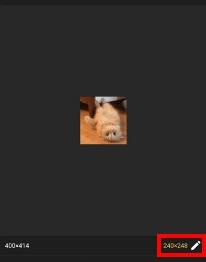
ขั้นตอนที่ 3. หลังจากปรับขนาดแล้ว คุณสามารถบันทึกได้เลย ให้คลิกปุ่ม Save.
2. โปรแกรมแก้ไข GIF ด่วน - ครอบตัด ปรับขนาด
Quick GIF Editor เป็นแอปพลิเคชั่นพิเศษบนอุปกรณ์ iOS รวบรวมด้วยตัวเลือกการแก้ไขด่วนที่ AI สามารถลบพื้นหลัง GIF ของคุณด้วยชุดเครื่องมือพิเศษ ผู้ใช้จะไม่ต้องค้นหาบทช่วยสอนออนไลน์เกี่ยวกับวิธีทำให้ GIF เล็กลง
ขั้นตอนที่ 1. เปิดแอปของคุณแล้ว คลิก Select Image เพื่อทำการนำเข้ารูปภาพที่เลือก.
ขั้นตอนที่ 2. ปรับขนาดรูปภาพของคุณโดยคลิกที่ Width and Height Panel ใต้รูปภาพ ปรับจนกว่าคุณจะพอใจกับขนาด.
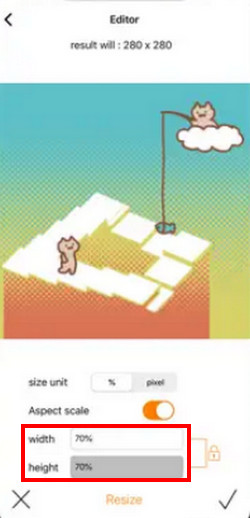
ขั้นตอนที่ 3. เมื่อพร้อมบันทึก GIF ของคุณแล้ว ให้คลิกปุ่ม Save/Upload ที่มุมขวาบนของแอป.
อ่านเพิ่มเติม:
เลือก GIF Cropper ออนไลน์และออฟไลน์ที่ดีที่สุดสำหรับครอบตัด GIF [2023]
[ฟรี & เสียเงิน] โปรแกรมเปลี่ยนความเร็ว GIF: ตัวเลือกเด่นปี 2023
ส่วนที่ 5. คำถามที่พบบ่อยเกี่ยวกับวิธีการปรับขนาด GIF
iPhone มีทางลัดในการปรับขนาด GIF หรือไม่
ไม่ แต่คุณดาวน์โหลดแอปเพื่อปรับขนาด GIF ของคุณได้
ขนาด GIF ที่ดีที่สุดสำหรับ Discord คืออะไร?
128×128 พิกเซลเป็นขนาด GIF ที่ดีที่สุดสำหรับ Discord เกินนี้เป็นไปไม่ได้เนื่องจากเป็นขนาดสูงสุดสำหรับ GIF ใน Discord
การปรับขนาดส่งผลต่อขนาดไฟล์ของ GIF อย่างไร
การปรับขนาด GIF ของคุณอาจมีผลลัพธ์ที่แตกต่างกันไปตามขนาดไฟล์ หากคุณกำลังขยายขนาด GIF อาจเพิ่มขนาดไฟล์แต่คุณภาพลดลง ในขณะที่ลดขนาดลงอาจทำให้ขนาดไฟล์ลดลงได้
จะเกิดอะไรขึ้นถ้าฉันปรับขนาด GIF ที่มีความโปร่งใส
มันจะมีความโปร่งใสเหมือนกัน แต่จะมีการครอบคลุมความโปร่งใสน้อยกว่าหากคุณลดขนาดลง สิ่งเดียวกันจะเกิดขึ้นหากคุณขยายขนาด
ขนาด GIF ในอุดมคติสำหรับผู้ใช้เว็บคือเท่าไร?
ขนาด GIF ที่ดีที่สุดคือ 720p และขนาดต่ำสุดที่แนะนำคือ 480p
สรุป
การปรับขนาด GIF กลายเป็นส่วนสำคัญอย่างหนึ่งของผู้คนที่ใช้อินเทอร์เน็ต อาจเป็นงานที่ยุ่งยากเมื่อคุณเริ่มลองแก้ไข GIF แรกของตัวเอง นั่นจึงเป็นเหตุผลที่มีการสร้างบทความนี้ขึ้นมา เพื่อให้คนที่ต้องการแก้ไข GIF รู้ว่าคุณสามารถปรับขนาด GIF ใน Photoshop หรือใน Video Converter Ultimate ได้จริง.
-
 บทแนะนำการบีบอัด GIF และลดขนาดไฟล์ด้วยคุณภาพสูง
 ต่อไปนี้คือ 2 วิธีง่ายๆ ในการบีบอัด GIF คุณสามารถใช้ FVC Free Online Video Compressor และ Photoshop เพื่อลดขนาดไฟล์ GIF ในด้านต่างๆ ได้
-
 3 วิธียอดนิยมในการเพิ่มตัวกรองบน GIF ด้วยโปรแกรมแก้ไข GIF ที่ดีที่สุด [รายการโปรด]
 คุณต้องการทราบวิธีเพิ่มตัวกรองใน GIF เพื่อให้ดีขึ้นหรือไม่? ในบล็อกนี้ คุณจะได้เรียนรู้เทคนิคต่างๆ ในการเพิ่มตัวกรองให้กับ GIF ของคุณได้อย่างง่ายดาย
-
 ตัวขยาย GIF ออฟไลน์และออนไลน์ 4 อันดับแรกที่คุณไม่ควรพลาด
 โพสต์นี้เหมาะสำหรับคุณหากคุณกำลังค้นหาตัวขยาย GIF ที่ดีที่สุด เราแสดงรายการเครื่องขยาย GIF แบบออนไลน์และออฟไลน์ที่มีประสิทธิภาพสูงสุดสำหรับคอมพิวเตอร์ของคุณ
