


 Video Converter Ultimate
 บันทึกหน้าจอ
 ซ่อมวิดีโอ
 ดาวน์โหลดอย่างปลอดภัย
วิธีแปลง BMP เป็น PNG และ JPG โดยใช้ตัวแปลงออนไลน์และออฟไลน์
รูปแบบบิตแมปหรือ BMP ไม่เหมาะที่สุดสำหรับรูปภาพสีที่มีการไล่เฉดหรือเกรเดียนต์ ปัจจุบันคุณจึงไม่ค่อยได้เห็นรูปถ่ายที่บันทึกเป็นไฟล์ชนิดนี้ในหลาย ๆ กรณี กล่าวอย่างเคร่งครัด BMP เป็นรูปแบบที่ค่อนข้างล้าสมัยและแทบไม่มีการบีบอัดเลย ดังนั้น หากคุณต้องการเปิดไฟล์รูปภาพ BMP ได้โดยไม่มีข้อจำกัด คุณจำเป็นต้องแปลง BMP ให้เป็นไฟล์รูปภาพที่ใช้กันทั่วไป คุณสามารถแปลงระหว่างรูปแบบภาพต่าง ๆ ได้หลายวิธี และในบทความนี้เราจะอธิบายวิธีที่ง่ายและตรงไปตรงมาที่สุด หากคุณต้องการรู้วิธีแปลง BMP เป็น JPG หรือ PNG โปรดอ่านบทความนี้ต่อ เราจะแนะนำโปรแกรมแปลงรูปภาพที่ยอดเยี่ยมซึ่งอาจช่วยคุณได้.

ส่วนที่ 1 BMP กับ JPG กับ PNG
| รูปแบบไฟล์ | ขสมก | JPG | PNG |
| นามสกุลไฟล์ | .bmp | .jpg | .png |
| พัฒนาโดย | Microsoft | กลุ่มผู้เชี่ยวชาญด้านการถ่ายภาพร่วม | พนง.พัฒนากรุ๊ป |
| คำอธิบาย | อา ขสมก ไฟล์นั้นย่อมาจากบิตแมปและออกเสียงว่า กระแทก Microsoft สร้างรูปแบบไฟล์ BMP สำหรับระบบปฏิบัติการ Windows เป็นการรักษาความละเอียดของภาพดิจิตอลบนหน้าจอและอุปกรณ์ต่างๆ สามารถจัดเก็บภาพถ่ายสองมิติทั้งสีและขาวดำได้ ไฟล์ BMP ไม่สามารถใช้งานร่วมกับอุปกรณ์ที่ใช้ Windows ในยุคปัจจุบันได้อีกต่อไป ตอนนี้เข้ากันได้กับอุปกรณ์ Mac และ Android จำนวนมาก | The JPG รูปแบบไฟล์ภาพเป็นรูปแบบที่มีประสิทธิภาพสูงสุดสำหรับการบีบอัดภาพ ผู้ใช้ใช้ไฟล์ JPG กันอย่างแพร่หลาย เรียกอีกอย่างว่าไฟล์ JPEG หรือ JPG The Joint Experts Group เป็นชื่อเต็มของ JPEG นอกจากนี้ รูปภาพบิตแมปส่วนใหญ่มีนามสกุลไฟล์ .jpg เป้าหมายหลักคือการทำให้ไฟล์มีขนาดเล็กลง เนื่องจาก JPG เป็นรูปแบบที่สูญหาย การบีบอัดที่มากเกินไปจึงส่งผลต่อคุณภาพของภาพ | กราฟิกเครือข่ายแบบพกพา ก PNG ส่วนขยายสำหรับตระกูลแรสเตอร์ที่ทำการบีบอัดแบบไม่สูญเสียข้อมูล ได้รับการพัฒนาเพื่อแทนที่ GIF ซึ่งเป็นรูปแบบการแลกเปลี่ยนกราฟิกและไม่ได้จดสิทธิบัตร พวกเขาสามารถขึ้นอยู่กับจานสีและโดยทั่วไปแล้วภาพระดับสีเทาที่ให้ความโปร่งใส PNG คือการบีบอัดแบบไม่สูญเสียข้อมูล มันบอกเป็นนัยว่ามันเก็บข้อมูลเฉพาะและคุณภาพ |
ส่วนที่ 2 วิธีการออนไลน์ในการแปลง BMP เป็น JPG/PNG
แปลง BMP เป็น JPG/PNG โดยใช้ FVC Free Image Converter
หากต้องการแปลง BMP เป็น JPG ออนไลน์ฟรี คุณสามารถใช้ FVC Free Image Converter เครื่องมือออนไลน์นี้มีขั้นตอนการแปลง BMP เป็น PNG หรือ JPG ที่ง่ายที่สุด ด้วยหน้าตาการใช้งานที่เข้าใจง่าย ทั้งผู้ใช้ระดับสูงและผู้ใช้ทั่วไปจึงสามารถใช้งานตัวแปลงนี้ได้ คุณสามารถแปลงรูปภาพได้ภายในเพียงสามขั้นตอน นอกจากนี้ คุณยังสามารถอัปโหลดรูปภาพได้หลายรูปแบบ รองรับไฟล์นำเข้าอย่าง PNG, JPG, BMP, GIF, TIFF และอื่น ๆ นอกจากนี้ โปรแกรมแปลงไฟล์รูปภาพ FVC ยังรองรับการแปลงแบบกลุ่ม ทำให้คุณสามารถแปลงรูปภาพจำนวนมากได้พร้อมกัน ซึ่งมีประสิทธิภาพและใช้งานได้จริงมากกว่าโปรแกรมแปลงรูปภาพอื่น ๆ ในท้องตลาด และยังสะดวกสำหรับผู้ใช้ทุกคน เพราะคุณสามารถแปลงไฟล์รูปภาพได้พร้อมกันสูงสุด 40 ไฟล์.
FVC Free Image Converter รับประกันภาพคุณภาพสูง หลังจากแปลงแล้ว ภาพจะยังคงเหมือนเดิม นอกจากนี้ คุณจะไม่เห็นโฆษณารบกวนบนหน้าจอของคุณ แม้ว่าจะเป็นโปรแกรมแปลงรูปภาพออนไลน์ก็ตาม ด้วยวิธีนี้ คุณสามารถเน้นไปที่การแปลงรูปภาพของคุณได้มากขึ้น ตัวแปลงนี้มีอยู่ในเบราว์เซอร์เกือบทั้งหมด ประกอบด้วย Chrome, Safari, Edge, Firefox และอื่นๆ คุณสามารถทำตามขั้นตอนง่าย ๆ ด้านล่างเพื่อแปลงรูปแบบ BMP เป็น JPG และ PNG
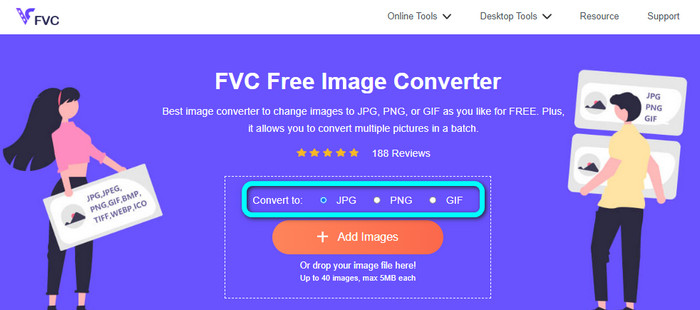
ขั้นตอนที่ 1: เปิดเว็บเบราว์เซอร์แล้วไปที่เว็บไซต์ FVC Free Image Converter มองหาตัวเลือก Convert to แล้วเลือกฟอร์แมตที่ต้องการ คุณสามารถคลิกเลือก JPG หรือ PNG ก็ได้.
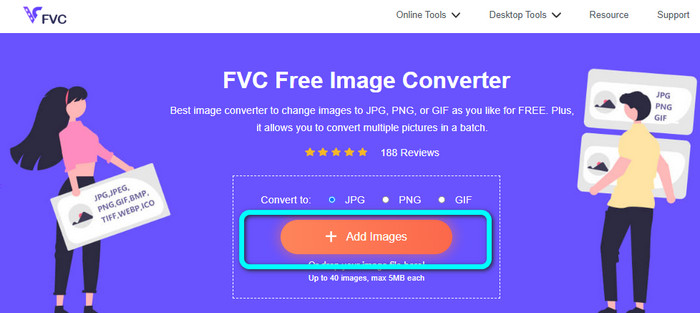
ขั้นตอนที่ 2: เพิ่มรูปภาพ BMP โดยคลิกปุ่ม Add Images จากนั้นไฟล์ในคอมพิวเตอร์ของคุณจะแสดงขึ้นบนหน้าจอ เลือกไฟล์รูปภาพ BMP ที่คุณต้องการแปลง.
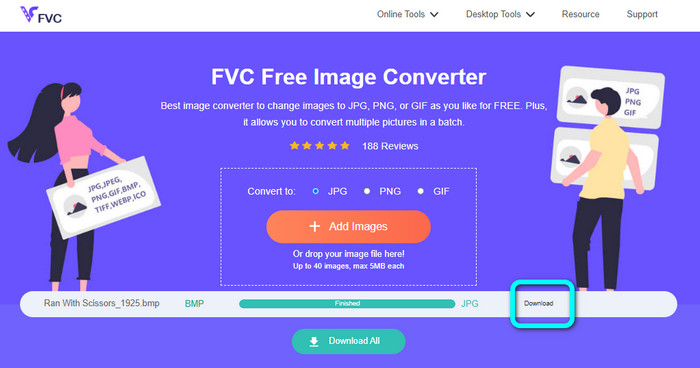
ขั้นตอนที่ 3: หลังจากอัปโหลดแล้ว ระบบจะทำการแปลงรูปภาพให้อัตโนมัติ ดังนั้นในขั้นตอนสุดท้าย ให้คลิกปุ่ม Download เพื่อบันทึกรูปภาพลงในเดสก์ท็อปของคุณ.
แปลง BMP เป็น JPG/PNG โดยใช้ Convertio
Convertio เป็นเครื่องมือออนไลน์อีกตัวหนึ่งสำหรับแปลง BMP เป็น JPG หรือ PNG เป็นโปรแกรมแปลงไฟล์ที่ช่วยให้คุณแปลงระหว่างฟอร์แมตต่าง ๆ ได้ เช่น BMP, JPG, PNG, GIF, SVG และอื่น ๆ ด้วยความช่วยเหลือของเครื่องมือนี้ การแปลงรูปภาพจำนวนมากเป็นเรื่องง่าย และยังรองรับการแปลงแบบกลุ่ม คุณจึงสามารถแปลง BMP เป็น JPG ทีละหลายไฟล์เพื่อประหยัดเวลาได้มากขึ้น นอกจากนี้ Convertio ยังรับประกันความเป็นส่วนตัวของคุณ หลังจากแปลงรูปภาพแล้ว ระบบจะลบข้อมูลของคุณโดยอัตโนมัติภายใน 24 ชั่วโมง อีกทั้งคุณยังสามารถใช้งานตัวแปลงนี้ได้บนเบราว์เซอร์ต่าง ๆ เช่น Google, Mozilla, Edge เป็นต้น.
อย่างไรก็ตาม Convertio มีข้อเสีย คุณสามารถอัปโหลดรูปภาพได้สูงสุด 100MB เท่านั้น หากคุณต้องการอัปโหลดไฟล์ไม่จำกัดขนาด ให้ซื้อแผนการสมัครสมาชิก คุณต้องเชื่อมต่ออินเทอร์เน็ตเพื่อใช้งานตัวแปลงนี้
ขั้นตอนที่ 1: ไปที่เว็บไซต์ Convertio จากนั้นคลิกปุ่ม Choose Files เพื่อเพิ่มไฟล์รูปภาพ BMP.
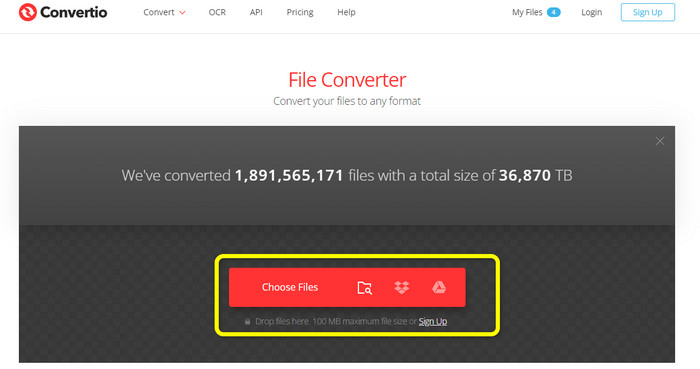
ขั้นตอนที่ 2: เลือกฟอร์แมตไฟล์ JPG หรือ PNG จากตัวเลือกรูปแบบไฟล์ หากต้องการเพิ่มรูปภาพเพิ่มเติม ให้คลิกปุ่ม Add more files.
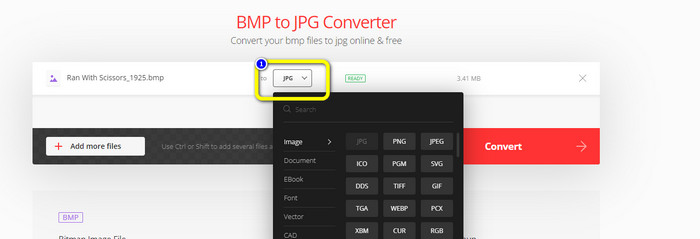
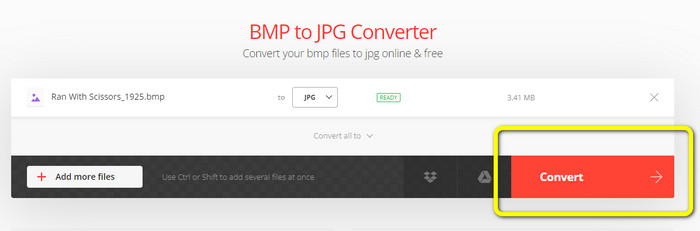
ขั้นตอนที่ 3: หลังจากเลือกรูปแบบไฟล์ที่ต้องการแล้ว ให้คลิกปุ่ม Convert รอให้กระบวนการแปลงเสร็จสิ้น จากนั้นดาวน์โหลดรูปภาพลงในคอมพิวเตอร์ของคุณ.
ส่วนที่ 3 วิธีการออฟไลน์ในการแปลง BMP เป็น JPG/PNG
คุณยังสามารถใช้ Video Converter Ultimate เพื่อแปลง BMP เป็น JPG ได้เช่นกัน โปรแกรมแปลงแบบออฟไลน์นี้มีวิธีการแปลงที่เข้าใจได้ง่าย และยังมีอินเทอร์เฟซที่ใช้งานง่าย เหมาะสำหรับผู้ใช้ทุกระดับ โดยเฉพาะผู้เริ่มต้น Video Converter Ultimate รองรับการแปลงแบบกลุ่ม หมายความว่าคุณสามารถแปลงรูปภาพหลายไฟล์ได้พร้อมกัน และยังมีความเร็วในการแปลงสูง ทำให้คุณสามารถแปลงไฟล์จำนวนมากได้อย่างรวดเร็ว นอกจากนี้ยังรองรับรูปแบบรูปภาพหลากหลาย เช่น JPG, BMP, PNG, GIF, TIFF และอื่น ๆ นอกเหนือจากการแปลงแล้ว คุณยังสามารถปรับคุณภาพรูปภาพของคุณได้จากการตั้งค่าผลลัพธ์ ทำให้คุณสามารถปรับคุณภาพของรูปภาพได้ตามต้องการ นอกจากนี้ยังสามารถใช้โปรแกรมแปลงที่ดาวน์โหลดได้ตัวนี้ทั้งบนคอมพิวเตอร์ Mac และ Windows ทำตามคำแนะนำด้านล่างเพื่อแปลงไฟล์ BMP ของคุณเป็นรูปแบบ JPG หรือ PNG.
ขั้นตอนที่ 1: ดาวน์โหลด Video Converter Ultimate บน Mac หรือ Windows เมื่อติดตั้งเสร็จแล้วให้เปิดโปรแกรม เราได้เตรียมลิงก์ดาวน์โหลดตัวแปลงให้คุณโดยคลิกที่ปุ่ม Download ด้านล่าง.
ดาวน์โหลดฟรีสำหรับ Windows 7 หรือใหม่กว่าดาวน์โหลดอย่างปลอดภัย
ดาวน์โหลดฟรีสำหรับ MacOS 10.7 หรือใหม่กว่าดาวน์โหลดอย่างปลอดภัย
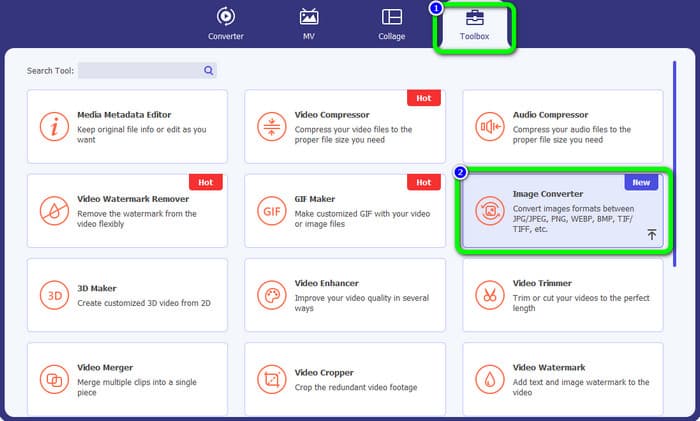
ขั้นตอนที่ 2: ไปที่แถบ Toolbox แล้วเลือกเครื่องมือ Image Converter จากนั้นจะมีหน้าต่างใหม่ปรากฏขึ้น.
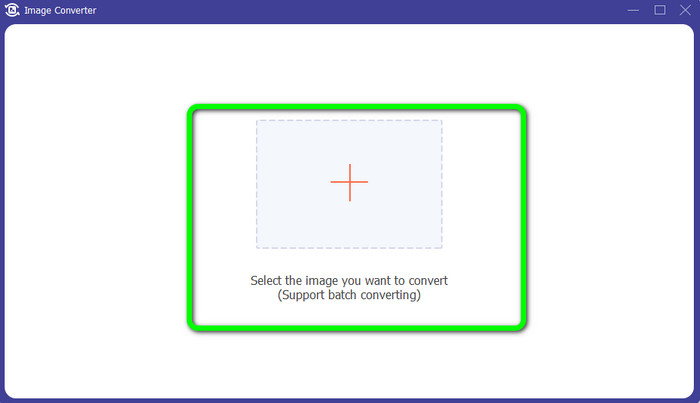
ขั้นตอนที่ 3: คลิกสัญลักษณ์ Plus จากนั้นเลือกภาพ BMP ที่คุณต้องการแปลงจากโฟลเดอร์ไฟล์ของคุณ.
ขั้นตอนที่ 4: คลิกปุ่ม Add Source File เพื่อเพิ่มไฟล์อื่น ๆ จากนั้นไปที่ตัวเลือกฟอร์แมตเพื่อเลือกรูปแบบผลลัพธ์ที่ต้องการ คุณสามารถเลือกฟอร์แมต PNG และ JPG ได้.
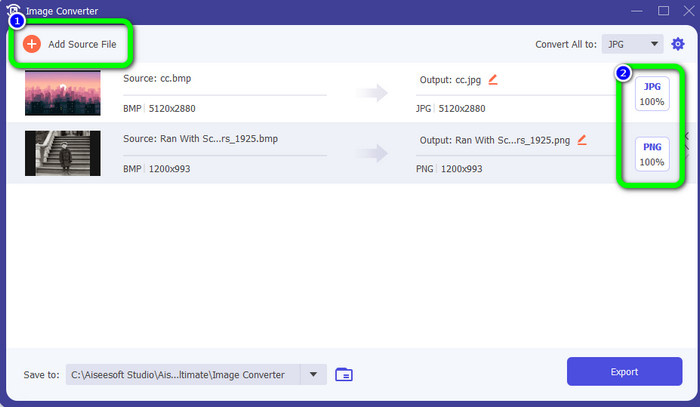
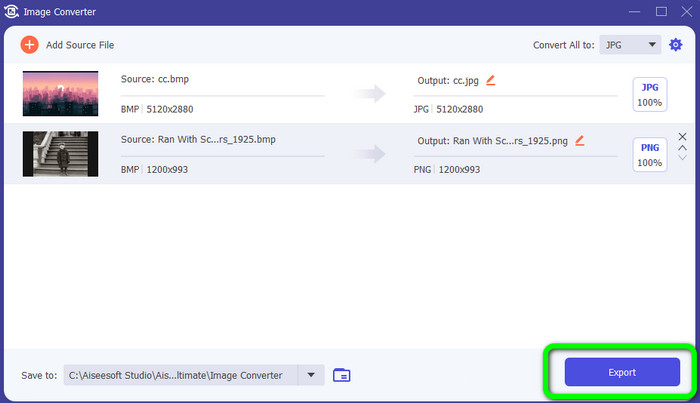
ขั้นตอนที่ 5: ขั้นตอนสุดท้าย ให้คลิกปุ่ม Export รอให้กระบวนการแปลงเสร็จสิ้น จากนั้นเปิดดูรูปภาพที่แปลงแล้วจากโฟลเดอร์ของคุณ.
ส่วนที่ 4 คำถามที่พบบ่อยเกี่ยวกับการแปลง BMP เป็น JPG/PNG
1. วิธีแบทช์แปลง BMP เป็น PNG
หากคุณต้องการแปลงแบบกลุ่ม ให้ใช้ FVC Free Image Converter ขั้นแรกให้เลือกฟอร์แมต PNG จากตัวเลือก Convert to จากนั้นเพียงคลิกปุ่ม Add Images คุณสามารถเพิ่มไฟล์รูปภาพได้หลายไฟล์ โดยสามารถอัปโหลดได้สูงสุด 40 รูปพร้อมกัน เมื่ออัปโหลดเสร็จแล้ว เครื่องมือจะทำการแปลงไฟล์รูปภาพของคุณอัตโนมัติ แล้วจึงคลิกปุ่ม Download All เพื่อบันทึกลงในเดสก์ท็อปของคุณเพื่อเสร็จสิ้นขั้นตอน.
2. ไฟล์ BMP สามารถเคลื่อนไหวได้หรือไม่?
น่าเสียดายที่ไม่มี ภาพเคลื่อนไหวมักจะไม่รองรับไฟล์ BMP แทนที่จะใช้ Flash ให้นึกถึงรูปแบบไฟล์ GIF สามารถสร้างแอนิเมชั่นสั้น ๆ ตรงไปตรงมาที่สามารถแชร์และบันทึกได้
3. ไฟล์ BMP หรือ JPEG อันไหนใหญ่กว่ากัน
BMP จะใหญ่ขึ้นเมื่อเทียบเคียงภาพถ่าย แต่ BMP สามารถใหญ่ได้ถึง 4GB เท่านั้นเนื่องจากข้อจำกัดด้านขนาด ขนาดของ JPEG ไม่จำกัด ตัวอย่างเช่น ภาพถ่ายดาวเทียมบางภาพมีอยู่ในรูปแบบ JPEG
สรุป
เนื่องจากไฟล์ BMP มีขนาดไฟล์ค่อนข้างใหญ่ จึงจำเป็นต้องแปลงเป็นรูปแบบอื่น เช่น JPG และ PNG เป็นเรื่องที่น่ายินดีเพราะบทความนี้ได้แนะนำวิธีที่ยอดเยี่ยมในการแปลง BMP เป็น JPG และ PNG ให้คุณแล้ว แต่หากคุณต้องการวิธีแปลงรูปภาพที่ง่ายและฟรี แนะนำให้ใช้ FVC Free Image Converter.
-
 วิธีแบบเต็มขนาดในการแปลง JPG เป็น PNG ออนไลน์และออฟไลน์
 กำลังมองหาวิธีที่เป็นประโยชน์ในการแปลงรูปแบบไฟล์ JPG เป็น PNG อยู่ใช่ไหม ป้ายบอกทางนี้มีคำตอบที่คุณต้องการ หากต้องการค้นพบวิธีการเหล่านี้ โปรดอ่านบทความ
-
 แปลง JPEG เป็น JPG อย่างมีประสิทธิภาพ [รายการห้าวิธี]
 มารับบทเรียนที่ตรงไปตรงมาที่สุดเกี่ยวกับการแปลงรูปแบบไฟล์ภาพ JPEG เป็น JPG คลิกป้ายบอกทางนี้และเริ่มเรียนรู้วิธีการที่คุณต้องการ
-
 บทช่วยสอนชั้นนำ 5 อันดับแรกในการแปลง PNG เป็น JPG อย่างรวดเร็ว
 หากคุณต้องการแปลงไฟล์ PNG เป็นรูปแบบ JPG คุณสามารถเรียนรู้วิธีที่ดีที่สุดได้ที่นี่ คุณจะได้เรียนรู้ความแตกต่างระหว่างรูปแบบไฟล์ PNG และ JPG
