


 Video Converter Ultimate
 บันทึกหน้าจอ
 ซ่อมวิดีโอ
 ดาวน์โหลดอย่างปลอดภัย
วิธีแปลง JFIF เป็น JPG: รับวิธีการที่มีประสิทธิภาพที่คุณสามารถลองได้
ในปัจจุบัน รูปแบบไฟล์ JFIF พบได้น้อย บางโปรแกรมไม่รองรับไฟล์ชนิดนี้ ผู้ใช้บางคนจึงไม่รู้ว่าควรเปิดภาพ JFIF ของตนอย่างไรในสถานการณ์นี้ แต่ถ้าคุณต้องการดูภาพ JFIF ของคุณ คุณจำเป็นต้องเปลี่ยนนามสกุลไฟล์ หากต้องการนามสกุลไฟล์ที่คุ้นเคยและใช้กันทั่วไปมากกว่า คุณสามารถแปลงภาพเป็นไฟล์ JPG ได้ เพิ่มเติมเล็กน้อย JPG เป็นหนึ่งในรูปแบบไฟล์ภาพที่ได้รับความนิยมมากที่สุดที่คุณสามารถใช้ได้ เกือบทุกเบราว์เซอร์และโปรแกรมรองรับรูปแบบนี้ ดังนั้นหากคุณต้องการแปลง JFIF เป็น JPG ขอแนะนำให้อ่านบทความแนะนำนี้ เรามีวิธีการหลากหลายในการแปลงไฟล์ JFIF ของคุณให้เป็น JPG โดยไม่ให้เสียเวลาไปมากกว่านี้ โปรดอ่านบทความเพื่อดูรายละเอียด.

ส่วนที่ 1 วิธีที่ง่ายที่สุดในการแปลง JFIF เป็น JPG ออนไลน์
โบนัส: วิธีแปลง JFIF เป็น JPG โดยใช้ FVC Free Image Converter
การใช้ FVC Free Image Converter เป็นวิธีที่มีประสิทธิภาพมากที่สุดในการแปลง JFIF เป็น JPG การตัดสินใจแปลงไฟล์รูปภาพของคุณถือเป็นเรื่องที่เหมาะสม เครื่องมือนี้รองรับรูปแบบภาพต่าง ๆ เช่น JPG, JPEG, PNG, SVG, BMP, TIFF และ GIF ด้วยเหตุนี้ คุณจึงไม่ต้องกังวลหากเครื่องมือหรืออุปกรณ์บางอย่างไม่สามารถเปิดไฟล์ภาพของคุณได้ นอกจากนี้ยังคงรักษาคุณภาพอันยอดเยี่ยมของภาพต้นฉบับไว้ได้ หลังจากกระบวนการแปลงแล้ว คุณแทบจะแยกไม่ออกจากไฟล์ต้นฉบับ อีกทั้งตัวแปลงไฟล์ภาพนี้ยังรองรับการแปลงแบบกลุ่ม หมายความว่าคุณสามารถแปลงไฟล์ภาพได้สูงสุด 40 ไฟล์พร้อมกัน เมื่อเทียบกับตัวแปลงอื่น ๆ แล้ว นี่ถือว่าใช้งานได้สะดวกและมีประสิทธิภาพมากกว่า อีกทั้งยังไม่มีค่าใช้จ่ายใด ๆ ในการใช้โปรแกรมนี้ คุณสามารถใช้งานตัวแปลงภาพฟรีได้ที่นี่.
นอกจากนี้ การใช้งานไม่จำเป็นต้องตั้งค่าบัญชี คุณจะต้องไปที่เว็บไซต์และเริ่มการแปลง โฆษณาน่ารำคาญอย่างที่เราทุกคนรู้ อย่างไรก็ตาม เครื่องมือนี้ไม่มีโฆษณา ทำให้คุณสามารถแปลงได้อย่างสบายใจ เว็บเบราว์เซอร์ เช่น Chrome, Mozilla, Edge, Explorer และอื่นๆ ช่วยให้คุณเข้าถึงตัวแปลงนี้ได้
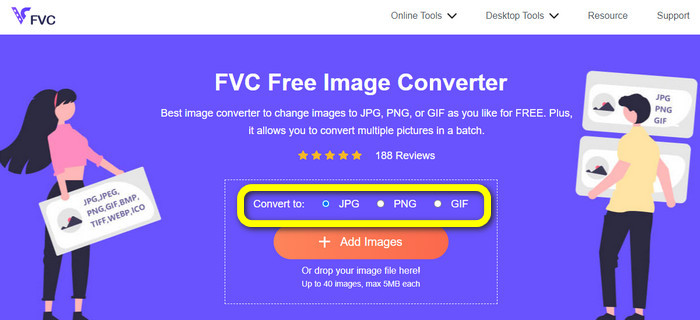
ขั้นตอนที่ 1 บนคอมพิวเตอร์ของคุณ ให้เปิดเบราว์เซอร์ขึ้นมา จากนั้นไปยังเว็บไซต์ทางการของ FVC Free Image Converter เลือกรูปแบบไฟล์ JPG จากตัวเลือก Convert to คุณจะเห็นตัวเลือกนี้บริเวณกลางหน้าจอพร้อมแถบสีส้มและไอคอนเครื่องหมายบวก.
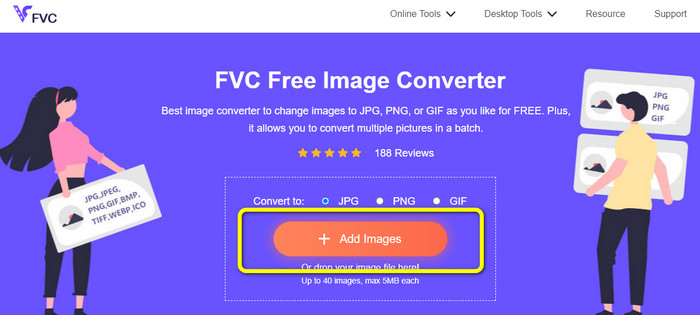
ขั้นตอนที่ 2 คลิกปุ่ม Add Images เพื่ออัปโหลดภาพ JFIF ที่คุณต้องการแปลง คุณสามารถเพิ่มไฟล์ภาพได้มากกว่าหนึ่งไฟล์ หลังจากอัปโหลดเสร็จ ไฟล์ภาพของคุณจะถูกแปลงโดยอัตโนมัติ.
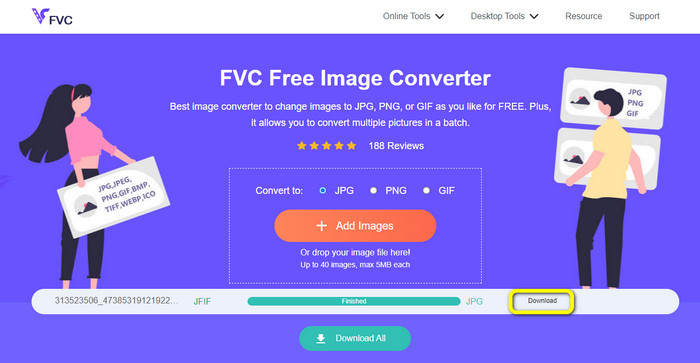
ขั้นตอนที่ 3 ขั้นตอนสุดท้ายคือบันทึกไฟล์ที่แปลงแล้วโดยคลิกปุ่ม Download.
วิธีแปลง JFIF เป็น JPG โดยใช้ Convertio
Convertio เป็นหนึ่งในตัวแปลงออนไลน์ที่มีประสิทธิภาพซึ่งคุณสามารถใช้เปลี่ยนไฟล์ JFIF เป็น JPG ได้ ด้วยกระบวนการใช้งานที่เรียบง่ายของตัวแปลงภาพนี้ คุณสามารถแปลงไฟล์ JFIF เป็นไฟล์ JPG ได้อย่างไม่ยุ่งยาก นอกจากนี้ยังมีอินเทอร์เฟซและเลย์เอาต์ที่ใช้งานง่าย ทำให้เข้าใจได้ไม่ซับซ้อน ผู้ใช้ทั้งระดับมืออาชีพและผู้เริ่มต้นสามารถใช้เว็บคอนเวอร์เตอร์นี้ได้ อีกทั้งแอปพลิเคชันนี้ยังรองรับการแปลงแบบกลุ่ม ดังนั้นคุณจึงสามารถแปลงไฟล์รูปภาพหลายไฟล์พร้อมกันได้ และกระบวนการแปลงก็รวดเร็ว สามารถแปลงภาพได้ภายในไม่กี่วินาที Convertio รองรับเบราว์เซอร์ยอดนิยม เช่น Google, Firefox, Internet Explorer และอื่น ๆ นอกจากนี้ Convertio ยังมีฟีเจอร์อื่นให้เลือกใช้อีกมาก คุณสามารถแปลงวิดีโอ ไฟล์เสียง เอกสาร และอื่น ๆ นอกเหนือจากการแปลงรูปภาพ.
อย่างไรก็ตาม Convertio มีข้อจำกัดบางประการ โดยเฉพาะเมื่อใช้เวอร์ชันฟรี สามารถอัปโหลดรูปภาพได้เพียง 100MB เท่านั้น หลังจากนั้น การแปลงรูปภาพจะไม่สามารถทำได้อีกต่อไป ดังนั้น หากคุณต้องการใช้ความสามารถทั้งหมด ให้ลงทุนในแผนสมาชิก นอกจากนี้ เวอร์ชันฟรีอนุญาตให้คุณอัปโหลดไฟล์เพียงสองไฟล์ในขณะที่ดำเนินการแปลงเป็นชุด ประการสุดท้าย การเชื่อมต่ออินเทอร์เน็ตความเร็วสูงจำเป็นต้องได้รับประสบการณ์ประสิทธิภาพระดับสูง
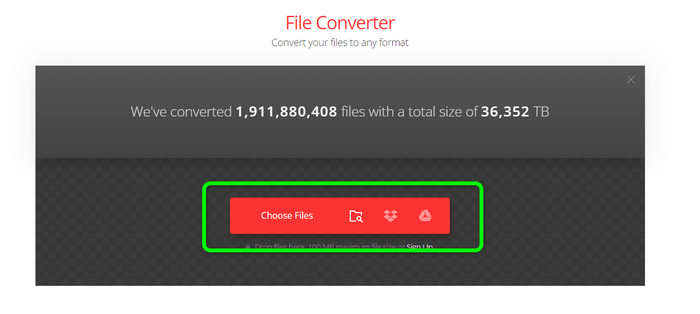
ขั้นตอนที่ 1 ใช้เบราว์เซอร์ใดก็ได้จากคอมพิวเตอร์ของคุณแล้วไปที่เว็บไซต์ Convertio คลิกปุ่ม Choose Files ปุ่มนี้อยู่บนแถบสีแดง หลังจากคลิกแล้ว จะมีหน้าต่างโฟลเดอร์ในคอมพิวเตอร์ปรากฏขึ้นบนหน้าจอ ให้เปิดไฟล์ JFIF และอัปโหลดไปยังเครื่องมือ.
ขั้นตอนที่ 2 หลังจากอัปโหลดภาพ JFIF แล้ว ให้ไปที่ตัวเลือกฟอร์แมต จากนั้นเลือก JPG เป็นรูปแบบไฟล์ผลลัพธ์ของคุณ.
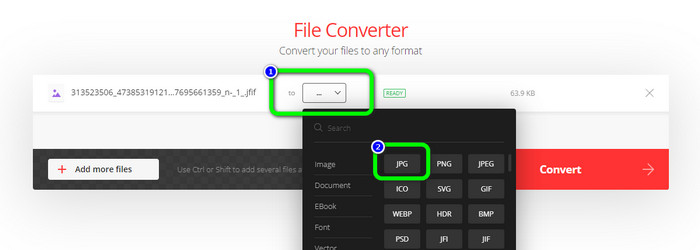
ขั้นตอนที่ 3 เมื่อเลือกฟอร์แมต JPG เสร็จแล้ว คลิกปุ่ม Convert รอสักครู่เพื่อให้กระบวนการแปลงเสร็จสิ้น.
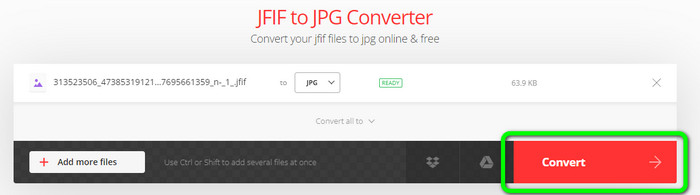
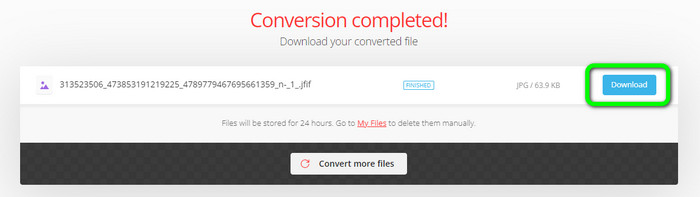
ขั้นตอนที่ 4 คลิกปุ่ม Download เมื่อกระบวนการแปลงเสร็จเรียบร้อยแล้ว วิธีนี้จะช่วยให้คุณเปิดภาพ JFIF บนอุปกรณ์ของคุณได้อย่างสะดวก.
ส่วนที่ 2 วิธีแปลง JFIF เป็น JPG บน Windows 11/10
หากคุณต้องการบันทึกไฟล์ JFIF เป็นรูปแบบภาพ JPG ให้ใช้ Bitrecover JFIF Converter Wizard คุณสามารถดาวน์โหลดโปรแกรมออฟไลน์นี้บน Windows ได้ฟรี นอกจากนี้ยังรองรับรูปแบบภาพหลากหลาย ได้แก่ BMP, PNG, TIFF, PDF และอื่น ๆ ซึ่งช่วยให้การแปลงไฟล์สะดวกยิ่งขึ้น อีกทั้งยังมีความเร็วในการแปลงสูง จึงไม่ทำให้ผู้ใช้เสียเวลา อย่างไรก็ตาม ยังมีข้อเสียบางประการเมื่อใช้ตัวแปลงนี้ ในเวอร์ชันฟรี เครื่องมือจะอนุญาตให้คุณแปลงไฟล์ภาพได้เพียง 5 ไฟล์เท่านั้น ดังนั้นหากคุณต้องการแปลงมากกว่า 5 ภาพ คุณต้องซื้อแพ็กเกจการใช้งาน.
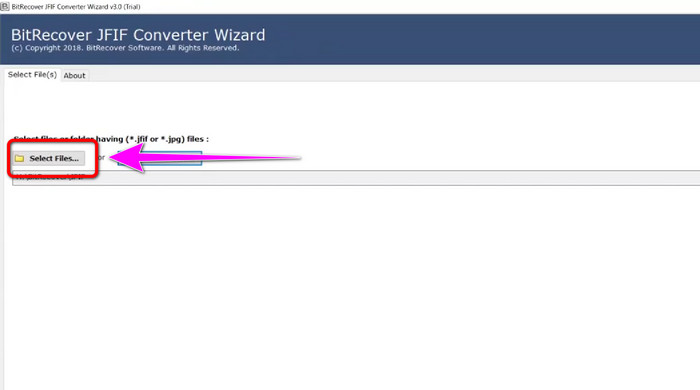
ขั้นตอนที่ 1 ดาวน์โหลด Bitrecover JFIF Converter Wizard ลงในคอมพิวเตอร์ของคุณ จากนั้นเปิดโปรแกรมหลังจากติดตั้งเสร็จสิ้น.
ขั้นตอนที่ 2 เมื่อหน้าตาโปรแกรมปรากฏบนหน้าจอแล้ว ให้คลิกตัวเลือก Select file เพื่อเพิ่มไฟล์ JFIF ที่คุณต้องการแปลง จากนั้นคลิกตัวเลือก Next ที่มุมล่างซ้ายของหน้าต่างโปรแกรม.
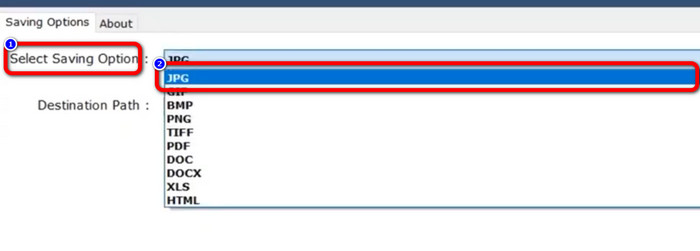
ขั้นตอนที่ 3 หลังจากนั้น ให้ไปที่ Select Saving Option คลิกเลือกฟอร์แมต JPG เป็นรูปแบบไฟล์ผลลัพธ์ของคุณ.
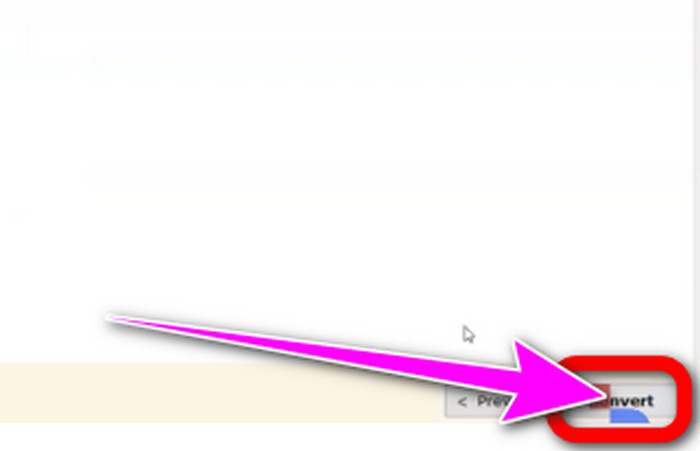
ขั้นตอนที่ 4 จากนั้นในขั้นตอนสุดท้าย ให้คลิกปุ่ม Convert ที่มุมล่างขวาของหน้าต่างโปรแกรม.
ส่วนที่ 3 วิธีที่ดีที่สุดในการแปลง JFIF เป็น JPG บน Mac
คุณสามารถแปลง JFIF เป็น JPG ได้ด้วยโปรแกรมพื้นฐานใน Mac คือโปรแกรม Preview ด้วยความช่วยเหลือของโปรแกรมออฟไลน์นี้ คุณสามารถเปลี่ยนไฟล์ JFIF ให้เป็นไฟล์ JPG ได้ อย่างไรก็ตาม หากคุณไม่ใช่ผู้ใช้ Mac หรือไม่คุ้นเคยกับอุปกรณ์นี้ คุณอาจต้องใช้เวลาในการเรียนรู้เพิ่มเติม แต่หากคุณพร้อมจะเรียนรู้ สามารถดูขั้นตอนด้านล่างได้.
ขั้นตอนที่ 1 คลิกขวาที่ไฟล์ เลือก Open With จากเมนูที่เด้งขึ้นมา จากนั้นเลือก Preview หากคุณไม่เห็น Preview เป็นตัวเลือกสำหรับไฟล์ชนิดนี้ ให้ลองดับเบิลคลิกที่ไฟล์แทน.
ขั้นตอนที่ 2 จะมีข้อความป๊อปอัปแจ้งว่าไม่มีแอปพลิเคชันสำหรับเปิดเอกสารนี้ ให้คลิกตัวเลือก Choose Application.
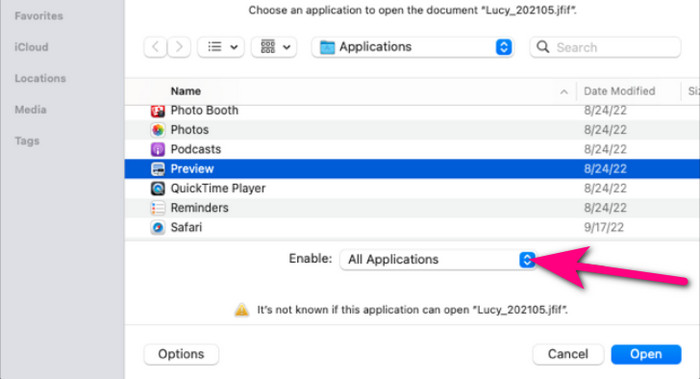
ขั้นตอนที่ 3 เมื่อโฟลเดอร์ Applications เปิดขึ้น ให้เลือก All Applications จากกล่องดรอปดาวน์ Enable ที่ด้านล่าง จากนั้นเลือก Preview จากรายการแล้วคลิก Open.
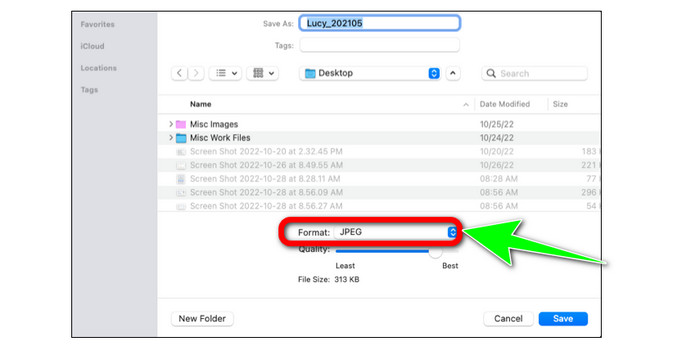
ขั้นตอนที่ 4 จากนั้น ภาพ JFIF ของคุณควรจะแสดงใน Preview กดปุ่ม Option ค้างไว้ คลิกเมนู File ที่แถบเมนู แล้วเลือก Save as.
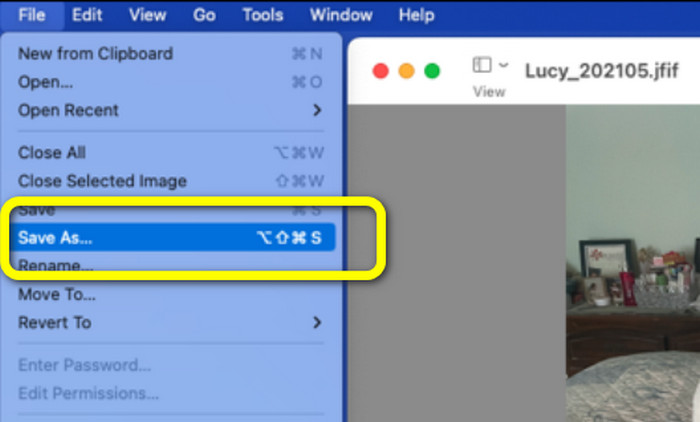
ขั้นตอนที่ 5 เลือก JPEG จากกล่องดรอปดาวน์ Format ในกล่องโต้ตอบ Save As คุณสามารถปรับคุณภาพได้ตามต้องการด้วยแถบเลื่อน.
ส่วนที่ 4 คำถามที่พบบ่อยเกี่ยวกับการแปลง JFIF เป็น JPG
1. ไฟล์ .jfif และ .jpeg ต่างกันอย่างไร?
โดยทั่วไปแล้วไฟล์ JFIF จะเป็นรหัสคอมพิวเตอร์ดิบ ไม่ใช่ไฟล์รูปภาพหรือวิดีโอ ซึ่งบางครั้งไม่สามารถเข้าถึงได้ด้วยซ้ำ ในทางเทคนิคเพิ่มเติม ไฟล์ JFIF คือซอร์สโค้ดของไฟล์ JPG JFIF เป็นข้อมูลไฟล์เสมือน JPG ที่ได้รับการบิตแมปสำหรับการจัดเก็บ
2. การใช้ไฟล์ JFIF มีประโยชน์อย่างไร?
รูปแบบ JFIF กำหนดคุณสมบัติหลายอย่างที่รูปแบบ JPEG ดั้งเดิมละไว้ ผู้ใช้สามารถบันทึกและแจกจ่ายไฟล์โดยใช้การบีบอัด JPEG หลังจากกำหนดคีย์เฉพาะ เช่น ส่วนหัวมาตรฐาน ข้อกำหนดความละเอียดและอัตราส่วน และโมเดลสี กล้องดิจิตอลหลายรุ่นมีการจัดเก็บภาพถ่ายในรูปแบบ JFIF ในอดีต
3. ฉันจะรู้ได้อย่างไรว่าภาพนั้นเป็น JFIF?
เมื่อคุณพบไฟล์รูปภาพแล้ว คุณต้องไปที่แถบส่วนขยายทางด้านขวา ซึ่งมีตัวเลือกมากมาย ส่วนขยาย JFIF จะถูกเลือกตามค่าเริ่มต้นเมื่อคุณไปถึงเมนูส่วนขยายนั้น ซึ่งหมายความว่า JFIF ได้รับเลือกเป็นส่วนขยายหรือรูปแบบรูปภาพเริ่มต้นเมื่อคุณบันทึกรูปภาพ
สรุป
ข้อมูลทั้งหมดข้างต้นคือวิธีที่ดีที่สุดในการแปลง JFIF เป็น JPG และหากคุณชอบวิธีออนไลน์ในการแปลงภาพ การใช้ FVC Free Image Converter จะเป็นตัวเลือกที่ดีกว่า เพราะมีวิธีการใช้งานที่ง่ายกว่าเมื่อเทียบกับคอนเวอร์เตอร์ออนไลน์ตัวอื่น ๆ.
-
 เรียนรู้วิธีที่ง่ายที่สุดในการแปลง WebP เป็น JPG อย่างรวดเร็ว
 ให้เราทุกคนเรียนรู้วิธีที่มีประสิทธิภาพในการแปลงภาพบนเว็บเป็น JPG อย่างง่ายดาย บทความนี้จะให้ตัวแปลงรูปภาพที่ยอดเยี่ยมที่คุณสามารถใช้เพื่อแปลงไฟล์รูปภาพ
-
 บทช่วยสอนชั้นนำ 5 อันดับแรกในการแปลง PNG เป็น JPG อย่างรวดเร็ว
 หากคุณต้องการแปลงไฟล์ PNG เป็นรูปแบบ JPG คุณสามารถเรียนรู้วิธีที่ดีที่สุดได้ที่นี่ คุณจะได้เรียนรู้ความแตกต่างระหว่างรูปแบบไฟล์ PNG และ JPG
-
 วิธีการง่ายๆ ในการแปลงรูปแบบ SVG เป็น JPG
 กำลังหาวิธีที่ดีที่สุดในการแปลง SVG เป็น JPG? โพสต์นี้จะให้คำแนะนำบางอย่างที่คุณสามารถลองได้ คุณจะพบตัวแปลง SVG เป็น JPG สำหรับคุณ
