


 Video Converter Ultimate
 บันทึกหน้าจอ
 ซ่อมวิดีโอ
 ดาวน์โหลดอย่างปลอดภัย
วิธีแปลง JPG เป็น SVG: โปรแกรมที่ดีที่สุดในการแปลง JPG เป็น SVG
รูปแบบไฟล์ SVG ทำทุกอย่างที่รูปแบบ JPG ทำไม่ได้ ข้อดีพื้นฐานของ SVG คือใช้กราฟิกแบบเวกเตอร์แทนการใช้พิกเซล ส่งผลให้กราฟิกในรูปแบบ SVG ไม่สูญเสียความคมชัดเมื่อขยายหรือย่อขนาด จึงมีการใช้งานได้อย่างกว้างขวางในชีวิตประจำวัน SVG เหมาะที่สุดกับรูปภาพที่มีรูปทรงและเส้นขอบชัดเจนโดยไม่มีรายละเอียดเล็กๆ มากนัก SVG เหมาะสำหรับแผนภูมิ แผนผัง และเอกสารกราฟิกอื่นๆ นอกจากนี้ เนื่องจากไฟล์ SVG ทั้งหมดเป็นโค้ดและมีขนาดไฟล์เล็ก จึงยอดเยี่ยมมากสำหรับการทำงานกับงานกราฟิก รวมถึงไอคอน โลโก้ และการสร้างเว็บไซต์ ซึ่งช่วยให้คุณปรับแต่งทั้งเนื้อหาและส่วนแสดงผลของเว็บไซต์ได้อย่างมีประสิทธิภาพ ดังนั้นหากคุณต้องการเรียนรู้วิธีที่ดีที่สุดในการแปลงJPG เป็น SVG คุณมาถูกหน้าแล้ว อ่านคำแนะนำฉบับนี้ต่อไป เราจะให้รายละเอียดที่จำเป็นทั้งหมดเกี่ยวกับการแปลงไฟล์ JPG ของคุณเป็นรูปแบบ SVG.

ส่วนที่ 1 JPG กับ SVG
| รูปแบบไฟล์ | JPG/JPEG | SVG |
| นามสกุลไฟล์ | .jpg / .jpeg | .svg |
| ชื่อเต็ม | กลุ่มผู้เชี่ยวชาญด้านการถ่ายภาพร่วม | กราฟิกแบบเวกเตอร์ที่ปรับขนาดได้ |
| พัฒนาโดย | กลุ่มผู้เชี่ยวชาญด้านการถ่ายภาพร่วม | สมาคมเวิลด์ไวด์เว็บ |
| คำอธิบาย | กลุ่มผู้เชี่ยวชาญด้านการถ่ายภาพร่วมสร้างรูปแบบ JPG ในปลายปี 1980 นอกจากนี้ยังรวมถึงการจัดเก็บรูปภาพในกล้องดิจิทัลและเครื่องมือสร้างสำเนาอื่นๆ ไฟล์ JPEG วิธีการบีบอัดแบบสูญเสียใช้สำหรับสีสูงสุด 24 บิตและที่เก็บรูปภาพเพิ่มเติม | ไฟล์กราฟิกแบบเวกเตอร์ที่ปรับขนาดได้มักเป็นไฟล์ที่มีนามสกุลไฟล์ SVG ไฟล์ประเภทนี้ใช้รูปแบบข้อความที่ใช้ XML เพื่อระบุว่ารูปภาพควรมีลักษณะอย่างไร ไฟล์ SVG สามารถปรับขนาดได้หลายขนาดโดยไม่สูญเสียคุณภาพ เนื่องจากมีการใช้ข้อความเพื่ออธิบายกราฟิก กล่าวอีกนัยหนึ่ง รูปแบบไม่ขึ้นกับความละเอียด |
| การบีบอัด | ขาดทุน | ไม่สูญเสีย |
| โปรแกรมที่เกี่ยวข้อง/เบราว์เซอร์ | ระบายสี Adobe Photoshop GIMP ระบายสี Google Chrome Internet Explorer Microsoft Edge | Google Chrome Safari Microsoft Edge Mozilla Firefox |
ส่วนที่ 2 วิธีง่าย ๆ ในการแปลง JPG เป็น SVG ออนไลน์
หากคุณต้องการใช้เว็บไซต์ในการแปลง JPG เป็น SVG ออนไลน์ ให้ใช้ JPG to SVG Converter เครื่องมือออนไลน์นี้มอบวิธีการแปลงไฟล์รูปภาพที่ตรงไปตรงมาให้กับคุณ นอกจากนี้ JPG to SVG Converter ยังเหมาะสำหรับผู้ใช้ทุกระดับ โดยเฉพาะมือใหม่ คุณสามารถแปลงไฟล์ได้ภายในไม่กี่คลิก และยังใช้งานคอนเวอร์เตอร์ออนไลน์นี้ได้เกือบทุกเบราว์เซอร์ รวมถึง Google Chrome, Mozilla Firefox, Internet Explorer และอื่นๆ นอกเหนือจากนั้น ยังรองรับรูปแบบไฟล์หลากหลาย เช่น PNG, EPS, PDF และอื่นๆ สุดท้าย คุณสามารถแปลงไฟล์ภาพได้ฟรี โดยไม่ต้องเสียค่าใช้จ่ายใดๆ อย่างไรก็ตาม บางครั้งเครื่องมือออนไลน์ก็ทำงานได้ไม่ดีนัก หลังจากขั้นตอนการแปลงแล้ว ผลลัพธ์อาจแสดงข้อผิดพลาด ดังนั้นประสิทธิภาพของคอนเวอร์เตอร์นี้จึงไม่สม่ำเสมอ และคุณไม่สามารถแปลงไฟล์ได้หากไม่มีการเชื่อมต่ออินเทอร์เน็ต.
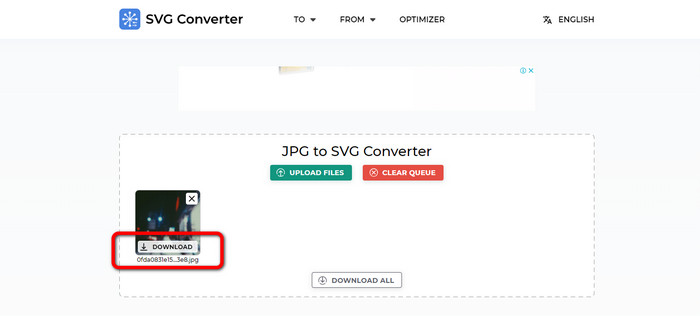
ขั้นตอนที่ 1. เปิดเบราว์เซอร์ของคุณและไปที่เว็บไซต์หลักของ JPG to SVG Converter จากนั้นเมื่ออยู่ที่หน้าเว็บหลัก ให้คลิกปุ่ม Upload Files เพื่อเพิ่มไฟล์รูปภาพ JPG อีกวิธีหนึ่งในการอัปโหลดรูปภาพคือการลากไฟล์รูปภาพไปวางในช่องโดยตรง.
ขั้นตอนที่ 2. หลังจากอัปโหลดรูปภาพ JPG แล้ว ให้คลิกปุ่ม Download จากนั้นเครื่องมือจะทำการแปลงไฟล์ JPG เป็น SVG โดยอัตโนมัติ หลังจากดาวน์โหลดเสร็จ คุณสามารถดูรูปภาพ SVG ของคุณได้ในโฟลเดอร์ Download.
ส่วนที่ 3 วิธีออฟไลน์ในการแปลง JPG เป็น SVG บน Mac และ Windows
เมื่อพยายามแปลงไฟล์รูปภาพแบบออฟไลน์ คุณสามารถแปลง JPG เป็น SVG โดยใช้ Photoshop โปรแกรมออฟไลน์นี้เป็นหนึ่งในเครื่องมือแก้ไขภาพที่ได้รับความนิยมสูงสุด แต่นอกเหนือจากการแก้ไขรูปภาพแล้ว Photoshop ยังสามารถแปลงรูปภาพได้อีกด้วย ด้วยความช่วยเหลือของตัวแปลงที่ดาวน์โหลดได้นี้ คุณสามารถแปลงรูปภาพ JPG ของคุณได้อย่างมีประสิทธิภาพ นอกจากนี้ Photoshop ยังมีฟีเจอร์อีกมากมายที่คุณสามารถเพลิดเพลินได้นอกเหนือจากการแปลงไฟล์ เนื่องจากเป็นซอฟต์แวร์แก้ไขรูปภาพ คุณจึงสามารถตัด ครอบตัด เพิ่มฟิลเตอร์ และหมุนรูปภาพของคุณได้อย่างอิสระ มีให้บริการบน Mac และ Windows ทำให้ผู้ใช้สะดวกยิ่งขึ้น อย่างไรก็ตาม หากคุณวางแผนที่จะดาวน์โหลดและติดตั้งโปรแกรมออฟไลน์นี้บนคอมพิวเตอร์ของคุณ คุณจะสามารถใช้งานได้เพียงไม่กี่วันเท่านั้น Photoshop สามารถเสนอรุ่นทดลองใช้ฟรี 7 วันเท่านั้น หลังจากเจ็ดวัน ซอฟต์แวร์จะเรียกเก็บเงินจากคุณสำหรับแผนการสมัครสมาชิก
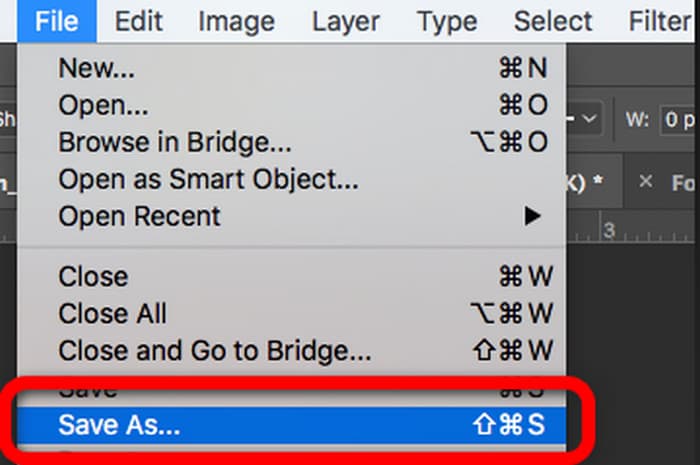
ขั้นตอนที่ 1. ดาวน์โหลด Photoshop บน Windows หรือ Mac จากนั้นหลังจากติดตั้งเสร็จ ให้เปิดโปรแกรม เมื่ออินเทอร์เฟซแสดงขึ้นแล้ว ให้คลิกเมนู File ที่มุมซ้ายบนของอินเทอร์เฟซ จากนั้นเลือกตัวเลือก Open เพื่อแทรกไฟล์ JPG.
ขั้นตอนที่ 2. หลังจากนั้น หากคุณต้องการแก้ไขรูปภาพก่อนแปลงไฟล์ คุณก็สามารถทำได้ เพียงใช้เครื่องมือแก้ไขจากอินเทอร์เฟซเพื่อปรับปรุงรูปภาพของคุณ.
ขั้นตอนที่ 3. ไปที่เมนู File แล้วเลือกตัวเลือก Save as จากนั้นไปที่ตัวเลือกฟอร์แมตและเลือก SVG ด้วยวิธีนี้คุณสามารถบันทึกและแปลงไฟล์รูปภาพ JPG ของคุณเป็นรูปแบบ SVG ได้ คุณยังสามารถใช้เครื่องมือนี้เพื่อเปลี่ยนไฟล์ SVG เป็น PNG ได้อีกด้วย.
ส่วนที่ 4 โบนัส: โปรแกรมแปลงรูปภาพออนไลน์ฟรี
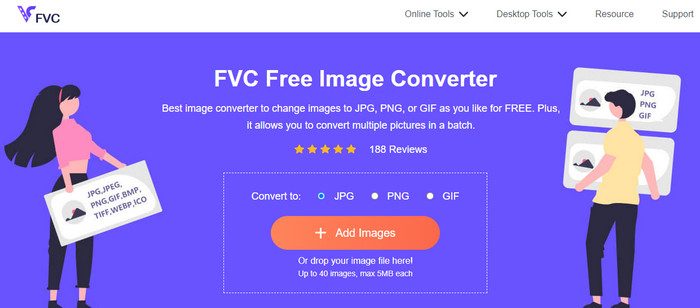
หากคุณกำลังมองหาคอนเวอร์เตอร์รูปภาพออนไลน์ที่โดดเด่นอีกตัวหนึ่ง ให้ใช้ FVC Free Image Converter คอนเวอร์เตอร์รูปภาพนี้มอบวิธีการแปลงไฟล์รูปภาพที่เรียบง่ายให้กับคุณ อินเทอร์เฟซใช้งานง่ายทำให้เข้าใจไม่ยาก นอกจากนี้ คุณยังสามารถทำการแปลงแบบเป็นชุดได้ ทำให้คุณแปลงไฟล์รูปภาพหลายไฟล์พร้อมกันได้ อีกทั้งยังมีความเร็วในการแปลงสูง ทำให้คุณแปลงไฟล์รูปภาพจำนวนมากได้โดยไม่กินเวลามาก FVC Free Image Converter สามารถเข้าถึงได้เกือบทุกเบราว์เซอร์ ซึ่งสะดวกต่อผู้ใช้.
ส่วนที่ 5 คำถามที่พบบ่อยเกี่ยวกับการแปลง JPG เป็น SVG
1. ทำไมช่างภาพยังคงใช้ JPG
รูปแบบ JPG สามารถแสดงสีได้ 16.8 ล้านสีในขณะที่ยังคงขนาดเล็กไว้ นี่เป็นหนึ่งในเหตุผลที่ช่างภาพและบรรณาธิการบางคนใช้ JPG มากกว่ารูปแบบภาพอื่นๆ
2. ทำไมต้องใช้ไฟล์ SVG?
ไฟล์ SVG เป็นรูปแบบภาพที่สมบูรณ์แบบหากคุณต้องการใช้โลโก้ นอกจากนี้ SVG ยังเหมาะอย่างยิ่งหากคุณวางแผนที่จะสร้างภาพประกอบ เช่น กราฟ แผนภูมิ และไดอะแกรม สามารถให้คุณภาพสูงสุดในขณะที่ยังคงรักษาขนาดไว้ได้
3. วิธีแปลง JPG เป็น SVG บน Inkscape
ดาวน์โหลด Inkscape บนคอมพิวเตอร์ของคุณ จากนั้นไปที่เมนู File แล้วเลือกตัวเลือก Open เพื่อแทรกรูปภาพ JPG หลังจากที่คุณแทรกรูปภาพแล้ว ให้ไปที่เมนู File แล้วคลิกตัวเลือก Save as หลังจากนั้นไปที่ตัวเลือกบันทึกเป็นประเภท เลือก SVG จากตัวเลือกรูปแบบแล้วคลิกบันทึก
4. วิธีแปลง JPG เป็น SVG โดยใช้ Cricut
ในแถบด้านข้างทางซ้าย เลือกอัปโหลด ใช้คำอธิบายโดย Cricut เลือกความซับซ้อนของภาพ ยางลบมหัศจรรย์ แปรงยางลบ และเครื่องมือครอบตัดคือสามตัวเลือกการแก้ไขของคุณในหน้าจอแก้ไขที่ตามมา ปรับแต่งภาพได้ตามต้องการ คุณสามารถเลือกระหว่างรูปภาพที่พิมพ์แล้วตัดหรือรูปภาพที่ตัดแล้วเมื่อคุณลบส่วนที่ไม่ต้องการของรูปภาพเสร็จแล้ว หลังจากนั้น ไปที่ตัวเลือกและบันทึกภาพในรูปแบบ SVG
สรุป
ตอนนี้คุณได้เรียนรู้วิธีที่ดีที่สุดในการแปลง JPG เป็น SVG โดยใช้โปรแกรมออนไลน์และออฟไลน์แล้ว นอกจากนี้ คุณยังได้รู้จักคอนเวอร์เตอร์ออนไลน์อีกตัวเป็นตัวเลือกเสริมสำหรับการแปลงรูปแบบไฟล์รูปภาพเพิ่มเติม ใช้ FVC Free Image Converter เพื่อแปลงรูปแบบอย่าง JPG, PNG, GIF และอื่นๆ.
-
 4 วิธีที่เชื่อถือได้ในการแปลง JFIF เป็น JPG อย่างง่ายดาย
 ป้ายแนะนำนี้จะบอกคุณทุกอย่างเกี่ยวกับการแปลง JFIF เป็น JPG ทั้งแบบออนไลน์และออฟไลน์ หากคุณต้องการเรียนรู้วิธีการที่มีประสิทธิภาพสูงสุด อ่านโพสต์นี้ทันที!
-
 วิธีแปลง GIF เป็น JPG โดยไม่สูญเสียคุณภาพ
 อ่านและรับวิธีที่มีประสิทธิภาพสูงสุดในการแปลง GIF เป็น JPG อย่างมืออาชีพ คุณจะได้เรียนรู้การแปลงไฟล์รูปภาพด้วยคำแนะนำของโปรแกรมแปลงรูปภาพที่สมบูรณ์แบบ
-
 ขั้นตอนที่ไม่มีใครเทียบในการแปลงรูปแบบ NEF เป็น JPG อย่างมีประสิทธิภาพ
 กำลังมองหาวิธีที่ยอดเยี่ยมในการเปลี่ยนรูปแบบ NEF ของคุณเป็นไฟล์ JPG? คลิกป้ายบอกทางนี้และดูรายละเอียดที่สำคัญทั้งหมดเกี่ยวกับการแปลง NEF เป็น JPG
