


 Video Converter Ultimate
 บันทึกหน้าจอ
 ซ่อมวิดีโอ
3 วิธีในการเพิ่มพื้นหลังให้กับรูปภาพออนไลน์บน iPhone, Android และคอมพิวเตอร์
ขณะตัดต่อรูปภาพ คุณมักจำเป็นต้องลบพื้นหลังเดิมออกแล้วใส่พื้นหลังใหม่เข้าไป สำหรับรูปที่มีพื้นหลังโปร่งใสอยู่แล้ว คุณสามารถเปลี่ยนพื้นหลังได้อย่างง่ายดายด้วยโปรแกรมแต่งรูป ในกรณีส่วนใหญ่ คุณต้องลบพื้นหลังปัจจุบันออกก่อน แล้วจึงเพิ่มพื้นหลังใหม่ให้กับรูป คุณกำลังมองหาแอปแต่งรูปดี ๆ เพื่อใส่พื้นหลังให้รูปถ่ายอยู่หรือไม่?
โพสต์นี้บอก 3 วิธีที่มีประสิทธิภาพในการเพิ่มพื้นหลังให้กับภาพถ่าย ไม่ว่าคุณจะต้องการเพิ่มพื้นหลังสีขาวให้กับรูปภาพโดยตรงทางออนไลน์ เพิ่มพื้นหลังให้กับรูปภาพบน iPhone หรือเปลี่ยนพื้นหลังรูปภาพบนอุปกรณ์ Android คุณสามารถทำตามวิธีการเฉพาะในการทำเช่นนั้น

ส่วนที่ 1. วิธีเพิ่มพื้นหลังให้รูปภาพออนไลน์ฟรี
หากต้องการใส่พื้นหลังให้รูปถ่ายอย่างรวดเร็ว คุณสามารถลองใช้โปรแกรมแต่งรูปออนไลน์ดูก่อน เราขอแนะนำอย่างยิ่งให้ใช้ Free Background Remover Online ที่ใช้งานง่าย สำหรับลบพื้นหลังเดิมของรูปคุณแล้วใส่พื้นหลังใหม่เข้าไป เครื่องมือเปลี่ยนพื้นหลังรูปฟรีตัวนี้รองรับไฟล์รูปยอดนิยมทุกชนิด เช่น JPG, PNG, GIF และอื่น ๆ อีกมากมาย ช่วยให้คุณใส่พื้นหลังสีขาวให้รูป หรือเปลี่ยนพื้นหลังเดิมเป็นรูปอื่นได้อย่างสะดวก.
ขั้นตอนที่ 1. เปิดเว็บเบราว์เซอร์ของคุณ เช่น Chrome, Safari, Yahoo, IE หรือ Firefox แล้วไปยังเว็บไซต์เปลี่ยนพื้นหลังรูปฟรีนี้ เมื่อเข้าสู่หน้าเว็บแล้ว ให้คลิกปุ่ม Upload Portrait เพื่อเลือกและอัปโหลดรูปของคุณสำหรับการตัดต่อในขั้นตอนถัดไป.

ขั้นตอนที่ 2. ด้วยเทคโนโลยี AI ขั้นสูง ระบบจะเลือกวัตถุหลักของรูปภาพที่คุณอัปโหลดโดยอัตโนมัติ จากนั้นคุณสามารถใช้ฟังก์ชัน Keep หรือ Erase เพื่อปรับแต่งเพิ่มเติมได้.
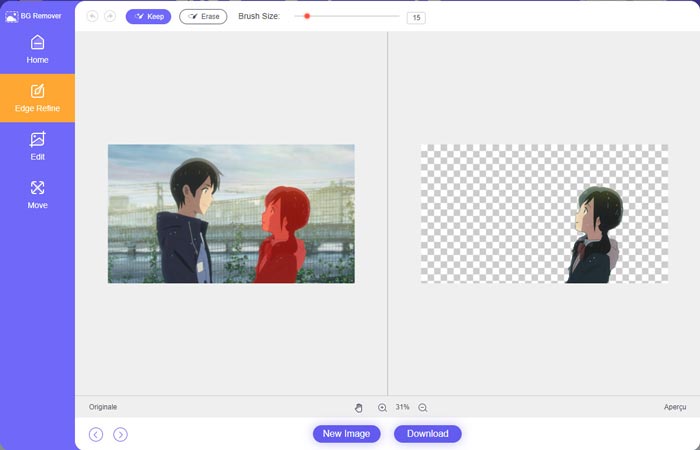
ขั้นตอนที่ 3. คลิกตัวเลือก Edit ทางด้านซ้าย จากนั้นคุณสามารถเลือกเปลี่ยนสีพื้นหลัง หรือใส่พื้นหลังใหม่ให้กับรูปถ่ายได้ ในขั้นตอนนี้ คุณยังสามารถใช้ฟีเจอร์ Crop เพื่อปรับขนาดรูปภาพตามความต้องการของคุณได้อีกด้วย.
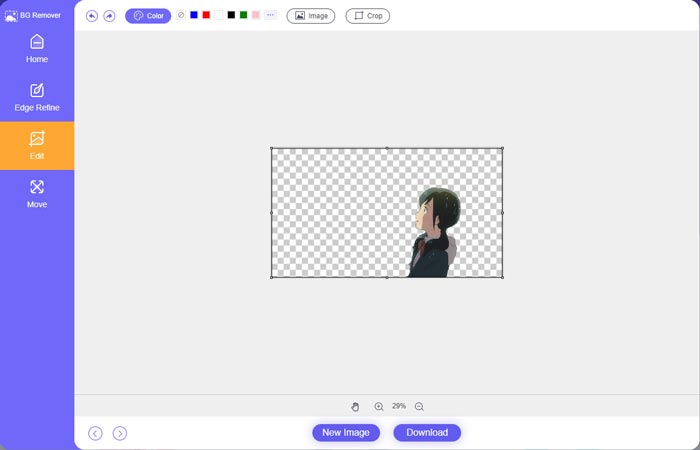
ขั้นตอนที่ 4. หลังจากที่คุณใส่พื้นหลังที่เหมาะสมให้กับรูปแล้ว ให้คลิกปุ่ม Download เพื่อบันทึกรูปลงในคอมพิวเตอร์ ไฟล์รูปที่แก้ไขแล้วจะถูกบันทึกเป็นรูปแบบ PNG โดยอัตโนมัติ.
ส่วนที่ 2 วิธีเพิ่มพื้นหลังให้กับภาพถ่ายโดยใช้ Adobe Photoshop
Adobe Photoshop เป็นหนึ่งในโปรแกรมแก้ไขรูปภาพที่มีชื่อเสียงที่สุด ซึ่งมีฟีเจอร์มากมายให้คุณแก้ไขรูปภาพ เอฟเฟกต์แบบกำหนดเอง และดำเนินการอื่นๆ หากคุณติดตั้ง Photoshop บนคอมพิวเตอร์ของคุณ คุณสามารถเลือกเพิ่มพื้นหลังให้กับรูปภาพใน Photoshop ได้
ขั้นตอนที่ 1. เปิดโปรแกรม Photoshop บนคอมพิวเตอร์ของคุณแล้วเพิ่มรูปที่ต้องการเข้าไป คุณสามารถดาวน์โหลด Photoshop เวอร์ชันล่าสุดได้ฟรีจากเว็บไซต์ทางการของ Adobe โดย Adobe จะให้คุณทดลองใช้ Photoshop ฟรีได้ 7 วันเท่านั้น.
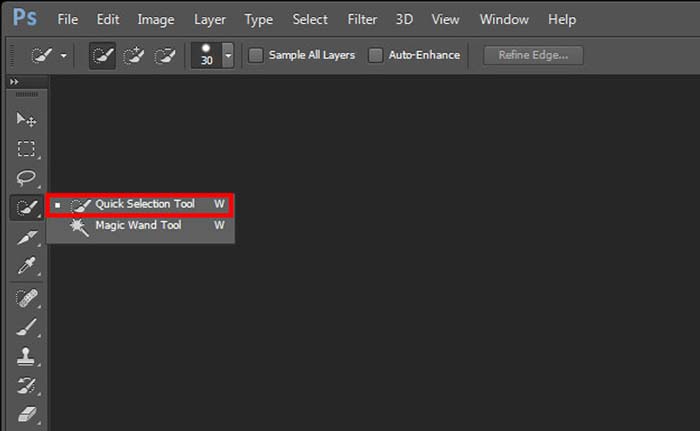
ขั้นตอนที่ 2. เมื่อรูปของคุณถูกโหลดเข้า Photoshop แล้ว ให้คลิกที่ไอคอน Quick Selection Tool หรือ Magic Wand Tool ในกล่องเครื่องมือด้านซ้าย เพื่อเลือกพื้นหลังที่คุณต้องการเปลี่ยน.
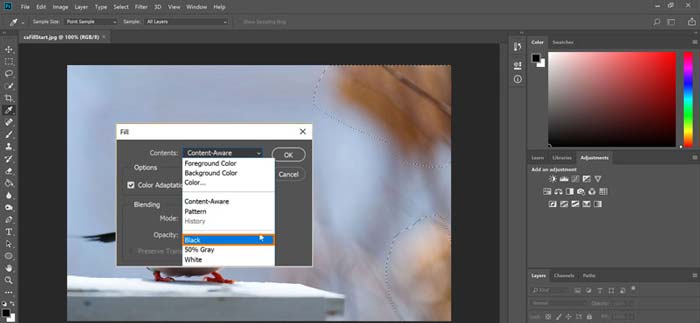
ขั้นตอนที่ 3. หลังจากเลือกพื้นหลังของรูปแล้ว ให้คลิกขวาบนบริเวณที่เลือก แล้วเลือกตัวเลือก Fill ตอนนี้คุณสามารถใส่พื้นหลังสีขาวให้รูป หรือเปลี่ยนพื้นหลังเป็นสีอื่น เช่น ดำ น้ำเงิน เทา หรือสีอื่น ๆ ตามที่คุณต้องการได้อย่างง่ายดาย.
ขั้นตอนที่ 4. หากคุณต้องการใส่รูปภาพใหม่เป็นพื้นหลัง คุณต้องลบพื้นหลังที่เลือกออกก่อน คุณสามารถกดปุ่ม Delete บนแป้นพิมพ์เพื่อลบพื้นหลังปัจจุบันออก จากนั้นจึงเพิ่มไฟล์รูปภาพใหม่เข้า Photoshop แล้วลากเลเยอร์ของรูปใหม่นั้นไปไว้ใต้เลเยอร์พื้นหลัง ด้วยวิธีนี้ คุณก็จะสามารถแทนที่พื้นหลังเดิมด้วยรูปใหม่ได้อย่างง่ายดาย.
ขั้นตอนที่ 5. หลังจากคุณใส่พื้นหลังให้รูปเสร็จแล้วใน Photoshop ให้คลิกที่เมนู File ด้านบน จากนั้นเลือกตัวเลือก Save As จากเมนูแบบเลื่อนลง เลือกรูปแบบไฟล์ภาพที่เหมาะสมสำหรับรูปนี้ แล้วบันทึกลงในคอมพิวเตอร์ของคุณ.
ส่วนที่ 3 วิธีเพิ่มพื้นหลังให้กับรูปภาพบน iPhone และโทรศัพท์ Android
เมื่อคุณต้องการเพิ่มพื้นหลังให้กับรูปภาพบน iPhone, iPad หรือโทรศัพท์ Android คุณต้องหาแอปแก้ไขพื้นหลังรูปภาพที่ดี
LightX เป็นแอปแต่งรูปครบทุกฟีเจอร์สำหรับทั้งผู้ใช้ iOS และ Android แอปนี้มอบวิธีที่สะดวกในการลบพื้นหลังที่ไม่ต้องการ ใส่พื้นหลังใหม่ให้รูป เพิ่มเอฟเฟกต์ต่าง ๆ ถ่ายเซลฟี่คุณภาพสูง และอื่น ๆ อีกมากมายได้โดยตรงบนมือถือ มีเครื่องมือแต่งรูปขั้นสูงให้ใช้ใน LightX เช่น การผสมสี การปรับความอิ่มตัวของสี ความคอนทราสต์ เฉดสี (hue) เส้นโค้ง (curves) และอื่น ๆ คุณสามารถดาวน์โหลดได้จาก App Store หรือ Google Play Store.
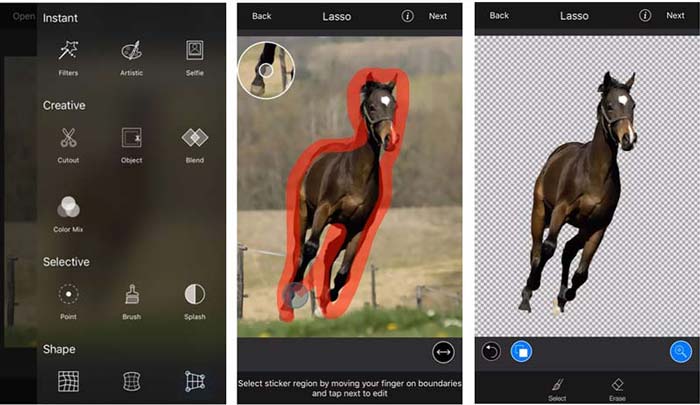
ขั้นตอนที่ 1. ติดตั้งและเปิดแอป LightX บน iPhone, iPad หรือโทรศัพท์ Android ของคุณ อนุญาตให้แอปเข้าถึงรูปภาพในอุปกรณ์ จากนั้นเพิ่มรูปของคุณเข้าไปเพื่อเริ่มแก้ไขพื้นหลัง.
ขั้นตอนที่ 2. หากต้องการลบพื้นหลังเดิมของรูปแล้วเปลี่ยนเป็นอย่างอื่น ให้ปัดหน้าจอไปทางซ้ายเพื่อเรียกดูตัวเลือกต่าง ๆ ภายใต้หมวด Creative ให้เลือกฟีเจอร์ Cutout เพื่อใส่พื้นหลังให้รูป ตอนนี้คุณต้องเลือกวัตถุหลักด้วยตัวเอง แล้วลบพื้นหลังเดิมออก.
ขั้นตอนที่ 3. หลังจากลบพื้นหลังแล้ว ให้แตะ Next ที่มุมขวาบนเพื่อไปต่อ จากนั้นคุณสามารถใช้ฟีเจอร์ Crop เพื่อปรับขนาดรูปภาพได้ แตะ Done เพื่อยืนยันการทำงาน หลังจากนั้นให้แตะ BG Image ที่ด้านล่างหน้าจอเพื่อใส่พื้นหลังใหม่ให้รูป คุณสามารถปรับเอฟเฟกต์ของพื้นหลังใหม่ได้อย่างอิสระตามที่ต้องการ.
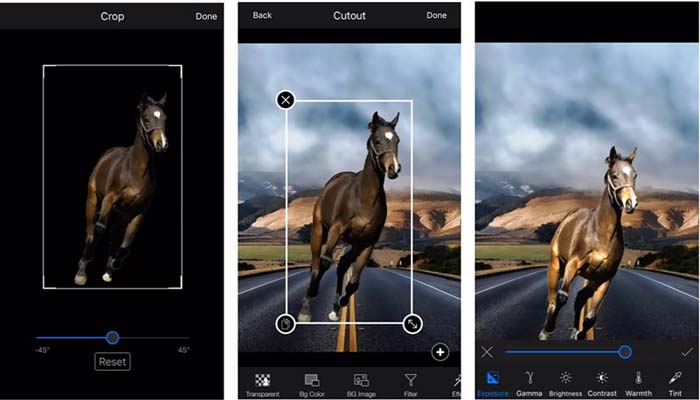
ไม่ว่าคุณจะใช้อุปกรณ์ iOS หรือ Android คุณสามารถทำตามขั้นตอนที่คล้ายกันเพื่อเพิ่มพื้นหลังให้กับรูปภาพโดยใช้แอพ LightX โปรดทราบว่าในฐานะผู้ใช้ iOS คุณต้องจ่าย $3.99 สำหรับแอปเพิ่มพื้นหลังนี้ หากคุณเป็นผู้ใช้ Android คุณสามารถติดตั้งได้จาก Google Play Store หากต้องการอัปเกรดเป็นเวอร์ชันพรีเมียม คุณต้องจ่ายในราคาเดียวกัน
ที่เกี่ยวข้อง:
ความละเอียดวิดีโอคืออะไร: เจาะลึกเรื่องความละเอียดและรายละเอียดอื่น ๆ
6 ฟิลเตอร์ Snapchat แบบเคลื่อนไหวที่ได้รับความนิยมบน Snapchat
ส่วนที่ 4 คำถามที่พบบ่อยเกี่ยวกับการเพิ่มพื้นหลังให้กับรูปภาพ
จะเพิ่มพื้นหลังอื่นให้กับรูปภาพบน Mac ของฉันได้อย่างไร?
คุณสามารถใช้ 2 วิธีแรกในการเปลี่ยนพื้นหลังรูปของคุณบน Mac ได้อย่างง่ายดาย นอกเหนือจาก Free Background Remover Online และ Adobe Photoshop ที่เราแนะนำแล้ว คุณยังสามารถใช้โปรแกรมแต่งรูปตัวอื่น ๆ เพื่อใส่พื้นหลังใหม่ให้กับรูปของคุณได้อีกด้วย.
จะเปลี่ยนวอลเปเปอร์บน iPhone ได้อย่างไร?
iOS เสนอวิธีง่ายๆ ในการเปลี่ยนวอลเปเปอร์บน iPhone หรือ iPad คุณสามารถไปที่แอพการตั้งค่า แตะตัวเลือกวอลเปเปอร์ แล้วแตะเลือกวอลเปเปอร์ใหม่
ฉันสามารถเพิ่มพื้นหลังให้กับภาพถ่ายสดบน iPhone ของฉันได้หรือไม่
ไม่ iPhone ไม่มีวิธีโดยตรงในการเปลี่ยนพื้นหลังของภาพถ่ายสด คุณได้รับอนุญาตให้ครอบตัด ใช้ฟิลเตอร์ ปรับเอฟเฟกต์ และเปลี่ยนเป็นภาพนิ่งเท่านั้น
สรุป
โพสต์นี้แบ่งปัน 3 วิธีที่มีประโยชน์ในการเพิ่มพื้นหลังให้กับรูปภาพ เมื่อคุณจำเป็นต้องลบพื้นหลังรูปภาพต้นฉบับและเพิ่มพื้นหลังใหม่ คุณสามารถเลือกโปรแกรมแก้ไขรูปภาพที่คุณต้องการได้
-
 3 วิธียอดนิยมในการเพิ่มตัวกรองบน GIF ด้วยโปรแกรมแก้ไข GIF ที่ดีที่สุด [รายการโปรด]
 คุณต้องการทราบวิธีเพิ่มตัวกรองใน GIF เพื่อให้ดีขึ้นหรือไม่? ในบล็อกนี้ คุณจะได้เรียนรู้เทคนิคต่างๆ ในการเพิ่มตัวกรองให้กับ GIF ของคุณได้อย่างง่ายดาย
-
 3 วิธีที่ง่ายที่สุดในการเพิ่มลายน้ำให้กับ GIF ออนไลน์และออฟไลน์
 การเพิ่มลายน้ำลงใน GIF สามารถทำได้ง่ายเหมือน 1-2-3 หากคุณใช้เครื่องมือที่เหมาะสมอย่างถูกต้อง เครื่องมือในตลาดกว้างเกินไป แต่เราจะนำเสนอสามเครื่องมือที่คุณสามารถพึ่งพาได้
-
 5 วิธีที่ดีที่สุดในการเปลี่ยนรูปภาพเป็น GIF แบบเคลื่อนไหว [อัปเดต 2022]
 ต้องการภาพแปลงเป็น GIF หรือไม่? บทความนี้จะให้ห้าตัวแปลงที่ดีที่สุดที่เราหาได้ในตลาด ดังนั้น ให้'ค้นหาเครื่องมือเหล่านี้โดยการอ่านบทความนี้
