


 Video Converter Ultimate
 บันทึกหน้าจอ
 ซ่อมวิดีโอ
 ดาวน์โหลดอย่างปลอดภัย
Adobe Resize Images - วิธีที่ง่ายที่สุดในการปรับขนาดรูปภาพออนไลน์และออฟไลน์
หากคุณต้องการปรับขนาดรูปภาพบน Adobe เรามีวิธีที่คุณกำลังมองหาให้คุณ Adobe เป็นชื่อที่มีชื่อเสียงด้านแอปพลิเคชันตัดต่อรูปภาพและวิดีโอ Adobe มีแอปมากมายที่ให้คุณปรับแต่ง ตัดต่อ แก้ไข และอีกมากมาย เรียกได้ว่าครบ! Adobe มีแทบทุกแอปสำหรับตัดต่อวิดีโอและรูปภาพ แต่คุณรู้หรือไม่ว่า Adobe ยังมีแอปที่ใช้ปรับขนาดรูปภาพได้ด้วย? ใช่แล้ว! Adobe Express เป็นเครื่องมือออนไลน์สำหรับการปรับขนาดรูปภาพ และหากคุณต้องการปรับขนาดแบบออฟไลน์ คุณสามารถใช้ Adobe Photoshop ได้ เราจะอธิบายเกี่ยวกับเครื่องมือเหล่านี้ด้านล่าง และสอนวิธีปรับขนาดรูปภาพโดยใช้ Adobe Express และ Adobe Photoshop.
ส่วนที่ 1 วิธีการปรับขนาดรูปภาพใน Adobe Express Online
หากคุณต้องการใช้การปรับขนาดภาพออนไลน์ มีเครื่องมือมากมายที่คุณสามารถค้นหาบนอินเทอร์เน็ตได้ อย่างไรก็ตาม การค้นหาทางอินเทอร์เน็ตในบางครั้งอาจไม่ใช่ตัวเลือกที่ดีที่สุด เนื่องจากมีเครื่องมือที่ไม่ได้ให้ผลลัพธ์ที่มีคุณภาพดีเยี่ยม นอกจากนี้ หลายคนกำลังค้นหาบน Adobe Photoshop ออนไลน์ปรับขนาดรูปภาพ ปัญหาคือ Adobe Photoshop ไม่มีเวอร์ชันออนไลน์ ดังนั้น เราจะนำเสนอเครื่องมือ Adobe อื่นเพื่อปรับขนาดรูปภาพ
Adobe Express น่าจะเป็นเครื่องมือปรับขนาดรูปภาพออนไลน์ที่ดีที่สุดที่คุณสามารถค้นหาได้บนอินเทอร์เน็ต แอปออนไลน์นี้ช่วยให้คุณปรับขนาดรูปภาพได้โดยการเลือกค่ามาตราส่วนสำเร็จรูปจากตัวเลือกต่าง ๆ คุณสามารถเลือกได้ระหว่าง 9:16 (สตอรี่), 1:1 (จัตุรัส), 4:5 (แนวตั้ง) และ 1.91:1 (แนวนอน) นอกจากนี้ ยังมีอินเทอร์เฟซที่เรียบง่าย ทำให้เป็นแอปที่ใช้งานง่าย คุณยังสามารถปรับสเกลรูปภาพเองได้ด้วยการกดค้างและลากแถบเลื่อน นอกจากนี้ หากคุณต้องการปรับขนาดรูปภาพสำหรับ Instagram, Facebook, Twitter หรือ Pinterest, Adobe Express ก็ช่วยคุณได้ อย่างไรก็ตาม ต่างจากแอปตัดต่อของ Adobe ตัวอื่น ๆ เครื่องมือนี้ไม่มีฟังก์ชันการตัดต่ออื่น ๆ เพิ่มเติม.
วิธีปรับขนาดภาพโดยใช้ Adobe Express:
ขั้นตอนที่ 1. เปิดเบราว์เซอร์ของคุณแล้วค้นหาเครื่องมือปรับขนาดรูปภาพ Adobe Express ในช่องค้นหา จากนั้นคลิกปุ่ม Upload your Photo บนหน้าหลักเพื่ออัปโหลดรูปภาพที่คุณต้องการปรับขนาด.
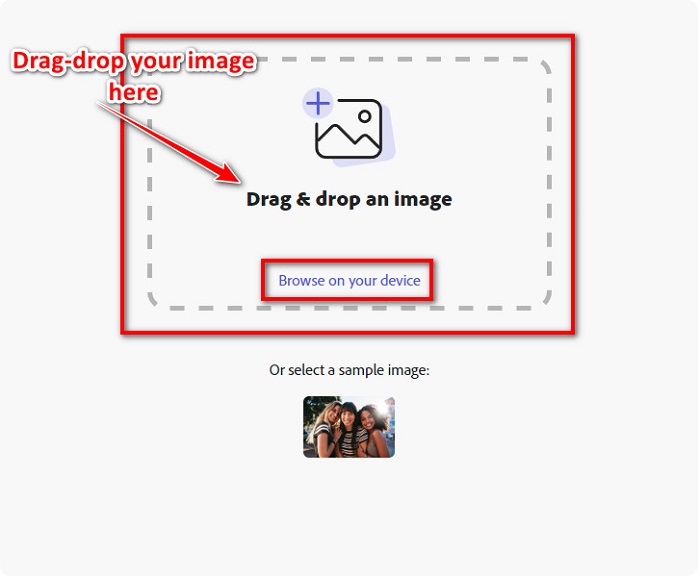
ขั้นตอนที่ 2. จากนั้นให้ลากและวางรูปภาพของคุณจากโฟลเดอร์ในคอมพิวเตอร์ คุณยังสามารถคลิกปุ่ม Browse on your device เพื่ออัปโหลดรูปภาพได้เช่นกัน.
ขั้นตอนที่ 3. ขั้นตอนสุดท้าย เลือกว่าคุณต้องการปรับขนาดสำหรับที่ใดโดยคลิกลูกศรดรอปดาวน์ข้างคำว่า Resize for จากนั้นเลือกขนาดที่คุณต้องการทางด้านซ้ายของอินเทอร์เฟซ คุณยังสามารถปรับขนาดรูปภาพด้วยตนเองได้โดยกดค้างและลากแถบเลื่อนด้านล่างพรีเซ็ตขนาด.
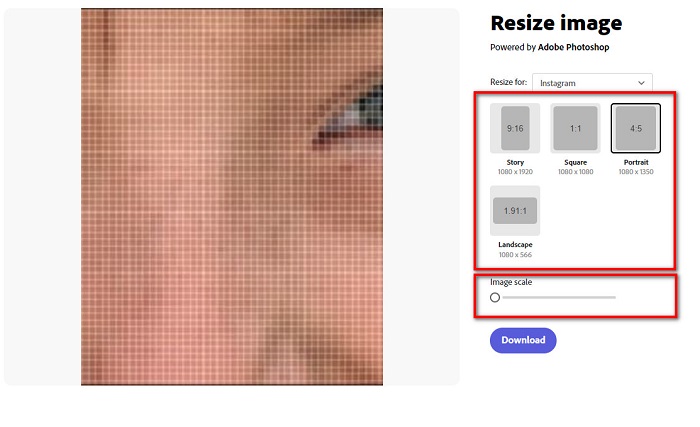
ขั้นตอนที่ 4. คลิกปุ่ม Download เพื่อดาวน์โหลดรูปภาพที่ปรับขนาดเรียบร้อยแล้ว.
ส่วนที่ 2 วิธีการปรับขนาดภาพโดยใช้ Adobe Photoshop ออฟไลน์
แม้ว่าจะเป็นเรื่องดีที่จะใช้เครื่องมือออนไลน์เพราะจะช่วยให้คุณประหยัดพื้นที่บนอุปกรณ์ของคุณ แต่ก็ยังเป็นตัวเลือกที่ดีที่สุดในการใช้เครื่องมือออฟไลน์ ตัวปรับขนาดรูปภาพออฟไลน์ส่วนใหญ่มีคุณสมบัติการแก้ไขมากมาย นอกจากนี้ ข้อดีของการใช้เครื่องมือออฟไลน์คือ คุณไม่จำเป็นต้องเข้าถึงอินเทอร์เน็ตเพื่อปรับขนาดภาพของคุณ ในส่วนนี้ เราจะนำเสนอตัวปรับขนาดวิดีโอออฟไลน์ที่โดดเด่นที่สุด
Adobe Photoshop เป็นแอปพลิเคชันตัดต่อรูปภาพที่ดีที่สุดที่คุณสามารถมีได้บนคอมพิวเตอร์ แอปตัดต่อรูปภาพนี้มีเครื่องมือและฟังก์ชันมากมายให้คุณใช้ในการแก้ไขรูปภาพของคุณ นอกจากนี้ คุณยังสามารถใช้เครื่องมือนี้ในการปรับขนาดรูปภาพใดก็ได้ แอปนี้ช่วยให้คุณปรับแต่งภาพดิจิทัล งานวาด ภาพวาด และแอนิเมชันที่คุณสามารถนำไปใช้ในเชิงธุรกิจได้ อีกทั้งยังมีมืออาชีพจำนวนมากที่ใช้แอปตัดต่อรูปภาพนี้เพราะฟังก์ชันและคุณภาพงานที่ได้.
ยิ่งไปกว่านั้น คุณสามารถใช้แอปนี้เพื่อเพิ่มข้อความ สร้าง 3D และเพิ่มความคมชัดให้กับภาพของคุณ แต่ข้อเสียของ Adobe Photoshop คือ คุณต้องซื้อแอปก่อนใช้งาน และยังใช้งานยากอีกด้วย โดยเฉพาะสำหรับผู้เริ่มต้น อย่างไรก็ตาม แอพนี้คุ้มค่ากับราคา และคุณจะสนุกกับการใช้แอพนี้อย่างแน่นอน
วิธีปรับขนาดภาพโดยใช้ Adobe Photoshop ออฟไลน์:
ขั้นตอนที่ 1. ดาวน์โหลด Adobe Photoshop ลงในอุปกรณ์ของคุณ จากนั้นทำตามขั้นตอนการติดตั้งแอปและเปิดใช้งานบนอุปกรณ์ของคุณ.
ขั้นตอนที่ 2. เปิดรูปภาพของคุณใน Photoshop จากนั้นไปที่เมนู Image ที่มุมบนซ้ายของอินเทอร์เฟซ แล้วเลือก Image Size.
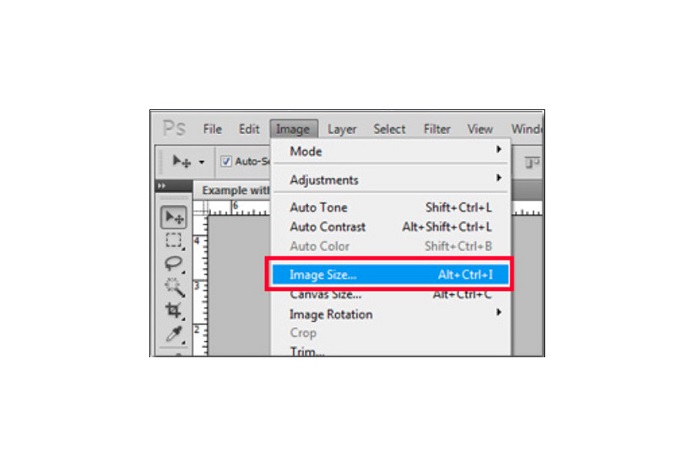
ขั้นตอนที่ 3. จากนั้นจะมีหน้าต่างใหม่เด้งขึ้นมา ให้คลิกช่องข้าง ๆ Constrain Proportions.
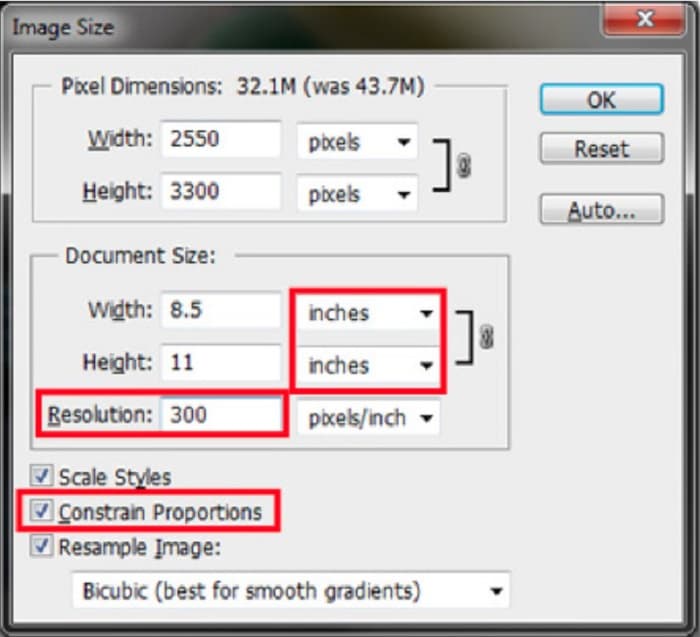
ขั้นตอนที่ 4. แล้วในส่วน Document Size ให้เลือกหน่วยวัดเป็นนิ้ว ตรวจสอบให้แน่ใจว่าค่า Resolution ไม่ต่ำกว่า 200 pixels per inch.
ขั้นตอนที่ 5. พิมพ์ความกว้างและความสูงที่คุณต้องการสำหรับรูปภาพของคุณ จากนั้นกดปุ่ม OK เพื่อบันทึกการเปลี่ยนแปลง.
ขั้นตอนที่ 6. สุดท้ายให้บันทึกไฟล์ของคุณลงในคอมพิวเตอร์.
ตอนนี้เมื่อคุณได้เรียนรู้วิธีปรับขนาดรูปภาพโดยใช้ เครื่องมือปรับขนาดรูปภาพ ของ Adobe ที่ดีที่สุดแล้ว เราจะแนะนำเครื่องมือปรับขนาดรูปภาพตัวเลือกอื่นให้คุณใช้.
ส่วนที่ 3 ทางเลือกสำหรับ Adobe Photoshop ในการปรับขนาดรูปภาพ
เนื่องจาก Adobe Photoshop ไม่ใช่เครื่องมือที่ใช้งานง่าย เราจึงค้นหาทางเลือกอื่นที่คุณสามารถใช้ปรับขนาดภาพของคุณได้ ดังนั้น เราจะนำเสนอซอฟต์แวร์แอปพลิเคชันที่คุณสามารถดาวน์โหลดได้บนอุปกรณ์ Windows หรือ Mac ของคุณ นอกจากนี้เรายังจะสอนวิธีปรับขนาดภาพโดยใช้แอพสุดยอดนี้
FVC Free Image Resizer เป็นอีกหนึ่งเครื่องมือ ปรับขนาดรูปภาพ ออนไลน์ทรงพลังที่คุณสามารถใช้เมื่อคุณต้องการปรับขนาดรูปภาพของคุณ คุณยังสามารถใช้แอปปรับขนาดรูปภาพเพื่อแก้ไขคุณภาพของรูปภาพได้ ซึ่งนั่นคือสิ่งที่ FVC Free Image Resizer ทำได้ เครื่องมือออนไลน์นี้สามารถอัปสเกลรูปภาพของคุณได้สูงสุด 2x, 4x, 6x และ 8x นอกจากนี้ ยังรองรับรูปแบบไฟล์ภาพทุกแบบ เช่น JPG, JPEG, PNG และ BMP สิ่งที่ยอดเยี่ยมยิ่งกว่านั้นคืออินเทอร์เฟซซอฟต์แวร์ที่ใช้งานได้ง่าย อีกทั้งยังใช้เทคโนโลยี AI ที่ตรวจจับส่วนเบลอของรูปภาพโดยอัตโนมัติแล้วทำการปรับให้คมชัดขึ้น.
วิธีปรับขนาดรูปภาพโดยใช้ FVC Free Image Upscaler:
ขั้นตอนที่ 1. ค้นหา FVC Free Image Upscaler บนเบราว์เซอร์ของคุณ จากนั้นไปที่หน้าแรกของแอป กดปุ่ม Upload Photo บนหน้าหลักเพื่ออัปโหลดรูปภาพที่คุณต้องการปรับขนาด.

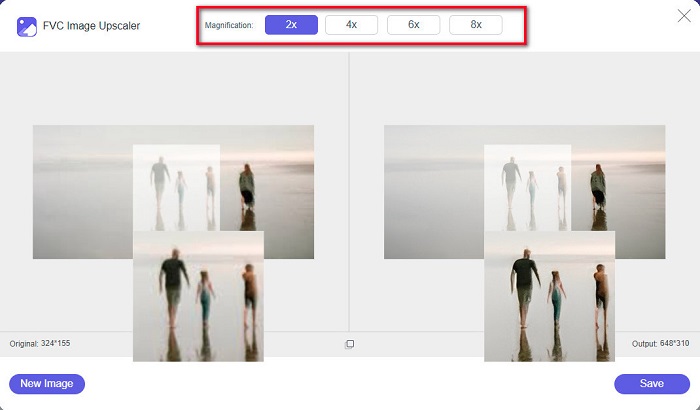
ขั้นตอนที่ 2. หลังจากอัปโหลดรูปภาพของคุณแล้ว ให้เลือกระดับการขยายที่คุณต้องการสำหรับรูปภาพ คุณสามารถเลือกได้ระหว่าง 2x, 4x, 6x และ 8x ยิ่งตัวเลขมาก คุณภาพก็ยิ่งดี.
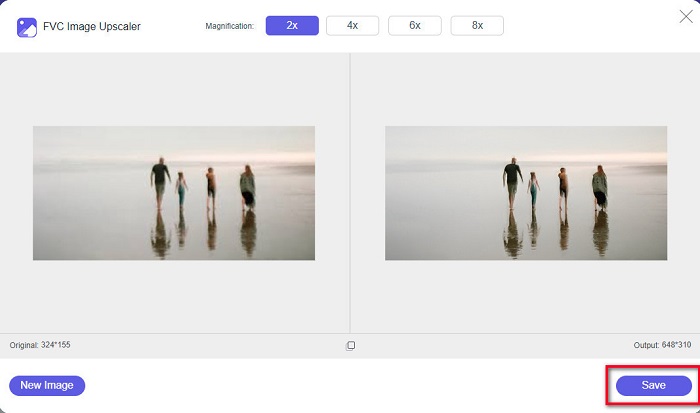
ขั้นตอนที่ 3. จากนั้นคลิกปุ่ม Save เพื่อบันทึกผลงานลงในอุปกรณ์ของคุณ.
ส่วนที่ 4 คำถามที่พบบ่อยเกี่ยวกับวิธีการปรับขนาดรูปภาพใน Adobe Photoshop
Adobe ปรับขนาดภาพโดยไม่สูญเสียข้อมูลหรือไม่?
เมื่อใช้ Adobe Photoshop คุณสามารถปรับขนาดรูปภาพได้โดยไม่สูญเสียคุณภาพ นอกจากนี้ยังผลิตผลงานที่มีคุณภาพสูง
Adobe Photoshop รองรับไฟล์รูปแบบใดบ้าง
Adobe Photoshop ยอมรับรูปแบบภาพที่รู้จักเกือบทั้งหมด เช่น JPG, JPEG, PNG, BMP, TIFF, EPS, PDF และอื่นๆ
Adobe Photoshop ราคาเท่าไหร่?
คุณสามารถซื้อ Adobe Photoshop ได้ในราคา $19.99 ต่อเดือน คุณสามารถใช้การทดลองใช้ฟรี 30 วันเพื่อทดสอบแอปพลิเคชันก่อน
สรุป
ตอนนี้คำถามของคุณเกี่ยวกับการใช้ Adobe ปรับขนาดรูปภาพ ได้รับคำตอบแล้ว คุณสามารถปรับขนาดรูปภาพโดยใช้ Adobe Express หรือ Adobe Photoshop ไม่ว่าคุณจะเลือกใช้แอปตัวใดจากที่กล่าวมาข้างต้น คุณก็สามารถปรับขนาดรูปภาพได้สำเร็จ แต่หากคุณต้องการวิธีที่ง่ายและมีประสิทธิภาพมากกว่าในการปรับขนาดและเพิ่มความคมชัดให้รูปภาพ ให้ใช้ FVC Free Image Upscaler.
-
 วิธีทำให้ภาพคมชัดทั้งออนไลน์และออฟไลน์ด้วย 4 วิธีง่ายๆ
 มีหลายวิธีที่คุณทำได้หากต้องการเพิ่มความคมชัดให้กับภาพ เราจะพูดถึงวิธีที่ดีที่สุดและง่ายที่สุดในการทำให้ภาพคมชัดทั้งแบบออนไลน์และออฟไลน์ด้านล่าง
-
 การฟื้นฟูรูปภาพแบบเก่าทั้งแบบออนไลน์และออฟไลน์ [ขั้นตอนง่าย ๆ ]
 ต้องการคืนค่ารูปภาพเก่าหรือไม่ ด้วยเครื่องมือเหล่านี้ คุณจะทราบขั้นตอนการกู้คืนภาพถ่ายแบบเก่า อ่านโพสต์นี้เพื่อเรียนรู้วิธีที่ตรงไปตรงมาที่สุด
-
 วิธีปรับขนาดรูปภาพสำหรับ Facebook [ขั้นตอนที่ง่ายและรวดเร็ว]
 หากคุณประสบปัญหาในการอัปโหลดรูปภาพขนาดใหญ่บน Facebook เรามีวิธีแก้ปัญหาให้คุณ จบบทความนี้เพื่อเรียนรู้วิธีปรับขนาดรูปภาพสำหรับ Facebook
