


 Video Converter Ultimate
 บันทึกหน้าจอ
 ซ่อมวิดีโอ
รีวิว Imglarger อย่างเป็นกลาง: ทุกสิ่งที่คุณจำเป็นต้องรู้
การขยายขนาดภาพให้ใหญ่ขึ้นกำลังกลายเป็นสิ่งที่หลายคนให้ความสนใจมากขึ้นเรื่อย ๆ โดยเฉพาะเวลาที่ต้องจัดการกับรูปถ่ายที่คุณภาพลดลงด้วยเหตุผลต่าง ๆ หากคุณเป็นหนึ่งในนั้นและต้องการขยายภาพของคุณ ปัจจุบันมีเครื่องมือมากมายให้เลือกใช้ และหนึ่งในนั้นก็คือ Imglarger เครื่องมือนี้เป็นโปรแกรมแก้ไขรูปภาพที่มีชื่อเสียง และมีฟีเจอร์เฉพาะสำหรับการขยายขนาดภาพของผู้ใช้ ดังนั้นหากคุณสนใจอยากรู้รายละเอียดเกี่ยวกับเครื่องมือนี้มากขึ้น ให้ลองอ่านต่อไป นอกจากนี้อย่าพลาดโอกาสในการทำความรู้จักกับเครื่องมือขยายภาพทางเลือกแบบใช้ฟรีด้วยเช่นกัน.

ส่วนที่ 1. การตรวจสอบเชิงลึกของ Imglarger
Imglarger เป็นเครื่องมือออนไลน์ที่ทรงพลังและใช้งานได้หลากหลาย ออกแบบมาเพื่อปรับปรุงและขยายภาพโดยไม่ลดทอนคุณภาพ เครื่องมือแก้ไขภาพนี้ใช้ประโยชน์จากปัญญาประดิษฐ์ (AI) ช่วยให้ผู้ใช้อัปเกรดรูปภาพเป็น 200%, 400% และแม้แต่ 800% ได้ในคลิกเดียว ยิ่งไปกว่านั้น เทคโนโลยี AI ไม่เพียงแต่ขยายภาพเท่านั้น แต่ยังช่วยลดความเบลอและเพิ่มความคมชัดระหว่างการปรับขนาดภาพ ทำให้มั่นใจได้ว่ารูปภาพจะคมชัดแม้ในขนาดที่ใหญ่ขึ้น
ข้อดี
- มีตัวเลือกมากมายที่ผู้ใช้สามารถอัปเกรดรูปภาพของตนได้
- AI ปรับแต่งภาพให้คมชัดขึ้นโดยอัตโนมัติ ช่วยประหยัดเวลา
- คุณสามารถประมวลผลภาพหลายภาพได้ในคราวเดียว ทำให้การแก้ไขจำนวนมากเป็นเรื่องง่าย
- อินเทอร์เฟซผู้ใช้มีความเรียบง่ายและใช้งานง่าย
- รูปภาพจะถูกลบออกหลังจาก 24 ชั่วโมง เพื่อความเป็นส่วนตัว
จุดด้อย
- ฟีเจอร์ชุดฟรีมีจำกัด
- แม้แต่ในเวอร์ชันพรีเมียมก็ยังมีการจำกัดขนาดไฟล์ 10MB
ส่วนที่ 2 แผนการกำหนดราคา Imglarger
Imglarger ไม่ได้ฟรีทั้งหมด แม้ว่าจะมีเวอร์ชันฟรี แต่ฟีเจอร์และฟังก์ชันต่างๆ ดูเหมือนจะมีจำกัด ด้วยเหตุนี้ ผู้ใช้จำเป็นต้องอัปเกรดเวอร์ชันฟรีเป็นเวอร์ชันพรีเมียมเพื่อใช้งานฟังก์ชันต่างๆ ได้อย่างครบถ้วน ด้านล่างนี้คือแพ็กเกจราคา รวมถึงราคาและสิ่งที่รวมอยู่ในแพ็กเกจ:
เป็นเรื่องดีที่ Imglarger มีแผนราคาให้เลือกหลากหลาย ซึ่งผู้ใช้มีตัวเลือกให้เลือกมากขึ้นตามความต้องการและงบประมาณของตนเอง อย่างไรก็ตาม แผนฟรีอาจมีข้อจำกัดอยู่บ้าง โดยเฉพาะอย่างยิ่งสำหรับผู้ใช้ที่ต้องการประมวลผลรูปภาพความละเอียดสูงหรือทำงานกับไฟล์หลายไฟล์พร้อมกัน เพื่อการเพลิดเพลินกับฟีเจอร์ต่างๆ อย่างเต็มที่โดยไม่มีข้อจำกัด ขอแนะนำให้อัปเกรดเป็นแผนแบบชำระเงิน
ส่วนที่ 3 วิธีใช้ Imglarger.com เพื่ออัปสเกลรูปภาพ
เมื่อคุณรู้แล้วว่า Imglarger คืออะไร ต่อไปก็มาดูวิธีใช้เพื่อขยายขนาดภาพกัน เครื่องมือ ขยายรูปภาพ นี้มีอินเทอร์เฟซที่เรียบง่ายและใช้งานง่าย ทำให้ผู้ใช้ทุกระดับ รวมถึงผู้เริ่มต้น สามารถใช้งานได้สะดวก ด้านล่างคือคู่มือแบบทีละขั้นตอนเกี่ยวกับวิธีใช้ Imglarger เพื่อขยายภาพของคุณ:
ขั้นตอนที่ 1 ก่อนอื่นคุณต้องเข้าใช้งานเครื่องมือนี้ผ่านเว็บไซต์ทางการของเขาก่อน วิธีทำคือให้ค้นหา Imglarger.com ในเครื่องมือค้นหาของคุณ.
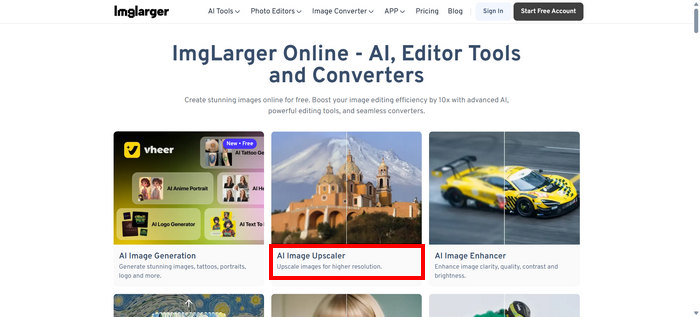
ขั้นตอนที่ 2 เมื่อคุณเข้าเว็บไซต์เรียบร้อยแล้ว ให้เลือก AI Image Upscaler จากบรรดาเครื่องมือต่าง ๆ บนเว็บ.
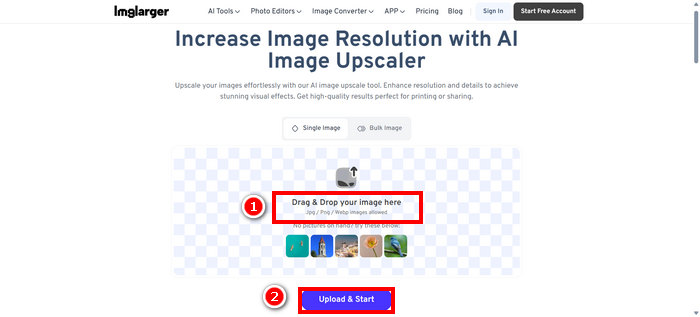
ขั้นตอนที่ 3 จากนั้นคลิกที่ Drag & Drop your image here หรือเพียงแค่ลากรูปของคุณมาวางในช่องนั้น เมื่อเลือกภาพเรียบร้อยแล้ว ให้คลิก Upload & Start.
ขั้นตอนที่ 4 ตอนนี้คุณสามารถดูตัวอย่างภาพที่ถูกขยายเทียบกับคุณภาพก่อนหน้าได้ และเมื่อพอใจแล้ว ให้คลิกปุ่ม Download ด้านล่าง.
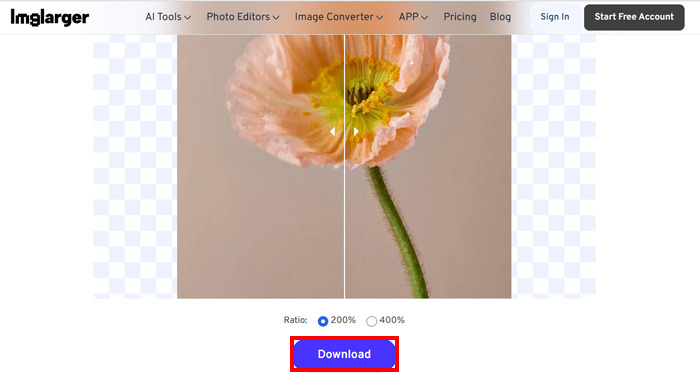
หากคุณต้องการอัปเกรดรูปภาพจำนวนมาก คุณต้องเลือกรูปภาพจำนวนมากก่อน แต่โปรดทราบว่าตัวเลือกนี้มีให้เฉพาะเวอร์ชันพรีเมียมเท่านั้น
ส่วนที่ 4. ทางเลือก Imglarger ที่ดีที่สุด: FVC Free Image Upscaler
หากคุณกำลังมองหาตัวเลือกฟรีแทน Imglarger เครื่องมือที่เหมาะที่สุดคือ FVC Free Image Upscaler เครื่องมือนี้ช่วยให้ผู้ใช้ขยายภาพได้เพียงไม่กี่ขั้นตอน ด้วยอินเทอร์เฟซที่เรียบง่ายและเป็นมิตร ผู้ใช้เพียงแค่อัปโหลดรูปภาพ แล้วระบบจะขยายภาพให้โดยอัตโนมัติ.
คุณสมบัติหลัก
• การอัปสเกลภาพขับเคลื่อนด้วย AI เพื่อปรับปรุงคุณภาพของภาพโดยอัตโนมัติ
• ช่วยให้ผู้ใช้ปรับขนาดรูปภาพได้ 2×, 4×, 6× หรือ 8× โดยไม่สูญเสียคุณภาพ
• แก้ไขส่วนที่เบลอโดยอัตโนมัติและคืนรายละเอียดที่สูญหาย
• รองรับรูปแบบยอดนิยมเช่น JPG, JPEG, PNG และ BMP
• ไม่มีลายน้ำบนภาพที่อัปสเกล
• ประมวลผลรวดเร็วและดูตัวอย่างผลลัพธ์แบบเรียลไทม์
ด้านล่างนี้คือคู่มือทีละขั้นตอนสำหรับการปรับขนาดรูปภาพด้วย FVC Free Image Upscaler:
ขั้นตอนที่ 1 ขั้นแรก คุณต้องเข้าใช้งานเครื่องมือนี้ผ่านเว็บไซต์ทางการของพวกเขา วิธีคือ ให้เปิด Chrome แล้วใช้เครื่องมือค้นหาค้นหา FVC Free Image Upscaler.
ขั้นตอนที่ 2 เมื่อคุณเข้าใช้งานเครื่องมือได้แล้ว ให้คลิก Upload a Photo เพื่อเลือกรูปภาพที่คุณต้องการขยาย.
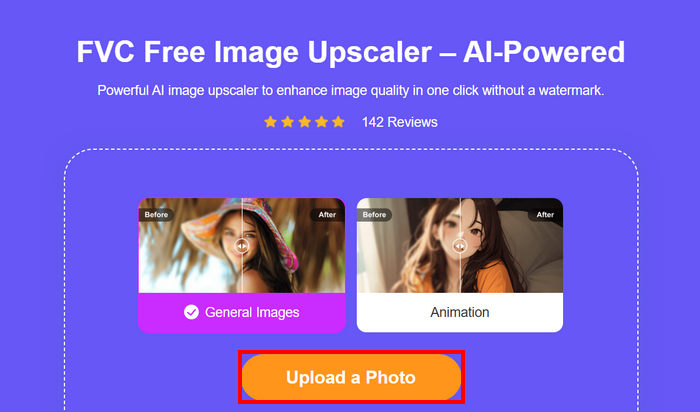
ขั้นตอนที่ 3 รอให้รูปภาพถูกขยาย หลังจากไม่กี่วินาที คุณจะเห็นตัวอย่างรูปภาพที่ถูกขยายแล้ว และจากตรงนั้น คุณสามารถเปลี่ยนโหมดของรูปภาพ และปรับว่าต้องการให้ขยายมากน้อยแค่ไหน เมื่อเสร็จแล้วให้คลิกปุ่ม Save.
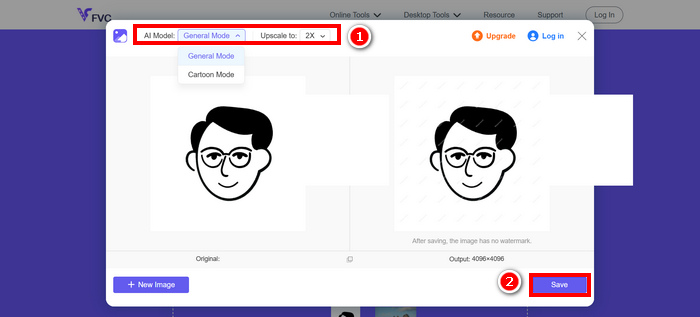
FVC Free Image Upscaler เป็นทางเลือกที่ดีที่สุดสำหรับ Imglarger อย่างแท้จริง นอกจากนี้ยังฟรีและใช้งานง่าย ให้ผลลัพธ์คุณภาพสูงแบบอัปสเกล และรองรับไฟล์เอาต์พุตหลากหลายรูปแบบ
ส่วนที่ 5 คำถามที่พบบ่อยเกี่ยวกับรีวิว Imglarger
Imglarger เพิ่มลายน้ำลงในรูปภาพหรือไม่?
ไม่ Imglarger จะไม่ใส่ลายน้ำลงในรูปภาพที่คุณขยายหรือแก้ไข ไม่ว่าจะเป็นการใช้เวอร์ชันฟรีก็ตาม.
Imglarger สามารถอัปสเกลรูปภาพได้มากแค่ไหน?
Imglarger ช่วยให้คุณขยายขนาดรูปภาพจาก 200% เป็น 800% จากขนาดเดิม เทคโนโลยี AI ที่รองรับเครื่องมือนี้จะช่วยยกระดับคุณภาพของรูปภาพในระหว่างกระบวนการขยายขนาด
ฉันสามารถประมวลผลรูปภาพหลายภาพพร้อมกันด้วย Imglarger ได้หรือไม่
ได้ คุณสามารถประมวลผลภาพหลายไฟล์พร้อมกันด้วย ตัวขยายภาพ นี้ แต่ฟีเจอร์ดังกล่าวมีให้เฉพาะผู้ใช้แบบเสียเงินเท่านั้น ผู้ใช้แบบฟรีจะจำกัดให้ประมวลผลได้ครั้งละหนึ่งภาพ หากอัปเกรดเป็นแพ็กเกจพรีเมียม คุณจะปลดล็อกตัวเลือกประมวลผลแบบชุด ซึ่งมีประโยชน์มากสำหรับผู้ที่ต้องการแก้ไขหรือขยายรูปหลาย ๆ ใบอย่างรวดเร็วและมีประสิทธิภาพ.
สรุป
กล่าวได้ว่า Imglarger เป็นเครื่องมือขยายขนาดภาพที่ยอดเยี่ยมตัวหนึ่ง มันมาพร้อมฟีเจอร์ที่ดี แผนราคาที่ยืดหยุ่น และข้อดีอื่น ๆ อย่างไรก็ตาม จำเป็นต้องยอมรับว่าเวอร์ชันฟรีของมันยังขาดบางฟีเจอร์ที่มีอยู่ในเครื่องมือขยายภาพแบบฟรีอื่น ๆ หากคุณกำลังมองหาทางเลือกแบบไม่เสียค่าใช้จ่าย คุณควรลองใช้ FVC Free Image Upscaler เช่นกัน เครื่องมือทั้งสองให้คุณภาพระดับยอดเยี่ยม เลือกใช้ตัวไหนก็ได้ที่เหมาะกับการใช้งานของคุณ.
-
 วิธีขยายรูปภาพสำหรับการพิมพ์ออนไลน์และออฟไลน์
 หากคุณมีภาพความละเอียดคุณภาพต่ำและต้องการขยาย เรามีทางออกสำหรับคุณ อ่านบทความนี้เพื่อเรียนรู้วิธีขยายรูปภาพสำหรับการพิมพ์
-
 7 วิธีง่ายๆ ในการเพิ่มความละเอียดของภาพให้มีคุณภาพสูง
 วิธีเพิ่มความละเอียดของภาพใน Photoshop ทำอย่างไร? วิธีทำให้ภาพ JPEG มีความละเอียดสูงขึ้นได้หรือไม่? เรียนรู้ 7 วิธีในการเพิ่มความละเอียดของภาพ
-
 ตัวลดขนาดภาพยอดนิยมบนเดสก์ท็อปและอุปกรณ์มือถือ
 ดูแอปที่อยู่ในอันดับต้นๆ ในบทความนี้เพื่อหาตัวลดขนาดรูปภาพที่ดีที่สุดบนอุปกรณ์ที่คุณชื่นชอบ เรียนรู้การปรับขนาดรูปภาพให้เหมาะสมที่สุดตอนนี้!
