


 Video Converter Ultimate
 บันทึกหน้าจอ
 ซ่อมวิดีโอ
 ดาวน์โหลดอย่างปลอดภัย
ปรับปรุงคุณภาพของภาพโดยใช้วิธีการที่รวดเร็วและง่ายดายเหล่านี้
คุณมีรูปภาพที่พร่ามัวหรือคุณภาพต่ำหรือไม่? วิธีแก้ไขที่ดีที่สุดที่คุณควรทำคือเพิ่มคุณภาพของรูปภาพของคุณ โชคดีที่มีเครื่องมือมากมายที่จะช่วยให้คุณปรับปรุงคุณภาพของรูปภาพได้ อย่างไรก็ตาม ไม่ใช่ทุกแอปพลิเคชันหรือเครื่องมือบนคอมพิวเตอร์จะมีฟีเจอร์ที่ดีที่สุด นั่นจึงเป็นเหตุผลที่เราได้ค้นหาโปรแกรมปรับแต่งภาพยอดนิยม ทั้งแบบออนไลน์ ออฟไลน์ และบน iPhone หากต้องการเรียนรู้วิธีปรับปรุงคุณภาพรูปภาพ โปรดอ่านบทความนี้.

ส่วนที่ 1 วิธีปรับปรุงคุณภาพของภาพออนไลน์
การใช้ตัวเพิ่มประสิทธิภาพรูปภาพออนไลน์สะดวกกว่าการดาวน์โหลดแอปพลิเคชันซอฟต์แวร์บนคอมพิวเตอร์ของคุณ ข้อดีของการใช้เครื่องมือออนไลน์คือคุณสามารถเข้าถึงมันได้อย่างอิสระบนเว็บของคุณ ส่วนนี้จะแสดงวิธีเพิ่มคุณภาพของภาพโดยใช้โปรแกรมปรับปรุงภาพถ่ายออนไลน์ที่น่าตื่นตาตื่นใจที่สุด
FVC Free Image Upscaler เป็นตัวเพิ่มคุณภาพรูปภาพออนไลน์ที่ใช้งานได้ฟรีและได้รับความนิยมจากผู้ใช้จำนวนมาก แอปออนไลน์นี้สามารถตั้งค่าการขยายภาพได้เป็น 2x, 4x, 6x และ 8x นอกจากนี้ยังรองรับรูปแบบไฟล์ภาพมาตรฐานส่วนใหญ่ เช่น PNG, JPG, JPEG และ BMP คุณยังสามารถใช้งานได้บนเว็บเบราว์เซอร์ทุกตัว รวมถึง Google, Firefox และ Safari และคุณไม่ต้องกังวลเกี่ยวกับความปลอดภัยของข้อมูลเพราะเครื่องมือนี้มีความปลอดภัยในการใช้งาน.
นอกจากนี้ยังมีเทคโนโลยี AI อันทรงพลังที่จะจดจำส่วนที่เบลอของภาพของคุณโดยอัตโนมัติ นอกจากนี้ FVC Free Image Upscaler สามารถแก้ไขพิกเซลที่หายไป พื้นผิวสี และรายละเอียดเพิ่มเติมได้ หากคุณต้องการใช้ตัวอัปสเกลรูปภาพที่ยอดเยี่ยมนี้ ให้ทำตามคำแนะนำง่ายๆ ด้านล่าง
วิธีปรับปรุงคุณภาพของภาพออนไลน์โดยใช้ FVC Free Image Upscaler:
ขั้นตอนที่ 1. เปิดเบราว์เซอร์ของคุณและค้นหา FVC Free Image Upscaler ในช่องค้นหา คุณสามารถไปยังหน้าแรกได้โดยตรงโดยคลิกลิงก์ที่ให้ไว้.
ขั้นตอนที่ 2. จากนั้นคลิกปุ่ม Upload Photo บนหน้าอินเทอร์เฟซหลักเพื่ออัปโหลดรูปภาพที่คุณต้องการขยายขนาด รอให้รูปภาพของคุณอัปโหลดให้เสร็จ แล้วจึงไปยังขั้นตอนถัดไป.
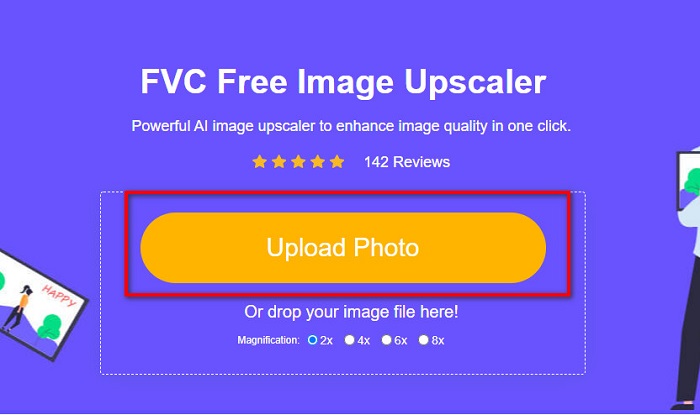
ขั้นตอนที่ 3. จากนั้นเลือก Magnification ที่คุณต้องการสำหรับรูปภาพของคุณ คุณสามารถเลือกได้ระหว่าง 2x, 4x, 6x และ 8x.
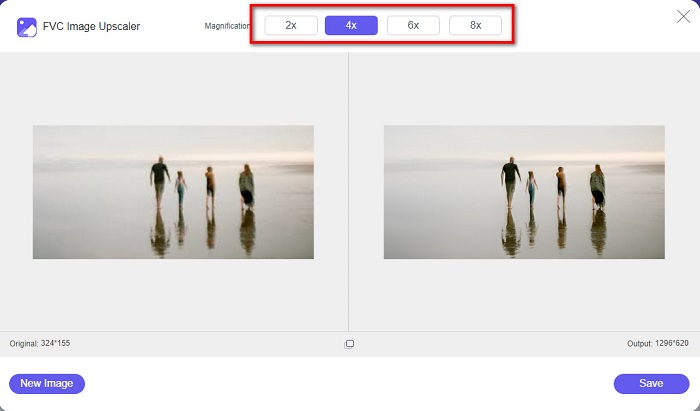
ขั้นตอนที่ 4. คุณจะเห็นตัวอย่างรูปภาพของคุณ และหากคุณพึงพอใจกับผลลัพธ์แล้ว ให้คลิกปุ่ม Save เพื่อบันทึกรูปภาพที่ขยายแล้วลงในอุปกรณ์ของคุณ.
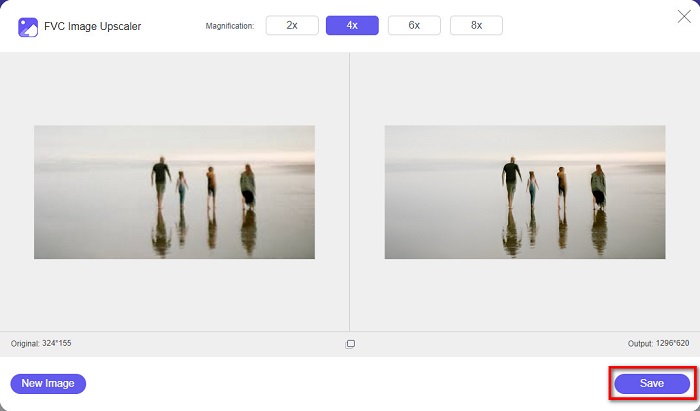
และนั่นแหล่ะ! ตอนนี้คุณสามารถดูภาพบนคอมพิวเตอร์ของคุณด้วยมุมมองคุณภาพสูง
ส่วนที่ 2 วิธีปรับปรุงคุณภาพของรูปภาพใน Photoshop
เรามีสิ่งที่คุณต้องการหากคุณต้องการใช้เครื่องมือระดับมืออาชีพเพื่อเพิ่มคุณภาพของภาพ ส่วนนี้จะสอนวิธีปรับปรุงคุณภาพของภาพถ่ายโดยใช้ Adobe Photoshop
Adobe Photoshop เป็นแอปตัดต่อแบบมืออาชีพที่คุณสามารถใช้เพื่อเพิ่มคุณภาพของรูปภาพได้ Adobe Photoshop มีเครื่องมือตกแต่งมากมายที่คุณสามารถใช้ในการแก้ไขภาพ นอกจากนี้ ผู้เชี่ยวชาญจำนวนมากเลือกใช้เครื่องมือนี้เพราะมีฟังก์ชันให้ใช้งานครบครัน อีกทั้งแอปนี้ยังสามารถสร้างผลงานคุณภาพสูงที่คุณนำไปแชร์บนโซเชียลมีเดียหรือเว็บไซต์อื่น ๆ ได้ด้วย นอกจากนี้ Adobe Photoshop ยังถือเป็นหนึ่งในผลงานที่ดีที่สุดของบริษัท Adobe ที่คุณสามารถดาวน์โหลดได้บนแพลตฟอร์มหลักเกือบทั้งหมด ด้วยแอปตัดต่อรูปภาพนี้ คุณสามารถออกแบบโลโก้ แบนเนอร์ โบรชัวร์ และอื่น ๆ ได้ แต่ผู้ใช้จำนวนไม่น้อยไม่ทราบว่ามันสามารถใช้เพิ่มคุณภาพรูปภาพได้เช่นกัน อย่างไรก็ตาม ผู้ใช้หลายคนใช้งานเครื่องมือนี้ได้ยาก เพราะอินเทอร์เฟซซอฟต์แวร์ซับซ้อนและมีค่าใช้จ่ายค่อนข้างสูงในการดาวน์โหลด.
ขั้นตอนในการปรับปรุงคุณภาพของภาพใน Photoshop:
ขั้นตอนที่ 1. ขั้นแรก ดาวน์โหลด Adobe Photoshop บนคอมพิวเตอร์ของคุณ ทำตามขั้นตอนการติดตั้ง จากนั้นเปิดโปรแกรม.
ขั้นตอนที่ 2. ไปที่ File > Open บนหน้าอินเทอร์เฟซหลัก แล้วเลือกภาพที่คุณต้องการปรับปรุง.
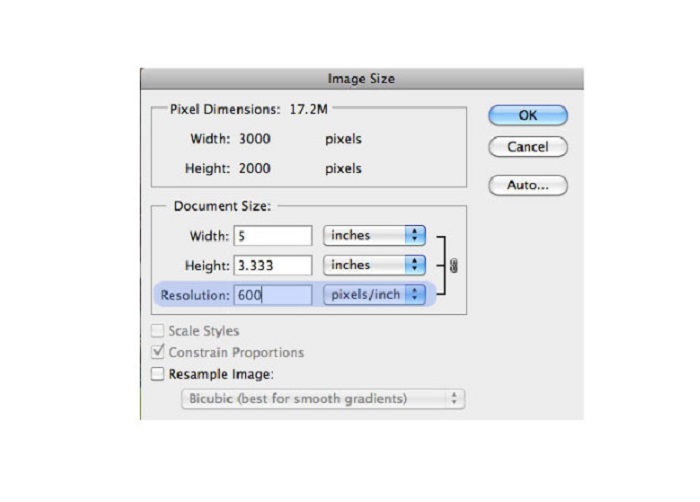
ขั้นตอนที่ 3. จากนั้นไปที่ Image > Image Size จะมีหน้าต่างโต้ตอบเด้งขึ้นมา ให้คุณยกเลิกเครื่องหมายที่ช่อง Resample Image เพื่อให้โปรแกรมเปลี่ยนเฉพาะความละเอียดของรูปภาพเท่านั้น จากนั้นที่ตัวเลือก Resolution ให้พิมพ์ค่าความละเอียดที่คุณต้องการสำหรับรูปภาพของคุณ.
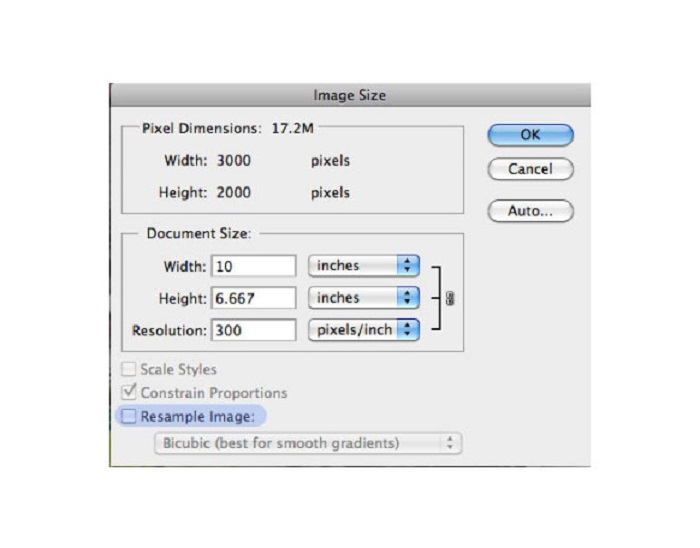
ขั้นตอนที่ 4. เมื่อคุณเปลี่ยนค่า Resolution แล้ว ค่า Width และ Height ของรูปภาพก็จะเปลี่ยนตาม จากนั้นคลิกปุ่ม OK เพื่อบันทึกการเปลี่ยนแปลงที่คุณทำกับรูปภาพ ด้วยวิธีนี้คุณสามารถแปลงภาพความละเอียดต่ำให้เป็นความละเอียดสูงได้.
ส่วนที่ 3 วิธีปรับปรุงคุณภาพของภาพถ่ายบน iPhone
แอพบางตัวสามารถปรับปรุงภาพคุณภาพต่ำของคุณได้หากคุณเป็นผู้ใช้ iPhone แม้ว่าแอพแต่งรูปภาพมากมายจะพร้อมใช้งานบน AppStore แต่เราเลือกแอพที่โด่งดังที่สุดในบรรดาแอพเหล่านั้น อ่านส่วนนี้เพื่อเรียนรู้วิธีปรับปรุงคุณภาพของภาพถ่ายบน iPhone
Remini เป็นหนึ่งในแอปที่ดีที่สุดที่คุณสามารถใช้เพื่อปรับปรุงภาพที่มีคุณภาพต่ำ แอปที่ยอดเยี่ยมนี้มีอินเทอร์เฟซที่เรียบง่าย ทำให้ใช้งานได้ง่ายสำหรับผู้ใช้ทุกระดับ นอกจากนี้ยังใช้เทคโนโลยี AI ที่ตรวจจับส่วนที่พร่ามัวของภาพได้โดยอัตโนมัติ อีกทั้งยังเป็นแอปที่ใช้งานได้อย่างปลอดภัย ดังนั้นไฟล์ของคุณจึงปลอดภัยเมื่อใช้งานแอปนี้ ข้อเสียคือคุณจำเป็นต้องดูโฆษณาเพื่อดูและดาวน์โหลดผลลัพธ์ หรือคุณสามารถซื้อเวอร์ชันเต็มเพื่อดาวน์โหลดผลลัพธ์ได้โดยไม่ต้องดูโฆษณา.
วิธีปรับปรุงคุณภาพของภาพบน iPhone โดยใช้แอพ Remini:
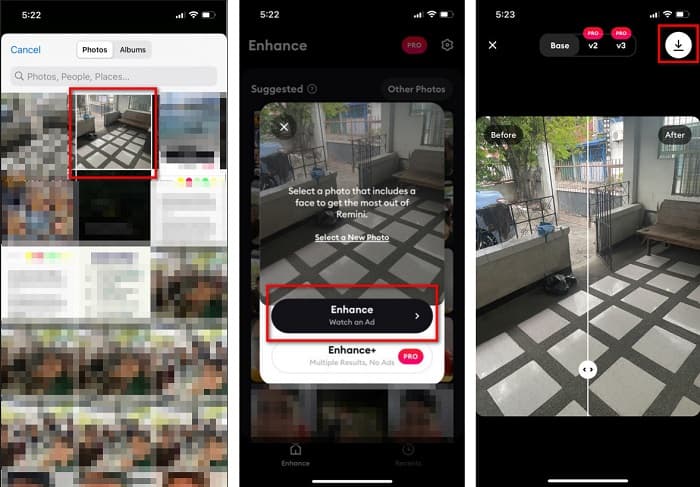
ขั้นตอนที่ 1. ดาวน์โหลดแอป Remini จาก AppStore หลังจากดาวน์โหลดเสร็จ ให้เปิดแอปในโทรศัพท์ของคุณ.
ขั้นตอนที่ 2. จากนั้น บนหน้าอินเทอร์เฟซหลักของแอป ให้เลือกภาพที่คุณต้องการขยายขนาด.
ขั้นตอนที่ 3. ต่อมา แตะปุ่ม Enhance เพื่อปรับปรุงคุณภาพของรูปภาพของคุณ หากคุณสมัครใช้เวอร์ชันโปรของแอป คุณจะไม่ต้องดูโฆษณา แต่ถ้าไม่ แอปจะให้คุณดูโฆษณาก่อนจึงจะสามารถดูและบันทึกผลลัพธ์ได้.
ขั้นตอนที่ 4. ตอนนี้คุณสามารถดูรูปภาพที่ได้รับการปรับปรุงแล้ว จากนั้นแตะที่ ไอคอนดาวน์โหลด ที่มุมขวาบนของหน้าจอของคุณ เป็นอันเรียบร้อย! เพียงไม่กี่ขั้นตอนง่าย ๆ คุณก็สามารถปรับปรุงคุณภาพรูปภาพของคุณได้.
ส่วนที่ 4 คำถามที่พบบ่อยเกี่ยวกับวิธีการปรับปรุงคุณภาพของภาพถ่าย
มีแอพที่สามารถปรับปรุงคุณภาพของภาพบน Android ได้หรือไม่?
Enhance photo quality tool เป็นหนึ่งในแอพเพิ่มคุณภาพของภาพที่ดีที่สุดในการปรับปรุงคุณภาพของภาพของคุณ การใช้เอฟเฟกต์รูปภาพจะทำให้รูปภาพของคุณดูเป็นมืออาชีพ
จะปรับปรุงคุณภาพของภาพถ่ายใน Lightroom ได้อย่างไร?
Adobe Lightroom เป็นผลิตภัณฑ์อีกตัวหนึ่งของ Adobe ที่คุณสามารถใช้เพื่อเพิ่มความละเอียดของรูปภาพได้ อ่านขั้นตอนง่าย ๆ ด้านล่างเพื่อเรียนรู้วิธีปรับปรุงคุณภาพรูปภาพใน Lightroom 1. ดาวน์โหลด Adobe Lightroom บนคอมพิวเตอร์ของคุณ 2. จากนั้นเปิดรูปภาพของคุณใน Lightroom 3. คลิก Choose Photo > Enhance 4. จากนั้นเลือก Super Resolution แล้วคลิก Enhance 5. ต่อมา คุณจะเห็นว่า Lightroom เพิ่มความละเอียดของรูปภาพของคุณและบันทึกเป็นไฟล์ DNG.
จะมีผลกับขนาดไฟล์ไหมถ้าคุณอัพสเกลภาพ?
การเปลี่ยนความละเอียดการพิมพ์จะไม่เปลี่ยนจำนวนพิกเซลของรูปภาพและจะไม่ส่งผลต่อขนาดของรูปภาพ
สรุป
การปรับปรุงคุณภาพรูปภาพนั้นทำได้ไม่ยาก โดยเฉพาะตอนนี้ที่คุณมีคู่มือให้ทำตาม นอกจากนี้ยังมีแอปจำนวนมากบนคอมพิวเตอร์หรือ iPhone ที่ช่วยให้คุณขยายขนาดรูปภาพได้ อย่างไรก็ตาม หากคุณต้องการใช้ตัวขยายภาพฟรีที่ช่วยขยายภาพพร่ามัวของคุณโดยอัตโนมัติ ให้ลองใช้ FVC Free Image Upscaler ได้เลยตอนนี้.
-
 5 วิธีในการลบลายน้ำ B612 โดยใช้เครื่องมือที่ดีที่สุด
 ต้องการทราบวิธีการลบลายน้ำ B612 ออกจากภาพถ่ายของคุณหรือไม่? คุณสามารถลบลายน้ำ B612 ออกจากรูปภาพของคุณได้อย่างง่ายดายโดยใช้เครื่องมือที่โดดเด่นเหล่านี้
-
 ขั้นตอนง่าย ๆ ในการลบลายน้ำ WOW Slider [แก้ไขแล้ว]
 WOW Slider เป็นแอปสำหรับสร้างสไลด์โชว์ที่ยอดเยี่ยม อย่างไรก็ตาม มันฝังลายน้ำบนผลลัพธ์ อ่านด้านล่างเพื่อเรียนรู้วิธีลบลายน้ำ WOW Slider
-
 วิธีง่ายๆในการลบลายน้ำ Shootproof
 ลบลายน้ำ Shootproof โดยทำตามวิธีการง่าย ๆ เหล่านี้ ใช้น้ำยาลบลายน้ำที่น่าทึ่งเหล่านี้เพื่อลบลายน้ำ Shootproof ออกจากภาพของคุณได้อย่างง่ายดาย
