


 Video Converter Ultimate
 บันทึกหน้าจอ
 ซ่อมวิดีโอ
 ดาวน์โหลดอย่างปลอดภัย
3 วิธีที่ง่ายที่สุดที่จะลดขนาดรูปภาพเป็น KB/MB [2024]
ทุกวันนี้ การถ่ายรูปเป็นประสบการณ์ที่ดีต่อใจ ช่วยให้เราได้เก็บและถนอมช่วงเวลาสำคัญเอาไว้ เรามักยกระดับช่วงเวลานี้ขึ้นไปอีกขั้นด้วยการแชร์และอัปโหลดรูปลงแพลตฟอร์มโซเชียลมีเดียหรือเว็บไซต์ต่าง ๆ โดยปกติแล้ว เมื่อเราอัปโหลดรูปภาพลงเว็บไซต์ มักจะต้องใช้ขนาดไฟล์รูปแบบเฉพาะเพื่อให้แสดงผลได้เหมาะสมและโหลดได้รวดเร็ว ดังนั้น หากคุณต้องการลดขนาดรูปภาพเป็นหน่วย KB/MB ให้อ่านบทความนี้จนจบ แล้วคุณจะได้เรียนรู้ 3 วิธีง่าย ๆ ในการลดขนาดไฟล์รูปภาพของคุณ แล้วจะรออะไรอยู่ล่ะ มาดูกันเลย!

ส่วนที่ 1: ลดขนาดรูปภาพเป็น KB/MB โดยไม่สูญเสียคุณภาพ [วิธีการคลิกครั้งเดียว]
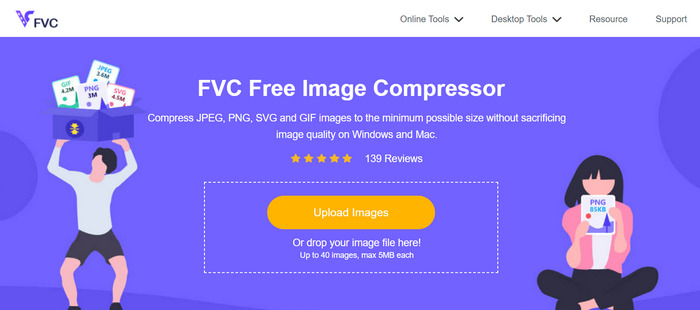
หนึ่งในเครื่องมือยอดนิยมสำหรับการลดขนาดรูปภาพเป็นหน่วย KB/MB คือ FVC Free Image Compressor เครื่องมือนี้ใช้งานได้ด้วยคลิกเดียว เพียงแค่นำเข้ารูปภาพ ระบบก็จะประมวลผลให้โดยอัตโนมัติและราบรื่น.
ด้วยเครื่องมือนี้ คุณสามารถย่อขนาดรูปภาพประเภทต่างๆ เช่น JPEG, PNG, SVG และ GIF แบบเคลื่อนไหวให้เล็กลงได้โดยไม่สูญเสียคุณภาพมากนัก นอกจากนี้ หากคุณมีไฟล์รูปภาพจำนวนมากที่ต้องการบีบอัด ข้อดีก็คือเครื่องมือนี้รองรับการบีบอัดแบบแบตช์ ซึ่งคุณสามารถปรับขนาดรูปภาพได้หลายภาพในคราวเดียวหลังจากอัปโหลดแล้ว โดยเครื่องมือนี้ช่วยให้คุณบีบอัดรูปภาพได้สูงสุด 40 ภาพ โดยแต่ละภาพมีขนาดสูงสุด 5MB
ขั้นตอนที่ 1 ไปที่เว็บไซต์ทางการของพวกเขา.
ขั้นตอนที่ 2 คลิก Upload Images เพื่อนำเข้ารูปภาพที่คุณต้องการบีบอัดขนาด.
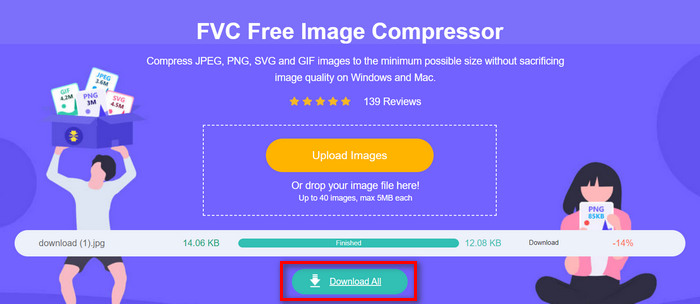
ขั้นตอนที่ 3 รอให้กระบวนการบีบอัดเสร็จสิ้น เมื่อเสร็จแล้ว คุณจะเห็นแถบสถานะระบุว่างานเสร็จสมบูรณ์ พร้อมข้อมูลขนาดไฟล์ก่อนและหลังการบีบอัด จากนั้นให้คลิก Download เพื่อบันทึกรูปภาพของคุณ.
ด้วย FVC Free Image Compressor การบีบอัดรูปภาพจะไม่เปลืองแรงและเวลาของคุณ เนื่องจากมีอินเทอร์เฟซผู้ใช้ที่เรียบง่ายแต่ใช้งานง่าย ดังนั้น หากคุณต้องการเครื่องมือที่ใช้งานง่ายเพื่อลดขนาดรูปภาพเป็น KB/MB เครื่องมือนี้จึงเหมาะสำหรับคุณ
ส่วนที่ 2: ลดขนาดรูปภาพเป็น KB/MB ด้วยคุณภาพและขนาดที่กำหนดเอง
Photoshop เป็นซอฟต์แวร์แต่งรูปที่มีชื่อเสียงในด้านฟีเจอร์และความสามารถที่ยอดเยี่ยม ด้วย Photoshop คุณไม่เพียงแค่ปรับแต่งและรีทัชภาพได้อย่างแม่นยำ แต่ยังสามารถปรับภาพให้เหมาะกับการใช้งานหลากหลายรูปแบบ รวมถึงการลดขนาดไฟล์ด้วย ต่อไปนี้คือ 2 วิธีที่คุณสามารถใช้เพื่อลดขนาดรูปภาพเป็นหน่วย KB/MB ด้วยซอฟต์แวร์นี้:
การเปลี่ยนแปลงขนาดภาพตามพิกเซล
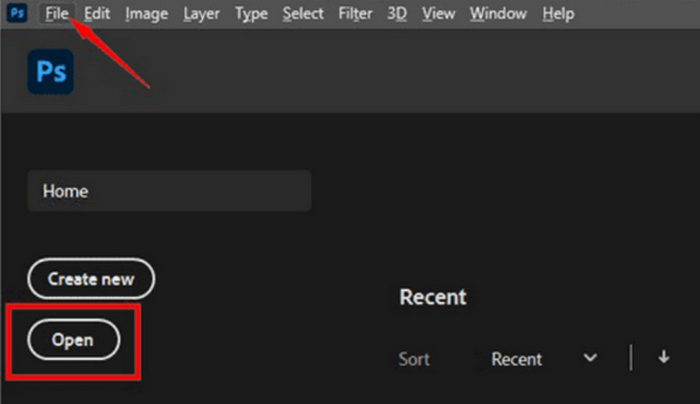
ขั้นตอนที่ 1 เปิดรูปภาพของคุณใน Photoshop โดยคลิก Open หรือไปที่เมนู File แล้วเลือกภาพของคุณ.
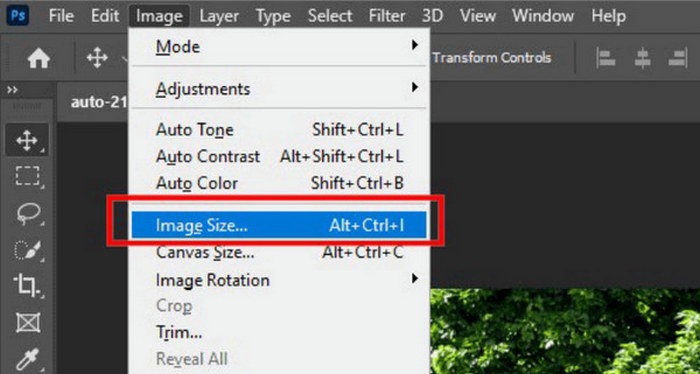
ขั้นตอนที่ 2 จากนั้นไปที่แท็บ Image แล้วเลือก Image Size.
ขั้นตอนที่ 3 ในหน้าต่างกล่องโต้ตอบ Image Size ให้เลือก Pixels จากเมนูดรอปดาวน์ หากต้องการกำหนดขนาดเอง ให้กรอกค่าความกว้างและความสูงลงในช่อง แล้วคลิก OK เพื่อปรับขนาดรูปภาพ.
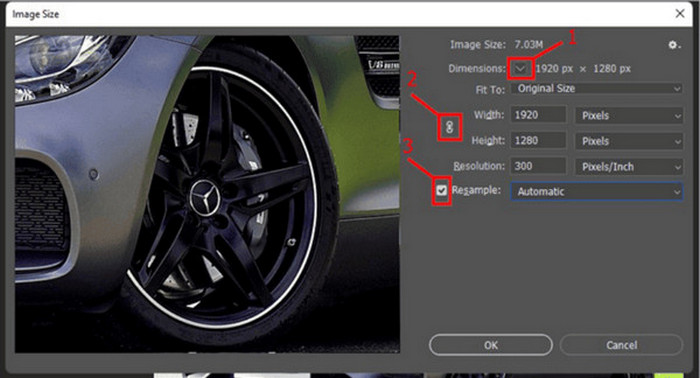
ขั้นตอนที่ 4 สุดท้าย ให้บันทึกไฟล์ของคุณโดยไปที่แท็บ File จากนั้นคลิกปุ่ม Save As.
บันทึกไฟล์ PSD ในรูปแบบ JPEG ก่อนที่จะบันทึก
การเปลี่ยนแปลงขนาดรูปภาพเป็นนิ้ว
วิธีที่สองนี้จะช่วยให้คุณลดขนาดภาพเป็น KB/MB ได้โดยการเปลี่ยนขนาดภาพเป็นนิ้ว โดยทำตามขั้นตอนต่อไปนี้:
ขั้นตอนที่ 1 เปิดรูปภาพของคุณใน Photoshop โดยคลิก Open หรือไปที่เมนู File แล้วเลือกภาพของคุณ.
ขั้นตอนที่ 2 จากนั้นไปที่แท็บ Image แล้วเลือก Image Size.
ขั้นตอนที่ 3 ในหน้าต่างกล่องโต้ตอบ Image Size ให้เลือก Inches จากเมนูดรอปดาวน์ หากต้องการกำหนดขนาดเอง ให้กรอกค่าความกว้างและความสูงลงในช่อง แล้วคลิก OK เพื่อปรับขนาดรูปภาพ.
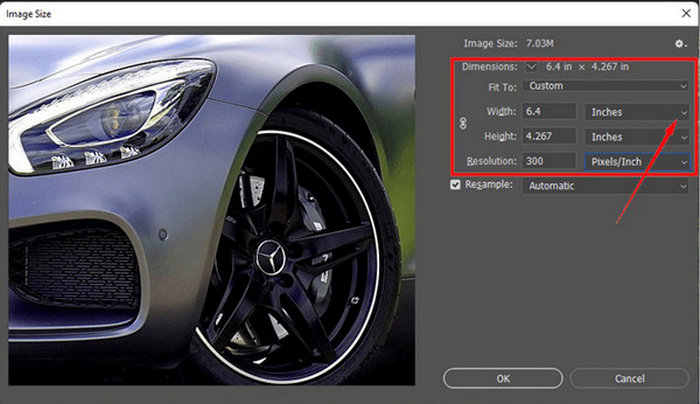
ขั้นตอนที่ 4 สุดท้าย ไปที่เมนู File แล้วคลิกปุ่ม Save As เพื่อบันทึกไฟล์รูปภาพขั้นสุดท้าย.
ดังนั้น หากคุณต้องการตัวเลือกเพิ่มเติมในการปรับขนาดภาพ Photoshop เป็นตัวเลือกที่เหมาะกับคุณ คุณเพียงแค่ต้องทำความคุ้นเคยกับวิธีใช้เครื่องมือนี้ เนื่องจากอาจเป็นเรื่องยุ่งยากสำหรับผู้เริ่มต้นบางคน
ส่วนที่ 3: ลดขนาดรูปภาพเป็น KB/MB ด้วยซอฟต์แวร์ในตัว
วิธีนี้อาจเป็นวิธีที่คุณกำลังมองหาหากคุณต้องการลดขนาดรูปภาพเป็น KB/MB โดยใช้ซอฟต์แวร์ในตัวบนคอมพิวเตอร์ Windows และ Mac ของคุณ
การใช้ Paint บน Windows
Paint เครื่องมือแก้ไขกราฟิกที่ติดมากับระบบปฏิบัติการนี้ ถือเป็นตัวเลือกที่ดีในการลดขนาดรูปภาพเป็นหน่วย KB/MB ในฐานะตัวลดขนาดรูปภาพ โดยเฉพาะอย่างยิ่งสำหรับผู้ใช้ Windows ด้วยเครื่องมือนี้ คุณสามารถเลือกลดขนาดรูปภาพได้ทั้งตามเปอร์เซ็นต์หรือหน่วยพิกเซล.
หากต้องการใช้สิ่งนี้ ให้ทำตามขั้นตอนด้านล่าง:
ขั้นตอนที่ 1 เปิดแอป Paint บนอุปกรณ์ของคุณ.
ขั้นตอนที่ 2 จากนั้นคลิกที่ไอคอน File แล้วเลือก Open เพื่อเพิ่มรูปภาพที่คุณต้องการลดขนาด.
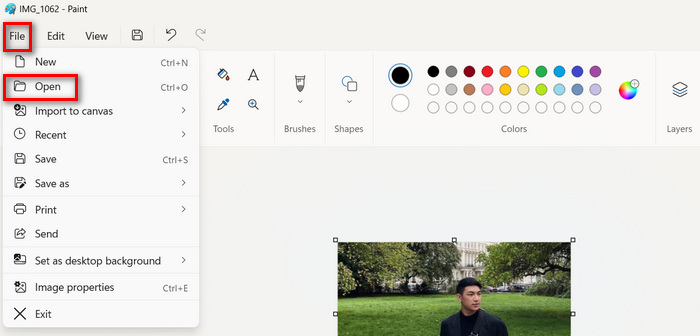
ขั้นตอนที่ 3 หลังจากนั้น คลิกปุ่ม Resize and Skew ที่นี่คุณสามารถปรับขนาดรูปภาพได้โดยการเปลี่ยนค่าเปอร์เซ็นต์หรือจำนวนพิกเซล เมื่อได้ขนาดตามที่ต้องการแล้ว ให้คลิกปุ่ม OK.
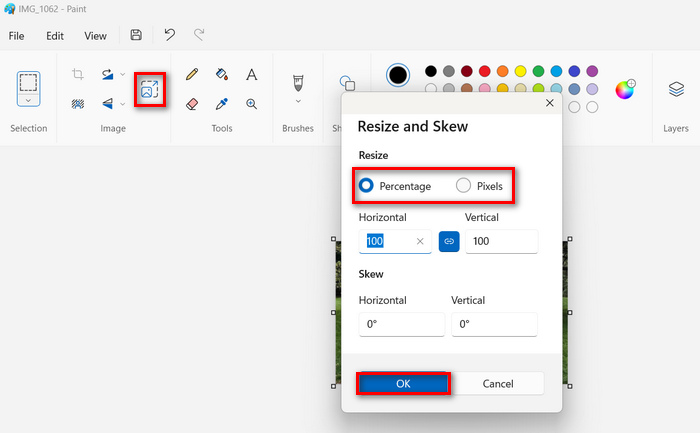
ขั้นตอนที่ 4 เมื่อเสร็จแล้ว ให้ไปที่ File คลิกปุ่ม Save as แล้วเลือกรูปแบบที่คุณต้องการบันทึกรูปภาพ.
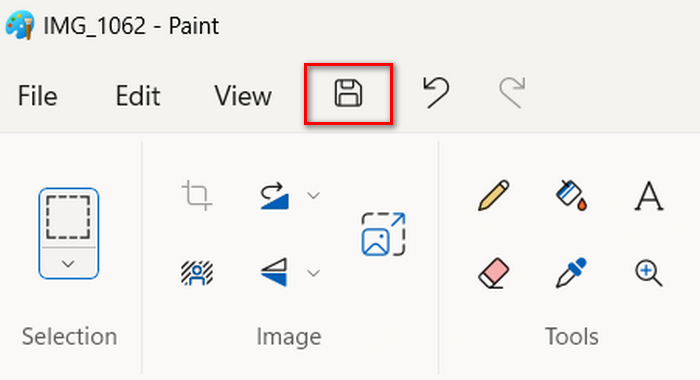
ดังนั้น การใช้ Paint เพื่อลดขนาดรูปภาพเป็น KB/MB ผู้ใช้ Windows จึงไม่เพียงแต่จะเพลิดเพลินไปกับอินเทอร์เฟซที่ใช้งานง่ายเท่านั้น แต่ยังรวมถึงความสามารถในการปรับขนาดรูปภาพเป็นเปอร์เซ็นต์หรือเป็นพิกเซลอีกด้วย อย่างไรก็ตาม แม้จะมีคุณสมบัติเหล่านี้ Paint ยังขาดคุณสมบัติขั้นสูงและตัวเลือกการปรับแต่ง
การใช้ Preview บน Mac
หากคุณเป็นผู้ใช้ Mac คุณสามารถใช้แอป Preview บนอุปกรณ์ของคุณได้ เครื่องมือดูรูปภาพในตัวนี้จะไม่เพียงแต่ช่วยให้คุณดูไฟล์รูปภาพต่างๆ เท่านั้น แต่ยังช่วยให้คุณลดขนาดรูปภาพเป็น KB/MB ได้อย่างง่ายดายอีกด้วย
โดยทำตามขั้นตอนด้านล่าง:
ขั้นตอนที่ 1 ขั้นแรก ให้เปิดแอป Preview บนเครื่อง Mac ของคุณ.
ขั้นตอนที่ 2 จากนั้น เปิดไฟล์รูปภาพที่คุณต้องการบีบอัดขนาด โดยไปที่แท็บ File แล้วคลิกปุ่ม Open.
ขั้นตอนที่ 3 จากนั้น ไปที่แท็บ Tool ในแถบเมนู แล้วคลิก Adjust Size.
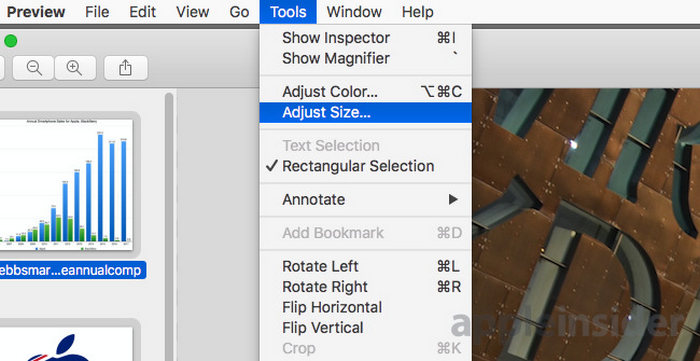
ขั้นตอนที่ 4 เลือก Resample Image หากคุณต้องการลดขนาดไฟล์รูปภาพ.
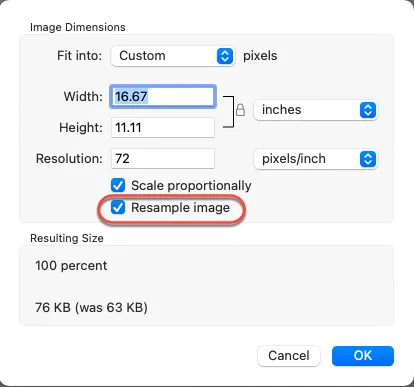
ขั้นตอนที่ 5 จากนั้น เปลี่ยนค่าของ Resolution เมื่อเปลี่ยนแล้ว ระบบจะแสดงขนาดไฟล์ใหม่ที่ด้านล่าง.
Preview ช่วยให้ปรับขนาดรูปภาพได้ง่ายยิ่งขึ้นด้วยอินเทอร์เฟซที่ใช้งานง่ายและฟีเจอร์ที่รวมอยู่ ผู้ใช้สามารถเปิดไฟล์รูปภาพ ปรับขนาด และบีบอัดไฟล์ตามต้องการได้อย่างง่ายดาย ทำให้เป็นเครื่องมือที่สะดวกสำหรับงานแก้ไขรูปภาพพื้นฐานบนอุปกรณ์ Mac
ส่วนที่ 4: วิธีที่ดีที่สุดในการลดขนาดรูปภาพเป็น KB/MB คืออะไร
เมื่อคุณต้องการโซลูชันที่รวดเร็วและง่ายดายเพื่อลดขนาดรูปภาพเป็น KB/MB ด้วยความพยายามเพียงเล็กน้อย FVC Free Image Compressor คือเครื่องมือที่คุณต้องการ เพียงแค่คลิกเดียว คุณก็สามารถลดขนาดไฟล์ในรูปแบบรูปภาพที่ใช้กันอย่างแพร่หลาย เช่น JPEG, PNG, SVG และ GIF ได้ ทำให้เหมาะอย่างยิ่งสำหรับสถานการณ์ที่ประสิทธิภาพและการเข้าถึงเป็นสิ่งสำคัญที่สุด
ในขณะเดียวกัน สำหรับผู้ที่ต้องการควบคุมคุณภาพของภาพอย่างแม่นยำและมีความสามารถในการแก้ไขที่ครอบคลุม Photoshop ถือเป็นตัวเลือกที่ดีที่สุด
สุดท้ายนี้ หากคุณต้องการความเรียบง่ายและการเข้าถึงได้ การใช้ซอฟต์แวร์ในตัว เช่น Paint บน Windows หรือ Preview บน Mac ถือเป็นทางเลือกที่ดี เครื่องมือเหล่านี้มีวิธีแก้ปัญหาที่ตรงไปตรงมาสำหรับการปรับขนาดรูปภาพอย่างรวดเร็ว ทำให้เหมาะอย่างยิ่งสำหรับผู้ใช้ที่ต้องการความสามารถในการแก้ไขขั้นพื้นฐานโดยไม่ต้องใช้ซอฟต์แวร์เฉพาะที่ซับซ้อน
ส่วนที่ 5: คำถามที่พบบ่อยเกี่ยวกับการลดขนาดรูปภาพเป็น KB/MB
ฉันจะปรับขนาดรูปภาพจาก MB เป็น KB ได้อย่างไร?
คุณสามารถปรับขนาดรูปภาพจาก MB เป็น KB ได้หลายวิธี วิธีหนึ่งคือใช้เครื่องมือบีบอัดรูปภาพ เช่น FVC Free Image Compressor ซึ่งจะช่วยให้คุณลดขนาดรูปภาพได้อย่างอิสระและรวดเร็ว
จะลดขนาดไฟล์รูปภาพโดยไม่สูญเสียคุณภาพได้อย่างไร?
การลดขนาดไฟล์ภาพโดยไม่สูญเสียคุณภาพต้องใช้เทคนิคการบีบอัดอย่างระมัดระวัง คุณสามารถทำได้โดยใช้เครื่องมือเช่น Photoshop ซึ่งช่วยให้คุณปรับแต่งการตั้งค่าการบีบอัดเพื่อรักษาคุณภาพให้เหมาะสมในขณะที่ลดขนาดไฟล์ นอกจากนี้ เครื่องมือออนไลน์เช่น FVC Free Image Compressor ยังใช้ขั้นตอนขั้นสูงในการบีบอัดภาพโดยไม่สูญเสียคุณภาพอย่างมาก
เครื่องมือออนไลน์ฟรีสำหรับลดขนาดรูปภาพคืออะไร?
เครื่องมือออนไลน์ฟรีสำหรับลดขนาดรูปภาพในหน่วย KB/MB คือ FVC Free Image Compressor ซึ่งช่วยให้คุณบีบอัดรูปภาพได้หลากหลายประเภท เช่น JPEG, PNG, SVG และ GIF ด้วยการคลิกเพียงครั้งเดียว นอกจากนี้ ยังรองรับการบีบอัดแบบแบตช์ ทำให้สามารถบีบอัดรูปภาพหลายภาพในครั้งเดียวได้อย่างมีประสิทธิภาพ
สรุป
เพียงเท่านี้คุณก็มีตัวเลือกมากมายสำหรับการลดขนาดรูปภาพเป็นหน่วย KB/MB ไม่ว่าคุณจะเลือกวิธีไหน แต่ละวิธีก็มีข้อดีในแบบของตัวเอง เพียงคำนึงถึงความต้องการของคุณเป็นหลัก ไม่ว่าคุณจะเป็นผู้ใช้ Windows ที่ใช้ Paint ซึ่งมีอินเทอร์เฟซใช้งานง่าย หรือเป็นผู้ใช้ Mac ที่ใช้ประโยชน์จากความสะดวกในการปรับขนาดของ Preview ก็มีหลากหลายวิธีให้เลือกใช้ตามความเหมาะสม หากต้องการบีบอัดไฟล์อย่างรวดเร็วและไม่ยุ่งยาก FVC Free Image Compressor ก็มีโซลูชันแบบคลิกเดียว ในขณะที่ Photoshop มอบตัวเลือกการแก้ไขระดับสูงเพื่อควบคุมคุณภาพภาพได้อย่างละเอียด สุดท้าย สำหรับความเรียบง่ายและเข้าถึงง่าย ซอฟต์แวร์พื้นฐานอย่าง Paint และ Preview ก็เป็นตัวเลือกที่สะดวกมาก แล้วจะรออะไรอยู่ล่ะ เริ่มบีบอัดรูปภาพของคุณได้เลยวันนี้!
-
 วิธีการปรับขนาดรูปภาพ – Adobe Resize Image [ออนไลน์และออฟไลน์]
 หากคุณกำลังค้นหา Adobe resize image เรามีวิธีแก้ปัญหาสำหรับคุณ ดูโพสต์นี้อย่างละเอียดเพื่อเรียนรู้วิธีปรับขนาดภาพโดยใช้ Adobe บนพีซีของคุณ
-
 เครื่องมือโปรแกรมปรับขนาด GIF สร้างสรรค์พร้อมความสะดวกสบาย
 การปรับขนาด GIF อาจเป็นงานที่เจ็บปวด ใช้โปรแกรมที่เหมาะสมเพื่อปรับขนาด GIF ของคุณและทำงานให้สำเร็จได้อย่างไร้ที่ติ ตรวจสอบบทความนี้สำหรับข้อมูลเพิ่มเติม
-
 3 วิธีในการปรับขนาดรูปภาพสำหรับ Twitter โดยไม่สูญเสียคุณภาพ
 ในการปรับขนาดรูปภาพสำหรับ Twitter คุณจะต้องมีตัวปรับขนาดรูปภาพอยู่ในมือ ไม่มี? จากนั้นเลือกในรายการ
