


 Video Converter Ultimate
 บันทึกหน้าจอ
 ซ่อมวิดีโอ
 ดาวน์โหลดอย่างปลอดภัย
บทช่วยสอนโดยละเอียดเกี่ยวกับการลบโลโก้ออกจากรูปภาพ
รำคาญโลโก้บนรูปภาพใช่ไหม? ไม่อยากให้คนอื่นเห็นยี่ห้อเสื้อผ้าของคุณเวลาถ่ายรูปใช่หรือไม่? บทความนี้จะแนะนำวิธีแก้ปัญหาที่ดีที่สุดที่คุณสามารถลองใช้ได้ เราได้เตรียม 2 วิธีที่ดีที่สุดในการลบโลโก้ออกจากรูปภาพได้อย่างง่ายดาย.

ตอนที่ 1: แอปพลิเคชั่นที่ยอดเยี่ยมที่สุดในการลบโลโก้ออกจากรูปภาพ
FVC Free Watermark Remover เป็นเครื่องมือออนไลน์ที่คุณสามารถใช้เพื่อเรียนรู้วิธีลบโลโก้ออกจากรูปภาพได้ฟรี มันสามารถลบองค์ประกอบที่ไม่ต้องการใด ๆ ออกจากภาพถ่ายของคุณได้ FVC Free Watermark Remover ใช้งานง่ายและเข้าใจไม่ยาก ด้วยการออกแบบที่ชัดเจน ปุ่มที่เรียบง่าย และคู่มือการใช้งานที่ครอบคลุม คุณจึงสามารถลบโลโก้ออกจากรูปภาพได้อย่างรวดเร็วด้วยขั้นตอนง่าย ๆ นอกจากนี้ยังรองรับไฟล์รูปภาพหลากหลายรูปแบบ เช่น JPG, BMP, PNG และอื่น ๆ ทำให้คุณไม่ต้องกังวลว่ารูปภาพของคุณจะรองรับหรือไม่ อีกทั้งซอฟต์แวร์ออนไลน์นี้ยังรับประกันความเป็นส่วนตัวของผู้ใช้ทุกคน คุณจึงไม่ต้องกลัวว่าข้อมูลของคุณจะรั่วไหลขณะใช้งานบริการ นอกจากนี้ FVC Free Watermark Remover ยังมีหลายวิธีในการลบโลโก้ออกจากรูปภาพของคุณ เช่น เครื่องมือรูปหลายเหลี่ยม (Polygonal), Lasso, แปรง (Brush) และการครอป (Cropping Tools) ด้วยเครื่องมือเหล่านี้ คุณสามารถมั่นใจได้ว่าการลบวัตถุที่ไม่ต้องการออกจากรูปภาพจะเป็นเรื่องง่าย เราจะแสดงวิธีลบโลโก้ออกจากรูปภาพของคุณโดยใช้เครื่องมือลบลายน้ำทั้งสี่แบบนี้.
การใช้เครื่องมือรูปหลายเหลี่ยม
คุณสามารถใช้เครื่องมือ Polygonal เพื่อลบโลโก้ออกจากรูปภาพได้อย่างง่ายดายด้วยการไฮไลท์
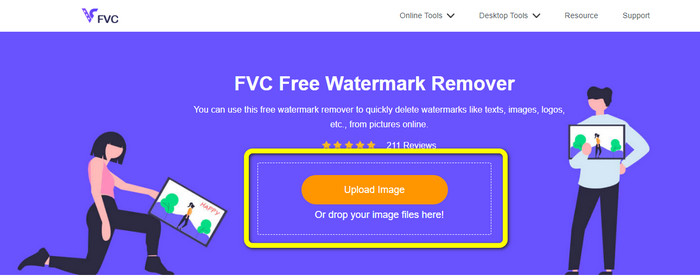
ขั้นตอนที่ 1: เปิดเบราว์เซอร์ของคุณแล้วค้นหา FVC Free Watermark Remover เมื่อเข้าสู่หน้าเว็บแล้ว ให้คลิกปุ่ม Upload Image เพื่ออัปโหลดรูปภาพที่มีโลโก้ คุณยังสามารถลากไฟล์รูปภาพมาวางในกล่องได้ด้วย.
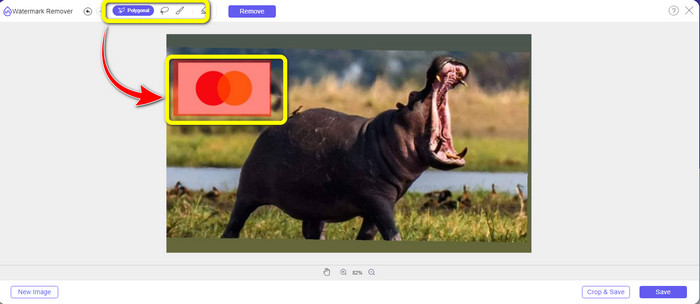
ขั้นตอนที่ 2: เมื่อคุณอัปโหลดไฟล์รูปภาพเรียบร้อยแล้ว ให้คลิกเครื่องมือ Polygonal ที่มุมซ้ายบนของหน้าต่างโปรแกรม จากนั้นใช้เมาส์ไฮไลต์บริเวณโลโก้ในรูปภาพ.
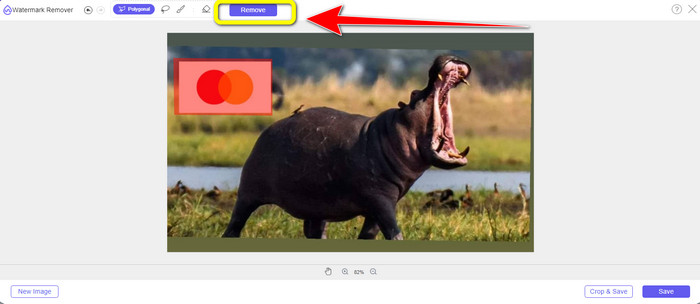
ขั้นตอนที่ 3: หลังจากนั้น คลิกปุ่ม Remove เมื่อคุณไฮไลต์โลโก้ด้วยเครื่องมือ Polygonal เสร็จแล้ว แล้วรอสักครู่เพื่อให้กระบวนการลบทำงาน.
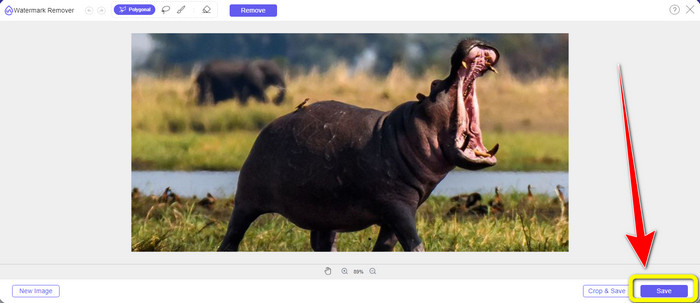
ขั้นตอนที่ 4: หากคุณไม่เห็นโลโก้อีกต่อไปแล้ว ให้คลิกปุ่ม Save เพื่อบันทึกรูปภาพลงในอุปกรณ์ของคุณโดยไม่มีโลโก้ติดอยู่.
การใช้เครื่องมือ Lasso
เมื่อใช้เครื่องมือ Lasso คุณเพียงแค่ทำตามรูปแบบของโลโก้และคุณสามารถเน้นส่วนเล็ก ๆ ของโลโก้ได้
ขั้นตอนที่ 1: อัปโหลดรูปภาพที่มีโลโก้โดยคลิกปุ่ม Upload Image หรือคุณจะลากไฟล์รูปภาพมาวางเพื่ออัปโหลดก็ได้เช่นกัน.
ขั้นตอนที่ 2: เลือกเครื่องมือ Lasso จากชุดเครื่องมือลบลายน้ำ จากนั้นใช้เมาส์ไฮไลต์โลโก้บนรูปภาพ ขั้นตอนนี้จะคล้ายกับการจับดินสอแล้ววาดเส้นล้อมรอบโลโก้ โดยกดคลิกซ้ายค้างไว้ขณะลากเส้น.
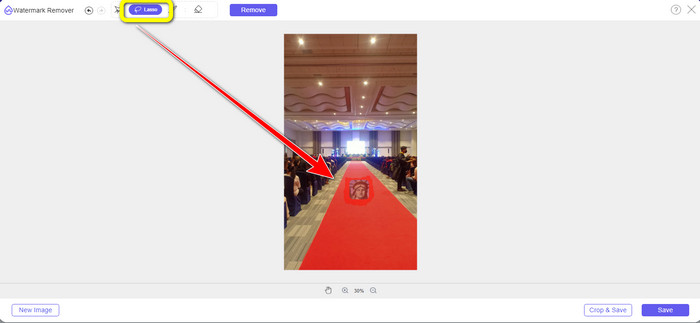
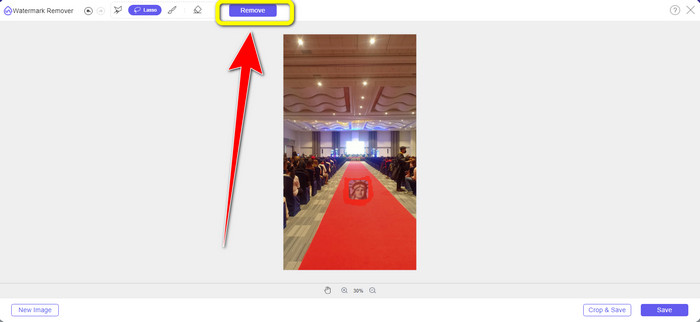
ขั้นตอนที่ 3: เมื่อไฮไลต์โลโก้ครบถ้วนแล้ว ก็ถึงเวลาลบโดยคลิกปุ่ม Remove รอให้กระบวนการลบที่รวดเร็วเสร็จสิ้นแล้วจึงไปขั้นตอนต่อไป.
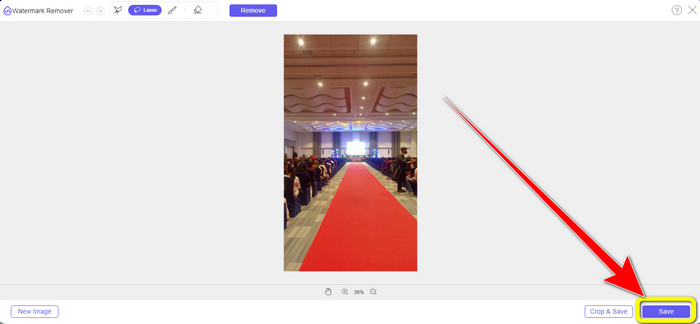
ขั้นตอนที่ 4: ในขั้นตอนสุดท้าย หากโลโก้ในรูปภาพของคุณถูกลบออกไปแล้ว ให้เลือกปุ่ม Save เพื่อบันทึกรูปภาพโดยอัตโนมัติ.
การใช้เครื่องมือแปรง
ด้วยเครื่องมือนี้ คุณกำลังแปรงโลโก้เพื่อเน้นโลโก้โดยใช้เมาส์ของคุณ
ขั้นตอนที่ 1: จากหน้าจอเครื่องมือลบลายน้ำ เลือก Brush โดยใช้เครื่องมือนี้ คุณสามารถปรับขนาดของแปรงได้ จะให้เล็กหรือใหญ่ขึ้นก็ได้ตามต้องการ.
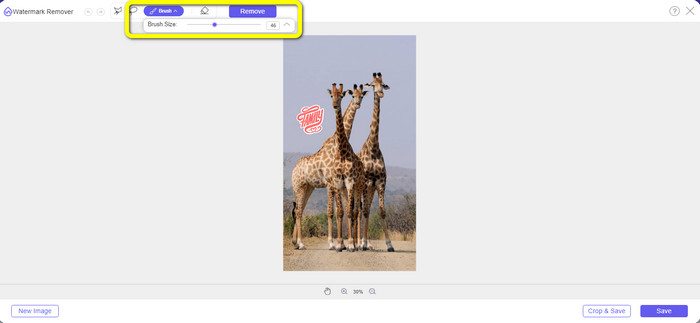
ขั้นตอนที่ 2: ใช้เครื่องมือ Brush ไฮไลต์โลโก้บนรูปภาพของคุณ ใช้การคลิกซ้ายเพื่อระบายพื้นที่บนโลโก้ คุณยังสามารถใช้เครื่องมือ Erase เพื่อเลือกพื้นที่ใหม่ได้อีกครั้ง นอกจากนี้ยังสามารถคลิกไอคอนรูปมือด้านล่างเพื่อเลื่อนตำแหน่งรูปภาพ และคลิกสัญลักษณ์ + หรือ - เพื่อซูมเข้าและซูมออกรูปภาพได้.
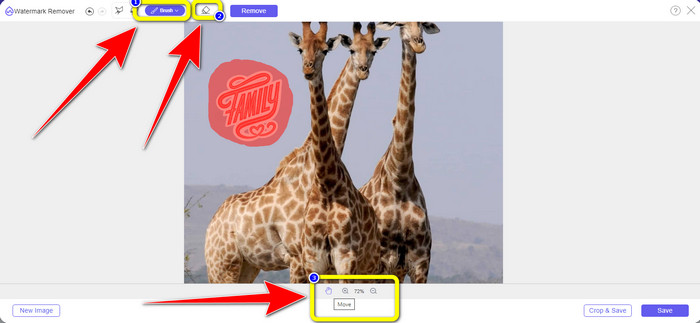
ขั้นตอนที่ 3: หลังจากไฮไลต์โลโก้บนรูปภาพของคุณแล้ว ให้ดำเนินการลบโดยคลิกปุ่ม Remove ที่กึ่งกลางด้านบนของหน้าต่างโปรแกรม.
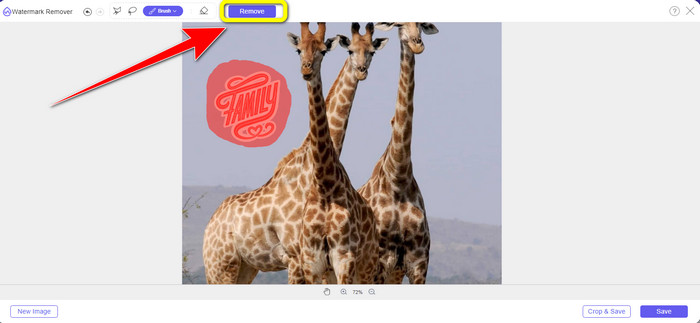
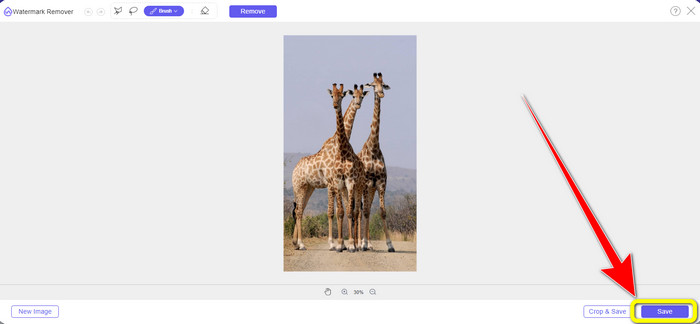
ขั้นตอนที่ 4: หลังจากกระบวนการลบเสร็จสิ้น โลโก้ก็จะหายไป ในขั้นตอนนี้ให้บันทึกภาพโดยคลิกปุ่ม Save แล้วเพลิดเพลินกับรูปภาพของคุณโดยไม่มีโลโก้.
การใช้เครื่องมือครอบตัด
เมื่อใช้เครื่องมือครอบตัด ตรวจสอบให้แน่ใจว่าสามารถตัดบางส่วนของรูปภาพของคุณได้ นอกจากนี้ พื้นที่โลโก้ควรอยู่ที่มุมหรือขอบของรูปภาพ
ขั้นตอนที่ 1: อัปโหลดรูปภาพที่มีโลโก้ที่คุณต้องการลบออก เลือกตัวเลือก Crop & Save ที่มุมขวาล่างของหน้าต่างโปรแกรม จากนั้นจึงดำเนินการครอปรูปภาพ.
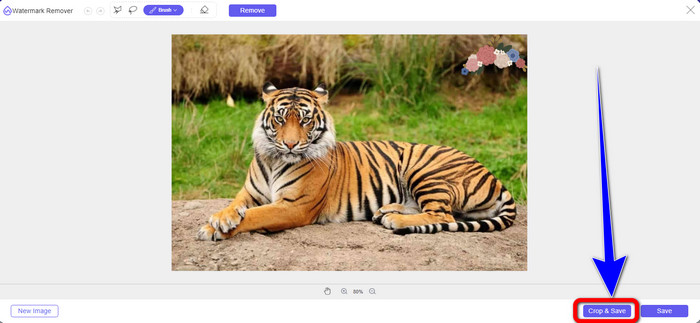
ขั้นตอนที่ 2: ภายในกรอบสีเขียวจะมีตัวเลือกการครอปให้คุณเลือกใช้ในการครอปรูปภาพ คุณยังสามารถครอปภาพด้วยตนเองได้โดยเลือกตัวเลือก Free หากต้องการตัวเลือกการครอปเพิ่มเติม ให้คลิก More.
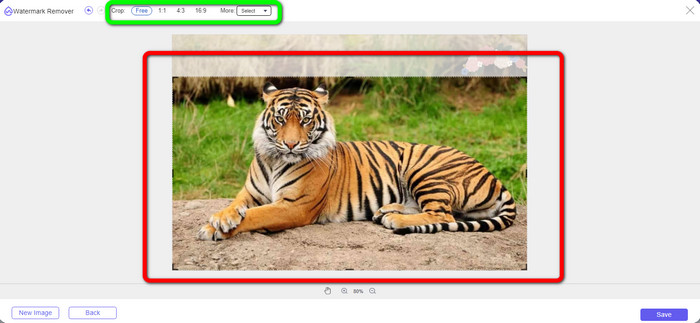
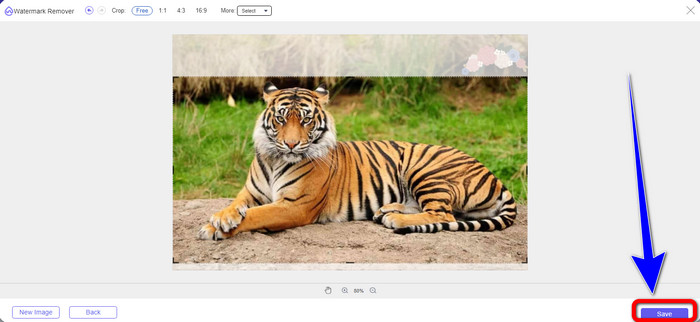
ขั้นตอนที่ 3: เมื่อเสร็จสิ้นกระบวนการครอปแล้ว คุณสามารถบันทึกรูปภาพได้โดยคลิกปุ่ม Save ซึ่งจะทำการบันทึกโดยอัตโนมัติ จากนั้นเปิดรูปภาพเพื่อดูผลลัพธ์สุดท้าย.
ตอนที่ 2: การลบโลโก้ออกจากรูปภาพโดยใช้ Photoshop
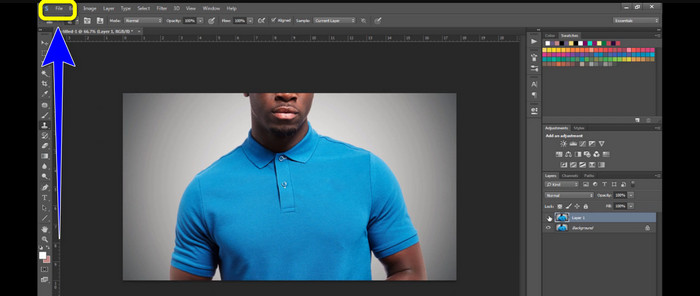
Adobe Photoshop เป็นแอปพลิเคชันออฟไลน์ที่คุณสามารถใช้เพื่อลบโลโก้ออกจากรูปภาพของคุณ ด้วยแอพพลิเคชั่นนี้ คุณสามารถลบวัตถุทั้งหมดที่คุณไม่ต้องการออกจากรูปภาพของคุณได้ทันที นอกจากนี้ Photoshop ไม่เพียงดีสำหรับการลบโลโก้ออกจากภาพของคุณเท่านั้น คุณสามารถใช้มันเพื่อสร้างโบรชัวร์ การ์ดเชิญ ใบปลิว ฯลฯ คุณยังสามารถปรับปรุงภาพถ่ายของคุณด้วยการลบจุดด่างดำ ทำให้ใบหน้าขาวใส เปลี่ยนสีตา และอื่น ๆ อย่างไรก็ตาม Adobe Photoshop ไม่เหมาะสำหรับผู้เริ่มต้น มีเครื่องมือมากมายซึ่งสร้างความสับสนให้กับพวกเขา นอกจากนี้ยังมีค่าใช้จ่ายสูง มันสามารถเสนอรุ่นทดลองใช้ฟรีเท่านั้นซึ่งใช้ได้เจ็ดวันเท่านั้น
ทำตามขั้นตอนด้านล่างเพื่อลบโลโก้ออกจากรูปภาพโดยใช้ Photoshop
ขั้นตอนที่ 1: เปิดโปรแกรม Adobe Photoshop บนคอมพิวเตอร์ของคุณหลังจากติดตั้งเสร็จแล้ว.
ขั้นตอนที่ 2: ไปที่เมนู File แล้วเลือก Open เพื่อเพิ่มรูปภาพของคุณ คุณยังสามารถกดปุ่มลัด Ctrl + O ได้.
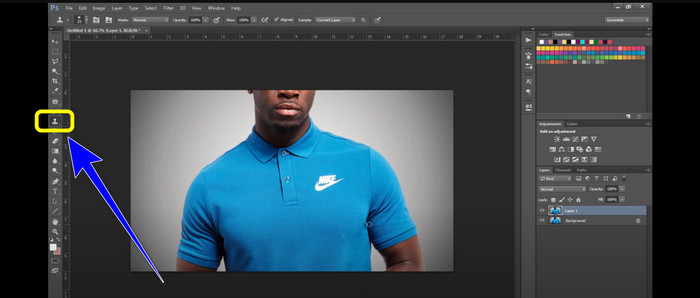
ขั้นตอนที่ 3: ที่แถบเครื่องมือด้านซ้าย ให้เลือก Clone Stamp Tool.
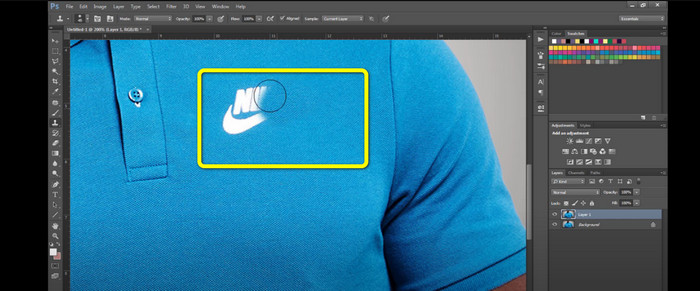
ขั้นตอนที่ 4: มองหาบริเวณที่สะอาดบนภาพแล้วกดปุ่ม Alt บนแป้นพิมพ์เพื่อเก็บพื้นผิวตัวอย่าง หลังจากนั้นคลิกที่บริเวณโลโก้แล้วเริ่มลบโลโก้ออก.
ขั้นตอนที่ 5: หลังจากลบโลโก้เรียบร้อยแล้ว ให้ไปที่ File > Save เพื่อบันทึกผลงานของคุณ.
เกี่ยวข้องกับ:
วิธีใช้ Pixlr เพื่อลบลายน้ำออกจากรูปภาพ
วิธีที่ยอดเยี่ยมในการใช้ GIMP เพื่อลบลายน้ำออกจากรูปภาพ
ส่วนที่ 3: คำถามที่พบบ่อยเกี่ยวกับการลบโลโก้ออกจากรูปภาพ
1. ฉันสามารถใช้ Photoshop ได้ฟรีหรือไม่
ใช่คุณสามารถ. Adobe Photoshop มีการทดลองใช้ฟรีเจ็ดวัน แต่หลังจากนั้นคุณต้องซื้อแผนเพื่อใช้แอปพลิเคชันอย่างต่อเนื่อง
2. ฉันสามารถลบโลโก้โดยใช้ iPhone ของฉันได้หรือไม่
หากต้องการลบโลโก้ออกจากรูปภาพของคุณโดยใช้ iPhone คุณสามารถดาวน์โหลดแอปพลิเคชัน Snapseed มันสามารถกำจัดวัตถุที่ไม่ต้องการออกจากรูปภาพของคุณได้อย่างง่ายดาย รวมถึงโลโก้ ลายน้ำ สติ๊กเกอร์ ข้อความ และอื่นๆ
3. จะลบลายน้ำ Shutterstock ออกจากภาพถ่ายได้อย่างไร
การลบลายน้ำ Shutterstock ออกจากรูปภาพทำได้ยาก แต่คุณสามารถใช้ FVC Free Watermark Remover ได้ เครื่องมือนี้มาพร้อมกับเครื่องมือลบ 3 แบบ ได้แก่ Lasso, Brush และ Polygonal.
สรุป
ข้อมูลข้างต้นแสดงวิธีที่ดีที่สุดในการลบโลโก้ออกจากรูปภาพทั้งด้วยโปรแกรมลบลายน้ำแบบออฟไลน์และออนไลน์ แต่หากคุณต้องการวิธีที่ง่ายกว่านั้น คุณสามารถใช้ FVC Free Watermark Remover ได้ โดยไม่ต้องติดตั้งโปรแกรม สามารถใช้งานได้โดยตรงบนเบราว์เซอร์ของคุณ.
-
 วิธีที่น่าทึ่งในการลบลายน้ำของ Getty Images
 จะลบลายน้ำ Getty Images ได้อย่างไร หากนี่คือคำถามของคุณ บทความนี้มีคำตอบที่ดีที่สุด อย่ากระพริบตา และเรียนรู้ขั้นตอนที่ดีที่สุดที่คุณสามารถลองได้
-
 วิธีลบลายน้ำ Canva ออกจากรูปภาพ [วิธีแบบเต็ม]
 ลายน้ำ Canva จากภาพถ่ายบางครั้งก็น่ารำคาญ หากต้องการลบให้ไปที่โพสต์นี้ เราจะแนะนำให้คุณเรียนรู้วิธีลบลายน้ำ Canva
-
 วิธีที่ง่ายที่สุดในการลบลายน้ำออกจากรูปภาพ
 คุณรู้สึกหงุดหงิดกับลายน้ำบนรูปภาพของคุณหรือไม่? ไม่ต้องกังวล! บทความนี้จะนำเสนอวิธีการง่ายๆ ในการลบลายน้ำออกจากรูปภาพของคุณ
