


 Video Converter Ultimate
 บันทึกหน้าจอ
 ซ่อมวิดีโอ
 ดาวน์โหลดอย่างปลอดภัย
วิธีลบบุคคลออกจากภาพถ่ายเพื่อสร้างผลลัพธ์ที่สะอาดตา
การเก็บบันทึกช่วงเวลาน่าจดจำไม่เคยง่ายเท่านี้มาก่อน โดยเฉพาะอย่างยิ่งในยุคปัจจุบันที่เราสามารถเก็บรักษาความทรงจำอันล้ำค่าไว้ได้อย่างสะดวกสบาย อย่างไรก็ตาม บางครั้งก็มีคนที่เราไม่ต้องการโผล่เข้ามาอยู่ในภาพถ่ายสุดพิเศษของเรา ทำให้ความสนใจในภาพถูกดึงออกจากจุดโฟกัสหลัก ไม่ว่าจะเป็นแหล่งท่องเที่ยวที่ผู้คนหนาแน่น วิวเมืองที่คึกคัก หรือภาพถ่ายครอบครัวแสนอบอุ่น ความต้องการที่จะลบคนออกจากรูปภาพจึงเกิดขึ้น เพื่อให้ได้ภาพที่สะอาดตาและสวยงามยิ่งขึ้น.
ในบทความนี้ เราจะเจาะลึกการค้นหาว่าควรใช้อะไรในการลบบุคคลออกจากรูปภาพของคุณอย่างมีประสิทธิภาพ ตั้งแต่เครื่องมือออนไลน์ที่เป็นมิตรต่อผู้ใช้ไปจนถึงแอปของบุคคลที่สาม การอ่านบทความนี้สามารถรับประกันได้ว่าคุณจะได้รับเครื่องมือที่เชื่อถือได้ซึ่งตรงกับข้อกังวลของคุณในการลบบุคคลหรือวัตถุออกจากรูปภาพของคุณ คุณกำลังรออะไรอยู่? ค้นพบเครื่องมือและแอปออนไลน์เหล่านี้ที่แสดงอยู่ในบทความนี้ และเรียนรู้วิธีการเพื่อให้ได้ผลลัพธ์ที่ดูเป็นมืออาชีพ

ส่วนที่ 1 วิธีการออนไลน์ในการลบบุคคลออกจากรูปภาพ
FVC ฟรี Watermark Remover
FVC Free Watermark Remover เป็นเครื่องมือออนไลน์ที่สามารถใช้งานได้ฟรีผ่านเบราว์เซอร์ใดก็ได้บนอุปกรณ์ของคุณ เครื่องมือลบลายน้ำฟรีนี้ไม่เพียงแค่ลบลายน้ำออกจากรูปภาพ แต่ยังช่วยจัดการปัญหาในการลบคนออกจากรูปของคุณด้วย FVC Free Watermark Remover รองรับไฟล์รูปภาพยอดนิยมอย่าง JPG, PNG และ BMP เครื่องมือนี้ให้คุณลบข้อความหรือบุคคลและวัตถุที่ไม่ต้องการออกจากภาพได้ด้วยตนเอง เพียงใช้เครื่องมือเชือกลาก (lasso) เพื่อให้ได้ผลลัพธ์ที่แม่นยำและละเอียด เมื่อคุณต้องการลบคนออกจากรูป เครื่องมือนี้มีเพียง 4 ขั้นตอนง่าย ๆ ที่ต้องทำ และต้องการเพียงการเชื่อมต่ออินเทอร์เน็ต โดยไม่ต้องดาวน์โหลดหรือลงทะเบียนแพ็กเกจใช้งาน ทำให้สะดวกทั้งสำหรับมืออาชีพและผู้เริ่มต้น.
ขั้นตอนที่ 1. ไปที่เว็บไซต์ FVC Free Watermark Remover แล้วอัปโหลดรูปภาพของคุณในช่องอัปโหลดรูปภาพที่กำหนดไว้.
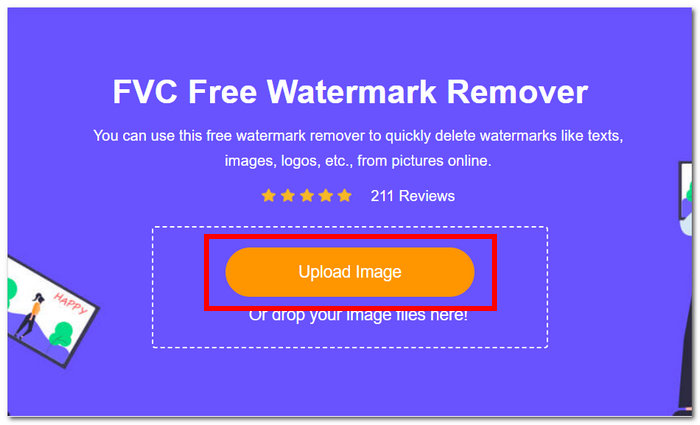
ขั้นตอนที่ 2. เมื่อรูปภาพของคุณโหลดเข้าในเครื่องมือแล้ว ให้เลือกเครื่องมือ Lasso ที่ด้านบนของหน้าจอ แล้วลากเส้นกำหนดบริเวณรอบวัตถุหรือบุคคลที่คุณต้องการลบออกจากรูป.
ขั้นตอนที่ 3. วัตถุหรือบุคคลที่คุณเลือกจะถูกไฮไลต์เป็นสีแดง แสดงว่าได้ถูกกำหนดให้ลบออกแล้ว จากนั้นคลิกปุ่ม Remove ที่อยู่ในแถบนำทางเพื่อเริ่มกระบวนการลบ.
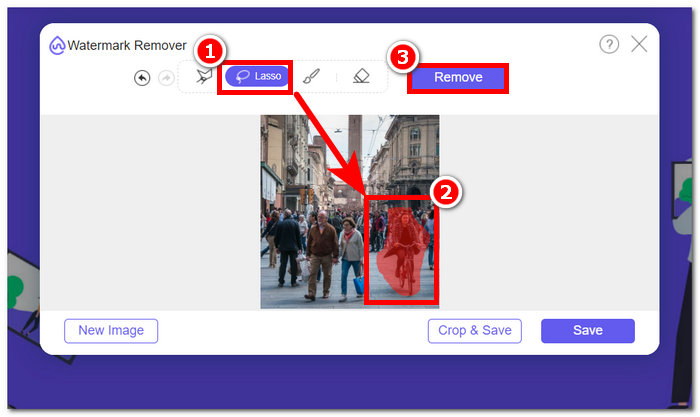
ขั้นตอนที่ 4. FVC Free Watermark Remover จะลบวัตถุหรือบุคคลนั้นออกให้โดยอัตโนมัติ จากนั้นคลิกปุ่ม Save เพื่อดาวน์โหลดรูปภาพลงในคอมพิวเตอร์ของคุณ.
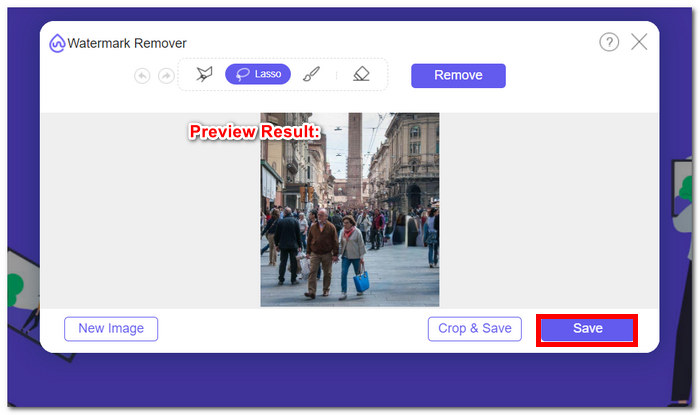
ด้วย FVC Free Watermark Remover คุณไม่จำเป็นต้องเสียเวลาทำงานต่างๆ เช่น ลบบุคคลออกจากรูปภาพ ในความเป็นจริง เครื่องมือเหล่านี้จัดลำดับความสำคัญของเวลาของคุณในการสร้างภาพที่มีคุณภาพซึ่งส่งออกผลลัพธ์โดยไม่สูญเสียคุณภาพ
ห้องถ่ายรูป
PhotoRoom นำเสนอเครื่องมือบริการเว็บอันทรงพลังที่ออกแบบมาเพื่อการลบบุคคลที่ไม่ต้องการออกจากรูปภาพของคุณโดยเฉพาะ เครื่องมือนี้สามารถลบวัตถุและบุคคลที่ไม่ต้องการได้อย่างรวดเร็วด้วยการคลิกเพียงไม่กี่ครั้งโดยอาศัยความสามารถของ AI ด้วยความช่วยเหลือของแปรงวิเศษ คุณสามารถลบวัตถุออกจากภาพถ่ายที่คุณรักได้ แม้ว่าคุณจะไม่มีทักษะการแก้ไขภาพขั้นสูงก็ตาม
ขั้นตอนที่ 1. ไปที่เว็บไซต์อย่างเป็นทางการของ PhotoRoom แล้วลากหรือวางรูปภาพที่คุณต้องการลบคนออก โดยคลิกที่ Start from Photo.
ขั้นตอนที่ 2. เมื่อรูปของคุณถูกโหลดเข้าเครื่องมือแล้ว ให้คลิกที่บุคคลที่คุณต้องการลบ จากนั้นกระบวนประมวลผลจะเริ่มขึ้นโดยอัตโนมัติหลังจากที่คุณลากไฮไลต์ครอบคลุมบริเวณที่มีวัตถุหรือบุคคลที่ไม่ต้องการ.
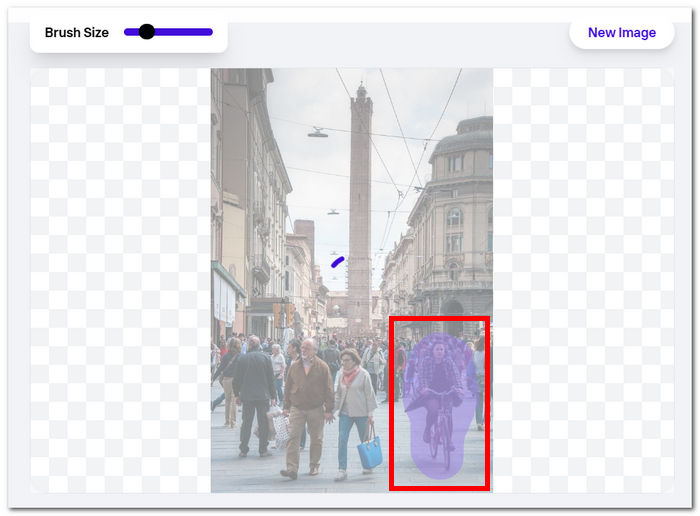
ขั้นตอนที่ 3. เครื่องมือจะลบวัตถุหรือบุคคลที่คุณเลือกออกไปอย่างอัตโนมัติ จากนั้นคุณเพียงแค่คลิกปุ่ม Download เพื่อดาวน์โหลดรูปภาพ.
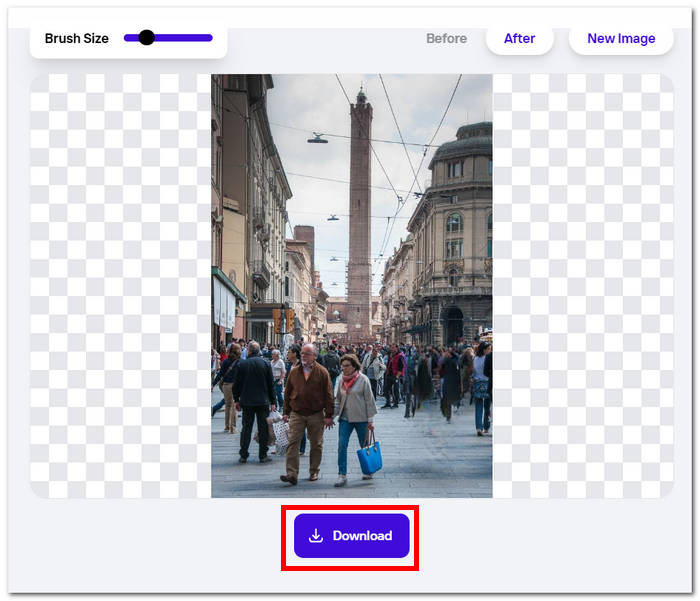
ด้วย PhotoRoom คุณจะได้ภาพที่สะอาดปราศจากสิ่งกวนใจอยู่เสมอ นำเสนอโซลูชั่นที่ตรงไปตรงมาในการกำจัดเนื้อหาที่ไม่ต้องการออกจากภาพของคุณ หากต้องการลบบุคคลออกจากรูปภาพออนไลน์ คุณควรรู้ว่าเครื่องมือของคุณ และ PhotoRoom ก็เป็นเครื่องมือหนึ่งที่ต้องพิจารณา
ฮอทพอท.ไอ
Hotpot.ai นำเสนอการลบผู้คน วัตถุที่ไม่ต้องการ และวัตถุที่เบลอได้อย่างง่ายดาย ด้วยการใช้เทคโนโลยี AI ขั้นสูง ระบบจะประมวลผลรูปภาพของคุณทันทีเมื่ออัปโหลด ทำให้มั่นใจได้ว่าการแก้ไขจะรวดเร็วและแม่นยำ กระบวนการที่ได้รับการปรับปรุงนี้ทำให้การทำความสะอาดภาพถ่ายของคุณเป็นเรื่องง่าย และให้ผลลัพธ์ที่สวยงามในเวลาอันรวดเร็ว การลบบุคคลออกจากรูปภาพโดยใช้ AI เป็นหนึ่งในคุณสมบัติที่น่าภาคภูมิใจของเครื่องมือนี้
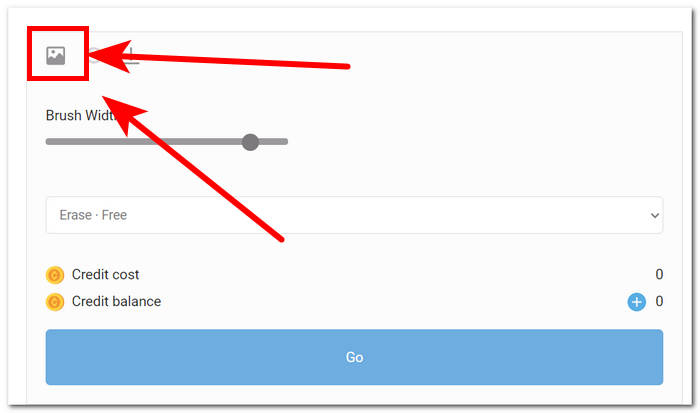
ขั้นตอนที่ 1. ไปที่เว็บไซต์ Hotpot.ai และคลิกไอคอน Media ที่มุมซ้ายบนของหน้าการตั้งค่าเพื่ออัปโหลดรูปภาพของคุณ.
ขั้นตอนที่ 2. ปิดทับคนที่คุณต้องการลบออกโดยเลื่อนเมาส์ไปวาดทับบริเวณนั้น แล้วไฮไลต์เป็นสีขาวเพื่อซ่อนคนที่ไม่ต้องการ เมื่อปิดทับครบแล้วให้คลิกปุ่ม Go เพื่อประมวลผลรูปภาพ.
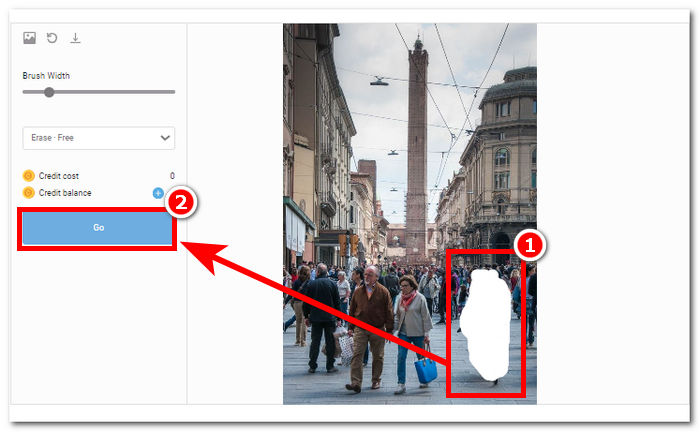
ขั้นตอนที่ 3. หลังจากเครื่องมือประมวลผลรูปภาพเสร็จแล้ว ระบบจะแสดงผลลัพธ์ให้คุณดู และหากพอใจกับผลลัพธ์แล้ว ให้คลิกปุ่ม Download ที่มุมซ้ายบนของหน้าการตั้งค่าเครื่องมือ.
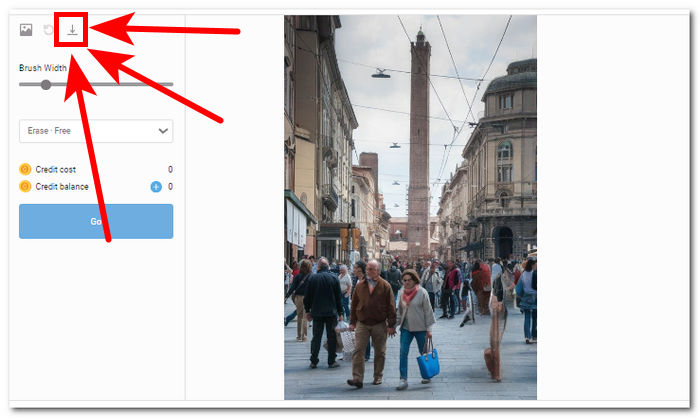
ด้วย Hotpot.ai คุณจะได้ภาพที่ดูเป็นมืออาชีพมากขึ้น ช่วยเพิ่มความโดดเด่นให้กับโปรเจกต์ภาพถ่ายของคุณ บอกลาสิ่งรบกวนสายตา แล้วต้อนรับภาพถ่ายที่เนียนกริบด้วยเครื่องมือปรับแต่งภาพ (image enhancer tool).
Photoeditor.ai
Photoeditor.ai ให้ผลลัพธ์ที่แม่นยำ เนื่องจากไม่เพียงแต่มีโปรแกรมตกแต่งรูปภาพขั้นพื้นฐานเท่านั้น แต่ยังช่วยลบวัตถุหรือบุคคลที่ไม่ต้องการซึ่งทำลายรูปภาพของคุณอีกด้วย ผลลัพธ์เทียบได้กับเครื่องมือออนไลน์แบบชำระเงินที่มีอยู่บนอินเทอร์เน็ต เครื่องมือนี้เป็นหนึ่งในเครื่องมือที่เชื่อถือได้ที่ให้คุณใช้บริการได้ฟรี สิ่งที่คุณต้องมีคือการเชื่อมต่ออินเทอร์เน็ตและรูปถ่ายของคุณ
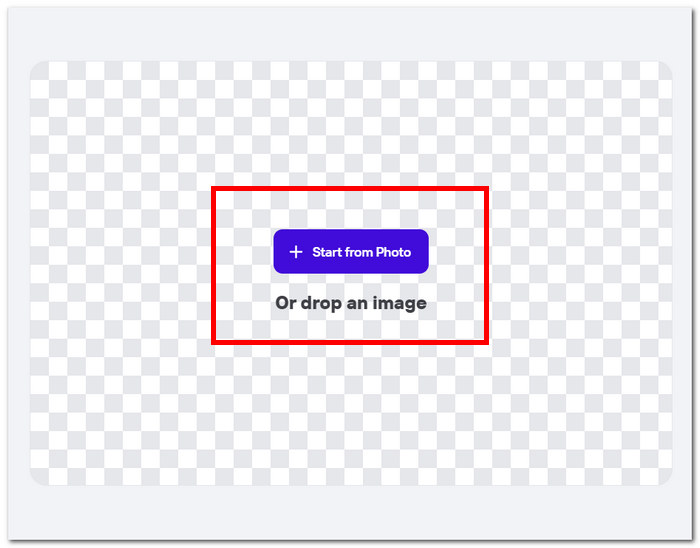
ขั้นตอนที่ 1. ไปที่เว็บไซต์ Photoeditor.ai และโหลดรูปภาพของคุณโดยคลิกที่ช่อง Drop an Image ในหน้าอินเทอร์เฟซของเครื่องมือ.
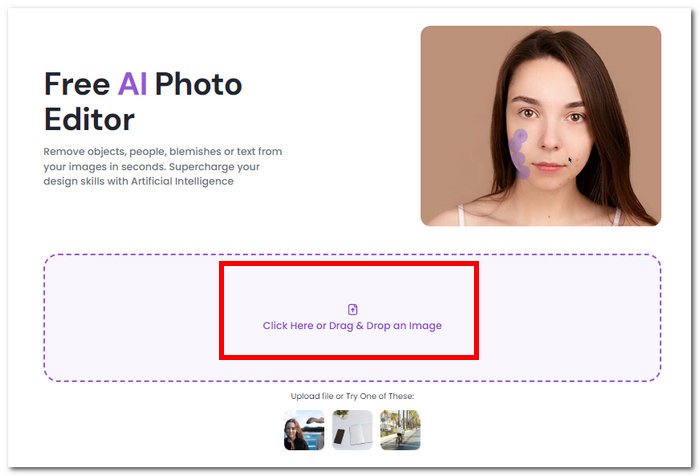
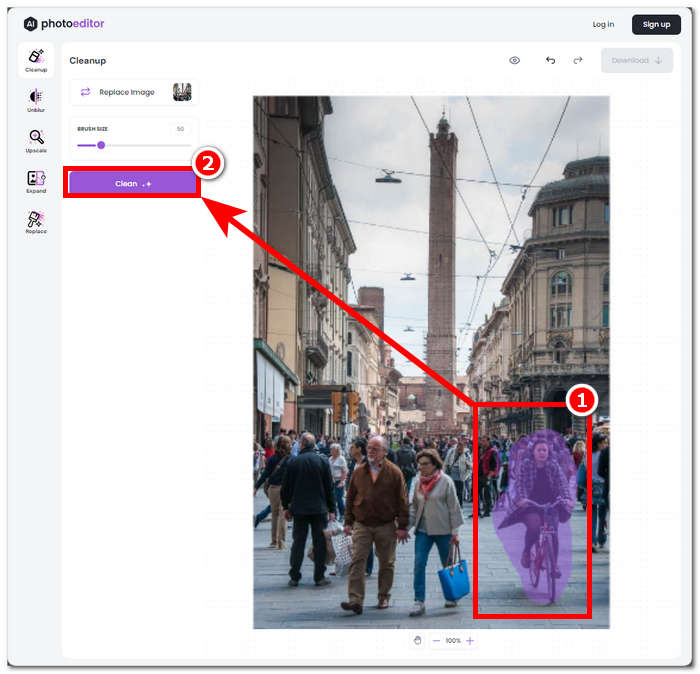
ขั้นตอนที่ 2. เมื่อรูปภาพของคุณถูกโหลดเข้าเครื่องมือแล้ว ให้ทำการเลือกและลากเส้นรอบคนที่ไม่ต้องการในรูปด้วยตนเอง จากนั้นคลิกปุ่ม Clean ที่อยู่มุมซ้ายบนของหน้าอินเทอร์เฟซ.
ขั้นตอนที่ 3. เมื่อกระบวนการเสร็จสิ้น คุณจะสามารถพรีวิวรูปภาพได้ และหากพอใจกับผลลัพธ์แล้ว ให้ทำการบันทึกโดยคลิกที่ปุ่ม Download.
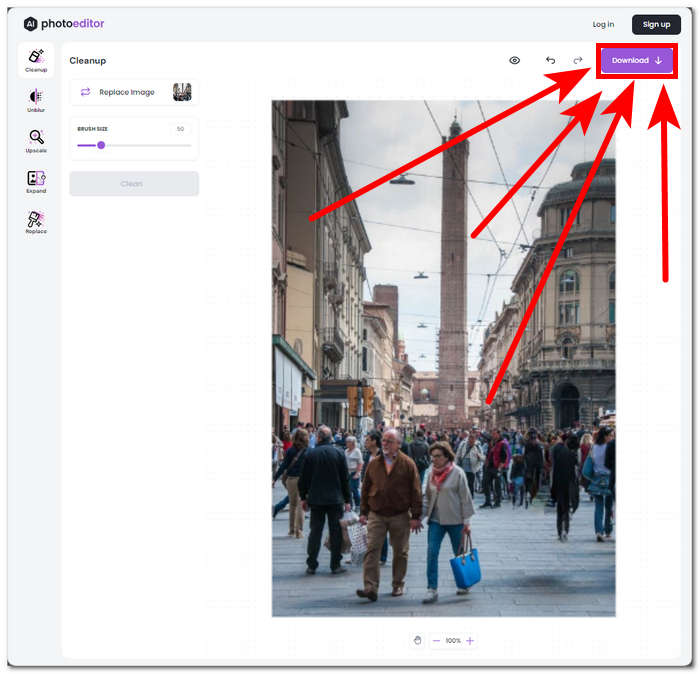
Photoeditor.ai เป็นเครื่องมือตรงไปตรงมาที่ช่วยให้คุณลบวัตถุและบุคคลที่ไม่ต้องการออกได้ในทันทีโดยไม่ต้องกังวลกับการสูญเสียคุณภาพ เครื่องมือนี้เหมาะสำหรับผู้ที่มองหาเครื่องมือที่มีการแก้ไขรูปภาพขั้นพื้นฐาน เช่น เครื่องมือลบข้อความและเครื่องมือเสริมใบหน้า
ส่วนที่ 2 วิธีลบผู้คนออกจากรูปภาพบน iOS และ Android
แก้ไขโปรแกรมแก้ไขรูปภาพและรีทัช
จะลบบุคคลออกจากรูปภาพบน iPhone ได้อย่างไร? แอปนี้มีบริการแก้ไขรูปภาพขั้นพื้นฐานที่ยอดเยี่ยม เช่น เครื่องมือลบวัตถุหรือบุคคล พร้อมให้ดาวน์โหลดบนอุปกรณ์มือถือของคุณ แอปนี้ประกอบด้วยการลบวัตถุและการปรับปรุงพื้นหลัง ใบหน้า และร่างกายในระดับสูง แอพนี้ใช้โปรแกรมตกแต่งรูปภาพมืออาชีพเพื่อทำงานกับคอนเสิร์ตภาพถ่ายของคุณ ด้วยเหตุนี้ จะทำให้แอปไม่มีการเข้าถึงแบบออฟไลน์ และคุณจะต้องชำระเงินในที่สุด
ขั้นตอนที่ 1. ดาวน์โหลดแอป Fix The Photo Editor & Retouch จาก App Store หรือ Play Store.
ขั้นตอนที่ 2. เปิดแอป Fix The Photo Editor & Retouch จากนั้นเลือกภาพที่คุณต้องการแก้ไข แล้วไปที่หมวด Remove Objects และคลิกที่เมนู Remove People/ Object.
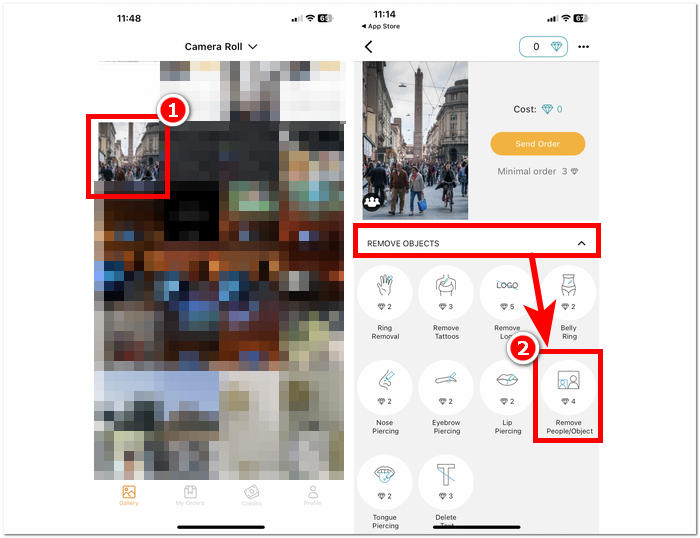
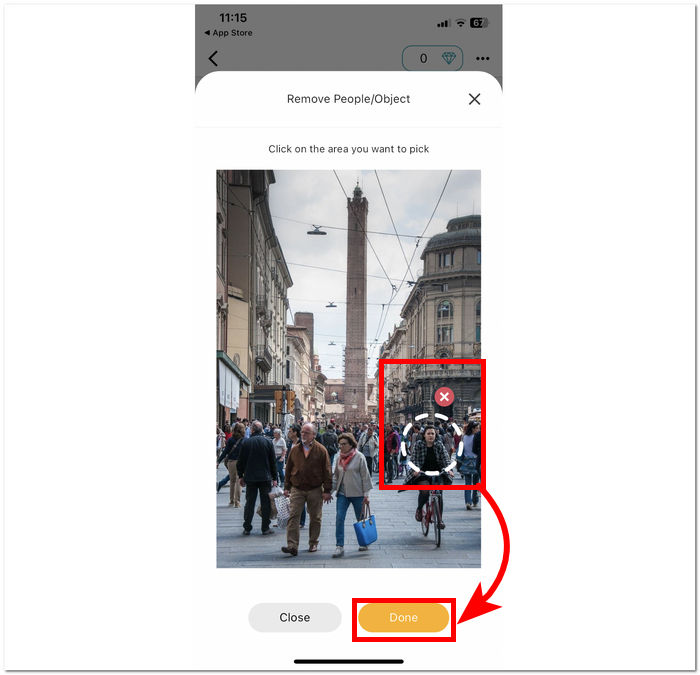
ขั้นตอนที่ 3. เพียงคลิกลงไปในบริเวณที่มีคนที่คุณต้องการลบออกจากรูป เมื่อเลือกวัตถุหรือบุคคลที่ไม่ต้องการเสร็จแล้ว ให้คลิก Done เพื่อยืนยันกระบวนการ.
ขั้นตอนที่ 4. คลิก Send Order แล้วชำระเงินตามราคาที่กำหนด เพื่อให้ระบบดำเนินการลบและให้คุณดาวน์โหลดรูปที่แก้ไขแล้ว.
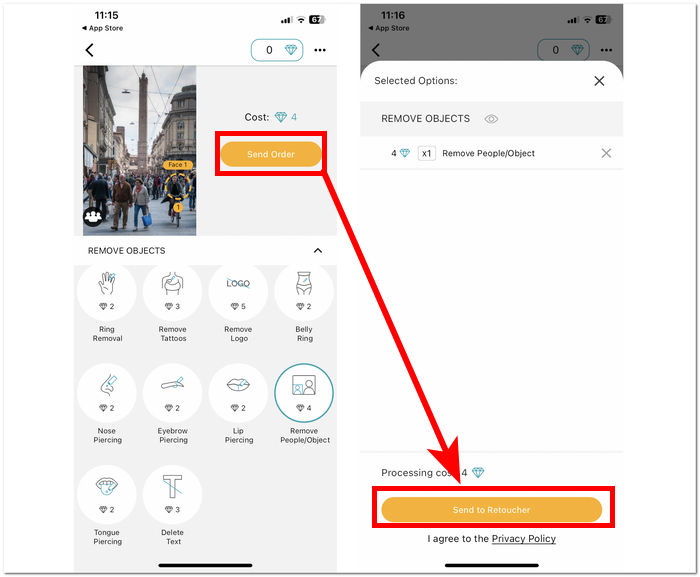
นอกเหนือจากการลบคนออกจากภาพแล้ว Fix The Photo Editor & Retouch ยังถือเป็นหนึ่งในแอปที่ได้รับความไว้วางใจ เนื่องจากไม่ได้พึ่งพา AI ในการแก้ไขรูปภาพ แต่ใช้ช่างแต่งภาพตัวจริงในการปรับแต่งและเพิ่มประสิทธิภาพรูปภาพของคุณ นั่นจึงเป็นเหตุผลที่บริการนี้ไม่ฟรี แต่คุณสามารถทดสอบบริการได้ผ่านช่วงทดลองใช้งานฟรี.
ผู้กำกับภาพ
แอพ PhotoDirector ช่วยให้คุณลบบุคคลหรือวัตถุที่ไม่ต้องการออกจากรูปภาพของคุณได้อย่างง่ายดายด้วยอินเทอร์เฟซและฟีเจอร์ที่ตรงไปตรงมา แอปนี้นำเสนอการลบวัตถุอย่างรวดเร็วบนอุปกรณ์เคลื่อนที่ของคุณ พร้อมด้วยเอฟเฟกต์ที่หลากหลาย ช่วยให้สามารถแก้ไขภาพโดยใช้เลเยอร์ได้ แอพนี้ไม่เพียงมุ่งเน้นไปที่การลบวัตถุเท่านั้น แต่ AI ของมันยังมีสไตล์ระดับมืออาชีพที่สามารถทำให้แอพนี้ลบและแก้ไขรูปภาพของคุณได้อย่างแม่นยำ
ขั้นตอนที่ 1. ดาวน์โหลดและเปิดแอป PhotoDirector บนมือถือของคุณ ทั้ง iOS หรือ Android ได้ฟรี.
ขั้นตอนที่ 2. ในหน้าอินเทอร์เฟซของแอป ให้คลิกที่ AI Removal จากนั้นเลือกรูปภาพที่คุณต้องการแก้ไข.
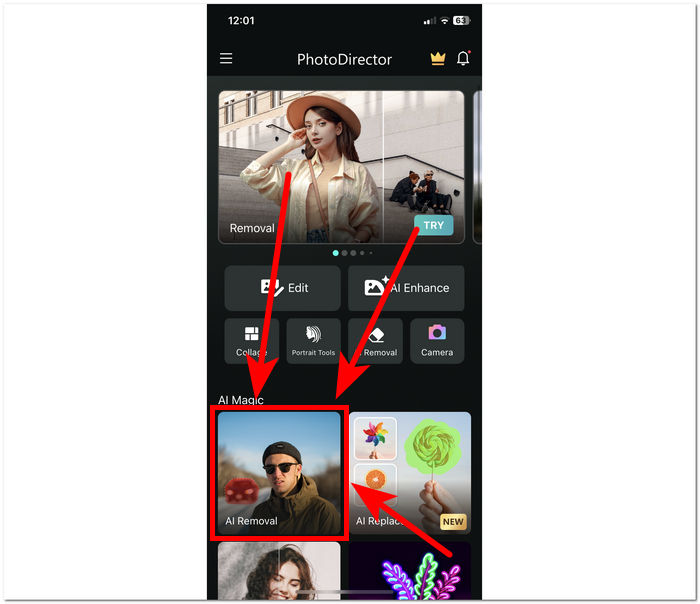
ขั้นตอนที่ 3. เมื่อรูปภาพของคุณถูกโหลดเข้าในแอปแล้ว ให้ลากเส้นกำหนดรอบวัตถุหรือบุคคลที่คุณต้องการลบออกจากรูป.
ขั้นตอนที่ 4. เมื่อวัตถุหรือบุคคลที่เลือกถูกไฮไลต์เป็นสีแดงแล้ว ให้คลิกปุ่ม Remove จากนั้นเมื่อกระบวนการเสร็จสิ้น ให้คลิกที่ไอคอนเครื่องหมายถูกด้านล่างปุ่ม Remove เพื่อบันทึกรูปภาพที่แก้ไขแล้วไว้ในแกลเลอรีของคุณ.
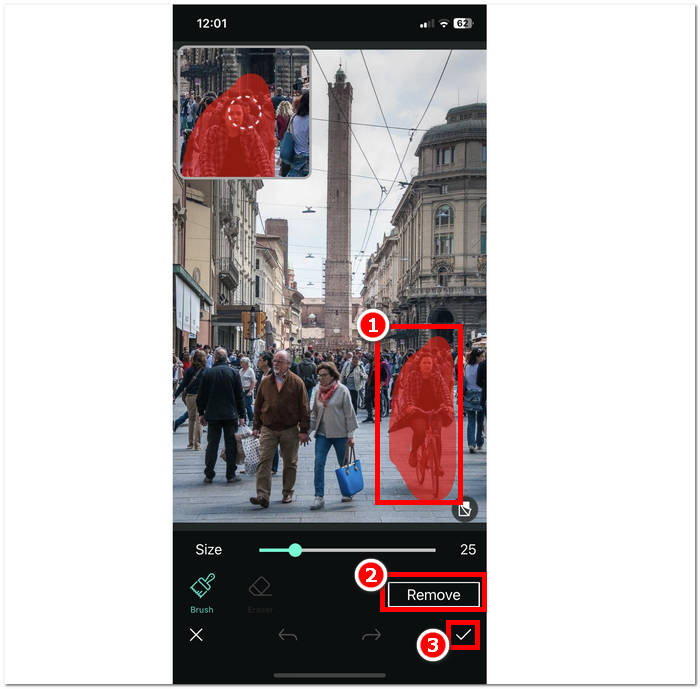
แอพ PhotoDirector มีคุณสมบัติที่มีประโยชน์มากมายที่ให้เหตุผลแก่ผู้ใช้ในการเลือกแอพเพื่อทำงานต่างๆ ให้เสร็จสิ้น นอกเหนือจากการลบคนออก คำถามเช่นวิธีลบบุคคลออกจากรูปภาพบน iPhone ไม่ใช่ปัญหาเมื่อแอปนี้เก่งในการลบวัตถุที่ไม่ต้องการโดยไม่มีปัญหา ความหลากหลายของคุณสมบัติในแอปบางครั้งอาจเป็นอุปสรรคต่อประสิทธิภาพเนื่องจากสามารถขัดขวางความเร็วในการประมวลผลได้
ลบวัตถุที่ไม่ต้องการออก
แอปนี้จะลบวัตถุที่ไม่ต้องการออกจากรูปภาพของคุณอย่างง่ายดาย ช่วยให้คุณสามารถลบบุคคลที่ไม่ต้องการออกได้อย่างง่ายดาย การลบวัตถุที่ไม่ต้องการออกไม่เพียงแต่ให้การลบบุคคลเท่านั้น แต่ยังรวมถึงวัตถุ สติกเกอร์ และข้อความออกจากรูปภาพของคุณอีกด้วย ดาวน์โหลดได้ฟรีบนอุปกรณ์ Android ของคุณ โดยมีอินเทอร์เฟซที่ตรงไปตรงมาซึ่งเหมาะสำหรับผู้มาใหม่
ขั้นตอนที่ 1. บนอุปกรณ์ Android ของคุณ ให้ดาวน์โหลดและเปิดแอป Remove Unwanted Object จาก Play Store.
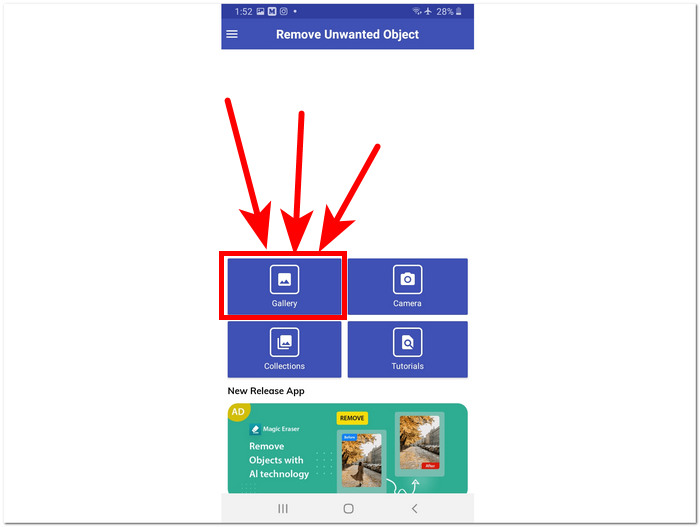
ขั้นตอนที่ 2. เมื่อเข้าสู่หน้าอินเทอร์เฟซของแอปแล้ว ให้คลิกที่ไอคอน Gallery บนหน้าจอ แล้วเลือกภาพที่คุณต้องการแก้ไข.
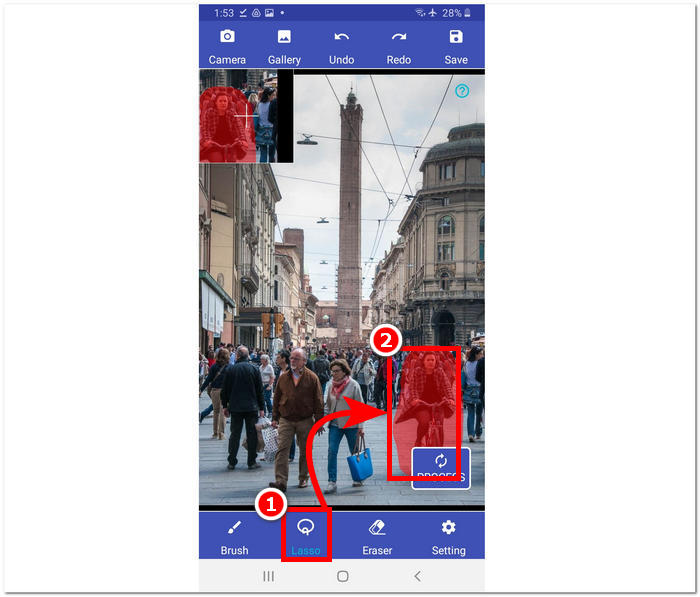
ขั้นตอนที่ 3. เมื่อรูปของคุณถูกโหลดเข้าในแอปแล้ว ให้คลิกที่เครื่องมือ Lasso ที่ส่วนล่างของแอป แล้วลากเส้นรอบบุคคล/วัตถุที่คุณต้องการลบออก.
ขั้นตอนที่ 4. จากนั้นคลิกปุ่ม Process เพื่อทำการลบบริเวณที่เลือก และคลิกปุ่ม Save ที่มุมขวาบนเพื่อดาวน์โหลดรูปภาพลงในแกลเลอรีของคุณ.
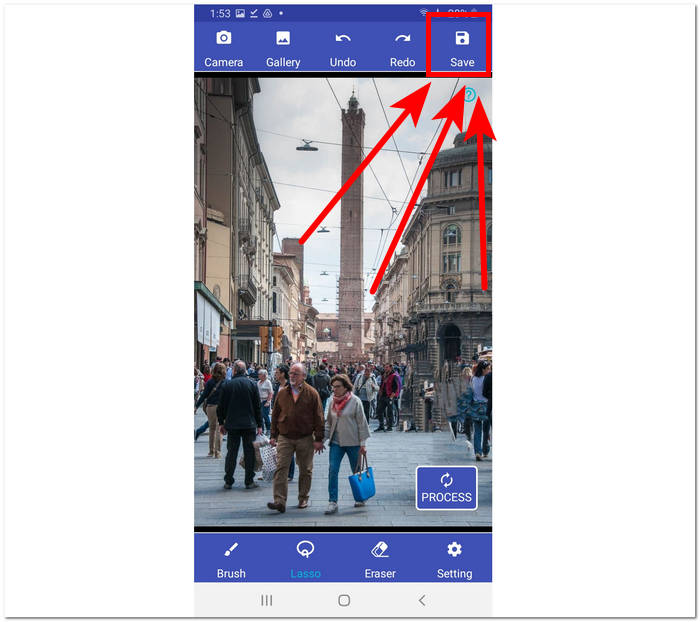
Remove Unwanted Object มอบโซลูชั่นง่ายๆ สำหรับการลบวัตถุที่ไม่ต้องการ อย่างไรก็ตาม สิ่งสำคัญคือต้องทราบว่าแอปนี้มาพร้อมกับโฆษณา ซึ่งอาจส่งผลเสียจากประสบการณ์ของผู้ใช้
รีทัช - ลบวัตถุ
Retouch - Remove Objects พร้อมให้ดาวน์โหลดฟรีบนอุปกรณ์มือถือของคุณ โดยนำเสนอฟีเจอร์อันทรงพลังมากมายเพียงปลายนิ้วสัมผัส แอพที่เป็นนวัตกรรมนี้ใช้ประโยชน์จากเทคโนโลยี AI ที่ล้ำสมัยควบคู่ไปกับเครื่องมือแปรงที่แม่นยำ ทำให้การลบวัตถุง่ายและมีประสิทธิภาพมากขึ้นกว่าเดิม ด้วยอินเทอร์เฟซที่ใช้งานง่ายและผลลัพธ์ที่รวดเร็ว การแก้ไขที่ราบรื่นไม่เคยง่ายขนาดนี้มาก่อน
ขั้นตอนที่ 1. บนอุปกรณ์ Android ของคุณ ให้ดาวน์โหลดแอป Retouch - Remove Objects และเมื่อการติดตั้งเสร็จสิ้น ให้เปิดแอป.
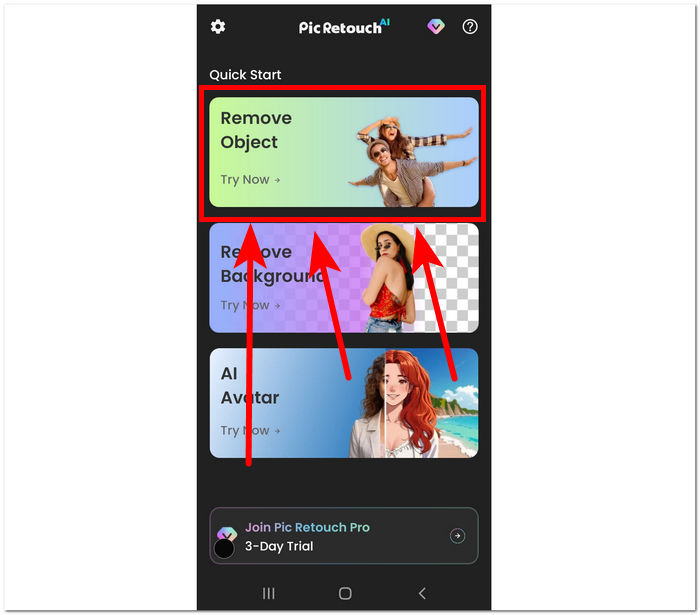
ขั้นตอนที่ 2. เมื่อเข้าสู่หน้าอินเทอร์เฟซของแอปแล้ว ให้คลิกที่เมนู Remove Object เพื่อเลือกภาพจากแกลเลอรีที่คุณต้องการแก้ไข.
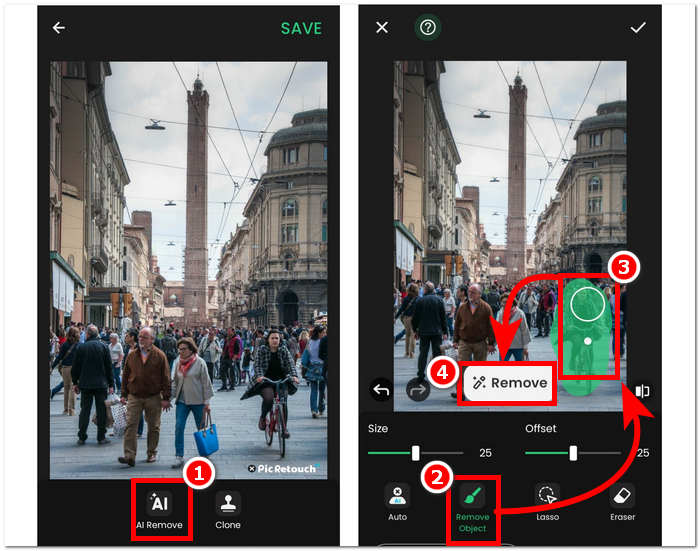
ขั้นตอนที่ 3. เมื่อรูปภาพของคุณถูกอัปโหลดเข้าในแอปแล้ว ให้คลิกตัวเลือก AI Remove ที่อยู่บริเวณส่วนล่างของหน้าอินเทอร์เฟซ เลือก Remove object แล้วลากเส้นล้อมรอบวัตถุหรือบุคคลที่คุณต้องการลบออกจากภาพ จากนั้นเริ่มกระบวนการลบโดยคลิกปุ่ม Remove.
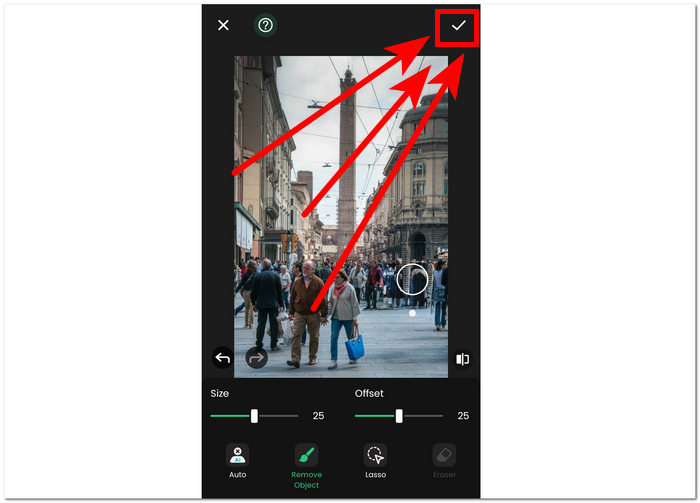
ขั้นตอนที่ 4. เมื่อประมวลผลเสร็จแล้ว ให้คลิกที่เครื่องหมายถูกที่มุมขวาบนเพื่อดาวน์โหลดรูปภาพไปยังแกลเลอรีของคุณ.
Retouch - Remove Objects เป็นแอปฟรีสำหรับอุปกรณ์ Android โดยแลกกับการมีโฆษณาปรากฏภายในแอป แม้จะมีโฆษณา แต่แอปนี้ก็ใช้งานง่าย เหมาะสำหรับงานต่าง ๆ เช่น การลบวัตถุ การลบพื้นหลัง การลบอีโมจิออกจากภาพ และการสร้างรูปโปรไฟล์ AI (AI avatar).
ส่วนที่ 3 คำถามที่พบบ่อยเกี่ยวกับการลบบุคคลออกจากรูปภาพ
iPhone มียางลบวัตถุหรือไม่?
ไม่ iPhone ไม่มีคุณสมบัติยางลบวัตถุในตัวในรุ่นล่าสุด อย่างไรก็ตาม คุณอาจต้องการตรวจสอบและค้นคว้าเกี่ยวกับแอปของบริษัทอื่นที่มีฟังก์ชันการทำงานคล้ายกันในการลบวัตถุออกจากรูปภาพ
เป็นไปได้ไหมที่ Photoshop ใครบางคนจะออกจากรูปภาพ?
ใช่ เป็นไปได้ที่บางคนจะใช้ Photoshop นอกรูปภาพโดยใช้ Adobe Photoshop หรือซอฟต์แวร์แก้ไขภาพอื่นๆ ด้วยการเลือกและแก้ไขพื้นที่รอบๆ บุคคลอย่างระมัดระวัง คุณสามารถลบออกจากภาพได้อย่างราบรื่นโดยยังคงความสมบูรณ์ของพื้นหลังไว้
คุณสมบัติการตัดออกของ iPhone จะเก็บพื้นหลังทั้งหมดหรือไม่
คุณลักษณะการตัดออกของ iPhone ซึ่งมีอยู่ในแอปตัดต่อบางแอป โดยทั่วไปมีจุดมุ่งหมายเพื่อให้วัตถุไม่เสียหายขณะลบพื้นหลัง อย่างไรก็ตาม ความสำเร็จของการรักษาพื้นหลังทั้งหมดขึ้นอยู่กับปัจจัยต่างๆ เช่น ความซับซ้อนของพื้นหลังและความแม่นยำของเครื่องมือตัดออก
การลบบุคคลออกจากรูปภาพเป็นเรื่องยากหรือไม่?
ระดับความยากขึ้นอยู่กับปัจจัยต่างๆ เช่น ความซับซ้อนของพื้นหลัง คุณภาพของภาพถ่าย และทักษะการแก้ไขของผู้ใช้ อย่างไรก็ตาม ด้วยเครื่องมือและเทคนิคที่เหมาะสม คุณก็สามารถบรรลุผลลัพธ์ที่ราบรื่นได้
ฉันสามารถลบคนหลายคนออกจากรูปภาพกลุ่มได้หรือไม่
ได้ คุณสามารถลบคนหลายคนออกจากรูปภาพกลุ่มได้โดยใช้เทคนิคเดียวกับการลบคนเพียงคนเดียว อย่างไรก็ตาม อาจต้องใช้เวลาและความแม่นยำมากขึ้นเพื่อให้แน่ใจว่าผลลัพธ์สุดท้ายจะดูราบรื่น
สรุป
โดยสรุปแล้ว การลบคนออกจากรูปภาพช่วยเปิดโอกาสให้คุณสามารถเพิ่มเติมและแก้ไขช่วงเวลาแห่งความทรงจำให้สมบูรณ์แบบยิ่งขึ้น ไม่ว่าคุณจะใช้เครื่องมือออนไลน์หรือแอปบนมือถือ ขั้นตอนเหล่านี้ล้วนเป็นทางลัดสู่การสร้างภาพถ่ายที่สะอาดตาและดึงดูดมากขึ้น เพียงมีเครื่องมือที่เหมาะสม คุณก็สามารถสร้างภาพที่ดูเป็นมืออาชีพได้อย่างง่ายดาย ทำให้ภาพถ่ายของคุณยังคงสื่อสารจุดโฟกัสที่แท้จริงได้อย่างชัดเจน ลองสำรวจตัวเลือกที่หลากหลายตามที่กล่าวมา แล้วเริ่มต้นสร้างภาพถ่ายที่คมชัด สวยงาม และปราศจากสิ่งรบกวนสายตาได้ตั้งแต่วันนี้.
-
 เครื่องมือลบพื้นหลังรูปภาพ 9 อันดับแรกเพื่อผลลัพธ์ที่รวดเร็วและแม่นยำ
 สัมผัสประสบการณ์ที่รวดเร็วและแม่นยำของยางลบภาพพื้นหลังประสิทธิภาพสูง บอกลาเครื่องมือลบพื้นหลังที่ซับซ้อนและยอมรับวิธีที่มีประสิทธิภาพทั้ง 9 วิธีเลยวันนี้!
-
 วิธีลบข้อความออกจากรูปภาพบน Windows/Mac/Online
 บอกลาข้อความที่กวนใจในภาพของคุณได้เลย! สำรวจวิธีการลบข้อความออกจากรูปภาพด้วยโซลูชันที่ราบรื่นเหล่านี้ซึ่งออกแบบมาเพื่อการลบข้อความได้อย่างราบรื่น
-
 วิธีลบพื้นหลังออกจากรูปภาพ: เครื่องมือที่ไม่ยุ่งยาก
 ค้นพบเครื่องมือหกประการเพื่อลบพื้นหลังออกจากรูปภาพได้อย่างง่ายดาย บอกลาการแก้ไขที่ซับซ้อนและลบพื้นหลังรูปภาพได้อย่างง่ายดายเลยวันนี้!
