


 Video Converter Ultimate
 บันทึกหน้าจอ
 ซ่อมวิดีโอ
 ดาวน์โหลดอย่างปลอดภัย
วิธีง่ายๆ ในการลบลายน้ำใน Lightroom Mobile
การใส่ลายน้ำลงบนรูปภาพของคุณเป็นสิ่งที่ดี โดยเฉพาะอย่างยิ่งหากคุณต้องการป้องกันรูปภาพของคุณ อย่างไรก็ตาม บางครั้งคุณอาจต้องการเก็บไว้แค่รูปภาพ แต่ลายน้ำกลับกลายเป็นสิ่งรบกวน โพสต์นี้จะแนะนำแอปพลิเคชันหลายตัว พร้อมวิธีง่ายๆ ที่คุณสามารถใช้ลบลายน้ำออกจากรูปภาพของคุณได้ นอกจากนี้ คุณจะได้เรียนรู้วิธีลบลายน้ำใน Lightroom บนมือถือด้วย หากคุณต้องการเรียนรู้เนื้อหาแบบนี้ โปรดอ่านคู่มือนี้ต่อไปเพื่อศึกษารายละเอียดสำคัญเพิ่มเติม.

ส่วนที่ 1: วิธีปิดการใช้งานคุณสมบัติลายน้ำของแอพ Lightroom Mobile ก่อนส่งออก
Lightroom mobile น่าเชื่อถือในการลบวัตถุที่รบกวนออกจากรูปภาพของคุณ เช่น ลายน้ำ โลโก้ ลายเซ็น และอื่นๆ คุณสามารถลบออกได้ด้วยการแตะเพียงไม่กี่ครั้ง ซอฟต์แวร์ที่ใช้งานง่ายนี้ออกแบบมาสำหรับผู้ใช้ทุกคน โดยเฉพาะผู้ใช้ที่ไม่ใช่มืออาชีพ หากคุณต้องการค้นพบวิธีที่ง่ายที่สุดในการลบลายน้ำในแอป Lightroom สำหรับมือถือ ให้ทำดังนี้ ทำตามคำแนะนำง่ายๆด้านล่าง
ขั้นตอนที่ 1: ดาวน์โหลดและติดตั้งแอป Lightroom บนโทรศัพท์มือถือของคุณ เปิดแอปแล้วเข้าสู่หน้าไทม์ไลน์.

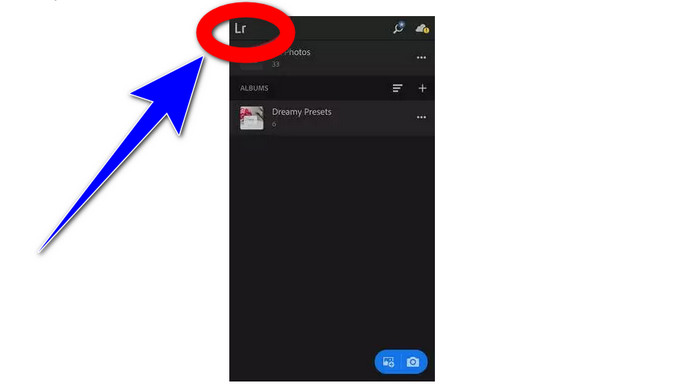
ขั้นตอนที่ 2: ที่มุมซ้ายบนของหน้าจอ ให้แตะไอคอน Lr.
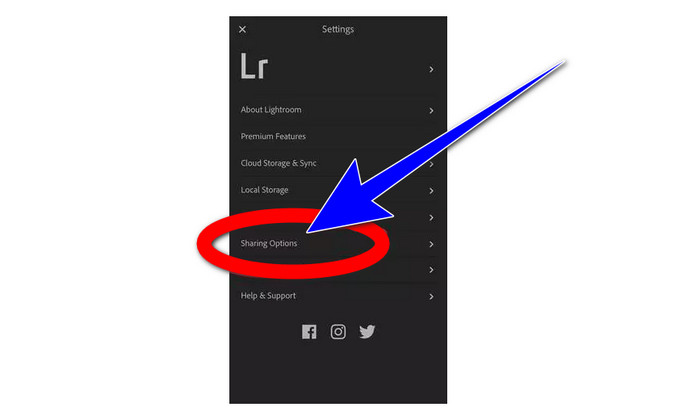
ขั้นตอนที่ 3: จากนั้นไปที่ตัวเลือกการแชร์ แล้วแตะเพื่อเปิด.
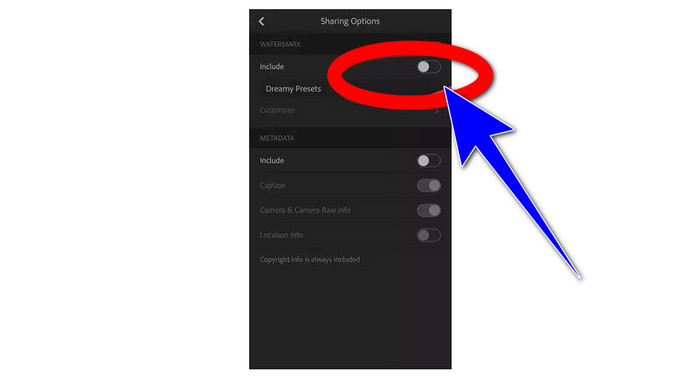
ขั้นตอนที่ 4: หลังจากแตะตัวเลือกการแชร์แล้ว ให้ปิดตัวเลือก Dreamy Prest เพื่อปิดลายน้ำ แตะตัวเลือกนี้แล้วสลับไปที่ปิด.
ส่วนที่ 2: วิธีลบลายน้ำออกจากรูปภาพโดยไม่ใช้ lightroom
นอกจาก Lightroom เวอร์ชันมือถือแล้ว คุณยังสามารถลบลายน้ำออกจากรูปภาพของคุณได้ด้วย FVC Free Watermark Remover ซึ่งเป็นหนึ่งในเครื่องมือลบลายน้ำออนไลน์ที่ยอดเยี่ยมที่คุณสามารถใช้ได้บนอินเทอร์เน็ต นอกจากลายน้ำแล้ว ยังสามารถลบองค์ประกอบที่น่ารำคาญอื่นๆ ออกจากรูปภาพได้ เช่น โลโก้ คำบรรยาย สติกเกอร์ ตราประทับ ลายเซ็น และอื่นๆ อีกมากมาย คุณยังสามารถบันทึกรูปภาพของคุณในรูปแบบไฟล์เดิมหลังจากลบลายน้ำแล้วได้อีกด้วย เครื่องมือลบหลายแบบ เช่น Lasso, Brush และ Polygonal ทำให้การลบลายน้ำทำได้อย่างง่ายดาย นอกจากนี้ เครื่องมือลบลายน้ำนี้ยังมีเครื่องมือครอป ซึ่งคุณสามารถใช้ได้หากบริเวณลายน้ำอยู่ที่ขอบหรือมุมของรูปภาพ อีกทั้งเครื่องมือนี้ยังใช้งานได้ฟรีทั้งหมด คุณไม่จำเป็นต้องสมัครสมาชิกเหมือนเครื่องมือลบลายน้ำอื่นๆ.
นอกจากนี้ยังมีอินเทอร์เฟซและขั้นตอนง่าย ๆ สำหรับการลบลายน้ำ ซึ่งเหมาะสำหรับผู้เริ่มต้น สุดท้ายนี้ ไฟล์ของคุณรับประกันความเป็นส่วนตัว คุณเป็นคนเดียวที่สามารถดูงานของคุณได้ ทำตามขั้นตอนโดยละเอียดด้านล่างเพื่อลบลายน้ำออกจากรูปภาพของคุณโดยใช้ FVC Free Watermark Remover
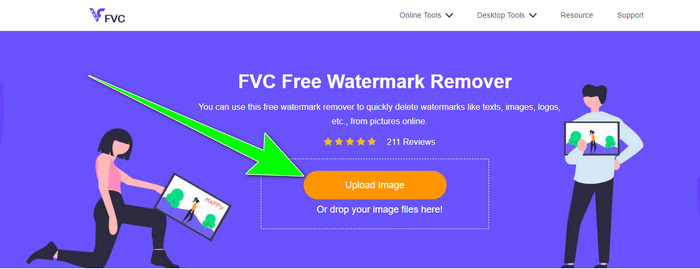
ขั้นตอนที่ 1: ไปที่เว็บไซต์ของ FVC Free Watermark Remover อัปโหลดรูปภาพของคุณโดยคลิกปุ่ม Upload Image.
ขั้นตอนที่ 2: หลังจากอัปโหลดรูปภาพแล้ว ให้ไฮไลต์ลายน้ำโดยใช้เครื่องมือลบลายน้ำ ตามที่เห็น บริเวณลายน้ำอยู่ตรงกลางรูปภาพ ซึ่งหมายความว่าคุณไม่สามารถใช้เครื่องมือครอปได้ ดังนั้นเราจะใช้เครื่องมือ Polygonal ซึ่งเป็นหนึ่งในเครื่องมือลบลายน้ำ.
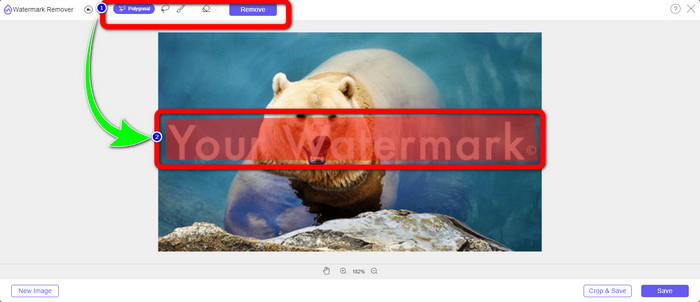
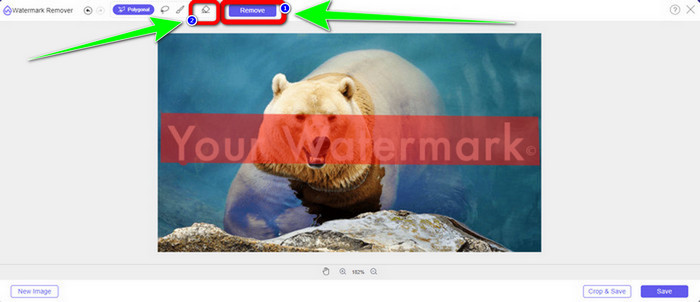
ขั้นตอนที่ 3: หากคุณต้องการเลือกบริเวณที่ไฮไลต์ใหม่ ให้ใช้ปุ่ม Erase หากคุณไฮไลต์บริเวณลายน้ำในรูปภาพเสร็จแล้ว ให้คลิกปุ่ม Remove และรอจนกระบวนการลบเสร็จสิ้น.
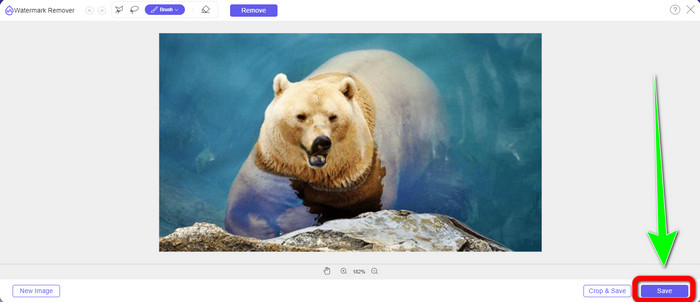
ขั้นตอนที่ 4: เมื่อลบลายน้ำออกเรียบร้อยแล้ว คุณสามารถคลิกปุ่ม Save และดาวน์โหลดรูปภาพลงในคอมพิวเตอร์ของคุณ.
การใช้ WatermarkRemover.io
หากคุณต้องการใช้เครื่องมือออนไลน์อื่นเพื่อลบลายน้ำออกจากรูปภาพ คุณสามารถใช้ WatermarkRemover.io ซอฟต์แวร์ออนไลน์ตัวนี้สามารถลบวัตถุที่ไม่ต้องการต่างๆ ออกจากรูปภาพของคุณได้ เช่น โลโก้ ตัวอักษร ตราประทับ และอื่นๆ นอกจากนี้ยังสามารถลบลายน้ำหลายจุดออกจากรูปภาพของคุณได้ในครั้งเดียว อินเทอร์เฟซก็เรียบง่าย พร้อมวิธีการพื้นฐานที่เหมาะสำหรับผู้ใช้ใหม่ เครื่องมือออนไลน์นี้รองรับไฟล์ภาพหลายรูปแบบ เช่น PNG, JPG, WEBP และ JPEG อย่างไรก็ตาม เวอร์ชันฟรีมีข้อจำกัด คุณสามารถอัปโหลดได้สูงสุด 50 รูป และมีพื้นที่จัดเก็บเพียง 25GB หากต้องการอัปโหลดรูปภาพได้มากกว่านี้และมีพื้นที่จัดเก็บเพิ่ม คุณต้องสมัครแพ็กเกจ ซึ่งมีราคาค่อนข้างสูง หากคุณต้องการลบองค์ประกอบรบกวนออกจากรูปภาพด้วย WatermarkRemover.io ให้ทำตามขั้นตอนง่ายๆ ด้านล่างนี้.
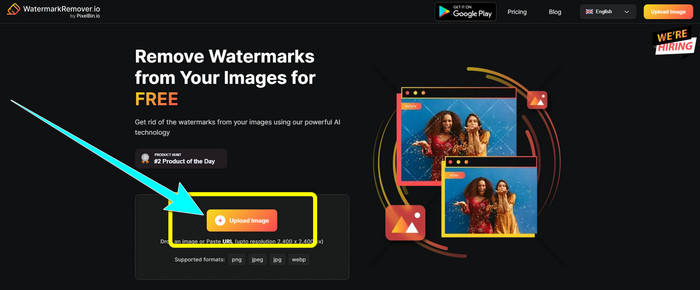
ขั้นตอนที่ 1: ไปที่เว็บไซต์ของ WatermarRemover.io คลิกปุ่ม Upload Image เพื่อเพิ่มรูปภาพที่มีลายน้ำซึ่งคุณต้องการลบ.
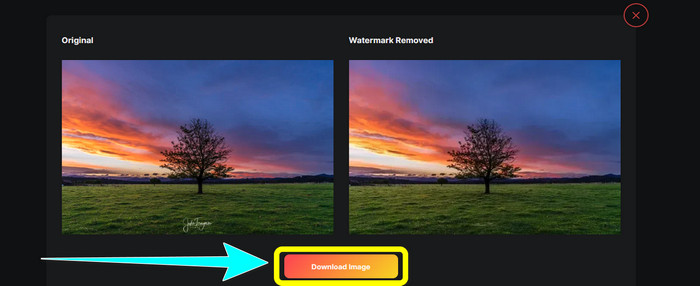
ขั้นตอนที่ 2: หลังจากเพิ่มรูปภาพของคุณแล้ว ระบบจะลบลายน้ำโดยอัตโนมัติ คลิกปุ่ม Download Image เพื่อบันทึกรูปภาพลงในคอมพิวเตอร์ของคุณ.
ใช้ Apowersoft Watermark Remover ออนไลน์
Apowersoft Video Watermark Remover Online เป็นอีกหนึ่งเครื่องมือที่มีประโยชน์มาก หากคุณกำลังมองหาวิธีออนไลน์อื่นในการลบลายน้ำออกจากรูปภาพของคุณ คุณสามารถลบลายน้ำออกจากรูปภาพได้อย่างง่ายดายด้วยเครื่องมือออนไลน์นี้ นอกจากนี้ยังเป็นแอปพลิเคชันที่ใช้งานง่ายและไม่ซับซ้อน จึงเหมาะกับผู้เริ่มต้นที่ต้องการกำจัดลายน้ำ อีกทั้ง Apowersoft ยังทำได้มากกว่าการลบลายน้ำจากรูปภาพ คุณยังสามารถลบลายน้ำออกจากวิดีโอของคุณได้ด้วย ซึ่งสะดวกสำหรับผู้ใช้เป็นอย่างยิ่ง และเนื่องจากเป็นโปรแกรมออนไลน์ คุณไม่จำเป็นต้องติดตั้งลงในคอมพิวเตอร์ ไฟล์ของคุณจะถูกลบออกจากเซิร์ฟเวอร์โดยอัตโนมัติหลังจากคุณลบลายน้ำและบันทึกผลงานแล้ว จึงไม่ต้องกังวลเรื่องไฟล์ของคุณ อย่างไรก็ตาม หากต้องการให้เครื่องมือนี้ทำงานได้ดี คุณต้องใช้อินเทอร์เน็ตความเร็วสูง และกระบวนการลบค่อนข้างใช้เวลานาน ซึ่งอาจทำให้ผู้ใช้เสียเวลาได้ ทำตามขั้นตอนด้านล่างเพื่อใช้ Apowersoft Online Watermark Remover ในการลบลายน้ำ.
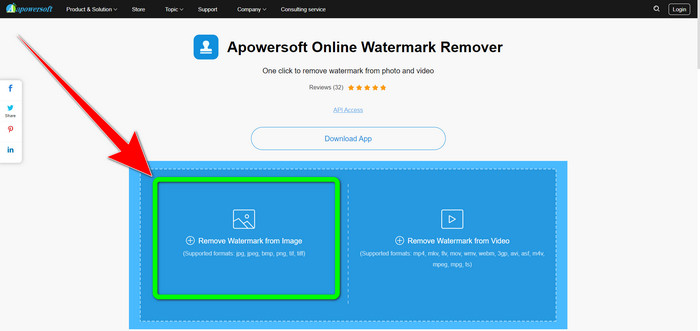
ขั้นตอนที่ 1: ไปที่เว็บไซต์ของ Apowersoft Online Video Watermark Remover คลิกปุ่ม Remove Watermark from Image เพื่ออัปโหลดรูปภาพที่มีลายน้ำของคุณ.
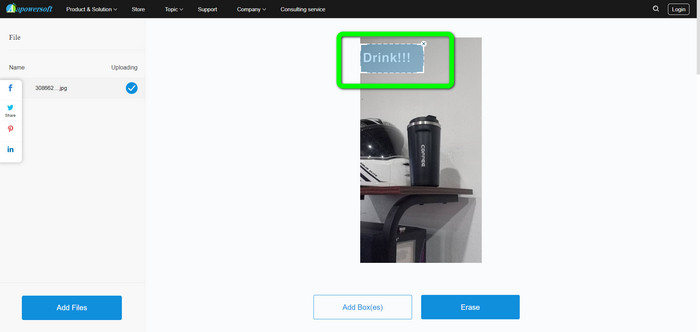
ขั้นตอนที่ 2: หลังจากอัปโหลดรูปภาพแล้ว คุณจะเห็นกรอบสี่เหลี่ยมปรากฏขึ้น ให้ลากไปครอบบริเวณลายน้ำในรูปภาพ.
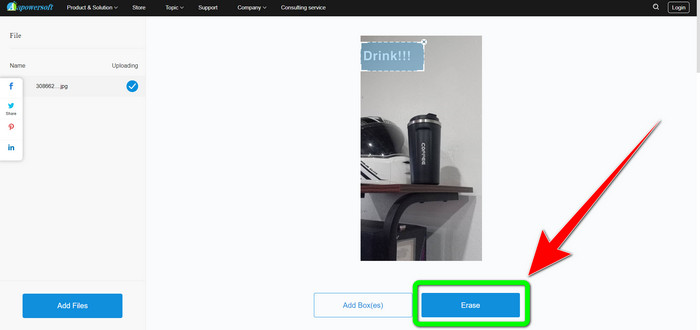
ขั้นตอนที่ 3: เมื่อลากครอบลายน้ำเรียบร้อยแล้ว ให้คลิกปุ่ม Erase เพื่อลบลายน้ำ รอให้กระบวนการลบเสร็จสิ้น แล้วดาวน์โหลดรูปภาพสุดท้ายที่ไม่มีลายน้ำ.
ส่วนที่ 3: คำถามที่พบบ่อยเกี่ยวกับการลบลายน้ำออกจากภาพถ่ายใน Lightroom
วิธีการลบลายน้ำออกจากขอบของภาพ?
หากลายน้ำอยู่บริเวณขอบหรือมุมของรูปภาพ คุณสามารถลบออกได้อย่างง่ายดายด้วยเครื่องมือครอป คุณจะเห็นเครื่องมือครอปได้ที่แถบเครื่องมือด้านบนของรูปภาพ แต่ถ้าคุณไม่ต้องการตัดส่วนใดของรูปภาพออก คุณสามารถใช้แอปพลิเคชันลบลายน้ำอย่าง FVC Free Watermark Remover เครื่องมือนี้ช่วยลบองค์ประกอบที่น่ารำคาญออกจากรูปภาพของคุณได้ เช่น ลายน้ำ โลโก้ ลายเซ็น และอื่นๆ.
ลายน้ำมีลิขสิทธิ์หรือไม่?
สำหรับข้อมูลเพิ่มเติม ลายน้ำนั้นไม่ใช่ลิขสิทธิ์ ลายน้ำอาจเตือนผู้คนไม่ให้ขโมยภาพถ่ายของคุณ เนื่องจากงานของคุณได้รับการคุ้มครองลิขสิทธิ์อยู่แล้วในขณะที่ทำขึ้น
ฉันสามารถลบลายน้ำออกจากภาพหน้าจอได้หรือไม่?
ใช่คุณสามารถ. ลายน้ำจากภาพหน้าจอสามารถลบออกได้อย่างง่ายดายโดยใช้เครื่องมือลบลายน้ำ เช่น FVC Free Watermark Remover, WatermarkRemover.io, Apowersoft Online Watermark Remover, Inpaint และอื่นๆ
โลโก้กับลายน้ำต่างกันอย่างไร?
ลายน้ำเป็นโลโก้เวอร์ชันโปร่งแสงที่มีความคล่องตัวมากขึ้น ซึ่งเป็นความแตกต่างหลัก โดยทั่วไปแล้วจะวางทับรูปภาพของคุณเพื่อป้องกันไม่ให้ผู้อื่นนำไปใช้เป็นของตนเอง และมักมีเพียงสีเดียว สีขาวหรือสีดำ
มียางลบใน Lightroom หรือไม่?
ใช่มี. ตัวเลือกนี้ช่วยให้เราแก้ไขและลบพู่กันที่เราทาสีทับโดยไม่ได้ตั้งใจ คุณเพียงแค่คลิก 'ยางลบ' เพื่อใช้งาน เช่นเดียวกับที่คุณจะใช้เครื่องมือแปรง โดยทั่วไป ให้ไปยังพื้นที่ที่คุณต้องการลบออก
สรุป
บทความนี้ได้แสดงวิธีที่ดีที่สุดในการลบลายน้ำใน Lightroom เวอร์ชันมือถือให้คุณแล้ว นอกจากนี้ เรายังได้แนะนำวิธีต่างๆ ที่คุณสามารถลองใช้เพื่อลบลายน้ำ นอกเหนือจากการใช้แอป Lightroom หากคุณชอบวิธีง่ายๆ ที่ช่วยลบลายน้ำและองค์ประกอบที่ไม่จำเป็นออกจากรูปภาพได้อย่างรวดเร็ว ให้ใช้ FVC Free Watermark Remover.
-
 คำแนะนำทีละขั้นตอนเกี่ยวกับวิธีการลบ Emojis จากวิดีโอ
 รู้สึกรำคาญกับอีโมจิในวิดีโอของคุณหรือไม่? โพสต์นี้จะนำขั้นตอนที่ดีที่สุดในการลบอิโมจิออกจากวิดีโอของคุณทันทีโดยใช้เครื่องมือที่ยอดเยี่ยม
-
 วิธีการลบลายน้ำออกจากวิดีโอใน After Effects ได้อย่างง่ายดาย
 บทความนี้จะช่วยลบลายน้ำออกจากวิดีโอโดยใช้ After Effects นอกจากนี้ยังเป็นทางเลือกที่ดีที่สุดสำหรับการกำจัดวัตถุที่รบกวน
-
 วิธีการลบลายน้ำ Reddit ออกจากรูปภาพอย่างง่ายดาย
 หากคุณอยู่ที่นี่ คุณอาจกำลังมองหาตัวลบลายน้ำ Reddit ที่ยอดเยี่ยม ในกรณีนั้น เราจะแสดงวิธีการที่ง่ายที่สุดในการลบลายน้ำ Reddit
