


 Video Converter Ultimate
 บันทึกหน้าจอ
 ซ่อมวิดีโอ
 ดาวน์โหลดอย่างปลอดภัย
ปรับขนาดภาพโดยไม่สูญเสียคุณภาพ: การบีบอัดแบบไม่สูญเสียข้อมูล
หนึ่งในความกังวลที่ใหญ่ที่สุดเมื่อต้องปรับขนาดรูปภาพก็คือการสูญเสียคุณภาพของภาพ คำตอบของปัญหานี้จะแตกต่างกันไปตามวิธีที่ใช้ในการปรับขนาดรูปภาพ เครื่องมือที่ใช้ และปัจจัยอื่น ๆ โชคดีที่ความจริงซึ่งมักถูกมองข้ามคือ คุณสามารถปรับขนาดรูปภาพโดยไม่ทำให้คุณภาพลดลงได้หากทำอย่างถูกวิธี เพียงทำตามแนวทางปฏิบัติที่ดี ศึกษาให้เข้าใจรายละเอียดปลีกย่อยของการปรับขนาดภาพ และเลือกใช้เครื่องมือที่เหมาะสม คุณก็สามารถรักษาความคมชัดและความใสของรูปภาพไว้ได้อย่างแน่นอน ไม่ว่าคุณจะปรับขนาดภาพมากน้อยเพียงใดก็ตาม.
ในคู่มือนี้ เราจะเจาะลึกวิธีที่มีประสิทธิภาพสามวิธีในการปรับขนาดรูปภาพ โดยยังคงความสมบูรณ์ของภาพไว้ และรับรองว่าคุณภาพยังคงเกือบเหมือนเดิม

ส่วนที่ 1. วิธีที่เร็วที่สุดในการปรับขนาดภาพโดยไม่สูญเสียคุณภาพ [รองรับแบบแบตช์]
FVC Free Image Compressor เป็นเครื่องมือบีบอัดรูปภาพออนไลน์ฟรี เหมาะสำหรับผู้ใช้ที่ต้องการวิธีการปรับขนาดรูปภาพอย่างรวดเร็วโดยไม่ทำให้คุณภาพลดลง เพียงคลิกครั้งเดียว รูปภาพของคุณจะถูกปรับขนาดโดยอัตโนมัติ และคุณภาพยังคงใกล้เคียงกับต้นฉบับ นอกจากนี้ เครื่องมือนี้ยังใช้งานง่ายมาก ผู้ใช้ทุกระดับสามารถใช้งานได้โดยไม่รู้สึกสับสน สุดท้าย หากคุณมีไฟล์รูปภาพจำนวนมากที่ต้องการปรับขนาด เครื่องมือนี้จะช่วยให้คุณบีบอัดรูปภาพได้พร้อมกันสูงสุดถึง 40 ไฟล์.
วิธีปรับขนาดรูปภาพโดยไม่เสียคุณภาพด้วย FVC Free Image Compressor
ขั้นตอนที่ 1 ไปที่เบราว์เซอร์ของคุณ แล้วพิมพ์คำว่า Free Image Compressor ในแถบค้นหา.
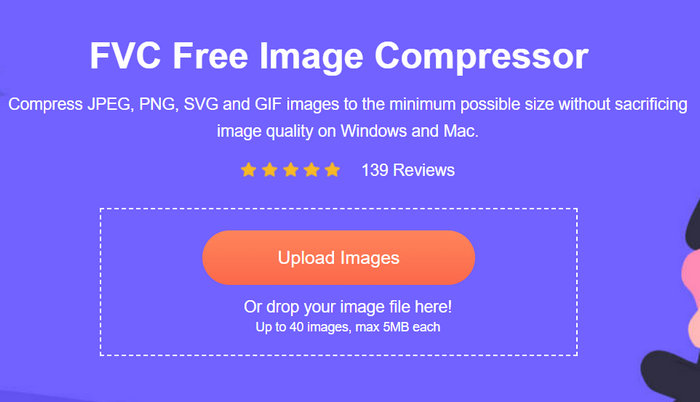
ขั้นตอนที่ 2 เมื่อคุณเข้าสู่เว็บไซต์แล้ว ให้คลิก Upload Images เพื่ออิมพอร์ตภาพที่คุณต้องการปรับขนาด เครื่องมือจะบีบอัดรูปภาพทั้งหมดที่คุณอัปโหลดให้อัตโนมัติ.
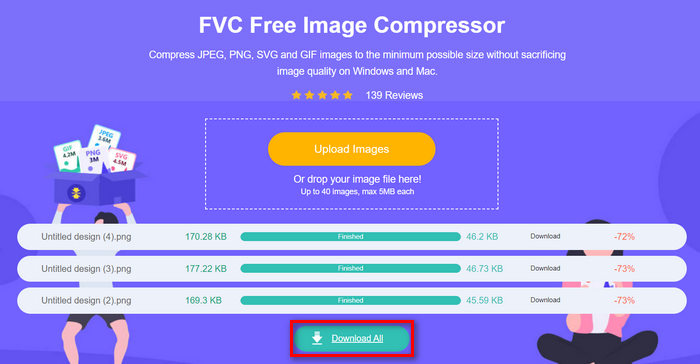
ขั้นตอนที่ 3 รอให้กระบวนการบีบอัดเสร็จสิ้น เมื่อเสร็จแล้ว คุณจะเห็นแถบสถานะระบุว่าดำเนินการเสร็จแล้ว พร้อมข้อมูลขนาดไฟล์ก่อนและหลังการบีบอัด จากนั้นคลิก Download All เพื่อบันทึกรูปภาพของคุณ.
FVC Free Image Compressor ช่วยให้คุณปรับขนาดภาพได้โดยไม่เปลืองแรง นอกจากนี้ เครื่องมือนี้ยังฟรีและเข้าถึงได้ง่าย จึงเป็นเครื่องมือบีบอัดไฟล์แบบพกพาที่เหมาะสำหรับทุกคน
ตอนที่ 2. วิธีลดขนาดรูปภาพใน Photoshop โดยไม่สูญเสียคุณภาพ
ในขณะเดียวกัน เมื่อคุณติดตั้ง Photoshop บนอุปกรณ์แล้ว คุณสามารถใช้ Photoshop เพื่อลดขนาดไฟล์รูปภาพได้ เครื่องมือนี้เป็นซอฟต์แวร์แก้ไขรูปภาพที่ได้รับความนิยมเนื่องจากมีคุณสมบัติและความสามารถที่ยอดเยี่ยมมากมาย ด้วย Photoshop คุณไม่เพียงแต่แก้ไขและปรับปรุงรูปภาพได้อย่างแม่นยำเท่านั้น แต่ยังปรับให้เหมาะสมสำหรับวัตถุประสงค์ต่างๆ ได้อีกด้วย รวมถึงการลดขนาดไฟล์ นี่คือสองวิธีที่คุณสามารถลองใช้เพื่อปรับขนาดรูปภาพโดยไม่สูญเสียคุณภาพ
การเปลี่ยนแปลงขนาดภาพตามพิกเซล
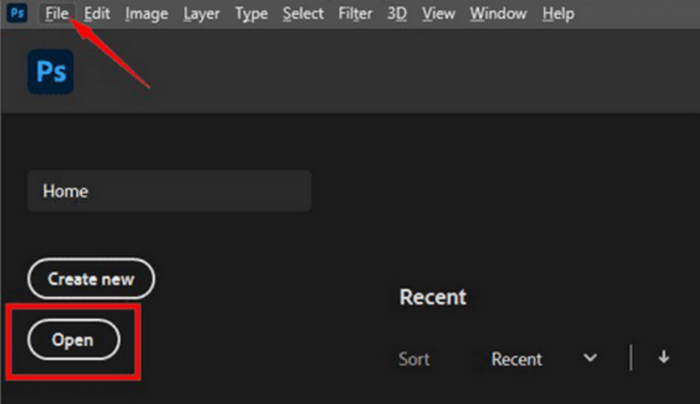
ขั้นตอนที่ 1 เปิดรูปภาพของคุณใน Photoshop โดยคลิกที่ Open หรือไปที่เมนู File แล้วเลือกภาพที่คุณต้องการปรับขนาด.
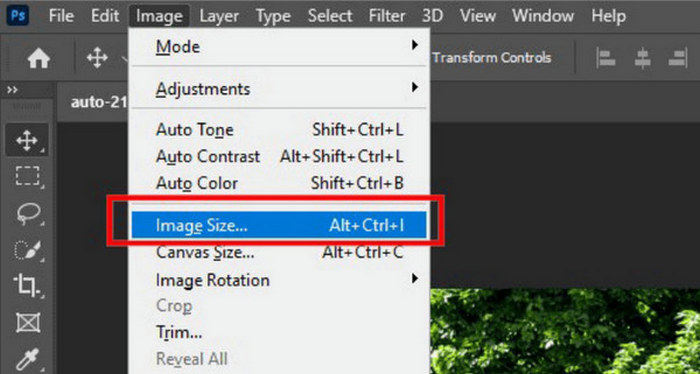
ขั้นตอนที่ 2 จากนั้นไปที่แท็บ Image และเลือก Image Size จากเมนู.
ขั้นตอนที่ 3 ในหน้าต่างกล่องโต้ตอบ Image Size ให้เลือก Pixels จากเมนูดรอปดาวน์ หากต้องการกำหนดขนาดเอง ให้กรอกค่าความกว้างและความสูงลงในช่อง แล้วคลิก OK เพื่อปรับขนาดรูปภาพ.
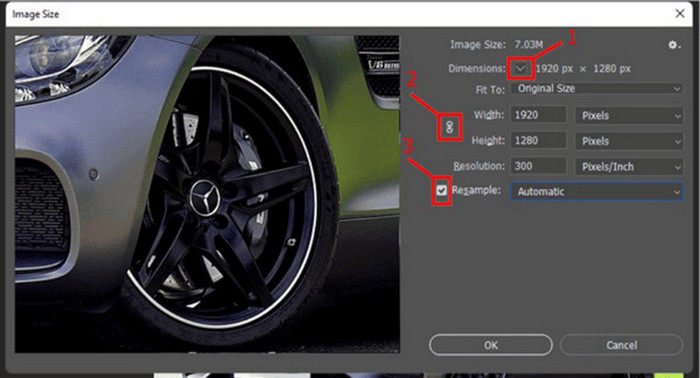
ขั้นตอนที่ 4 สุดท้าย ให้บันทึกไฟล์รูปภาพของคุณโดยคลิกปุ่ม Save As ใต้แท็บ File.
บันทึกไฟล์ PSD ในรูปแบบ JPEG ก่อนที่จะบันทึก
การเปลี่ยนแปลงขนาดรูปภาพเป็นนิ้ว
ขั้นตอนที่ 1 เปิดรูปภาพของคุณใน Photoshop โดยคลิก Open หรือไปที่เมนู File แล้วเลือกภาพของคุณ.
ขั้นตอนที่ 2 จากนั้นไปที่แท็บ Image แล้วเลือก Image Size.
ขั้นตอนที่ 3 ในหน้าต่างกล่องโต้ตอบ Image Size ให้เลือก Inches จากเมนูดรอปดาวน์ หากต้องการกำหนดขนาดเอง ให้กรอกค่าความกว้างและความสูงลงในช่อง แล้วคลิก OK เพื่อปรับขนาดรูปภาพ.
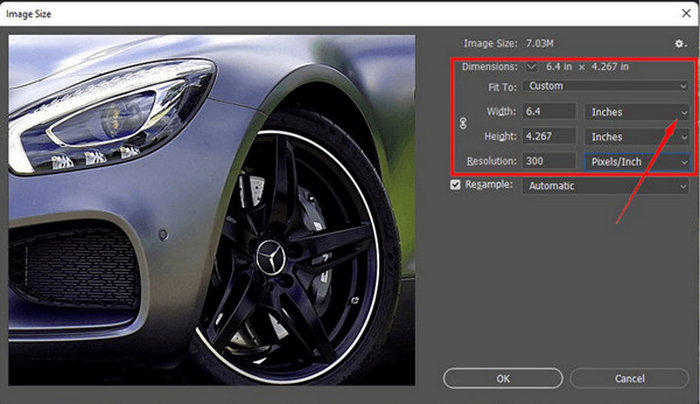
ขั้นตอนที่ 4 สุดท้ายให้คลิกปุ่ม Save As ใต้แท็บ File เพื่อบันทึกรูปภาพฉบับสุดท้าย.
Photoshop เป็นเครื่องมืออเนกประสงค์และทรงพลังที่ช่วยให้ผู้ใช้สามารถแก้ไขและปรับขนาดรูปภาพได้โดยไม่สูญเสียคุณภาพ นอกจากนี้ ผู้ใช้สามารถใช้ประโยชน์จากอัลกอริธึมคุณภาพสูงของ Photoshop เพื่อให้แน่ใจว่ารูปภาพจะยังคงคมชัดแม้จะปรับขนาดแล้วก็ตาม อย่างไรก็ตาม ข้อเสียประการหนึ่งของการใช้เครื่องมือนี้ก็คือค่อนข้างซับซ้อน ซึ่งจะทำให้ผู้เริ่มต้นใช้งานฟีเจอร์ต่างๆ ได้ยาก
ส่วนที่ 3. ปรับขนาดภาพโดยไม่สูญเสียคุณภาพด้วย AI Upscaling
FVC Free Image Upscaler เป็นเครื่องมือที่ขับเคลื่อนด้วย AI ออกแบบมาเพื่อปรับขนาดรูปภาพโดยไม่ทำให้คุณภาพลดลง เครื่องมือนี้ใช้เทคโนโลยี AI super-resolution ที่ผ่านการฝึกจากตัวอย่างนับล้าน เพื่อจดจำและปรับปรุงส่วนที่เบลอของภาพโดยอัตโนมัติ สามารถกู้คืนพิกเซล สี พื้นผิว และรายละเอียดอื่น ๆ ที่สูญหายไป เพื่อให้แน่ใจว่าภาพที่ถูกปรับขนาดแล้วยังคงคุณภาพไว้ได้.
ขั้นตอนที่ 1 ก่อนอื่น คุณต้องเข้าไปที่เว็บไซต์ทางการของเครื่องมือนี้ก่อน.
ขั้นตอนที่ 2 เมื่อเข้าสู่หน้าเครื่องมือแล้ว ให้นำเข้ารูปภาพที่คุณต้องการปรับขนาด โดยคลิกปุ่ม Upload Photo.
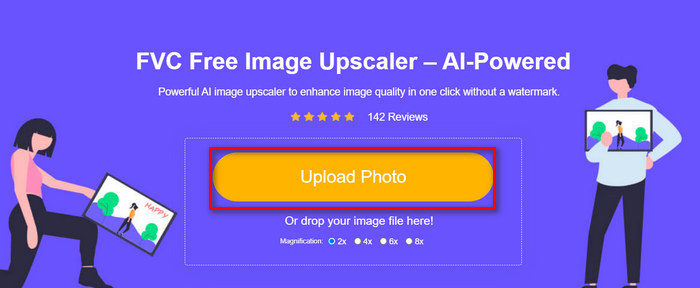
ขั้นตอนที่ 3 จากนั้น เลือกวิธีการขยายภาพตามที่คุณต้องการ คุณสามารถขยายรูปภาพได้ตั้งแต่ 2 เท่า ไปจนถึง 8 เท่า วิธีนี้จะช่วยให้คุณปรับขนาดรูปภาพได้โดยไม่ทำให้คุณภาพลดลง.
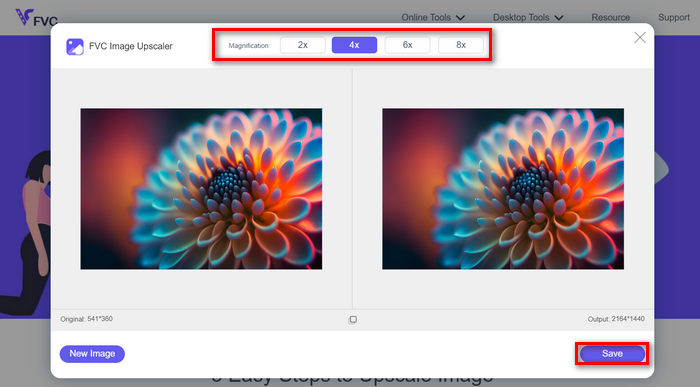
ขั้นตอนที่ 4 เมื่อเสร็จแล้ว ให้คลิกปุ่ม Save ไฟล์ภาพใหม่ที่ปรับขนาดแล้วจะถูกดาวน์โหลดมายังคอมพิวเตอร์ของคุณโดยอัตโนมัติ.
เครื่องมือขยายภาพด้วย AI ตัวนี้ image upscaler เป็นตัวช่วยที่ยอดเยี่ยมในการปรับขนาดรูปภาพโดยไม่เสียคุณภาพ ฟีเจอร์นี้ไม่เพียงแค่ปรับขนาดรูปภาพเท่านั้น แต่ยังช่วยขยายและเพิ่มคุณภาพของภาพให้ดีขึ้นด้วย.
ตอนที่ 4. เปรียบเทียบ 3 วิธีในการปรับขนาดภาพโดยไม่สูญเสียคุณภาพ
| เครื่องมือปรับขนาดรูปภาพ | การบีบอัดแบทช์ | ความเร็ว | ความง่ายในการใช้งาน |
| FVC Free Image Compressor | ใช่ สูงสุด 40 ภาพ | เร็ว | เป็นมิตรกับผู้ใช้เป็นอย่างยิ่ง |
| Photoshop | ไม่ | เฉลี่ย | ค่อนข้างใช้งานง่าย |
| FVC ฟรี Image Upscaler | ไม่ | เร็ว | เป็นมิตรกับผู้ใช้เป็นอย่างยิ่ง |
ส่วนที่ 5. คำถามที่พบบ่อยเกี่ยวกับการปรับขนาดภาพโดยไม่สูญเสียคุณภาพ
เมื่อภาพหดตัวจะสูญเสียคุณภาพหรือไม่?
บางส่วนไม่ ภาพโดยทั่วไปจะไม่สูญเสียคุณภาพเมื่อย่อขนาด การย่อขนาดหรือลดขนาดภาพจะรักษารายละเอียดและความคมชัดดั้งเดิมของภาพไว้ เนื่องจากคุณจะไม่สูญเสียข้อมูลพิกเซล อย่างไรก็ตาม การรับรู้คุณภาพอาจแตกต่างกันไป ขึ้นอยู่กับวิธีการบีบอัดที่ใช้และความสามารถของซอฟต์แวร์ในการจัดการกระบวนการย่อขนาดอย่างมีประสิทธิภาพ
จะปรับขนาดรูปภาพใน Paint โดยไม่สูญเสียคุณภาพได้อย่างไร
หากต้องการปรับขนาดภาพใน Paint โดยไม่สูญเสียคุณภาพ ให้เปิด Paint แล้วโหลดภาพของคุณ หลังจากนั้น ให้คลิกปุ่มปรับขนาดในแท็บหน้าแรก ในกล่องโต้ตอบปรับขนาดและเอียง ให้เลือกตัวเลือกเปอร์เซ็นต์หรือพิกเซล ตรวจสอบให้แน่ใจว่าได้ทำเครื่องหมายที่ช่องกาเครื่องหมายรักษาอัตราส่วนภาพเพื่อรักษาสัดส่วนของภาพ จากนั้น ให้ป้อนขนาดที่คุณต้องการปรับขนาดภาพ แล้วคลิกตกลง
เครื่องมือที่ดีที่สุดในการปรับขนาดรูปภาพโดยไม่สูญเสียคุณภาพคืออะไร?
มีเครื่องมือที่ยอดเยี่ยมมากมายสำหรับการปรับขนาดรูปภาพโดยไม่ทำให้คุณภาพลดลง อย่างไรก็ตาม หากพูดถึงวิธีที่เร็วที่สุดและรองรับการบีบอัดแบบเป็นชุด เครื่องมือ FVC Free Image Compressor คือทางเลือกที่ดีที่สุด เพราะช่วยให้คุณปรับขนาดภาพได้พร้อมกันสูงสุด 40 รูป โดยยังคงผลลัพธ์คุณภาพสูงไว้ ทำให้มีประสิทธิภาพสูงและใช้งานง่ายสำหรับผู้ใช้ทุกระดับ.
สรุป
ด้วยวิธีและเครื่องมือที่เหมาะสม คุณสามารถปรับขนาดรูปภาพโดยไม่เสียคุณภาพได้ ดังนั้น ไม่ว่าคุณจะเลือกใช้เครื่องมือใดก็ตาม เป้าหมายหลักคือการหาเครื่องมือที่เหมาะกับคุณ พร้อมจะยกระดับภาพของคุณอย่างง่ายดายแล้วหรือยัง ลองใช้เครื่องมือเหล่านี้วันนี้ แล้วคุณจะเห็นความแตกต่างด้วยตัวเอง!
-
 ตัวลดขนาดภาพยอดนิยมบนเดสก์ท็อปและอุปกรณ์มือถือ
 ดูแอปที่อยู่ในอันดับต้นๆ ในบทความนี้เพื่อหาตัวลดขนาดรูปภาพที่ดีที่สุดบนอุปกรณ์ที่คุณชื่นชอบ เรียนรู้การปรับขนาดรูปภาพให้เหมาะสมที่สุดตอนนี้!
-
 5 วิธีที่ดีที่สุดในการลดขนาดภาพบนอุปกรณ์ใด ๆ
 เรียนรู้วิธีที่มีประสิทธิภาพในการปรับขนาดหรือบีบอัดขนาดภาพโดยคลิกที่โพสต์นี้ ค้นพบเครื่องมือปรับขนาดรูปภาพที่ยอดเยี่ยมและคำแนะนำทีละขั้นตอน
-
 ลบบุคคลออกจากรูปภาพ: การแก้ไขรูปภาพที่ง่ายและรวดเร็ว
 คุณต้องการกำจัดผู้คนออกจากรูปภาพของคุณหรือไม่? อ่านบทความนี้ในขณะที่เราแสดงวิธีที่ดีที่สุดและง่ายที่สุดในการลบคนออกจากรูปภาพโดยใช้แอพ
