


 Video Converter Ultimate
 บันทึกหน้าจอ
 ซ่อมวิดีโอ
 ดาวน์โหลดอย่างปลอดภัย
ขั้นตอนง่ายๆ ในการปรับขนาดรูปภาพสำหรับ Facebook
คนวัยมิลเลนเนียลและผู้ใหญ่จำนวนมากใช้ Facebook เป็นแพลตฟอร์มโซเชียลมีเดียยอดนิยมที่สุด Facebook เป็นแอปที่คุณสามารถอัปโหลดรูปภาพและแชร์หรือส่งให้เพื่อนได้ และมีหลายคนที่ต้องการรูปภาพคุณภาพดีเยี่ยมไว้สำหรับอัปโหลดลง Facebook หากคุณก็ต้องการอัปโหลดรูปถ่ายความละเอียดสูงและคุณภาพสูง เรามีเครื่องมือที่จะช่วยคุณได้ โชคดีที่เราพบแอปทั้งบน iPhone, Android และออนไลน์ที่สามารถปรับขนาดรูปภาพได้อย่างรวดเร็วและมีประสิทธิภาพ ดังนั้นเตรียมตัวให้พร้อม เพราะในบทความนี้คุณจะได้เรียนรู้วิธีปรับขนาดรูปภาพสำหรับ Facebookอย่างรวดเร็ว.

ส่วนที่ 1. วิธีการปรับขนาดรูปภาพบน iPhone สำหรับ Facebook
หากคุณใช้อุปกรณ์ iPhone คุณสามารถดาวน์โหลดแอปบน AppStore ของคุณเพื่อช่วยในการปรับขนาดรูปภาพของคุณ นอกจากนี้ยังมีแอพฟรีที่คุณสามารถใช้ได้บนอุปกรณ์ iPhone ของคุณ อย่างไรก็ตาม ไม่ใช่ว่าทุกแอปจะผลิตเอาต์พุตคุณภาพสูง นั่นเป็นเหตุผลที่เราค้นหาแอพที่ดีที่สุดเพื่อปรับขนาดภาพทันที
Remini เป็นแอปปรับขนาดรูปภาพที่ได้รับความนิยมมากที่สุดที่คุณสามารถดาวน์โหลดบน iPhone ของคุณ แอปนี้มีอินเทอร์เฟซที่ใช้งานง่าย เพราะมีฟังก์ชันที่เข้าใจได้ไม่ยาก นอกจากนี้ Remini ยังสามารถปรับแต่งภาพของคุณด้วยตัวเพิ่มคุณภาพ AI (ปัญญาประดิษฐ์) ที่จะปรับขนาดและเพิ่มความคมชัดของรูปภาพให้มีคุณภาพดีที่สุดให้โดยอัตโนมัติ และไม่เพียงเท่านั้น ด้วยแอปนี้คุณยังสามารถปรับปรุงวิดีโอด้วยฟีเจอร์เพิ่มคุณภาพวิดีโอของมันได้อีกด้วย ยิ่งไปกว่านั้นยังรองรับรูปแบบไฟล์ภาพยอดนิยมทั้งหมด เช่น JPEG, JPG และ PNG สิ่งที่ยอดเยี่ยมอีกอย่างของแอปนี้คือคุณสามารถดาวน์โหลดได้ฟรีจาก AppStore ดังนั้นหากคุณต้องการใช้แอปนี้ในการปรับขนาดรูปภาพสำหรับภาพหน้าปก Facebook ให้ทำตามขั้นตอนด้านล่างนี้.
วิธีปรับขนาดรูปภาพโดยใช้แอป Remini:
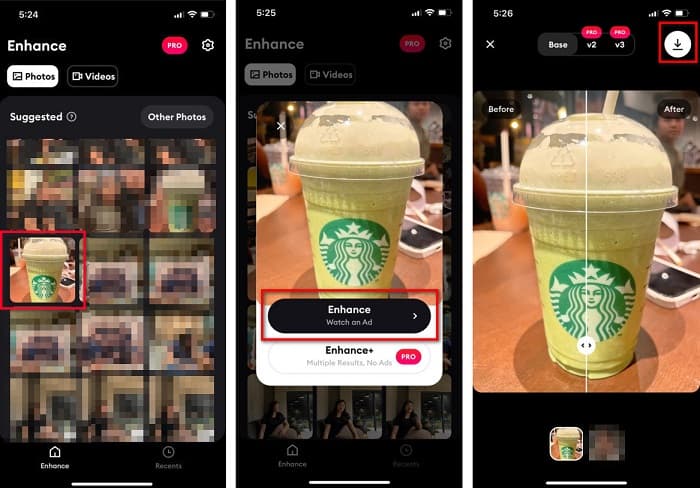
ขั้นตอนที่ 1. เปิด AppStore ของคุณ ค้นหาแอป Remini และดาวน์โหลดลงบนอุปกรณ์ หลังจากติดตั้งแอปแล้วให้เปิดใช้งาน.
ขั้นตอนที่ 2. หลังจากเปิดแอป คุณจะเห็นรูปภาพของคุณ ให้เลือกรูปที่ต้องการปรับคุณภาพ จากนั้นแตะปุ่ม Enhance เพื่อไปยังหน้าถัดไป.
ขั้นตอนที่ 3. ก่อนที่จะไปยังหน้าถัดไป คุณจำเป็นต้องดูโฆษณาก่อน จากนั้นคุณจะเห็นภาพก่อนและหลังการปรับแต่ง กดไอคอนดาวน์โหลดที่มุมขวาบนของหน้าจอ.
ส่วนที่ 2 วิธีปรับขนาดรูปภาพบน Android สำหรับ Facebook
คุณเป็นผู้ใช้ Android หรือไม่? ไม่ต้องกังวล เราจะนำเสนอแอปพลิเคชันที่คุณสามารถใช้เพื่อปรับขนาดรูปภาพ แม้ว่าจะมีแอพมากมายที่คุณสามารถดาวน์โหลดได้จาก PlayStore แต่เราได้เลือกแอพที่ดีที่สุดเพื่อนำเสนอให้คุณ อ่านด้านล่างเพื่อเรียนรู้วิธีปรับขนาดรูปภาพสำหรับ Facebook บน Android
AI Photo Enhancer & PixelLeap เป็นอีกหนึ่งแอปที่ยอดเยี่ยมซึ่งช่วยคุณปรับขนาดรูปภาพให้มีคุณภาพดีขึ้น แอปปรับขนาดรูปภาพนี้ดาวน์โหลดฟรีบน PlayStore และปลอดภัยต่อการใช้งาน นอกจากนี้ ถ้าคุณต้องการปรับแต่งหรือกู้คืนรูปเก่า ๆ ก็สามารถใช้ AI Photo Enhancer & PixelLeap ได้เช่นกัน และด้วยเทคโนโลยี AI เพียงแค่อัปโหลดรูปภาพที่คุณต้องการปรับขนาด แอปก็จะปรับคุณภาพรูปภาพของคุณให้โดยอัตโนมัติ อีกทั้งยังมีอินเทอร์เฟซที่เรียบง่าย จึงเหมาะมากสำหรับผู้ใช้มือใหม่ นอกจากนี้ยังมีฟีเจอร์แก้ไขอื่น ๆ ที่คุณสามารถใช้ได้ เช่น แก้ไขให้ตรง (rectify) เติมสี (colorize) ทำให้ภาพเคลื่อนไหว (animate) ใส่อารมณ์ (emote) และเพิ่มความสว่างให้รูปภาพของคุณ อย่างไรก็ตาม ปัญหาของแอปนี้คือมีโฆษณาจำนวนมากที่ต้องใช้เวลาดู และยังทิ้งลายน้ำไว้บนผลงานของคุณ แม้กระนั้น หากคุณต้องการปรับขนาดรูปภาพสำหรับ Facebook โดยไม่ต้องครอป นี่ก็เป็นทางออกที่ดี.
วิธีปรับขนาดรูปภาพโดยใช้ AI Photo Enhancer & PixelLeap:
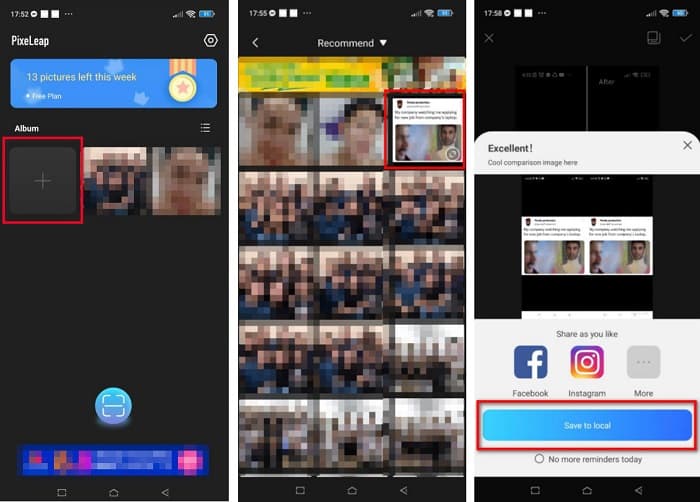
ขั้นตอนที่ 1. ติดตั้ง AI Photo Enhancer & PixelLeap บนอุปกรณ์ Android ของคุณ.
ขั้นตอนที่ 2. จากนั้นบนหน้าหลักของแอป ให้แตะที่กล่องรูปเครื่องหมาย + เพื่ออัปโหลดรูปภาพที่คุณต้องการปรับขนาด จากนั้นแอปจะให้คุณดูโฆษณาก่อนจึงจะไปยังหน้าถัดไปได้.
ขั้นตอนที่ 3. เรียกดูเลือกรูปที่คุณต้องการปรับขนาดแล้วแตะที่รูป หลังจากเลือกรูปเรียบร้อยแล้วให้แตะตัวเลือก Enhance จากนั้นแอปจะปรับคุณภาพรูปภาพของคุณโดยอัตโนมัติ แตะ Save to local เพื่อดาวน์โหลดผลงานของคุณ.
ส่วนที่ 3 วิธีปรับขนาดรูปภาพออนไลน์สำหรับ Facebook
ข้อดีของการใช้แอปพลิเคชันออนไลน์คือช่วยให้คุณประหยัดพื้นที่บนอุปกรณ์ของคุณ นอกจากนั้น ยังมีเว็บแอปที่เข้าถึงได้ฟรีอีกมากมายที่คุณสามารถใช้ได้บนเบราว์เซอร์ของคุณ ดังนั้น หากคุณต้องการใช้แอปพลิเคชันออนไลน์เพื่อปรับขนาดรูปภาพเพื่ออัปโหลดบน Facebook เราจะแสดงวิธีปรับขนาดรูปภาพสำหรับ Facebook
FVC Free Image Upscaler เป็นโปรแกรมปรับขนาดรูปภาพออนไลน์ที่ดีที่สุด ซึ่งช่วยให้คุณขยายภาพได้ถึง 2 เท่า 4 เท่า 6 เท่า และ 8 เท่า ด้วยอินเทอร์เฟซที่ใช้งานง่าย ทำให้ผู้เริ่มต้นก็สามารถปรับขนาดรูปภาพได้อย่างไม่ยุ่งยาก นอกจากนี้ยังรองรับไฟล์รูปภาพทุกประเภท รวมถึง JPEG, JPG, PNG และ BMP ที่น่าประทับใจยิ่งกว่านั้นคือ แอปพลิเคชันนี้ใช้เทคโนโลยี AI ที่สามารถตรวจจับส่วนที่มีความละเอียดต่ำของภาพได้โดยอัตโนมัติ แล้วทำการปรับคุณภาพให้ดีขึ้น อีกทั้งยังสามารถซ่อมแซมพิกเซลที่สูญหาย ปรับพื้นผิวสี และรายละเอียดอื่น ๆ ให้สมบูรณ์แบบ นอกจากนี้ยังสามารถใช้งานได้บนเว็บเบราว์เซอร์ทุกตัว รวมถึง Google, Firefox และ Safari ดังนั้น หากคุณต้องการใช้ FVC Free Image Upscaler เพื่อปรับขนาดหรือเพิ่มคุณภาพรูปภาพของคุณ ให้ทำตามขั้นตอนง่าย ๆ ด้านล่างนี้.
วิธีปรับขนาดรูปภาพสำหรับ Facebook โดยใช้ FVC Free Image Upscaler:
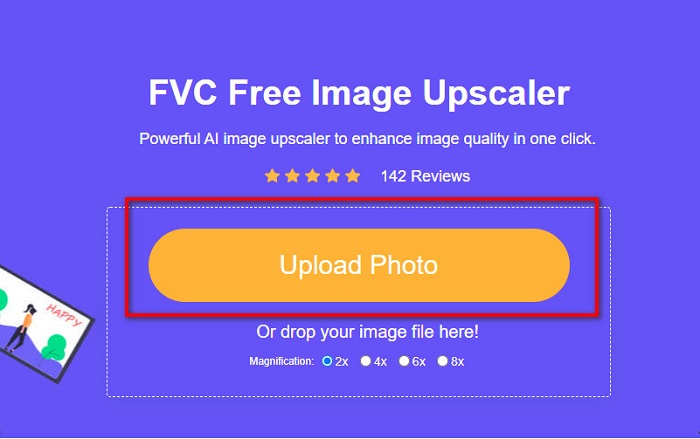
ขั้นตอนที่ 1. เปิดเบราว์เซอร์ของคุณแล้วพิมพ์ FVC Free Image Upscaler ลงในช่องค้นหา คุณสามารถคลิกลิงก์ที่ให้ไว้เพื่อเข้าสู่เว็บไซต์โดยตรง คลิก Upload Photo เพื่อเริ่มใช้งานแอป.
ขั้นตอนที่ 2. บนหน้าหลักของซอฟต์แวร์ ให้คลิก Upload Photo เพื่ออิมพอร์ตภาพที่คุณต้องการปรับขนาด.
ขั้นตอนที่ 3. บนหน้าถัดไป ให้เลือกระดับการขยายที่คุณต้องการสำหรับผลลัพธ์ของรูปภาพ คุณสามารถเลือกระหว่างการขยาย 2x, 4x, 6x และ 8x จากนั้นไปยังขั้นตอนถัดไป.
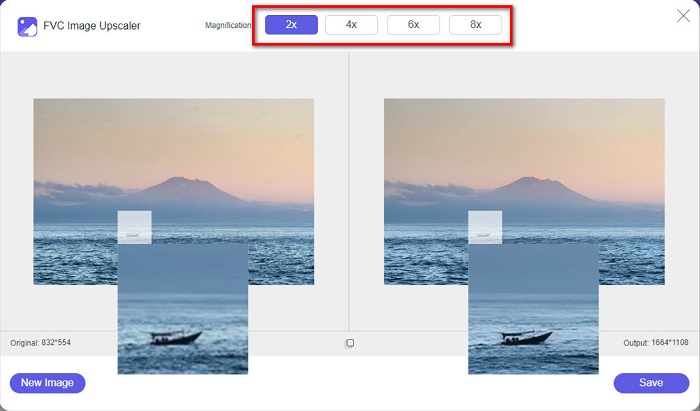
ขั้นตอนที่ 4. สุดท้ายให้กดปุ่ม Save เพื่อบันทึกผลงานลงในคอมพิวเตอร์ของคุณ แล้วคุณจะเห็นความแตกต่างระหว่างไฟล์ต้นฉบับกับรูปภาพที่ปรับขนาดแล้ว ภายในไม่กี่วินาทีรูปของคุณก็จะถูกบันทึกเรียบร้อย.
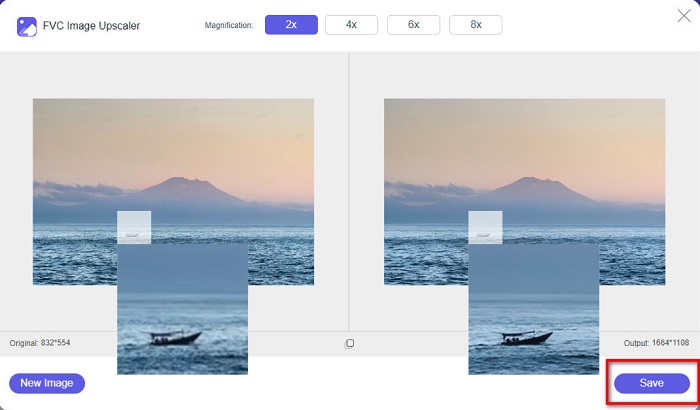
และนั่นแหล่ะ! ง่ายเหมือน ABC ตอนนี้รูปภาพของคุณได้รับการปรับปรุงและปรับขนาดแล้ว
ที่เกี่ยวข้อง:
วิธีปรับภาพให้คมชัดทั้งออนไลน์และออฟไลน์ใน 4 ขั้นตอนง่าย ๆ
วิธีปรับขนาดรูปภาพ – ปรับขนาดรูปด้วย Adobe [ออนไลน์และออฟไลน์]
ส่วนที่ 4 คำถามที่พบบ่อยเกี่ยวกับวิธีการปรับขนาดรูปภาพสำหรับ Facebook
อัตราส่วนภาพถ่ายที่ดีที่สุดสำหรับ Facebook คืออะไร?
เกี่ยวกับอัตราส่วนภาพถ่าย การใช้ภาพแนวตั้งที่มีอัตราส่วนภาพ 4:5 และ 1200 x 1500 พิกเซลจะดีที่สุด และถ้าคุณต้องการภาพสี่เหลี่ยมจัตุรัส ความละเอียดต้องเป็น 1080 x 1080 px
ขนาดโพสต์ Facebook คืออะไร?
ขนาดรูปภาพที่แนะนำสำหรับโพสต์บน Facebook คือ 1200 x 630 พิกเซลเพื่อหลีกเลี่ยงการแตกเป็นพิกเซลและใช้เวลาในการโหลดเร็วขึ้น
รูปแบบภาพที่ดีที่สุดในการอัปโหลดบน Facebook คืออะไร?
รูปแบบรูปภาพที่ดีที่สุดและแนะนำให้อัปโหลดบน Facebook คือรูปแบบ JPG ทางที่ดีควรอัปโหลดรูปแบบ JPG ที่มีสี RGB น้อยกว่า 15MB
สรุป
เรามีวิธีแก้ปัญหาตามที่กล่าวมาข้างต้น หากคุณต้องการปรับขนาดรูปภาพสำหรับ Facebook เมื่ออ่านบทความนี้อย่างละเอียดแล้ว เราหวังว่าคุณจะได้เรียนรู้ทุกสิ่งที่จำเป็นต้องทำ คุณสามารถปรับขนาดรูปภาพใดก็ได้ที่คุณต้องการ ไม่ว่าจะใช้แอปบน iPhone, Android หรือออนไลน์ แต่หากต้องการผลลัพธ์ที่ดียิ่งขึ้น แนะนำให้ใช้ FVC Free Image Upscaler ซึ่งยังช่วยให้คุณประหยัดพื้นที่บนอุปกรณ์ของคุณได้อีกด้วย.
-
 แอป Photo Resizer ที่ดีที่สุดออนไลน์ ออฟไลน์ Android และ iPhone
 แอพปรับขนาดรูปภาพที่ดีที่สุดคืออะไร? คลิกที่หน้าเพื่อเรียนรู้เกี่ยวกับแอพปรับขนาดรูปภาพที่ทรงพลังที่สุดห้าอันดับแรกที่คุณสามารถใช้เพื่อปรับปรุงหรือปรับขนาดไฟล์ของคุณ
-
 วิธีปรับขนาดรูปภาพ - Adobe ปรับขนาดรูปภาพ [ออนไลน์และออฟไลน์]
 หากคุณกำลังค้นหา Adobe resize image เรามีวิธีแก้ปัญหาสำหรับคุณ ดูโพสต์นี้อย่างละเอียดเพื่อเรียนรู้วิธีปรับขนาดภาพโดยใช้ Adobe บนพีซีของคุณ
-
 ตัวขยาย GIF ออฟไลน์และออนไลน์ 4 อันดับแรกที่คุณไม่ควรพลาด
 โพสต์นี้เหมาะสำหรับคุณหากคุณกำลังค้นหาตัวขยาย GIF ที่ดีที่สุด เราแสดงรายการเครื่องขยาย GIF แบบออนไลน์และออฟไลน์ที่มีประสิทธิภาพสูงสุดสำหรับคอมพิวเตอร์ของคุณ
