


 Video Converter Ultimate
 บันทึกหน้าจอ
 ซ่อมวิดีโอ
 ดาวน์โหลดอย่างปลอดภัย
วิธีแปลง FLAC เป็น MP3: คำแนะนำสำหรับการบีบอัดเสียงคุณภาพสูง
คุณต้องการหลีกเลี่ยงไม่ให้ไฟล์เสียงคุณภาพสูงแบบ FLAC ใช้พื้นที่ในอุปกรณ์มากเกินไปหรือไม่? การแปลงไฟล์เหล่านี้ให้เป็นรูปแบบ MP3 ซึ่งรองรับอย่างแพร่หลายสามารถช่วยแก้ปัญหานี้ได้โดยไม่ทำให้คุณภาพเสียงลดลงมากนัก ในคู่มือนี้ เราจะพาคุณไปทีละขั้นตอนกับกระบวนการแปลง FLAC เป็น MP3 เราจะครอบคลุมทุกอย่างตั้งแต่เครื่องมือที่ดีที่สุดและเคล็ดลับสำหรับการแปลงที่มีประสิทธิภาพ ไปจนถึงวิธีรักษาคุณภาพเสียงให้ได้มากที่สุดในระหว่างกระบวนการ เพลิดเพลินกับเพลงโปรดของคุณบนอุปกรณ์ใดก็ได้โดยไม่ต้องกังวลเรื่องพื้นที่จัดเก็บข้อมูล.

1. FVC Video Converter Ultimate
FVC Video Converter Ultimate เป็นซอฟต์แวร์แปลงวิดีโอแบบครบวงจรที่ไม่เพียงรองรับการแปลงวิดีโอหลายรูปแบบ แต่ยังรองรับการแปลงไฟล์เสียงด้วย เป็นโซลูชันแบบออลอินวันสำหรับการแปลง ดาวน์โหลด แก้ไข และเบิร์นไฟล์วิดีโอและไฟล์เสียง นอกเหนือจากความสามารถด้านการแปลงวิดีโอแล้ว FVC Video Converter Ultimate ยังสามารถแปลงไฟล์เสียงระหว่างรูปแบบต่าง ๆ รวมถึงการแปลง FLAC เป็น MP3 ได้อีกด้วย รองรับรูปแบบเสียงได้หลากหลาย เช่น WAV, AAC, M4A, WMA และอื่น ๆ อีกมากมาย หากต้องการเรียนรู้วิธีใช้โปรแกรมแปลง FLAC เป็น MP3 ตัวนี้ ให้ทำตามขั้นตอนด้านล่างนี้.
ขั้นตอนที่ 1 ติดตั้งโปรแกรม
ก่อนอื่นคุณต้องติดตั้งโปรแกรมบนคอมพิวเตอร์ของคุณก่อน ให้ติ๊กที่ปุ่ม ดาวน์โหลดฟรี ปุ่มใดปุ่มหนึ่งเพื่อดาวน์โหลดเครื่องมือ จากนั้นทำตามตัวช่วยติดตั้ง (Setup Wizard) เพื่อทำการติดตั้งให้เสร็จสิ้น แล้วจึงเปิดโปรแกรมบนคอมพิวเตอร์ของคุณเพื่อดูหน้าตาอินเทอร์เฟซจริง.
ดาวน์โหลดฟรีสำหรับ Windows 7 หรือใหม่กว่าดาวน์โหลดอย่างปลอดภัย
ดาวน์โหลดฟรีสำหรับ MacOS 10.7 หรือใหม่กว่าดาวน์โหลดอย่างปลอดภัย
ขั้นตอนที่ 2 เพิ่มไฟล์ FLAC หรือ MP3
หากคุณต้องการแปลง MP3 เป็น FLAC หรือกลับกัน โปรดเพิ่มไฟล์เสียงโดยกดปุ่มเครื่องหมายบวกจากอินเทอร์เฟซหลัก คุณสามารถเลือกไฟล์เสียงตั้งแต่หนึ่งไฟล์ขึ้นไปตามที่คุณต้องการ หลังจากนั้น คุณควรเห็นภาพขนาดย่อของพวกเขาจากอินเทอร์เฟซหลัก
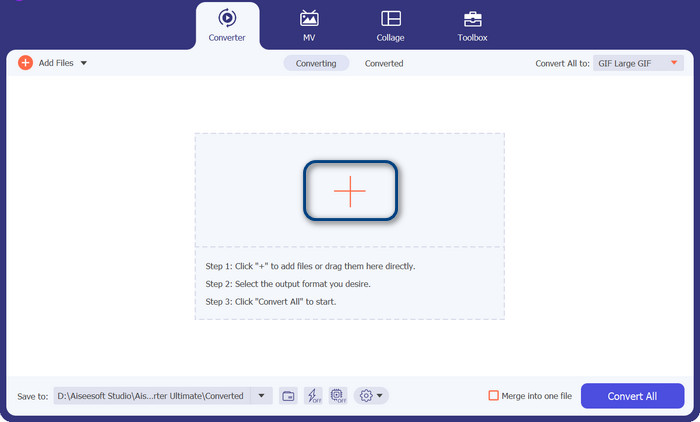
ขั้นตอนที่ 3 ระบุรูปแบบเอาต์พุต
ตอนนี้ให้คลิกที่เมนู Profile ในเมนูด้านขวาบนของเครื่องมือ เมื่อเมนูแสดงขึ้นมาแล้ว ให้เลือกแท็บ Audio และมองหา MP3 หากต้องการแปลงจาก MP3 เป็น FLAC ให้เลือกรูปแบบ FLAC เป็นไฟล์เอาต์พุต นอกจากนี้คุณยังสามารถแก้ไขการตั้งค่าเอาต์พุตให้ตรงตามความต้องการได้ตามต้องการ.
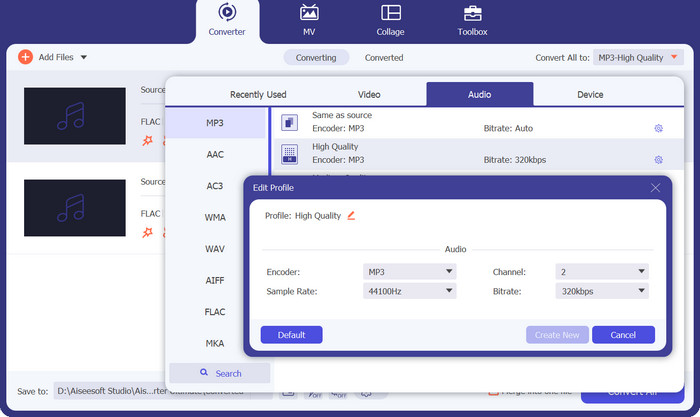
ขั้นตอนที่ 4 แปลงเป็น FLAC
คราวนี้ให้ตั้งค่าโฟลเดอร์ปลายทางที่คุณต้องการจัดเก็บไฟล์เอาต์พุต ตำแหน่งนี้จะอยู่ที่ด้านล่างสุดของอินเทอร์เฟซ คลิกที่ตำแหน่งนั้นแล้วระบุโฟลเดอร์ปลายทาง เมื่อทุกอย่างตั้งค่าเรียบร้อยแล้ว ให้กดปุ่ม Convert All เพื่อเริ่มการแปลง นี่คือวิธีใช้โปรแกรมแปลง MP3 เป็น FLAC หรือโปรแกรมแปลง FLAC เป็น MP3 ตัวนี้.
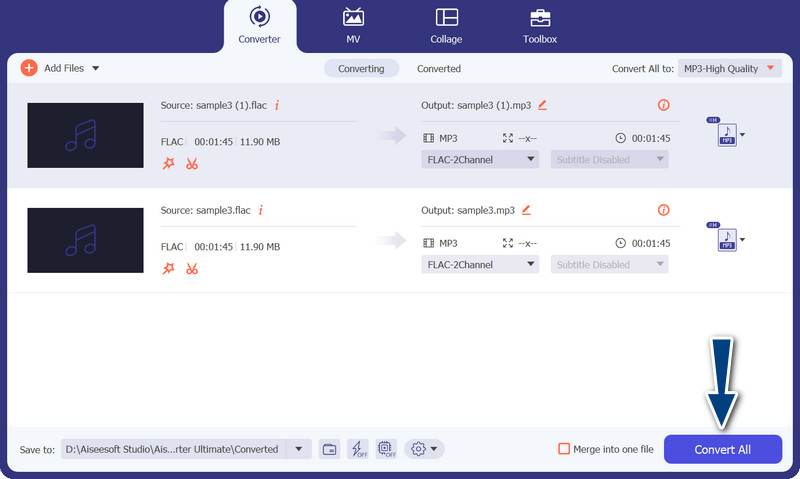
ข้อดี
- มีอินเทอร์เฟซที่ใช้งานง่ายและเครื่องมือที่ใช้งานง่ายสำหรับการแปลง
- ซอฟต์แวร์มีคุณสมบัติสำหรับการตัดต่อวิดีโอ
- ความเร็วการแปลงที่รวดเร็วโดยไม่ลดทอนคุณภาพ
จุดด้อย
- มันเป็นตัวแปลง FLAC เป็น MP3 แบบชำระเงิน
- คุณภาพการแปลงอาจแตกต่างกันไปขึ้นอยู่กับแหล่งที่มา
2. โปรแกรมแปลงวิดีโอออนไลน์ฟรี
หากคุณกำลังมองหาโปรแกรมฟรีและอยากรู้วิธีแปลง FLAC เป็น MP3 ออนไลน์ คุณควรพิจารณาใช้ Free Video Converter Online จากชื่อตัวโปรแกรมก็ชัดเจนว่า ช่วยให้ผู้ใช้แปลงไฟล์วิดีโอหรือไฟล์เสียงได้โดยไม่เสียค่าใช้จ่าย นอกจากนี้ยังเปิดโอกาสให้คุณปรับแต่งเอาต์พุตได้ตามต้องการ ที่สำคัญคือความเร็วในการแปลงก็ไม่ด้อยไปกว่าใคร ตราบใดที่คุณมีการเชื่อมต่ออินเทอร์เน็ต คุณก็สามารถคาดหวังผลลัพธ์ที่ต้องการได้ มาดูวิธีการทำงานของโปรแกรมแปลง FLAC เป็น MP3 ฟรีตัวนี้จากคำแนะนำทีละขั้นตอนด้านล่าง:
ขั้นตอนที่ 1. เปิดเว็บเบราว์เซอร์แล้วไปที่เว็บตัวแปลงวิดีโอออนไลน์ที่คุณเลือกใช้.
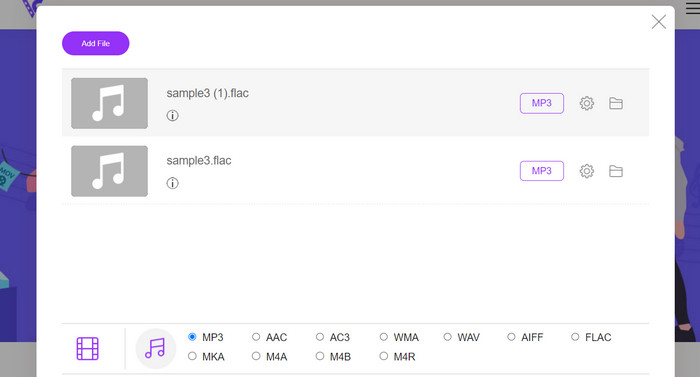
ขั้นตอนที่ 2. โดยการคลิกที่ Add Files to Convert คุณสามารถอัปโหลดไฟล์ FLAC ที่ต้องการแปลงจาก FLAC เป็น MP3 ได้.
ขั้นตอนที่ 3. จากรายการรูปแบบที่เป็นไปได้ ให้เลือก MP3 เป็นรูปแบบเอาต์พุตใต้เมนูรูปแบบ Audio จากนั้นเลือกบิตเรตหรือคุณภาพเอาต์พุตของไฟล์ MP3 ตามที่ต้องการ.
ขั้นตอนที่ 4. เพื่อเริ่มกระบวนการแปลง ให้คลิกปุ่ม Convert อาจต้องใช้เวลาสักครู่ระหว่างรอให้การแปลงเสร็จสิ้น ทั้งนี้ขึ้นอยู่กับขนาดไฟล์และความเร็วของการเชื่อมต่ออินเทอร์เน็ตของคุณ.
ข้อดี
- เข้าถึงตัวแปลง FLAC เป็น MP3 ฟรีที่ดีที่สุดได้ตลอดเวลา
- ต้องใช้ความเชี่ยวชาญด้านเทคนิคน้อยที่สุด
- สามารถประหยัดเวลาและพื้นที่จัดเก็บในคอมพิวเตอร์
จุดด้อย
- ไม่มีการปรับแต่งในระดับเดียวกับซอฟต์แวร์เดสก์ท็อป
- มันต้องการการเชื่อมต่ออินเทอร์เน็ตที่เสถียรและรวดเร็ว
ส่วนที่ 2 แปลง FLAC เป็น MP3 หรือ MP3 เป็น FLAC บนมือถือ
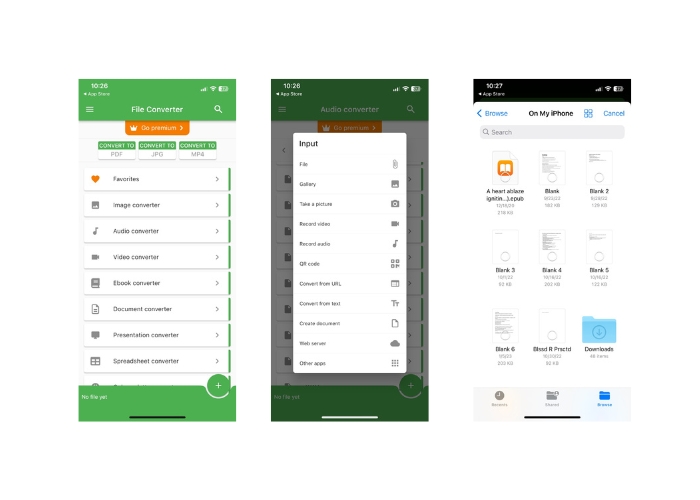
File Converter เป็นแอปมือถือฟรีสำหรับอุปกรณ์ iOS ที่ให้คุณแปลงไฟล์รูปแบบต่าง ๆ รวมทั้งไฟล์เสียงและวิดีโอ แอพนี้มีอินเทอร์เฟซที่เรียบง่ายและใช้งานง่ายที่ให้คุณแปลงไฟล์โดยไม่ต้องใช้ซอฟต์แวร์เพิ่มเติม แอพรองรับรูปแบบเสียงและวิดีโอที่หลากหลาย รวมถึง FLAC, MP3, WAV, M4A และอื่นๆ
ซึ่งหมายความว่าคุณสามารถแปลงไฟล์เสียงและวิดีโอจากรูปแบบเดียวได้อย่างง่ายดายโดยไม่ยุ่งยาก คุณสมบัติที่โดดเด่นอย่างหนึ่งของ File Converter คือความสามารถในการแปลงไฟล์ FLAC เป็น MP3 เป็นชุด ซึ่งหมายความว่าคุณสามารถแปลงไฟล์หลายไฟล์พร้อมกันได้ ซึ่งจะช่วยประหยัดเวลาและความพยายามของคุณ
ขั้นตอนที่ 1. ดาวน์โหลดและติดตั้งแอป File Converter จาก App Store เปิดแอป จากนั้นเลือกตัวเลือก Audio.
ขั้นตอนที่ 2. จากรายการตัวเลือกการแปลงเสียงที่มีอยู่ ให้เลือก FLAC to MP3.
ขั้นตอนที่ 3. ใช้ปุ่ม + เพื่อเพิ่มไฟล์ FLAC ที่คุณต้องการแปลง หลังจากเพิ่มไฟล์แล้ว คุณสามารถเปลี่ยนการตั้งค่าการแปลงได้หากต้องการ ทั้งคุณภาพเอาต์พุต บิตเรต และตัวเลือกอื่น ๆ สามารถปรับตั้งค่าได้ทั้งหมด.
ขั้นตอนที่ 4. แตะปุ่ม Convert อีกครั้งเพื่อเริ่มกระบวนการแปลง ไฟล์ MP3 ที่แปลงเสร็จแล้วจะถูกจัดเก็บไว้ในอุปกรณ์ของคุณโดยตรง.
ข้อดี
- สามารถแปลงไฟล์ได้หลายไฟล์พร้อมกัน
- กระบวนการแปลงค่อนข้างเร็ว
จุดด้อย
- มีขีดจำกัดขนาดไฟล์ที่ 250 MB
- ไม่มีตัวเลือกขั้นสูง
อ่านเพิ่มเติม:
WAV เป็น MP3 – 5 โปรแกรมฟรียอดนิยมสำหรับแปลง WAV เป็น MP3
3 โปรแกรมแก้ไขข้อมูลเมตาของ FLAC ที่ดีที่สุดบน Mac และ Windows [อัปเดต 2023]
ส่วนที่ 3 คำถามที่พบบ่อยเกี่ยวกับการแปลง FLAC และ MP3
ฉันสามารถแปลง FLAC เป็น MP3 บน Mac ได้หรือไม่
ใช่คุณสามารถ. หากคุณติดตั้ง iTunes บน Mac คุณสามารถใช้ iTunes เพื่อแปลงไฟล์ FLAC เป็น MP3 เพียงนำเข้าไฟล์ FLAC ไปยัง iTunes เลือกไฟล์ที่คุณต้องการแปลง จากนั้นไปที่ File > Convert > Create MP3 Version ไฟล์ MP3 ที่แปลงแล้วจะถูกบันทึกลงในคลัง iTunes ของคุณ
ชุด Audacity สามารถแปลง FLAC เป็น MP3 ได้หรือไม่
ได้ Audacity สามารถแปลงไฟล์ FLAC เป็น MP3 บน Mac เป็นแบตช์ได้ ในการทำเช่นนั้น ขั้นแรกให้เปิด Audacity และสร้าง Edit Chain ที่มีคำสั่งส่งออกหลายรายการ ในกล่องโต้ตอบส่งออกหลายรายการ ให้ตั้งค่าประเภทไฟล์เป็นไฟล์ MP3 และกำหนดค่าตัวเลือกการส่งออก MP3 ตามที่คุณต้องการ
การแปลง FLAC เป็น MP3 จะส่งผลต่อคุณภาพเสียงหรือไม่
ใช่ การแปลง FLAC เป็น MP3 เกี่ยวข้องกับการสูญเสียคุณภาพเสียง เนื่องจาก MP3 เป็นรูปแบบการบีบอัดที่สูญเสีย อย่างไรก็ตาม ด้วยตัวเข้ารหัสที่ดีและการตั้งค่าที่เหมาะสม คุณจะสามารถลดการสูญเสียคุณภาพลงได้ และยังได้ไฟล์ MP3 ที่มีเสียงดีอีกด้วย
สรุป
การแปลง FLAC เป็น MP3 เป็นวิธีที่สะดวกในการทำให้ไฟล์เสียงขนาดใหญ่จัดการได้ง่ายขึ้น พร้อมยังคงคุณภาพเสียงในระดับที่ดี ด้วยเครื่องมือที่มีให้เลือกมากมาย ทั้งซอฟต์แวร์บนคอมพิวเตอร์และแอปบนอุปกรณ์พกพา ผู้ใช้จึงสามารถหาโซลูชันที่เหมาะกับความต้องการของตนได้ไม่ยาก อย่างไรก็ตาม สิ่งสำคัญที่ต้องรู้คือการแปลงจากรูปแบบเสียงแบบไม่สูญเสียข้อมูล (lossless) อย่าง FLAC ไปเป็นรูปแบบที่มีการบีบอัดแบบสูญเสียข้อมูล (lossy) อย่าง MP3 จะทำให้คุณภาพเสียงสูญเสียไปบางส่วนโดยหลีกเลี่ยงไม่ได้ ผู้ใช้จึงควรพิจารณาข้อดีข้อเสียของวิธีการแปลงแต่ละแบบก่อนลงมือ โดยรวมแล้ว หากใส่ใจการตั้งค่าและรายละเอียดให้ดี การแปลง FLAC เป็น MP3 ก็เป็นวิธีที่มีประสิทธิภาพในการจัดการไฟล์เสียงขนาดใหญ่ได้.
-
 ดาวน์โหลดเครื่องเล่น MP3 – 10 เครื่องเล่นเพลง MP3 ฟรีที่ดีที่สุดประจำปี 2023
 เครื่องเล่นเพลง MP3 ที่ดีที่สุดคืออะไร? ฉันจะใส่เพลงลงในเครื่องเล่น MP3 ได้อย่างไร? จะดาวน์โหลดเครื่องเล่นเพลง MP3 ได้อย่างไร? โพสต์นี้ให้รายละเอียดเกี่ยวกับเครื่องเล่น MP3 ฟรีที่ดีที่สุด 10 รายการสำหรับ Windows PC และ Mac
-
 บทแนะนำแบบลงมือปฏิบัติเกี่ยวกับวิธีการแปลงวิดีโอเป็นรูปแบบ MP3
 มีปัญหาในการแปลงวิดีโอเป็น MP3 หรือไม่? จากนั้น คุณต้องพึ่งพาบทความนี้ในขณะที่เราตรวจสอบว่าตัวแปลงใดให้การแปลงที่ดีที่สุด
-
 5 เครื่องตัด MP3 เพื่อตัดเสียงใด ๆ ได้อย่างง่ายดาย [อัปเดต 2023]
 คุณต้องการเครื่องตัด MP3 เพื่อตัดเสียงหรือไม่? ในกรณีนั้น โปรดอ่านบทความนี้เพราะเรามีเครื่องมือที่คุณสามารถพึ่งพาได้ซึ่งให้การตัดเสียงที่ง่ายดาย
