


 Video Converter Ultimate
 บันทึกหน้าจอ
 ซ่อมวิดีโอ
 ดาวน์โหลดอย่างปลอดภัย
วิธีการแปลง MP3 เป็นริงโทนบน iPhone ได้อย่างง่ายดาย
คุณรู้สึกไหมว่าเสียงริงโทนเริ่มต้นใน iPhone ของคุณไม่ค่อยถูกใจ และอยากให้เพลงจากไฟล์ MP3 ของคุณกลายเป็นเสียงเรียกเข้า iPhone แทน? ถ้าเราบอกคุณว่าคุณสามารถแปลงไฟล์ MP3 ให้เป็นเสียงเรียกเข้าบน iPhone ได้ล่ะ?
ในบทความนี้ เราจะมาเรียนรู้ 3 วิธีที่แตกต่างกันในการแปลงไฟล์เพลง MP3 บน iPhone ของคุณให้เป็นริงโทน การแปลงไฟล์เหล่านี้อาจจะค่อนข้างยุ่งยาก แต่ด้วยเครื่องมือและวิธีการที่เหมาะสม เรามาทำให้สิ่งนี้ง่ายและสะดวกสำหรับคุณมากขึ้นกันเถอะ คุณรออะไรอยู่ มาเริ่มกันเลย!

ส่วนที่ 1. แปลง MP3 เป็นริงโทนสำหรับ iPhone บน Mac/Windows
หนึ่งในวิธีที่ง่ายและรวดเร็วที่สุดในการแปลง MP3 เป็นเสียงเรียกเข้าบน iPhone คือการใช้โปรแกรมที่ FVC คัดสรรมาแล้วอย่าง Video Converter Ultimate ผ่านคอมพิวเตอร์ Windows หรือ macOS ของคุณ เครื่องมือแปลงไฟล์แบบครบวงจรนี้รองรับฟอร์แมตได้มากถึง 300 รูปแบบ รวมถึงฟอร์แมต M4R ซึ่งทำให้เป็นเครื่องมือที่เชื่อถือได้สำหรับการเปลี่ยนไฟล์เพลง MP3 ให้เป็นเสียงเรียกเข้า iPhone นอกจากนี้ โปรแกรมนี้ยังทำงานได้เร็วกว่าโปรแกรมแปลงไฟล์อื่น ๆ ถึง 120 เท่า ทำให้ขั้นตอนการแปลงไฟล์รวดเร็วและไม่ยุ่งยาก.
วิธีใช้ Video Converter Ultimate ที่ FVC คัดสรรมาเพื่อแปลงไฟล์ MP3 ของคุณเป็นเสียงเรียกเข้ามีดังนี้:
ขั้นตอนที่ 1 ก่อนอื่นให้ดาวน์โหลดและติดตั้งโปรแกรมลงในคอมพิวเตอร์ของคุณ จะเป็น Windows หรือ Mac ก็ได้.
ขั้นตอนที่ 2 เปิดโปรแกรมขึ้นมา และเมื่ออยู่ที่หน้าหลักแล้ว ให้คลิกปุ่ม Add Files เพื่อเพิ่มไฟล์ MP3 ที่คุณต้องการแปลงเป็นเสียงเรียกเข้า iPhone.
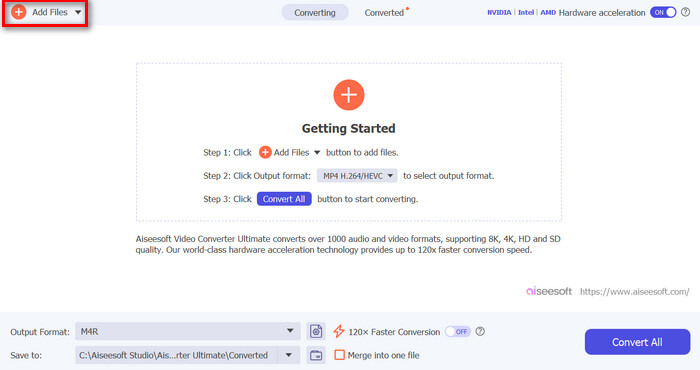
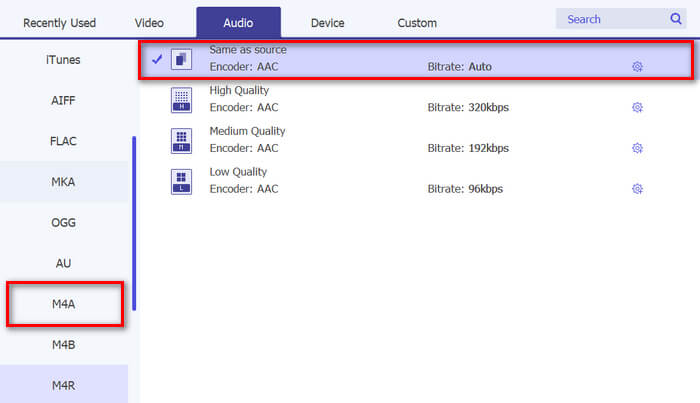
ขั้นตอนที่ 3 จากนั้นไปที่ Output format แล้วจากรายการฟอร์แมตเสียงต่าง ๆ ให้เลือก M4R ซึ่งเป็นฟอร์แมตไฟล์สำหรับเสียงเรียกเข้า iPhone.
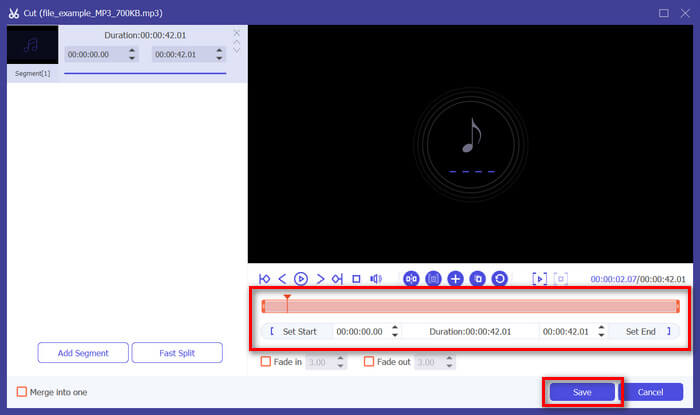
ขั้นตอนที่ 4 หลังจากนั้น ตรวจสอบให้แน่ใจว่าไฟล์ MP3 ของคุณมีความยาวเพียง 30 วินาที หากยาวเกินกว่านั้น ให้คลิกปุ่ม Cut แล้วปรับความยาวของไฟล์โดยเลื่อนแถบบนไทม์ไลน์ หรือกำหนดเวลาให้สิ้นสุดที่ 30 วินาทีด้วยตนเอง.
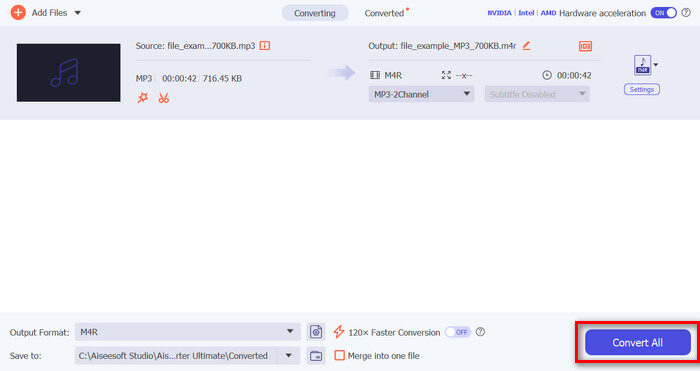
ขั้นตอนที่ 5 ตอนนี้ให้คลิกปุ่ม Convert All เพื่อเริ่มแปลงไฟล์ MP3 ของคุณเป็นเสียงเรียกเข้า iPhone ไฟล์ที่แปลงเสร็จแล้วจะถูกบันทึกลงในโฟลเดอร์บนคอมพิวเตอร์ของคุณโดยอัตโนมัติ.
รวดเร็วใช่ไหม? เป็นเรื่องเหลือเชื่อจริงๆ ที่เครื่องมือ Video Converter Ultimate ที่ FVC เลือกมาช่วยให้การแปลงไฟล์ MP3 เป็นริงโทนของ iPhone เป็นเรื่องง่ายและรวดเร็ว ดังนั้น หากคุณกำลังมองหาเครื่องมือแปลงไฟล์ที่ช่วยประหยัดเวลาได้ ลองใช้เครื่องมือนี้เลย
ส่วนที่ 2. แปลง MP3 เป็นริงโทนบน iPhone
หากคุณต้องการใช้วิธีโดยตรงโดยไม่ต้องใช้คอมพิวเตอร์ GarageBand นำเสนอโซลูชันที่สะดวกสำหรับการแปลง MP3 เป็นเสียงเรียกเข้าโดยตรงบน iPhone ของคุณ เครื่องมือนี้เป็นแอปสร้างเพลงอันทรงพลังที่ติดตั้งไว้ล่วงหน้าใน iPhone ส่วนใหญ่ เครื่องมือนี้ไม่เพียงแต่ใช้งานง่ายเท่านั้น แต่ยังมีคุณสมบัติต่างๆ มากมายเพื่อปรับแต่งไฟล์เสียงของคุณอย่างมีประสิทธิภาพอีกด้วย
วิธีใช้ GarageBand เพื่อแปลงไฟล์ MP3 ของคุณเป็นเสียงเรียกเข้ามีดังนี้:
ขั้นตอนที่ 1 ก่อนอื่น ให้เปิดแอป GarageBand บน iPhone ของคุณ หากยังไม่มีติดตั้ง ให้ไปที่ App Store และติดตั้งก่อน.
ขั้นตอนที่ 2 แตะไอคอน Project จากนั้นแตะไอคอน Loop ที่มุมขวาบน.
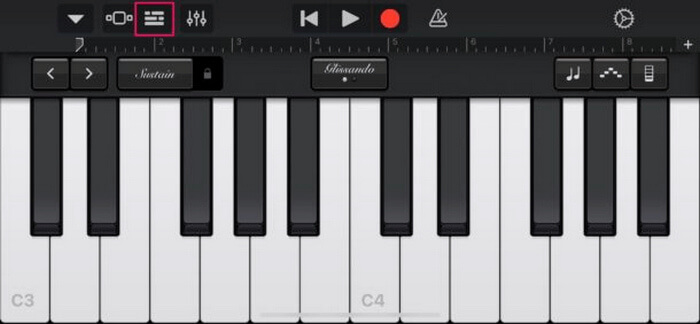
ขั้นตอนที่ 3 จากนั้นแตะ Music หรือ Files เพื่อเลือกไฟล์ MP3 แล้วกดค้างเพื่อทำการนำเข้าไฟล์เข้ามาใน GarageBand.
ขั้นตอนที่ 4 ต่อมา แตะที่แทร็กเสียง แล้วลากปลายทั้งสองด้านเพื่อปรับแต่งช่วงเสียง ให้แน่ใจว่าเสียงเรียกเข้ามีความยาวไม่เกิน 30 วินาที.
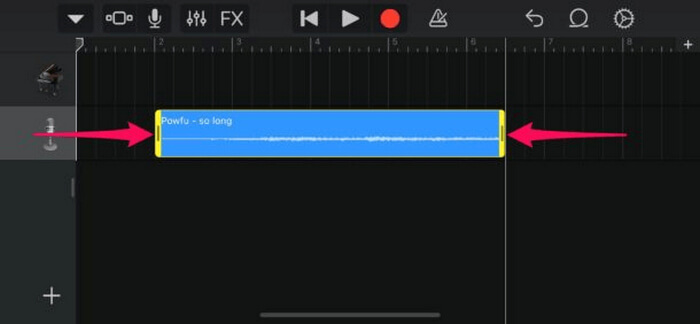
ขั้นตอนที่ 5 คุณจะเห็นลูกศรชี้ลงที่มุมซ้ายบน แตะที่ไอคอนนั้น แล้วเลือก My Songs เพื่อบันทึกคลิปเสียง.
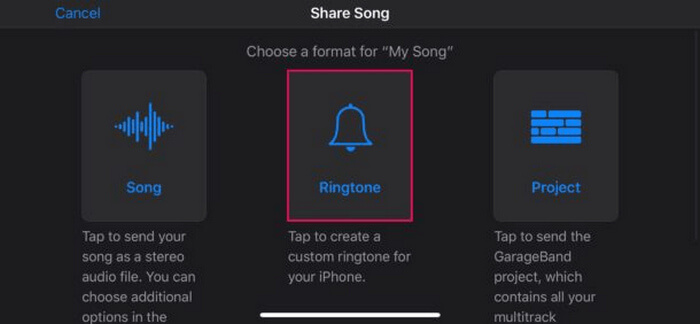
ขั้นตอนที่ 6 หาไฟล์คลิปที่คุณสร้างไว้ กดค้าง จากนั้นแตะ Share แล้วเลือกตัวเลือก Ringtone อย่าลืมตั้งชื่อเสียงเรียกเข้า แล้วแตะ Export.
ขั้นตอนที่ 7 หากต้องการใช้ไฟล์ MP3 ที่แปลงแล้วเป็นเสียงเรียกเข้า iPhone ให้แตะ Use Sound As เพื่อกำหนดให้เป็นเสียงเรียกเข้าหลัก เสียงข้อความ หรือเสียงสำหรับรายชื่อใดรายชื่อหนึ่งโดยเฉพาะ อีกทางเลือกหนึ่งคือไปที่ Settings, Sounds & Haptics และ Ringtone เพื่อเปลี่ยนเสียงเรียกเข้าบน iPhone ของคุณ.
หากคุณต้องการแปลงไฟล์ MP3 เป็นเสียงเรียกเข้าบน iPhone โดยตรง วิธีนี้เหมาะกับคุณเป็นอย่างยิ่ง อย่างไรก็ตาม ผู้ใช้ใหม่อาจต้องใช้เวลาสักระยะในการเรียนรู้ เนื่องจากมีคุณสมบัติที่ซับซ้อนซึ่งอาจทำให้สับสนในตอนแรก
ส่วนที่ 3. แปลง MP3 เป็นริงโทน iPhone [ออนไลน์และฟรี]
ในขณะเดียวกัน หากคุณต้องการวิธีแปลง MP3 เป็นเสียงเรียกเข้า iPhone แบบฟรีและออนไลน์ FVC Free Audio Converter ถือเป็นตัวเลือกที่เหมาะสำหรับคุณ ด้วยเครื่องมือนี้ คุณสามารถแปลงไฟล์เสียงได้ทุกฟอร์แมตอย่างง่ายดาย โดยเฉพาะการแปลงจาก MP3 เป็น M4R เพราะรองรับไฟล์เสียงหลากหลายรูปแบบ ทั้ง MP3, AAC, AC3, WMA, WAV, AIFF, FLAC, MKA, M4A, M4B และ M4R นอกจากนี้ เครื่องมือนี้ยังเหมาะสำหรับผู้ที่ต้องการโปรแกรมแปลงเสียงแบบใช้งานขณะเดินทาง เพราะมีอินเทอร์เฟซที่เรียบง่ายและใช้งานไม่ซับซ้อน.
วิธีใช้ FVC Free Audio Converter เพื่อแปลงไฟล์ MP3 ของคุณเป็นเสียงเรียกเข้ามีดังนี้:
ขั้นตอนที่ 1 คลิกปุ่ม Add Files เพื่อเพิ่มไฟล์ MP3 ที่คุณต้องการแปลงเป็นเสียงเรียกเข้า.
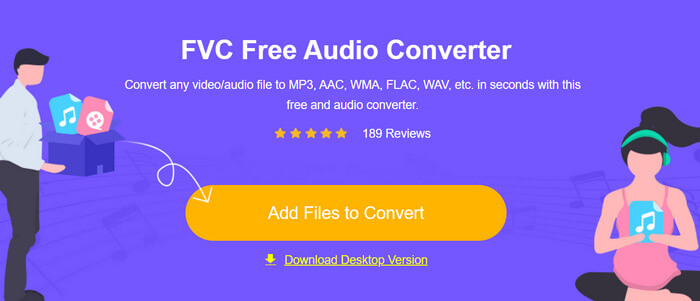
ขั้นตอนที่ 2 เลือก M4R เป็นฟอร์แมตเสียงสำหรับไฟล์เอาต์พุต.
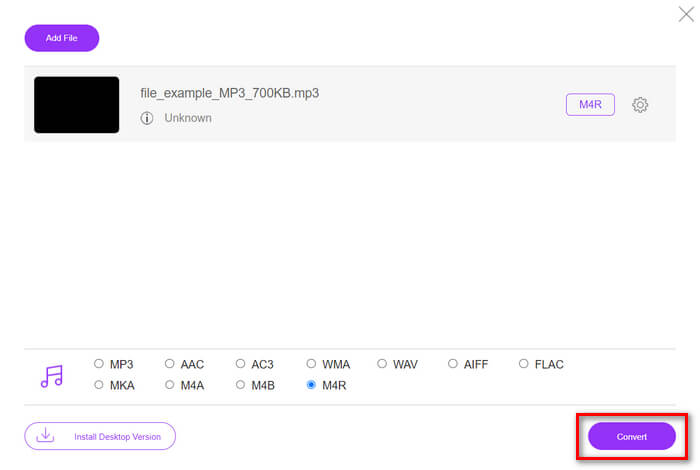
ขั้นตอนที่ 3 สุดท้าย เพื่อเริ่มกระบวนการแปลงไฟล์ MP3 ของคุณให้เป็นเสียงเรียกเข้า ให้คลิกปุ่ม Convert ไฟล์ที่แปลงเสร็จแล้วจะถูกบันทึกลงในคอมพิวเตอร์ของคุณโดยตรง.
หากคุณกำลังมองหาวิธีฟรีและออนไลน์ในการแปลงไฟล์ MP3 เป็น M4R เพื่อใช้เป็นเสียงเรียกเข้าบน iPhone FVC Free Audio Converter คือโซลูชันที่ตอบโจทย์ อินเทอร์เฟซที่ใช้งานง่ายช่วยให้ขั้นตอนการแปลงไฟล์เป็นเรื่องไม่ยุ่งยาก และยังรองรับไฟล์เสียงหลากหลายรูปแบบ เพื่อให้แน่ใจว่าสามารถใช้ได้กับไฟล์ประเภทต่าง ๆ.
ส่วนที่ 4 วิธีการถ่ายโอนเสียงเรียกเข้าที่แปลงแล้วไปยัง iPhone จากคอมพิวเตอร์
ตอนนี้คุณได้แปลงไฟล์ MP3 เป็นเสียงเรียกเข้าบนคอมพิวเตอร์ของคุณแล้ว วิธีที่เร็วที่สุดในการถ่ายโอนไฟล์ไปยัง iPhone ของคุณคือการใช้ iTunes
วิธีถ่ายโอนเสียงเรียกเข้าที่แปลงแล้วไปยัง iPhone ด้วย iTunes มีดังนี้:
ขั้นตอนที่ 1 เปิด iTunes บนคอมพิวเตอร์ของคุณ และเชื่อมต่อ iPhone ด้วยสาย USB.
ขั้นตอนที่ 2 ลากไฟล์เสียงเรียกเข้าที่แปลงแล้วเข้าไปในไลบรารีของ iTunes จากนั้นตรวจสอบให้แน่ใจว่าไฟล์ปรากฏอยู่ในส่วน Tones.
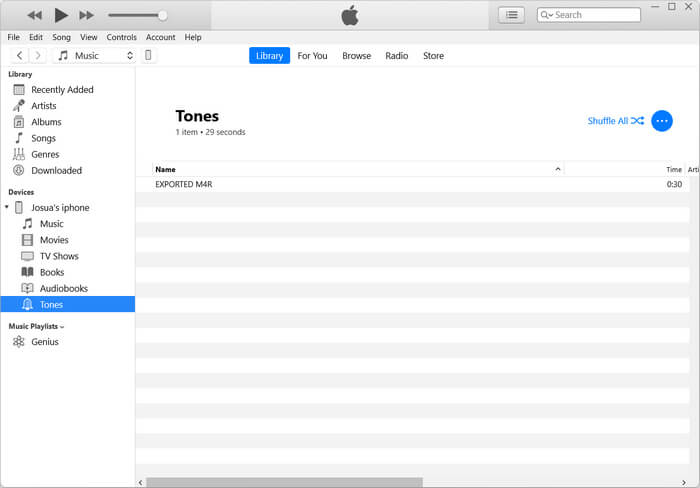
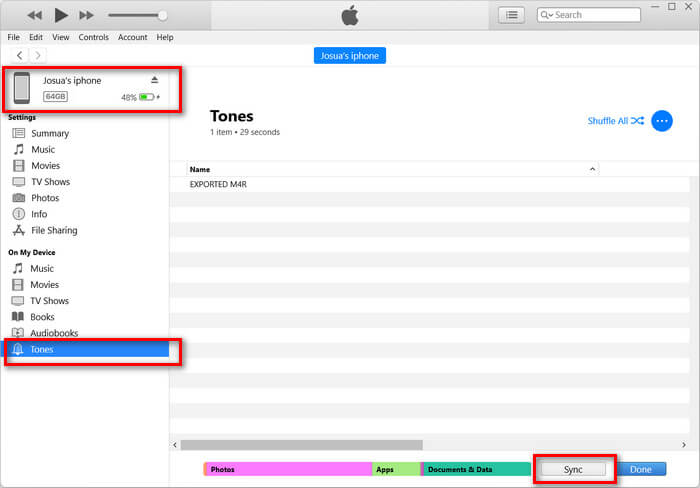
ขั้นตอนที่ 3 เลือกไอคอน iPhone ของคุณใน iTunes ไปที่แท็บ Tones แล้วติ๊กเลือก Sync Tones จากนั้นเลือกไฟล์เสียงเรียกเข้าที่คุณนำเข้าไว้ แล้วคลิก Apply เพื่อเริ่มการซิงค์.
ขั้นตอนที่ 4 จากนั้นบน iPhone ของคุณ ให้ไปที่ Settings เลือก Sounds & Haptics แตะ Ringtone แล้วเลือกเสียงเรียกเข้าใหม่ของคุณ.
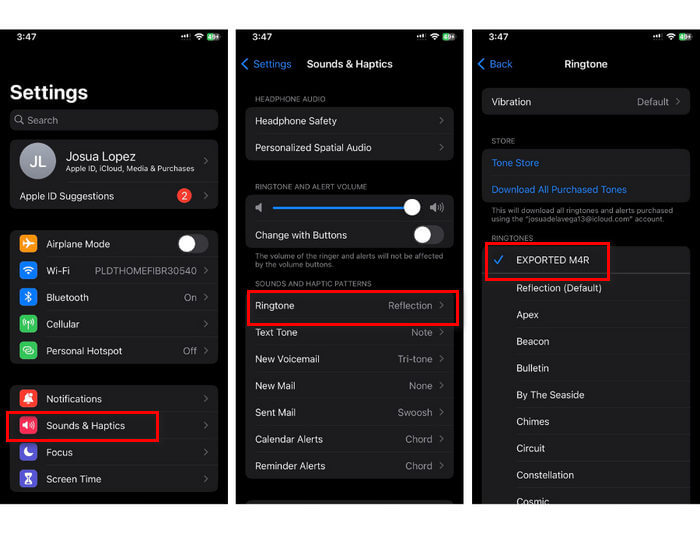
เท่านี้คุณก็จะได้ไฟล์ MP3 ที่แปลงแล้วและนำไปใช้เป็นริงโทนบน iPhone ได้อย่างง่ายดาย ซึ่งจะทำให้อุปกรณ์ของคุณมีความเป็นส่วนตัวมากขึ้นด้วยเสียงที่คุณชื่นชอบ
ส่วนที่ 5. คำถามที่พบบ่อยเกี่ยวกับการแปลง MP3 เป็นริงโทน
เว็บไซต์ริงโทนฟรีที่ดีที่สุดคืออะไร?
เว็บไซต์หลายแห่งให้บริการริงโทนฟรี แต่เว็บไซต์ยอดนิยมและเชื่อถือได้ ได้แก่ Zedge, Mobile9 และ Tones7 เว็บไซต์เหล่านี้มีริงโทนมากมายให้คุณดาวน์โหลดและใช้งานบนโทรศัพท์ของคุณ
รูปแบบ MP3 เป็นเสียงเรียกเข้า iPhone ในรูปแบบใด?
รูปแบบไฟล์ริงโทนของ iPhone คือ M4R เมื่อแปลงไฟล์ MP3 เพื่อใช้เป็นริงโทนบน iPhone จะต้องบันทึกเป็นรูปแบบ M4R
จะเพิ่ม MP3 ลงในริงโทน iPhone ได้อย่างไร?
หากต้องการเพิ่มไฟล์ MP3 ลงในริงโทน iPhone คุณต้องแปลงไฟล์ MP3 เป็น M4R ก่อนโดยใช้เครื่องมือแปลงไฟล์ เช่น Video Converter Ultimate ที่ FVC เลือกใช้ เมื่อแปลงไฟล์ MP3 แล้ว ให้ใช้ iTunes เพื่อโอนไฟล์ไปยัง iPhone และใช้เป็นริงโทนใหม่
สรุป
ตอนนี้คุณก็สามารถใช้ไฟล์ MP3 ที่ชื่นชอบและสร้างเสียงเรียกเข้าให้ iPhone ของคุณเองได้แล้ว เพียงเลือกเครื่องมือแปลงไฟล์ที่เหมาะกับการใช้งานของคุณ แต่ละตัวล้วนมีวิธีใช้งานที่ตรงไปตรงมาในการแปลง MP3 เป็นเสียงเรียกเข้าบน iPhone แล้วจะรออะไรอยู่ล่ะ? เริ่มสร้างเสียงเรียกเข้าที่ไม่เหมือนใครตอนนี้เลย เพื่อให้ iPhone ของคุณสะท้อนความเป็นตัวคุณอย่างแท้จริง!
-
 MOV VS MP4 - คุณเลือกอันไหน?
 MOV VS MP4 อันไหนดีกว่ากัน? โพสต์นี้จะบอกความแตกต่างระหว่าง MP4 และ MOV เพื่อให้คุณสามารถเลือกใช้ไฟล์วิดีโอได้ดีกว่า
-
 FLAC กับ MP3: รูปแบบไฟล์เสียงใดที่ครองอำนาจสูงสุด
 โพสต์นี้จะเปรียบเทียบความแตกต่างที่สำคัญระหว่าง FLAC กับ MP3 ซึ่งรวมถึงคุณภาพเสียง ขนาดไฟล์ ความเข้ากันได้ และอื่นๆ
-
 วิธีแปลง MP3 เป็น M4A เพื่อเพิ่มคุณภาพเสียง
 ปรับปรุงคุณภาพไฟล์เพลงของคุณด้วยการแปลง MP3 เป็น M4A ด้วยเคล็ดลับและคำแนะนำจากผู้เชี่ยวชาญของเรา คำแนะนำของเรามีคำแนะนำทีละขั้นตอนและซอฟต์แวร์ที่แนะนำ
