


 Video Converter Ultimate
 บันทึกหน้าจอ
 ซ่อมวิดีโอ
 ดาวน์โหลดอย่างปลอดภัย
แปลง MP3 เป็น MP4 ด้วย Image [วิธีออนไลน์และเดสก์ท็อป]
คุณกำลังพยายามอัปโหลดไฟล์ MP3 บน YouTube, Facebook และแพลตฟอร์มโซเชียลมีเดียอื่นๆ แต่ไม่มีโอกาสอัปโหลดเพราะแพลตฟอร์มเหล่านั้นไม่รองรับรูปแบบไฟล์ประเภทนี้หรือไม่ หากเป็นเช่นนี้ ผู้ใช้จะต้องแปลงไฟล์นี้เป็นรูปแบบที่แพลตฟอร์มเหล่านี้รองรับ ดังนั้น หากคุณประสบปัญหานี้ เราช่วยคุณได้!
ในบทความนี้ คุณจะได้เรียนรู้วิธีที่ดีที่สุดในการแปลงไฟล์ MP3 เป็น MP4 พร้อมภาพประกอบด้วยเครื่องมือแปลงไฟล์ชั้นยอด ที่ช่วยให้คุณแชร์คอนเทนต์เสียงของคุณควบคู่กับภาพบนหลากหลายแพลตฟอร์มได้อย่างราบรื่น อย่าปล่อยให้เสียเวลาไปมากกว่านี้ อ่านบทความนี้ได้เลยตอนนี้!

ส่วนที่ 1: วิธีการที่รวดเร็วในการแปลง MP3 เป็น MP4 ด้วยรูปภาพ [คุณภาพสูงสุด]
FVC Video Converter Ultimate เป็นชุดเครื่องมือวิดีโอแบบครบวงจร ที่ให้คุณแปลง ปรับปรุง บีบอัด และตัดต่อวิดีโอและไฟล์เสียงได้อย่างรวดเร็ว โดยมีฟีเจอร์ MV ที่ทรงพลังและใช้งานง่าย เหมาะอย่างยิ่งสำหรับการแปลง MP3 เป็น MP4 พร้อมใส่รูปภาพ เพียงแค่นำเข้าไฟล์เสียง MP3 ของคุณ แล้วปรับแต่งเล็กน้อย จากนั้นทุกอย่างก็จะเสร็จเรียบร้อยอย่างง่ายดาย.
นอกจากนี้ เครื่องมือแปลงไฟล์นี้ยังมีฟีเจอร์การแก้ไขที่ดีมากมาย ซึ่งผู้ใช้สามารถปรับปรุงความสวยงามและคุณภาพของวิดีโอที่ส่งออกได้ นอกจากนี้ เครื่องมือนี้ยังรับประกันคุณภาพเอาต์พุตที่ไม่มีการสูญเสียข้อมูลและรองรับวิดีโอความละเอียดสูงถึง 4K ทำให้ภาพมีความชัดเจนเป็นเลิศ สุดท้าย ผู้ใช้ไม่ต้องรอกระบวนการแปลงไฟล์นาน เพราะเครื่องมือนี้รองรับความเร็วในการแปลงไฟล์ 30 เท่า ซึ่งทำให้เครื่องมือนี้เป็นวิธีที่เร็วที่สุดในการแปลงไฟล์เหล่านี้ให้มีคุณภาพสูง
ขั้นตอนที่ 1 ก่อนอื่น ดาวน์โหลดโปรแกรมและติดตั้งลงในคอมพิวเตอร์ของคุณ.
ดาวน์โหลดฟรีสำหรับ Windows 7 หรือใหม่กว่าดาวน์โหลดอย่างปลอดภัย
ดาวน์โหลดฟรีสำหรับ MacOS 10.7 หรือใหม่กว่าดาวน์โหลดอย่างปลอดภัย
ขั้นตอนที่ 2 จากนั้นเปิดโปรแกรม แล้วคลิกที่แท็บ MV.
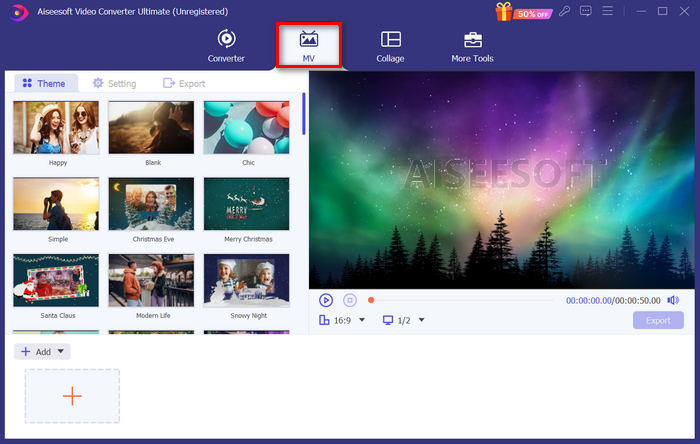
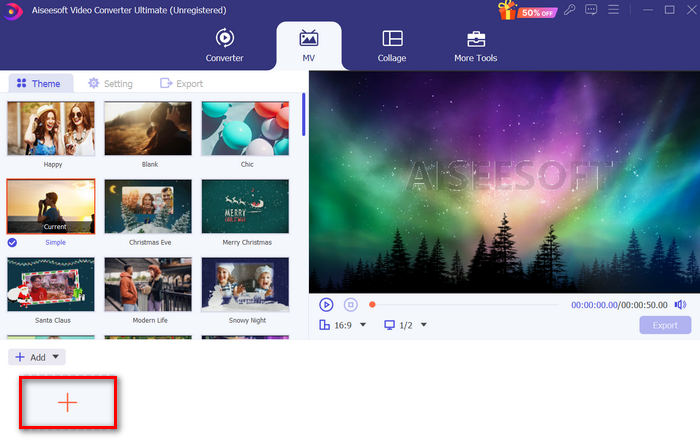
ขั้นตอนที่ 3 ตอนนี้คุณต้องเพิ่มรูปภาพก่อน โดยคลิกที่ปุ่ม Add File.
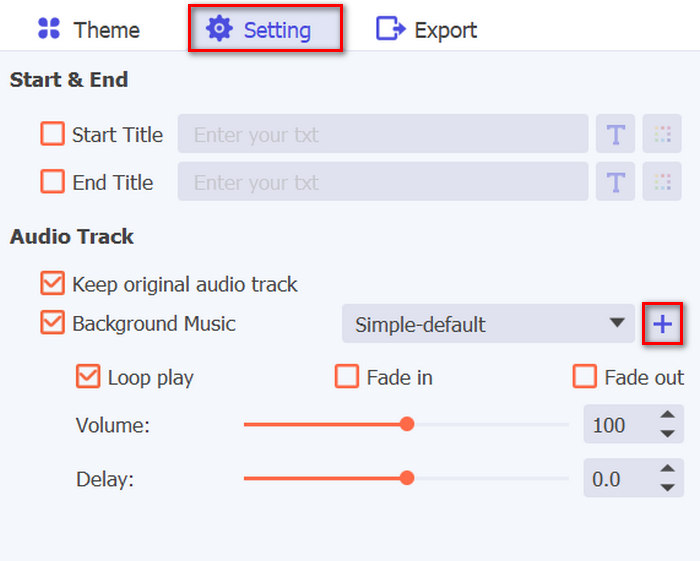
ขั้นตอนที่ 4 หลังจากนั้น เพิ่มไฟล์ MP3 โดยไปที่ส่วน Settings คุณจะเห็นปุ่ม Plus ที่ด้านขวาของข้อความ Background Music เพียงคลิกที่ปุ่มนั้น.
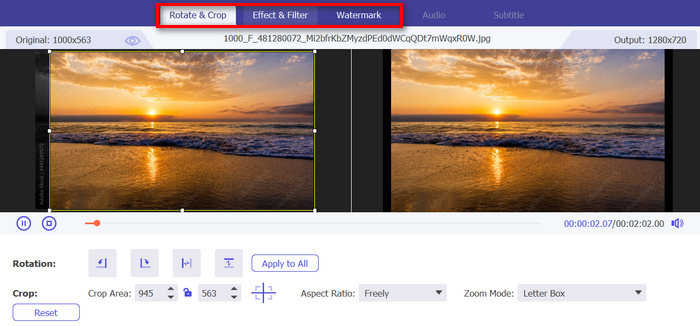
ขั้นตอนที่ 5 เมื่อคุณนำเข้าไฟล์ MP3 ได้อย่างง่ายดายแล้ว ตอนนี้คุณสามารถเลือกใส่ฟิลเตอร์และเอฟเฟ็กต์ให้กับรูปภาพที่ใช้ได้ เพียงคลิกที่ไอคอน Edit ด้านล่าง นอกจากนี้ คุณยังสามารถใส่ลายน้ำเพื่อปรับแต่งวิดีโอ MP4 ของคุณให้เป็นสไตล์ส่วนตัวได้ด้วย.
ขั้นตอนที่ 6 เมื่อเรียบร้อยแล้ว ให้คลิกปุ่ม Export เพื่อบันทึกไฟล์ จากนั้นระบบจะให้คุณกำหนดค่าอัตราเฟรม ความละเอียดวิดีโอ และรูปแบบไฟล์เอาต์พุต รวมถึงโฟลเดอร์ปลายทางที่ต้องการบันทึกไฟล์.
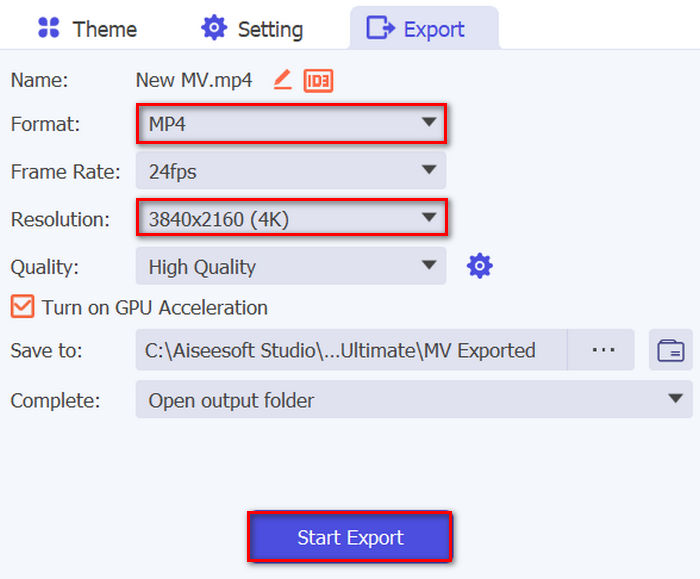
อย่าลืมระบุ MP4 เป็นรูปแบบเอาต์พุตที่คุณต้องการ
ขั้นตอนที่ 7 หากตั้งค่าทุกอย่างเสร็จแล้ว เพียงคลิกปุ่ม Start Export คุณจะสามารถเปิดดูวิดีโอที่ส่งออกเสร็จแล้วได้จากโฟลเดอร์ที่เลือกไว้.
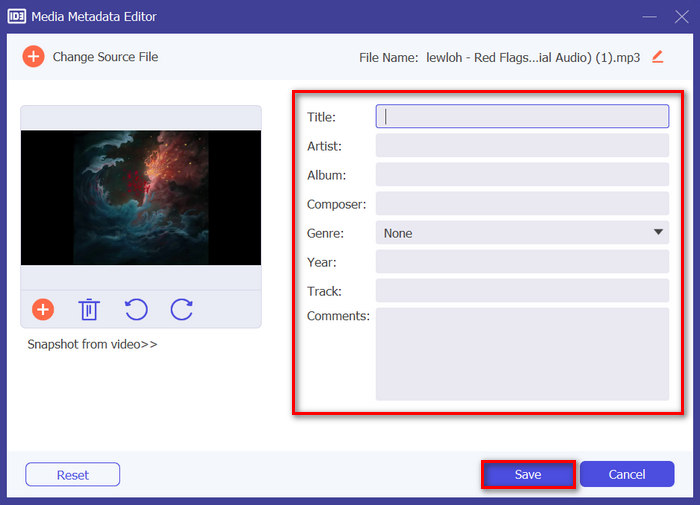
เคล็ดลับ: ใช้ตัวแก้ไขข้อมูลเมทาดาทา (metadata editor) เพื่อปรับแต่งรายละเอียดต่าง ๆ เช่น ชื่อศิลปิน ชื่ออัลบั้ม และแนวเพลง ของไฟล์ MP3 เพื่อจัดระเบียบคลังเพลงของคุณและช่วยให้ค้นหาเพลงที่ต้องการได้อย่างรวดเร็วเมื่อต้องแปลงเป็น MP4.
ในการทำเช่นนั้น โดยใช้โปรแกรมเดียวกัน ให้ไปที่แท็บ More Tools แล้วมองหาฟีเจอร์ Media Metadata Editor จากนั้นเพิ่มไฟล์ MP3 เข้าไป จากตรงนั้นคุณสามารถเปลี่ยน เพิ่ม ลบ และแก้ไขข้อมูลในกล่องข้อความได้ เมื่อเสร็จแล้วให้คลิกปุ่ม Save.
ส่วนที่ 2: 3 วิธีในการแปลง MP3 เป็น MP4 ด้วย Image Online
การแปลงไฟล์ MP3 เป็น MP4 พร้อมรูปภาพสามารถทำได้โดยใช้เครื่องมือแปลงออนไลน์ ซึ่งแตกต่างจากแอพซอฟต์แวร์เดสก์ท็อป เครื่องมือเหล่านี้สะดวกและเข้าถึงได้ง่ายในการใช้งาน อย่างไรก็ตาม เครื่องมือเหล่านี้อาจมีข้อจำกัดในแง่ของตัวเลือกการปรับแต่งและอาจไม่รับประกันคุณภาพเอาต์พุตในระดับเดียวกับซอฟต์แวร์เดสก์ท็อป อย่างไรก็ตาม เครื่องมือเหล่านี้ให้วิธีแก้ปัญหาที่รวดเร็วและง่ายดายสำหรับการแปลงไฟล์พื้นฐาน
FileConverto
เครื่องมือแปลงไฟล์ออนไลน์นี้ใช้เพื่อสร้างและปรับปรุงวิดีโอ MP4 โดยใช้รูปภาพเป็นพื้นหลังและใช้เพลง MP3 เป็นแทร็กเสียง ซึ่งหมายความว่าเครื่องมือนี้สามารถแปลงไฟล์ MP3 เป็น MP4 ที่มีรูปภาพได้
ขั้นตอนที่ 1 ก่อนอื่นให้อัปโหลดภาพ JPG หรือ PNG โดยคลิกปุ่ม Browse.
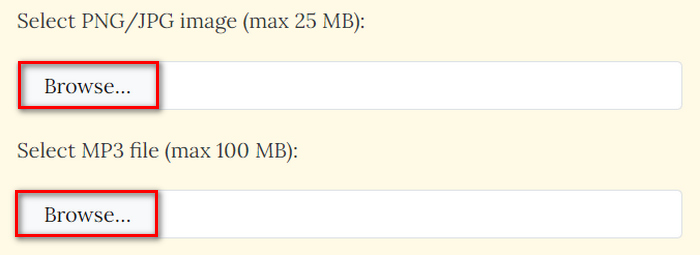
ขั้นตอนที่ 2 จากนั้นทำแบบเดียวกันกับไฟล์ MP3 เพียงคลิกปุ่ม Browse เพื่อเพิ่มไฟล์.
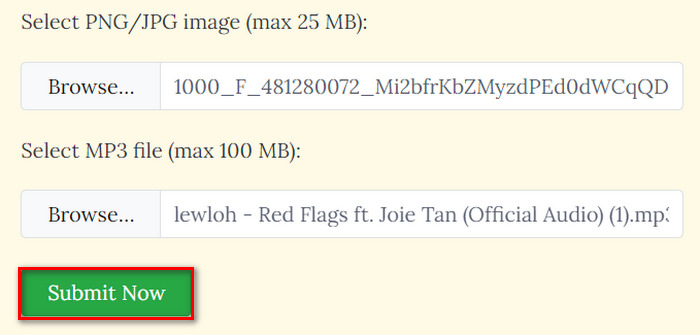
ขั้นตอนที่ 3 หลังจากนั้น ให้คลิกปุ่ม Submit Now.
ขั้นตอนที่ 4 สุดท้าย ดาวน์โหลดไฟล์ MP4 ที่แปลงเสร็จแล้วโดยคลิกปุ่ม Download.

เนื่องจากผู้ใช้จำเป็นต้องนำเข้าไฟล์ทั้งสองไฟล์เพื่อดำเนินการแปลง การแปลง MP3 เป็น MP4 ด้วยรูปภาพด้วยเครื่องมือนี้จึงรวดเร็วและง่ายดาย น่าเสียดายที่กระบวนการประเภทนี้หมายถึงการขาดคุณสมบัติการปรับแต่งเพื่อปรับปรุงคุณภาพเอาต์พุตของไฟล์ MP4 ที่แปลงแล้ว ดังนั้น หากคุณพบว่าสิ่งนี้มีความจำเป็น เครื่องมือนี้ไม่เหมาะสำหรับคุณ
ข้อดี
- แปลงไฟล์ MP3 เป็น MP4 ได้อย่างง่ายดายพร้อมพื้นหลังรูปภาพ
- ลดขนาดไฟล์วิดีโอได้มากกว่า 90% โดยไม่กระทบคุณภาพ
จุดด้อย
- รองรับขนาดไฟล์สูงสุดเพียง 100 MB เท่านั้น
- ไม่มีตัวเลือกการปรับแต่ง
Kapwing
Kapwing คือแพลตฟอร์มสร้างวิดีโอสมัยใหม่ที่ขึ้นชื่อในด้านเครื่องมือ AI เทมเพลต และฟีเจอร์ตัดต่อแบบร่วมมือกัน แต่อีกด้านหนึ่ง เครื่องมือนี้สามารถเป็นวิธีที่สมบูรณ์แบบในการแปลงไฟล์ MP3 เป็น MP4 ด้วยรูปภาพได้ ดังต่อไปนี้:
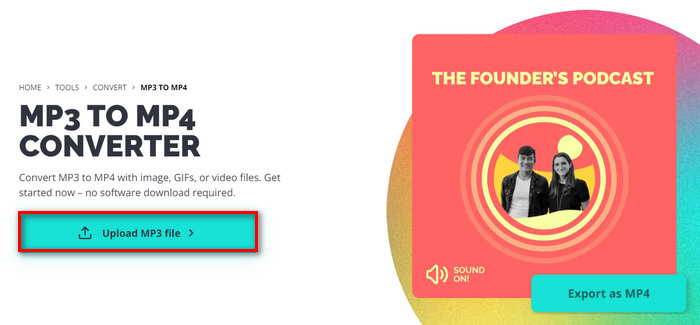
ขั้นตอนที่ 1 อันดับแรก บนเว็บไซต์ทางการของพวกเขา ให้คลิกปุ่ม Upload MP3 File ซึ่งจะพาคุณไปยังหน้าตัวโปรแกรม.
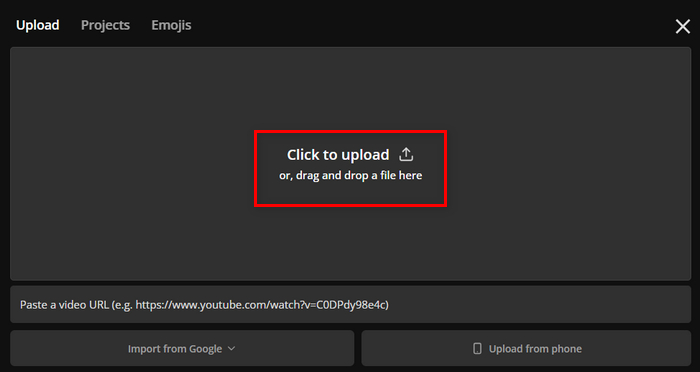
ขั้นตอนที่ 2 จากนั้นคลิกปุ่ม Click to Upload เพื่อเพิ่มไฟล์ MP3 คุณยังสามารถลากแล้ววางไฟล์ หรือวางลิงก์ไฟล์แทนก็ได้.
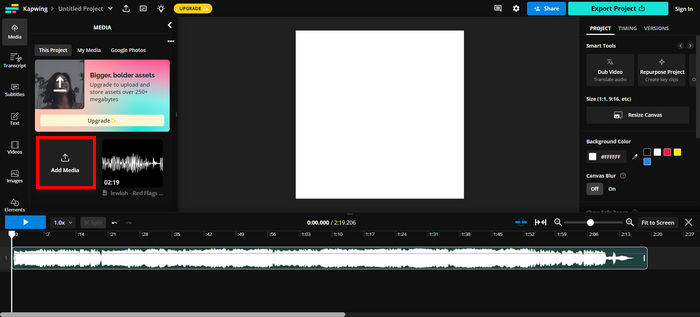
ขั้นตอนที่ 3 คลิกปุ่ม Add File เพื่อเพิ่มรูปภาพที่คุณต้องการใส่ในไฟล์ MP4.
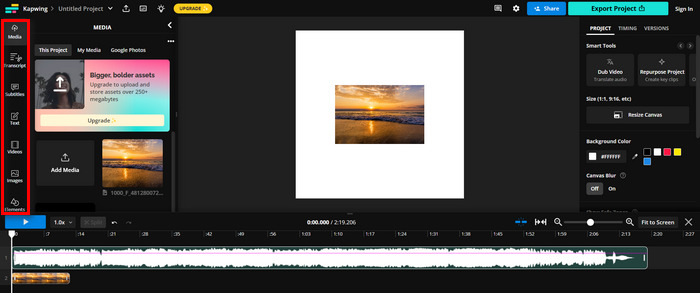
ขั้นตอนที่ 4 ขั้นตอนนี้เป็นเพียงตัวเลือกเสริม แต่ที่แถบด้านซ้ายของหน้าจอ คุณสามารถใช้ฟีเจอร์ต่าง ๆ เพื่อเพิ่มข้อความ ซับไตเติล วิดีโอ และอื่น ๆ ได้.
ขั้นตอนที่ 5 สุดท้าย คลิกปุ่ม Export เพื่อบันทึกไฟล์ แต่ก่อนนั้น คุณต้องเลือก MP4 เป็นรูปแบบไฟล์เอาต์พุต และในส่วนความละเอียดวิดีโอ ก็สามารถเลือกได้ตามต้องการ.
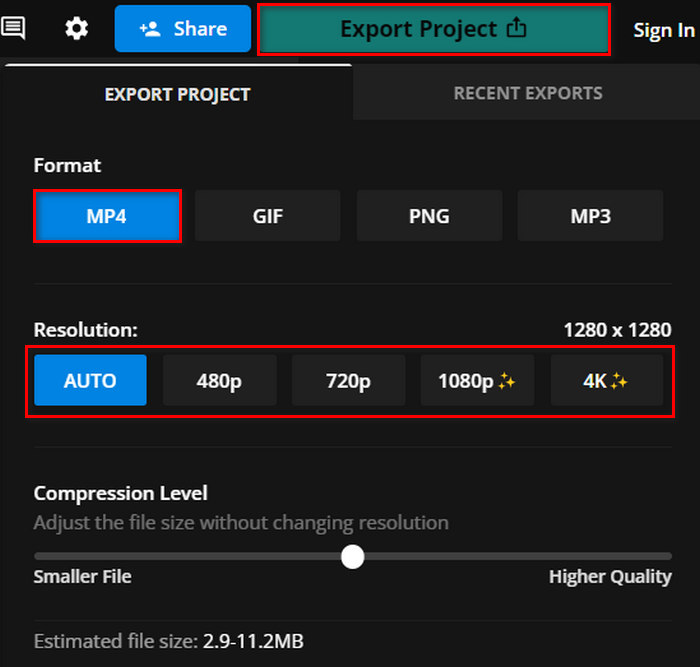
Kapwing ดูเหมือนจะมีกระบวนการแปลงไฟล์ MP3 เป็น MP4 ที่มีรูปภาพที่น่าสนใจ ข้อเสียอย่างเดียวของเครื่องมือนี้คือคุณไม่สามารถใช้คุณสมบัติทั้งหมดได้เมื่อใช้เวอร์ชันฟรี
ข้อดี
- การแก้ไขแบบร่วมมือกัน
- รองรับรูปแบบยอดนิยมต่างๆ เช่น MP4 เป็น GIF, PNG ถึง PN4 และอื่นๆ อีกมากมาย
- ชุดคุณสมบัติการแก้ไขที่ดี
จุดด้อย
- เวอร์ชันฟรีสามารถรองรับความละเอียดวิดีโอได้สูงสุด 720 จุด
Clideo
Clideo เป็นเครื่องมือออนไลน์ที่ให้ผู้ใช้ตัดต่อวิดีโอ เสียง และรูปภาพได้ นอกจากนี้ ผู้ใช้ยังสามารถใช้ประโยชน์จากเครื่องมือนี้เพื่อแปลงไฟล์ MP3 เป็น MP4 พร้อมรูปภาพได้อีกด้วย ดังนั้น หากคุณมีไฟล์ MP3 ที่ต้องการแปลงเป็น MP4 เพื่อให้เข้ากันได้กับ YouTube, Instagram และแพลตฟอร์มโซเชียลมีเดียอื่นๆ ให้ลองใช้เครื่องมือนี้ดู
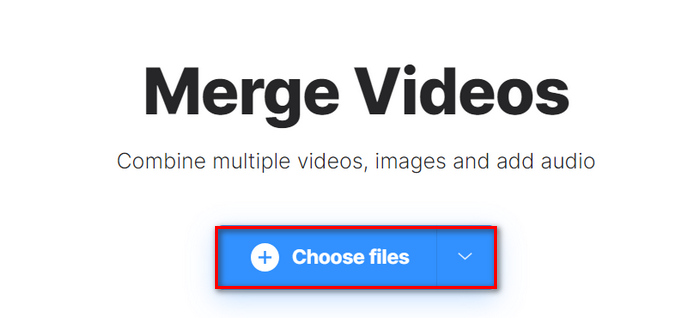
ขั้นตอนที่ 1 คลิกปุ่ม Choose Files เพื่อเพิ่มรูปภาพ.
.
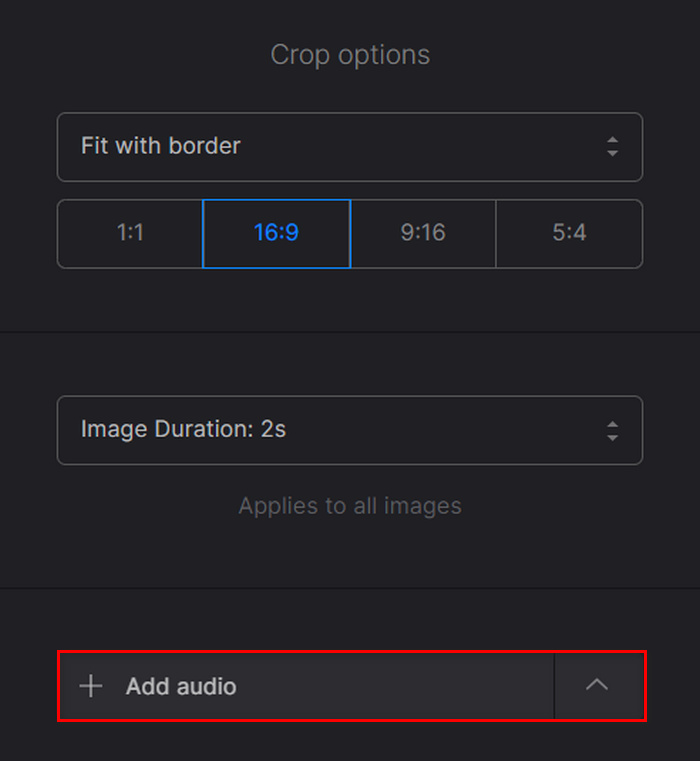
ขั้นตอนที่ 2 จากนั้นเพื่อเพิ่มไฟล์ MP3 ให้คลิก Add Audio.
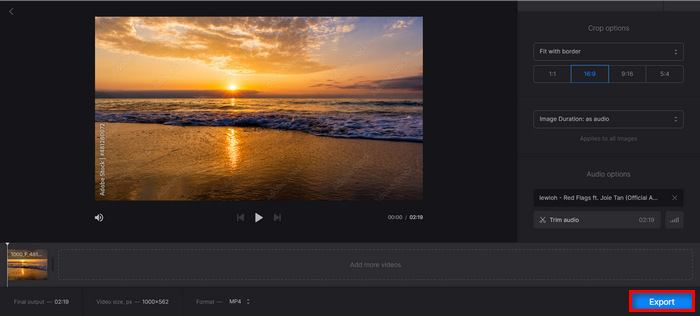
ขั้นตอนที่ 3 หลังจากนั้น คลิกปุ่ม Export.
ขั้นตอนที่ 4 สุดท้าย คลิก Download เพื่อบันทึกไฟล์ MP4 ลงในอุปกรณ์ของคุณ.
Clideo มีอินเทอร์เฟซผู้ใช้ที่เรียบง่ายและยอดเยี่ยมเมื่อเทียบกับเครื่องมือแปลงไฟล์อื่นๆ ซึ่งเหมาะอย่างยิ่งสำหรับการนำทางที่ง่ายดาย โดยเฉพาะสำหรับผู้ที่เพิ่งเริ่มใช้เครื่องมือนี้ อย่างไรก็ตาม การแปลงและขั้นตอนต่างๆ ใช้เวลานาน โดยเฉพาะเมื่อคุณกำลังส่งออกไฟล์ในที่สุด
และยังมีผู้ใช้บางรายรายงานว่าเมื่อส่งออกจาก Clideo แล้วพบว่าไฟล์ MP4 ไม่มีเสียง ดังนั้นคุณควรทำตามขั้นตอนอย่างระมัดระวัง.
ข้อดี
- อินเทอร์เฟซผู้ใช้ที่เรียบง่ายและใช้งานง่าย
- การแปลงอย่างรวดเร็ว
จุดด้อย
- วิดีโอที่ส่งออกจากเวอร์ชันฟรีมาพร้อมกับลายน้ำ
ส่วนที่ 3: คำถามที่พบบ่อยเกี่ยวกับการแปลง MP3 เป็น MP4 ด้วยรูปภาพ
ฉันสามารถเพิ่มรูปภาพหลาย ๆ รูปเมื่อแปลงไฟล์ MP3 เป็นวิดีโอ MP4 ได้หรือไม่?
ใช่ ผู้ใช้สามารถเพิ่มรูปภาพหลายภาพลงในวิดีโอ MP4 จากไฟล์ MP3 ได้โดยใช้เครื่องมือแปลงไฟล์ โดยปกติแล้ว ผู้ใช้สามารถนำเข้ารูปภาพหลายภาพและจัดเรียงตามลำดับก่อนจะแปลงพร้อมกับไฟล์ MP3 เป็นรูปแบบไฟล์วิดีโอ MP4
ฉันสามารถปรับระยะเวลาของแต่ละภาพในวิดีโอ MP4 ด้วยเครื่องมือแปลงออนไลน์ได้หรือไม่
ใช่ เครื่องมือแปลงไฟล์ออนไลน์บางตัวช่วยให้ผู้ใช้ปรับแต่งระยะเวลาของภาพแต่ละภาพที่แสดงในวิดีโอ MP4 ได้ ด้วยวิธีนี้ ผู้ใช้สามารถกำหนดระยะเวลาของภาพที่ปรากฏบนหน้าจอได้ ทำให้ควบคุมจังหวะและระยะเวลาของวิดีโอได้มากขึ้น แต่โปรดทราบว่าวิธีนี้ใช้ไม่ได้กับเครื่องมือแปลงไฟล์ออนไลน์บางตัว ดังนั้น การเรียนรู้ตัวแปลงไฟล์ที่จะใช้จึงเป็นสิ่งสำคัญ
สามารถเพิ่มข้อความลงในรูปภาพในวิดีโอ MP4 ที่สร้างจากไฟล์ MP3 ได้หรือไม่
ใช่ มีเครื่องมือแปลงไฟล์ที่ช่วยให้ผู้ใช้เพิ่มข้อความหรือคำบรรยายลงในรูปภาพที่รวมอยู่ในวิดีโอ MP4 คุณลักษณะนี้ช่วยให้ผู้ใช้สร้างสรรค์มากขึ้นในการถ่ายทอดข้อมูลเพิ่มเติมและให้บริบทเพื่อเพิ่มความน่าสนใจให้กับวิดีโอ
สรุป
จบแล้ว! อย่าปล่อยให้ปัญหาความเข้ากันได้ของไฟล์เป็นอุปสรรคต่อการแชร์คอนเทนต์เสียงบนแพลตฟอร์มต่าง ๆ ตอนนี้คุณสามารถแปลงไฟล์ MP3 เป็น MP4 พร้อมภาพประกอบได้อย่างง่ายดายด้วยวิธีการที่อธิบายในบทความนี้ แล้วคุณยังรออะไรอยู่? เริ่มแปลงไฟล์ MP3 ของคุณได้เลยตอนนี้!
-
 โปรแกรมแปลงไฟล์ WAV เป็น MP3 ที่ดีที่สุดที่ควรลองในปี 2025
 กำลังมองหาตัวแปลง WAV เป็น MP3 ที่เชื่อถือได้อยู่ใช่ไหม อ่านบทวิจารณ์เชิงลึกของเราและค้นพบเครื่องมือที่ดีที่สุดในการแปลงไฟล์เสียงของคุณอย่างง่ายดาย
-
 7 สุดยอดตัวแปลง MP4 เป็น MOV ที่เอาชนะไม่ได้ (พีซี/ออนไลน์/มือถือ)
 ในคำแนะนำนี้ เราได้ตรวจสอบตัวแปลง MP4 เป็น MOV ฟรีที่ดีที่สุดพร้อมกับโปรแกรมแบบชำระเงินเพื่อช่วยตอบสนองความต้องการในการแปลงวิดีโอของคุณ
-
 ตรวจสอบตัวแปลง M4A เป็น MP3 อันดับต้น ๆ [ทดลองและทดสอบแล้ว]
 สัมผัสกับการเปลี่ยนแปลงทางเคมีโดยตรงเมื่อตัวแปลง M4A เป็น MP3 แปลงเพลงของคุณเป็นรูปแบบที่ท้าทายแบบแผนได้อย่างง่ายดาย
