


 Video Converter Ultimate
 บันทึกหน้าจอ
 ซ่อมวิดีโอ
 ดาวน์โหลดอย่างปลอดภัย
ตัวแปลง MP3 เป็น WAV: คำอธิบาย คุณลักษณะหลัก ข้อดีข้อเสีย และทั้งหมด
ในยุคดิจิทัลของไฟล์เพลงและไฟล์เสียง ความจำเป็นในการแปลงไฟล์ระหว่างรูปแบบต่างๆ กลายเป็นเรื่องธรรมดามากขึ้นเรื่อยๆ การแปลงอย่างหนึ่งที่มักเกิดขึ้นคือจากรูปแบบ MP3 เป็น WAV ไฟล์ MP3 ถูกใช้อย่างแพร่หลายเนื่องจากลักษณะการบีบอัด ขณะที่ไฟล์ WAV ให้คุณภาพเสียงที่สูงกว่าและเป็นที่ชื่นชอบของมืออาชีพ
เพื่อเชื่อมช่องว่างนี้ โปรแกรมแปลงไฟล์ MP3 เป็น WAV จึงกลายเป็นเครื่องมือสำคัญสำหรับผู้ใช้ที่ต้องการรักษาหรือยกระดับความคมชัดของเสียง ไม่ว่าคุณจะเป็นนักดนตรี นักจัดพอดแคสต์ หรือเพียงแค่ผู้ฟังตัวยง การทำความเข้าใจตัวเลือกต่าง ๆ สำหรับการแปลง MP3 เป็น WAV ถือเป็นกุญแจสำคัญ ในบทความนี้ เราจะสำรวจโปรแกรมแปลงไฟล์หลากหลายตัวที่ออกแบบมาสำหรับ Windows, Mac การใช้งานออนไลน์ และอุปกรณ์พกพา เตรียมตัวปลดล็อกศักยภาพของไฟล์เสียงของคุณไปพร้อมกับเราในโลกของโปรแกรมแปลง MP3 เป็น WAV.

ส่วนที่ 1 การเปรียบเทียบตัวแปลง MP3 เป็น WAV
ในตารางด้านล่าง เราเปรียบเทียบคุณสมบัติหลักของตัวแปลง MP3 เป็น WAV ต่างๆ โดยพิจารณาจากแพลตฟอร์ม ความเร็วในการแปลง การแปลงเป็นชุด ส่วนติดต่อผู้ใช้ ตัวเลือกการปรับแต่ง และราคา
| Video Converter Ultimate | ตัวแปลงเสียงออนไลน์ฟรี | โปรแกรมแปลงไฟล์ | |
| แพลตฟอร์ม | Windows และ Mac | ออนไลน์ | แอนดรอยด์และไอโอเอส |
| ความเร็วในการแปลง | เร็ว | ขึ้นอยู่กับการเชื่อมต่ออินเทอร์เน็ตและขนาดไฟล์ | เร็ว |
| การแปลงแบทช์ | ใช่ | ใช่ | ไม่ |
| ตัวเลือกการปรับแต่ง | การตั้งค่าเอาต์พุต การตั้งค่าวิดีโอและเสียงต่างๆ | การตั้งค่าเอาต์พุตที่จำกัด | การตั้งค่าเอาต์พุตที่ปรับแต่งได้ |
| หน้าจอผู้ใช้ | ใช้งานง่าย ใช้งานง่าย | เรียบง่ายและใช้งานง่าย | ใช้งานง่าย ใช้งานง่าย |
ส่วนที่ 2 ตัวแปลง MP3 เป็น WAV สำหรับ Windows และ Mac
หนึ่งในโปรแกรมแปลง MP3 เป็น WAV ยอดนิยมสำหรับทั้ง Windows และ Mac คือ Video Converter Ultimate ซอฟต์แวร์อเนกประสงค์ตัวนี้มาพร้อมฟีเจอร์ครบครัน ออกแบบมาเพื่อทำให้ขั้นตอนการแปลงไฟล์ง่ายขึ้นและเพิ่มประสบการณ์การฟังเสียงของคุณ มาดูกันให้ละเอียดถึงคุณสมบัติเด่น ข้อดี และข้อจำกัด รวมถึงขั้นตอนง่าย ๆ ในการแปลง MP3 เป็น WAV ด้วย Video Converter Ultimate.
คุณสมบัติเด่น
◆ ความคล่องตัวของรูปแบบ: นอกจาก MP3 และ WAV แล้ว Video Converter Ultimate ยังรองรับรูปแบบเสียงและวิดีโอที่หลากหลาย ช่วยให้คุณจัดการกับความต้องการด้านมัลติมีเดียที่หลากหลาย
◆ การแปลงไฟล์คุณภาพสูง: Video Converter Ultimate ช่วยให้การแปลงไฟล์ MP3 เป็น WAV เป็นไปอย่างราบรื่นและไม่สูญเสียข้อมูล โดยคงคุณภาพเสียงต้นฉบับไว้
◆ การแปลงเป็นชุด: ประหยัดเวลาด้วยการแปลงไฟล์ MP3 หลายไฟล์เป็น WAV พร้อมกัน ช่วยเพิ่มประสิทธิภาพ
◆ ฟังก์ชันเพิ่มเติม: นอกเหนือจากการแปลงแล้ว ซอฟต์แวร์นี้มีเครื่องมือแก้ไขเพื่อตัดแต่งหรือปรับปรุงไฟล์เสียง ทำให้คุณควบคุมเนื้อหาของคุณได้มากขึ้น
ข้อดี
- เข้าถึงได้ทั้งผู้เริ่มต้นและผู้ใช้ขั้นสูง
- ซอฟต์แวร์รองรับรูปแบบเสียงและวิดีโอที่หลากหลาย
- ไฟล์ WAV ที่แปลงแล้วจะคงความเที่ยงตรงของเสียงต้นฉบับไว้
จุดด้อย
- แอปเวอร์ชันทดลองอาจใช้งานได้โดยมีฟีเจอร์จำกัด
ขั้นตอนที่ 1 ดาวน์โหลดโปรแกรมแปลง MP3 เป็น WAV ที่ดีที่สุด
เริ่มต้นโดยคลิกไอคอน ดาวน์โหลดฟรี สำหรับระบบปฏิบัติการของคุณด้านล่าง จากนั้นดับเบิลคลิกไฟล์ที่ดาวน์โหลดมาเพื่อเริ่มขั้นตอนการติดตั้ง.
ดาวน์โหลดฟรีสำหรับ Windows 7 ขึ้นไปดาวน์โหลดอย่างปลอดภัย
ดาวน์โหลดฟรีสำหรับ MacOS 10.7 หรือใหม่กว่าดาวน์โหลดอย่างปลอดภัย
ขั้นตอนที่ 2 อัปโหลดไฟล์เสียง MP3
เมื่อโปรแกรมโหลดเสร็จแล้ว ให้คลิกปุ่ม เครื่องหมายบวก ตรงกลางหน้าต่างโปรแกรม จากนั้นไปที่ไดเรกทอรีในคอมพิวเตอร์ของคุณและเลือกไฟล์ MP3 ที่คุณต้องการแปลงเป็น WAV จากหน้าหลัก คุณจะเห็นภาพตัวอย่างของไฟล์เสียงที่อัปโหลดแล้ว.
ขั้นตอนที่ 3 เลือก WAV เป็นรูปแบบไฟล์เอาต์พุต
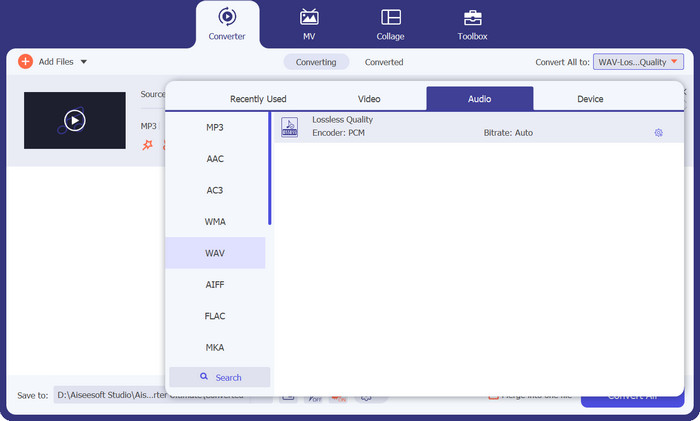
เมื่อไฟล์ถูกโหลดแล้ว ให้ไปที่แท็บ เอาต์พุต จากนั้นไปที่ส่วน เสียง แล้วเลือกไฟล์ WAV คุณยังสามารถปรับคุณภาพเอาต์พุตได้โดยการตั้งค่าอัตราการสุ่มตัวอย่าง เพื่อให้มั่นใจว่าคุณจะได้คุณภาพเสียงตามที่ต้องการและตรงกับความพึงพอใจในการฟังของคุณ.
ขั้นตอนที่ 4 การแปลงไฟล์
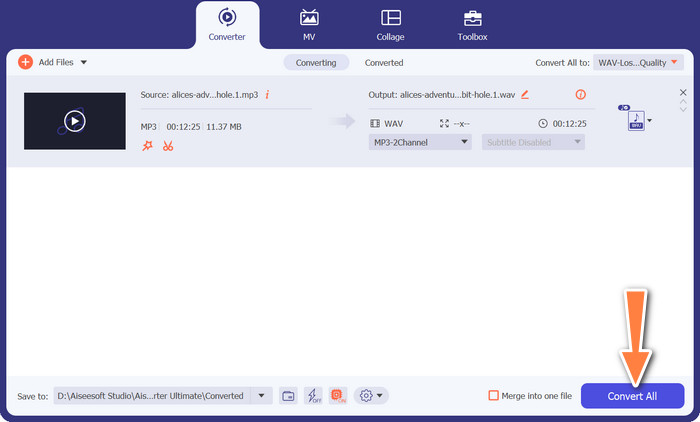
เมื่อกำหนดสเปกเอาต์พุตเรียบร้อยแล้ว ให้คลิกปุ่ม แปลงทั้งหมด ทางด้านขวา ทั้งนี้ ระยะเวลาในการแปลงอาจยาวนานขึ้นตามขนาดไฟล์เสียงของคุณ เมื่อกระบวนการเสร็จสิ้น คุณสามารถคลิกที่ไฟล์เพื่อฟังผลลัพธ์ได้ทันที.
ส่วนที่ 3 MP3 เป็น WAV Converter ออนไลน์
สำหรับผู้ใช้ที่ต้องการความสะดวกในการแปลง MP3 เป็น WAV ออนไลน์ Free Audio Converter Online เป็นตัวเลือกที่เชื่อถือได้ในการแปลง MP3 เป็น WAV โดยไม่จำเป็นต้องติดตั้งซอฟต์แวร์ เครื่องมือบนเว็บนี้มีกระบวนการใช้งานที่ตรงไปตรงมา และตัดความจำเป็นในการดาวน์โหลดเพิ่มเติม มาสำรวจคุณสมบัติเด่น ข้อดี ข้อเสีย ของ Free Audio Converter Online พร้อมทั้งขั้นตอนง่าย ๆ ในการแปลง MP3 เป็น WAV.
คุณสมบัติเด่น
◆ การสนับสนุนรูปแบบ: นอกจากตัวแปลง MP3 เป็น WAV ออนไลน์แล้ว Free Audio Converter Online ยังรองรับรูปแบบเสียงต่างๆ ซึ่งให้ความยืดหยุ่นสำหรับความต้องการในการแปลงของคุณ
◆ ความเข้ากันได้ข้ามแพลตฟอร์ม: เครื่องมือนี้ทำงานได้อย่างราบรื่นบนหลายแพลตฟอร์ม รวมถึง Windows, Mac และ Linux
◆ ความสะดวกสบายทางออนไลน์: โปรแกรมแปลงไฟล์เสียงออนไลน์ฟรีทำงานโดยตรงในเว็บเบราว์เซอร์ของคุณ ทำให้ไม่จำเป็นต้องติดตั้งซอฟต์แวร์
◆ ส่วนติดต่อผู้ใช้ที่เป็นมิตร: เครื่องมือนี้เป็นโปรแกรมแปลง MP3 เป็น WA ฟรี และมีอินเทอร์เฟซที่เรียบง่ายและใช้งานง่าย ทำให้ผู้ใช้ทุกคนสามารถเข้าถึงได้
ข้อดี
- ไม่มีการติดตั้งซอฟต์แวร์
- ความเข้ากันได้ของแพลตฟอร์ม
- ส่วนต่อประสานที่ใช้งานง่าย
จุดด้อย
- ข้อกำหนดการเชื่อมต่ออินเทอร์เน็ต
- การแปลงแบทช์จำกัด
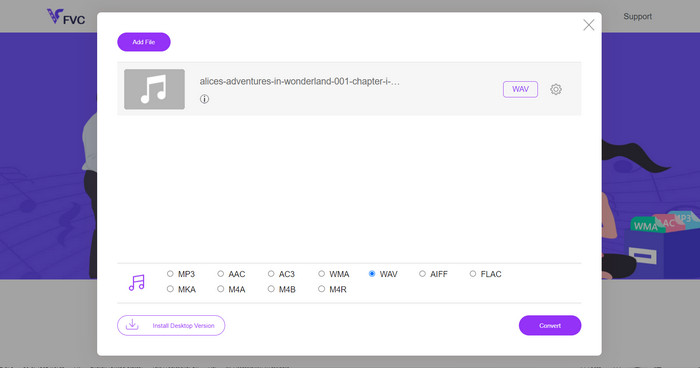
ขั้นตอนที่ 1 ไปที่เว็บไซต์ Free Audio Converter Online ในเว็บเบราว์เซอร์ของคุณ จากนั้นเลือกไฟล์ MP3 ที่ต้องการแปลงโดยคลิกปุ่ม Add Files to Convert แล้วจะมีหน้าต่างโฟลเดอร์บนคอมพิวเตอร์ขึ้นมาให้คุณเลือกไฟล์เสียงเป้าหมาย.
ขั้นตอนที่ 2 รูปแบบเอาต์พุตที่แนะนำคือ WAV ดังนั้นให้เลือก WAV จากเมนูรายการเอาต์พุตส่วน เสียง รายการเอาต์พุตใช้งานง่าย คุณจะเห็นรูปแบบ WAV ได้ทันที ปรับตัวเลือกอื่น ๆ เพิ่มเติม เช่น บิตเรต หรืออัตราการสุ่มตัวอย่าง หากต้องการ.
ขั้นตอนที่ 3 เพื่อเริ่มกระบวนการแปลง ให้คลิกปุ่ม Convert ไฟล์เสียงทั้งหมดที่อัปโหลดจะถูกแปลงเป็น WAV เมื่อการแปลงเสร็จสิ้น คุณสามารถบันทึกไฟล์ WAV ที่แปลงแล้วลงในพีซีของคุณได้.
ส่วนที่ 4 แอพแปลง MP3 เป็น WAV สำหรับอุปกรณ์ Android และ iOS
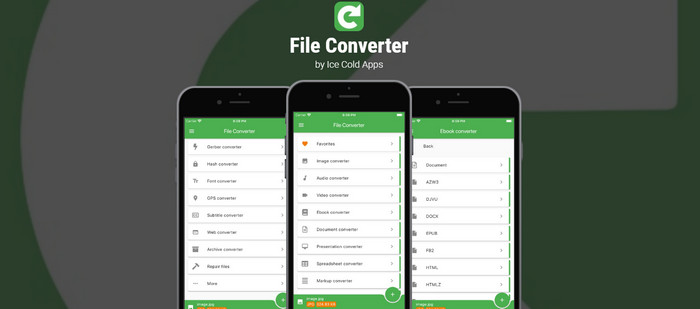
ตัวแปลงไฟล์โดยแอพ Ice Cold เป็นแอพมือถืออเนกประสงค์ที่ออกแบบมาสำหรับทั้งแพลตฟอร์ม Android และ iOS ซึ่งให้วิธีที่สะดวกแก่ผู้ใช้ในการแปลงไฟล์เสียง รวมถึง MP3 เป็น WAV ด้วยอินเทอร์เฟซที่ใช้งานง่ายและรูปแบบไฟล์ที่รองรับมากมาย แอพสำหรับแปลงไฟล์ MP3 เป็น WAV นี้นำเสนอโซลูชันที่ครอบคลุมสำหรับความต้องการในการแปลงไฟล์ในขณะเดินทาง
ข้อดี
- รับรองความเข้ากันได้กับไฟล์เสียงต่างๆ
- แปลงไฟล์หลายไฟล์พร้อมกัน
- อินเทอร์เฟซซอฟต์แวร์แปลง MP3 เป็น WAV ฟรีที่ใช้งานง่าย
จุดด้อย
- การซื้อในแอปสำหรับคุณสมบัติขั้นสูง
- รุ่นฟรีอาจมีโฆษณา
ขั้นตอนที่ 1 ติดตั้งแอป File Converter จาก Google Play Store (Android) หรือ App Store (iOS) บนอุปกรณ์พกพาของคุณ จากนั้นเปิดแอปเพื่อเข้าสู่หน้าหลักของแอป.
ขั้นตอนที่ 2 ในหน้าหลักของแอป ให้มองหาและแตะไอคอน เครื่องหมายบวก แอปจะแสดงตัวเลือกเบราว์เซอร์ไฟล์หรือตัวเลือกตัวเลือกไฟล์ ให้ใช้เพื่อไปยังโฟลเดอร์และเลือกไฟล์ MP3 ที่คุณต้องการแปลงเป็น WAV.
ขั้นตอนที่ 3 หลังจากเลือกไฟล์ MP3 แล้ว แอปจะแสดงตัวเลือกรูปแบบเอาต์พุตต่าง ๆ ให้เลือก WAV เป็นรูปแบบเอาต์พุตที่ต้องการ.
ขั้นตอนที่ 4 คุณสามารถปรับแต่งการตั้งค่าเอาต์พุตเพิ่มเติมได้ตามต้องการ เช่น บิตเรต อัตราการสุ่มตัวอย่าง และช่องสัญญาณเสียง.
ขั้นตอนที่ 5 หลังจากเลือกฟอร์แมตเอาต์พุตและปรับการตั้งค่าต่าง ๆ เรียบร้อยแล้ว ให้แตะปุ่ม start conversion เพื่อเริ่มกระบวนการแปลงไฟล์ แอปจะเริ่มแปลงและแสดงแถบความคืบหน้าเพื่อแจ้งสถานะให้คุณทราบ.
อ่านเพิ่มเติม:
โปรแกรมแปลง MP3 เป็น AC3 ที่ดีที่สุดเพื่อคุณภาพเสียงที่ดียิ่งขึ้น
WAV Player – 5 แอปเล่นไฟล์ WAV ที่ดีที่สุดสำหรับ Android, iPhone, พีซี และ Mac
ส่วนที่ 5 คำถามที่พบบ่อยเกี่ยวกับตัวแปลง MP3 เป็น WAV
มีการตั้งค่าที่แนะนำหรือแนวทางปฏิบัติที่ดีที่สุดสำหรับการแปลง MP3 เป็น WAV เพื่อคุณภาพเสียงที่ดีที่สุดหรือไม่
โดยทั่วไป ขอแนะนำให้เลือกการตั้งค่าคุณภาพสูงสุดที่มีอยู่ในตัวแปลงเพื่อรักษาคุณภาพเสียงที่ดีที่สุดที่เป็นไปได้ในระหว่างกระบวนการแปลง
อะไรคือความแตกต่างระหว่างการบีบอัดเสียงแบบ Lossy และ Lossless?
การบีบอัดแบบไม่สูญเสียข้อมูล (เช่น MP3) ยอมสละคุณภาพเสียงบางส่วนเพื่อให้ได้ขนาดไฟล์ที่เล็กลง ในขณะที่การบีบอัดแบบไม่สูญเสียข้อมูล (เช่น WAV) จะรักษาคุณภาพเสียงต้นฉบับไว้แต่ส่งผลให้ขนาดไฟล์ใหญ่ขึ้น
ตัวแปลง MP3 เป็น WAV ส่งผลต่อคุณภาพเสียงหรือไม่
โดยทั่วไปแล้ว ตัวแปลง MP3 เป็น WAV จะไม่ส่งผลต่อคุณภาพเสียงมากนัก อย่างไรก็ตาม คุณภาพเอาต์พุตอาจขึ้นอยู่กับตัวแปลงและการตั้งค่าเฉพาะ ควรใช้แอปพลิเคชันที่คงคุณภาพเช่น Video Converter Ultimate
การแปลงไฟล์ MP3 เป็น WAV ใช้เวลานานเท่าไหร่?
เวลาในการแปลงขึ้นอยู่กับปัจจัยต่างๆ เช่น ขนาดไฟล์ ประสิทธิภาพของคอมพิวเตอร์หรืออุปกรณ์ และตัวแปลงเฉพาะที่ใช้ โดยทั่วไปไฟล์ขนาดเล็กจะแปลงได้เร็วกว่าไฟล์ขนาดใหญ่
มีข้อจำกัดเกี่ยวกับจำนวนไฟล์ที่ฉันสามารถแปลงโดยใช้ตัวแปลง MP3 เป็น WAV หรือไม่
ข้อจำกัดของตัวแปลงอาจแตกต่างกันไป ตัวแปลงบางตัวอาจไม่มีข้อจำกัด ในขณะที่บางตัวอาจมีข้อจำกัดเกี่ยวกับจำนวนไฟล์หรือระยะเวลาของการแปลงในเวอร์ชันฟรี
สรุป
โปรแกรมแปลง MP3 เป็น WAV มีบทบาทสำคัญในกระบวนการแปลงเสียง ช่วยให้ผู้ใช้สามารถแปลงไฟล์เสียงจากรูปแบบ MP3 ที่ใช้อย่างแพร่หลายไปเป็นรูปแบบ WAV ที่ไม่บีบอัดได้ ไม่ว่าคุณจะเป็นมืออาชีพที่ต้องการเสียงคุณภาพสูงสำหรับการตัดต่อ หรือนักฟังเพลงที่ต้องการรักษาความคมชัดของเสียง เครื่องมือเหล่านี้ล้วนมาพร้อมฟีเจอร์และตัวเลือกมากมายเพื่อตอบโจทย์ความต้องการเฉพาะของคุณ.
ตั้งแต่โซลูชันซอฟต์แวร์อย่าง Video Converter Ultimate ซึ่งมีฟังก์ชันการทำงานที่หลากหลายและการตั้งค่าที่ปรับแต่งได้ ไปจนถึงเครื่องมือออนไลน์อย่าง Free Audio Converter Online ที่มอบความสะดวกสบายและความเรียบง่าย และแอพสำหรับอุปกรณ์เคลื่อนที่โดยเฉพาะอย่าง File Converter ซึ่งเปิดใช้งานการแปลงในขณะเดินทาง มีตัวเลือกมากมายที่ใช้งานได้บนแพลตฟอร์มต่างๆ
-
 FLAC กับ WAV: รูปแบบเสียงใดที่เหมาะกับคุณมากกว่ากัน
 เรียนรู้เพิ่มเติมเกี่ยวกับการเปรียบเทียบเชิงลึกระหว่างคุณภาพ FLAC กับ WAV เราให้ข้อดีข้อเสียและวิธีที่มีประสิทธิภาพในการแปลงระหว่างไฟล์
-
 คำแนะนำในการแปลง WMA เป็น WAV เพื่อคุณภาพเสียงที่ไร้ที่ติ
 ค้นพบวิธีที่ง่ายดายในการแปลง WMA เป็น WAV และสัมผัสกับคุณภาพเสียงที่เหนือกว่า ความชัดเจนที่เพิ่มขึ้น และความสุขในการฟังที่ชวนดื่มด่ำ
-
 5 เครื่องตัด MP3 เพื่อตัดเสียงใด ๆ ได้อย่างง่ายดาย [อัปเดต 2023]
 คุณต้องการเครื่องตัด MP3 เพื่อตัดเสียงหรือไม่? ในกรณีนั้น โปรดอ่านบทความนี้เพราะเรามีเครื่องมือที่คุณสามารถพึ่งพาได้ซึ่งให้การตัดเสียงที่ง่ายดาย
