


 Video Converter Ultimate
 บันทึกหน้าจอ
 ซ่อมวิดีโอ
 ดาวน์โหลดอย่างปลอดภัย
วิธีการแปลง WebP เป็น MP4 บนพีซีสำหรับเอาต์พุตวิดีโอแบบเคลื่อนไหว
มีเหตุผลมากมายที่เราต้องการแปลง WebP เป็น MP4 เหตุผลหลักอย่างหนึ่งคือเมื่อคุณมีชุดรูปภาพเคลื่อนไหวในรูปแบบ WebP แต่ใช้งานบนอุปกรณ์ของคุณไม่ได้ ซึ่งน่าหงุดหงิดมากที่ไม่สามารถเปิดไฟล์ของตัวเองบนอุปกรณ์ของตัวเองได้ ด้วยเหตุนี้ ผู้ใช้ส่วนใหญ่ที่เจอสถานการณ์เดียวกันจึงเลือกแปลงไฟล์ WebP ของตนให้เป็นรูปแบบอย่างเช่น MP4 เพื่อให้ไฟล์ดิจิทัลใช้งานร่วมกับอุปกรณ์ต่าง ๆ ได้มากขึ้นและมีขนาดเล็กลง แล้วคุณจะเริ่มทำเป็นครั้งแรกได้อย่างไร โชคดีที่บทความนี้ได้รวบรวมโปรแกรมแปลงไฟล์ที่ดีไว้ให้คุณใช้งานได้จริง นอกจากนี้ เรายังเพิ่มวิธีแบบมืออาชีพเพื่อช่วยคุณในเรื่องนี้ด้วย.

ส่วนที่ 1 วิธีการแปลง WebP เป็น MP4 ออนไลน์
ในส่วนนี้จะแนะนำโซลูชันยอดนิยม 3 อันดับแรกสำหรับการแปลง WebP เป็น MP4 ออนไลน์
1. EZGIF
EZGIF คือโซลูชันออนไลน์อันดับต้นๆ เป็นเครื่องมือที่ใช้งานง่ายและไม่มีค่าใช้จ่ายที่คุณสามารถเข้าถึงได้ทางเว็บ เครื่องมือนี้ช่วยให้คุณสร้าง เปลี่ยนแปลง และปรับแต่ง GIF ได้ แต่ไม่เพียงแต่ GIF เท่านั้น แต่ยังรองรับรูปแบบ WebP, AVIF และ APNG อีกด้วย นอกจากนี้ EzGIF ยังให้คุณสลับรูปแบบเหล่านี้ได้กับ GIF, JPG, PNG และ MP4 ตามชื่อของมัน EZGIF เน้นการทำให้ทุกอย่างง่ายขึ้น ไม่ว่าคุณต้องการสร้างภาพเคลื่อนไหวหรือเปลี่ยนภาพเคลื่อนไหวเป็นวิดีโอ เครื่องมือนี้จะช่วยคุณได้ ดังนั้น คุณยังสามารถใช้เครื่องมือนี้เพื่อสลับไฟล์ WebP ทั้งแบบนิ่งและแบบเคลื่อนไหวเป็น MP4 ได้ด้วย ดังนั้น ต่อไปนี้คือขั้นตอนง่ายๆ ที่ต้องปฏิบัติตามด้วย EZGIF
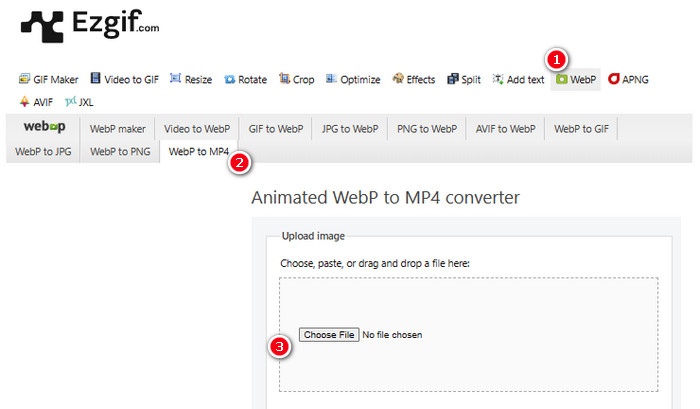
ขั้นตอนที่ 1 ไปที่เว็บไซต์ EZGIF แล้วไปที่เมนู WebP>WebP to MP4 เพื่อใช้เครื่องมือแปลง WebP เป็น MP4 เมื่อเข้าไปแล้ว ให้คลิกปุ่ม Choose File เพื่ออัปโหลดไฟล์ WebP ของคุณ.
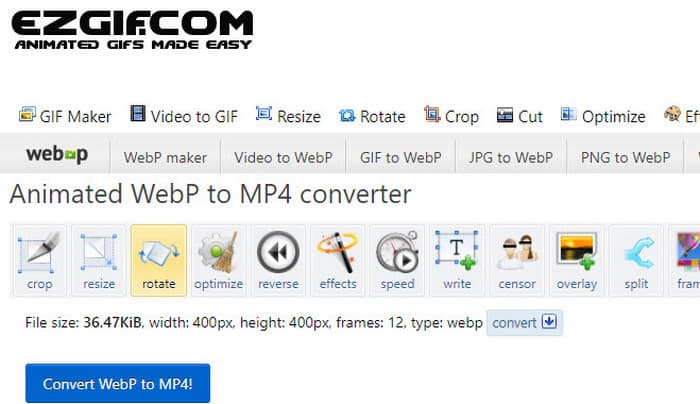
ขั้นตอนที่ 2 หลังจากอัปโหลดไฟล์ WebP เสร็จแล้ว คุณก็ไปต่อในขั้นตอนการแปลงได้เลย คลิกปุ่ม Convert เพื่อเริ่มต้น.
ขั้นตอนที่ 3 เมื่อเสร็จแล้ว ให้ดาวน์โหลดไฟล์ที่เพิ่งแปลงเสร็จของคุณ.
2. MConverter
เครื่องมือถัดไปคือ MConverter ตัวแปลงนี้เป็นเครื่องมือบนเว็บที่มีประโยชน์มากที่ช่วยให้คุณเปลี่ยนไฟล์จากประเภทหนึ่งเป็นอีกประเภทหนึ่ง ที่น่าสนใจคือ หากคุณมีรูปภาพ WebP จำนวนมากที่ต้องการแปลงเป็นวิดีโอ MP4 MConverter ช่วยให้คุณแปลงได้ทั้งหมดในครั้งเดียว ช่วยประหยัดเวลาได้มากใช่ไหม นอกจากนี้ ยังมีรูปแบบต่างๆ มากมายที่สามารถรองรับได้ เช่น วิดีโอ เพลง รูปภาพ คำบรรยาย ฯลฯ แต่เวอร์ชันฟรีมีจุดบกพร่องคือ อนุญาตให้คุณแปลงไฟล์ที่มีขนาดไม่เกิน 200MB เท่านั้น ในระหว่างนี้ มาดูกันว่า MConvert ทำงานอย่างไรเมื่อคุณใช้ MConvert เพื่อแปลง WebP เป็น MP4
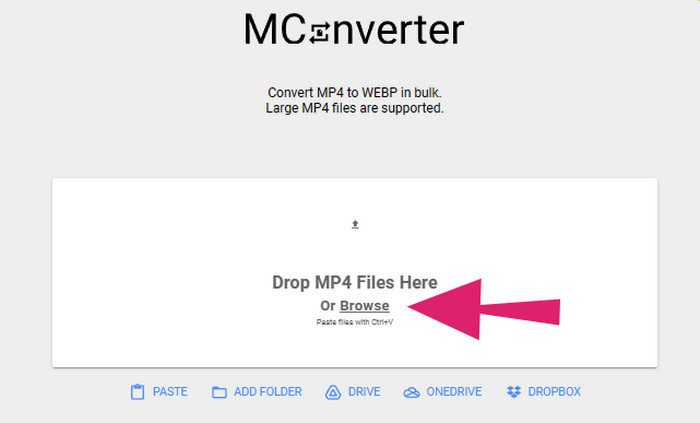
ขั้นตอนที่ 1 บนเครื่องมือออนไลน์ ให้คลิกปุ่ม Browse เพื่ออัปโหลดไฟล์ WebP ที่คุณต้องการแปลง.
ขั้นตอนที่ 2 เมื่ออัปโหลดไฟล์เรียบร้อยแล้ว ให้คลิกเลือกรูปแบบ MP4 จากตัวเลือกที่มีให้.
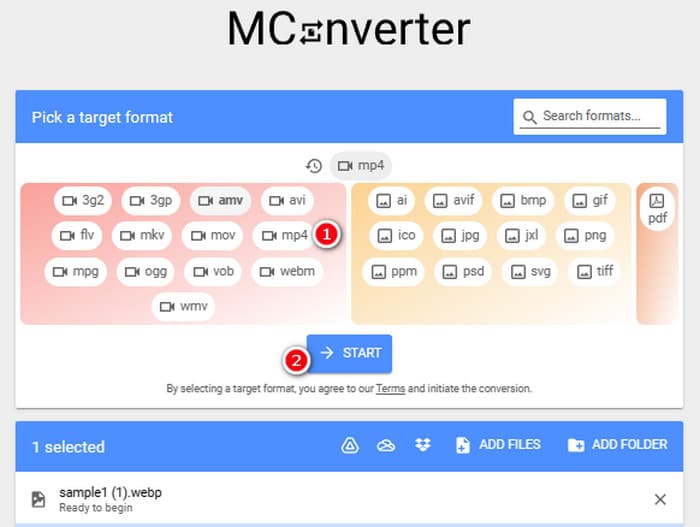
ขั้นตอนที่ 3 จากนั้นคลิกปุ่ม START เพื่อเริ่มการแปลงไฟล์.
3. การแปลงออนไลน์
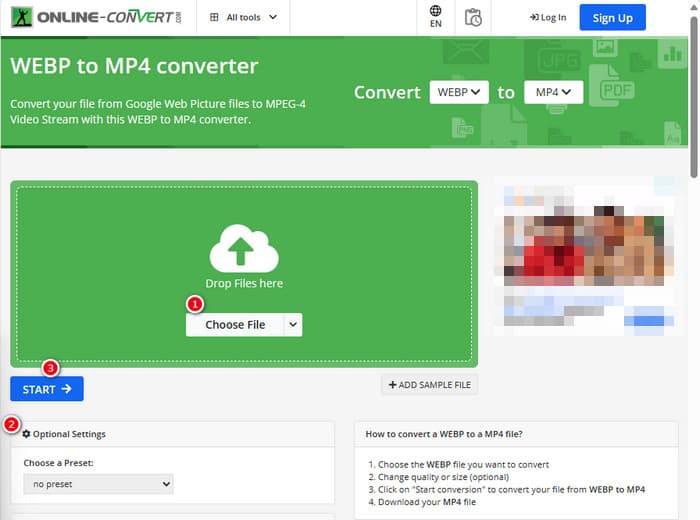
สุดท้าย ให้ Online Convert เติมตำแหน่งออนไลน์สุดท้าย Online Convert นี้เป็นตัวแปลงที่ยอดเยี่ยมที่สามารถแปลงไฟล์สื่อได้แทบทุกประเภทให้คุณ ถึงอย่างนั้นก็จะไม่เสียเงินสักบาทสำหรับการแปลงใดๆ ที่คุณต้องการตราบใดที่รองรับ นอกจากนี้ ยังทำงานได้ค่อนข้างเร็ว ยกเว้นเมื่ออินเทอร์เน็ตของคุณมีปัญหา ตอนนี้ หากคุณต้องการแปลงไฟล์ WebP เป็น MP4 คุณสามารถทำได้บนเว็บไซต์ของพวกเขา ไม่เพียงเท่านั้น คุณยังสามารถปรับแต่งพารามิเตอร์วิดีโอ เช่น ขนาด อัตราเฟรม และคุณภาพ หรือแม้แต่พลิกกลับ ตัดแต่ง หรือตัดส่วนที่ไม่ต้องการออกได้ ดังนั้น หากไฟล์ WebP ของคุณพร้อมที่จะแปลงแล้ว ให้ทำตามขั้นตอนด้านล่างทันที
ขั้นตอนที่ 1 เมื่อเข้าสู่เว็บไซต์ทางการแล้ว ให้เลือกใช้เครื่องมือแปลง WebP เป็น MP4.
ขั้นตอนที่ 2 คลิกปุ่ม Choose File แล้วนำไฟล์ WebP เข้ามา จากนั้นคุณสามารถปรับค่าต่าง ๆ ได้ตามต้องการโดยใช้การตั้งค่าที่มีในอินเทอร์เฟซ.
ขั้นตอนที่ 3 หรือหากไม่ต้องการปรับแต่ง ให้คลิกปุ่ม START เพื่อเริ่มกระบวนการแปลงไฟล์.
ส่วนที่ 2: แนวทางมืออาชีพในการแปลงไฟล์ WebP เป็น MP4: FFmpeg
หากต้องการวิธีแบบมืออาชีพในการแปลงไฟล์รูปภาพให้เป็นวิดีโอ คุณสามารถใช้ FFmpeg ได้ นี่คือเครื่องมือซอฟต์แวร์ที่ทรงพลังสำหรับประมวลผลไฟล์มัลติมีเดีย โปรแกรมนี้ช่วยให้คุณแปลงไฟล์เสียง วิดีโอ และรูปภาพได้หลากหลายรูปแบบและโค้เดก อย่างไรก็ตาม FFmpeg ทำงานด้วยคำสั่งบรรทัดคำสั่ง (command line) จึงอาจยากสำหรับผู้เริ่มต้น ดังนั้นด้านล่างคือขั้นตอนแบบย่อที่คุณสามารถทำตามได้ เพื่อให้คุณทราบ FFmpeg ในฐานะตัวแปลงวิดีโอระดับมืออาชีพ ยังสามารถซ่อมแซมไฟล์วิดีโอที่เสียหายได้อีกด้วย.
ขั้นตอนที่ 1 เปิด FFmpeg หลังจากติดตั้งลงในพีซีของคุณแล้ว จากนั้นเริ่มต้นด้วยการพิมพ์คำสั่ง CD เพื่อเข้าสู่หน้าต่าง Command Prompt.
ขั้นตอนที่ 2 จากนั้นคุณสามารถเข้าไปยังโฟลเดอร์ที่มีไฟล์ WebP อยู่ แล้วใช้คำสั่ง ffmpeg -i input.webp output.mp4.
ขั้นตอนที่ 3 เริ่มกระบวนการแปลงไฟล์โดยกดปุ่ม ENTER บนแป้นพิมพ์ของคุณ.

ส่วนที่ 3 เคล็ดลับโบนัส: วิธีที่ดีที่สุดในการแปลงไฟล์ MP4 เป็นวิดีโอ/เสียงประเภทใดก็ได้ทางออนไลน์
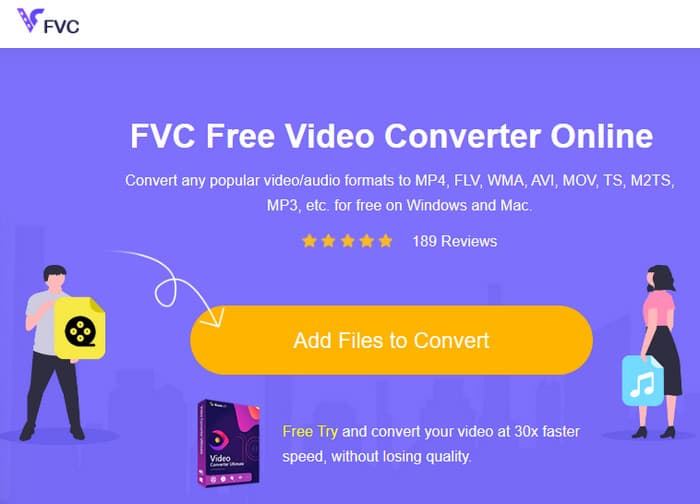
แล้วการแปลงไฟล์ MP4 ของคุณไปเป็นรูปแบบวิดีโอและเสียงแบบอื่น ๆ ออนไลน์ล่ะ เรื่องนั้นจะง่าย รวดเร็ว และมีประสิทธิภาพมาก หากคุณใช้ FVC Free Video Converter Online นี่คือโซลูชันฟรีที่ช่วยให้คุณแปลงวิดีโอ MP4 ไปเป็นรูปแบบวิดีโอและเสียงอื่น ๆ เช่น WMV, MOV, FLV, AVI, MKV, AAC, MP3, WAV และอื่น ๆ อีกมากมาย อีกทั้งคุณยังสามารถแปลงวิดีโอความละเอียดสูงให้เป็นไฟล์ MP4 ขนาดเล็กลงได้โดยไม่เสียคุณภาพ ที่ดียิ่งไปกว่านั้น คุณสามารถแปลงหลายไฟล์พร้อมกันได้ ในขณะที่ขั้นตอนทั้งหมดก็ยังง่ายและรวดเร็ว นอกจากนี้ คุณไม่ต้องกังวลเรื่องลายน้ำบนวิดีโอหรือการสูญหายของข้อมูลระหว่างการแปลง เพราะคอนเวอร์เตอร์ออนไลน์นี้มุ่งมั่นที่จะให้ผลลัพธ์ที่สะอาดและปลอดภัยแก่คุณ นี่คือ 3 ขั้นตอนง่าย ๆ ในการแปลงไฟล์ MP4 ของคุณเป็นรูปแบบต่าง ๆ.
ขั้นตอนที่ 1 คลิกแท็บ Add Files to Convert เมื่อเข้าสู่หน้าเว็บไซต์แล้ว ซึ่งจะทำให้คุณสามารถอัปโหลดไฟล์ MP4 ได้.
ขั้นตอนที่ 2 หลังจากนำเข้าไฟล์เรียบร้อยแล้ว ให้ตั้งค่ารูปแบบผลลัพธ์ที่คุณต้องการ.
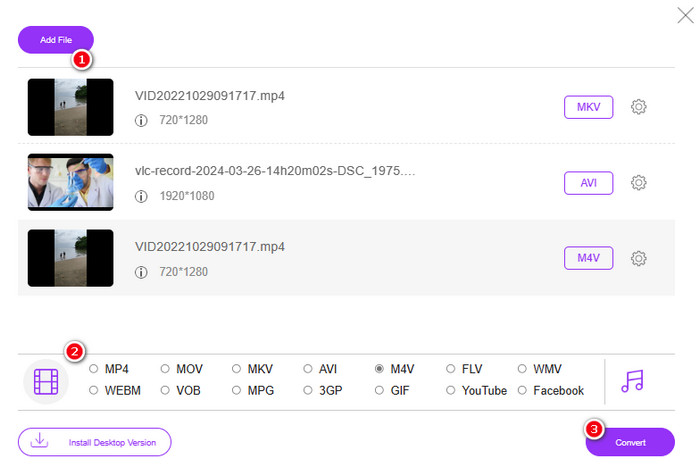
ขั้นตอนที่ 3 เมื่อกำหนดค่าเสร็จแล้ว ให้คลิกปุ่ม Convert เพื่อเริ่มการแปลงไฟล์.
ด้านล่างนี้เป็นเคล็ดลับเพิ่มเติมสำหรับการแปลงรูปภาพเป็น MP4
อ่านเพิ่มเติม
วิธีแปลง VLC เป็น MP4: ขั้นตอนที่เร็วที่สุดที่ควรรู้
แปลงวิดีโอ iPhone เป็น MP4 บนพีซีได้อย่างง่ายดายโดยไม่เสียคุณภาพ
ส่วนที่ 4 คำถามที่พบบ่อยเกี่ยวกับการแปลง WebP และ MP4
เหตุใดฉันจึงต้องแปลงไฟล์รูปภาพเช่น WebP เป็นวิดีโอเช่น MP4
- คุณต้องแปลงรูปภาพเป็นวิดีโอเพื่อให้เข้ากันได้และเก็บรักษาได้กว้างขึ้น
รูปภาพในรูปแบบ WebP สามารถแสดงบนเว็บเบราว์เซอร์ทั้งหมดได้หรือไม่
- ไม่ เบราว์เซอร์รุ่นเก่าบางรุ่น โดยเฉพาะ Internet Explorer ไม่รองรับ WebP โดยตรง อย่างไรก็ตาม เบราว์เซอร์รุ่นใหม่รองรับการแสดงผลดังกล่าว
ฉันจะแปลงรูปภาพเป็น WebP ได้อย่างไร?
- คุณต้องใช้เครื่องมือสร้าง WebP เฉพาะ นอกจากนี้ยังมีเครื่องมือและไลบรารีต่างๆ มากมายที่สามารถใช้แปลงรูปภาพเป็นรูปแบบ WebP ได้
สรุป
ด้วยตัวแปลง WebP เป็น MP4 ที่แนะนำไปข้างต้น ประสบการณ์การแปลงไฟล์ของคุณจะง่ายขึ้นมาก ดังนั้นสามวิธีที่ใช้กันบ่อยเหล่านี้จึงสามารถช่วยให้คุณได้ผลลัพธ์ตามต้องการ หากคุณพบปัญหาในการใช้งานวิธีใดวิธีหนึ่ง ก็สามารถลองใช้วิธีอื่น ๆ ที่เหลือได้อย่างอิสระ.
-
 เรียนรู้วิธีที่ง่ายที่สุดในการแปลง WebP เป็น JPG อย่างรวดเร็ว
 ให้เราทุกคนเรียนรู้วิธีที่มีประสิทธิภาพในการแปลงภาพบนเว็บเป็น JPG อย่างง่ายดาย บทความนี้จะให้ตัวแปลงรูปภาพที่ยอดเยี่ยมที่คุณสามารถใช้เพื่อแปลงไฟล์รูปภาพ
-
 วิธีที่สมบูรณ์แบบในการแปลง WebP เป็น PNG อย่างง่ายดาย
 มีความรู้เกี่ยวกับวิธีการที่น่าทึ่งในการแปลง WebP เป็น PNG ป้ายบอกทางนี้จะช่วยให้คุณมีโปรแกรมแปลงรูปภาพที่มีประโยชน์ที่สุดที่คุณสามารถลองใช้ได้
-
 สุดยอดวิธีในการแปลง WebP เป็น GIF อย่างสมบูรณ์แบบ
 คุณต้องการแปลง WebP เป็น GIF แต่ไม่รู้ว่าต้องทำอย่างไร? โชคดีที่โพสต์นี้จะนำเสนอหลายวิธีในการแปลง WebP เป็น GIF ทันที
