


 Video Converter Ultimate
 บันทึกหน้าจอ
 ซ่อมวิดีโอ
 ดาวน์โหลดอย่างปลอดภัย
จาก MP4 เป็น QuickTime (MOV): คู่มือฉบับย่อสำหรับการแปลงฟรี
การแปลงไฟล์รูปแบบ MP4 ไปเป็นรูปแบบอื่น ๆ เช่นไฟล์ QuickTime (MOV) นั้นจำเป็นในบางครั้งเมื่อคุณต้องรับมือกับปัญหาการเล่นวิดีโอและปัญหาวิดีโออื่น ๆ งานนี้ทำได้ง่ายและไม่ต้องมีความรู้ล่วงหน้าเกี่ยวกับการแปลงไฟล์มีเดีย บทความนี้จะช่วยให้ผู้ใช้ตั้งแต่มือใหม่ไปจนถึงผู้ใช้ทั่วไปค้นหาตัวแปลง MP4 เป็น QuickTimeที่ไม่มีค่าธรรมเนียมแอบแฝง ดังนั้น เมื่ออ่านคู่มือนี้จบ ผู้ใช้จะได้รู้จัก 3 เครื่องมือที่เชื่อถือได้ซึ่งผ่านการรีวิวโดย FVC ที่ทำให้กระบวนการแปลงไฟล์เป็นเรื่องง่ายขึ้น.

ส่วนที่ 1 วิธีที่ดีที่สุดในการแปลง MP4 เป็น QuickTime (MOV) โดยไม่สูญเสียคุณภาพ
ในกระบวนการแปลงไฟล์ MP4 เป็น MOV ปัญหาหนึ่งที่ทำให้ผู้ใช้ไม่สามารถได้ผลลัพธ์ที่สมบูรณ์แบบมักเกิดจากการใช้เครื่องมือที่ไม่น่าเชื่อถือ โชคดีที่ FVC ได้ทดลองใช้ซอฟต์แวร์หนึ่งตัวที่สามารถรับประกันการส่งออกวิดีโอคุณภาพไม่สูญเสียเลยเมื่อใช้เป็นเครื่องมือแปลง MP4 เป็น QuickTime (MOV) Video Converter Ultimate ที่ FVC คัดสรร เป็นเครื่องมือที่เชื่อถือได้ซึ่งถูกออกแบบมาเพื่อแปลงไฟล์ MP4 ของคุณให้เป็นไฟล์ QuickTime (MOV) โดยสามารถรองรับรูปแบบวิดีโอทุกประเภทได้อย่างง่ายดาย ลองทำตามขั้นตอนด้านล่างนี้เพื่อทดสอบความสามารถของซอฟต์แวร์ด้วยตัวคุณเองและสัมผัสผลลัพธ์การแปลงแบบไม่สูญเสียคุณภาพ.
ขั้นตอนที่ 1 ดาวน์โหลดและติดตั้งซอฟต์แวร์ที่ FVC แนะนำจากลิงก์ด้านล่าง.
ดาวน์โหลดฟรีสำหรับ Windows 7 หรือใหม่กว่าดาวน์โหลดอย่างปลอดภัย
ดาวน์โหลดฟรีสำหรับ MacOS 10.7 หรือใหม่กว่าดาวน์โหลดอย่างปลอดภัย
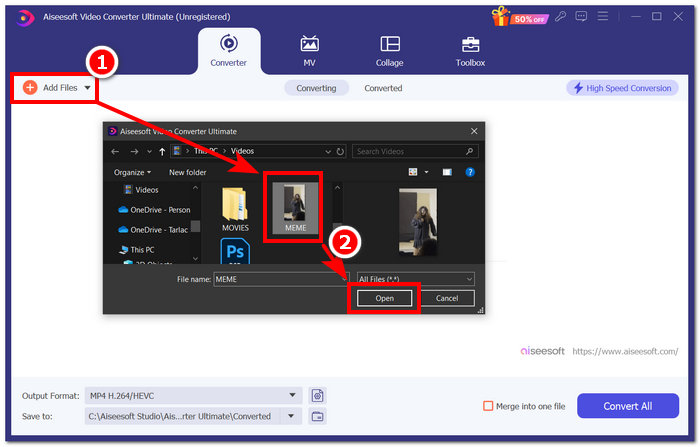
ขั้นตอนที่ 2 เปิดใช้งาน Video Converter Ultimate จากคอมพิวเตอร์ของคุณ แล้วคลิก Add Files เพื่อเพิ่มวิดีโอ MP4 ที่คุณต้องการแปลงเป็นรูปแบบไฟล์ QuickTime (MOV).
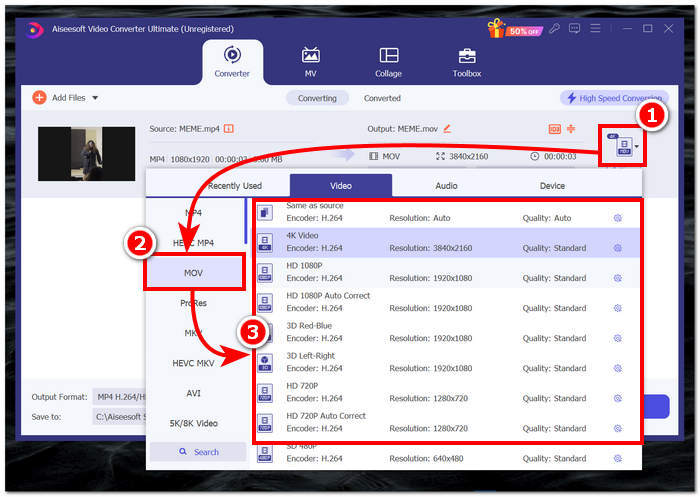
ขั้นตอนที่ 3 เมื่อไฟล์ MP4 ของคุณถูกอัปโหลดเข้าสู่ซอฟต์แวร์แล้ว ให้คลิกปุ่ม File Format ที่อยู่ด้านขวาของหน้าต่างโปรแกรม จากนั้นคลิกที่หมวด MOV แล้วเลือกความละเอียดที่คุณต้องการ.
การเลือกความละเอียดเป็นสิ่งจำเป็นในการกำหนดคุณภาพของไฟล์วิดีโอที่แปลงแล้ว การเลือกวิดีโอ 4K เป็นตัวเลือกที่ดี แต่คุณต้องพิจารณาด้วยว่าวิดีโออาจมีขนาดใหญ่กว่าหรือไม่ มิฉะนั้น ให้เลือกตัวเลือกเหมือนกับแหล่งที่มาเพื่อให้ไฟล์วิดีโอ MOV ของคุณมีคุณภาพเท่ากับวิดีโอต้นฉบับ
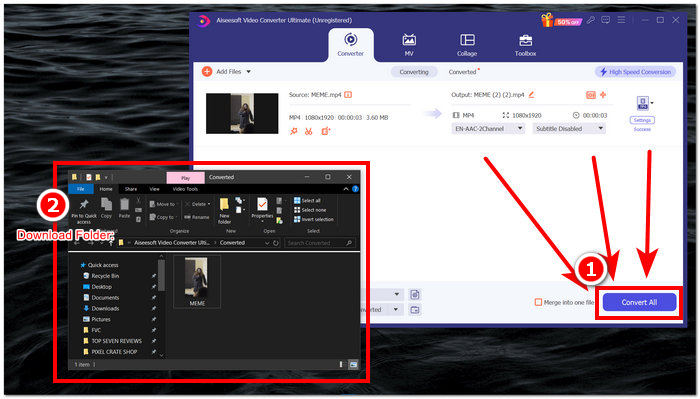
ขั้นตอนที่ 4 เมื่อต้องการแปลงไฟล์ MP4 ของคุณเป็นรูปแบบ QuickTime (MOV) ให้คลิกปุ่ม Convert All เมื่อกระบวนการแปลงไฟล์ MOV เริ่มทำงาน ไฟล์วิดีโอของคุณจะถูกบันทึกไปยังโฟลเดอร์ปลายทางที่กำหนดไว้อัตโนมัติ.
หลังจากใช้เครื่องมือนี้แล้ว เราพบว่าไม่เพียงแต่เป็นซอฟต์แวร์ที่เชื่อถือได้สำหรับการแปลงไฟล์ MP4 เป็น QuickTime (MOV) เท่านั้น แต่ยังทำงานได้ดีเป็นพิเศษในงานสื่ออื่นๆ เช่น การปรับปรุงวิดีโอและการแปลงภาพ เครื่องมือแปลง MP4 ของซอฟต์แวร์นี้มีให้ใช้งานฟรีสำหรับผู้ใช้ทุกคนอย่างน่าแปลกใจ สุดท้ายนี้ แตกต่างจากซอฟต์แวร์อื่นๆ ที่เราเคยทดลองใช้ Video Converter Ultimate นำเสนอการตั้งค่าที่ปรับแต่งได้มากมายเพื่อปรับปรุงคุณภาพวิดีโอของคุณก่อนจะแปลงเป็นรูปแบบไฟล์อื่นๆ
ส่วนที่ 2. แปลง MP4 เป็น QuickTime (MOV) ออนไลน์ฟรี
เมื่อการแปลงไฟล์ MP4 เป็น MOV บนซอฟต์แวร์เดสก์ท็อปไม่ราบรื่นตามที่คุณต้องการ คุณอาจต้องการหันมาใช้เครื่องมือออนไลน์แทน FVC Free Video Converter Online สามารถแปลงรูปแบบไฟล์วิดีโอ/เสียงได้แทบจะทันทีผ่านการใช้งานบนเว็บไซต์ เครื่องมือออนไลน์นี้ช่วยให้ผู้ใช้แปลงไฟล์วิดีโอและไฟล์เสียงได้ในคุณภาพสูงสุด จึงนับเป็นเครื่องมือที่เชื่อถือได้ด้วยความเร็วในการประมวลผลสูงกว่าถึง 30 เท่า นอกจากนี้ เครื่องมือแบบอเนกประสงค์นี้ยังรองรับการส่งออกไฟล์แปลงเป็น MP4 และ MOV รวมทั้ง M4V, MTS, TS, M2TS และอื่น ๆ เพื่อรองรับความต้องการแปลงไฟล์มีเดียทุกประเภทได้อย่างมีประสิทธิภาพ เพื่อพิสูจน์ว่าเครื่องมือออนไลน์นี้ใช้งานได้จริงแบบไม่ยุ่งยาก ให้ทำตามขั้นตอนด้านล่างแล้วลองใช้ด้วยตัวคุณเอง.
ขั้นตอนที่ 1 ไปที่เว็บไซต์ FVC Free Video Converter Online.
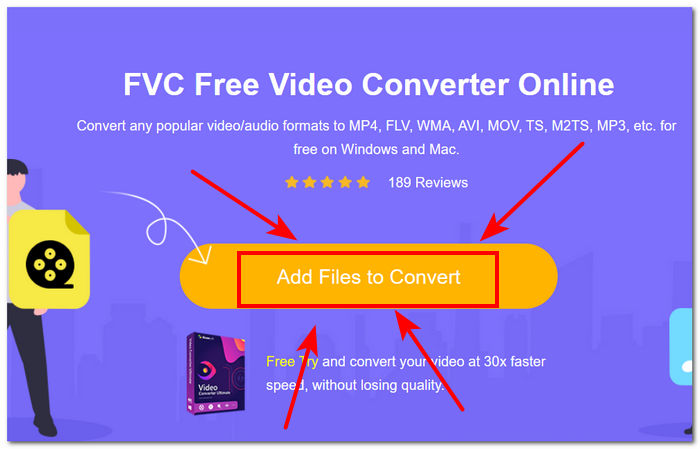
ขั้นตอนที่ 2 เพื่อโหลดไฟล์วิดีโอ MP4 ที่คุณต้องการแปลง ให้คลิกปุ่ม Add Files to Convert.
เครื่องมือนี้ต้องการให้คุณดาวน์โหลดตัวเรียกใช้งานก่อนจึงจะสามารถเพิ่มไฟล์ได้ ลิงก์ดาวน์โหลดสำหรับตัวเรียกใช้งานจะแสดงขึ้นหลังจากที่คุณคลิกปุ่ม เพิ่มไฟล์เพื่อแปลง
ขั้นตอนที่ 3 เมื่อไฟล์วิดีโอ MP4 ของคุณถูกโหลดเข้าสู่หน้าต่างเครื่องมือแล้ว ให้คลิกที่ไฟล์รูปแบบ MOV ที่อยู่ด้านล่างของหน้าต่างเครื่องมือ ซึ่งจะแสดงว่าคุณได้เลือก QuickTime (MOV) เป็นรูปแบบไฟล์สำหรับการแปลงแล้ว.
ขั้นตอนที่ 4 จากนั้นคลิกปุ่ม Convert เพื่อเริ่มกระบวนการแปลงไฟล์ ระบบจะทำการแปลงไฟล์ MP4 ของคุณเป็นไฟล์ QuickTime (MOV) โดยอัตโนมัติ และไฟล์ที่แปลงแล้วจะถูกบันทึกลงในคอมพิวเตอร์ของคุณทันที.
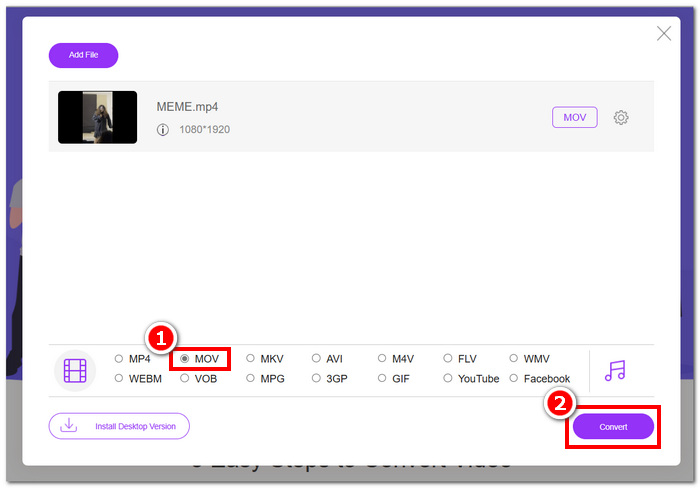
ประสบการณ์ของเราในการใช้เครื่องมือออนไลน์ที่ FVC คัดเลือกมาเพื่อแปลงไฟล์ MP4 ช่วยให้เราใช้บริการได้ทันทีด้วยอินเทอร์เฟซที่ใช้งานง่ายและใช้งานได้ฟรี นอกจากนี้ ความสามารถในการประหยัดเวลาและการประมวลผลที่รวดเร็วในการแปลงไฟล์วิดีโอยังเกินความคาดหวังของเราอย่างเหลือเชื่อ ดังนั้น เครื่องมือออนไลน์นี้จึงเป็นเครื่องมือที่มีแนวโน้มดีและผู้ใช้ทุกคนต้องใช้
ส่วนที่ 3. แปลง MP4 เป็น QuickTime (MOV) ด้วย HandBrake
หากต้องการแปลงไฟล์ MP4 เป็น QuickTime (MOV) อย่างมีประสิทธิภาพและฟรี คุณยังสามารถใช้ HandBrake ซึ่งเป็นโปรแกรมแปลงวิดีโอโอเพ่นซอร์สยอดนิยมได้อีกด้วย โดยสามารถดาวน์โหลดได้ใน Windows, Mac หรือ Linux และสามารถแปลงไฟล์จาก MP4 เป็น QuickTime (MOV) ได้ด้วยตัวแปลงต่างๆ ให้เลือก หากต้องการแปลงไฟล์ MP4 เป็น QuickTime (MOV) ให้ทำตามขั้นตอนด้านล่างเพื่อดำเนินการอย่างถูกต้อง
ขั้นตอนที่ 1 ไปที่เว็บไซต์ทางการของ HandBrake และดาวน์โหลดเครื่องมือจากที่นั่น.
ขั้นตอนที่ 2 เปิดโปรแกรม และจากหน้าต่างโปรแกรมให้คุณอัปโหลดไฟล์ MP4 โดยลากไฟล์ไปวางในช่อง drop-a-file ที่อยู่บนหน้าต่างเครื่องมือ.
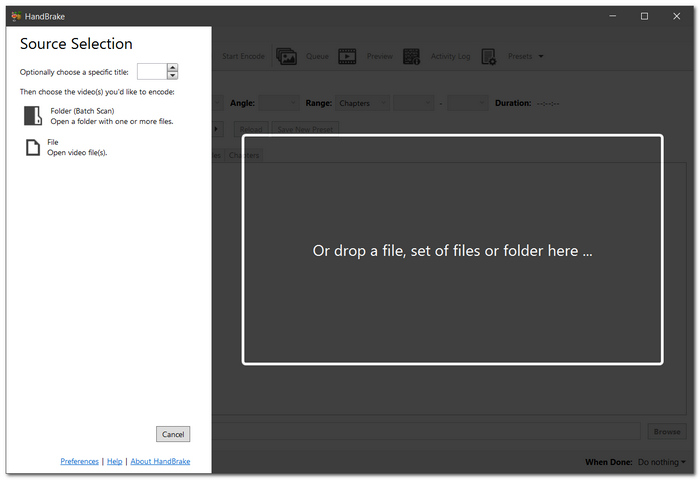
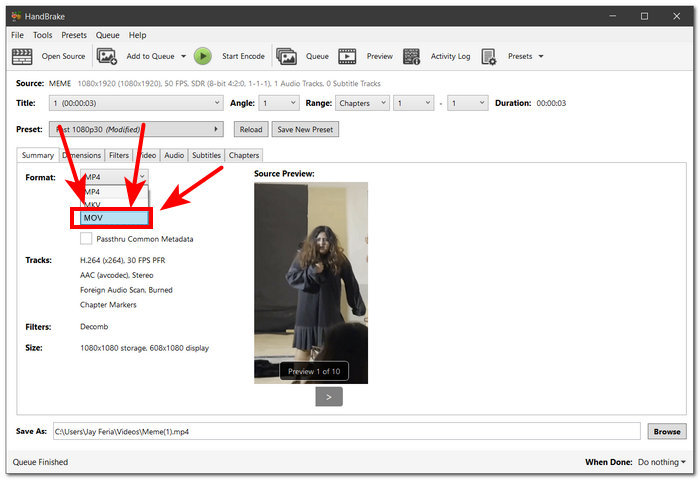
ขั้นตอนที่ 3 เมื่อไฟล์วิดีโอ MP4 ถูกอัปโหลดเข้าสู่หน้าต่างซอฟต์แวร์แล้ว ให้คลิกรายการดรอปดาวน์ Format แล้วเลือก MOV เป็นรูปแบบไฟล์ที่คุณต้องการ.
ขั้นตอนที่ 4 คลิกปุ่ม Start Encode ที่อยู่ด้านบนของหน้าต่าง HandBrake ระบบจะเริ่มแปลงไฟล์วิดีโอ MP4 ของคุณเป็น QuickTime (MOV) โดยอัตโนมัติ และไฟล์ที่แปลงแล้วจะถูกบันทึกลงในโฟลเดอร์ที่ระบุในช่อง Save as ที่ส่วนล่างของหน้าต่างซอฟต์แวร์.
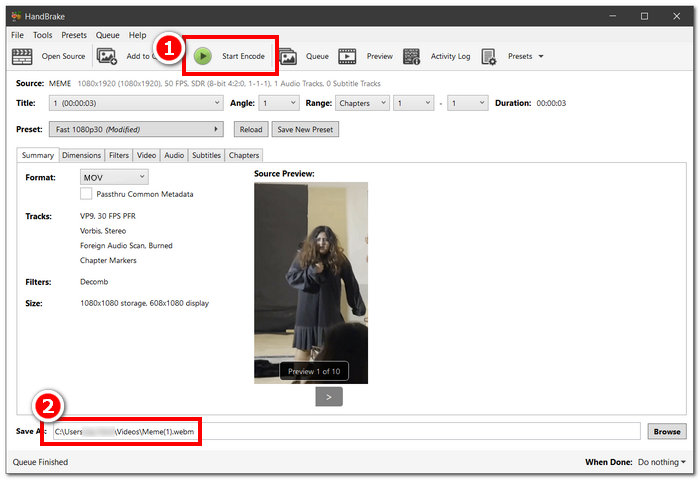
จากการที่เราใช้เครื่องมือ HandBrake เพื่อแปลงไฟล์ MP4 เป็น QuickTime (MOV) FVC ได้สรุปข้อดีและข้อเสียของประสิทธิภาพของเครื่องมือนี้ไว้บ้าง ข้อดีก็คือเครื่องมือนี้ดาวน์โหลดได้ฟรีและผู้ใช้ไม่ต้องเสียค่าธรรมเนียมแอบแฝง ในทางกลับกัน อินเทอร์เฟซของซอฟต์แวร์อาจทำให้ผู้ใช้มือใหม่สับสนได้ เนื่องจากมีการตั้งค่าและปุ่มต่างๆ ให้เลือกหลากหลาย โดยรวมแล้ว เครื่องมือนี้ยังคงเป็นเครื่องมือที่ดี แต่การใช้เครื่องมือนี้อาจต้องให้ผู้ใช้คุ้นเคยกับอินเทอร์เฟซเสียก่อน
ส่วนที่ 4 คำถามที่พบบ่อยเกี่ยวกับวิธีการแปลง MP4 เป็น QuickTime
ความแตกต่างระหว่างรูปแบบ MP4 กับ MOV คืออะไร
รูปแบบ MP4 มักใช้เป็นไฟล์มัลติมีเดียและทำงานกับระบบและอุปกรณ์ต่างๆ ได้หลากหลาย โดยจะรักษาขนาดไฟล์ให้เล็กที่สุดในขณะที่ยังคงคุณภาพไว้ด้วยการบีบอัดที่มีประสิทธิภาพ ในทางกลับกัน รูปแบบ MOV เหมาะสำหรับผู้ใช้ Mac ที่มักใช้สิ่งที่ Apple สร้างไว้สำหรับ QuickTime Player เพื่อรับชมวิดีโอคุณภาพสูง แม้ว่าจะสามารถรองรับคุณภาพที่สูงกว่าได้ แต่ก็อาจทำให้ขนาดไฟล์ใหญ่ขึ้นได้
ทำไมฉันถึงต้องแปลง MP4 เป็น MOV?
การแปลงไฟล์วิดีโอ MP4 เป็น MOV เป็นสิ่งจำเป็นเพื่อให้เข้ากันได้กับซอฟต์แวร์ของ Apple และแพลตฟอร์มต่างๆ และรักษาคุณภาพวิดีโอที่สูงขึ้นเพื่อการดูและแก้ไข
ฉันสามารถใช้ซอฟต์แวร์ใดเพื่อแปลง MP4 เป็น MOV ได้
มีเครื่องมือและตัวเลือกมากมายเมื่อพิจารณาการแปลงไฟล์ MP4 เป็นรูปแบบไฟล์ QuickTime (MOV) สำหรับตัวเลือกฟรี ผู้ใช้สามารถพึ่งพา Aiseesoft Video Converter Ultimate, FVC Free Video Converter Online และ HandBrake และสำหรับตัวเลือกแบบชำระเงิน ผู้ใช้สามารถพึ่งพา Adobe Media Encoder, Wondershare UniConverter และอื่นๆ อีกมากมาย
มีการสูญเสียคุณภาพเมื่อแปลง MP4 เป็น MOV หรือไม่?
เมื่อผู้ใช้ใช้เครื่องมือแปลงไฟล์ที่ไม่น่าเชื่อถือ คุณภาพวิดีโออาจลดลง นอกจากนี้ เพื่อหลีกเลี่ยงการสูญเสียคุณภาพวิดีโอเมื่อแปลงวิดีโอ MP4 เป็น QuickTime (MOV) คุณสามารถไว้วางใจ Aiseesoft Video Converter Ultimate ได้
ใช้เวลาในการแปลงไฟล์ MP4 เป็น MOV นานแค่ไหน?
ความเร็วในการแปลงไฟล์ MP4 เป็น MOV อาจขึ้นอยู่กับความยาวและขนาดของไฟล์ ความสามารถของคอมพิวเตอร์ และความเร็วของอินเทอร์เน็ต โดยทั่วไปแล้ว การตั้งค่าคุณภาพสูงกว่าและไฟล์ขนาดใหญ่กว่าจะใช้เวลานานกว่า
การใช้เครื่องมือออนไลน์ในการแปลง MP4 เป็น MOV ปลอดภัยหรือไม่?
ตัวแปลง MP4 เป็น MOV ออนไลน์ส่วนใหญ่นั้นปลอดภัย ตราบใดที่คุณใช้เว็บไซต์ที่เชื่อถือได้ เช่น FVC Free Video Converter Online เพื่อหลีกเลี่ยงปัญหาด้านความปลอดภัยและความเสียหายที่อาจเกิดกับอุปกรณ์ของคุณ ควรระมัดระวังเป็นพิเศษเมื่อจัดการกับไฟล์วิดีโอขนาดใหญ่หรือไฟล์ที่มีความสำคัญ.
การใช้เครื่องมือออนไลน์ในการแปลง MP4 เป็น MOV ปลอดภัยหรือไม่?
ตัวแปลง MP4 เป็น MOV ออนไลน์ส่วนใหญ่นั้นปลอดภัย ตราบใดที่คุณใช้เว็บไซต์ที่เชื่อถือได้ เช่น FVC Free Video Converter Online เพื่อหลีกเลี่ยงปัญหาด้านความปลอดภัยและความเสียหายที่อาจเกิดกับอุปกรณ์ของคุณ ควรระมัดระวังเป็นพิเศษเมื่อจัดการกับไฟล์วิดีโอขนาดใหญ่หรือไฟล์ที่มีความสำคัญ.
สรุป
โดยสรุปแล้ว การแปลง MP4 เป็น QuickTime เป็นสิ่งจำเป็นเพื่อหลีกเลี่ยงปัญหาการเล่นวิดีโอ ปรับปรุงคุณภาพวิดีโอ และอื่น ๆ คู่มือนี้ได้รีวิวและอธิบายขั้นตอนการใช้งานให้ผู้ใช้อย่างละเอียด เพื่อให้สามารถทำตามกระบวนการแปลงไฟล์ได้อย่างง่ายดายโดยไม่ต้องกังวล.
-
 เครื่องมือ AI สรุปวิดีโอ YouTube ที่ดีที่สุด 5 อันดับแรกสำหรับการย่อเนื้อหา
 รวมวิดีโอ YouTube แบบยาวโดยอัตโนมัติเพื่อสร้างสรุปเนื้อหา และเลือกเครื่องมือ YouTube Video Summarizer AI ที่ดีที่สุดที่มีให้คุณใช้งาน
-
 6 เครื่องมือดนตรี AI ที่ดีที่สุดที่จะใช้สำหรับการผลิตเสียงที่ราบรื่น
 ผลิตเพลงได้อย่างง่ายดายผ่านความช่วยเหลือของเครื่องมือเพลง AI เพื่อช่วยลดเวลาที่ใช้ในโปรเจ็กต์ของคุณ ในขณะเดียวกันก็มีคุณภาพเสียงของอุตสาหกรรม
-
 5 อันดับเครื่องสร้างวิดีโอแอนิเมชั่น AI ที่ดีที่สุดในปี 2025 (รวมฟรี)
 อ่านและเรียนรู้เกี่ยวกับเครื่องสร้างแอนิเมชั่น AI ที่ดีที่สุด 5 อันดับ ซึ่งสร้างแอนิเมชั่นทันทีที่มีประสิทธิภาพซึ่งได้รับการออกแบบมาเพื่อกระบวนการเวิร์กโฟลว์วิดีโอที่ราบรื่น
