


 Video Converter Ultimate
 บันทึกหน้าจอ
 ซ่อมวิดีโอ
 ดาวน์โหลดอย่างปลอดภัย
วิดีโอ MP4 ไม่แสดงใน Premiere Pro: เหตุผลและแนวทางแก้ไขที่ควรรู้
Premiere Pro เป็นเครื่องมือระดับมืออาชีพที่ยอดเยี่ยมสำหรับการตัดต่อวิดีโอ อย่างไรก็ตาม บางครั้งโปรแกรมก็รวน ทำให้เกิดปัญหาระหว่างการเล่นวิดีโอและขัดจังหวะการทำงานของคุณ นอกจากนี้ยังน่าหงุดหงิดเมื่อคุณต้องการตัดต่ออย่างลื่นไหล แต่ไฟล์วิดีโอกลับหน่วง กระตุก หรือแย่กว่านั้นคือไม่แสดงภาพเลย ปัญหานี้เป็นเรื่องที่ผู้ใช้ Adobe Premiere Pro หลายคนพบเจอเป็นประจำ โชคดีที่ยังมีวิธีจัดการปัญหานี้ได้ โดยการระบุให้ชัดเจนว่าทำไมวิดีโอ MP4 ถึงไม่แสดงใน Premiere Proและทำตามขั้นตอนในคู่มือนี้ คุณก็จะกลับมาตัดต่อและเล่นวิดีโอได้อย่างราบรื่นอีกครั้งโดยไม่ปวดหัว มาเริ่มลงลึกและจัดการปัญหานี้กันเลย!
ตอนที่ 1 ทำไมวิดีโอ MP4 ถึงไม่ปรากฏใน Premiere Pro
สำหรับผู้ที่ประสบปัญหาในการแสดงวิดีโอ MP4 ใน Premiere Pro เรามีสาเหตุบางประการที่ทำให้เกิดปัญหานี้มาฝากคุณ
เวอร์ชันซอฟต์แวร์:
อาจเป็นเวอร์ชัน Premiere Pro ที่คุณใช้ กล่าวอีกนัยหนึ่ง คุณอาจใช้ซอฟต์แวร์ล้าสมัยที่ขาดการรองรับรูปแบบไฟล์ MP4 หรือฟีเจอร์บางอย่าง
ข้อจำกัดด้านฮาร์ดแวร์:
อาจเป็นเพราะฮาร์ดแวร์ของระบบที่คุณใช้อยู่ก็ได้ อุปกรณ์ของคุณอาจไม่ตรงตามข้อกำหนดขั้นต่ำในการถอดรหัสและแสดงไฟล์ MP4 ใน Premiere Pro ได้อย่างถูกต้อง
ตำแหน่งไฟล์:
ต่อมาคือตำแหน่งที่จัดเก็บไฟล์ ไฟล์ MP4 ของคุณอาจอยู่ในไดเรกทอรีที่ Premiere Pro ไม่สามารถเข้าถึงได้ เนื่องจากการตั้งค่าสิทธิ์การเข้าถึงหรือปัญหาเกี่ยวกับพาธของไฟล์
ไฟล์เสียหาย:
อีกปัจจัยหนึ่งที่ทำให้วิดีโอ MP4 ไม่แสดงใน Premiere Pro คือไฟล์อาจเสียหาย ซึ่งจะทำให้ Premiere Pro ไม่สามารถอ่านไฟล์ได้อย่างถูกต้อง
ความไม่เข้ากันของโค้เดก:
หากไฟล์ MP4 ไม่ได้เสียหาย ก็อาจเป็นเพราะไฟล์ถูกเข้ารหัสด้วยโค้เดกที่ Premiere Pro ไม่รองรับ
การตั้งค่าการนำเข้าไม่ถูกต้อง:
คุณอาจต้องลองตรวจสอบการตั้งค่าการนำเข้าด้วย การตั้งค่าการนำเข้าที่ไม่ถูกต้อง หรือเมทาดาตาที่แนบมากับไฟล์ MP4 อาจทำให้ไฟล์ไม่แสดงใน Premiere Pro
แคชเสียหาย:
แน่นอนว่าเช่นเดียวกับโปรแกรมอื่น ๆ มีเดียแคชภายใน Premiere Pro เองก็อาจเสียหายได้เช่นกัน หากเป็นเช่นนั้นจะทำให้เกิดปัญหาในการนำเข้าและการแสดงผลไฟล์ MP4
ส่วนที่ 2 วิธีแก้ปัญหา Premiere Pro ไม่แสดงวิดีโอ MP4
แปลง MP4 ไปเป็นฟอร์แมตที่รองรับ:
หากไฟล์ MP4 ของคุณคือสาเหตุหลักของปัญหานี้ ให้ลองแปลงไปเป็นฟอร์แมตวิดีโออื่น ๆ ดังนั้น เราขอแนะนำให้คุณใช้โปรแกรมแปลงวิดีโอประสิทธิภาพสูง ที่สามารถสร้างไฟล์วิดีโอเอาต์พุตคุณภาพเยี่ยมสำหรับใช้งานกับ Premiere Pro ได้
พิเศษ: ใช้ FVC Video Converter Ultimate เพื่อแปลงวิดีโอ
Video Converter Ultimate ซึ่งแนะนำโดย FVC มีให้ใช้งานทั้งบน Windows และ Mac ทำให้ทุกคนเข้าถึงได้ง่าย มาพร้อมอินเทอร์เฟซที่ใช้งานง่าย แต่แฝงด้วยเทคโนโลยีเร่งความเร็วด้วยฮาร์ดแวร์ขั้นสูงพิเศษที่ช่วยให้การแปลงไฟล์เร็วขึ้นได้ถึง 120 เท่า นอกจากนี้ยังไม่ได้จำกัดแค่การแปลง MP4 เท่านั้น แต่ยังรองรับฟอร์แมตอื่น ๆ กว่า 1,000 ชนิดให้คุณเลือกเป็นฟอร์แมตเอาต์พุตได้ตามต้องการ
เหนือกว่าการแปลงฟอร์แมตทั่วไป โปรแกรมยังมาพร้อมเครื่องมือปรับแต่งวิดีโอทรงพลังมากมายในกล่องเครื่องมือ (Toolbox) ซึ่งขับเคลื่อนด้วยปัญญาประดิษฐ์ ช่วยให้คุณปรับปรุงและตัดต่อวิดีโอได้อย่างไหลลื่นโดยไม่ยุ่งยาก ตอนนี้มาเจาะลึกขั้นตอนการแปลงวิดีโอแบบจำนวนมากที่โปรแกรมนี้รองรับกัน โดยทำตามขั้นตอนด้านล่าง
ดาวน์โหลดฟรีสำหรับ Windows 7 หรือใหม่กว่าดาวน์โหลดอย่างปลอดภัย
ดาวน์โหลดฟรีสำหรับ MacOS 10.7 หรือใหม่กว่าดาวน์โหลดอย่างปลอดภัย
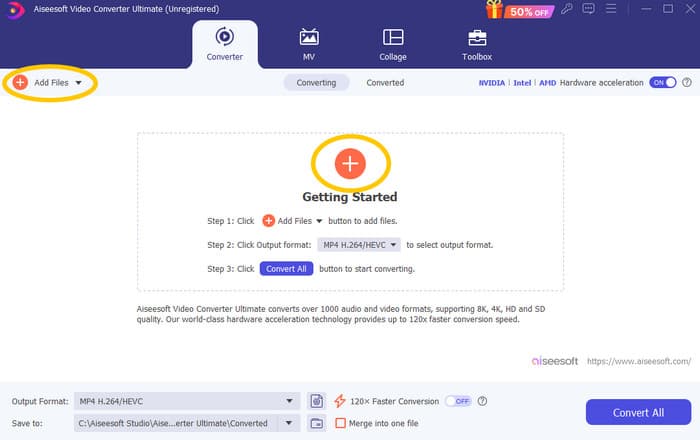
ขั้นตอนที่ 1 สมมติว่าคุณได้ติดตั้งซอฟต์แวร์บนคอมพิวเตอร์แล้ว ตอนนี้ให้เปิดโปรแกรมขึ้นมาและคลิกปุ่ม Add เพื่อเพิ่มไฟล์ คุณยังสามารถใช้แท็บ Add Files หรือ ลากไฟล์จากโฟลเดอร์เข้ามาได้เช่นกัน
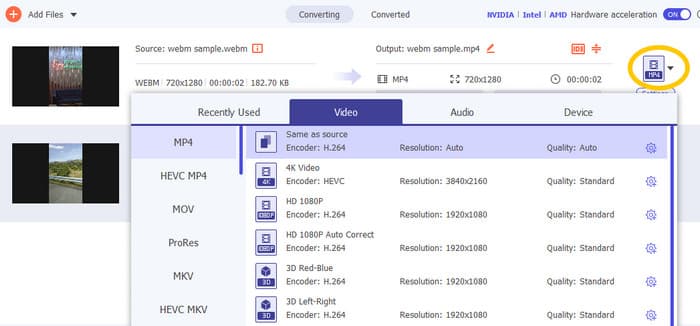
ขั้นตอนที่ 2 จากนั้นคลิกไอคอนลูกศรแบบดรอปดาวน์จากส่วนฟอร์แมตเอาต์พุต แล้วเลือกฟอร์แมตที่คุณต้องการจากเมนู Video คลิกตัวเข้ารหัส (encoder) ที่ต้องการเพื่อใช้งาน
ขั้นตอนที่ 3 เมื่อตั้งค่าทุกอย่างเรียบร้อยแล้ว ให้คลิกปุ่ม Convert All เพื่อเริ่มแปลงไฟล์

ซ่อมแซมไฟล์ MP4 ที่เสียหาย:
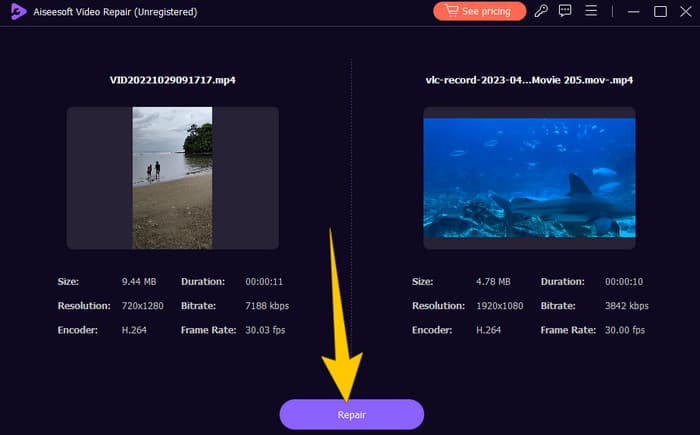
หากวิดีโอ MP4 ไม่แสดงใน Premiere Pro ก็อาจเป็นเพราะไฟล์เสียหาย ดังนั้นคุณจึงควรใช้โปรแกรมซ่อมแซมวิดีโอเฉพาะทาง เช่น Video Repair เพื่อจัดการกับความเสียหายเหล่านี้ คุณสามารถซ่อมแซมและเล่นไฟล์ที่พังได้อย่างรวดเร็วโดยไม่ยุ่งยาก โปรแกรมนี้มีอัตราความสำเร็จสูงมาก และใช้งานง่ายเพียงไม่กี่คลิก นอกจากนี้ตัวโปรแกรมยังทำงานโดยคัดลอกส่วนที่ดีจากวิดีโอตัวอย่าง (sample) มาปะติดปะต่อส่วนที่เสียหาย เพื่อให้การเล่นวิดีโอลื่นไหลยิ่งขึ้น อีกทั้งยังรองรับการซ่อมแซมไฟล์ MP4 และฟอร์แมตอื่น ๆ อีกมากมาย พร้อมปกป้องข้อมูลของคุณให้ปลอดภัย นี่คือวิธีซ่อมแซมไฟล์ MP4 ที่เสียหาย
ขั้นตอนที่ 1 ดาวน์โหลดโปรแกรมซ่อมวิดีโอลงในคอมพิวเตอร์ของคุณและเปิดใช้งานเพื่อเริ่มต้น
ดาวน์โหลดฟรีสำหรับ Windows 7 หรือใหม่กว่าดาวน์โหลดอย่างปลอดภัย
ดาวน์โหลดฟรีสำหรับ MacOS 10.7 หรือใหม่กว่าดาวน์โหลดอย่างปลอดภัย
ขั้นตอนที่ 2 บนหน้าอินเทอร์เฟซหลัก ให้คลิกปุ่มเครื่องหมายบวกสีแดงเพื่ออัปโหลดไฟล์ MP4 ที่เสียหาย จากนั้นคลิกปุ่มสีน้ำเงินเพื่ออัปโหลดไฟล์วิดีโอตัวอย่าง
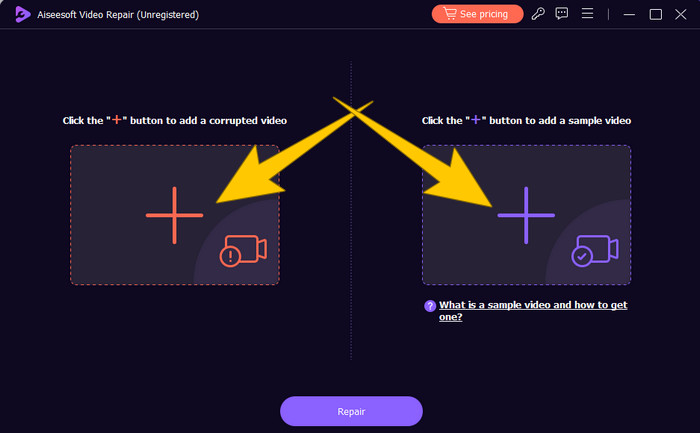
ขั้นตอนที่ 3 หลังจากนำเข้าไฟล์เรียบร้อยแล้ว ก็ถึงเวลาซ่อมแซมไฟล์ คลิกปุ่ม Repair เพื่อเริ่มการซ่อม
รีสตาร์ทคอมพิวเตอร์และรีเซ็ต Premiere Pro:
ลองรีเซ็ต Premiere Pro และรีสตาร์ทคอมพิวเตอร์เพื่อรีเฟรชทรัพยากรของระบบ การทำเช่นนี้ยังช่วยรีเซ็ตการตั้งค่าต่าง ๆ ให้กลับเป็นค่าเริ่มต้น ซึ่งบางครั้งสามารถแก้ปัญหาความไม่เข้ากันได้
ลบไฟล์แคช:
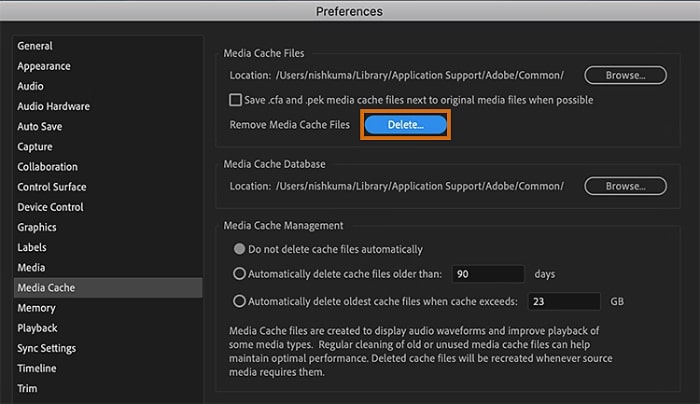
ขอแนะนำให้ลบไฟล์แคชของ Premiere Pro อยู่เสมอ ให้ลบไฟล์แคชเพื่อเคลียร์ข้อมูลที่เสียหายหรือข้อมูลเก่าที่อาจเป็นสาเหตุของปัญหา คุณเพียงเข้าไปที่ Edit>Preferences>Media Cache>Delete
เปลี่ยนการตั้งค่าใน Premiere Pro:
สุดท้ายนี้ ให้ตรวจสอบการตั้งค่าใน Premiere Pro และดูว่าเข้ากันได้กับสเปกของไฟล์ MP4 ของคุณหรือไม่ ซึ่งรวมถึงเฟรมเรต ความละเอียด และโค้เดก ใช่แล้ว เมื่อคุณปรับการตั้งค่าเหล่านี้ให้ตรงกับไฟล์ MP4 ของคุณ ปัญหาความเข้ากันไม่ได้ก็มักจะได้รับการแก้ไข
ส่วนที่ 3 คำถามที่พบบ่อยเกี่ยวกับ Premiere Pro และปัญหา MP4 ไม่แสดง
ฉันควรทำอย่างไรหากไฟล์ MP4 ของฉันเข้ารหัสด้วยโค้เดกที่ไม่รองรับ ทำให้ไม่แสดงใน Premiere Pro
หากไฟล์ MP4 ของคุณใช้โค้เดกที่ไม่รองรับ คุณสามารถใช้โปรแกรมแปลงวิดีโอ HD อย่าง Video Converter Ultimate เพื่อแปลงให้เป็นฟอร์แมตที่เข้ากันได้
ทำไมไฟล์ MP4 ของฉันถึงไม่แสดงใน Premiere Pro
ไฟล์ MP4 อาจไม่แสดงใน Premiere Pro ด้วยเหตุผลหลายประการ เช่น โค้เดกไม่รองรับ ปัญหาการตั้งค่าใน Premiere Pro หรือไฟล์เสียหาย
ฉันสามารถแก้ไขปัญหาไฟล์ MP4 ไม่แสดงใน Premiere Pro ได้เองหรือไม่
ได้ คุณสามารถแก้ไขปัญหาได้โดยเริ่มจากตรวจสอบโค้เดกของไฟล์ MP4 เพื่อให้แน่ใจว่าไฟล์ MP4 เข้ากันได้กับโค้เดกที่ Premiere Pro รองรับ นอกจากนี้คุณยังสามารถลองซ่อมแซมไฟล์ MP4 ที่เสียหาย และปรับการตั้งค่าใน Premiere Pro หากจำเป็น
บทสรุป
บทความนี้ได้อธิบายสาเหตุที่ว่าทำไมไฟล์วิดีโอ MP4 ถึงไม่แสดงใน Premiere Proพร้อมทั้งวิธีแก้ไขต่าง ๆ เพื่อให้คุณพอจะมองเห็นแนวทางในการจัดการปัญหาที่เกิดขึ้น ส่วนใหญ่แล้วมักเป็นที่ตัวไฟล์วิดีโอเองที่ทำให้เกิดปัญหา ดังนั้นคุณจึงควรตรวจสอบให้แน่ใจว่าไฟล์อยู่ในสภาพดีทุกครั้งก่อนเปิดใน Premiere Pro
-
 วิธีซิงก์เสียงและวิดีโอใน Adobe Premiere Pro อย่างรวดเร็วและง่ายดาย
 อยากรู้วิธีซิงก์เสียงและวิดีโอใน Premiere Pro ใช่ไหม บทความนี้ตอบโจทย์คุณ เพราะเราได้ทดลองทำจริงพร้อมนำเสนอขั้นตอนง่าย ๆ
-
 วิธีเร่งความเร็ววิดีโอใน Premiere Pro และทางเลือกอื่น ๆ
 ต้องการเรียนรู้วิธีใช้ Premiere Pro เพื่อเร่งความเร็ววิดีโออยู่หรือเปล่า ถ้าใช่ คุณมาถูกที่แล้ว เพราะเรามีขั้นตอนพร้อมทางเลือกอื่นที่คุ้มค่ากว่า
-
 วิดีโอ Instagram ไม่เล่น? มาดูวิธีแก้ไขกัน
 คำอธิบายเมตา: คุณอัปโหลดวิดีโอลง Instagram แต่กลับเล่นไม่ได้ใช่ไหม ไม่ต้องกังวล บทความนี้จะให้ข้อมูลเชิงลึกและวิธีแก้ไขอย่างรวดเร็ว อ่านเลย!
