


 Video Converter Ultimate
 บันทึกหน้าจอ
 ซ่อมวิดีโอ
 ดาวน์โหลดอย่างปลอดภัย
3 วิธีที่ดีที่สุดในการแปลงไฟล์ PNG เป็น MP4 [วิธีแก้ปัญหาอย่างรวดเร็ว]
ทุกวันนี้ ผู้คนต่างหลงใหลกับการเปลี่ยนรูปถ่ายของตัวเองให้กลายเป็นวิดีโอ พร้อมใส่เอฟเฟ็กต์ ข้อความ ทรานซิชัน และฟิลเตอร์ต่าง ๆ แม้ว่า PNG จะเป็นรูปแบบไฟล์ภาพที่ยอดเยี่ยมสำหรับรูปถ่าย แต่เราสามารถต่อยอดความคิดสร้างสรรค์ได้มากขึ้นด้วยการแปลงให้เป็น MP4 ฟังดูอาจแปลกสำหรับบางคน แต่หลายคนก็จงใจแปลงไฟล์เหล่านี้เพื่อสร้างเป็นหนังสั้นหรือวิดีโอสนุก ๆ ดังนั้นหากคุณกำลังมองหาเครื่องมือที่ใช้แปลงไฟล์ PNG เป็น MP4 อยู่ล่ะก็ คุณมาถูกที่แล้ว.
ด้วยเหตุนี้ เราจึงได้เตรียมเครื่องมือ 3 อย่างไว้ให้คุณพิจารณาเพื่อแปลงรูปภาพเป็นรูปแบบวิดีโอได้อย่างง่ายดาย มาทำความรู้จักกับเครื่องมือแต่ละอย่างและเรียนรู้วิธีใช้กันเลย!

ส่วนที่ 1: แปลงไฟล์ PNG เป็น MP4 ด้วยคุณภาพที่ดีที่สุดบนเดสก์ท็อป
หนึ่งในวิธีที่ดีที่สุดในการแปลง PNG เป็น MP4 คือการใช้ FVC Video Converter Ultimate เครื่องมือนี้ไม่ใช่โปรแกรมแปลงไฟล์ทั่วไป เพราะมาพร้อมฟีเจอร์ต่าง ๆ เช่น MV ที่ช่วยให้คุณเปลี่ยนไฟล์ PNG ให้กลายเป็นวิดีโอ MP4 ได้ มีธีมสำเร็จรูปให้เลือกใช้งานได้อย่างอิสระ คุณยังสามารถใส่เพลงประกอบ เพิ่มฟิลเตอร์และเอฟเฟ็กต์ และทำให้วิดีโอมีเอกลักษณ์เฉพาะตัวด้วยการใส่วอเตอร์มาร์ก นอกจากนี้ คุณยังหมุน ตัด และครอปภาพได้ง่าย ๆ ตามความต้องการและจินตนาการของคุณ ดังนั้นหากคุณชื่นชอบงานสร้างสรรค์ และอยากเปลี่ยนรูปภาพให้เป็นไฟล์ MP4 แบบเคลื่อนไหว เครื่องมือนี้ถือว่าเหมาะอย่างยิ่งสำหรับคุณ.
ขั้นตอนที่ 1 ก่อนอื่นให้ดาวน์โหลดและติดตั้งซอฟต์แวร์บน Windows หรือ Mac ของคุณ.
ดาวน์โหลดฟรีสำหรับ Windows 7 หรือใหม่กว่าดาวน์โหลดอย่างปลอดภัย
ดาวน์โหลดฟรีสำหรับ MacOS 10.7 หรือใหม่กว่าดาวน์โหลดอย่างปลอดภัย
ขั้นตอนที่ 2 จากนั้นเปิดโปรแกรม แล้วคลิกที่แท็บ MV.

ขั้นตอนที่ 3 จากนั้นเพิ่มไฟล์ PNG ที่คุณต้องการแปลงเป็น MP4 โดยคลิกปุ่ม Add File.

ขั้นตอนที่ 4 เมื่อคุณนำเข้าไฟล์ PNG เข้าสู่ตัวสร้าง MV แล้ว คุณสามารถเพิ่ม แก้ไข และตัดต่อให้กลายเป็นวิดีโอได้ เพียงคลิกปุ่มที่อยู่ด้านบนของปุ่ม Add File นอกจากนี้ คุณยังสามารถเลือกใช้ธีมสำเร็จรูปได้โดยคลิกแท็บ Theme ด้านบน.

ขั้นตอนที่ 5 สำหรับการเพิ่มฟิลเตอร์และเอฟเฟ็กต์ รวมถึงการครอปและหมุนภาพ ให้คลิกที่ไอคอน Edit ด้านล่าง คุณยังสามารถปรับแต่งวิดีโอ MP4 ของคุณให้เป็นแบบเฉพาะตัวได้ด้วยการใส่วอเตอร์มาร์ก.

ขั้นตอนที่ 6 เมื่อตั้งค่าทุกอย่างเรียบร้อยแล้ว ให้คลิกปุ่ม Export เพื่อบันทึกวิดีโอ MP4 ก่อนส่งออก อย่าลืมระบุโฟลเดอร์ปลายทางที่ต้องการบันทึกไฟล์ผลลัพธ์ และตรวจสอบให้แน่ใจว่าตั้งค่ารูปแบบเอาต์พุตเป็น MP4.

คุณยังสามารถปรับเปลี่ยนอัตราเฟรม ความละเอียด และคุณภาพของเอาท์พุตวิดีโอได้
ขั้นตอนที่ 7 สุดท้าย คุณสามารถเปิดดูวิดีโอที่ส่งออกแล้วได้ในโฟลเดอร์ที่คุณเลือก.
เมื่อคุณแปลงไฟล์ PNG เป็น MP4 โดยใช้ FVC Video Converter Ultimate คุณสามารถรับประกันผลลัพธ์เอาต์พุตที่มีคุณภาพได้อย่างแท้จริง อินเทอร์เฟซที่ใช้งานง่ายทำให้การแปลงเป็นไปได้อย่างง่ายดาย และคุณสมบัติการแก้ไขสามารถยกระดับรูปลักษณ์ของเอาต์พุตวิดีโอของคุณได้ นอกจากนี้ คุณยังสามารถเลือกความละเอียดวิดีโอที่ต้องการได้สูงสุดถึง 4K เพื่อให้เข้ากันได้กับอุปกรณ์และเครื่องเล่นสื่อต่างๆ ของคุณ
ส่วนที่ 2: แปลงไฟล์ PNG เป็น MP4 ด้วย FFmpeg
อีกวิธีหนึ่งในการแปลง PNG เป็น MP4 คือการใช้ FFmpeg เครื่องมือนี้เป็นซอฟต์แวร์ฟรีและโอเพ่นซอร์ส ที่มีชุดไลบรารีและโปรแกรมสำหรับจัดการไฟล์และสตรีมมัลติมีเดียหลากหลายรูปแบบ ด้วย FFmpeg คุณสามารถแปลงลำดับของภาพ JPG ให้เป็นไฟล์วิดีโอ MP4 ได้อย่างราบรื่นผ่านการใช้คำสั่งบนคอมมานด์ไลน์ คุณเพียงใช้คำสั่งหรือโค้ดวางลงในเทอร์มินัลหรือหน้าต่างคำสั่ง แล้วโปรแกรมจะประมวลผลการแปลงและสร้างไฟล์ผลลัพธ์ให้อัตโนมัติ.
ขั้นตอนที่ 1 ดาวน์โหลดและติดตั้ง FFmpeg ลงในคอมพิวเตอร์ของคุณ.
ขั้นตอนที่ 2 เปิด Terminal หรือหน้าต่าง Command prompt.
ขั้นตอนที่ 3 ไปยังไดเรกทอรีที่เก็บลำดับไฟล์ภาพของคุณ.
ขั้นตอนที่ 4 ใช้คำสั่งต่อไปนี้เพื่อสร้างวิดีโอ สมมติว่าชื่อไฟล์ภาพคือ happy: ffmpeg -framerate 1 -i happy%d.png -c:v libx264 -r 30 output.mp4

ขั้นตอนที่ 5 หากต้องการ คุณสามารถกำหนดหมายเลขเริ่มต้นของลำดับภาพได้ด้วยตัวเลือก -start_number ตัวอย่างเช่น หากลำดับภาพของคุณเริ่มจาก happy3.png คุณจะต้องเพิ่ม -start_number 3 เข้าไปในคำสั่ง.
ขั้นตอนที่ 6 กดปุ่ม Enter เพื่อรันคำสั่ง FFmpeg จะเริ่มประมวลผลภาพและสร้างวิดีโอให้คุณ.
ขั้นตอนที่ 7 เมื่อกระบวนการเสร็จสมบูรณ์แล้ว คุณสามารถเปิดดูวิดีโอได้ในไดเรกทอรีที่คุณระบุไว้.
แม้ว่าเครื่องมือนี้จะมีกระบวนการแปลงและผลลัพธ์ที่น่าสนใจ แต่ข้อเสียคืออินเทอร์เฟซที่ซับซ้อน ซึ่งทำให้ผู้ใช้พบกับความยากลำบากในการนำทางกระบวนการแปลง PNG เป็น MP4
ข้อดี
- ฟรีและโอเพ่นซอร์ส
- อินเทอร์เฟซบรรทัดคำสั่งอันทรงพลัง
จุดด้อย
- เส้นทางการเรียนรู้ที่สูงชันสำหรับผู้เริ่มต้น
- ขาดอินเทอร์เฟซผู้ใช้แบบกราฟิก
ส่วนที่ 3: แปลงไฟล์ PNG เป็น MP4 ออนไลน์
อีกวิธีหนึ่งในการเปลี่ยน PNG เป็น MP4 คือการใช้เครื่องมือแปลงไฟล์ออนไลน์ ด้วยคอนเวอร์เตอร์ออนไลน์ คุณมั่นใจได้ในเรื่องความเข้ากันได้กับอุปกรณ์หลากหลายชนิด เพราะต้องการเพียงแค่เบราว์เซอร์และการเชื่อมต่ออินเทอร์เน็ต หนึ่งในเครื่องมือแปลงไฟล์ออนไลน์ที่เราอยากแนะนำคือ FlexClip นี่คือเครื่องมือออนไลน์อเนกประสงค์ที่ช่วยให้คุณแปลงภาพ PNG เป็นวิดีโอ MP4 ได้ คุณเพียงนำเข้าไฟล์ PNG จากนั้นจะมีอินเทอร์เฟซที่ใช้งานง่ายให้คุณแปลงให้เป็นไฟล์วิดีโอเมื่อส่งออก.
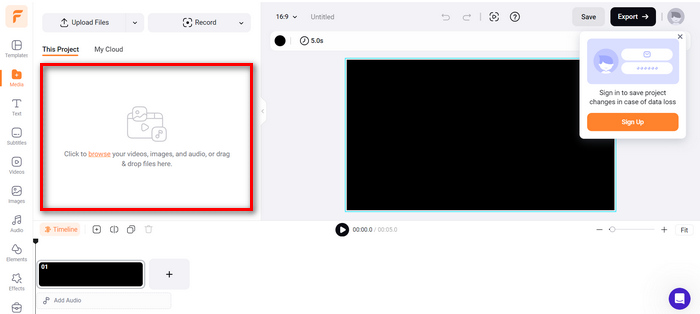
ขั้นตอนที่ 1 ก่อนอื่น ไปที่แท็บ Media แล้วคลิก Browse เพื่อนำเข้าไฟล์ PNG ของคุณ.
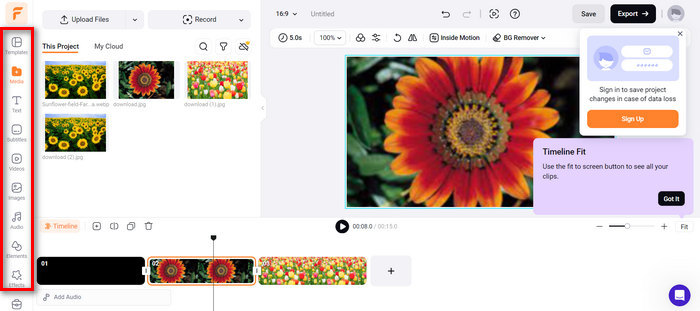
ขั้นตอนที่ 2 หลังจากนั้น ลากไฟล์ PNG ลงบนไทม์ไลน์เพื่อให้คุณสามารถตัดต่อและเพิ่มทรานซิชันให้กับผลลัพธ์ได้ นอกจากนี้ โดยไปที่แท็บด้านซ้ายของอินเทอร์เฟซซอฟต์แวร์ คุณยังสามารถเพิ่มคุณภาพด้านภาพของวิดีโอให้ดียิ่งขึ้นด้วยการใส่ข้อความ คำบรรยายเสียง เพลงประกอบ องค์ประกอบ และเอฟเฟ็กต์ต่าง ๆ.
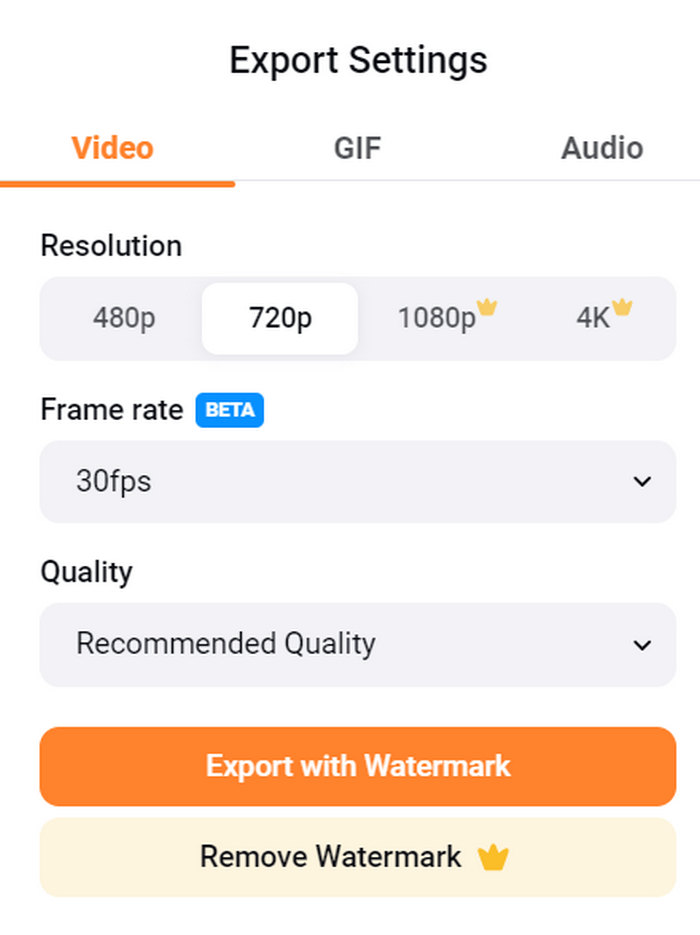
ขั้นตอนที่ 3 จากนั้น คุณสามารถดาวน์โหลดไฟล์ MP4 ของคุณได้โดยคลิกปุ่ม Export แต่อย่าลืมเลือกความละเอียดวิดีโอ อัตราเฟรม และคุณภาพตามที่คุณต้องการก่อน.
ด้วย FlexClip คุณสามารถแปลงไฟล์ PNG เป็น MP4 ทางออนไลน์ได้อย่างง่ายดายโดยไม่ต้องกังวลเรื่องการใช้พื้นที่จัดเก็บบนอุปกรณ์ของคุณ อย่างไรก็ตาม หากคุณใช้เวอร์ชันฟรี คุณจะไม่สามารถใช้งานฟีเจอร์ทั้งหมดได้ ซึ่งจะทำให้คุณไม่สามารถปรับเปลี่ยนเอาต์พุตที่คุณต้องการได้
ข้อดี
- อินเทอร์เฟซที่ใช้งานง่าย
- คุณสมบัติการแก้ไขที่หลากหลาย
- ตัวเลือกเอาต์พุตที่สามารถปรับแต่งได้
- กระบวนการแปลงที่รวดเร็ว
จุดด้อย
- ต้องมีการเชื่อมต่ออินเทอร์เน็ต
- คุณสมบัติที่ จำกัด ในเวอร์ชันฟรี
- วิดีโอที่ส่งออกจะมีลายน้ำ
ส่วนที่ 4: คำถามที่พบบ่อยเกี่ยวกับการแปลง PNG เป็น MP4
เหตุใดฉันจึงต้องการแปลง PNG เป็น MP4?
การแปลง PNG เป็น MP4 ช่วยให้ผู้ใช้เปลี่ยนภาพนิ่งให้กลายเป็นวิดีโอที่มีการเคลื่อนไหว ซึ่งมีประโยชน์สำหรับการสร้างสไลด์โชว์ แอนิเมชัน หรือการใส่องค์ประกอบเสียงเพิ่ม รูปแบบ MP4 ยังได้รับการรองรับอย่างกว้างขวางและเข้ากันได้กับอุปกรณ์และแพลตฟอร์มหลากหลายประเภท ดังนั้นการเปลี่ยน PNG เป็น MP4 จึงช่วยให้ไฟล์เหมาะสมกับการแชร์และสตรีมมิงมากยิ่งขึ้น.
วิธีที่ดีที่สุดในการแปลง PNG เป็น MP4 คืออะไร?
วิธีที่ดีที่สุดขึ้นอยู่กับความชอบและความต้องการของผู้ใช้ หากผู้ใช้ชอบซอฟต์แวร์เดสก์ท็อปที่มีฟีเจอร์การแก้ไขขั้นสูง พวกเขาสามารถใช้เครื่องมือเช่น FVC Video Converter Ultimate หากต้องการโซลูชันโอเพ่นซอร์สพร้อมอินเทอร์เฟซบรรทัดคำสั่ง FFmpeg เป็นตัวเลือกที่ดี หากผู้ใช้ชอบโซลูชันออนไลน์ที่เรียบง่าย ขอแนะนำ FlexClip
PNG และ MP4 แตกต่างกันอย่างไร?
PNG หรือ Portable Network Graphics เป็นรูปแบบไฟล์ที่นิยมใช้สำหรับภาพนิ่งโดยมีการบีบอัดแบบไม่สูญเสียข้อมูล เหมาะสำหรับกราฟิกและรูปภาพที่โปร่งใส ในทางกลับกัน MP4 หรือ MPEG-4 เป็นรูปแบบไฟล์วิดีโอที่รู้จักกันในด้านความสามารถในการบีบอัด โดยจัดเก็บทั้งข้อมูลวิดีโอและเสียง
สรุป
การแปลง PNG เป็น MP4 ไม่ได้เป็นเพียงแค่เรื่องของการแปลงไฟล์เท่านั้น แต่ยังเป็นเรื่องของความคิดสร้างสรรค์และแพสชัน ลองจินตนาการถึงการเปลี่ยนภาพนิ่งธรรมดาให้กลายเป็นวิดีโอที่มีชีวิตชีวา ซึ่งต้องอาศัยทั้งความคิดสร้างสรรค์และแน่นอนว่าต้องมีโปรแกรมแปลงไฟล์ที่ดีด้วย เพราะฉะนั้นอย่าพลาดโอกาสนี้ ลองใช้หนึ่งในวิธีเหล่านี้วันนี้เลย!
-
 วิธีแบบเต็มขนาดในการแปลง JPG เป็น PNG ออนไลน์และออฟไลน์
 กำลังมองหาวิธีที่เป็นประโยชน์ในการแปลงรูปแบบไฟล์ JPG เป็น PNG อยู่ใช่ไหม ป้ายบอกทางนี้มีคำตอบที่คุณต้องการ หากต้องการค้นพบวิธีการเหล่านี้ โปรดอ่านบทความ
-
 บทช่วยสอนชั้นนำ 5 อันดับแรกในการแปลง PNG เป็น JPG อย่างรวดเร็ว
 หากคุณต้องการแปลงไฟล์ PNG เป็นรูปแบบ JPG คุณสามารถเรียนรู้วิธีที่ดีที่สุดได้ที่นี่ คุณจะได้เรียนรู้ความแตกต่างระหว่างรูปแบบไฟล์ PNG และ JPG
-
 บทช่วยสอนทีละขั้นตอนเกี่ยวกับวิธีแปลง ICO เป็น PNG
 คลิกป้ายบอกทางนี้เพื่อเรียนรู้วิธีที่ง่ายที่สุดในการแปลง ICO เป็น PNG มาค้นพบตัวแปลง ICO เป็น PNG สำหรับขั้นตอนออนไลน์และออฟไลน์
