


 Video Converter Ultimate
 บันทึกหน้าจอ
 ซ่อมวิดีโอ
 ดาวน์โหลดอย่างปลอดภัย
2 วิธีที่ดีที่สุดในการเล่นวิดีโอ AVI บน iPhone โดยการแปลงรูปแบบ
เมื่อคุณใช้เวลาหลายชั่วโมงในการส่งภาพยนตร์ AVI ขนาดใหญ่ไปยัง iPhone/iPad ของคุณและต้องการชมภาพยนตร์เรื่องโปรดของคุณผ่าน iPhone/iPad คุณจะได้รับข้อผิดพลาด “รูปแบบวิดีโอนี้ไม่รองรับการเล่น” เท่านั้น มันคงขัดใจมาก นั่นเป็นเพราะระบบ iOS รองรับเฉพาะการเล่นวิดีโอ MP4, MOV และ M4V โดยมีข้อจำกัดมากมาย
แม้จะมีโปรแกรมเล่นวิดีโอของบุคคลที่สามสำหรับ iOS อยู่มากมายที่สามารถเล่นวิดีโอ AVI บน iPhone ได้อย่างง่ายดาย แต่อย่างไรก็ตามคุณควรทราบว่าไฟล์วิดีโอ AVI มักมีขนาดใหญ่ ซึ่งจะกินเนื้อที่จัดเก็บข้อมูลบน iPhone ของคุณเป็นอย่างมาก ดังนั้นคุณจึงสามารถเลือกแปลงวิดีโอ AVI ให้เป็นรูปแบบไฟล์ที่เข้ากันได้เพื่อเล่นบน iPhone ได้ บทความนี้จะแนะนำ 2 วิธีง่าย ๆ ในการแปลงวิดีโอ AVI ให้เป็นรูปแบบ MP4/MOV/M4V.

ส่วนที่ 1: AVI คืออะไร? เหตุใดจึงไม่สามารถเล่นวิดีโอ AVI บน iPhone ได้
AVI เป็นตัวย่อของ Audio Video Interleaved ซึ่งเป็นไฟล์ที่ประกอบด้วยวิดีโอ เสียง และคำบรรยาย วิดีโอรูปแบบนี้ถูกพัฒนาโดย Microsoft จึงสามารถใช้งานร่วมกับ Windows Media Player บนระบบปฏิบัติการ Windows ได้ เนื่องจากถูกบีบอัดด้วยอัตราการบีบอัดที่ต่ำ ไฟล์ AVI จึงมักมีขนาดใหญ่แต่คุณภาพสูง ปัจจุบันนิยมใช้สำหรับจัดเก็บภาพยนตร์และซีรีส์ในแผ่น CD.
สาเหตุที่คุณไม่สามารถเล่นวิดีโอ AVI บน iPhone ได้ก็คือระบบ iOS รองรับเฉพาะรูปแบบ MP4, MOV และ M4V เท่านั้น นอกจากนี้ยังมีข้อจำกัดบางประการสำหรับวิดีโอ:
• ตัวแปลงสัญญาณ: H.264
• ความละเอียด: 1080p
• อัตราเฟรม: 60 fps
ส่วนที่ 2: วิธีการแปลงวิดีโอ AVI เพื่อเล่นบน iPhone ของคุณฟรี
FVC Free Online Video Converter เป็นโปรแกรมแปลงวิดีโอออนไลน์ทรงพลังที่รองรับการแปลงไฟล์ AVI ไปเป็นรูปแบบอื่น ๆ ได้มากกว่า 10 รูปแบบ และยังรองรับการปรับแต่งตัวแปลงสัญญาณวิดีโอ (codec) ความละเอียด อัตราเฟรม และบิตเรตให้ตรงตามความต้องการของวิดีโอสำหรับ iPhone.
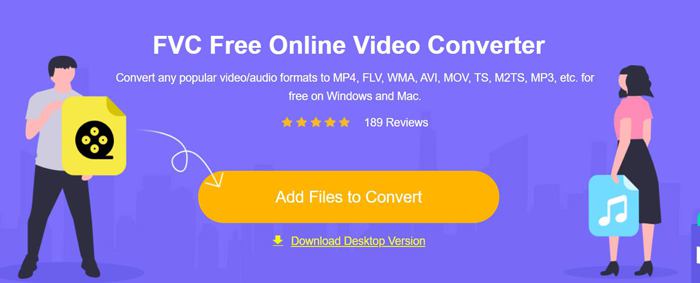
ขั้นตอนที่ 1: ไปที่หน้าเว็บ FVC Free Online Video Converter บนเบราว์เซอร์ใดก็ได้ คลิกปุ่ม Add Files to Convert เพื่อติดตั้งตัวเรียกใช้งานภายในไม่กี่วินาที จากนั้นคลิกปุ่มเดิมอีกครั้งเพื่อเลือกไฟล์ AVI ที่ต้องการและเพิ่มลงในโปรแกรมแปลงวิดีโอ AVI.
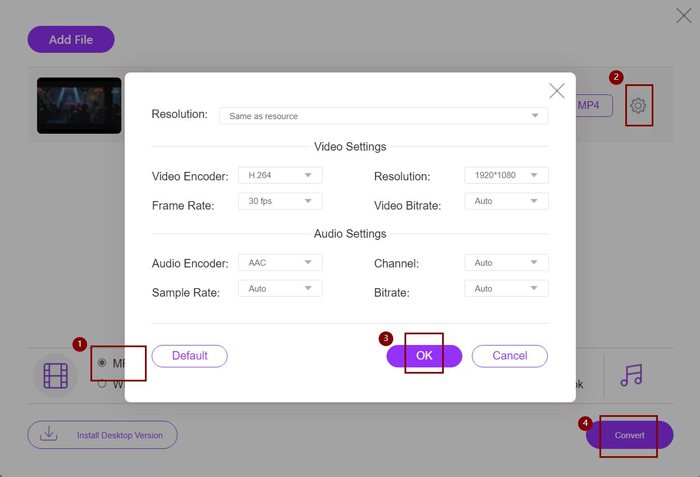
ขั้นตอนที่ 2: จากนั้นคุณสามารถเลือกรูปแบบ MP4, M4V หรือ MOV จากรายการรูปแบบวิดีโอด้านล่าง คลิกไอคอน Settings เพื่อเปลี่ยนตัวแปลงสัญญาณวิดีโอเป็น H.264 และเลือกความละเอียด 1920x1080p แล้วคลิกปุ่ม OK เพื่อบันทึกการตั้งค่า หลังจากกลับสู่หน้าหลักแล้ว ให้คลิกปุ่ม Convert เพื่อเลือกเส้นทางจัดเก็บไฟล์และเริ่มแปลงวิดีโอ AVI เพื่อเล่นบน iPhone.
แม้ว่านี่จะเป็นวิธีที่ง่ายมากในการแปลงวิดีโอ AVI เป็นรูปแบบที่เข้ากันได้สำหรับ iPhone คุณยังต้องเปลี่ยนพารามิเตอร์โดยละเอียดตามข้อจำกัดของวิดีโอ iPhone และบางครั้ง คุณอาจพบว่าวิดีโอยังคงไม่สามารถเล่นบน iPhone ของคุณได้ ดังนั้นจึงมีวิธีที่ง่ายที่สุดในการแปลงวิดีโอ AVI เพื่อเล่นบน iPhone ด้วยรูปแบบ iPhone ที่ตั้งไว้ล่วงหน้า โปรดอ่านบทความนี้ต่อไป
ส่วนที่ 3: วิธีที่ดีที่สุดในการแปลงวิดีโอ AVI เพื่อเล่นบน iPhone
FVC Video Converter Ultimate เป็นเวอร์ชัน Pro ของ FVC Free Online Video Converter รองรับรูปแบบการนำเข้าและส่งออกมากกว่า 500 รูปแบบ รวมถึงพรีเซ็ตสำหรับ iPhone, iPad และโทรศัพท์มือถือ Android จำนวนมาก นอกจากนี้ยังมีฟังก์ชันแก้ไขเพื่อเพิ่มคำบรรยาย ลายน้ำ และธีมให้กับวิดีโอ
- 1. แปลงวิดีโอ AVI เป็นวิดีโอ MP4, MOV หรือ M4V เพื่อเล่นบน iPhone
- 2. จัดเตรียมรูปแบบที่ตั้งไว้ล่วงหน้าหลายรูปแบบสำหรับโทรศัพท์มือถือ iPhone, iPad และ Android
- 3. สามารถแปลงชุดวิดีโอ AVI เพื่อเล่นบน iPhone
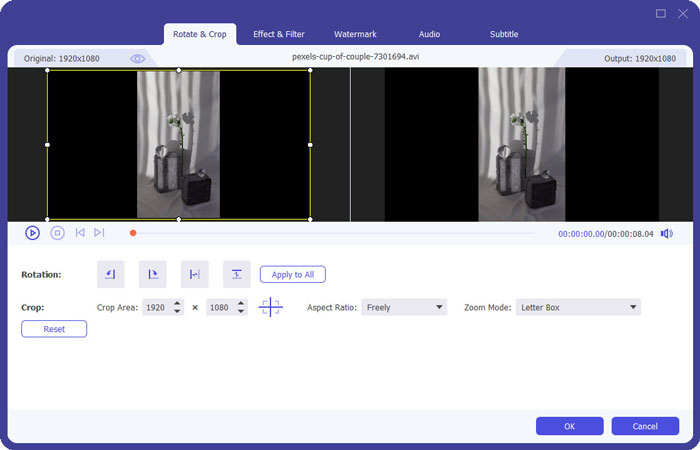
- 4. รองรับการแก้ไขวิดีโอ AVI เช่น หมุน ครอบตัด กรอง ภาพตัดปะ ฯลฯ
ดาวน์โหลดฟรีสำหรับ Windows 7 หรือใหม่กว่าดาวน์โหลดอย่างปลอดภัย
ดาวน์โหลดฟรีสำหรับ MacOS 10.7 หรือใหม่กว่าดาวน์โหลดอย่างปลอดภัย
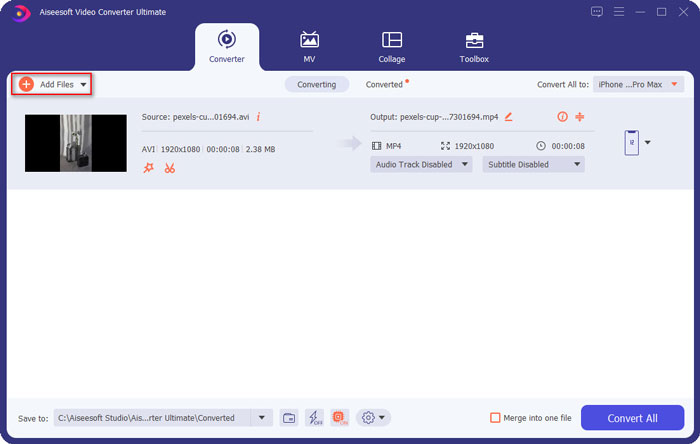
ขั้นตอนที่ 1: ดาวน์โหลด FVC Video Converter Ultimate บน Windows และเปิดใช้งานบนคอมพิวเตอร์ คลิกปุ่ม Add Files เพื่อเลือกวิดีโอ AVI ที่คุณต้องการเล่นบน iPhone หรือคุณสามารถลากและวางไฟล์เพื่อเพิ่มเข้าสู่โปรแกรมได้โดยตรง.
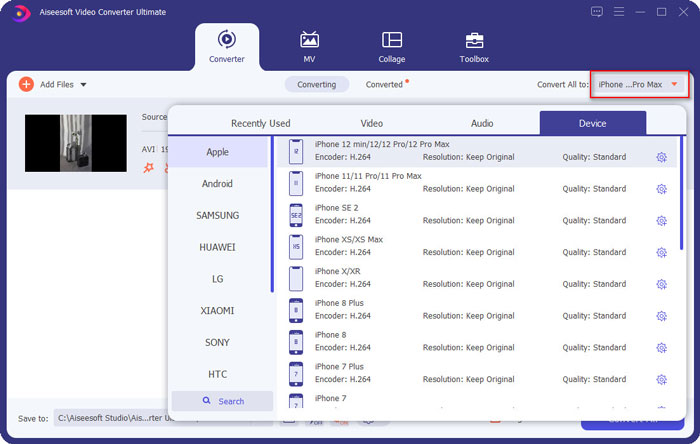
ขั้นตอนที่ 2: คลิกตัวเลือกแบบดึงลงถัดจาก Convert All to ที่มุมขวาบน แล้วเลือกแท็บ Device จากนั้นคลิกเลือกรุ่น iPhone ที่ต้องการ.
ขั้นตอนที่ 3: จากนั้นกลับไปที่หน้าหลัก แล้วเลือกเส้นทางจัดเก็บไฟล์ สุดท้ายคลิกปุ่ม Convert All เพื่อเริ่มแปลงวิดีโอ AVI ให้เล่นบน iPhone ได้.
ขั้นตอนที่ 4: หากคุณต้องการแก้ไขวิดีโอที่ส่งออก เพียงคลิกไอคอน Edit ก่อนเริ่มแปลง และคุณยังสามารถเลือกเอฟเฟกต์ ฟิลเตอร์ ลายน้ำ คำบรรยาย เป็นต้น เพื่อเพิ่มลงในวิดีโอได้.
ส่วนที่ 4: คำถามที่พบบ่อยเกี่ยวกับการเล่นวิดีโอ AVI บน iPhone
1. ฉันสามารถเล่นภาพยนตร์ AVI บน iPhone/iPad โดยไม่แปลงรูปแบบได้หรือไม่?
ใช่คุณสามารถ. มีเครื่องเล่นวิดีโอของบริษัทอื่นมากมายสำหรับ iPhone/iPad และคุณสามารถค้นหาเครื่องเล่นที่ต้องการได้โดยตรงบน App Store หรือ Google Play เพื่อเล่นวิดีโอ AVI บน iPhone
2. รูปแบบและการตั้งค่าวิดีโอที่ดีที่สุดสำหรับการเล่นวิดีโอบน iPhone คืออะไร?
iPhone รองรับรูปแบบ MP4, MOV และ M4V และการตั้งค่าที่แนะนำคือ H.264 codec, ความละเอียด 1080p และอัตราเฟรมที่น้อยกว่า 60 fps
3. วิธีการถ่ายโอนวิดีโอ AVI เพื่อเล่นบน iPhone ฟรี
มีสองวิธีที่กล่าวถึงในบทความนี้เพื่อแปลงวิดีโอ AVI เพื่อเล่นบน iPhone คุณสามารถใช้โปรแกรมแปลงวิดีโอออนไลน์ฟรีและปรับพารามิเตอร์วิดีโอได้ และคุณยังสามารถใช้วิธีที่ง่ายที่สุดในการถ่ายโอน AVI ไปยังรูปแบบที่เข้ากันได้สำหรับ iPhone ผ่าน FVC Free Video Converter
สรุป
ภาพยนตร์และละครโทรทัศน์ส่วนใหญ่จะบันทึกในรูปแบบ AVI เสมอ แต่วิดีโอ AVI ไม่สามารถเล่นบน iPhone หรือ iPad ได้ ในการชมภาพยนตร์เรื่องโปรดของคุณได้ทุกที่บน iPhone คุณสามารถเลือกเครื่องเล่นวิดีโอของบริษัทอื่นได้ แต่วิธีที่ง่ายและปลอดภัยที่สุดคือการแปลงวิดีโอ AVI เพื่อเล่นบน iPhone คุณได้เรียนรู้ 2 วิธีง่ายๆ จากบทความนี้ หากคุณมีคำถามอื่น ๆ ยินดีที่จะแสดงความคิดเห็นของคุณด้านล่าง
-
 วิธีบีบอัดไฟล์ AVI ขนาดใหญ่บน Windows / Mac / ออนไลน์ฟรี
 อ่านและรับ 3 วิธีฟรีในการบีบอัดไฟล์ AVI บนคอมพิวเตอร์ของคุณ คุณสามารถลดขนาดไฟล์ของวิดีโอ AVI ของคุณได้โดยไม่สูญเสียคุณภาพ ขนาดวิดีโอ AVI ของคุณอาจเล็กอย่างที่คุณคิด
-
 AVI VS MP4 - ความแตกต่างและความคล้ายคลึงกันระหว่างรูปแบบ AVI และ MP4
 รูปแบบวิดีโอ AVI หรือ MP4 แบบไหนดีกว่ากัน หากคุณต้องการเปรียบเทียบโดยละเอียดคุณสามารถตรวจสอบบทความ AVI VS MP4 นี้ คุณสามารถทราบความแตกต่างและความคล้ายคลึงกันระหว่าง AVI และ MP4 ได้ในหลายแง่มุม
-
 6 การควบรวม AVI ที่ดีที่สุด: วิธีเข้าร่วมไฟล์วิดีโอ AVI บน Windows และ Mac
 เมื่อคุณต้องการเข้าร่วมวิดีโอ AVI สำหรับดีวีดี คุณสามารถเรียนรู้เกี่ยวกับคุณสมบัติของตัวเชื่อม AVI ที่ดีที่สุด 6 อันดับแรก รวมถึงเครื่องมือออนไลน์ฟรี ตลอดจนโปรแกรมเดสก์ท็อปจากบทความ
