


 Video Converter Ultimate
 บันทึกหน้าจอ
 ซ่อมวิดีโอ
 ดาวน์โหลดอย่างปลอดภัย
วิธีแก้ไขวิดีโอ Tiktok หลังจากโพสต์: 5 โซลูชั่นที่เชื่อถือได้เพื่อช่วยเหลือ
ด้วยผู้คนหลายล้านคนที่ใช้ TikTok เราไม่สามารถปฏิเสธได้ว่า TikTok ได้รับการยอมรับให้เป็นหนึ่งในแพลตฟอร์มโซเชียลมีเดียที่ได้รับความนิยมมากที่สุดได้อย่างไร แอพนี้ให้คุณสร้างเนื้อหาวิดีโอที่หลากหลายของคุณเองและสนุกไปกับเพื่อนๆ และผู้ติดตามของคุณ เหตุผลสำคัญประการหนึ่งว่าทำไมมันถึงได้รับความรักก็คือว่ามันมาพร้อมกับคุณสมบัติที่โดดเด่นที่ทราบกันว่าสามารถนำเอฟเฟกต์วิดีโอมาปรับใช้กับการปรับแต่งเสียง การปรับแต่งใบหน้า และอื่นๆ อีกมากมาย
นอกเหนือจากนั้น แอปที่เป็นที่นิยมนี้ยังมีเอฟเฟ็กต์เสียงจำนวนมากและหลากหลายให้คุณเลือกใช้และปรับแต่งในวิดีโอของคุณ อย่างไรก็ตาม หนึ่งในความไม่พอใจที่เพิ่มขึ้นของผู้ใช้จำนวนมากต่อแอปนี้คือไม่สามารถเข้าถึงวิดีโอบางรายการที่ถูกโพสต์ไว้ได้ โชคดีที่เราได้รวบรวม 5 วิธีหลักเกี่ยวกับวิธีแก้ไขวิดีโอ TikTok หลังจากโพสต์แล้วไว้ให้คุณ คุณจะได้เรียนรู้เมื่อเริ่มอ่านเนื้อหาด้านล่างนี้.

ส่วนที่ 1 สาเหตุที่เป็นไปได้ว่าทำไมวิดีโอ TikTok ไม่เล่น
ขณะที่คุณเลื่อนดูฟีด TikTok คุณอาจพบวิดีโอที่ไม่ยอมเล่น และแอปอาจแสดงข้อผิดพลาดที่ระบุว่าไม่สามารถเข้าถึงวิดีโอได้ แล้วอะไรทำให้เกิดปัญหานี้ได้? ส่วนนี้จะสรุปสาเหตุที่เป็นไปได้ของปัญหา ดังนั้น เพื่อเป็นการไล่ล่า เรามาตรวจสอบพวกมันกันดีกว่า
1. ปัญหาการเชื่อมต่ออินเทอร์เน็ต: การเชื่อมต่ออินเทอร์เน็ตที่แย่หรือไม่เสถียรอาจทำให้ไม่สามารถโหลดและเล่นวิดีโอบน TikTok ได้.
2. ความเข้ากันได้ของอุปกรณ์: อุปกรณ์ที่มีสเปกไม่รองรับหรือรุ่นเก่าเกินไปอาจมีปัญหาในการเล่นวิดีโอบางประเภท รวมถึงวิดีโอจาก TikTok.
3. บั๊กหรือข้อขัดข้องของแอป: ข้อขัดข้องหรือปัญหาบางอย่างของแอป TikTok อาจทำให้วิดีโอไม่เล่น.
4. ข้อจำกัดด้านพื้นที่จัดเก็บ: พื้นที่จัดเก็บในอุปกรณ์ไม่เพียงพออาจทำให้วิดีโอไม่สามารถเปิดหรือแม้แต่โหลดได้.
5. การตั้งค่าและข้อจำกัดของบัญชี: การจำกัดการใช้งานและการตั้งค่าความเป็นส่วนตัวในบัญชี TikTok ของคุณอาจทำให้การเข้าถึงวิดีโอบางรายการถูกจำกัด.
6. ข้อจำกัดด้านภูมิภาค: วิดีโอ TikTok บางรายการถูกจำกัดการรับชมในบางภูมิภาคเนื่องจากปัญหาด้านลิขสิทธิ์และเนื้อหา.
7. ปัญหาเกี่ยวกับเนื้อหาวิดีโอ: บางครั้งวิดีโอ TikTok บางไฟล์อาจเสียหรือเสียหาย ด้วยเหตุนี้จึงทำให้เกิดปัญหาที่ฝั่งเซิร์ฟเวอร์ได้.
ส่วนที่ 2 5 โซลูชั่นที่เชื่อถือได้สำหรับการแก้ไขวิดีโอ TikTok ที่ไม่เล่น
ส่วนนี้สรุปวิธีแก้ปัญหาหลายประการในการแก้ไขปัญหาวิดีโอ TikTok ที่ไม่เล่น หากคุณกำลังประสบปัญหานี้และยังคงระบุสาเหตุได้ โปรดอ่านวิธีแก้ไขหกวิธีต่อไปนี้ที่น่าจะแก้ไขและแก้ไขปัญหาได้
1. อัปเดตแอป
คุณจะแก้ไขวิดีโอที่กำลังประมวลผลบน TikTok ได้อย่างไร วิธีแก้ปัญหาเบื้องต้นที่คุณต้องทำคืออัปเดตแอป จำเป็นต้องอัปเดต TikTok เป็นประจำเพื่อแก้ไขข้อบกพร่อง ความปลอดภัยที่ได้รับการปรับปรุง การปรับปรุงประสิทธิภาพ และการเข้าถึงคุณสมบัติใหม่ กระบวนการอัปเดตนี้รับประกันความเข้ากันได้กับข้อกำหนดด้านเนื้อหาและอุปกรณ์ล่าสุด ดังนั้น หากคุณประสบปัญหากับเนื้อหาวิดีโอ TikTok บนฟีดของคุณ ให้พิจารณาอัปเดตแอปเป็นเวอร์ชันใหม่ล่าสุด เนื่องจากข้อผิดพลาดที่ทำให้เกิดปัญหามีแนวโน้มที่จะได้รับการแก้ไขในการอัปเดตใหม่ ในการทำเช่นนั้น คุณต้องไปที่ตลาดแอปอย่างเป็นทางการบนอุปกรณ์ของคุณ จากนั้นค้นหาแอป TikTok และทำตามขั้นตอนการอัปเดต
2. บังคับหยุดแอป TikTok
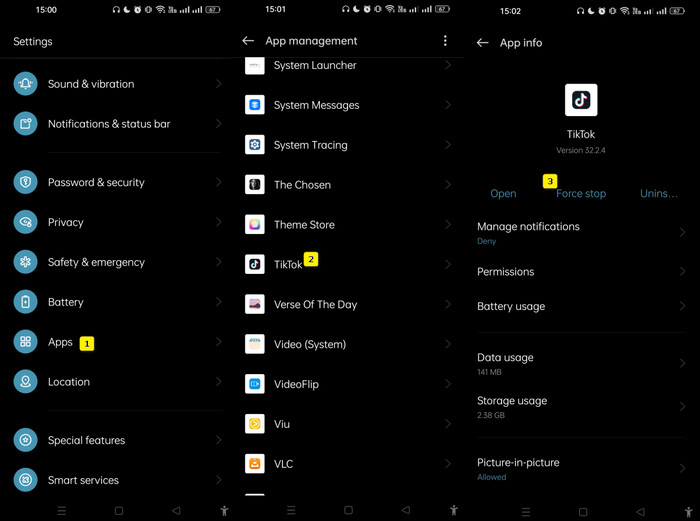
วิธีแก้ไขต่อไปนี้คือการบังคับให้แอปหยุดทำงาน วิธีนี้จะแก้ไขการทำงานผิดพลาดและปัญหาของแอป ต่อไปนี้เป็นวิธีดำเนินการ
ขั้นตอนที่ 1. บนอุปกรณ์ของคุณ ไปที่ การตั้งค่า > แอป > การจัดการแอป.
ขั้นตอนที่ 2. มองหาแอป TikTok แล้วแตะ.
ขั้นตอนที่ 3. เมื่อเสร็จแล้ว ให้แตะปุ่ม บังคับให้หยุด (Force Stop).
3. ล้างข้อมูลและแคชของแอป
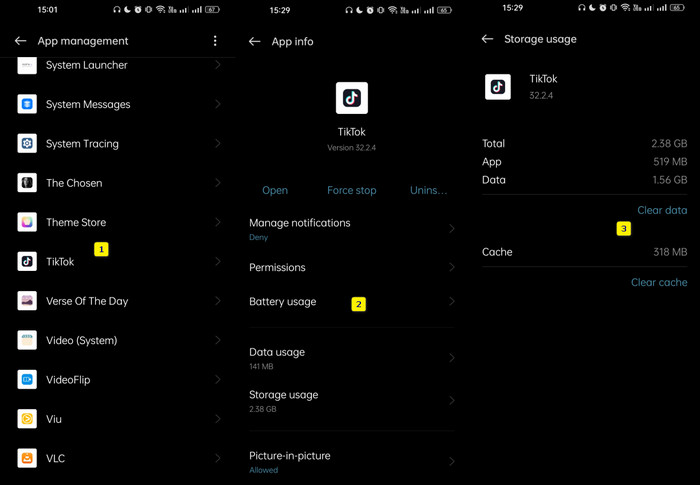
หากแคชและข้อมูลของแอปพลิเคชัน TikTok ของคุณเสียหาย อาจนำไปสู่ปัญหาต่างๆ เช่น วิดีโอไม่โหลดได้ เพื่อแก้ไขปัญหาวิดีโอ TikTok ที่ไม่เล่น คุณต้องล้างแคชและข้อมูลของแอปพลิเคชัน TikTok แล้วรีสตาร์ท กระบวนการนี้มีประโยชน์สำหรับการแก้ไขปัญหาด้านประสิทธิภาพ เช่น เวลาโหลดช้า ปัญหาการเล่นวิดีโอ และการใช้พื้นที่เก็บข้อมูลมากเกินไป ด้วยการล้างข้อมูลแคช คุณจะกำจัดข้อมูลที่ซ้ำซ้อนหรือล้าสมัยซึ่งอาจขัดขวางการทำงานที่ราบรื่นของแอป คุณสามารถทำตามขั้นตอนด้านล่างเพื่อดำเนินการนี้ได้
ขั้นตอนที่ 1. บนโทรศัพท์ของคุณ เริ่มจากเข้าแอปการตั้งค่า แล้วแตะที่ แอป.
ขั้นตอนที่ 2. จากนั้นแตะ การจัดการแอป เพื่อดูแอป TikTok และเลือก.
ขั้นตอนที่ 3. หลังจากนั้น ไปที่ การใช้งานพื้นที่จัดเก็บ แล้วแตะ จากนั้นแตะตัวเลือก ล้างข้อมูล และ ล้างแคช.
4. ติดตั้งแอพ TikTok อีกครั้ง
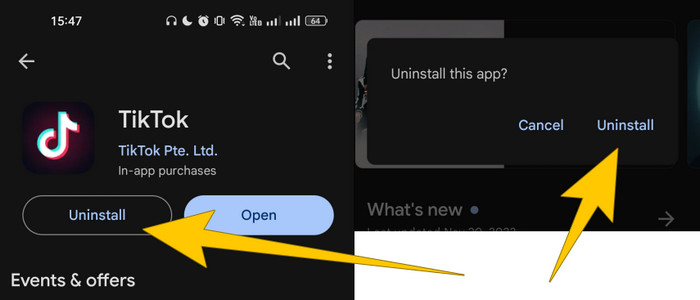
อีกวิธีที่มีประสิทธิภาพในการแก้ไขคุณภาพวิดีโอ TikTok และวิธีเล่นวิดีโอที่ไม่สามารถเล่นได้คือการติดตั้งแอปใหม่ กระบวนการนี้สามารถช่วยรีเฟรชแอปและขจัดปัญหาพื้นฐานที่ทำให้เกิดปัญหาในการเล่นวิดีโอได้ นอกจากนี้ การติดตั้งแอพ TikTok ใหม่เกี่ยวข้องกับการลบแอพที่มีอยู่ออกจากอุปกรณ์ของคุณแล้วดาวน์โหลดจาก App Store อย่างเป็นทางการ กระบวนการนี้รับประกันว่าคุณจะมีแอปเวอร์ชันล่าสุด และมักจะสามารถแก้ไขปัญหาที่เกี่ยวข้องกับประสิทธิภาพของแอป เช่น ปัญหาเกี่ยวกับการเล่นวิดีโอ ตอนนี้ทำตามขั้นตอนที่กำหนดเพื่อติดตั้งแอพ TikTok ใหม่:
ขั้นตอนที่ 1. ไปที่ร้านค้าแอปบนอุปกรณ์ของคุณ แล้วค้นหาแอป TikTok.
ขั้นตอนที่ 2. จากนั้นแตะปุ่ม ถอนการติดตั้ง และยืนยันโดยแตะปุ่มเดิมในหน้าต่างป๊อปอัป.
ขั้นตอนที่ 3. หลังจากลบแอปแล้ว คุณสามารถรีเฟรชอุปกรณ์ จากนั้นไปที่หน้าเดิมแล้วแตะปุ่ม ติดตั้ง.
5. แก้ไขวิดีโอที่เสียหาย
ดังที่กล่าวไปแล้ว ปัญหาเกี่ยวกับเนื้อหาวิดีโอ รวมถึงวิดีโอที่เสียหาย จะทำให้คุณไม่สามารถเล่นวิดีโอนั้นบนแอปได้ ดังนั้น หากต้องการแก้ปัญหา TikTok เล่นวิดีโอไม่ได้ คุณอาจต้องซ่อมไฟล์วิดีโอที่เสียหายนั้นโดยใช้เครื่องมือ Video Repair ซึ่งเป็นซอฟต์แวร์สำหรับคอมพิวเตอร์ที่ออกแบบมาเพื่อซ่อมแซมไฟล์วิดีโอที่เสียหายและชำรุด นอกจากนี้ Video Repair ที่ทีมงาน FVC คัดสรรนี้ยังมาพร้อมอินเทอร์เฟซที่ใช้งานง่าย ช่วยจัดการข้อผิดพลาดในการเล่นวิดีโอ ปัญหาวิดีโอตัดขาด ค้าง และความผิดปกติอื่น ๆ ที่เกิดจากไฟล์เสียหาย อีกทั้งยังรองรับไฟล์วิดีโอหลากหลายรูปแบบ ทำให้คุณสามารถซ่อมไฟล์ประเภท MP4, AVI, MKV, MOV และอื่น ๆ ได้.
การซ่อมแซมวิดีโอมักจะใช้อัลกอริธึมขั้นสูงในการวิเคราะห์และสร้างข้อมูลวิดีโอที่เสียหายขึ้นมาใหม่ ซึ่งจะพยายามกู้คืนไฟล์ให้อยู่ในสถานะที่สามารถเล่นได้ มีอะไรอีก? มีคุณลักษณะแสดงตัวอย่างซึ่งจะช่วยให้คุณประเมินประสิทธิภาพของกระบวนการซ่อมแซมก่อนที่จะบันทึกไฟล์เอาต์พุต ดังนั้นคุณต้องลองใช้เป็นการส่วนตัวและทำตามขั้นตอนที่ให้ไว้ด้านล่างคำแนะนำในการใช้งาน
วิธีแก้ปัญหา TikTok เล่นวิดีโอไม่ได้
ขั้นตอนที่ 1. โปรดตรวจสอบให้แน่ใจว่าไฟล์วิดีโอต้นฉบับที่คุณต้องการซ่อมถูกบันทึกไว้ในคอมพิวเตอร์แล้ว จากนั้นใช้เมาส์คลิกปุ่ม ดาวน์โหลดฟรี ด้านล่างเพื่อดาวน์โหลดและติดตั้งซอฟต์แวร์.
ดาวน์โหลดฟรีสำหรับ Windows 7 หรือใหม่กว่าดาวน์โหลดอย่างปลอดภัย
ดาวน์โหลดฟรีสำหรับ macOS 10.7 หรือใหม่กว่าดาวน์โหลดอย่างปลอดภัย
ขั้นตอนที่ 2. เมื่อติดตั้งเสร็จแล้ว เปิดโปรแกรม จากนั้นคลิกปุ่มเครื่องหมายบวกสีแดงเพื่อเพิ่มวิดีโอที่เสียหาย แล้วคลิกปุ่มเครื่องหมาย บวก สีฟ้าเพื่ออัปโหลดวิดีโอตัวอย่าง.
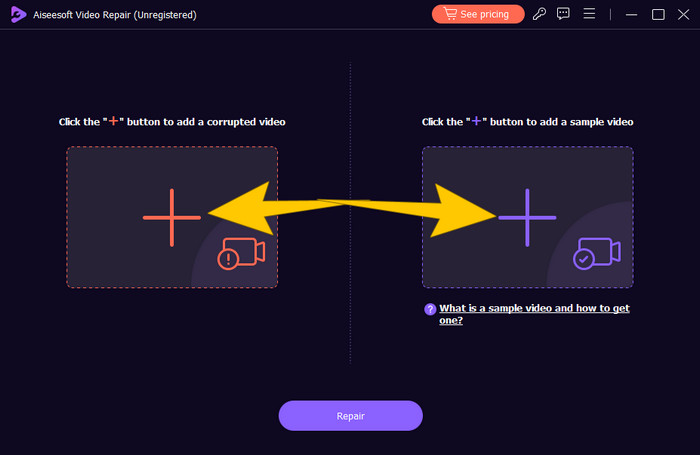
ขั้นตอนที่ 3. เมื่ออัปโหลดวิดีโอที่ต้องการครบแล้ว ให้คลิกปุ่ม ซ่อมแซม กระบวนการซ่อมจะแสดงผลเริ่มทำงาน และเมื่อเสร็จสิ้น คุณจะได้รับตัวเลือกต่าง ๆ เพื่อดำเนินการต่อ.
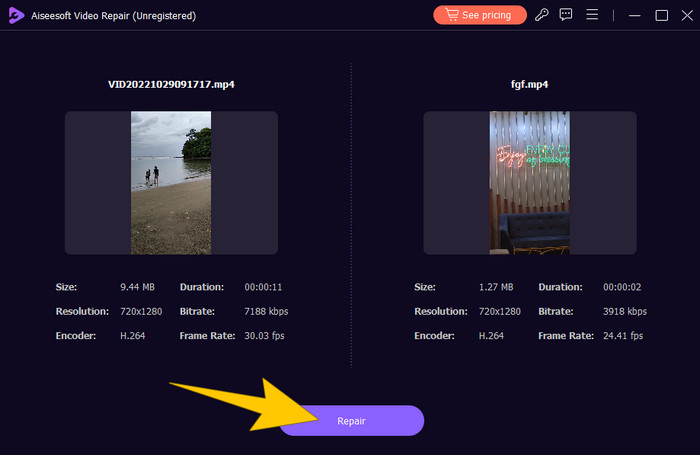
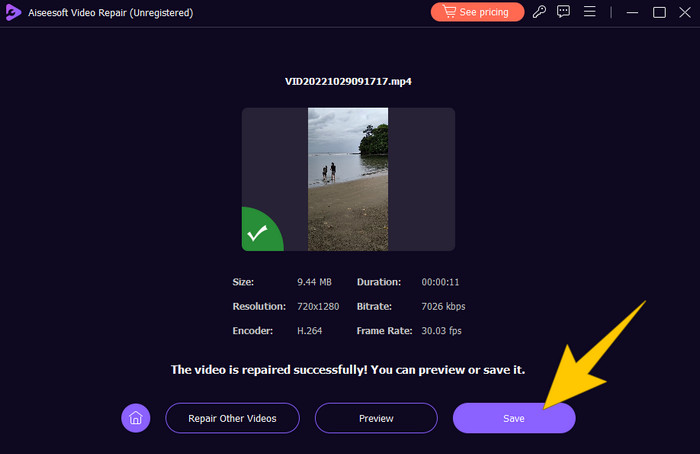
ขั้นตอนที่ 4. จากนั้นเลือกว่าจะคลิกปุ่ม พรีวิว เพื่อดูผลงานที่ได้ หรือต้องการคลิกปุ่ม บันทึก เพื่อส่งออกไฟล์.
ส่วนที่ 3 คำถามที่พบบ่อยเกี่ยวกับการแก้ไขวิดีโอ TikTok
ฉันสามารถแก้ไขวิดีโอ TikTok หลังจากโพสต์ได้หรือไม่
เป็นเรื่องน่าเศร้าที่ต้องบอกว่าเมื่อคุณโพสต์วิดีโอบน TikTok แล้ว คุณจะไม่สามารถแก้ไขหรือแก้ไขโดยตรงได้ ขณะนี้แอปไม่มีคุณลักษณะในตัวสำหรับการแก้ไขหลังการอัปโหลด อย่างไรก็ตาม คุณมีตัวเลือกในการลบวิดีโอและอัปโหลดเวอร์ชันที่ถูกต้องอีกครั้งหากมองเห็นปัญหาได้
ฉันจะแก้ไขคุณภาพของวิดีโอ TikTok ได้อย่างไร
คุณต้องมั่นใจว่าไฟล์วิดีโอต้นฉบับของคุณมีบิตเรตและความละเอียดสูง โปรดจำไว้ว่าทางแพลตฟอร์มมักจะบีบอัดไฟล์วิดีโอระหว่างการอัปโหลด ดังนั้นการมีวิดีโอที่มีคุณภาพต้นฉบับสูงจึงสำคัญมาก หลังจากอัปโหลดแล้ว ผู้ใช้บางส่วนของแอปนี้ก็ประสบความสำเร็จด้วยการใช้ฟีเจอร์แก้ไขในตัวของ TikTok เพื่อปรับเพิ่มความสว่าง ความคมชัด และคอนทราสต์.
ทำไมวิดีโอ TikTok ของฉันถึงดูไม่ชัด?
วิดีโอที่พร่ามัวอาจเกิดจากการบีบอัดโดยแอป TikTok ระหว่างการอัปโหลด ปัญหาเกี่ยวกับการเชื่อมต่ออินเทอร์เน็ต และคุณภาพวิดีโอต้นฉบับต่ำ
สรุป
ทุกสิ่งที่คุณต้องใช้เพื่อแก้ปัญหาได้รวมไว้ให้แล้วด้านบน เพื่อสรุปอีกครั้ง หนึ่งในเทคนิคที่ดีที่สุดเกี่ยวกับวิธีแก้ไขวิดีโอ TikTok หลังจากโพสต์แล้ว คือการลบวิดีโอนั้นออกก่อน จากนั้นจึงซ่อมด้วยโปรแกรม FVC Video Repair ที่ดีที่สุด.
-
 แก้ไขข้อผิดพลาด 0xc00d36c4 ด้วย 3 วิธีการพิสูจน์แล้ว [2024]
 พบรหัสข้อผิดพลาดวิดีโอ 0xc00d36c4 ขณะเล่นวิดีโอหรือไม่ ปฏิบัติตามคำแนะนำของเราสำหรับขั้นตอนที่รวดเร็วในการแก้ไขปัญหาและเพลิดเพลินกับการเล่นวิดีโออย่างต่อเนื่อง
-
 วิธีแก้ไขรหัสข้อผิดพลาด 102630 อย่างรวดเร็วและด้วยตนเอง
 อย่าปล่อยให้รหัสข้อผิดพลาด 102630 มาทำลายประสบการณ์การรับชมของคุณ! เรียนรู้วิธีแก้ไขด้วยคำแนะนำที่เป็นประโยชน์ของเรา ปฏิบัติตามคำแนะนำที่ครอบคลุมเหล่านี้เพื่อการแก้ไขอย่างรวดเร็ว
-
 วิดีโอไม่เล่นบน Mac ของฉัน? นี่คือการแก้ไขด่วน
 สงสัยว่าทำไมวิดีโอของคุณไม่เล่นบน Mac? ไม่ต้องกังวล! อ่านคำแนะนำของเราเพื่อเรียนรู้เกี่ยวกับสาเหตุทั่วไปและวิธีแก้ปัญหาที่สมบูรณ์แบบในการแก้ไขปัญหานี้
