


 Video Converter Ultimate
 บันทึกหน้าจอ
 ซ่อมวิดีโอ
 ดาวน์โหลดอย่างปลอดภัย
วิธีแก้ไขด่วนสำหรับข้อผิดพลาดไม่พบวิดีโอ HTML5
มันเป็นตัวทำลายบรรยากาศแบบสุด ๆ เลยเมื่อคุณเจอกับข้อผิดพลาด ไม่พบวิดีโอ HTML5 ตอนที่พยายามเล่นวิดีโอ แต่อย่าเพิ่งกังวลไป เพราะมีวิธีแก้ปัญหานี้เพื่อให้คุณกลับมาดูคอนเทนต์ได้อย่างราบรื่น แทนที่จะปล่อยให้การสะดุดเล็กน้อยนี้ทำลายประสบการณ์การรับชมของคุณ ให้คุณค่อย ๆ ตั้งสติแล้วทำตามขั้นตอนในบทความนี้ทีละข้อ เราจะพาคุณไล่เช็กปัญหาและช่วยคุณแก้ข้อผิดพลาดนี้อย่างมืออาชีพ ดังนั้นอย่าปล่อยให้ปัญหาเล็กน้อยมาขัดจังหวะความบันเทิงของคุณ ไม่นานคุณก็จะกลับไปเพลิดเพลินกับการเล่นวิดีโอแบบลื่นไหล ไม่มีสะดุดน่ารำคาญอีกต่อไป.
มาเริ่มแก้ไขปัญหานี้และปรับปรุงประสบการณ์การรับชมวิดีโอออนไลน์ของคุณกันเถอะ!

ส่วนที่ 1 วิดีโอที่ไม่เล่นวิดีโอ HTML5 บนเบราว์เซอร์คืออะไร
วิดีโอ HTML5 เป็นวิธีที่ทันสมัยในการเล่นวิดีโอบนเว็บเบราว์เซอร์ เข้ามาแทนที่วิธีการใช้ Adobe Flash แบบเก่าซึ่งมีความซับซ้อน ใช้งานได้กับทุกเบราว์เซอร์และมาพร้อมกับการควบคุมในตัว เช่น การเล่นอัตโนมัติและการปรับระดับเสียง ทำให้นักพัฒนาสามารถสร้างประสบการณ์วิดีโอที่ดีขึ้นบนเว็บไซต์ได้ง่ายขึ้น ตอนนี้เป็นตัวเลือกมาตรฐานสำหรับการเล่นวิดีโอออนไลน์ ไม่พบวิดีโอ HTML5 ใด
นี่คือข้อผิดพลาดที่เกิดขึ้นเมื่อเบราว์เซอร์ไม่สามารถค้นหาไฟล์ได้ และ วิดีโอไม่เล่น บน HTML5 แทนที่จะแสดงวิดีโอที่ควรจะเห็น ผู้ใช้กลับพบข้อความแจ้งว่าหาวิดีโอ HTML5 ไม่เจอหรือไม่สามารถเข้าถึงได้.
ส่วนที่ 2 วิธีการแก้ไขไม่พบวิดีโอ HTML5
มีสาเหตุหลายประการที่ทำให้ไม่พบวิดีโอ HTML5 มีข้อผิดพลาดเกิดขึ้นเมื่อพยายามเล่นวิดีโอ ต่อไปนี้เป็นวิธีแก้ไขข้อผิดพลาดนี้อย่างง่ายดาย:
วิธีที่ 1: การอัปเดตเบราว์เซอร์ของคุณ
การตรวจสอบให้แน่ใจว่าเบราว์เซอร์ของคุณทันสมัยเป็นวิธีการที่มีประโยชน์ในการแก้ไขปัญหาต่างๆ เช่น จุดบกพร่องและข้อบกพร่องทางเทคนิค นอกจากนี้ การดูแลรักษาเบราว์เซอร์เวอร์ชันล่าสุดมักจะมีประสิทธิภาพในการป้องกันปัญหาทั่วไป เช่น ข้อผิดพลาดไม่พบวิดีโอ HTML5
ขั้นตอนที่ 1. ก่อนอื่นให้เปิด Chrome ของคุณขึ้นมา.
ขั้นตอนที่ 2. จากนั้นคลิกที่จุดสามจุดเล็ก ๆ หรือปุ่ม Customize Control มุมขวาบนของหน้าจอ.
ขั้นตอนที่ 3. ตอนนี้ให้คลิก ความช่วยเหลือ (Help).
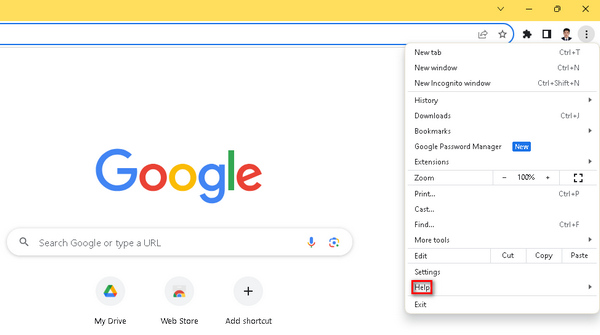
ขั้นตอนที่ 4. หลังจากนั้นเลือก About Google Chrome ถ้ามีเวอร์ชันใหม่รออัปเดตอยู่ คุณจะเห็นตัวเลือก Update Google Chrome ถ้าไม่มีก็จะเห็นปุ่ม Relaunch แทน.
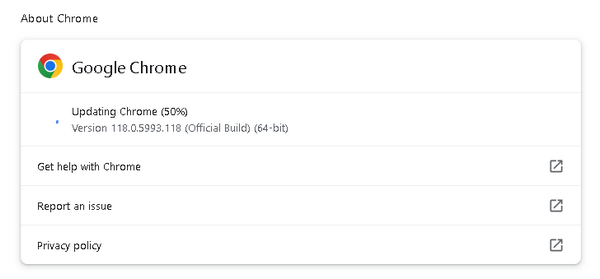
การอัปเดต Google Chrome ของคุณไม่รับประกันว่าจะแก้ไขรหัสข้อผิดพลาดไม่พบวิดีโอ HTML5 ยังคงเป็นสิ่งสำคัญที่จะต้องพิจารณาตรวจสอบปัจจัยอื่นๆ และใช้เครื่องมือซอฟต์แวร์เพื่อแก้ไข
วิธีที่ 2: การใช้เครื่องมือซ่อมแซมวิดีโอ
การใช้เครื่องมือจัดการวิดีโอสามารถช่วยแก้ปัญหาข้อผิดพลาด HTML5 video not found ได้อย่างมีประสิทธิภาพ FVC Video Repair ที่มาพร้อมอัลกอริทึม AI ขั้นสูง สามารถซ่อมแซมปัญหาที่ทำให้วิดีโอเล่นไม่ได้ในรูปแบบไฟล์อย่าง MP4, MOV และ 3GP ได้อย่างมีประสิทธิผล พร้อมคงคุณภาพของวิดีโอไว้ ผู้ใช้ยังสามารถพรีวิวไฟล์วิดีโอที่ซ่อมแล้วก่อนบันทึกได้ ทำให้เครื่องมือนี้กลายเป็นตัวช่วยที่เชื่อถือได้สำหรับการเล่นวิดีโอบนเว็บเบราว์เซอร์ได้อย่างลื่นไหล นอกจากนี้ เครื่องมือนี้ยังช่วยให้ขั้นตอนการแก้ปัญหาง่ายขึ้น เป็นวิธีที่รวดเร็วและมีประสิทธิภาพในการจัดการปัญหาการเล่นวิดีโอทั่วไป และช่วยยกระดับประสบการณ์การรับชมโดยรวมให้ดียิ่งขึ้น หากต้องการใช้งาน ให้ทำตามขั้นตอนต่อไปนี้:
ขั้นตอนที่ 1. ก่อนอื่น ดาวน์โหลดซอฟต์แวร์จากเว็บไซต์ทางการของพวกเขา แล้วติดตั้งลงบนอุปกรณ์ของคุณ.
ดาวน์โหลดฟรีสำหรับ Windows 7 หรือใหม่กว่าดาวน์โหลดอย่างปลอดภัย
ดาวน์โหลดฟรีสำหรับ macOS 10.7 หรือใหม่กว่าดาวน์โหลดอย่างปลอดภัย
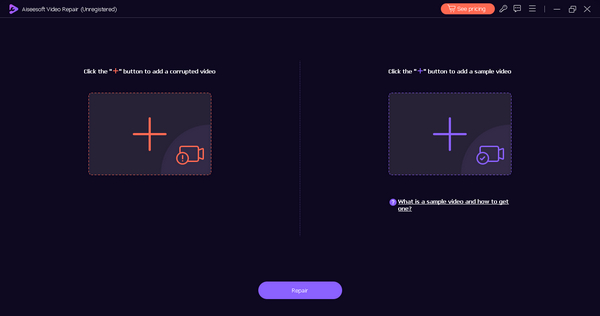
ขั้นตอนที่ 2. จากนั้นเปิดโปรแกรมขึ้นมา คุณจะเห็นปุ่มสองปุ่ม โดยด้านซ้ายของหน้าจอคือปุ่ม เครื่องหมายบวกสีแดง และด้านขวาคือปุ่ม เครื่องหมายบวกสีน้ำเงิน ตอนนี้เพื่อแก้ปัญหา HTML5 video not playing ให้คลิกปุ่มสีแดงเพื่อเพิ่มวิดีโอที่ต้องการซ่อม และเพิ่มวิดีโอตัวอย่างโดยการคลิกปุ่มสีน้ำเงิน.
ขั้นตอนที่ 3. หลังจากนั้นคลิกปุ่ม Repair.
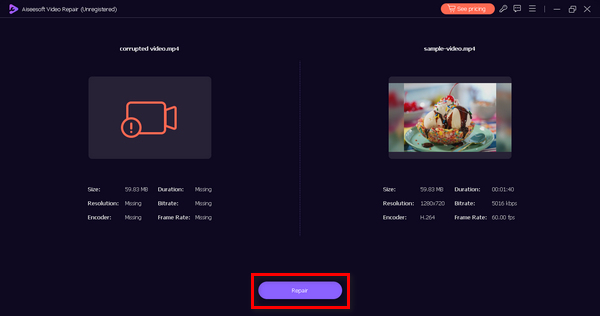
ขั้นตอนที่ 4. ขั้นตอนสุดท้าย คลิกปุ่ม Preview เพื่อตรวจสอบว่ายังมีข้อความ HTML5 video not found ปรากฏอยู่หรือไม่ ถ้าทุกอย่างเรียบร้อยดีแล้ว คุณก็สามารถบันทึกไฟล์ได้เลย.
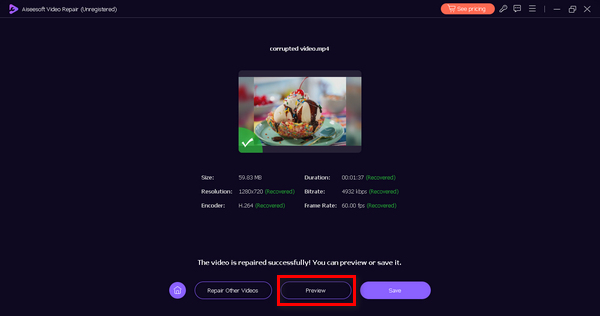
FVC Video Repair เป็นเครื่องมืออเนกประสงค์อย่างแท้จริง ด้วยความสามารถที่หลากหลายในการแก้ไขปัญหาวิดีโอ เครื่องมือนี้สามารถเป็นเครื่องมือที่คุณใช้งานได้ทุกครั้งที่คุณประสบปัญหาและข้อผิดพลาดกับวิดีโอของคุณ
วิธีที่ 3: การล้างแคชและคุกกี้ของเบราว์เซอร์
การล้างแคชและคุกกี้ของเบราว์เซอร์เป็นสิ่งสำคัญในการแก้ไขปัญหาการเล่นวิดีโอ HTML5 ที่เกิดจากข้อมูลเสียหาย แคชหรือคุกกี้ที่เสียหายอาจรบกวนการทำงานของเว็บไซต์ ส่งผลให้เกิดปัญหาในการเล่นวิดีโอ แคชจะจัดเก็บทรัพยากรเว็บไซต์ในระยะยาว และคุกกี้จะคงการตั้งค่าของผู้ใช้ไว้ การล้างไฟล์เหล่านี้จะช่วยขจัดปัญหาต่างๆ ทำให้เบราว์เซอร์ดึงข้อมูลใหม่ๆ ที่ไม่มีข้อผิดพลาดจากเว็บไซต์ และช่วยแก้ไขปัญหาที่ไม่พบวิดีโอ HTML5 ตามมา ต่อไปนี้คือวิธีที่คุณสามารถล้างแคชและคุกกี้ของเบราว์เซอร์:
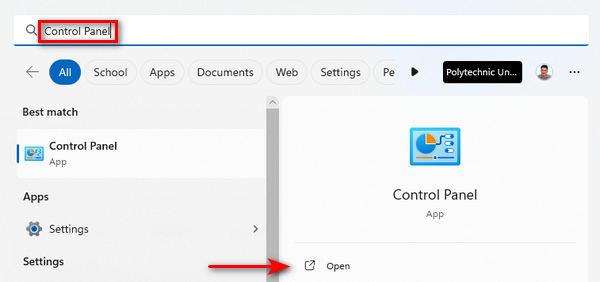
ขั้นตอนที่ 1. เริ่มจากพิมพ์คำว่า Control Panel ในช่องค้นหา แล้วเปิดขึ้นมา.
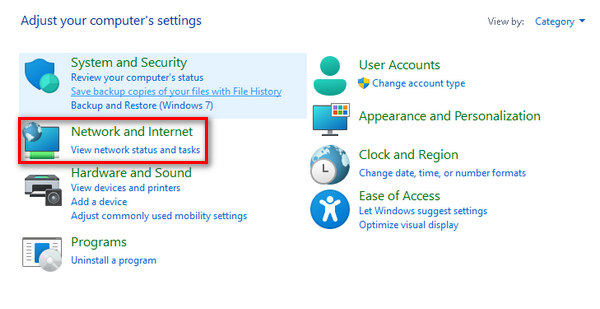
ขั้นตอนที่ 2. ภายใน Control Panel ให้มองหาและเลือกตัวเลือก Network and Internet.
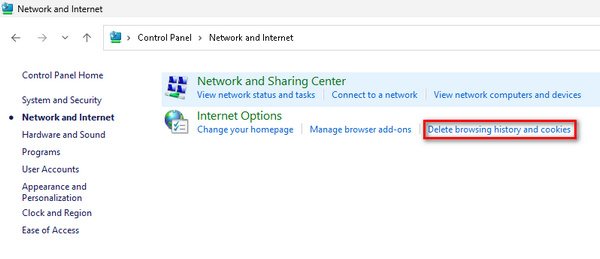
ขั้นตอนที่ 3. ค้นหา Delete Browsing History and Cookies แล้วคลิกเข้าไป.
ขั้นตอนที่ 4. จะมีแท็บเด้งขึ้นมา ให้คุณติ๊กเลือกช่องรายการที่ต้องการลบ เมื่อเลือกเสร็จแล้วให้คลิกปุ่ม Delete เพื่อดำเนินการให้เสร็จสมบูรณ์.
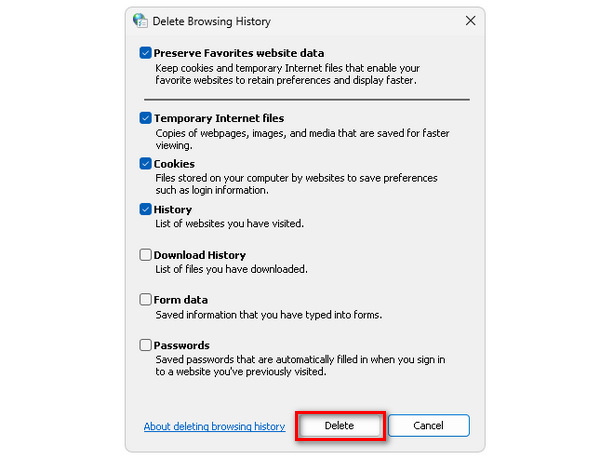
ด้วยวิธีนี้ คุณไม่เพียงแค่ช่วยป้องกันไม่ให้เกิดข้อผิดพลาด HTML5 video not found เท่านั้น แต่ยังช่วยลดข้อผิดพลาดวิดีโออื่น ๆ ที่สร้างปัญหาให้กับเบราว์เซอร์ด้วย วิธีนี้ยังใช้ได้ผลเมื่อวิดีโอของคุณค้าง กระตุก หรือมีปัญหาอื่น ๆ อีกด้วย.
ส่วนที่ 3 คำถามที่พบบ่อยเกี่ยวกับไม่พบวิดีโอ HTML5
เหตุใด Chrome จึงไม่เล่นวิดีโอ HTML5
Chrome อาจไม่เล่นวิดีโอ HTML5 เนื่องจากสาเหตุหลายประการ รวมถึงเวอร์ชันเบราว์เซอร์ที่ล้าสมัย ส่วนขยายเบราว์เซอร์ที่ขัดแย้งกัน หรือปัญหาเกี่ยวกับไฟล์วิดีโอหรือเว็บไซต์ หากต้องการแก้ไขปัญหา ให้ลองอัปเดต Chrome ปิดใช้ส่วนขยาย และตรวจหาปัญหาเฉพาะเว็บไซต์
วิดีโอ HTML5 ใดที่ไม่พบใน Firefox
ไม่พบวิดีโอ HTML5 ใน Firefox บ่งชี้ว่าเบราว์เซอร์ไม่สามารถค้นหาหรือเล่นวิดีโอที่ระบุได้ สาเหตุที่เป็นไปได้ ได้แก่ ปัญหาความเข้ากันได้ ปัญหาเครือข่าย หรือข้อผิดพลาดของไฟล์วิดีโอ เพื่อแก้ไขปัญหานี้ ให้พิจารณาอัปเดต Firefox ตรวจสอบการเชื่อมต่อเครือข่าย หรือลองใช้แหล่งวิดีโออื่น
ฉันจะเปิดใช้งาน HTML5 ใน Chrome Android ได้อย่างไร
โดยทั่วไปแล้วการเปิดใช้งาน HTML5 ใน Chrome บน Android จะเป็นไปโดยอัตโนมัติ อย่างไรก็ตาม คุณสามารถรับประกันการรองรับ HTML5 ได้โดยการอัปเดตแอป Chrome ของคุณผ่าน Google Play Store นอกจากนี้ การล้างแคชและคุกกี้ของเบราว์เซอร์อาจช่วยแก้ปัญหาใดๆ ที่เกี่ยวข้องกับการเล่นวิดีโอ HTML5 บน Chrome สำหรับ Android
เหตุใดวิดีโอ HTML5 บางครั้งจึงมีปัญหาในการเล่น
วิดีโอ HTML5 อาจประสบปัญหาในการเล่นเนื่องจากปัจจัยต่างๆ เช่น ความเข้ากันได้ของเบราว์เซอร์ ซอฟต์แวร์ที่ล้าสมัย ปัญหาเครือข่าย หรือข้อผิดพลาดในไฟล์วิดีโอ การตรวจสอบให้แน่ใจว่าเบราว์เซอร์ของคุณทันสมัย การตรวจสอบการเชื่อมต่อเครือข่าย และการตรวจสอบความสมบูรณ์ของไฟล์วิดีโอสามารถช่วยแก้ไขปัญหาการเล่นได้
ฉันจะแก้ไขปัญหาวิดีโอ HTML5 โดยไม่พบข้อผิดพลาดบนเว็บไซต์ของฉันได้อย่างไร
หากคุณพบข้อผิดพลาดไม่พบวิดีโอ HTML5 บนเว็บไซต์ของคุณ ให้เริ่มต้นด้วยการตรวจสอบตำแหน่งและความสมบูรณ์ของไฟล์วิดีโอ เพียงตรวจสอบให้แน่ใจว่าโฟลเดอร์ไฟล์ถูกต้อง และไฟล์ไม่เสียหาย นอกจากนี้ ให้ตรวจสอบโค้ด HTML ของเว็บไซต์ของคุณเพื่อยืนยันการฝังองค์ประกอบวิดีโออย่างเหมาะสม การทดสอบบนเบราว์เซอร์และอุปกรณ์ต่างๆ ยังสามารถช่วยระบุและแก้ไขปัญหาความเข้ากันได้ได้อีกด้วย
สรุป
การแก้ไขข้อผิดพลาด HTML5 video not found นั้นจริง ๆ แล้วง่ายกว่าที่คุณคิด ดังนั้น ไม่ว่าคุณจะเลือกอัปเดตเบราว์เซอร์หรือใช้ FVC Video Repair ขั้นตอนง่าย ๆ เหล่านี้จะช่วยให้คุณจัดการกับการสะดุดของการเล่นวิดีโอได้ด้วยตัวเอง ควบคุมสถานการณ์ ทำตามวิธีเหล่านี้ แล้วเพลิดเพลินกับคอนเทนต์วิดีโอคุณภาพสูงแบบไม่สะดุด ยกระดับความบันเทิงของคุณได้อย่างง่ายดายด้วยวิธีแก้ปัญหาที่มีประสิทธิภาพเหล่านี้!
-
 รหัสข้อผิดพลาด 0xc00d5212 คืออะไร และจะแก้ไขได้อย่างไร
 หากคุณพบรหัสข้อผิดพลาด 0xc00d5212 คู่มือนี้เหมาะสำหรับคุณ ปฏิบัติตามวิธีการแก้ไขปัญหาเหล่านี้เพื่อแก้ไขข้อผิดพลาด
-
 วิธีแก้ไขรหัสข้อผิดพลาดวิดีโอ 23301 อย่างรวดเร็ว [คำแนะนำ]
 คุณกำลังเล่นวิดีโอที่จู่ๆ ปรากฏว่า 'ไฟล์วิดีโอนี้ไม่สามารถเล่นได้ด้วยรหัสข้อผิดพลาด 2330' ใช่หรือไม่ อ่านคู่มือฉบับสมบูรณ์ของเราเพื่อเรียนรู้วิธีแก้ไขอย่างง่ายดาย
-
 รหัสข้อผิดพลาด 232011: คืออะไรและจะแก้ไขได้อย่างไร
 เรียนรู้วิธีแก้ไขและแก้ไขรหัสข้อผิดพลาด 232011 บนคอมพิวเตอร์ของคุณด้วยเคล็ดลับที่ง่ายและมีประสิทธิภาพเหล่านี้ อย่าปล่อยให้ข้อผิดพลาดนี้รบกวนการใช้งานคอมพิวเตอร์ของคุณอีกต่อไป!
