


 Video Converter Ultimate
 บันทึกหน้าจอ
 ซ่อมวิดีโอ
 ดาวน์โหลดอย่างปลอดภัย
รีวิวปี 2025: การซ่อมแซมวิดีโอ MiniTool เพื่อแก้ไขภาพที่เสียหาย
ไม่มีอะไรจะดีไปกว่าความสบายตอนดูวิดีโอได้อย่างลื่นไหล แต่ถ้าวันหนึ่งคุณพยายามเปิดวิดีโอที่ดาวน์โหลดเก็บไว้ในโฟลเดอร์ พอกดเล่นแล้วกลับไม่เกิดอะไรขึ้นเลยล่ะ? เรื่องแบบนี้เกิดขึ้นกับพวกเราส่วนใหญ่อยู่บ่อย ๆ เลี่ยงให้หมดคงเป็นไปไม่ได้ แต่เราสามารถแก้ไขได้ ในบทความนี้ เราจะมาแนะนำ MiniTool Video Repair โดยจะพาไปดูฟีเจอร์หลัก ความสามารถในการรองรับระบบ ข้อดีข้อเสีย รวมถึงแผนราคาโดยละเอียด.

ส่วนที่ 1. MiniTool Video Repair คืออะไร
MiniTool Video Repair เป็นซอฟต์แวร์สำหรับระบบปฏิบัติการ Windows ที่ออกแบบมาเพื่อซ่อมแซมไฟล์วิดีโอที่เสียหาย ชำรุด หรือไม่สามารถเล่นได้ ดังนั้น ไม่ว่าคุณจะเจอปัญหาวิดีโอกระตุกตอนดาวน์โหลด การเล่นวิดีโอสะดุดแล้วหยุดกลางคัน หรือไฟล์วิดีโอเสียหายก็ตาม เครื่องมือซ่อมวิดีโอตัวนี้ก็ถูกออกแบบมาเพื่อช่วยคุณแก้ปัญหาเหล่านี้.
นอกจากนี้ยังรองรับรูปแบบวิดีโอต่าง ๆ เช่น MOV, MP4 เป็นต้น นอกจากนี้เครื่องมือนี้ยังฟรีและมีอินเทอร์เฟซที่สะอาดตาและใช้งานง่าย
ความเข้ากันได้ของ MiniTool Video Repair กับรูปแบบต่างๆ อินเทอร์เฟซที่เป็นมิตรต่อผู้ใช้ และลักษณะที่คุ้มค่าคุ้มราคา ทำให้สิ่งนี้มีคุณค่าสำหรับผู้ใช้ทุกคน ไม่ว่าคุณจะเป็นมืออาชีพที่ต้องการซ่อมแซมฟุตเทจที่สำคัญหรือผู้ใช้ทั่วไปที่ต้องการกู้คืนวิดีโอที่ชื่นชอบ MiniTool Video Repair นำเสนอตัวเองว่าเป็นโซลูชันที่ครอบคลุมเพื่อจัดการกับความท้าทายที่หลากหลายเกี่ยวกับวิดีโอบนแพลตฟอร์ม Windows
ส่วนที่ 2 รีวิวการซ่อมแซมวิดีโอ MiniTool
แม้ว่าเครื่องมือนี้จะให้บริการฟรีเมื่อเทียบกับเครื่องมือซ่อมแซมวิดีโอฟรีอื่น ๆ แต่ MiniTool Video Repair ก็มีความโดดเด่น นี่คือการทบทวนเครื่องมือนี้อย่างละเอียด
คุณสมบัติ:
◆ แก้ไขวิดีโอที่เสียหาย รวมถึง MP4, MOV, M4V, F4V และอื่นๆ โดยไม่มีค่าใช้จ่าย
◆ ซ่อมแซมไฟล์วิดีโอจำนวนมากพร้อมกันได้อย่างมีประสิทธิภาพผ่านการประมวลผลแบบแบตช์
◆ ใช้ฟังก์ชันการซ่อมแซมขั้นสูงเพื่อแก้ไขวิดีโอที่เสียหายอย่างรุนแรงอย่างมีประสิทธิภาพ
◆ กู้คืนวิดีโอจากอุปกรณ์ต่าง ๆ เช่น GoPro, Sony, Canon, โดรน DJI และอื่น ๆ
◆ รับประกันความสำเร็จของการซ่อมแซมโดยดูตัวอย่างวิดีโอที่แก้ไขก่อนบันทึก
◆ การประมวลผลเป็นชุด
ความเข้ากันได้
MiniTool Video Repair เข้ากันได้กับ Windows 7 และใหม่กว่า
ข้อดี
- ฟรีสำหรับทุกคนที่จะใช้
- น้ำหนักเบาและติดตั้งง่าย
- รองรับรูปแบบวิดีโอที่หลากหลาย
- รวดเร็วด้วยการซ่อมแซมเป็นชุด
จุดด้อย
- ตัวเลือกการปรับแต่งอาจมีจำกัด
แผนการกำหนดราคา
ราคาเริ่มต้น: ฟรี
เวอร์ชันฟรี: มีเวอร์ชันฟรีให้ใช้งาน.
คู่มือฉบับย่อเกี่ยวกับวิธีการใช้การซ่อมแซมวิดีโอ MiniTool
ขั้นตอนที่ 1. ดาวน์โหลดและติดตั้งโปรแกรมลงในอุปกรณ์ของคุณ.
ขั้นตอนที่ 2. คลิกปุ่ม Add Video แล้วเลือกไฟล์วิดีโอที่เสียจากอุปกรณ์ของคุณ.
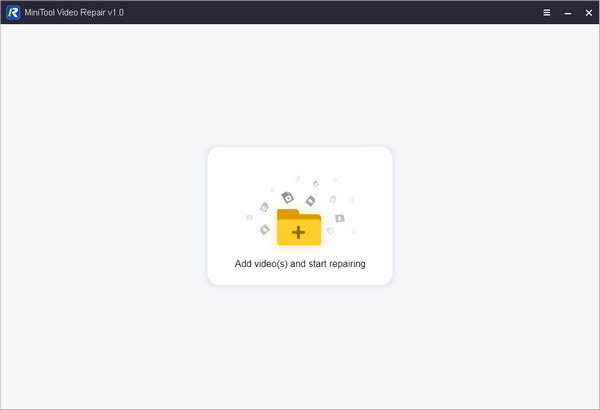
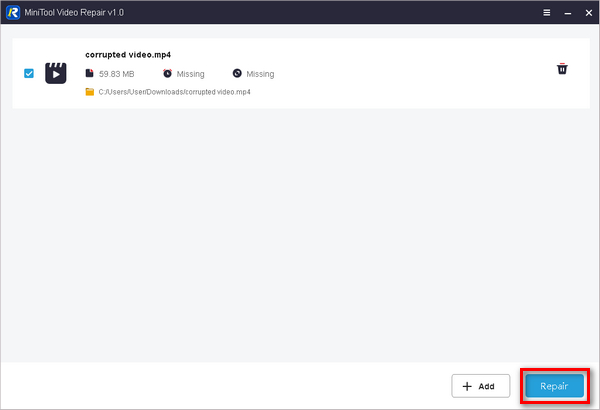
ขั้นตอนที่ 3. คลิกปุ่ม Repair เพื่อเริ่มซ่อมวิดีโอ.
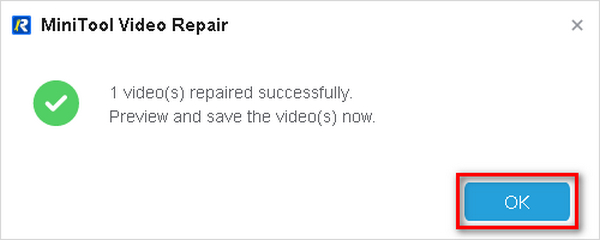
ขั้นตอนที่ 4. หากซ่อมสำเร็จ จะมีหน้าต่างเด้งขึ้นมา ให้คลิก OK เพื่อปิด.
ขั้นตอนที่ 5. กด Preview เพื่อดูตัวอย่างวิดีโอหลังจากซ่อมเสร็จ.
ขั้นตอนที่ 6. คลิก Save All แล้วเลือกตำแหน่งที่จะบันทึกไฟล์วิดีโอที่ซ่อมเรียบร้อยแล้ว.
ส่วนที่ 3 ทางเลือกที่ดีที่สุดสำหรับการซ่อมแซมวิดีโอ MiniTool
MiniTool Video Repair ฟังดูเหมือนเป็น ‘เครื่องมือเดียวที่คุณต้องมี’ สำหรับการซ่อมวิดีโอ แต่ถ้าใช้แล้วไม่ตอบโจทย์ ลองเปลี่ยนมาใช้ FVC Video Repair แทนก็ได้ FVC Video Repair เป็นเครื่องมือแนวเดียวกับ MiniTool Video Repair ที่ช่วยซ่อมวิดีโอที่เล่นไม่ได้เพราะไฟล์เสียหรือโปรแกรมล่ม หากคุณไม่มีไฟล์สำรอง เครื่องมือนี้อาจช่วยชีวิตได้เลย รองรับไฟล์วิดีอยอดนิยมอย่าง MP4, MOV และ 3GP จึงใช้งานได้กับวิดีโอหลากหลายประเภท.
สิ่งที่ทำให้ FVC Video Repair โดดเด่นคือการใช้เทคโนโลยี AI ขั้นสูง ทำให้กระบวนการซ่อมรวดเร็วและมีประสิทธิภาพมากขึ้น โดยจะตรวจสอบรายละเอียดที่สำคัญ เช่น ขนาดวิดีโอ ระยะเวลา ความละเอียด และอื่นๆ โดยอัตโนมัติ นอกจากนี้ยังใช้งานง่ายด้วยอินเทอร์เฟซที่เรียบง่ายด้วยการคลิกเพียงไม่กี่ครั้ง มันทำงานได้ดี หลังจากแก้ไขแล้ว คุณจะสามารถดูตัวอย่างวิดีโอที่ซ่อมแซมแล้วก่อนที่จะบันทึก สิ่งนี้มีประโยชน์เพื่อให้แน่ใจว่าทุกอย่างดูดี
หากต้องการใช้เครื่องมือนี้ ให้ปฏิบัติตามคำแนะนำฉบับย่อด้านล่าง:
ขั้นตอนที่ 1. ดาวน์โหลด FVC Video Repair จากเว็บไซต์ทางการแล้วติดตั้ง.
ดาวน์โหลดฟรีสำหรับ Windows 7 หรือใหม่กว่าดาวน์โหลดอย่างปลอดภัย
ดาวน์โหลดฟรีสำหรับ macOS 10.7 หรือใหม่กว่าดาวน์โหลดอย่างปลอดภัย
ขั้นตอนที่ 2. เพิ่มวิดีโอที่เสียหรือเสียหายด้วยการคลิกปุ่ม สัญลักษณ์บวกสีแดง (Red Plus) ที่มุมซ้ายของหน้าจอ จากนั้นคลิกปุ่ม สัญลักษณ์บวกสีน้ำเงิน (Blue Plus) ที่มุมขวาเพื่อเพิ่มวิดีโอตัวอย่าง.
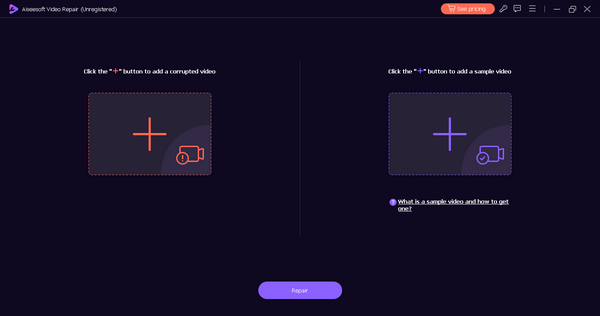
ขั้นตอนที่ 3. กดปุ่ม Repair เพื่อซ่อมไฟล์วิดีโอที่เสียหาย.
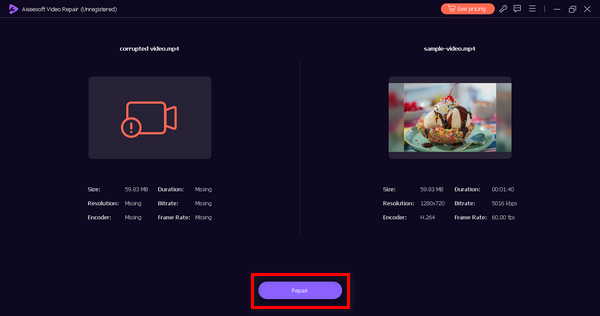
ขั้นตอนที่ 4. สุดท้าย คุณสามารถพรีวิวไฟล์ได้เมื่อกระบวนการเสร็จสิ้นโดยคลิกปุ่ม Preview หากผลลัพธ์เป็นที่น่าพอใจ ให้กดปุ่ม Save เพื่อบันทึกไฟล์.
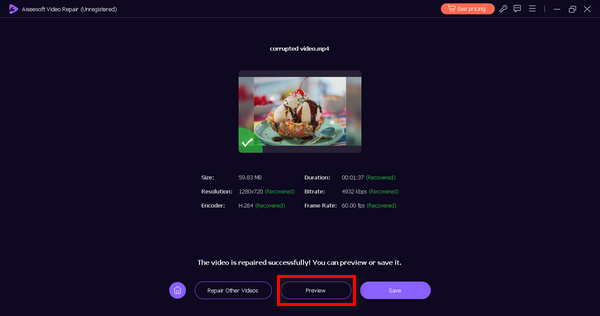
ตอนนี้คุณสามารถแก้ไขปัญหาวิดีโอด้วยเครื่องมือทางเลือกนี้ได้แล้ว ใช้งานง่ายเหมือนกับ MiniTool Video Repair อย่างไรก็ตาม FVC Video Repair สามารถทำงานได้ทั้งใน Windows และ Mac ในขณะที่ MiniTool ไม่สามารถทำได้ อย่างไรก็ตาม เครื่องมือทั้งสองมีสัญญาเดียว นั่นคือการซ่อมแซมวิดีโอ
ส่วนที่ 4 คำถามที่พบบ่อยเกี่ยวกับการซ่อมแซมวิดีโอ MiniTool
MiniTool Video Repair ปลอดภัยหรือไม่
ใช่. MiniTool Video Repair มีความปลอดภัยในการใช้งาน ปราศจากไวรัสและมัลแวร์ ช่วยลดความเสี่ยงต่ออุปกรณ์ของคุณ นอกจากนี้ยังเคารพความเป็นส่วนตัวของคุณโดยไม่เข้าถึงข้อมูลส่วนบุคคล
MiniTool Video Repair สามารถซ่อมแซมไฟล์วิดีโอหลายไฟล์พร้อมกันได้หรือไม่
แน่นอนว่า MiniTool Video Repair มีคุณสมบัติการประมวลผลแบบแบตช์ที่ออกแบบมาเพื่อจัดการกับการซ่อมแซมไฟล์วิดีโอหลายไฟล์พร้อมกัน ฟังก์ชันนี้มีประโยชน์อย่างยิ่งเมื่อต้องรับมือกับวิดีโอที่เสียหายจำนวนมาก ซึ่งช่วยประหยัดเวลาได้มาก
การซ่อมวิดีโอด้วย MiniTool Video Repair ใช้เวลานานเท่าใด
เวลาในการซ่อมแซมวิดีโอโดยใช้ MiniTool Video Repair อาจแตกต่างกันไปขึ้นอยู่กับปัจจัยต่างๆ เช่น ขนาดไฟล์ ความซับซ้อน และระดับของความเสียหาย โดยทั่วไป ซอฟต์แวร์ได้รับการปรับให้เหมาะสมเพื่อการซ่อมแซมที่มีประสิทธิภาพ และกระบวนการอัตโนมัติมีเป้าหมายเพื่อลดการแทรกแซงของผู้ใช้
MiniTool Video Repair รองรับรูปแบบวิดีโอที่หลากหลายหรือไม่
ใช่. MiniTool Video Repair รองรับรูปแบบวิดีโอที่หลากหลาย รวมถึง MP4, MOV และ 3GP เป็นต้น ความเข้ากันได้ของรูปแบบที่กว้างขวางนี้ทำให้มั่นใจได้ว่าเครื่องมือนี้มีความหลากหลายและสามารถซ่อมแซมไฟล์วิดีโอที่ใช้กันทั่วไปในแพลตฟอร์มต่างๆ
ฉันสามารถดูตัวอย่างวิดีโอที่ได้รับการซ่อมแซมก่อนที่จะบันทึกด้วย MiniTool Video Repair ได้หรือไม่
ได้มี MiniTool Video Repair มีฟีเจอร์พรีวิวให้ใช้งาน หลังจากกระบวนการซ่อมเสร็จ คุณสามารถพรีวิวบางช่วงของวิดีโอที่ซ่อมแล้ว เพื่อให้แน่ใจว่าผลลัพธ์เป็นไปตามที่ต้องการก่อนบันทึกไฟล์ที่ซ่อม อย่างไรก็ตาม คุณจำเป็นต้องใช้เวอร์ชันพรีเมียมจึงจะสามารถบันทึกวิดีโอที่ซ่อมแล้วได้ หรือหากยังไม่อยากเสียค่าใช้จ่าย ก็สามารถลองใช้โปรแกรมซ่อมวิดีโอฟรี อื่น ๆ แทนได้.
สรุป
เมื่อเทคโนโลยีก้าวหน้าไปเรื่อย ๆ เครื่องมือซ่อมวิดีโอเหล่านี้จึงกลายเป็นตัวช่วยสำคัญสำหรับคนที่ต้องรับมือกับปัญหาไฟล์วิดีโอ ช่วยมอบวิธีแก้ไขที่รวดเร็วและตอบโจทย์ความต้องการที่หลากหลาย ดังนั้น ไม่มีเหตุผลใดที่คุณจะปล่อยให้วิดีโอเสียแล้วทิ้งไป เพราะคุณสามารถซ่อมมันได้อย่างง่ายดายด้วยเครื่องมือที่เหมาะสม คุณอาจเลือกใช้ MiniTool Video Repair หรือจะใช้ตัวเลือกอื่นอย่าง FVC Video Repair ก็ได้เช่นกัน.
การซ่อมแซมวิดีโอของคุณง่ายกว่าที่เคย เพิ่มศักยภาพให้กับตัวเองด้วยเครื่องมือที่เหมาะสม และทำให้การเล่นวิดีโอของคุณกลายเป็นเรื่องในอดีต!
-
 วิธีแก้ปัญหาด่วนเพื่อแก้ไขข้อผิดพลาดไม่สามารถเล่นวิดีโอได้ 150
 เคยพบกับข้อผิดพลาดที่ไม่สามารถเล่นวิดีโอที่น่าหงุดหงิดได้ 150 ในระหว่างการรับชมวิดีโอของคุณหรือไม่? ไม่ต้องกังวลเพราะเราอธิบายวิธีแก้ปัญหาให้คุณแล้ว
-
 รีวิวการซ่อมแซมเคอร์เนลวิดีโอ: นี่คือทั้งหมดที่คุณต้องรู้
 คุณเคยได้ยินเกี่ยวกับ Kernel Video Repair หรือไม่? ในรีวิวนี้ คุณจะมีทุกสิ่งที่คุณจำเป็นต้องรู้ ตั้งแต่ฟีเจอร์หลัก ฟังก์ชัน และข้อดีข้อเสีย
-
 การซ่อมแซมวิดีโอ Wondershare Repairit [รีวิวขั้นสูงสุดของคุณ]
 สับสนว่าควรใช้เครื่องมือซ่อมแซมวิดีโอตัวใด รีวิวนี้มีทุกสิ่งที่คุณจำเป็นต้องรู้เกี่ยวกับ Wondershare Repairit Video Repair ที่คุณสามารถใช้ได้
