


 Video Converter Ultimate
 บันทึกหน้าจอ
 ซ่อมวิดีโอ
 ดาวน์โหลดอย่างปลอดภัย
โปรแกรมบันทึกหน้าจอ AMV ยอดนิยมสำหรับคอมพิวเตอร์ Windows และ Mac
Actions Media Video หรือที่เรียกว่า AMV เป็นรูปแบบไฟล์วิดีโอที่ผลิตขึ้นโดยเฉพาะเพื่อแทนที่ MP4 เป็นรูปแบบสากลที่สามารถเล่นได้กับเครื่องเล่นสื่อส่วนใหญ่ หากคุณคุ้นเคยกับรูปแบบ AVI นี่เป็นเวอร์ชันที่แก้ไขและปรับปรุงแล้ว รูปแบบไฟล์นี้มีวิดีโอที่บีบอัด รูปแบบ AMV ทำขึ้นเพื่อให้ผู้เล่นและอุปกรณ์ที่ประหยัดสามารถเล่นวิดีโอได้ อย่างไรก็ตาม การแสดงไฟล์เริ่มต้นต่ำเนื่องจากอัตราเฟรมต่ำ อย่างไรก็ตาม คุณยังคงสามารถพิจารณาว่ารูปแบบนี้เป็นทางเลือกที่ดีเมื่อแสดงผลวิดีโอที่ส่งออกของคุณ
โดยเปรียบเทียบแล้ว คุณยังสามารถพิจารณาใช้โปรแกรมบันทึกหน้าจอที่ช่วยเรนเดอร์วิดีโอเป็นไฟล์ AMV ได้อย่างง่ายดาย ในความเป็นจริงแล้วมีเครื่องมือมากมายที่ช่วยคุณทำสิ่งนี้ได้ นอกจากนี้ก็ไม่จำเป็นต้องเป็นไฟล์ AMV เสมอไป เพียงแค่รู้เอาไว้ก็ดีว่าตอนนี้มีไฟล์ประเภทนี้อยู่แล้ว ดังนั้นเราจึงได้รวบรวมรายการโปรแกรมบันทึกวิดีโอ .amvสำหรับแพลตฟอร์ม Android และคอมพิวเตอร์ไว้ให้ คุณสามารถดูรายละเอียดเพิ่มเติมได้จากรายการด้านล่างนี้.

ส่วนที่ 1. เครื่องบันทึก AMV ออนไลน์ยอดนิยม
1. FVC บันทึกหน้าจอฟรี
เมื่อพูดถึงเครื่องมือฟรีที่ใช้งานออนไลน์ได้ คุณอาจนึกถึงข้อจำกัด ลายน้ำ และความไม่ปลอดภัย แม้ว่าอาจเป็นเช่นนั้น แต่โปรแกรมบันทึกหน้าจอแบบฟรีทั้งหมดก็ไม่ได้เหมือนกันไปเสียหมด ยังมีบางตัวที่ทำลายกรอบเดิม ๆ และแก้ปัญหาเหล่านี้ได้ FVC Free Screen Recorder ก็เป็นหนึ่งในนั้น เครื่องมือนี้จะให้ความยืดหยุ่นกับคุณมากขึ้นในเรื่องการบันทึกหน้าจอ ด้วยกรอบบันทึกที่ปรับขนาดได้ คุณสามารถเลือกอัตราส่วนที่ต้องการและปรับแต่งวิดีโอของคุณเองได้ นอกจากนี้ยังสามารถปรับค่า Bitrate ได้ด้วย Bitrate มีความสำคัญเพราะช่วยให้คุณปรับคุณภาพของวิดีโอที่กำลังเรนเดอร์อยู่ได้ ยังมีฟังก์ชันอีกมากมายให้เรียนรู้เกี่ยวกับเครื่องมือที่ยอดเยี่ยมตัวนี้.
ขั้นตอนที่ 1 เปิดใช้งานแอปโดยไปที่หน้าเว็บทางการ https://www.free-videoconverter.net/free-screen-recorder/ จากนั้นคลิกปุ่ม Start Recording เพื่อเรียกโปรแกรมขึ้นมา.
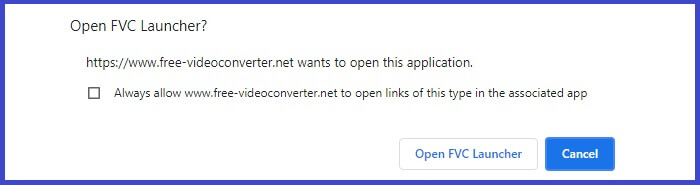
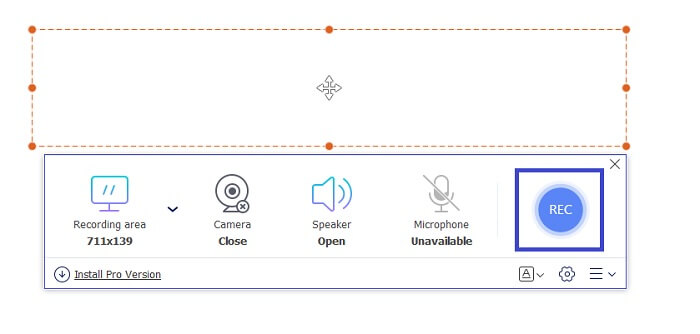
ขั้นตอนที่ 2 เมื่อเครื่องมือถูกเปิดขึ้นมาแล้ว ให้ปรับอัตราส่วนของพื้นที่บันทึกโดยเลื่อนกรอบเส้นปะจนได้ขนาดวิดีโอตามต้องการ จากนั้นคลิก REC เพื่อเริ่มบันทึก.
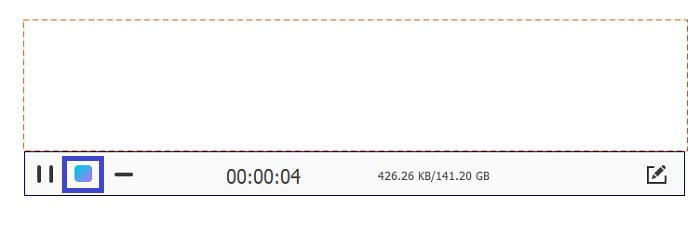
ขั้นตอนที่ 3 ระหว่างที่กำลังบันทึก ให้คลิกไอคอนดินสอเพื่อเปิดใช้การใส่คำอธิบายแบบเรียลไทม์ ซึ่งคุณสามารถเพิ่มรูปร่าง เส้น และข้อความลงไปได้ เมื่อบันทึกเสร็จแล้วให้คลิกปุ่มสี่เหลี่ยมสีน้ำเงินเพื่อหยุดบันทึก.
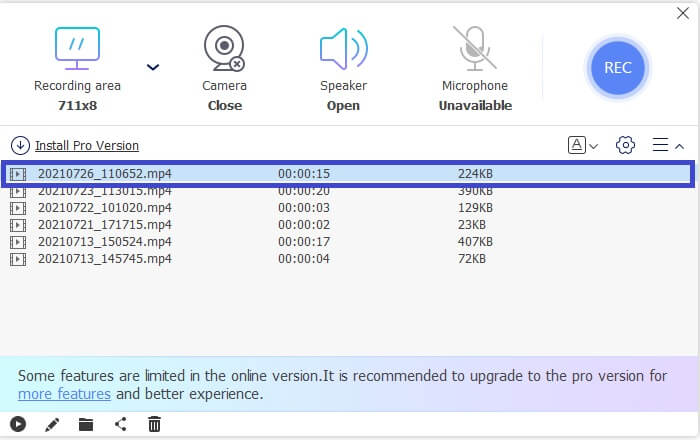
ขั้นตอนที่ 4 หากต้องการดูไฟล์ที่บันทึกไว้ ให้คลิกชื่อไฟล์บริเวณด้านล่างของหน้าต่างหลัก จากนั้นดับเบิลคลิกเพื่อเล่นไฟล์.
ข้อดี
- บันทึกได้ไม่จำกัด
- ไม่จำกัดระยะเวลา
- บิตเรตที่ปรับได้สำหรับเอาต์พุตวิดีโอคุณภาพสูง
- รองรับการตัดแต่งวิดีโอ
จุดด้อย
- ไม่มีคำบรรยายที่สร้างขึ้นโดยอัตโนมัติ
2. Screencast-O-Matic
ปรับแต่งการบันทึกของคุณด้วย Screencast-O-Matic และสัมผัสประสบการณ์มิกซ์และจับคู่การบันทึกวิดีโอที่นำเข้าและวิดีโอที่บันทึกไว้ ไม่ต้องพูดถึง มันเป็นเครื่องมือออนไลน์ที่สามารถจับภาพหน้าจอ ให้คุณวาดบนหน้าจอ พร้อมคำบรรยายอัตโนมัติ และสามารถบันทึกเสียงได้ในเวลาเดียวกัน คุณสามารถเลือกเพิ่มคำบรรยายหรือคำบรรยายขณะบันทึกวิดีโอได้ สิ่งนี้มีประโยชน์โดยหลักสำหรับผู้สร้างวิดีโอสอนและผู้ที่ประหยัดเงิน ข้อเสียเพียงอย่างเดียวของแอปฟรีนี้คือขั้นตอนการลงทะเบียน มันยาว ในขณะเดียวกันนี่คือวิธีการใช้งาน
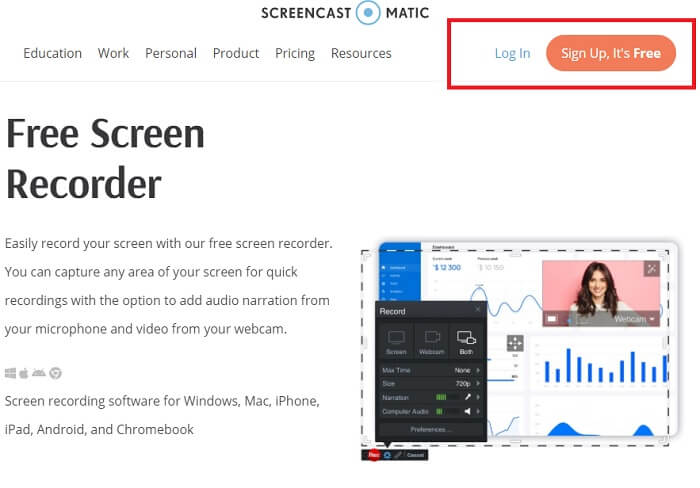
ขั้นตอนที่ 1 ไปที่หน้าเว็บไซต์หลักแล้วลงทะเบียนสร้างบัญชีผู้ใช้.
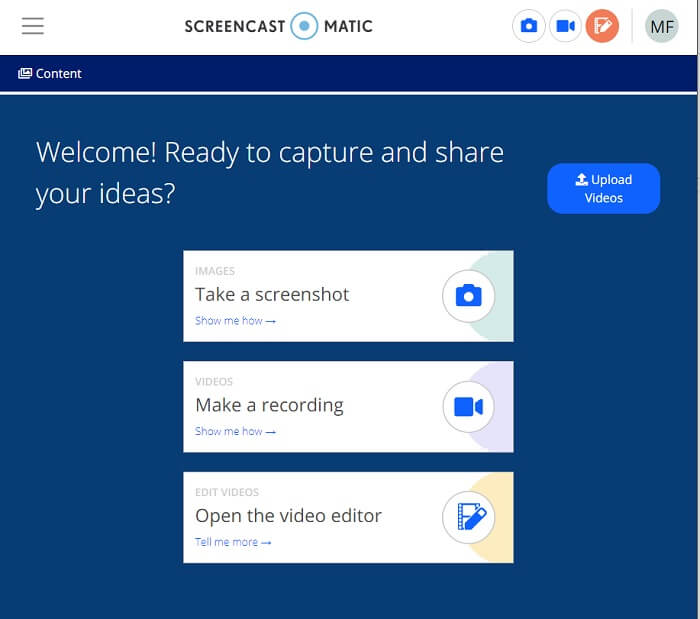
ขั้นตอนที่ 2 หลังจากสมัครสมาชิกแล้ว คุณจะมาถึงหน้านี้ซึ่งจะถามว่าคุณต้องการทำอะไร เลือก Make a Recording.
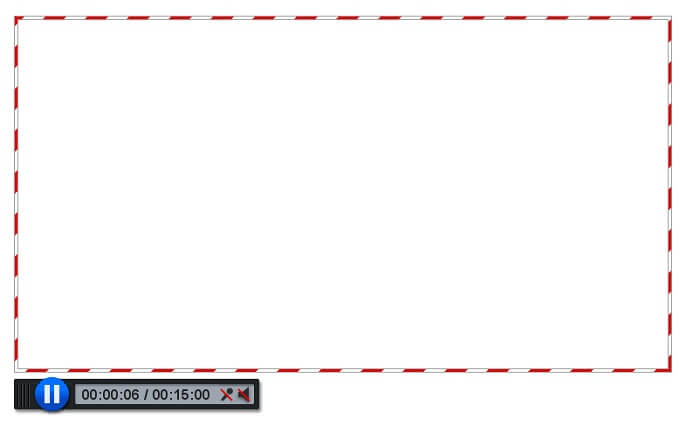
ขั้นตอนที่ 3 จากนั้นเครื่องมือจะปรากฏขึ้น หากต้องการเริ่มบันทึกให้คลิกปุ่ม REC สีแดง และคลิกปุ่มเดียวกันอีกครั้งเพื่อหยุดการบันทึก.
หากคุณไม่พอใจกับคุณสมบัติที่แอพฟรีที่น่าทึ่งทั้งสองมีให้ คุณสามารถอ่านต่อเครื่องมือถัดไปที่มีให้สำหรับคุณ คราวนี้เราจะพูดถึงเครื่องมือระดับพรีเมียมที่คุณสามารถดาวน์โหลดบนพีซีของคุณได้
ส่วนที่ 2 บนเดสก์ท็อป AMV Recorder
1. เครื่องบันทึกหน้าจอ FVC
เครื่องมือเดสก์ท็อปตัวแรกคือ FVC Screen Recorder มีความสามารถในการบันทึกหน้าจอคอมพิวเตอร์ เสียงของระบบ และบันทึกการสตรีมออนไลน์โดยไม่มีเสียงรบกวน เครื่องมือบันทึกเสียงระบบของคอมพิวเตอร์ ซึ่งหมายความว่าคุณภาพเสียงเป็นที่น่าพอใจมาก นอกจากรูปแบบที่ได้รับการสนับสนุนอย่างมากมาย เครื่องมือนี้ยังสนับสนุนเทคโนโลยีการเร่งความเร็วสำหรับการสตรีมเกมออนไลน์ ไม่มีลายน้ำ บันทึกคุณภาพเท่านั้น คุณจะได้รับสิ่งที่ดีที่สุดหากคุณใช้เครื่องมือนี้ คุณภาพระดับ HD, เสียงแบบไม่สูญเสีย, การบันทึกที่ราบรื่นระหว่างการสตรีมสด และการเร่งความเร็ว ทุกสิ่งที่คุณต้องการสำหรับความต้องการในการบันทึกของคุณอยู่ที่นี่แล้ว ยิ่งไปกว่านั้น ยังมีฟีเจอร์ Window Lock ที่ให้คุณบันทึกเฉพาะบางหน้าต่างเท่านั้น นอกจากนี้ เครื่องมือยังใช้งานง่าย เริ่มต้นด้วยการคลิกปุ่มด้านล่าง
ดาวน์โหลดฟรีสำหรับ Windows 7 ขึ้นไปดาวน์โหลดอย่างปลอดภัย
ดาวน์โหลดฟรีสำหรับ MacOS 10.7 ขึ้นไปดาวน์โหลดอย่างปลอดภัย
ขั้นตอนที่ 1 คลิกปุ่ม Video Recorder เพื่อเริ่มบันทึก
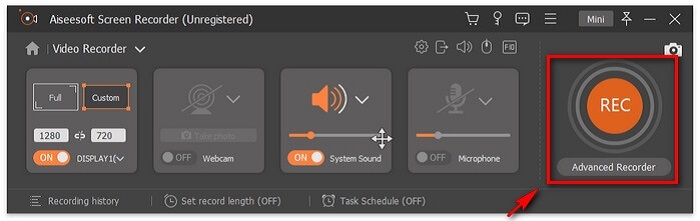
ขั้นตอนที่ 2 เริ่มบันทึกแล้วเพิ่มคำอธิบายบนหน้าจอไปพร้อม ๆ กับการบันทึก.
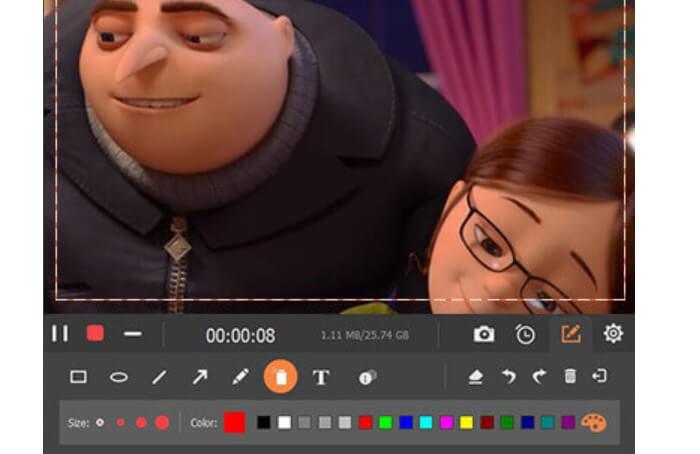
ขั้นตอนที่ 3 เมื่อเสร็จสิ้น ให้หยุดการบันทึกโดยคลิกปุ่มสี่เหลี่ยมสีแดง.

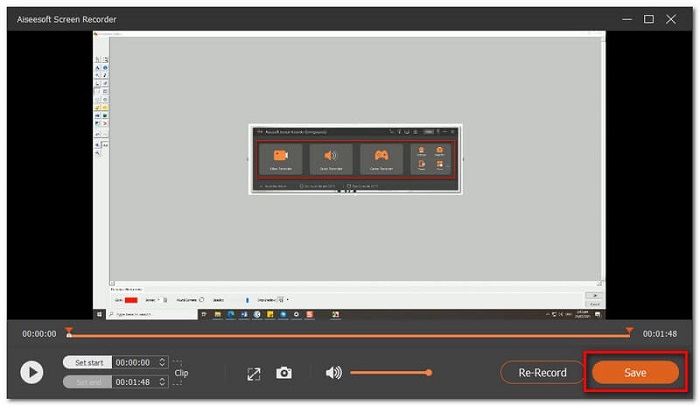
ขั้นตอนที่ 4 จากนั้นจะมีหน้าต่างอีกบานเด้งขึ้นมา ให้เลือกว่าจะ Re-Record หรือ Save
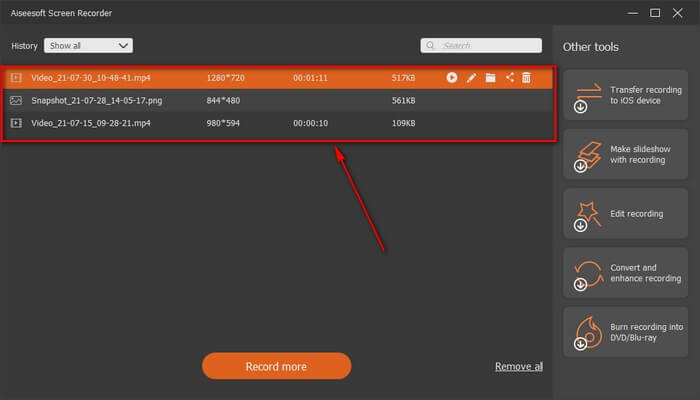
ขั้นตอนที่ 5 หาไฟล์ที่บันทึกไว้จากหน้าต่างถัดไปที่จะปรากฏขึ้น.
2. Bandicam
ในที่สุดเราก็มี Bandicam เป็นหนึ่งในเครื่องมือที่น่าเชื่อถือที่สุดในการบันทึกหน้าจอ หนึ่งเป็นเพราะเครื่องมือนี้มีอินเทอร์เฟซที่ตรงไปตรงมามาก การตั้งค่าทั้งหมดที่คุณต้องตรวจสอบและคุณสมบัติจะได้รับในหน้าจอเดียว เมื่อคุณเปิดเครื่องมือ คุณจะเห็นการตั้งค่าและคุณสมบัติทั้งหมดทันที อันที่จริงคำจำกัดความที่แท้จริงของอินเทอร์เฟซที่ใช้งานง่าย แม้แต่ผู้เริ่มต้นเทคโนโลยีประเภทนี้ก็สามารถรับมือได้อย่างง่ายดาย เพื่อแสดงสิ่งที่พูด นี่คือวิธีที่คุณสามารถใช้ได้
ขั้นตอนที่ 1 ไปที่เว็บไซต์ทางการของเครื่องมือนี้เพื่อดาวน์โหลดและติดตั้งแอป.
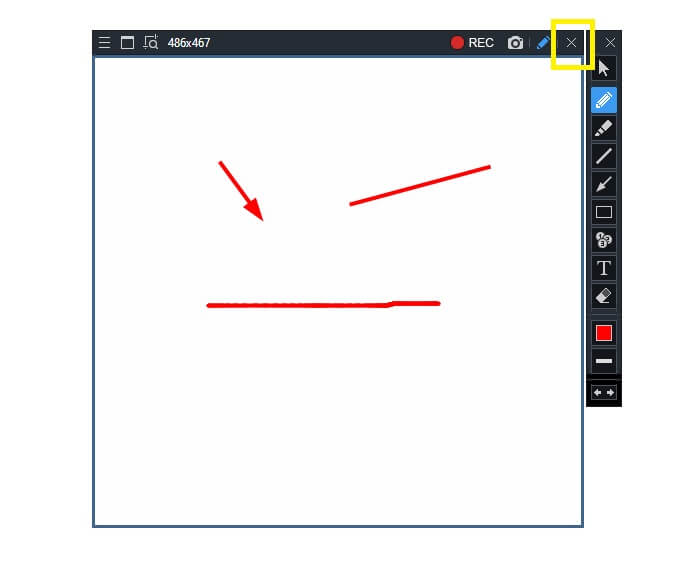
ขั้นตอนที่ 2 คลิกปุ่ม REC ที่มุมขวาบนของอินเทอร์เฟซ จากนั้นเครื่องมือจะให้คุณปรับขนาดกรอบบันทึก.
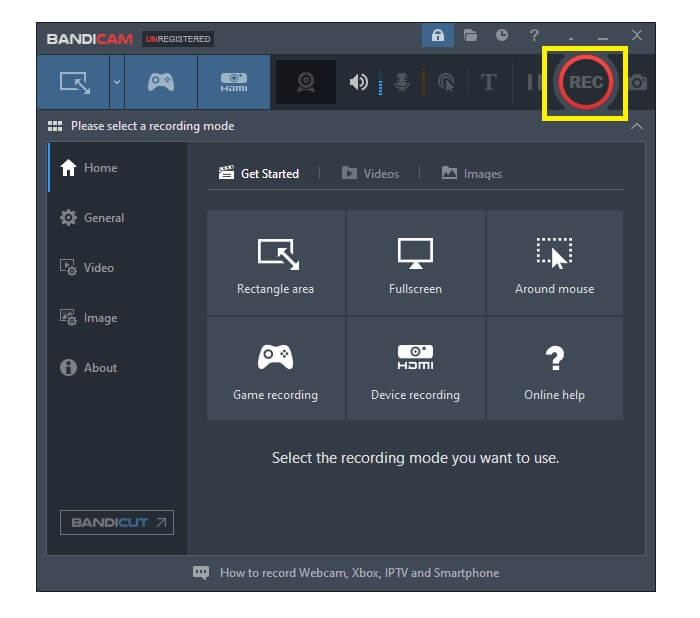
ขั้นตอนที่ 3 จากตรงนั้นให้เริ่มใส่คำอธิบายขณะกำลังบันทึกอยู่ และคลิกปุ่ม X ที่มุมขวาเพื่อจบการบันทึก.
เครื่องมือทั้งหมดที่เขียนมีประโยชน์จริง ๆ Bandicam แสดงถึงความเรียบง่ายและการใช้งาน ในขณะเดียวกัน Screencast-O-Matic ก็ใช้งานได้หลากหลาย ในทางกลับกัน FVC Screen Recorder สามารถให้ทั้งเครื่องมือแบบฟรีและแบบพรีเมียมที่เหนือกว่าเครื่องมือที่ระบุไว้ทั้งหมด คุณสมบัติล็อคหน้าต่างเป็นข้อได้เปรียบที่โดดเด่นเพราะช่วยให้ทำงานหลายอย่างพร้อมกันและมีประสิทธิภาพ ไม่มีโปรแกรมบันทึกหน้าจออื่นใดที่สามารถทำได้ มีเพียงโปรแกรมบันทึกหน้าจอ FVC เท่านั้น
อ่านเพิ่มเติม:
2. วิธีบีบอัดไฟล์ AMV ขนาดใหญ่
ส่วนที่ 3 คำถามที่พบบ่อยเกี่ยวกับ AMV Recorder
เหตุใดฉันจึงไม่สามารถเปิดไฟล์ AMV บนพีซีของฉันได้
มีสาเหตุหลายประการ โดยทั่วไปแล้วไฟล์ดังกล่าวไม่มีซอฟต์แวร์ที่เหมาะสมในคอมพิวเตอร์ของคุณ ดาวน์โหลดออนไลน์
เครื่องเล่น MP4 ไม่เล่น Format Error แล้วจะแก้ไขได้อย่างไร?
วิธีนี้ง่ายมาก เพียงเปลี่ยนไฟล์ .amv ให้เป็นเวอร์ชันใหม่ล่าสุดโดยการแปลงไฟล์ หากคุณต้องการแปลงไฟล์ ให้ทำตามคำแนะนำด้านล่างนี้:
1. ไปที่ลิงก์นี้ https://www.free-videoconverter.net/free-online-video-converter/
2. เปิดตัวโปรแกรมแล้วอัปโหลดไฟล์ของคุณ
3. เลือกฟอร์แมตที่คุณต้องการ เมื่อเลือกเสร็จแล้ว ไฟล์จะถูกเรนเดอร์ในไม่ช้า
4. คลิกปุ่มดาวน์โหลดเพื่อบันทึกไฟล์ที่แปลงแล้วลงเครื่อง.
ฉันจะเชื่อมโยงไฟล์กับซอฟต์แวร์ได้อย่างไร
มีสองวิธีในการทำ วิธีแรกคือเลือกไฟล์ AMV แล้วคลิกเลือก โปรแกรมเริ่มต้น จากนั้นกด Browse อีกวิธีคือการลงทะเบียนไฟล์นั้นใน Windows Registry.
สรุป
สรุปได้ว่า AMV นั้นดีที่จะทราบรูปแบบที่คุณสามารถพิจารณาใช้ แต่ไม่แนะนำสำหรับผู้ที่กำลังมองหาวิดีโอคุณภาพดี นอกจากนี้ รายการเครื่องบันทึกหน้าจอ AMV ไม่ได้จำกัดแค่ AMV เท่านั้น แต่สามารถสร้างรูปแบบต่างๆ ได้มากขึ้น เช่น MP4, MOV และอื่นๆ อีกมากมาย
-
 เครื่องบันทึกเมาส์และคีย์บอร์ดที่ดีที่สุด 5 อันดับแรกสำหรับ Windows และ Mac
 ต่อไปนี้คือโปรแกรมบันทึกเมาส์และคีย์บอร์ดที่ดีที่สุดห้าอันดับแรกที่สามารถบันทึกการเคลื่อนไหวของเมาส์และการคลิกแป้นพิมพ์ของคุณและทำซ้ำเหตุการณ์ต่างๆ
-
 เครื่องบันทึกหน้าจอ AVI ฟรี 4 อันดับแรกเพื่อจับภาพวิดีโอหน้าจอเป็นไฟล์ AVI
 ในการบันทึกหน้าจอในไฟล์ AVI คุณภาพสูงบทความนี้จะระบุและแบ่งปันเครื่องบันทึกหน้าจอ AVI ฟรี 4 อันดับแรกในโพสต์นี้ เรียนรู้รายละเอียดเพิ่มเติมเพื่อค้นหารายการที่ต้องการ
-
 เครื่องบันทึก WAV ฟรี 6 อันดับแรกสำหรับ Windows และ Mac
 ซอฟต์แวร์บันทึก WAV ที่ดีที่สุดที่เราแบ่งปันในบทความนี้มีคุณสมบัติที่มีประโยชน์มากมาย ซึ่งช่วยให้คุณบันทึกเสียงและเสียงได้เหมือนมืออาชีพ
