


 Video Converter Ultimate
 บันทึกหน้าจอ
 ซ่อมวิดีโอ
 ดาวน์โหลดอย่างปลอดภัย
3 เครื่องบันทึกการโทรบน Facebook ที่ดีที่สุด - วิธีบันทึกการโทรวิดีโอบน Facebook
จะบันทึกการสนทนาวิดีโอคอลบน Facebook เพื่อเก็บรักษาช่วงเวลาอันมีค่าระหว่างคุณกับเพื่อนและครอบครัวได้อย่างไร? หลังจากที่ Facebook เพิ่มฟีเจอร์วิดีโอคอล ผู้ใช้จำนวนมากขึ้นเรื่อย ๆ นิยมติดต่อผู้อื่นผ่านการโทรด้วย Facebook มากกว่าการโทรศัพท์ทั่วไป แต่ในฐานะที่เป็นฟังก์ชันสื่อสารเสริมของแพลตฟอร์มโซเชียลมีเดีย จึงไม่มีฟีเจอร์บันทึกการสนทนาเหมือนการโทรศัพท์ นอกจากนี้แอปเดี่ยวอย่าง Facebook Messenger เองก็ไม่มีตัวบันทึกในตัวเช่นกัน ในกรณีนี้ คุณสามารถเรียนรู้การใช้โปรแกรมบันทึกการโทร Facebook ที่ใช้งานง่าย 3 ตัว สำหรับคอมพิวเตอร์ อุปกรณ์ iOS และมือถือ Android พร้อมคำแนะนำแบบละเอียดได้ในบทความนี้.

ส่วนที่ 1: โปรแกรมบันทึกการโทรบน Facebook ออนไลน์ที่ดีที่สุดสำหรับ Windows/Mac
โดยไม่ต้องดาวน์โหลดซอฟต์แวร์ภายนอกใด ๆ คุณสามารถใช้ FVC Free Screen Recorder เพื่อบันทึกวิดีโอคอล Facebook ออนไลน์ได้ฟรี เป็นโปรแกรมบันทึกการโทร Facebook ที่ใช้งานง่าย หน้าตาเรียบง่ายแต่มีฟังก์ชันที่จำเป็นครบถ้วน.
- 1. บันทึกการโทรและวิดีโอบน Facebook ออนไลน์ได้ฟรีด้วยขั้นตอนง่ายๆ
- 2. การบันทึกเสียงและวิดีโอแบบไม่สูญเสียข้อมูลเพื่อเก็บวิดีโอคุณภาพสูง
- 3. ไม่มีลายน้ำเพื่อปกป้องความเป็นเจ้าของของคุณ
- 4. การบันทึกจะถูกบันทึกโดยอัตโนมัติในไลบรารีสื่อ และคุณสามารถเลือกที่จะลบ ดาวน์โหลด และแชร์บน SNS ได้อย่างอิสระ
ขั้นตอนที่ 1: ไปที่เว็บไซต์ของ FVC Free Screen Recorder บนเบราว์เซอร์ใดก็ได้ คลิกปุ่ม Start Recording เพื่อติดตั้งตัวเรียกใช้งานภายในไม่กี่วินาที จากนั้นคลิกปุ่ม Start Recording อีกครั้งเพื่อเปิดโปรแกรมบันทึกหน้าจอ.
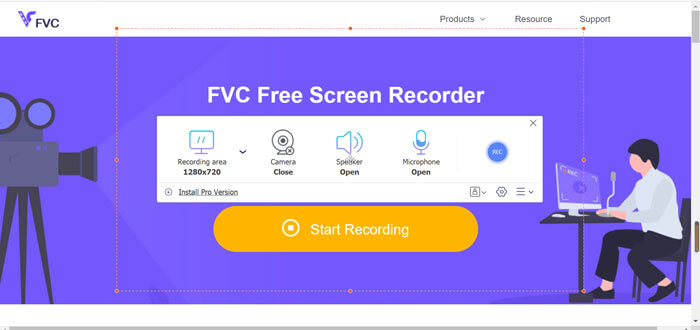
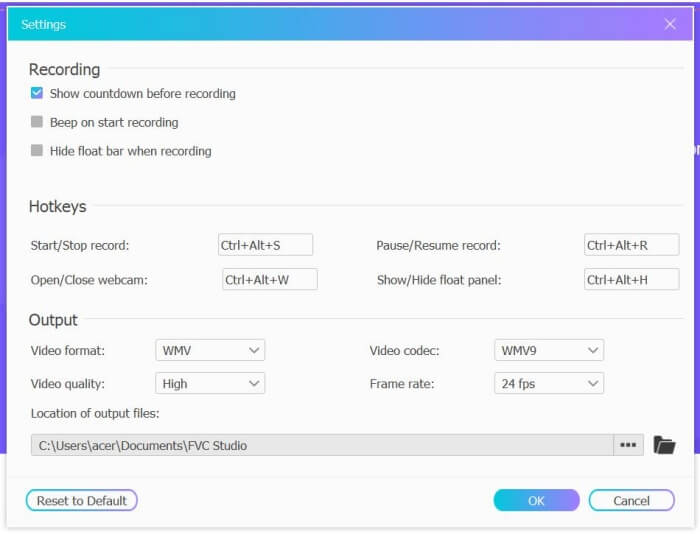
ขั้นตอนที่ 2: คลิกเมนู Recording Area เพื่อเลือกบันทึกแบบเต็มหน้าจอหรือเลือกพื้นที่เองได้อย่างอิสระ จากนั้นเปิดเสียง Microphone และ Speaker สำหรับการตั้งค่าวิดีโอ ให้คลิกไอคอน Setting แล้วเลือกบันทึกเป็นไฟล์ MP4 คุณภาพสูง และ 24 fps เพื่อให้ได้คุณภาพการบันทึกที่ดี จากนั้นคลิกปุ่ม REC เพื่อเริ่มบันทึกการโทร Facebook.
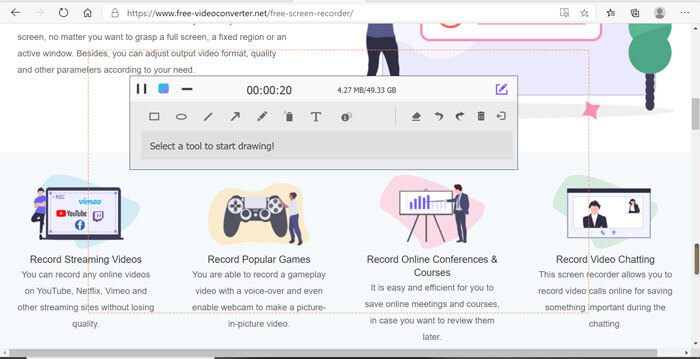
ขั้นตอนที่ 3: จะมีแถบเครื่องมือเด้งขึ้นมาพร้อมเครื่องมือต่าง ๆ สำหรับแก้ไข คุณสามารถเลือกเพิ่มรูปร่าง ตัวอักษร และเส้นได้ตามต้องการ จากนั้นคลิกไอคอน Stop เพื่อบันทึกไฟล์ของคุณไว้บนคลาวด์ คุณสามารถคลิกขวาที่เมาส์เพื่อเลือกดาวน์โหลดลงคอมพิวเตอร์ได้.
การใช้เครื่องบันทึกวิดีโอคอล Facebook ออนไลน์ฟรีนี้เป็นวิธีที่ดีที่สุดสำหรับผู้ใช้คอมพิวเตอร์ในการบันทึกการสนทนาทางวิดีโอผ่าน Facebook ทางออนไลน์ ด้วยการปรับการตั้งค่าการบันทึกล่วงหน้า ทำให้สามารถบันทึกการโทร Facebook ในรูปแบบ MP4 ที่มีขนาดเล็กและมีคุณภาพสูง หากคุณคุ้นเคยกับการโทรด้วย Facebook บนมือถือ โปรดอ่านบทความนี้
ส่วนที่ 2: วิธีบันทึกการโทรบน Facebook สำหรับ iOS ผ่านตัวบันทึกเริ่มต้น
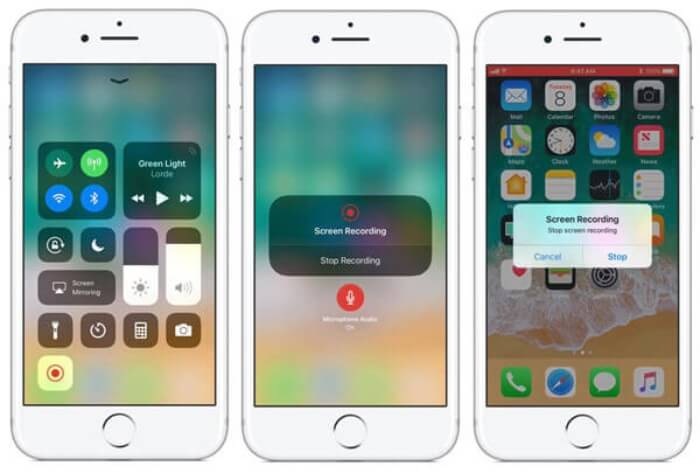
iOS 11 หรือเวอร์ชันที่สูงกว่าที่อัปเดตมีเครื่องบันทึกเริ่มต้นใหม่บน iPhone และ iPad ของคุณ ซึ่งเป็นตัวเลือกที่ดีที่สุดในการจับภาพวิดีโอคอลบน Facebook โดยไม่ต้องดาวน์โหลดแอปใดๆ ที่นี่ คุณสามารถเรียนรู้วิธีเพิ่มเครื่องบันทึกการโทรของ Facebook ไปยังทางลัดในศูนย์ควบคุมและวิธีใช้งาน
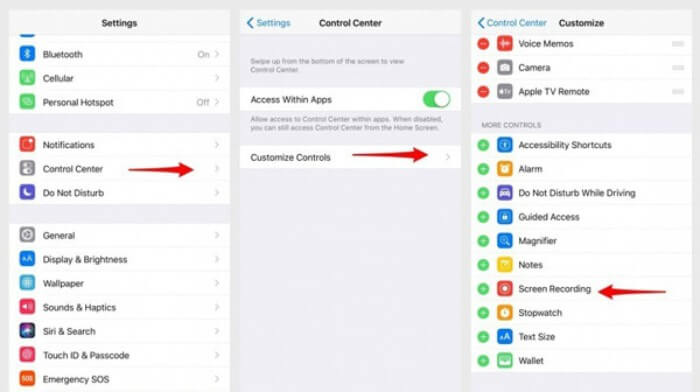
ขั้นตอนที่ 1: แตะแอป Settings บน iPhone/iPad ของคุณ จากนั้นเลื่อนลงมาเลือกเมนู Control Center แล้วแตะแท็บ Customize Controls และหาเมนู Screen Recording แตะไอคอน Plus เพื่อเพิ่มฟังก์ชันนี้เข้าไปในศูนย์ควบคุม.
ขั้นตอนที่ 2: ปัดลงจากด้านบนของหน้าจอเพื่อเปิดศูนย์ควบคุม และคุณจะพบไอคอนบันทึกหน้าจออยู่ด้านล่าง แตะไอคอน Screen Recording เพื่อเริ่มบันทึก โดยคุณสามารถเลือกบันทึกทั้งวิดีโอหรือบันทึกเฉพาะเสียงก็ได้ หากต้องการหยุดบันทึก ให้แตะแถบสถานะสีแดง (Status Bar) ด้านบน แล้วแตะตัวเลือก Stop ในหน้าต่างที่เด้งขึ้นมา.
ส่วนที่ 3: บันทึก Facebook Messenger อย่างง่ายสำหรับ Android
โทรศัพท์ Android บางรุ่นไม่มีเครื่องบันทึกในตัว และมีเครื่องบันทึกการสนทนาทางวิดีโอบน Facebook มากเกินไปสำหรับ Android ให้เลือก ดังนั้น คุณสามารถเรียนรู้หนึ่งในเครื่องบันทึกที่ดีที่สุดสำหรับมือถือ Android โดยมีขั้นตอนโดยละเอียดในส่วนต่อไปนี้
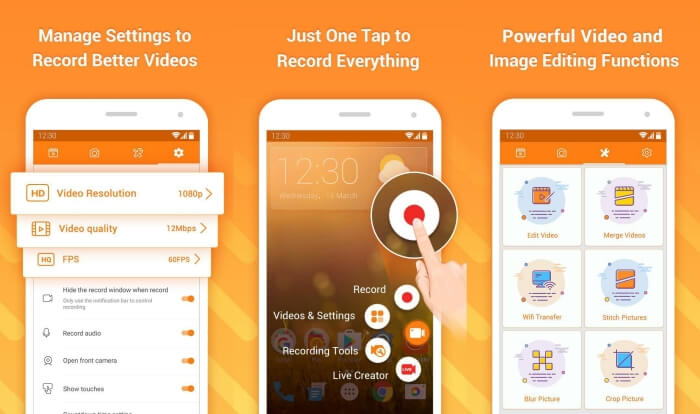
DU Recorder เป็นโปรแกรมบันทึกการโทร Facebook บน Android ที่ใช้งานง่ายและมีชื่อเสียงเรื่องการบันทึกที่ลื่นไหล โดยไม่ต้องรูทเครื่อง ผู้ใช้ทุกคนสามารถใช้บันทึกการโทรใน Facebook Messenger ได้ด้วยการแตะเพียงครั้งเดียว.
ขั้นตอนที่ 1: เปิดแอปบันทึกหน้าจอ คุณจะเห็นเมนู 4 ส่วน ได้แก่ ไฟล์บันทึก ภาพหน้าจอ เครื่องมือแก้ไข และการตั้งค่า ขั้นแรกให้แตะเมนู Settings เพื่อปรับค่าพารามิเตอร์วิดีโอ หากต้องการให้ได้คุณภาพสูง คุณสามารถเลือกความละเอียด 1080p และอัตราเฟรม 30 fps.
ขั้นตอนที่ 2: อย่าปิดแอปบันทึกหน้าจอ แล้วให้เปิด Facebook Messenger จากนั้นคุณจะเห็นไอคอนของตัวบันทึก แตะไอคอนนั้นแล้วเลือกไอคอน Recording เพื่อเริ่มจับภาพหน้าจอและเสียง และคุณสามารถแตะอีกครั้งเพื่อหยุดบันทึก จากนั้นแตะไอคอน Editing เพื่อคลิปตัดวิดีโอและเพิ่มเพลงเข้าไปได้.
คุณอาจสนใจ:
ส่วนที่ 4: คำถามที่พบบ่อยเกี่ยวกับ Facebook Call Recorder
1. Dose Facebook มีตัวบันทึกเริ่มต้นเพื่อบันทึกการสนทนาทางวิดีโอบนพีซีหรือไม่
ไม่มันไม่ได้ ดังนั้นคุณต้องพึ่งพาเครื่องบันทึกการโทร Facebook แบบมืออาชีพอื่น ๆ หากคุณไม่ต้องการดาวน์โหลดซอฟต์แวร์อื่นที่จะใช้พื้นที่เก็บข้อมูลในคอมพิวเตอร์ของคุณ FVC Free Screen Recorder เป็นตัวเลือกที่ดีที่สุดของคุณ
2. วิธีเริ่มแชทกับเพื่อนบนแอพ Facebook Messager
ขั้นแรก เปิด Facebook Messenger บนมือถือของคุณ จากนั้นเลือกกล่องแชทของเพื่อนที่คุณต้องการโทรผ่าน Facebook และตอนนี้ คุณสามารถเห็นไอคอนวิดีโอ คุณจึงสามารถคลิกเพื่อเริ่มแฮงเอาท์วิดีโอได้
3. ฉันควรเลือกรูปแบบใดในการบันทึกการบันทึกเมื่อใช้เครื่องบันทึก Facebook Messenger
ไม่ว่าคุณจะใช้เครื่องบันทึกการโทรของ Facebook บนคอมพิวเตอร์หรือมือถือ รูปแบบที่ดีที่สุดในการบันทึกการสนทนาทางวิดีโอบน Facebook คือ MP4 สามารถประหยัดพื้นที่จัดเก็บมากขึ้นและเข้ากันได้กับอุปกรณ์ทั้งหมด
สรุป
บทความข้างต้นได้แนะนำโปรแกรมบันทึกวิดีโอคอล Facebook 3 แบบแล้ว สำหรับ iPhone, iPad และมือถือ Android บางรุ่น คุณสามารถใช้ตัวบันทึกหน้าจอที่มีในเครื่องได้อย่างง่ายดาย หากอุปกรณ์ของคุณไม่มี ก็สามารถเลือกใช้แอปบันทึกอื่น ๆ รวมถึง DU Recorder บน Google Play ได้ ส่วนบนคอมพิวเตอร์นั้น FVC Free Screen Recorder ถือเป็นตัวเลือกที่ดีที่สุดในการบันทึกการโทร Facebook หากคุณพบปัญหาอื่น ๆ ในการใช้โปรแกรมบันทึกการโทร Facebook โปรดแสดงความเห็นไว้ด้านล่าง.
-
 Snagit 2021 Review - ข้อดีข้อเสียและทางเลือกที่ดีที่สุด
 ทางเลือกที่ดีที่สุดสำหรับ Snagit คืออะไร? มีเครื่องมือจับภาพหน้าจอเช่น Snagit หรือไม่? โพสต์นี้จะทบทวน Snagit และแบ่งปันทางเลือกที่ดีที่สุดสำหรับ Snagit ในการจับภาพหน้าจอ
-
 6 เครื่องบันทึก WAV ที่ดีที่สุดที่คุณไม่ควรพลาดบนเดสก์ท็อปและออนไลน์
 ซอฟต์แวร์บันทึก WAV ที่ดีที่สุดที่เราแบ่งปันในบทความนี้มีคุณสมบัติที่มีประโยชน์มากมาย ซึ่งช่วยให้คุณบันทึกเสียงและเสียงได้เหมือนมืออาชีพ
-
 เครื่องบันทึกเสียง AIFF ฟรี 4 อันดับแรกที่ให้เสียงคุณภาพสูง
 บทความนี้กล่าวถึง AIFF และเครื่องมือยอดนิยมบางส่วนที่คุณสามารถใช้เพื่อสร้างรูปแบบ AIFF คุณภาพสูง
