


 Video Converter Ultimate
 บันทึกหน้าจอ
 ซ่อมวิดีโอ
 ดาวน์โหลดอย่างปลอดภัย
เครื่องบันทึกเสียง OGG ที่ดีที่สุดช่วยบันทึก OGG ในทุกแพลตฟอร์ม
OGG เป็นรูปแบบไฟล์เสียงที่ดีกว่า MP3 รูปแบบเสียงโอเพนซอร์สนี้ได้รับการดูแลโดย Xiph.org รูปแบบชนิดนี้ถูกใช้เป็นมาตรฐานเสียงในอุตสาหกรรมเกม เพราะให้คุณภาพเสียงที่ดีกว่าและบีบอัดไฟล์ให้มีขนาดเล็กกว่ามาก อย่างไรก็ตาม ผู้ใช้มักจะพบปัญหาเนื่องจากเครื่องอัดเสียงบางตัวไม่รองรับรูปแบบนี้ เพราะมาตรฐานไฟล์เสียงหลักที่ใช้กันคือ MP3 รายการด้านล่างคือ โปรแกรมอัดเสียง OGG ที่ดีที่สุดที่รองรับฟอร์แมตนี้ หากต้องการดูขั้นตอนและข้อมูลแบบละเอียดมากขึ้น โปรดอ่านอย่างตั้งใจเพื่อทำความเข้าใจฟีเจอร์ของเครื่องมือแต่ละตัว เลือกใช้ให้เหมาะกับความต้องการของคุณในฐานะผู้ใช้ และอาจจะกลายเป็นลูกค้าในอนาคตได้ด้วย.

ส่วนที่ 1 ซอฟต์แวร์บันทึก OGG ที่ดีที่สุดสำหรับผู้ใช้พีซีและ Mac
ในรายการด้านล่างคือเครื่องบันทึก OGG ที่ดีที่สุดที่มีอยู่ในฟังก์ชันต่างๆ ทั้งหมดพร้อมขั้นตอนและข้อมูล
FVC เครื่องบันทึกเสียงฟรี
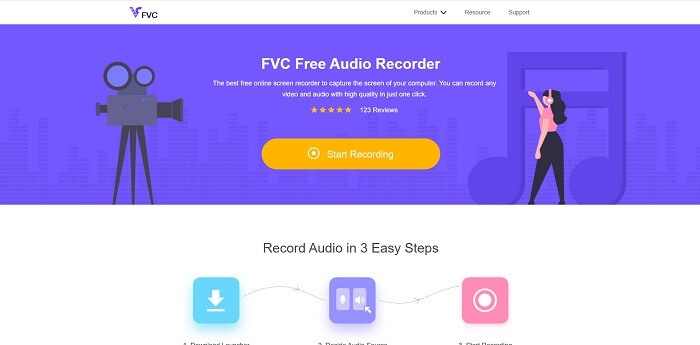
เครื่องมือที่ออกแบบมาเฉพาะสำหรับการบันทึกเสียง FVC Free Audio Recorder เป็นหนึ่งในเครื่องมือออนไลน์ที่ดีที่สุดที่คุณจะค้นหาได้บนเว็บ เครื่องมือโอเพนซอร์สนี้ช่วยให้คุณอัดเสียงที่ต้องการได้ทุกที่ทุกเวลาที่มีอินเทอร์เน็ต และยังเป็นตัวเลือกที่ดีมากในการใช้เป็น โปรแกรมอัดเสียง OGG อีกด้วย หากต้องการทราบรายละเอียดเพิ่มเติมเกี่ยวกับเครื่องมืออันยอดเยี่ยมนี้ โปรดอ่านต่อและทำตามขั้นตอนการอัดเสียงต่อไปนี้.
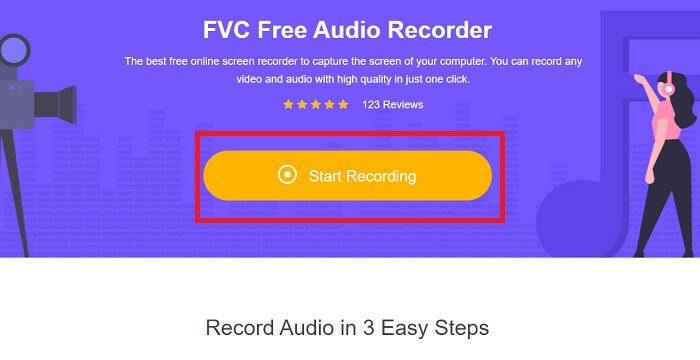
ขั้นตอนที่ 1 คลิก ลิงก์นี้ เพื่อไปยังหน้าเว็บของเครื่องมือ จากนั้นคลิก Start Recording และเปิดใช้งานโปรแกรม.
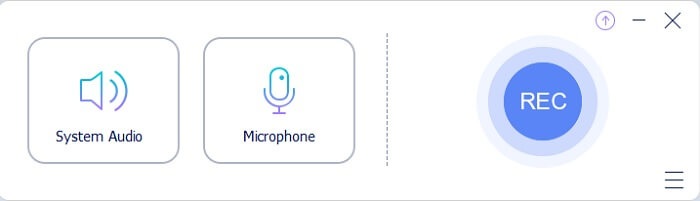
ขั้นตอนที่ 2 แถบเครื่องมือแบบลอยตัวลักษณะนี้จะแสดงขึ้นบนหน้าจอ.
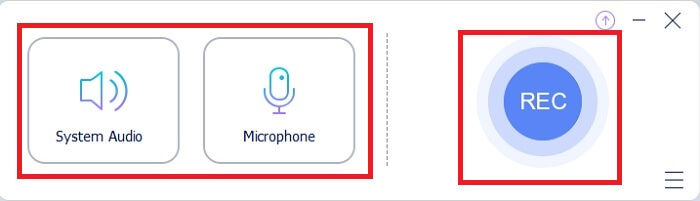
ขั้นตอนที่ 3 เปิด Speaker เพื่อเพิ่มเสียงระบบ และเปิด Mic เพื่อเพิ่มเสียงพูดของคุณ จากนั้นคลิกปุ่ม กลม เพื่อเริ่มบันทึกเสียง.
ขั้นตอนที่ 4 หลังจากคลิกปุ่มบันทึกแล้ว หากหน้าจอแสดงผลแบบนี้ แสดงว่าการบันทึกได้เริ่มต้นขึ้นเรียบร้อยแล้ว.
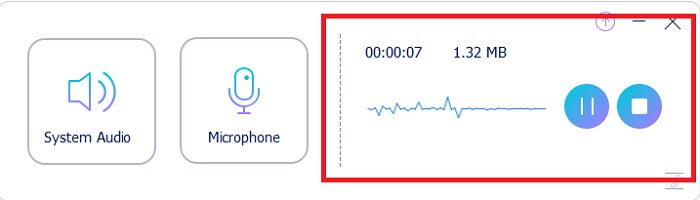
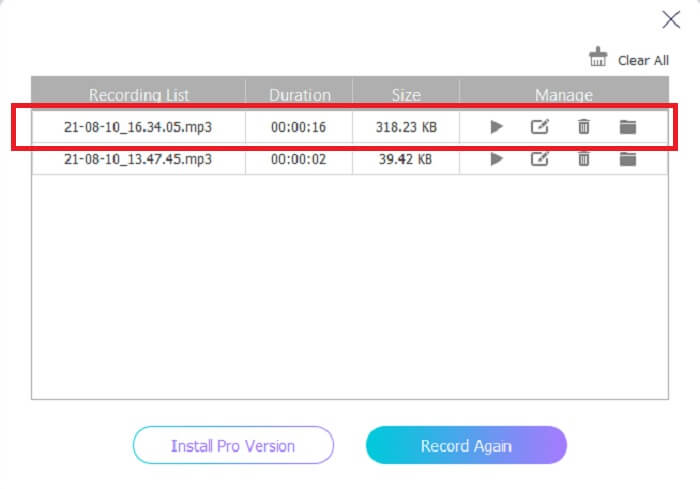
ขั้นตอนที่ 5 เมื่อบันทึกเสร็จแล้ว ให้คลิกปุ่ม Stop ไฟล์จะถูกบันทึกลงในอุปกรณ์ของคุณโดยอัตโนมัติ คุณจะเห็นประวัติรายการบันทึกเสียงทั้งหมดบนหน้าจอ เพลิดเพลินกับผลงานการบันทึกคุณภาพสูงได้เลย.
ข้อดี
- ใช้งานง่ายเพราะมีคำแนะนำตรงจุด
- มันสร้างรูปแบบเสียงที่บีบอัดดังนั้นจึงเป็นมิตรกับการจัดเก็บ
- โอเพ่นซอร์สจึงพร้อมให้ทุกคนที่ต้องการใช้เครื่องมือ
จุดด้อย
- ต้องมีการเชื่อมต่ออินเทอร์เน็ตก่อนจึงจะสามารถใช้งานได้
- ไม่มีระบบตัดเสียงรบกวนแบบพรีเมียม
ส่วนที่ 2 เครื่องบันทึก OGG ที่มีประโยชน์อื่นๆ สำหรับระบบปฏิบัติการทั้งหมด
1. เครื่องบันทึกหน้าจอ FVC
หากคุณคิดว่าเครื่องมือด้านบนฉลาดแล้ว เพื่อให้เห็นภาพมากขึ้น หากกาลิเลโอ กาลิเลอี คือบิดาแห่งวิทยาศาสตร์สมัยใหม่ FVC Screen Recorder ก็เปรียบได้กับบิดาแห่งระบบบันทึกสมัยใหม่เช่นกัน โปรแกรมนี้คือเครื่องบันทึกที่ดีที่สุด ไม่ว่าจะเป็นไฟล์เสียงหรือวิดีโอ ให้คุณภาพผลงานระดับท็อป แต่ใช้งานได้ง่ายโดยไม่ต้องออกแรงเหมือนเครื่องมืออื่น ๆ เครื่องมือนี้ถูกพัฒนามาเพื่อมอบประสบการณ์การใช้งานที่ดีที่สุดเท่าที่คุณจะจินตนาการได้ ดังนั้น หากคุณเป็นหนึ่งในผู้ใช้ที่ยังรู้สึกลำบากกับการอัดเสียง ให้ทำตามขั้นตอนง่าย ๆ ด้านล่างนี้อย่างละเอียด.
ขั้นตอนที่ 1 ดาวน์โหลดโปรแกรมให้ตรงกับระบบปฏิบัติการของคุณ การดาวน์โหลดและติดตั้งจะใช้เวลาเพียงไม่กี่วินาที จากนั้นตั้งค่า Preference ตามที่คุณต้องการ แล้วคลิก Finish เพื่อดำเนินการต่อ.
ดาวน์โหลดฟรีสำหรับ Windows 7 ขึ้นไปดาวน์โหลดอย่างปลอดภัย
ดาวน์โหลดฟรีสำหรับ MacOS 10.7 ขึ้นไปดาวน์โหลดอย่างปลอดภัย
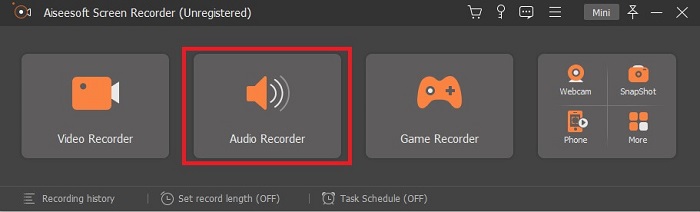
ขั้นตอนที่ 2 บนแถบเครื่องมือให้คลิก Audio Recorder.
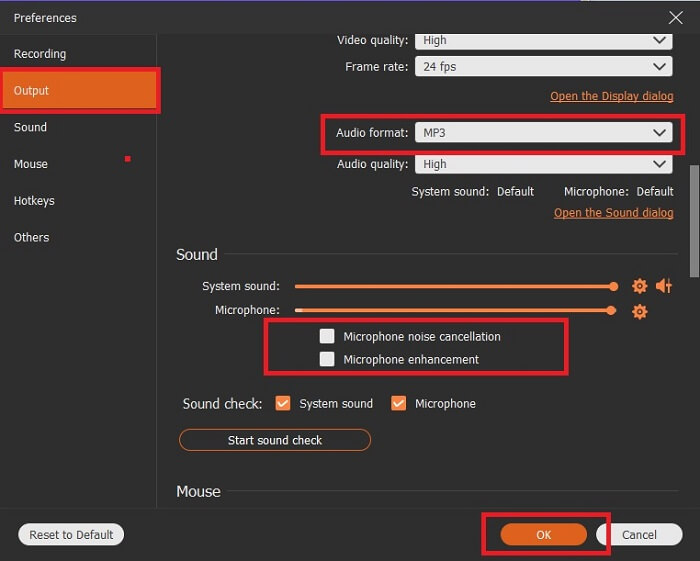
ขั้นตอนที่ 3 หาไอคอนรูป Gear เพื่อปรับตั้งค่าเพิ่มเติม ไปที่เมนู Output เพื่อเปลี่ยนรูปแบบไฟล์เป็น MP3, WMA หรือฟอร์แมตอื่น ๆ ที่คุณต้องการ โดยเลื่อนล้อเมาส์ลง นอกจากนี้ยังมีตัวเลือกอื่น ๆ ให้ใช้ระหว่างการบันทึก เช่น Noise cancelling และ Microphone enhancement จากนั้นคลิก OK เพื่อยืนยัน.
ขั้นตอนที่ 4 หลังจากตั้งค่าทุกอย่างเรียบร้อยแล้ว ให้เปิด Speaker และ Microphone บนแถบเครื่องมือ เพื่อเพิ่มเสียงเอาต์พุตให้กับการบันทึก จากนั้นคลิกปุ่ม ทรงกลม เพื่อเริ่มบันทึก.
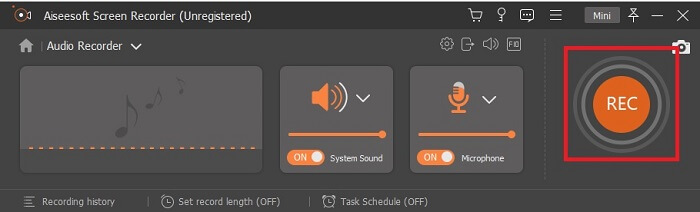
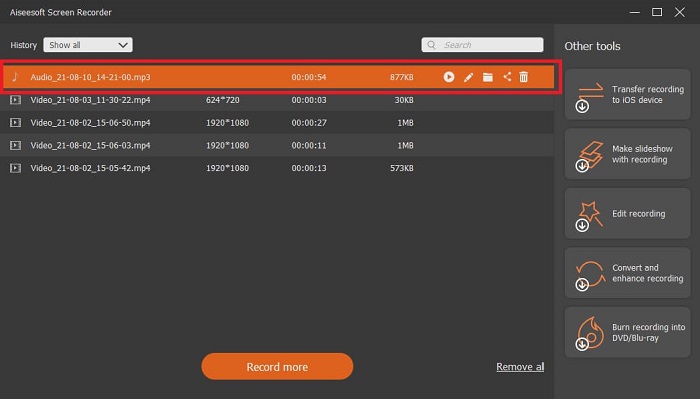
ขั้นตอนที่ 5 หากต้องการหยุดการบันทึก ให้คลิกปุ่ม สี่เหลี่ยม เพื่อหยุด จากนั้นคลิก Save และ Next เพื่อดำเนินการต่อ แล้วจึงเล่นไฟล์จาก โปรแกรมอัดเสียง OGG ของคุณบนแพลตฟอร์มมีเดียใดก็ได้.
ข้อดี
- คุณสามารถบันทึกได้ทุกที่ทุกเวลาด้วยเครื่องมือนี้พร้อมเสียงที่คมชัด
- มอบประสบการณ์ที่ยอดเยี่ยมให้กับผู้ใช้ที่ใช้เครื่องมือนี้อยู่แล้ว
- บันทึกแบบครบวงจร
จุดด้อย
- จ่ายต่อการใช้งาน
- มันต้องการพื้นที่เก็บข้อมูลของคุณ 2.4mb
2. Screencast-O-Matic
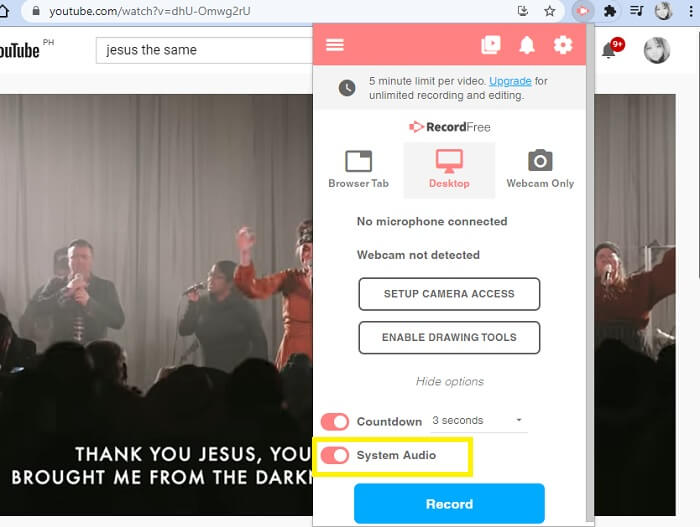
เครื่องมือบันทึกหน้าจอที่ดีที่สุดอีกตัวที่จะทำงานได้ดี Screencast-O-Matic เป็นหนึ่งในเครื่องมือที่ดีที่สุดที่คุณจะพบได้บนเว็บ ทำให้การบันทึกของคุณง่ายและมีประสิทธิภาพ นอกจากนี้ยังมีเครื่องมือออนไลน์หากคุณเข้าชมเว็บไซต์ออนไลน์ แต่จะใช้เวลาหนึ่งหรือสองนาทีในการดำเนินการให้เครื่องมือออนไลน์เสร็จสิ้น ดังนั้น หากคุณไม่ชอบรอคิว นี่ไม่ใช่ตัวเลือกที่ดีที่สุดสำหรับคุณ แต่ถ้าชอบรอก็คุ้มสุดๆ
ข้อดี
- ใช้งานง่ายกว่า Camtasia
- ทำงานเป็นองค์กรแทนบุคคลที่มีรหัสผ่านเพื่อความปลอดภัย
- มีส่วนร่วมมากและเป็นเครื่องบันทึกที่โอเค
จุดด้อย
- อินเทอร์เฟซของเครื่องมือใช้งานได้ตรงจุด แต่เป็นแบบสีเดียว ดังนั้นควรให้สีดูจืดชืด ซึ่งทำให้ไม่น่าสนใจในการใช้งาน
- อนุญาตให้ผู้ใช้บันทึกสูงสุด 15 นาทีในเวอร์ชันฟรีเท่านั้น
3. ShareX
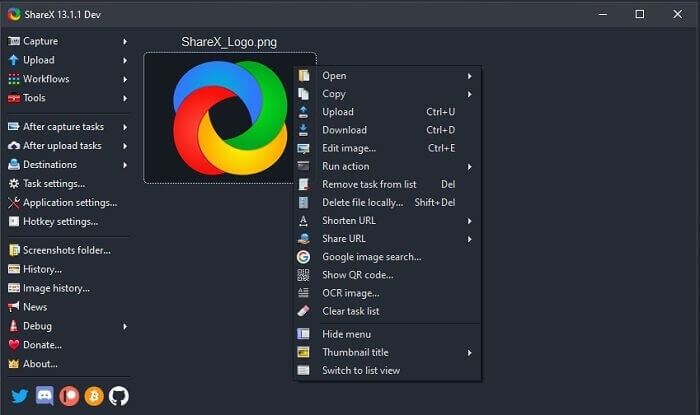
อีกหนึ่งเครื่องมือที่คุณอาจพบเจอได้บนเว็บเมื่อค้นหาโปรแกรมอัดหน้าจอ เครื่องมือนี้มีให้ใช้เฉพาะบนระบบปฏิบัติการ Windows เท่านั้น หมายความว่าหากคุณใช้ Mac หรือ Linux โปรแกรมนี้จะไม่ทำงานบนระบบของคุณ เพราะไม่รองรับระบบเหล่านั้น Share สามารถติดอันดับท็อป 20 โปรแกรมอัดหน้าจอที่ดีที่สุดบนอินเทอร์เน็ตได้อย่างง่ายดาย เนื่องจากรองรับปลายทางมากกว่า 80 แห่งสำหรับการส่งออกไฟล์ผลงานสุดท้าย.
ข้อดี
- เครื่องมือที่ปรับแต่งได้
- มีเครื่องมือแก้ไขของตัวเองหากจำเป็น
- เปลี่ยนปุ่มลัดเพื่อให้การบันทึกเป็นเรื่องง่าย
จุดด้อย
- ล้นหลามสำหรับคนที่ยังใหม่กับเครื่องมือนี้ การเรียนรู้ที่จะใช้เครื่องมือนี้เป็นเรื่องที่เจ็บปวด
- ไม่พร้อมใช้งานสำหรับผู้ใช้ Mac
ส่วนที่ 3 แผนภูมิเปรียบเทียบ
| คุณสมบัติ | FVC เครื่องบันทึกเสียงฟรี | เครื่องบันทึกหน้าจอ FVC | Screencast-O-Matic | แชร์X |
| บันทึกเสียง |  | | | |
| ตัดเสียงรบกวน |  | | | |
| การเพิ่มประสิทธิภาพไมโครโฟน | | | | |
| ความซับซ้อนของเครื่องมือ | คำแนะนำการบันทึกออนไลน์แบบตรงจุด | ใช้งานง่ายตามที่ระบุไว้ในเครื่องมือว่ามีวัตถุประสงค์อะไรและทำงานอย่างไร | เป็นเครื่องมือที่ใช้งานง่ายและมีรายละเอียดน้อย | ความซับซ้อนของเครื่องมือนั้นยากสำหรับผู้ใช้ใหม่ |
| แพลตฟอร์มที่มีจำหน่าย | ระบบปฏิบัติการทั้งหมด | ระบบปฏิบัติการทั้งหมด | พีซีที่ใช้ Windows, Mac และ Chromebook | Windows 7 SP1 หรือใหม่กว่า |
| รูปแบบเสียงที่มีอยู่ | MP3 และ OGG | MP3, WMA, AAC, M4A, FLAC, OGG, Opus และอีกมากมาย | ไม่สามารถบันทึกเสียงแยกกันได้ | MP3 และ WAV |
| ช่วงราคา | เครื่องมือออนไลน์ฟรี | เป็นเวลา 1 เดือน: $25.00 หนึ่งปี: $31.20 สำหรับใบอนุญาตตลอดชีพ: $55.20 | มันมีรุ่นฟรี สำหรับโซโล่พรีเมี่ยม ห้องดีลักซ์ $1.65/เดือน พรีเมียร์ $4.00/เดือน สำหรับแผนทีม คุณสามารถตั้งค่าทีมดีลักซ์หรือทีมพรีเมียร์ | โปรแกรมฟรีและโอเพ่นซอร์ส |
ส่วนที่ 4. คำถามที่พบบ่อยเกี่ยวกับ OGG Recorder
จะสร้างไฟล์ OGG ด้วยเครื่องบันทึกเสียงได้อย่างไร?
ใช้เครื่องบันทึกเสียงเหมือนในรายการด้านบน สำหรับข้อมูลโดยละเอียดเพิ่มเติม โปรดอ่านบทความด้านบนเพื่อดูข้อมูลและขั้นตอนเกี่ยวกับวิธีการบันทึกด้วยรูปแบบเอาต์พุตเสียงสำหรับ OGG
รูปแบบเสียงที่ดีที่สุดคืออะไร? MP3 หรือ OGG?
OGG เป็นรูปแบบไฟล์เสียงที่ดีที่สุด แต่ผู้ใช้มักใช้ MP3 เพราะมีมาตรฐานมากกว่า OGG อย่างไรก็ตาม OGG มีข้อมูลเมตาที่มีพื้นที่จัดเก็บน้อยกว่าและเอาต์พุตเสียงที่ดีที่สุด เช่น ชื่อของศิลปินและข้อมูลแทร็ก
เหตุใดรูปแบบ OGG ของฉันจึงไม่สามารถเล่นได้ในเครื่องเล่นสื่อของฉัน
มีโปรแกรมเล่นสื่อบางตัวที่ไม่รองรับฟอร์แมตนี้ ดังนั้นคุณจึงอาจใช้ FVC Free Online Video Converter เป็นตัวแปลงไฟล์ เครื่องมือนี้จะช่วยให้คุณสามารถแปลงไฟล์ OGG ให้เป็น MP3 หรือฟอร์แมตเสียงอื่นที่คุณต้องการเพื่อให้เล่นได้ หรือคุณอาจใช้ FVC Free Video Player หรือ โปรแกรมเล่นไฟล์ OGG อื่น ๆ เพื่อเล่นไฟล์ชนิดนี้ เพราะเครื่องมือนี้รองรับการเล่นไฟล์เสียงและวิดีโอแทบทุกประเภท.
สรุป
ในตอนท้ายของการสนทนา คุณได้รับความรู้ใหม่โดยการอ่านและเลือกเครื่องมือที่เหมาะกับความต้องการของคุณ ตัวเลือกต่างๆ ระบุไว้ในบทความนี้พร้อมขั้นตอนและข้อมูลบางอย่างเกี่ยวกับเครื่องมือ เพียงทำตามขั้นตอนและให้เวลาในการอ่านแล้วคุณจะเข้าใจ คุณต้องเลือกอย่างชาญฉลาด
เพื่อยกตัวอย่างให้ชัดเจน FVC Screen Recorder ตอบโจทย์ความต้องการของผู้ใช้ได้อย่างดี ในฐานะผู้ใช้ คุณควรให้ความสำคัญกับความต้องการของตนเองเป็นหลักในการเลือกโปรแกรมอัดเสียง เช่น ต้องใช้งานง่าย บันทึกเสียงได้ดี รองรับแพลตฟอร์มส่วนใหญ่ หากเป็นโปรแกรมเสียเงินก็ควรมีราคาย่อมเยาแต่คุณภาพผลงานต้องยอดเยี่ยม ซึ่งตัวอย่างทั้งหมดที่กล่าวมา มีครบอยู่ใน FVC Screen Recorder อย่าพอใจกับสิ่งที่น้อยกว่า เพราะคุณคู่ควรกับสิ่งที่ดีกว่านั้น.
-
 รีวิว Snagit 2025 – ข้อดี ข้อเสีย และทางเลือกที่ดีที่สุด
 ทางเลือกที่ดีที่สุดสำหรับ Snagit คืออะไร? มีเครื่องมือจับภาพหน้าจอเช่น Snagit หรือไม่? โพสต์นี้จะทบทวน Snagit และแบ่งปันทางเลือกที่ดีที่สุดสำหรับ Snagit ในการจับภาพหน้าจอ
-
 การบันทึกหน้าจอ QuickTime - บันทึกวิดีโอพร้อมเสียงบน Mac และ PC
 หน้าจอการบันทึกเสียงบน Mac มีประโยชน์ เครื่องเล่นในตัว QuickTime Player สามารถทำได้ อ่านโพสต์ของเขาและเรียนรู้วิธีจับภาพหน้าจอพร้อมเสียงบน Mac และ PC
-
 รีวิว DU Recorder 2025: ความปลอดภัย&ราคา&ฟังก์ชั่น&การใช้งาน&คะแนน
 DU Recorder เป็นหน้าจอและเครื่องบันทึกเสียงสำหรับ iPhone และ Android ดาวน์โหลดคุ้มไหม ปลอดภัยจริงหรือ? อ่านบทวิจารณ์ฉบับเต็มเพื่อดูว่าแอปนี้เหมาะกับคุณหรือไม่
