


 Video Converter Ultimate
 บันทึกหน้าจอ
 ซ่อมวิดีโอ
 ดาวน์โหลดอย่างปลอดภัย
เครื่องบันทึก WebM 5 อันดับแรกเพื่อบันทึกวิดีโอ WebM ในคุณภาพสูง
โดยทั่วไปแล้วไฟล์นามสกุล WEBM มักถูกใช้โดยเว็บเบราว์เซอร์ ส่วนใหญ่จะเป็นเบราว์เซอร์สมัยใหม่อย่าง Google Chrome, Opera, Firefox, Safari และ Edge โดยปกติเบราว์เซอร์เหล่านี้เป็นเว็บไซต์แบบ HTML5 ที่รองรับการสตรีมวิดีโอสด ตัวอย่างที่ดีคือ YouTube, Twitch และแพลตฟอร์มสื่ออื่น ๆ ไฟล์ชนิดนี้รองรับความละเอียดวิดีโอตั้งแต่ 360p ไปจนถึงความละเอียดสูงสุด หากเปรียบเทียบฟอร์แมตนี้ จะถือเป็นฟอร์แมตแบบบีบอัดที่คล้ายกับ MKV, MOV และ MP4 ความแตกต่างอยู่ที่เนื้อหาของไฟล์ในแต่ละฟอร์แมต ทั้ง Windows และ Mac สามารถเล่นไฟล์ประเภทนี้ได้ หากโปรแกรมเล่นวิดีโอติดตั้งโค้เด็กและปลั๊กอินที่ถูกต้องไว้แล้ว ในขณะเดียวกัน หากคุณกำลังมองหาวิธีที่ดีกว่าในการบันทึกหรือได้มาซึ่งไฟล์ WebM ลองดูรายชื่อโปรแกรมอัดวิดีโอ WebM ที่ดีที่สุดด้านล่างนี้.

ส่วนที่ 1 Best WebM Recorder: FVC Screen Recorder
รับวิธีที่ง่ายที่สุดในการถ่ายภาพสแน็ปช็อต บันทึกหน้าจอ และบันทึกไฟล์วิดีโอ WebM ในสามขั้นตอนง่ายๆ ด้วย FVC Screen Recorder โปรแกรมบันทึกหน้าจอ .webm นี้สำหรับ Windows และ Mac สามารถบันทึกไซต์ WebM เช่น YouTube, การโทรผ่าน Skype และสตรีมมิงแบบสด และไซต์อื่นๆ รองรับรูปแบบ WebM จับภาพการสตรีมสดของเกมเพลย์โดยไม่ลดทอนคุณภาพของวิดีโอ แถมยังสามารถบันทึกวิดีโอ เสียง และไมโครโฟนได้อีกด้วย รับประกันไม่มีเสียงรบกวนเพราะบันทึกเสียงของระบบ ดังนั้น สัมผัสประสบการณ์การบันทึกที่ราบรื่นและคุณสมบัติการแก้ไขที่ยอดเยี่ยมสำหรับการสอนวิดีโอของคุณด้วย FVC Screen Recording ในทางกลับกัน นี่คือวิธีที่คุณใช้เครื่องมือ
ขั้นตอนที่ 1. ดาวน์โหลด FVC Screen Recorder โดยใช้ปุ่มดาวน์โหลดด้านล่างนี้.
ดาวน์โหลดฟรีสำหรับ Windows 7 ขึ้นไปดาวน์โหลดอย่างปลอดภัย
ดาวน์โหลดฟรีสำหรับ MacOS 10.7 ขึ้นไปดาวน์โหลดอย่างปลอดภัย
ขั้นตอนที่ 2. ติดตั้งและเปิดใช้งานแอปหลังจากทำตามตัวช่วยการติดตั้ง.
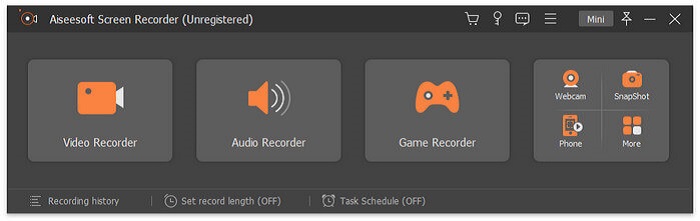
ขั้นตอนที่ 3. เมื่อแถบลอยปรากฏขึ้น ให้คลิก Video Recorder.
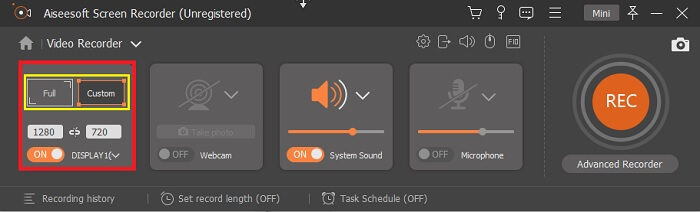
จากนั้นจะมีหน้าต่างใหม่ปรากฏขึ้น คราวนี้ให้คลิก Custom หรือ Full Screen หากเลือกแบบกำหนดเอง ให้ปรับขนาดกรอบให้ได้ขนาดที่ต้องการ.
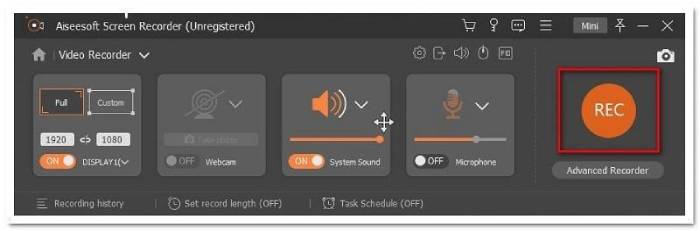
ขั้นตอนที่ 4. เมื่อต้องการเริ่มบันทึก ให้คลิกปุ่ม REC แล้วทำกิจกรรมต่าง ๆ บนหน้าจอตามปกติ.
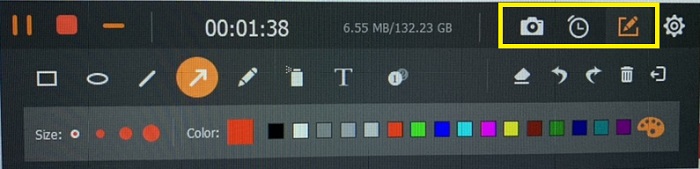
จากนั้นคุณสามารถใส่คำอธิบายประกอบ เพิ่มลูกศร และข้อความในการบันทึก
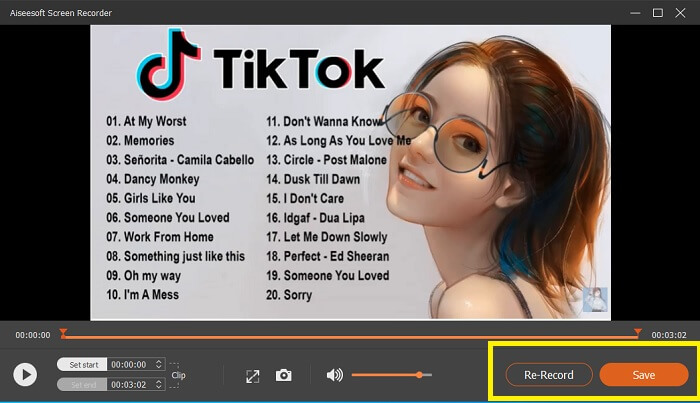
ขั้นตอนที่ 5. จากนั้นคลิกปุ่มสี่เหลี่ยมสีแดงเพื่อหยุดการบันทึก จะมีหน้าต่างใหม่แสดงขึ้น ให้คุณเลือกว่าจะบันทึกไฟล์หรือบันทึกใหม่อีกครั้ง หากต้องการตรวจสอบไฟล์บันทึก ให้ดูที่รายการด้านล่างของแถบลอย.
ส่วนที่ 2 เครื่องบันทึกเว็บยอดนิยมอื่นๆ สำหรับคอมพิวเตอร์ของคุณ
1. FVC บันทึกหน้าจอฟรี
คุณสมบัติโดดเด่น: ปราศจากมัลแวร์ ปลอดภัย 100%
หากเครื่องมือแรกยังไม่ตอบโจทย์ คุณอาจกำลังมองหาเครื่องมือที่ใช้งานได้จริงมากขึ้น FVC Free Screen Recorder เป็นเครื่องมือที่เหมาะกับคุณ หากต้องการใช้ฟีเจอร์ดี ๆ ให้คุ้มค่าโดยไม่ต้องเสียเงิน แม้ว่าเครื่องมือฟรีมักจะให้คุณภาพต่ำกว่าแบบพรีเมียม แต่เครื่องมือนี้ยกระดับมาตรฐานขึ้นมาอีกขั้น สามารถสร้างวิดีโอคุณภาพสูงและให้เสียงคมชัดแม้จะเป็นเวอร์ชันฟรี นอกจากนี้ยังใช้งานง่าย ทำตามขั้นตอนด้านล่างเพื่อเรียนรู้เพิ่มเติม.
ขั้นตอนที่ 1. เปิดแอปบนพีซีของคุณผ่านเว็บเบราว์เซอร์ ไม่สำคัญว่าคุณจะใช้เบราว์เซอร์ใด เครื่องมือนี้ยืดหยุ่นพอที่จะเข้าถึงได้จากทุกที่ คลิกลิงก์เพื่อเข้าสู่หน้าเว็บหลักโดยตรง.
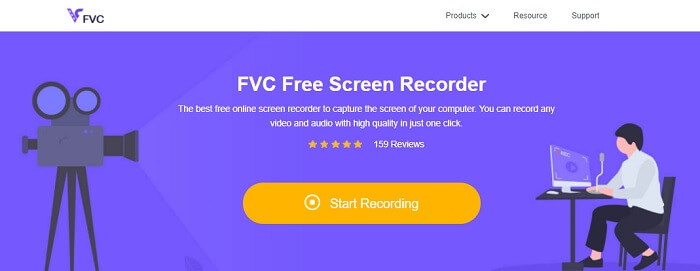
ขั้นตอนที่ 2. เปิดใช้งานเครื่องมือโดยคลิกปุ่ม Start Recording.
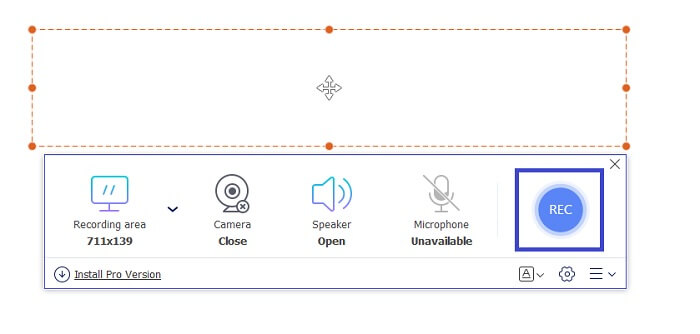
ขั้นตอนที่ 3. หลังจากเปิดเครื่องมือแล้ว คุณจะเห็นแถบลอยปรากฏขึ้น ปรับกรอบเพื่อเปลี่ยนอัตราส่วนภาพ จากนั้นเริ่มบันทึกโดยคลิกปุ่ม REC.
ขั้นตอนที่ 4. ส่วนการหยุดบันทึก ให้คลิกปุ่มสี่เหลี่ยมดังที่แสดงในรูปด้านล่าง.
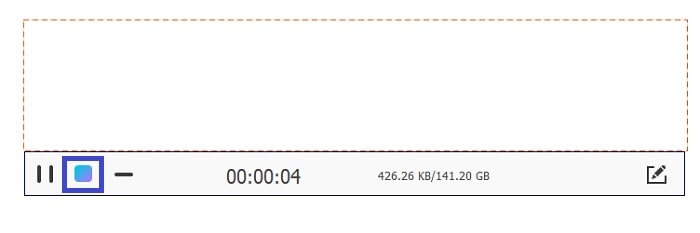
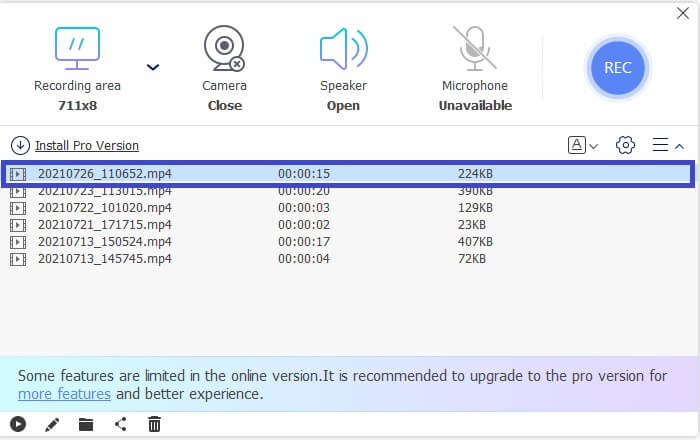
ขั้นตอนที่ 5. หากต้องการดูไฟล์ที่คุณบันทึกไว้ ให้ตรวจสอบรายการด้านล่างแถบเครื่องมือลอย.
ข้อดี
- 100% ปลอดภัยจากมัลแวร์
- มีความยืดหยุ่นในการปรับอัตราส่วนภาพ อัตราบิต และอัตราเฟรม
- รูปภาพในภาพได้รับการสนับสนุน
จุดด้อย
- ไม่รองรับการเร่งด้วยฮาร์ดแวร์
2. ไทนี่เทค
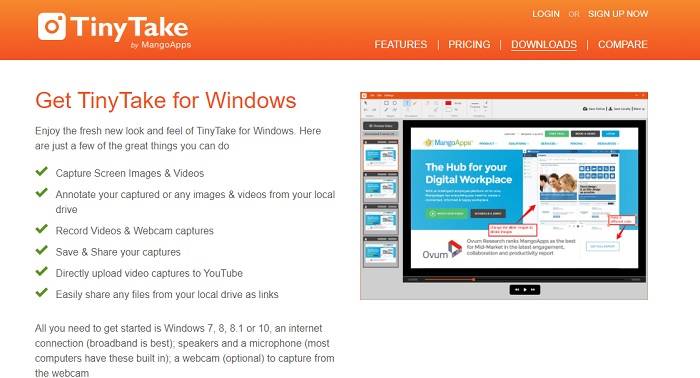
คุณสมบัติโดดเด่น: รองรับการทำงานร่วมกันหรือการทำงานระยะไกล.
TinyTake เป็นเครื่องมือบันทึกวิดีโอและจับภาพหน้าจอฟรีที่พัฒนาโดย Mango Apps Tiny Take นำเสนอโซลูชั่นที่ยอดเยี่ยมสำหรับการจับภาพหน้าจออย่างง่าย หรือบันทึกการประชุมแบบมืออาชีพหรือส่วนตัว สิ่งที่ทำให้เครื่องมือนี้เป็นที่นิยมคือคุณลักษณะการทำงานร่วมกันซึ่งคุณสามารถทำงานจากระยะไกล แชร์ไฟล์จำนวนมาก ใช้คุณลักษณะคำอธิบายประกอบและพื้นที่เก็บข้อมูลระยะยาว และแกลเลอรี (ออนไลน์)
ข้อดี
- สามารถจับภาพและวิดีโอจากไดรฟ์ในเครื่องของคุณ
- แบ่งปันโดยตรงบน YouTube
- ใส่คำอธิบายประกอบขณะบันทึก
จุดด้อย
- ไม่มีคุณสมบัติล็อคหน้าต่าง
3. Screencast-O-Matic
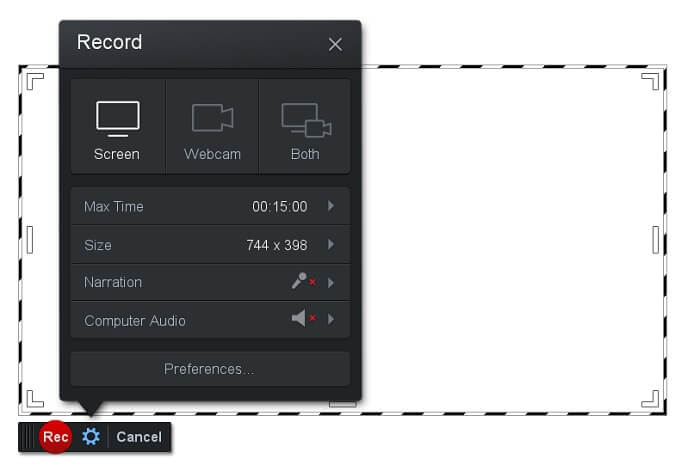
คุณสมบัติโดดเด่น: เครื่องมือมีอินเทอร์เฟซที่ใช้งานและนำทางได้ง่าย เรียบง่ายไม่ซับซ้อน.
Screencast-O-Matic เป็นหนึ่งในซอฟต์แวร์ที่มีผู้ใช้งานอย่างแพร่หลาย ความสามารถของมันคือบันทึกหน้าจอคอมพิวเตอร์ได้ฟรีเมื่อทำการลงทะเบียน แนะนำให้สร้างบัญชีเพื่อใช้เครื่องมือเวอร์ชันฟรี นอกจากนี้ผู้พัฒนายังใส่ฟีเจอร์ให้คุณสามารถตัดต่อวิดีโอได้โดยตรงก่อนส่งออก คุณสามารถใช้คลังสต็อกวิดีโอภายในตัวโปรแกรมเพื่อหาแรงบันดาลใจและพัฒนาวิดีโอของคุณต่อไปได้ อีกทั้งยังสามารถจับภาพหน้าจอและแชร์ทุกคอนเทนต์ไปยังบัญชีโซเชียลมีเดียของคุณได้.
ข้อดี
- มีคุณสมบัติ Cloud Hosting
- อัปโหลดวิดีโอเพื่อแก้ไข
- โฮสต์เนื้อหา
จุดด้อย
- จำเป็นต้องลงทะเบียน
4. Screencastify
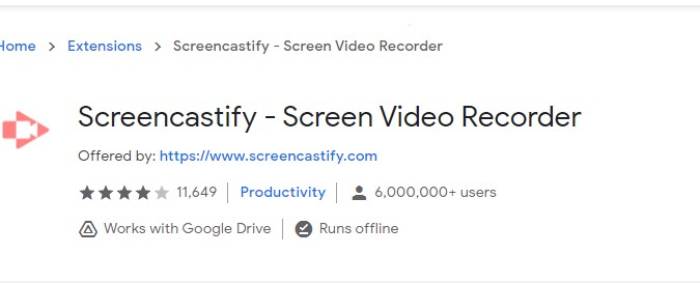
คุณสมบัติโดดเด่น: ส่วนขยายสำหรับเว็บเบราว์เซอร์
ให้ความหลากหลายเล็กน้อยกับรายการ Screencastify เป็นเครื่องมือที่ขึ้นกับเว็บโดยเฉพาะซึ่งเป็นส่วนขยายของเบราว์เซอร์ Chrome ส่วนใหญ่จะใช้โดยนักการศึกษาและนักเรียน สาเหตุหลักมาจากความเรียบง่ายของเครื่องมือและความสามารถในการใส่คำอธิบายประกอบที่ช่วยให้นักการศึกษาและนักเรียนมีสมาธิในชั้นเรียน คนส่วนใหญ่ที่กำลังเรียนผ่าน Udemy และไซต์การเรียนรู้ดังกล่าวใช้เครื่องบันทึกหน้าจอนี้ หากคุณทำเช่นเดียวกัน คุณสามารถลองใช้มันได้ ในขณะเดียวกัน นี่คือข้อมูลโดยละเอียดเพิ่มเติมเกี่ยวกับเครื่องมือ
ข้อดี
- เข้ากันได้กับทุกแพลตฟอร์มสื่อ
- โฮสต์เนื้อหา
- อัปโหลดวิดีโอเพื่อแก้ไข
จุดด้อย
- แม้ว่าจะเข้าถึงได้ง่ายเพราะขึ้นอยู่กับเบราว์เซอร์ แต่ก็สามารถเสียเปรียบได้เช่นกัน
- ต้องใช้สิทธิ์จำนวนมากจึงจะใช้งานได้
ส่วนที่ 3 คำถามที่พบบ่อยเกี่ยวกับ WebM Recorder
ทำไมไฟล์ WebM ของฉันไม่เปิดขึ้น
เข้าใจได้ว่าหลายคนอาจสับสน คุณอาจคิดว่ากำลังใช้เบราว์เซอร์สมัยใหม่อยู่แต่ก็ยังเล่นไฟล์ไม่ได้ คุณลองตรวจสอบแล้วหรือยังว่าใช้เวอร์ชันล่าสุดของเบราว์เซอร์ หากยัง โปรดอัปเดต นี่เป็นหนึ่งในสาเหตุที่พบบ่อยที่สุดที่ทำให้วิดีโอเล่นไม่ได้ ทั้งนี้ เวอร์ชันที่รองรับไฟล์ WebM บางส่วน ได้แก่ Chrome 6, Firefox 4 และ Internet Explorer 9 ขึ้นไป หรือคุณอาจลองใช้โปรแกรมเล่นไฟล์ WebM เพื่อช่วยเปิดไฟล์ก็ได้.
เหตุใดฉันจึงไม่สามารถเล่นวิดีโอ WebM บน Mac ของฉันได้
ฉันขอแนะนำอย่างยิ่งให้ดาวน์โหลด VLC player หรือ VLC สำหรับปลั๊กอิน Mac OS X ต้องมีโปรเซสเซอร์ Intel 64 บิต
ส่วนที่ 4 แผนภูมิเปรียบเทียบ
| ลักษณะเฉพาะ | เครื่องบันทึกหน้าจอ FVC (พรีเมียม) | โปรแกรมบันทึกหน้าจอ FVC ฟรี | TinyTake | ScreenCast-O-matic | ScreenCastify |
| การบันทึกเสียงและวิดีโอ |  | | | | |
| คุณสมบัติการตัดต่อวิดีโอ | | |  | | |
| คุณสมบัติล็อคอินหน้าต่าง | | | | | |
| คุณสมบัติคำอธิบายประกอบ | | | | | |
| รองรับ WebM | | | | | |
| มัลแวร์ปลอดภัย | | | | | |
| อัตราบิตและอัตราส่วนภาพที่ปรับได้ | | | | | |
สรุป
เครื่องมือบันทึก WebM ทั้งหมดที่ตรวจสอบในบทความนี้มีความน่าเชื่อถือและมีประสิทธิภาพ คุณเพียงแค่ต้องดูว่าเครื่องมือใดจะเหมาะกับความต้องการของพีซีและระบบปฏิบัติการของคุณ คนส่วนใหญ่จะใช้แอปบนเว็บอย่างปลอดภัย แต่ก็ยังเป็นการโทรของคุณที่จะตัดสินใจ
-
 เครื่องบันทึกเสียงรีวิว Cinch ที่เป็นกลางและทางเลือกที่ดีที่สุด
 Cinch Audio Recorder เป็นวิธีที่ดีที่สุดในการดาวน์โหลดเพลงจากเว็บไซต์สตรีมมิ่ง เพียงเรียนรู้เพิ่มเติมเกี่ยวกับบทวิจารณ์ที่เป็นกลางและทางเลือกที่ดีที่สุดจากบทความ
-
 เครื่องบันทึกเมาส์และคีย์บอร์ดที่ดีที่สุด 5 อันดับแรกสำหรับ Windows และ Mac
 ต่อไปนี้คือโปรแกรมบันทึกเมาส์และคีย์บอร์ดที่ดีที่สุดห้าอันดับแรกที่สามารถบันทึกการเคลื่อนไหวของเมาส์และการคลิกแป้นพิมพ์ของคุณและทำซ้ำเหตุการณ์ต่างๆ
-
 เครื่องบันทึกหน้าจอ AVI ฟรี 4 อันดับแรกเพื่อจับภาพวิดีโอหน้าจอเป็นไฟล์ AVI
 ในการบันทึกหน้าจอในไฟล์ AVI คุณภาพสูงบทความนี้จะระบุและแบ่งปันเครื่องบันทึกหน้าจอ AVI ฟรี 4 อันดับแรกในโพสต์นี้ เรียนรู้รายละเอียดเพิ่มเติมเพื่อค้นหารายการที่ต้องการ
