


 Video Converter Ultimate
 บันทึกหน้าจอ
 ซ่อมวิดีโอ
 ดาวน์โหลดอย่างปลอดภัย
สามเครื่องบันทึกเสียง WMA ที่ดีที่สุดสำหรับผู้มีความสามารถด้านเสียงและผู้สร้างเนื้อหาเสียง
คุณเป็นคนที่ทำวิดีโอสอน พอดแคสต์ หรือคอนเทนต์เสียงออนไลน์หรือเปล่า? คุณอยากเริ่มต้นอาชีพด้านพอดแคสต์ไหม? เป็นนักพากย์เสียงหรือไม่? ให้เริ่มจากการมีเครื่องมือที่ใช้บันทึกเสียงของคุณด้วยคุณภาพที่ดี แม้ว่า MP3 จะเป็นไฟล์เอาต์พุตที่ดี แต่อันที่จริงแล้วไฟล์ WMA ก็เป็นตัวเลือกที่ดีเช่นกัน นี่คือไฟล์เสียงรูปแบบหนึ่งที่โปรแกรมมัลติมีเดียหลัก ๆ ส่วนใหญ่รองรับ ฟอร์แมตนี้มีตัวแปลงสัญญาณแบบไม่สูญเสียข้อมูล (lossless codec) ที่มักใช้กับ Windows Media Player นั่นจึงเป็นเหตุผลที่โปรแกรมตัดต่อเสียงจำนวนมากใช้ไฟล์รูปแบบนี้เวลาทำการเข้ารหัส ดังนั้นคุณจึงจำเป็นต้องมีโปรแกรมบันทึกเสียงที่สามารถสร้างไฟล์รูปแบบนี้หรือฟอร์แมตที่ใกล้เคียงกันได้ โดยคำนึงถึงสิ่งเหล่านี้ เราจึงได้คัดเลือกโปรแกรมบันทึกเสียง WMA ที่ใช้งานง่ายบางตัวมาให้คุณใช้.

ส่วนที่ 1 เครื่องบันทึก WMA 3 อันดับแรกสำหรับ Windows และ Mac
FVC เครื่องบันทึกเสียงฟรี
โปรแกรมบันทึกเสียงดิจิทัลแบบ WMA ตัวแรกคือ FVC Free Audio Recorder เครื่องมือนี้มักถูกใช้งานโดยบล็อกเกอร์และนักทำพอดแคสต์เมื่อต้องการบันทึกเพลงประกอบเพื่อหลีกเลี่ยงปัญหาลิขสิทธิ์ และบันทึกเสียงพูดของตนเองโดยไม่มีเสียงรบกวนพื้นหลัง เนื่องจากเครื่องมือนี้ฟรีและใช้งานได้ออนไลน์ จึงช่วยให้พวกเขาผลิตคอนเทนต์ได้ง่ายขึ้น ไม่ใช่แค่ครีเอเตอร์เท่านั้นที่ใช้ แต่ยังรวมถึงครูอาจารย์ที่ต้องการอัดบันทึกข้อความเสียงด้วย สิ่งที่ดึงดูดผู้ใช้รายอื่นให้มาใช้ตัวบันทึกฟรีนี้คือการที่สามารถใช้งานได้ไม่จำกัด คุณไม่ต้องกังวลเรื่องระยะเวลาและจำนวนครั้งในการใช้งาน ไม่มีข้อจำกัดใด ๆ และที่ดีที่สุดคือคุณไม่ต้องดาวน์โหลดลงคอมพิวเตอร์ของคุณ จึงไม่ต้องห่วงเรื่องมัลแวร์ที่จะมาทำให้คอมพิวเตอร์ติดเชื้อ แม้จะเป็นแอปฟรีแต่ก็มีฟีเจอร์มากกว่าที่กล่าวมา โปรดดูข้อดีด้านล่างเพื่อประกอบการพิจารณา.
สิ่งที่ทำให้มันดีคืออะไร
● บิตเรตสามารถปรับได้ ซึ่งหมายความว่าคุณสามารถเปลี่ยนคุณภาพเอาต์พุตเสียงเพื่อประโยชน์ของคุณ
● ไม่ต้องลงทะเบียนและชำระเงิน
● สามารถบันทึกเสียงและไมโครโฟนได้พร้อมกัน
● คุณสามารถเข้าถึงได้ทุกเวลาด้วยเบราว์เซอร์ใดก็ได้
● มันบันทึกเสียงของระบบ ซึ่งหมายความว่าไม่มีเสียงรบกวนจากไฟฟ้าสถิตและพื้นหลัง
ในขณะเดียวกัน หากคุณต้องการลองใช้เครื่องมือที่มีความน่าเชื่อถือ คุณสามารถดูขั้นตอนที่เขียนไว้ด้านล่าง
ขั้นตอนที่ 1 เริ่มจากเข้าเว็บไซต์ทางการของเครื่องมือโดยคลิกไฮเปอร์ลิงก์ในคำอธิบายนี้.
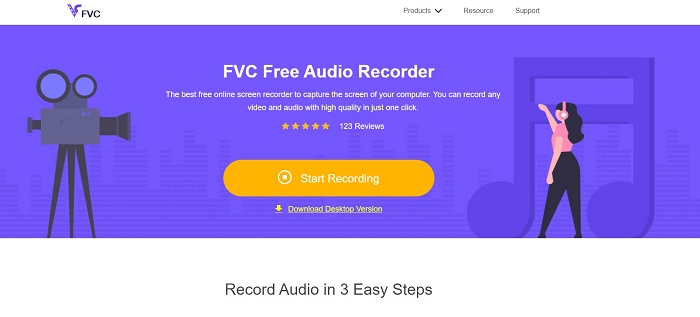
ขั้นตอนที่ 2 เปิดใช้งานแอปโดยคลิกปุ่ม Start Recording.
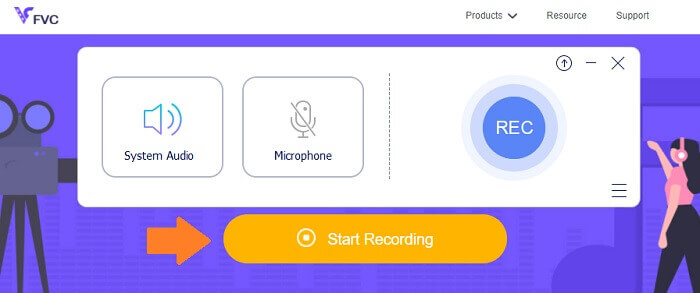
ขั้นตอนที่ 3 จากนั้นเปิดใช้ System Audio เพื่อบันทึกเสียงระบบ หากต้องการเปิดไมโครโฟนเพิ่มเติมก็สามารถเลือกได้.
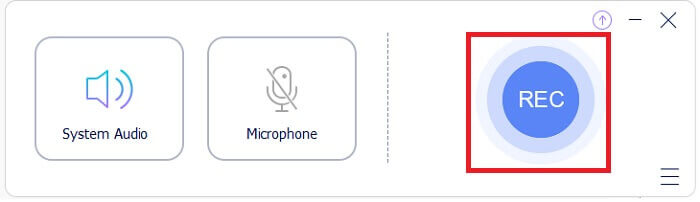
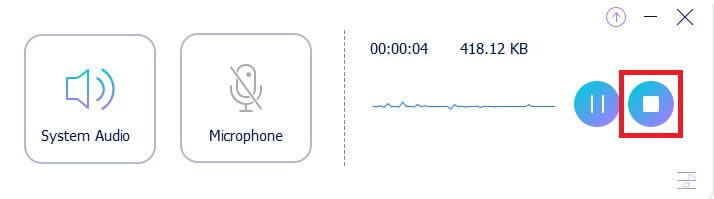
ขั้นตอนที่ 4 เมื่อต้องการหยุดบันทึก ให้คลิกปุ่มสีฟ้า Stop ไฟล์จะถูกบันทึกลงในคอมพิวเตอร์ของคุณ.
แม้จะมีสิ่งดีๆ มากมายที่คุณจะได้รับจากแอปฟรี แต่เราไม่สามารถปฏิเสธความจริงที่ว่ามีข้อเสียอยู่บ้าง นั่นคือที่มาของเครื่องมือระดับพรีเมียม
เครื่องบันทึกหน้าจอ FVC
โปรแกรมบันทึกหน้าจอฟรีได้รับการพัฒนาเพื่อทำลายข้อจำกัดของแอพฟรี วิธีนี้คุณสามารถเพิ่มความเป็นไปได้ทั้งหมดด้วย FVC Screen Recorder เครื่องมือนี้ทำได้มากกว่าการบันทึกหน้าจอ คุณยังสามารถบันทึกเสียงแยกกันได้อีกด้วย นั่นคือเหตุผลที่ดีสำหรับผู้ที่เป็น Vloggers และ Podcasters มืออาชีพ คุณลักษณะทั้งหมดที่กล่าวถึงในเครื่องบันทึกเสียง FVC Free Audio นั้นมีอยู่ในเครื่องมือนี้เช่นกัน แต่เป็นเวอร์ชันที่ปรับปรุงแล้ว แม้แต่ช่วงบิตเรตก็ยังสูงกว่า ยิ่งช่วงเสียงสูงเท่าไร คุณภาพเสียงที่คุณจะได้รับก็จะยิ่งดีขึ้นเท่านั้น ในทางกลับกัน เรียนรู้เพิ่มเติมเกี่ยวกับเรื่องนี้โดยการอ่านรายการด้านล่าง
สิ่งที่ทำให้มันดีคืออะไร
● การปรับบิตเรตทำได้ง่ายและช่วงจะสูงขึ้น
● อินเทอร์เฟซเครื่องมือเรียบง่ายและใช้งานง่าย
● คุณภาพเสียงดีมาก
● สามารถบันทึกหน้าจอและเสียงพร้อมกันและแยกกันได้
เพื่อแสดงให้คุณเห็นว่าเครื่องมือนี้สะดวกเพียงใด โปรดดูขั้นตอนทีละขั้นตอนเพื่อให้คุณได้รับคำแนะนำ
ขั้นตอนที่ 1 ดาวน์โหลดและติดตั้งแอปโดยใช้ปุ่มดาวน์โหลดด้านล่าง.
ดาวน์โหลดฟรีสำหรับ Windows 7 ขึ้นไปดาวน์โหลดอย่างปลอดภัย
ดาวน์โหลดฟรีสำหรับ MacOS 10.7 ขึ้นไปดาวน์โหลดอย่างปลอดภัย
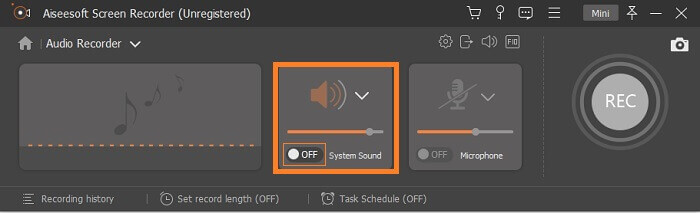
ขั้นตอนที่ 2 เปิดแอปหลังติดตั้งเสร็จ จากนั้นคลิก Audio Recorder แล้วเปิดใช้ System Sound.
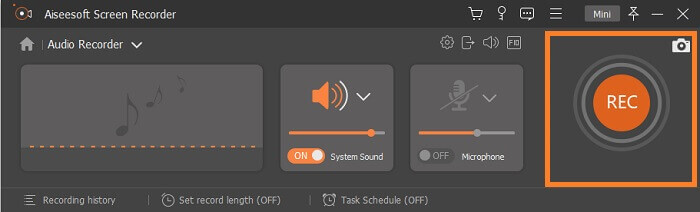
ขั้นตอนที่ 3 เริ่มบันทึกเมื่อคุณพร้อม เมื่อต้องการเริ่มบันทึก ให้คลิกปุ่ม REC.
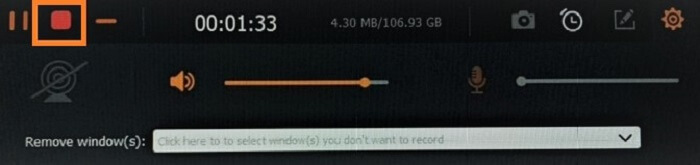
ขั้นตอนที่ 4 เมื่อบันทึกเสร็จแล้ว ให้คลิกปุ่มหยุด ซึ่งคือปุ่ม Square สีแดงที่มุมล่างซ้ายของแถบลอย.
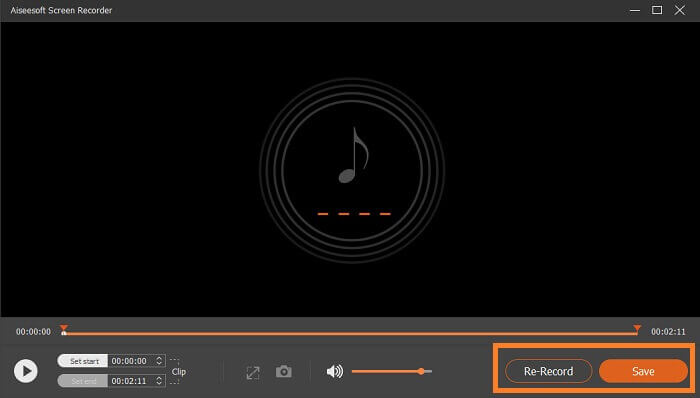
ขั้นตอนที่ 5 จากนั้นระบบจะให้ตัวเลือกว่าคุณต้องการบันทึก (Save) หรือบันทึกใหม่ (Re-Record).
สนากิต
ในที่สุดเราก็ Snagit เครื่องมือนี้เป็นเครื่องบันทึกหน้าจอโดยค่าเริ่มต้นและถูกเพิ่มลงในรายการเนื่องจากเครื่องมือนี้มีการบันทึกเสียงด้วย แม้ว่าคุณจะไม่สามารถบันทึกแยกกัน แต่คุณยังสามารถบันทึกเสียงได้ คุณจะได้ประโยชน์อะไรจากเครื่องมือนี้ เรามีรายการมากมาย แต่เราจะเน้นบางส่วน นอกเหนือจากคุณสมบัติเสียงแล้ว คุณยังสามารถบันทึกเว็บแคม ตัดวิดีโอคลิป และเปลี่ยนการบันทึกของคุณเป็น GIF แบบเคลื่อนไหวได้ หนึ่งในคุณสมบัติที่ดีที่สุดที่เครื่องมือนี้รู้จักคือคุณสมบัติ Smart Move ที่ให้คุณทำให้วัตถุในการจับภาพของคุณเคลื่อนที่ได้ ถ้าฉันจะพูดถึงคุณสมบัติทั้งหมดที่นี่ มันจะไม่เพียงพอ คุณสามารถตรวจสอบรายการด้านล่างหากต้องการดูรายการแบบง่าย
สิ่งที่ทำให้มันดีคืออะไร
● รองรับคำอธิบายประกอบที่สามารถเปลี่ยนการบันทึกง่ายๆ ของคุณให้เป็นภาพเคลื่อนไหวหรือแบบโต้ตอบได้
● Snagit สามารถบันทึกหน้าจอ iOS
● แปลงภาพหน้าจอของคุณเป็นกราฟิกที่เรียบง่าย
● ออกแบบภาพโดยใช้แสตมป์
ส่วนที่ 2 แผนภูมิเปรียบเทียบ
| จุดเปรียบเทียบ | FVC เครื่องบันทึกเสียงฟรี | เครื่องบันทึกหน้าจอ FVC | สนากิต |
| แพลตฟอร์ม | บนเว็บ | แอพเดสก์ท็อป | แอพเดสก์ท็อป |
| ราคา | ฟรี | จ่าย | จ่าย |
| บิตเรต | ยืดหยุ่นได้ | ยืดหยุ่นได้ | นิ่ง |
| การบันทึกด้วยไมโครโฟน |  | | |
ส่วนที่ 3 คำถามที่พบบ่อยเกี่ยวกับ WMA Recorder
ไฟล์ WMA ดีแค่ไหน?
WMA เป็นรูปแบบไฟล์ เป็นที่รู้จักกันว่า Windows Media Audio มันขึ้นอยู่กับ ASF ที่เก็บบิตสตรีมของเสียง สามารถจัดเก็บไฟล์ได้น้อยกว่า แต่สามารถสร้างเสียงคุณภาพดีได้ ดีกว่า MP3 เยอะ
ฉันสามารถใช้เครื่องบันทึกใดที่รองรับรูปแบบ WMA
คุณสามารถตรวจสอบรายการด้านบน แต่ถ้าคุณต้องการมากกว่านี้ คุณสามารถตรวจสอบ Audacity สำหรับพีซี, Acethinker Free Audio Recorder สำหรับแอปบนเว็บ, iTalk สำหรับ iPhone และ Rev Voice Recorder สำหรับ Android
ไหนดีกว่า: WMA หรือ MP3
หากพูดถึงคุณภาพเสียงแล้ว WMA ให้เสียงที่ดีกว่า MP3 สำหรับไฟล์เสียงคุณภาพสูง ส่วนใหญ่ WMA จะเก็บข้อมูลน้อยกว่า MP3 ข้อดีเพียงอย่างเดียวของ MP3 คือสามารถเล่นได้กับโปรแกรมเล่นสื่อเกือบทุกตัวเมื่อเทียบกับ WMA หากต้องการแปลงไฟล์จาก WMA เป็น MP3 ให้ไปอ่านที่ วิธีแปลง WMA เป็น MP3 เพื่อดูรายละเอียดเพิ่มเติม.
สรุป
เครื่องมือที่ระบุไว้ในบทความนี้มีประโยชน์ทั้งหมดและตรงกับความต้องการในการบันทึกของคุณทั้งหมด เครื่องมือทุกชิ้นมีเอกลักษณ์เฉพาะตัวและมีข้อดีและข้อเสียของตัวเอง หากคุณฟิตหุ่นแบบไหนที่เหมาะกับคุณ ให้พิจารณาถึงความต้องการของคุณ หากคุณไม่ต้องการชำระเงิน ให้ใช้เครื่องบันทึกเสียง FVC Free Audio ในขณะเดียวกัน หากคุณต้องการได้มากกว่าการบันทึกเสียง ให้ใช้เครื่องมือระดับพรีเมียมของเครื่องบันทึกเสียงซึ่งเป็น FVC Screen Recorder หากคุณต้องการความคิดสร้างสรรค์มากขึ้น ให้ใช้ Snagit โดยไม่คำนึงถึงสินค้าและของเสีย รายการเครื่องมือก็มีประโยชน์
-
 คอมพิวเตอร์ Windows/Mac เครื่องบันทึกวิดีโอ AMV ที่ดีที่สุด 4 อันดับแรก (ออนไลน์และออฟไลน์)
 ค้นพบเพิ่มเติมเกี่ยวกับไฟล์ AMV และเรียนรู้เกี่ยวกับวิธีการที่ใช้งานได้จริงที่สุดในการบันทึกวิดีโอใน AMV และรูปแบบวิดีโออื่นๆ
-
 เครื่องบันทึก MOV 5 อันดับแรกสำหรับ Windows PC และ Mac (รีวิวในเชิงลึก)
 หากคุณต้องการบันทึกวิดีโอ MOV ในขนาดไฟล์ที่เล็กกว่าซึ่งเข้ากันได้กับอุปกรณ์ iOS โปรดอ่านต่อในบทความ
-
 เครื่องบันทึกหน้าจอ WebM ที่ดีที่สุด 5 อันดับแรกสำหรับ Windows/Mac: การตรวจสอบเชิงลึก
 เรียนรู้เพิ่มเติมเกี่ยวกับไฟล์ส่วนขยาย WebM โดยการอ่านบทความและค้นพบแอปตัวบันทึกหน้าจอ WebM ที่คุณสามารถใช้เพื่อคัดกรองวิดีโอ WebM
