


 Video Converter Ultimate
 บันทึกหน้าจอ
 ซ่อมวิดีโอ
 ดาวน์โหลดอย่างปลอดภัย
วิธีจับภาพหน้าจอบน Alcatel: โซลูชั่นแบบมืออาชีพที่ไร้รอยต่อ
บนอุปกรณ์พกพา การถ่ายภาพหน้าจอของข้อมูลนั้นเป็นวิธีหนึ่งในการบันทึกเก็บไว้ใช้ภายหลังและแชร์ให้คนอื่นดู เมื่อเป็นส่วนหนึ่งของการสื่อสาร การถ่ายภาพหน้าจอกลายเป็นขั้นตอนสำคัญเพื่อจะได้แชร์ให้ผู้อื่นได้ Alcatel เป็นหนึ่งในแบรนด์โทรศัพท์มือถือที่มีอยู่เพื่อสร้างประสบการณ์ที่สนุกและน่าใช้งานให้กับผู้ใช้ โชคดีที่การเชี่ยวชาญเทคนิคการถ่ายภาพหน้าจอบนเครื่อง Alcatel ของคุณทำได้ง่ายกว่าที่คิด ในบทความนี้ เราจะพาคุณไปดูขั้นตอนการถ่ายภาพหน้าจอบน Alcatel แบบมือโปร ตั้งแต่เทคนิคพื้นฐานไปจนถึงเคล็ดลับขั้นสูง คุณจะสามารถจับภาพ บันทึก และแชร์หน้าจอของคุณได้อย่างมั่นใจและสะดวกสบายในไม่ช้า.

ส่วนที่ 1 วิธีการจับภาพหน้าจอบน Alcatel Joy Tab 2/One touch
Joy Tab 2 จาก Alcatel นำเสนอจอแสดงผลที่กว้างขวางและมีชีวิตชีวาซึ่งช่วยเสริมทั้งการทำงานและความบันเทิง หน้าจอเหมาะสำหรับการรับชมเนื้อหาที่ยอดเยี่ยมจากอินเทอร์เน็ต เพื่อปรับปรุงประสบการณ์ Alcatel ของคุณให้ดียิ่งขึ้น คุณสามารถเพิ่มประสิทธิภาพฟังก์ชันการทำงานของภาพหน้าจอเพื่อบันทึกเนื้อหาที่คุณชื่นชอบได้โดยใช้เพียงอุปกรณ์ One Touch หรือแท็บเล็ตของแบรนด์เดียวกัน ในส่วนนี้ เราระบุสองวิธีสำหรับภาพหน้าจอ Alcatel Joy Tab 2 ของคุณที่ทำงานในลักษณะเดียวกันกับ One Touch ของคุณ
การใช้ปุ่มกดจริงบนเครื่อง:
ขั้นตอนที่ 1 ก่อนอื่นให้เปิดหน้า หรือเนื้อหาที่คุณต้องการถ่ายภาพหน้าจอบน Alcatel Tablet Joy 2 และอุปกรณ์ One Touch ของคุณ.
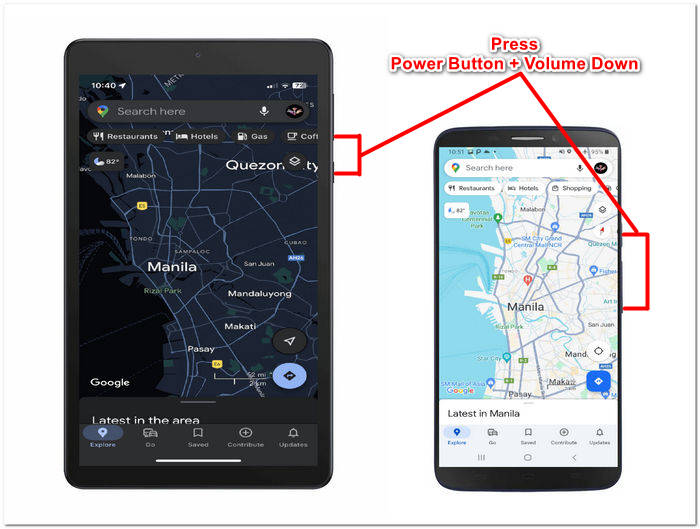
ขั้นตอนที่ 2 เมื่อคุณได้เนื้อหาที่ต้องการแล้ว ให้หาตำแหน่งปุ่ม Power และปุ่มลดเสียงบนอุปกรณ์ของคุณ.
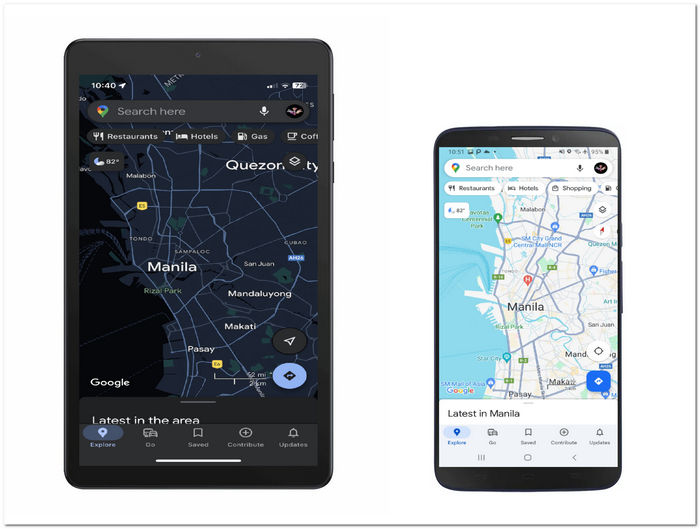
ขั้นตอนที่ 3 กดปุ่มทั้งสองพร้อมกัน (ปุ่ม Power + ปุ่มลดเสียง) เพื่อถ่ายภาพหน้าจอของคุณ.
ขั้นตอนที่ 4 จากนั้นไปที่แกลเลอรีเพื่อค้นหาภาพหน้าจอที่คุณถ่ายไว้ เพื่อแชร์ให้คนอื่นหรือเก็บไว้ดูภายหลัง.
การใช้ท่าทางสัมผัส (Gestures):
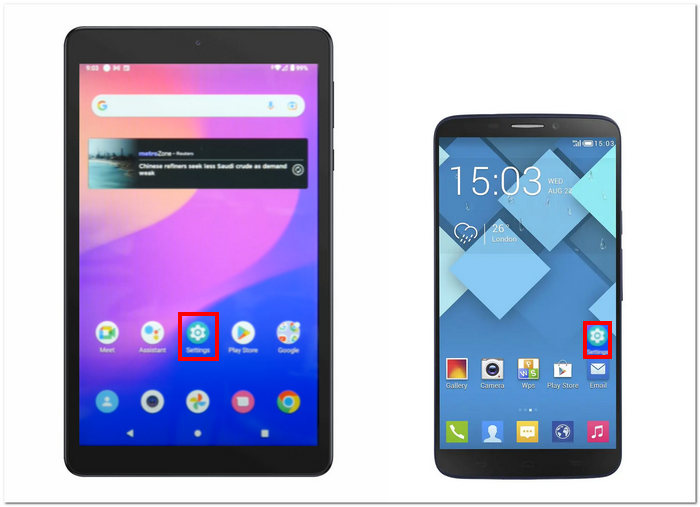
ขั้นตอนที่ 1 หากต้องการถ่ายภาพหน้าจอด้วยท่าทางสัมผัส ให้ไปที่การตั้งค่า (Settings) ของอุปกรณ์ก่อน.
ขั้นตอนที่ 2 ในเมนูการตั้งค่าของอุปกรณ์ ให้ค้นหาหัวข้อ Gestures.
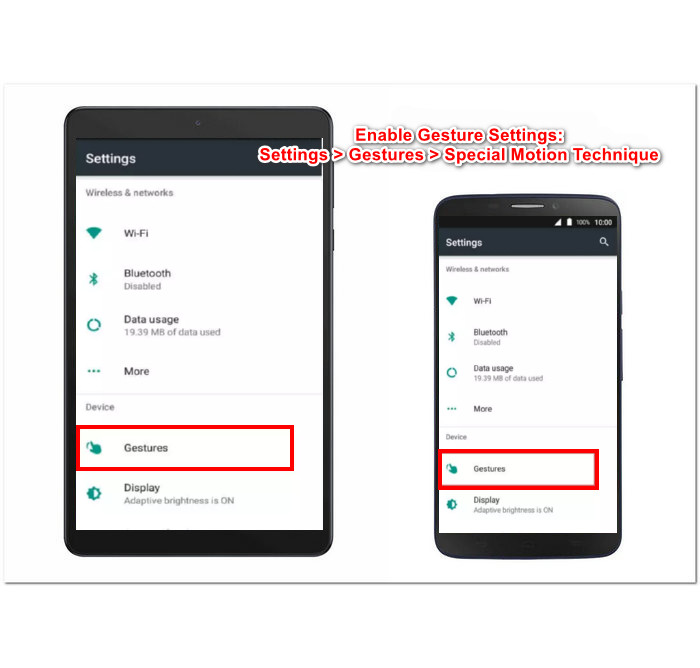
ขั้นตอนที่ 3 จากนั้นค้นหาและเปิดใช้งานฟังก์ชันท่าทางพิเศษ (Special motion).
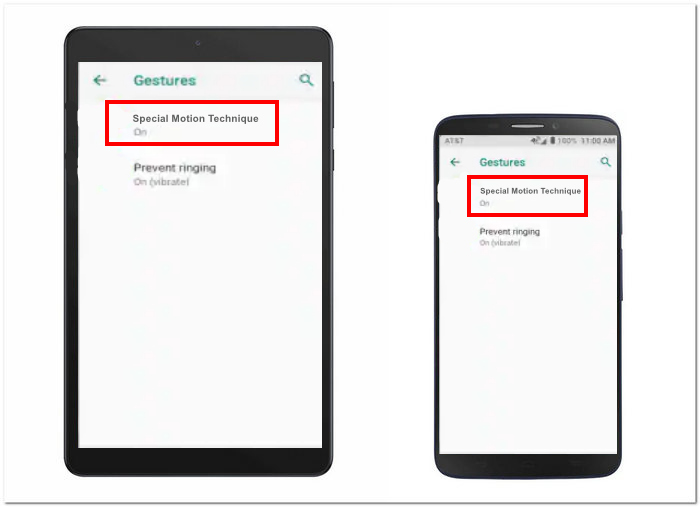
ขั้นตอนที่ 4 จากนั้นคุณจะสามารถถ่ายภาพหน้าจอบน Joy Tab 2 และ One Touch ได้โดยใช้ท่าทางที่คุณตั้งค่าไว้.
ภาพหน้าจอ Alcatel One Touch มีกระบวนการเดียวกับที่ทำใน Joy Tab 2 ของคุณ เนื่องจากทั้งคู่อยู่ในแบรนด์เดียวกัน ระบบ Android ล่าสุดบนอุปกรณ์ Alcatel สามารถค้นหาตัวเลือกภาพหน้าจอได้อย่างง่ายดายในแถบการแจ้งเตือนที่อยู่ด้านบนของหน้าจอโทรศัพท์ของคุณ ง่ายและไม่ต้องใช้เวลาในการจับภาพหน้าจอจากอุปกรณ์ของคุณ
ส่วนที่ 2 วิธีการจับภาพหน้าจอโทรศัพท์ Alcatel บนเดสก์ท็อป
หากฟังก์ชันถ่ายภาพหน้าจอบน Alcatel ใช้งานไม่ได้กับคุณ คุณควรทำอย่างไร? ไม่ต้องกังวล เพราะยังมีวิธีแก้ปัญหาด้วยการใช้โปรแกรมบันทึกหน้าจอที่ FVC คัดสรรมาให้ โปรแกรม Screen Recorder นี้ไม่ได้เป็นแค่ซอฟต์แวร์ถ่ายภาพหน้าจอทั่วไปสำหรับอุปกรณ์ Alcatel เท่านั้น แต่ยังใช้การมิเรอร์หน้าจอเพื่อฉายภาพจากหน้าจอโทรศัพท์ขึ้นไปยังแล็ปท็อป/คอมพิวเตอร์ของคุณ เพื่อจับภาพคอนเทนต์บนมือถือด้วยคุณภาพสูงสุดและความคมชัด นอกจากนี้ยังช่วยให้คุณครอปภาพหน้าจอบน Mac และ Windows ได้อีกด้วย
ขั้นตอนที่ 1 ตรวจสอบและติดตั้งซอฟต์แวร์ Screen Recorder เมื่อการติดตั้งเสร็จสมบูรณ์แล้ว คุณสามารถเปิดใช้งานโปรแกรมได้.
ดาวน์โหลดฟรีสำหรับ Windows 7 ขึ้นไปดาวน์โหลดอย่างปลอดภัย
ดาวน์โหลดฟรีสำหรับ MacOS 10.7 ขึ้นไปดาวน์โหลดอย่างปลอดภัย
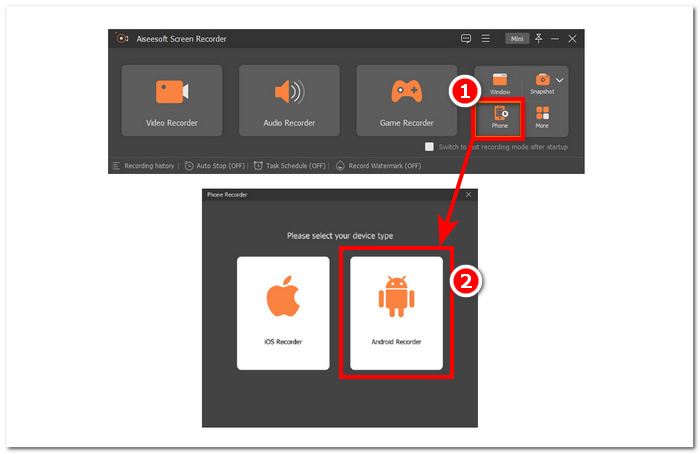
ขั้นตอนที่ 2 เพื่อเริ่มต้นใช้งาน ให้หาปุ่ม Phone บนอินเทอร์เฟซ จากนั้นเลือก Android Recorder เป็นตัวเลือกของคุณ เนื่องจากคุณใช้เครื่อง Alcatel ที่ทำงานด้วยระบบปฏิบัติการ Android.
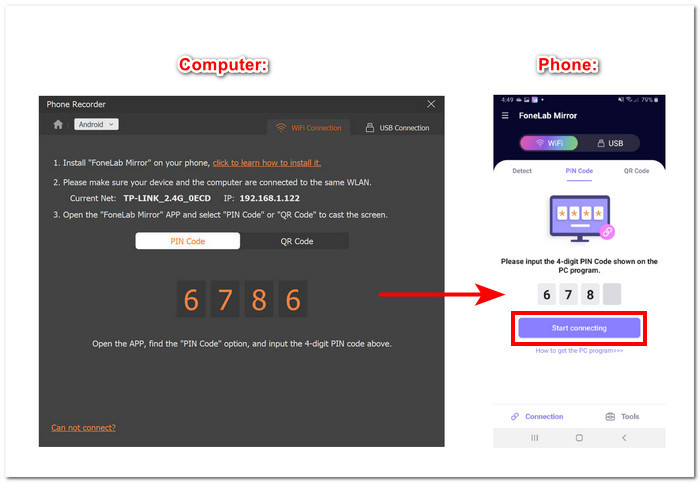
ขั้นตอนที่ 3 ตรวจสอบให้แน่ใจว่าได้ดาวน์โหลด FoneLab Mirror ลงบนอุปกรณ์ Alcatel แล้ว และอุปกรณ์ของคุณกับคอมพิวเตอร์เชื่อมต่ออยู่บนเครือข่าย WLAN เดียวกัน เพื่อที่จะมิเรอร์หน้าจอโทรศัพท์ไปยังคอมพิวเตอร์.
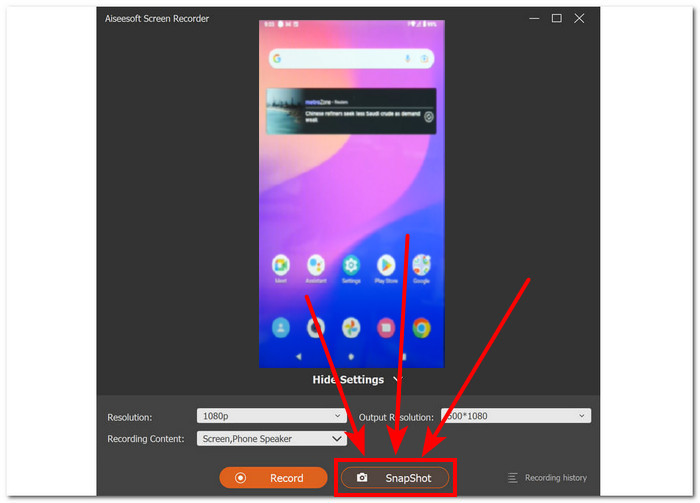
ขั้นตอนที่ 4 หลังจากมิเรอร์หน้าจอสำเร็จแล้ว คุณสามารถคลิกปุ่ม Snapshot เพื่อถ่ายภาพหน้าจอได้.
สมมติว่าคุณประสบปัญหากับฟังก์ชันภาพหน้าจอในตัวบนอุปกรณ์ Alcatel ของคุณ ในกรณีดังกล่าว FVC ที่เลือก Screen Recorder เป็นทางเลือกที่ยอดเยี่ยมเนื่องจากสามารถจับภาพหน้าจอบนคอมพิวเตอร์ของคุณได้ นอกจากนี้ยังมีคุณสมบัติการแก้ไขที่ช่วยให้คุณสามารถใส่คำอธิบายประกอบและเน้นข้อมูลบนภาพหน้าจอของคุณ ทำให้เป็นเครื่องมือที่ยืดหยุ่นสำหรับการแบ่งปันกับเพื่อน ๆ หรือสำหรับการใช้งานในอนาคต นอกเหนือจากการจับภาพหน้าจอบน Alcatel แล้ว ยังเป็นเครื่องบันทึกเสียง วิดีโอ และเกมอีกด้วย
หากคุณสนใจ ลองดูวิธีถ่ายภาพหน้าจอบน Samsung S23 เพิ่มเติมได้.
ส่วนที่ 3 คำถามที่พบบ่อยเกี่ยวกับวิธีการจับภาพหน้าจอบน Alcatel
มีคุณสมบัติจับภาพหน้าจอในตัวบนสมาร์ทโฟน Alcatel หรือไม่
ใช่ เช่นเดียวกับสมาร์ทโฟนอื่นๆ ที่มีจำหน่ายในตลาดปัจจุบัน คุณสามารถจับภาพหน้าจอแบบง่ายๆ บนสมาร์ทโฟน Alcatel ของคุณโดยใช้คุณสมบัติภาพหน้าจอในตัวโดยกดปุ่มเปิดปิดและปุ่มลดระดับเสียงของโทรศัพท์มือถือของคุณพร้อมกัน
วิธีแก้ปัญหาการจับภาพหน้าจอบนอุปกรณ์ Alcatel ของฉัน
หากคุณประสบปัญหาในการจับภาพหน้าจอโดยใช้อุปกรณ์ Alcatel โปรดรีสตาร์ทอุปกรณ์ของคุณก่อนจึงจะลองอีกครั้ง หากปัญหายังคงเหมือนเดิมหลังจากรีสตาร์ทโทรศัพท์ ให้ลองอัปเดตอินเทอร์เฟซซอฟต์แวร์ของคุณ นอกจากนี้ คุณยังสามารถใช้เครื่องบันทึกหน้าจอที่เลือก FVC เพื่อจับภาพหน้าจอบนอุปกรณ์มือถือ Alcatel ของคุณ เนื่องจากซอฟต์แวร์นี้สามารถบันทึกและจับภาพหน้าจอด้วยคุณภาพสูงสุด และให้คุณควบคุมในการแก้ไขภาพหน้าจอของคุณโดยการแก้ไข
คุณสามารถใส่คำอธิบายประกอบหรือแก้ไขภาพหน้าจอหลังจากจับภาพได้หรือไม่
คุณสามารถแก้ไขภาพหน้าจอของคุณได้ด้วยตนเองในแกลเลอรี่อุปกรณ์มือถือของคุณ มีคุณลักษณะการแก้ไขขั้นพื้นฐานเพียงพอที่จะใส่คำอธิบายประกอบอย่างรวดเร็วหรือครอบตัดภาพหน้าจอของคุณ คุณลักษณะนี้ยังมาพร้อมกับคุณลักษณะภาพหน้าจอของคุณ เนื่องจากช่วยให้คุณสามารถดูตัวอย่างและปรับเปลี่ยนเล็กน้อยตามความต้องการของคุณได้
มีวิธีอื่นในการจับภาพหน้าจอบนอุปกรณ์ Alcatel หรือไม่?
ได้ คุณสามารถเลือกเครื่องบันทึกหน้าจอที่เลือก FVC หรือลองใช้เครื่องบันทึกหน้าจอ Android บางรุ่น เช่น Xrecorder, Mobizen และ AZ Screen Recorder แทนก็ได้ อย่างไรก็ตาม การใช้ซอฟต์แวร์ระดับมืออาชีพโดยใช้คอมพิวเตอร์ของคุณถือเป็นการสร้างความแตกต่างในด้านคุณภาพและความสะดวกสบาย การใช้เครื่องมืออื่นๆ ที่มีอยู่เพื่อจับภาพหน้าจอถือเป็นการดีที่มีตัวเลือกต่างๆ และไม่ต้องใช้เฉพาะความสามารถในการจับภาพหน้าจอเริ่มต้นของอุปกรณ์มือถือของคุณเท่านั้น
ฉันจะจับภาพหน้าจอของส่วนใดส่วนหนึ่งของหน้าจอบนโทรศัพท์ Alcatel ของฉันได้อย่างไร
คุณสามารถใช้คุณสมบัติภาพหน้าจอในตัวของโทรศัพท์ Alcatel พร้อมกับเครื่องมือครอบตัดเพื่อจับภาพส่วนใดส่วนหนึ่งของหน้าจออุปกรณ์ของคุณ หลังจากจับภาพหน้าจอแล้ว คุณจะสามารถเข้าถึงแอปแกลเลอรีและใช้ตัวเลือกการแก้ไขเพื่อครอบตัดและบันทึกส่วนที่ต้องการของหน้าจอ วิธีนี้จะช่วยให้คุณสามารถจับภาพสิ่งที่คุณต้องการได้อย่างแม่นยำโดยไม่ต้องครอบตัดรูปภาพทั้งหมดในภายหลัง
สรุป
บทความนี้ได้นำเสนอ 2 วิธีในการถ่ายภาพหน้าจอบน Alcatel Joy Tab 2 หรือโทรศัพท์ Alcatel ในกรณีที่คุณพบปัญหากับฟังก์ชันถ่ายภาพหน้าจอที่มีมาให้ในเครื่อง ทางเลือกอย่างโปรแกรม Screen Recorder ที่ FVC คัดสรรมาจะช่วยให้คุณมีวิธีที่ยืดหยุ่นในการถ่ายภาพหน้าจอบนอุปกรณ์ Alcatel ของคุณ คุณยังสามารถใส่คำอธิบายและแก้ไขภาพหน้าจอได้ทันทีหลังจากถ่าย ปรับแต่งภาพให้ตรงตามความต้องการของคุณ เพื่อให้ทำงานดิจิทัลได้อย่างมีประสิทธิภาพและเพิ่มผลลัพธ์ในการทำงานสูงสุด.
-
 สกรีนช็อตใน VLC - วิธีถ่าย Snapshot ใน VLC Media Player
 จะถ่ายภาพสแนปชอตใน VLC Media Player ได้อย่างไรและจะบันทึกได้ที่ไหน? ดูคุณสมบัติ VLC snapshot และทางเลือกอื่นจากบทความ
-
 Movavi Screen Recorder Review - ข้อดี / ข้อเสีย / ราคา / การสอน / ทางเลือก
 นี่คือรีวิว Movavi Screen Recorder ฉบับสมบูรณ์ คุณสามารถทราบได้ว่า Movavi Screen Recorder ทำงานได้ดีในการบันทึกหน้าจอหรือไม่ ยิ่งไปกว่านั้นคุณจะได้รับทางเลือกฟรีในการจับภาพหน้าจอโดยไม่มีลายน้ำ
-
 รีวิว Snagit 2025 – ข้อดี ข้อเสีย และทางเลือกที่ดีที่สุด
 ทางเลือกที่ดีที่สุดสำหรับ Snagit คืออะไร? โพสต์นี้จะตรวจสอบ Snagit และแบ่งปันทางเลือกที่ดีที่สุดสำหรับ Snagit ในการจับภาพหน้าจอ
