


 Video Converter Ultimate
 บันทึกหน้าจอ
 ซ่อมวิดีโอ
 ดาวน์โหลดอย่างปลอดภัย
[แก้ไขแล้ว] วิธีจับภาพหน้าจอบน Snapchat โดยที่คนอื่นไม่รู้
ทุกวันนี้ Snapchat ยังคงเป็นหนึ่งในแอปส่งข้อความยอดนิยม นอกจากการแชทที่ใช้งานง่าย ซึ่งให้ผู้ใช้ส่งรูปภาพ วิดีโอ และข้อความที่หายไปหลังจากถูกเปิดดูแล้ว ผู้ใช้ยังสามารถสร้างสรรค์คอนเทนต์ได้ด้วย ปัจจุบันเราแทบจะถ่ายภาพหน้าจอกันเป็นประจำ เพราะใช้เก็บข้อมูลสำคัญหรือบันทึกโมเมนต์ตลก ๆ อย่างไรก็ตาม Snapchat จะแจ้งเตือนผู้ใช้หากมีคนแคปหน้าจอเนื้อหาของพวกเขา ดังนั้นหากคุณต้องการแคปหน้าจอ Snapchat แบบไม่ให้เขารู้ตัว ลองอ่านบทความนี้ เพราะเรามี 4 วิธีที่เตรียมไว้ให้คุณทำได้อย่างแนบเนียน.

ส่วนที่ 1: คุณสามารถจับภาพหน้าจอบน Snapchat โดยที่พวกเขาไม่รู้ได้ไหม
เมื่อเปรียบเทียบกับแพลตฟอร์มโซเชียลมีเดียใดๆ Snapchat มักถูกใช้เนื่องจากมีตัวกรองกล้องและวิดีโอที่สร้างสรรค์และน่าดึงดูดซึ่งผู้ใช้ใช้เพื่อส่งไปยังผู้ใช้รายอื่นภายในแพลตฟอร์ม อย่างไรก็ตาม ในแง่ของการจับภาพหน้าจอ Snapchat จะแจ้งให้ผู้อื่นทราบเมื่อผู้อื่นจับภาพหน้าจอของ Snap ของตน
หากคุณรู้สึกว่าคุณไม่สามารถจับภาพหน้าจอบน Snapchat โดยที่พวกเขาไม่รู้ คุณคิดผิด!
โชคดีที่มีหลายวิธีที่คุณสามารถใช้เพื่อจับภาพหน้าจอบน Snapchat โดยไม่ต้องแจ้งให้ผู้อื่นทราบ สิ่งเหล่านี้สามารถทำได้โดยใช้เครื่องมือบันทึกหน้าจอ การใช้อุปกรณ์อื่นในการจับภาพ หรือใช้ฟังก์ชันการสะท้อนหน้าจอ
ส่วนที่ 2: คุณจะจับภาพหน้าจอบน Snapchat โดยที่พวกเขาไม่รู้ได้อย่างไร
โชคดีที่มีหลายวิธีที่คุณสามารถใช้เพื่อจับภาพหน้าจอบน Snapchat โดยที่พวกเขาไม่รู้
วิธีที่ 1: เครื่องบันทึกหน้าจอ FVC
หนึ่งในวิธีที่ดีที่สุดที่คุณสามารถใช้แคปหน้าจอ Snapchat โดยไม่ให้คู่สนทนารู้ตัว คือการใช้โปรแกรมของบุคคลที่สามอย่าง FVC Screen Recorder เครื่องมือนี้ใช้งานได้ทั้งบนคอมพิวเตอร์ Windows และ Mac ซึ่งสามารถเชื่อมต่อกับอุปกรณ์ Android และ iPhone ได้ เมื่อเชื่อมต่ออุปกรณ์เหล่านี้เข้ากับคอมพิวเตอร์ที่รันโปรแกรมอยู่ ผู้ใช้ก็จะสามารถแคปหน้าจอ Snap ได้ผ่านฟีเจอร์บันทึกหน้าจอโทรศัพท์ ฟีเจอร์นี้จะช่วยให้คุณแคปหน้าจอได้โดยไม่ส่งการแจ้งเตือนไปยังคนที่คุณคุยด้วย.
ขั้นตอนที่ 1 ก่อนอื่นให้ดาวน์โหลดและเปิด FVC Screen Recorder บนคอมพิวเตอร์ของคุณ.
ดาวน์โหลดฟรีสำหรับ Windows 7 ขึ้นไปดาวน์โหลดอย่างปลอดภัย
ดาวน์โหลดฟรีสำหรับ MacOS 10.7 ขึ้นไปดาวน์โหลดอย่างปลอดภัย
ขั้นตอนที่ 2 จากนั้นคลิกที่ตัวเลือก Phone recorder คุณจะพบตัวเลือกนี้ที่ด้านขวาของหน้าต่างโปรแกรมพร้อมกับตัวเลือกอื่น ๆ อีก 3 ตัวเลือก
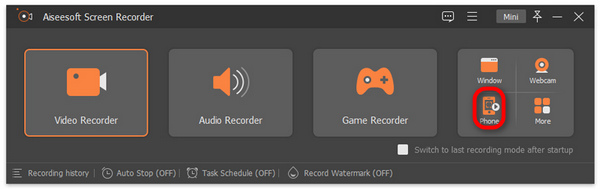
ขั้นตอนที่ 3 ต่อไป หากคุณเป็นผู้ใช้ Android ให้คลิก Android Recorder และหากคุณใช้ iPhone ให้เลือก iOS Recorder.
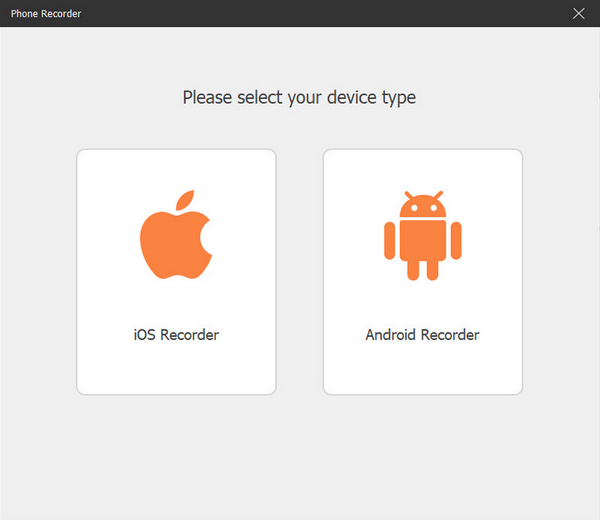
ขั้นตอนที่ 4 หลังจากนั้น จะมีหน้าต่างใหม่ที่มีคำแนะนำบนหน้าจอปรากฏขึ้น ที่นั่นคุณจะต้องเลือกระหว่าง Screen Mirroring หรือ Audio Mirroring ในกรณีนี้ให้เลือก Screen Mirroring.
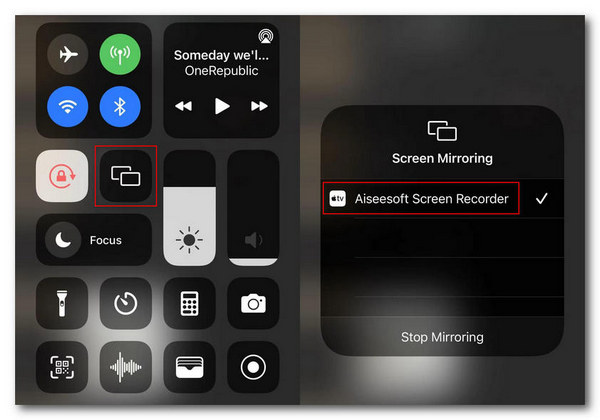
ขั้นตอนที่ 5 จากนั้น บน iPhone ของคุณ ให้เปิด ศูนย์ควบคุม (Control Center) แล้วแตะ Screen Mirroring เพื่อเปิดรายชื่ออุปกรณ์แบบดรอปดาวน์ จากนั้นแตะเลือก Aiseesoft Screen Recorder เพื่อเชื่อมต่อ iPhone กับคอมพิวเตอร์.
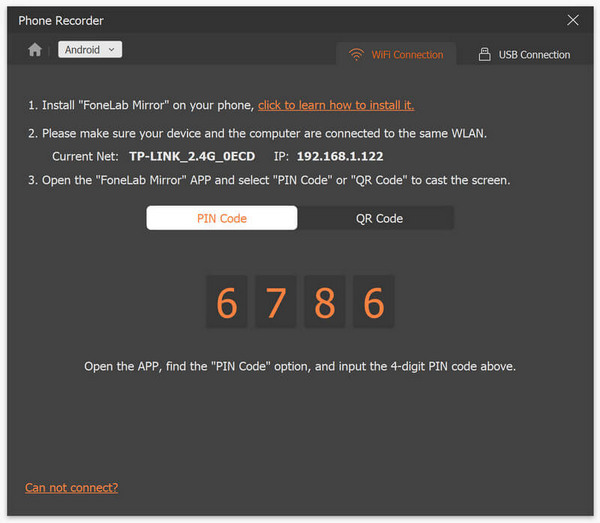
ในขณะเดียวกัน สำหรับผู้ใช้ Android คุณต้องดาวน์โหลดแอป FoneLab Mirror จากนั้นตรวจสอบให้แน่ใจว่าโทรศัพท์ Android และคอมพิวเตอร์ของคุณเชื่อมต่อกับ WLAN เดียวกัน สุดท้ายเปิดแอปและส่งภาพหน้าจอของคุณด้วยตัวเลือก Detect PIN Code และ QR Code.
ขั้นตอนที่ 6 เมื่อตั้งค่าทุกอย่างเรียบร้อยแล้ว ให้เปิดแอป Snapchat บน iPhone หรืออุปกรณ์ Android ของคุณ.
ขั้นตอนที่ 7 จากนั้นคลิกไอคอน Snapshot เมื่อคุณต้องการแคปหน้าจอ.
ขั้นตอนที่ 8 สุดท้ายไปที่โฟลเดอร์ที่กำหนดไว้บน Windows ในคอมพิวเตอร์ของคุณเพื่อเข้าถึงรูปแคปหน้าจอ ซึ่งถูกบันทึกไว้ที่โฟลเดอร์นั้นโดยอัตโนมัติแล้ว.
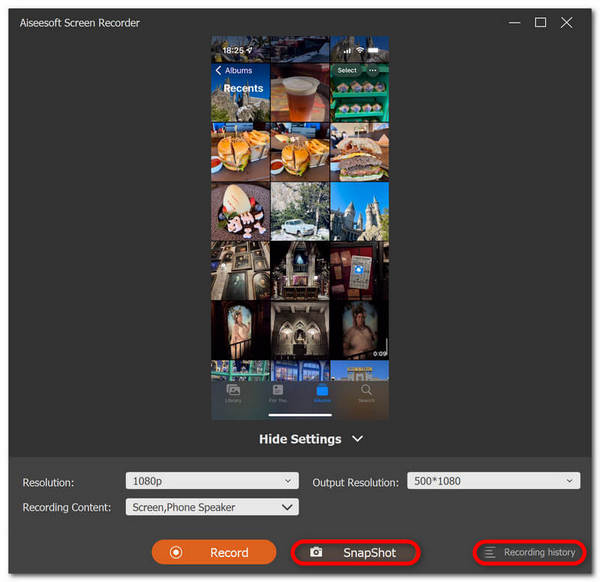
ตอนนี้คุณสามารถจับภาพหน้าจอบน Snapchat โดยที่พวกเขาไม่รู้ได้อย่างง่ายดาย คุณเพียงแค่ต้องทำตามขั้นตอน และแน่นอนว่าด้วยอินเทอร์เฟซที่ใช้งานง่าย ผู้ใช้ทุกคนสามารถทำได้อย่างรวดเร็ว
วิธีที่ 2: ใช้โทรศัพท์เครื่องอื่น
อีกวิธีในการจับภาพหน้าจอ Snapchat โดยที่พวกเขาไม่รู้ก็คือการใช้โทรศัพท์เครื่องอื่นเพื่อถ่ายภาพ หากต้องการถ่ายภาพหรือวิดีโอเนื้อหา Snapchat เพียงถ่ายรูปเนื้อหานั้น การทำเช่นนี้ ผู้ใช้สามารถจับภาพได้โดยไม่ต้องเรียกใช้การแจ้งเตือนหรือการแจ้งเตือนใด ๆ ไปยังผู้ส่ง
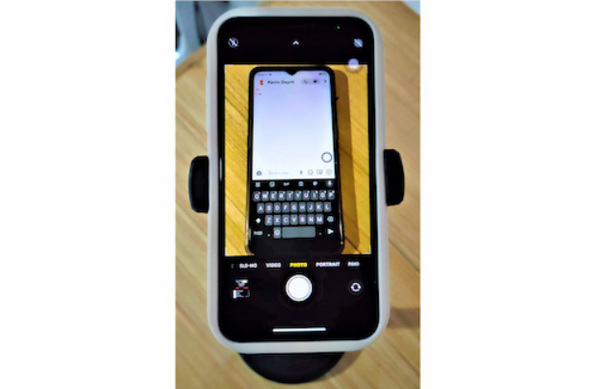
ขั้นตอนที่ 1 เตรียมโทรศัพท์สองเครื่อง เครื่องหนึ่งต้องติดตั้ง Snapchat ไว้ ส่วนอีกเครื่องควรมีกล้องที่ถ่ายภาพได้คมชัด.
ขั้นตอนที่ 2 จากนั้นบนแอป Snapchat ของคุณ ให้เปิดข้อความที่มี Snap ที่คุณต้องการจะบันทึก.
ขั้นตอนที่ 3 สุดท้าย ใช้แอปกล้องของโทรศัพท์เครื่องที่สองถ่ายภาพ Snap บนหน้าจอเครื่องแรก.
สิ่งสำคัญที่ควรทราบก็คือ วิธีนี้อาจส่งผลให้ได้ภาพที่มีคุณภาพต่ำลง และอาจไม่เหมาะกับทุกสถานการณ์
วิธีที่ 3: Quicktime Player สำหรับผู้ใช้ iPhone
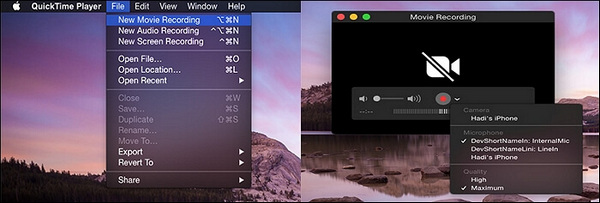
อีกวิธีในการจับภาพหน้าจอใน Snapchat โดยที่พวกเขาไม่รู้ก็คือใช้ Quicktime Player หากคุณมี Mac และคุณเป็นผู้ใช้ iPhone เครื่องมือนี้เป็นซอฟต์แวร์ในตัวภายใน macOS ที่สามารถช่วยคุณจับภาพหน้าจอบน Snapchat ได้
ขั้นตอนที่ 1 ขั้นแรก คุณต้องเชื่อมต่อ iPhone กับ Mac ด้วยสาย Lightning.
ขั้นตอนที่ 2 ถัดไป เปิดแอป QuickTime บน Mac จากนั้นไปที่เมนู File แล้วเลือก New Movie Recording.
ขั้นตอนที่ 3 หลังจากนั้น จะมีหน้าต่างบันทึกวิดีโอปรากฏขึ้น และคุณต้องเลือก iPhone ของคุณ.
ขั้นตอนที่ 4 บน iPhone ให้กดปุ่ม Record แล้วจึงเปิด Snapchat บนอุปกรณ์ iOS ของคุณ.
ขั้นตอนที่ 5 สุดท้าย กดปุ่ม Stop และหลังจากนั้นให้แคปหน้าจอจากวิดีโอที่บันทึกไว้.
วิธีนี้ช่วยให้คุณแคปหน้าจอบน Snapchat ได้โดยไม่มีการแจ้งเตือนก็จริง แต่จะใช้ได้เฉพาะผู้ใช้ iPhone และ Mac เท่านั้น อีกทั้งการบันทึกวิดีโอแล้วค่อยจับภาพ Snap ก็อาจกินเวลามาก นอกจากนี้ QuickTime Player อาจทำงานผิดปกติ บน iPhone หรือ Mac ของคุณได้.
วิธีที่ 4: การสะท้อนหน้าจอ
Android และ iPhone ต่างก็มีฟีเจอร์การสะท้อนหน้าจอ ซึ่งสามารถใช้เพื่อจับภาพหน้าจอใน Snapchat ได้ คุณสมบัตินี้จะสะท้อนหรือฉายภาพหน้าจอโทรศัพท์ของคุณซึ่งสามารถแชร์เนื้อหา Snapchat ของคุณได้
ขั้นตอนที่ 1 ก่อนอื่น คุณต้องเปิดใช้ฟังก์ชันฉายภาพหน้าจอ (Screen Mirroring) บนอุปกรณ์ iOS หรือ Android และส่งภาพ Snapchat ไปยังอีกอุปกรณ์หนึ่งที่สามารถแคปหน้าจอได้.
ขั้นตอนที่ 2 จากนั้นค้นหาเนื้อหา Snapchat ที่คุณต้องการแคปหน้าจอ ซึ่งถูกแสดงแบบมิเรอร์อยู่บนอุปกรณ์เครื่องที่สอง เมื่อฉายขึ้นจอบนอุปกรณ์อีกเครื่องแล้ว จึงค่อยทำการแคปหน้าจอ.
แม้ว่าวิธีนี้ฟังดูเหมาะที่จะแคปหน้าจอ Snapchat ง่ายๆ โดยที่พวกเขาไม่รู้ แต่วิธีนี้อาจไม่สามารถเข้าถึงได้ทั่วโลก เนื่องจากความเข้ากันได้ของอุปกรณ์และฟังก์ชันการสะท้อนหน้าจอที่อาจเกิดขึ้น
ส่วนที่ 3: คำถามที่พบบ่อยเกี่ยวกับการจับภาพหน้าจอใน Snapshot
จะเกิดอะไรขึ้นเมื่อฉันจับภาพหน้าจอใน Snapchats
แน่นอนว่าเมื่อคุณจับภาพหน้าจอของใครบางคนใน Snapchat คาดหวังว่าพวกเขาจะได้รับแจ้งเกี่ยวกับสิ่งนั้น เหตุผลก็คือ Snapchat ต้องการสร้างพื้นที่ปลอดภัยสำหรับผู้ใช้ ด้วยเหตุนี้ พวกเขาจึงแจ้งให้ผู้ใช้ทราบว่าใครกำลังถ่ายภาพหน้าจอสแน็ปอินของตนและในทางกลับกัน
การจับภาพหน้าจอ Snap ของใครบางคนผิดกฎหมายหรือไม่?
เมื่อพูดถึงเรื่องความถูกต้องตามกฎหมาย มันขึ้นอยู่กับว่าภาพหน้าจอของ snap นั้นตั้งใจจะใช้ในบริบทอย่างไร ในขณะเดียวกัน อาจเป็นเรื่องจริงที่การถ่ายภาพหน้าจอเพื่อการใช้งานส่วนตัวไม่จำเป็นต้องผิดกฎหมายเสมอไป อย่างไรก็ตาม การเผยแพร่โดยที่ผู้ใช้รายอื่นไม่ทราบถือเป็นการละเมิดสิทธิ์ความเป็นส่วนตัวของพวกเขา ในบริบทนี้ การจับภาพหน้าจอของ Snap ถือเป็นการกระทำที่ผิดกฎหมาย
จะมั่นใจความเป็นส่วนตัวได้อย่างไรเมื่อบันทึกเนื้อหา Snapchat
เพื่อให้แน่ใจว่ามีการปกป้องและเคารพความเป็นส่วนตัวของกันและกันก่อนที่จะจับภาพหน้าจอบน Snapchat ควรถามก่อน ดังนั้นหากคุณต้องการจับภาพหน้าจอของผู้อื่น คุณต้องขออนุญาตก่อน นอกจากนี้ เมื่อพูดถึงการใช้ภาพหน้าจอ โปรดหลีกเลี่ยงการแชร์หรือแจกจ่ายภาพหน้าจอโดยมีเจตนาทำร้ายผู้อื่น
สรุป
แม้ว่าภาพหน้าจอใน Snapchat โดยที่พวกเขาไม่รู้นั้นฟังดูไม่สบายใจสำหรับพวกเราบางคน แต่การทำเช่นนั้นโดยคำนึงถึงความตั้งใจที่ถูกต้องนั้นเป็นสิ่งที่ผู้ใช้ไม่ต้องกังวล เพียงจำไว้เสมอว่าต้องจัดลำดับความสำคัญความเป็นส่วนตัวและขอบเขตของผู้อื่น ดังนั้นสิ่งที่คุณรอ? หากคุณทำสิ่งเหล่านี้ด้วยเจตนาดี ให้ลองใช้วิธีการตอนนี้และจับภาพหน้าจอบน Snapchat ได้ไม่จำกัดโดยไม่ต้องแจ้งให้ทราบ
-
 วิธีจับภาพหน้าจอบน HP ได้อย่างง่ายดาย [คู่มือปี 2025]
 เรียนรู้วิธีถ่ายภาพหน้าจอบนคอมพิวเตอร์ Dell พร้อมคำแนะนำทีละขั้นตอนของเรา เพิ่มประสิทธิภาพและประหยัดเวลาด้วยกระบวนการง่ายๆ นี้ อ่านเลย!
-
 จับภาพวิดีโอได้อย่างง่ายดายด้วยคู่มือพื้นฐานนี้ [2025]
 เรียนรู้วิธีถ่ายภาพหน้าจอจากวิดีโอด้วยวิธีง่ายๆ เหล่านี้ได้อย่างง่ายดาย ทำตามคำแนะนำของเราและเริ่มจับภาพหน้าจอวิดีโอโปรดของคุณทันที!
-
 วิธีถ่ายภาพหน้าจอบน Mac ได้อย่างง่ายดายด้วยคำแนะนำพื้นฐานนี้
 ต้องการจับภาพหน้าจอบน Mac ของคุณแต่ไม่แน่ใจว่าต้องทำอย่างไร เราเข้าใจคุณแล้ว! เราจะแสดงวิธีที่ง่ายและรวดเร็วที่สุดในการจับภาพหน้าจอและบันทึกภาพหน้าจอของคุณ
