


 Video Converter Ultimate
 บันทึกหน้าจอ
 ซ่อมวิดีโอ
 ดาวน์โหลดอย่างปลอดภัย
วิธีจับภาพหน้าจอบน Windows โดยไม่ต้องพิมพ์หน้าจออย่างง่ายดาย
ในหมู่ผู้ใช้ Windows ส่วนใหญ่จะใช้วิธีปุ่ม Print Screen เพื่อจับภาพหน้าจอของสิ่งที่แสดงอยู่บนหน้าจอ อย่างไรก็ตาม วิธีนี้ไม่สามารถเลือกเฉพาะส่วนที่ต้องการจับภาพได้ และไม่มีฟีเจอร์แก้ไขภาพในตัว แล้วถ้าวิธีนี้ใช้ไม่ได้บนคอมพิวเตอร์ Windows ของคุณล่ะ? ไม่ต้องกังวล เรามีทางออกให้! ในบทความนี้ คุณจะได้รู้วิธีทางเลือกในการถ่ายภาพหน้าจอใน Windows โดยไม่ใช้ปุ่ม Print Screen ตั้งแต่การใช้เครื่องมือที่มีมาให้ใน Windows ไปจนถึงซอฟต์แวร์ของบุคคลที่สาม เราได้รวบรวมมาให้ครบ บอกลาข้อจำกัดของวิธี Print Screen แล้วมาสำรวจวิธีใหม่ ๆ ในการจับภาพหน้าจอที่ปรับให้เหมาะกับการใช้งานของคุณกันเถอะ.

ส่วนที่ 1: คลิกเดียววิธีในการจับภาพหน้าจอบน Windows ที่ไม่มีหน้าจอพิมพ์
หากคุณใช้งานปุ่ม Print Screen เพื่อจับภาพหน้าจอบนคอมพิวเตอร์ Windows ได้ไม่สะดวก การใช้เครื่องมือของบุคคลที่สามถือเป็นวิธีทางเลือกที่ดีที่สุด ที่ช่วยให้คุณจับภาพได้ด้วยการคลิกเพียงครั้งเดียว FVC Screen Recorder เป็นหนึ่งในเครื่องมือเหล่านั้น ซึ่งช่วยให้คุณจับภาพหน้าจอใน Windows ได้อย่างง่ายดายโดยไม่ต้องใช้ปุ่ม Print Screen.
ด้วยเครื่องมือบันทึกหน้าจอนี้ คุณสามารถจับภาพหน้าจอได้ด้วยการคลิกเพียงไม่กี่ครั้ง นอกจากนี้ ผู้ใช้ยังมีตัวเลือกว่าต้องการใช้ภาพหน้าจอประเภทใด โดยขึ้นอยู่กับความต้องการ เช่น การถ่ายภาพหน้าจอในหน้าต่างเลื่อน หรืออาจผ่านการจับภาพเมนูป๊อปอัป ซึ่งเหมาะสำหรับผู้ใช้ที่แสวงหาวิธีอื่นในการจับภาพหน้าจอบน Windows . สุดท้ายนี้ เครื่องมือนี้มีเครื่องมือแก้ไขขั้นสูง ซึ่งจะมีประโยชน์เมื่อคุณต้องการปรับปรุงภาพหน้าจอของคุณบน Windows
ขั้นตอนที่ 1 ก่อนอื่น ให้ดาวน์โหลดและติดตั้ง FVC Screen Recorder บน Windows ของคุณ.
ดาวน์โหลดฟรีสำหรับ Windows 7 ขึ้นไปดาวน์โหลดอย่างปลอดภัย
ดาวน์โหลดฟรีสำหรับ MacOS 10.7 ขึ้นไปดาวน์โหลดอย่างปลอดภัย
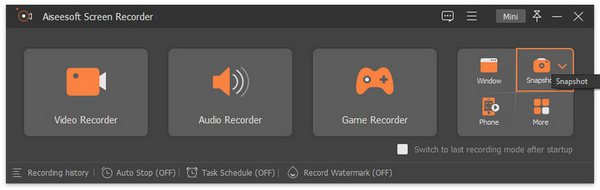
ขั้นตอนที่ 2 ตอนนี้ให้คลิกไอคอน Snapshot ที่มุมขวาหลังจากที่คุณเปิดใช้เครื่องมือเรียบร้อยแล้ว.
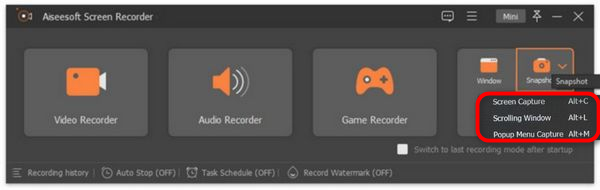
ขั้นตอนที่ 3 หลังจากคลิกไอคอน Snapshot แล้ว คุณจะมีตัวเลือก 3 แบบในการถ่ายสกรีนช็อต คุณสามารถเลือกได้จาก Screen Capture, Scrolling Window หรือ Pop-up Menu Capture.
ขั้นตอนที่ 4 จากนั้นลากเคอร์เซอร์ไปยังบริเวณหน้าจอบนเครื่อง Windows ของคุณ เพื่อเลือกส่วนที่ต้องการจับภาพหน้าจอ.
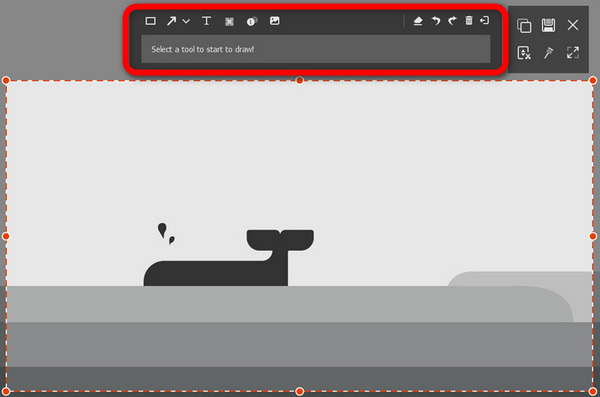
ขั้นตอนที่ 5 หลังจากนั้น หากคุณต้องการแก้ไขรูปภาพ ให้ใช้งานเมนูด้านบน ปรับแต่งภาพหน้าจอของคุณได้ตามต้องการ.
ขั้นตอนที่ 6 สุดท้ายให้คลิกปุ่ม Save.
FVC Screen Recorder ถือเป็นตัวเลือกที่ยอดเยี่ยมในการจับภาพหน้าจอบน Windows โดยไม่ต้องใช้ปุ่ม Print Screen นอกจากจะใช้งานได้ง่ายและรวดเร็วแล้ว ฟีเจอร์ขั้นสูงของมันยังช่วยให้คุณแก้ไขภาพหน้าจอได้ตามต้องการ ด้วยเครื่องมือนี้ การถ่ายภาพหน้าจอบนคอมพิวเตอร์ DELL รวมถึง HP, Lenovo และยี่ห้ออื่น ๆ ที่มีปุ่ม Print Screen ก็ทำได้อย่างง่ายดาย.
ส่วนที่ 2: ภาพหน้าจอบน Windows ที่ไม่มีปุ่มพิมพ์หน้าจอ [การใช้แป้นพิมพ์ลัด]
หากปุ่มพิมพ์หน้าจอทำงานไม่ถูกต้อง การใช้แป้นพิมพ์ลัดจะเป็นทางเลือกที่เชื่อถือได้ วิธีนี้ทำให้มั่นใจได้ว่าคุณยังคงสามารถจับภาพหน้าจอของคุณได้อย่างง่ายดาย แม้ว่าปุ่มพิมพ์หน้าจอแบบเดิมจะไม่ทำงานก็ตาม ด้วยการใช้คีย์ผสมที่เฉพาะเจาะจง คุณสามารถแก้ไขปัญหาใดๆ เกี่ยวกับฟังก์ชันหน้าจอการพิมพ์และจับภาพหน้าจอต่อไปได้อย่างมีประสิทธิภาพ
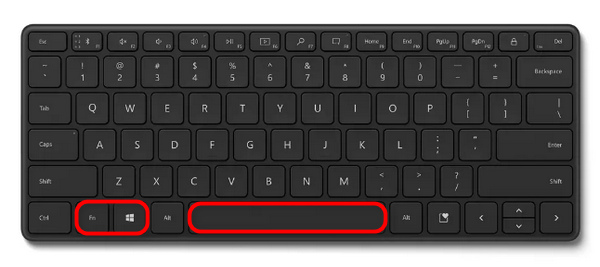
ขั้นตอนที่ 1 หากต้องการจับภาพหน้าจอบน Windows โดยไม่ใช้ปุ่ม Print Screen ให้กดปุ่ม Fn + โลโก้ Windows + Space Bar พร้อมกัน.
ขั้นตอนที่ 2 หากต้องการค้นหาภาพหน้าจอของคุณ ให้เปิด File Explorer จากแถบงาน จากนั้นไปที่โฟลเดอร์ Pictures ทางแถบนำทางด้านข้าง แล้วเลือกโฟลเดอร์ Screenshots.
เช่นเดียวกับคอมพิวเตอร์ Windows คุณก็สามารถใช้ปุ่มลัดบนคีย์บอร์ดเพื่อจับภาพหน้าจอบน Mac ได้เช่นกัน.
การใช้แป้นพิมพ์ลัดช่วยให้สำรองข้อมูลที่เชื่อถือได้สำหรับการจับภาพหน้าจอบน Windows เมื่อปุ่มพิมพ์หน้าจอล้มเหลว แม้ว่าพวกเขาจะให้วิธีแก้ปัญหาที่รวดเร็ว แต่ก็อาจขาดตัวเลือกการปรับแต่งบางอย่างเมื่อเทียบกับวิธีการแบบเดิม
ส่วนที่ 3: วิธีการจับภาพหน้าจอบน Windows โดยไม่ต้องพิมพ์หน้าจอ [โดยใช้เครื่องมือ Snipping]
Snipping Tool เป็นเครื่องมือในการจับภาพหน้าจอก็เป็นตัวเลือกที่ดีกว่าในการจับภาพหน้าจอบน Windows โดยไม่ต้องใช้หน้าจอพิมพ์ ด้วยเครื่องมือนี้ มันให้คุณเลือกได้อย่างชัดเจนว่าคุณต้องการจะจับภาพอะไร ไม่ใช่แค่ทั้งหน้าจอ คุณจึงสามารถมุ่งความสนใจไปที่สิ่งสำคัญได้ ประการที่สอง มันมาพร้อมกับวิธีต่างๆ ในการถ่ายภาพ เช่น สี่เหลี่ยมหรือรูปทรงอิสระ ทำให้คุณมีความยืดหยุ่นมากขึ้น นอกจากนี้คุณยังสามารถแก้ไขภาพหน้าจอได้ทันที เช่น การไฮไลต์หรือการครอบตัด โดยไม่จำเป็นต้องใช้แอปเพิ่มเติม
ขั้นตอนที่ 1 กดปุ่ม Shift + โลโก้ Windows และปุ่ม S พร้อมกันเพื่อเปิด Snipping Tool ได้อย่างรวดเร็ว หรือคลิกเมนู Start แล้วพิมพ์ Snipping Tool ในช่องค้นหา.
ขั้นตอนที่ 2 หากต้องการถ่ายภาพหน้าจอ ให้คลิกปุ่ม New.
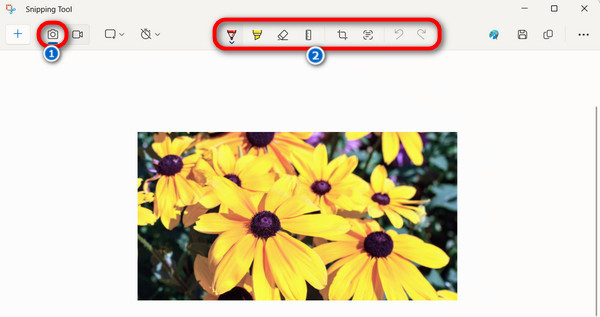
ขั้นตอนที่ 3 เมื่อเสร็จแล้ว คุณสามารถเลือกแก้ไขภาพได้โดยใช้ Menu ด้านบน ซึ่งให้คุณวาด ไฮไลต์ และครอบตัดภาพได้.
ขั้นตอนที่ 4 เมื่อต้องการบันทึก ให้เข้าเมนู File แล้วเลือก Save As จากตัวเลือกดรอปดาวน์.
Snipping Tool บน Windows เหมาะสำหรับผู้ใช้ที่ต้องการจับภาพหน้าจอขั้นพื้นฐาน อย่างไรก็ตาม หากคุณต้องการมีฟีเจอร์ขั้นสูง เช่น ตัวเลือกการแก้ไขที่ครอบคลุมหรือโหมดการจับภาพขั้นสูง บางทีเครื่องมือนี้ไม่เหมาะกับคุณ
ส่วนที่ 4: คำถามที่พบบ่อยเกี่ยวกับการจับภาพหน้าจอบน Windows โดยไม่ต้องพิมพ์หน้าจอ
ฉันสามารถจับภาพหน้าจอบน Windows โดยไม่ต้องติดตั้งซอฟต์แวร์เพิ่มเติมได้หรือไม่
ใช่. คุณสามารถจับภาพหน้าจอบน Windows ได้โดยไม่ต้องใช้ซอฟต์แวร์เพิ่มเติม เครื่องมือในตัว เช่น Snipping Tool และแป้นพิมพ์ลัดให้วิธีที่สะดวกในการจับภาพและแก้ไขภาพหน้าจอโดยไม่ต้องอาศัยฟังก์ชันหน้าจอการพิมพ์
ฉันสามารถแก้ไขภาพหน้าจอของฉันโดยตรงโดยใช้ปุ่มลัดในการจับภาพหน้าจอบน Windows ได้หรือไม่
ไม่ การจับภาพหน้าจอบน Windows โดยใช้แป้นพิมพ์ลัดเริ่มต้นไม่มีคุณสมบัติการแก้ไข ในกรณีนี้ คุณต้องใช้ซอฟต์แวร์ของบริษัทอื่น เช่น FVC Screen Recorder ซึ่งจะช่วยให้คุณสามารถปรับแต่งภาพหน้าจอตามความต้องการของคุณได้
มีวิธีจับภาพหน้าจอบน Windows ด้วยคุณสมบัติการแก้ไขขั้นสูงกว่านี้หรือไม่
ใช่ นอกเหนือจากเครื่องมือพื้นฐานในตัว เช่น Snipping Tool แล้ว คุณสามารถใช้โซลูชันซอฟต์แวร์ของบริษัทอื่นที่นำเสนอคุณลักษณะการแก้ไขขั้นสูงเพิ่มเติมสำหรับการจับภาพและแก้ไขภาพหน้าจอบน Windows เครื่องมือเหล่านี้มักจะมีฟังก์ชันเพิ่มเติม เช่น คำอธิบายประกอบ ไฮไลต์ และตัวเลือกการจัดการรูปภาพขั้นสูง
เป็นไปได้ไหมที่จะจับภาพหน้าจอของหน้าต่างหรือแอพพลิเคชั่นเฉพาะโดยไม่ต้องจับภาพทั้งหน้าจอ
ใช่. เป็นไปได้ว่าคุณสามารถจับภาพหน้าจอของหน้าต่างหรือแอปพลิเคชันเฉพาะบน Windows ได้โดยไม่ต้องจับภาพทั้งหน้าจอ เครื่องมือต่างๆ เช่น Snipping Tool ช่วยให้คุณสามารถเลือกและจับภาพเฉพาะหน้าต่างหรือแอปพลิเคชันที่ต้องการได้ ทำให้ได้ภาพหน้าจอที่ชัดเจนและแม่นยำยิ่งขึ้น นอกจากนี้ การใช้เครื่องมือของบุคคลที่สาม เช่น FVC Screen Recorder ยังเหมาะสำหรับการจับภาพส่วนหรือภูมิภาคเฉพาะในหน้าจอ และมาพร้อมกับตัวเลือกอื่นๆ เช่น การเลื่อนหน้าต่างและการจับภาพหน้าต่าง
ฉันสามารถจับภาพหน้าจอบน Windows โดยไม่บันทึกลงในคอมพิวเตอร์ของฉันได้หรือไม่
ใช่ เครื่องมือจับภาพหน้าจอบางตัวสำหรับ Windows มีตัวเลือกในการจับภาพและแบ่งปันภาพหน้าจอโดยตรงโดยไม่ต้องบันทึกลงในคอมพิวเตอร์ของคุณ เช่นเดียวกับเครื่องมือสนิป ภาพหน้าจอจากเครื่องมือจะถูกบันทึกลงในคลิปบอร์ดโดยตรง ซึ่งคุณสามารถวางได้อย่างง่ายดาย สิ่งนี้มีประโยชน์สำหรับการแชร์ภาพหน้าจอกับผู้อื่นอย่างรวดเร็วหรือการโพสต์บนแพลตฟอร์มโซเชียลมีเดีย นอกจากนี้ การใช้เครื่องมือของบุคคลที่สามก็สามารถทำได้เช่นเดียวกัน
สรุป
โดยสรุป การจับภาพหน้าจอบน Windows โดยไม่ใช้ปุ่ม Print Screen ช่วยให้ผู้ใช้งานมีความยืดหยุ่นและความสะดวกสบายมากขึ้น ไม่ว่าจะเป็นการใช้เครื่องมือที่มีมาให้ในระบบอย่าง Snipping Tool หรือซอฟต์แวร์ของบุคคลที่สามอย่าง FVC Screen Recorder ก็มีวิธีทางเลือกให้เลือกใช้ตามความชอบและความต้องการ วิธีเหล่านี้ไม่เพียงช่วยให้คุณจับภาพเฉพาะส่วนของหน้าจอได้เท่านั้น แต่ยังมาพร้อมฟีเจอร์แก้ไขขั้นสูงเพื่อการปรับแต่งอย่างอิสระ พร้อมจะควบคุมการถ่ายภาพหน้าจอด้วยตัวเองแล้วหรือยัง? เริ่มสำรวจวิธีทางเลือกเหล่านี้ได้เลยวันนี้!
-
 วิธีจับภาพหน้าจอบน HP ได้อย่างง่ายดาย [คู่มือปี 2025]
 เรียนรู้วิธีถ่ายภาพหน้าจอบนคอมพิวเตอร์ Dell พร้อมคำแนะนำทีละขั้นตอนของเรา เพิ่มประสิทธิภาพและประหยัดเวลาด้วยกระบวนการง่ายๆ นี้ อ่านเลย!
-
 จับภาพวิดีโอได้อย่างง่ายดายด้วยคู่มือพื้นฐานนี้ [2025]
 เรียนรู้วิธีถ่ายภาพหน้าจอจากวิดีโอด้วยวิธีง่ายๆ เหล่านี้ได้อย่างง่ายดาย ทำตามคำแนะนำของเราและเริ่มจับภาพหน้าจอวิดีโอโปรดของคุณทันที!
-
 วิธีถ่ายภาพหน้าจอบน Chromebook [คำแนะนำทีละขั้นตอน]
 ค้นพบวิธีจับภาพหน้าจอบน Chromebook ของคุณอย่างง่ายดายด้วยคำแนะนำทีละขั้นตอนที่ครอบคลุมนี้ รับคำแนะนำและรับภาพหน้าจอที่สมบูรณ์แบบทันที!
