


 Video Converter Ultimate
 บันทึกหน้าจอ
 ซ่อมวิดีโอ
 ดาวน์โหลดอย่างปลอดภัย
5 วิธีในการบีบอัดไฟล์ JPEG: คู่มือฉบับสมบูรณ์ [2024]
ในยุคดิจิทัลทุกวันนี้ รูปภาพส่วนใหญ่จะถูกบันทึกและจัดเก็บในขนาดไฟล์ที่ใหญ่ขึ้น เพื่อให้แน่ใจว่าจะสามารถเปิดดูได้ในความละเอียดสูง อย่างไรก็ตาม ในทางกลับกัน ไฟล์เหล่านี้ก็อาจเป็นปัญหาและความไม่สะดวกได้ เว็บไซต์มักกำหนดให้เราต้องอัปโหลดรูปภาพภายในขนาดไฟล์ที่กำหนด และความจริงที่ว่าไฟล์ขนาดใหญ่สามารถทำให้กระบวนการอัปโหลดและส่งช้าลงได้นั้นอาจสร้างความรำคาญได้มาก
แต่อย่าเพิ่งกังวล! ในบทความนี้ เราจะพาคุณไปดู 5 วิธีในการบีบอัดไฟล์ JPG ทั้งบน Windows และ Mac คู่มือนี้จะช่วยให้คุณลดขนาดรูปภาพของคุณ ทำให้จัดการได้รวดเร็วและสะดวกขึ้น ไม่ว่าจะเป็นการส่งหรืออัปโหลด และยังช่วยให้รูปภาพเหล่านี้โหลดได้เร็วขึ้นบนเว็บไซต์และอุปกรณ์ต่าง ๆ อีกด้วย.

ส่วนที่ 1. วิธีการบีบอัดรูปภาพ JPEG ออนไลน์ที่มีประสิทธิภาพที่สุด [แนะนำ]
ปัจจุบันการบีบอัดรูปภาพเป็นเรื่องธรรมดา และโดยทั่วไปแล้ว ผู้คนมักจะบีบอัดรูปภาพด้วยเหตุผลหลายประการ บางทีพวกเขาอาจต้องการขนาดไฟล์ที่กำหนดเพื่ออัปโหลดบางอย่างบนเว็บไซต์ หรือไม่ก็อาจต้องส่งหรืออัปโหลดไฟล์จำนวนมากแต่ล่าช้าเนื่องจากขนาดไฟล์ที่ใหญ่
เพื่อแก้ปัญหานี้ คุณจำเป็นต้องมีเครื่องมือบีบอัดรูปภาพที่สามารถลดขนาดไฟล์ JPEG ได้ โดยยังคงคุณภาพของภาพเอาไว้ ดังนั้นวิธีที่ดีที่สุดในการบีบอัดไฟล์ JPEG คือการใช้ FVC Free Image Compressor เครื่องมือนี้ให้ใช้งานได้ฟรีทั้งหมด และสามารถเข้าถึงได้แบบออนไลน์ทั้งบน Windows และ Mac แม้ว่าจะเป็นเครื่องมือฟรี แต่ด้วยอัลกอริทึมการเพิ่มประสิทธิภาพและการบีบอัดของมัน ก็ยังสามารถทำงานได้ดีเทียบเท่าเครื่องมือบีบอัดภาพแบบเสียค่าบริการ นอกจากนี้ยังใช้งานง่ายและมีอินเทอร์เฟซที่เข้าใจไม่ยาก ผู้ใช้เพียงคลิกครั้งเดียว ระบบบีบอัดอัตโนมัติก็ทำงานได้อย่างยอดเยี่ยมราวกับเวทมนตร์.
คุณสมบัติหลัก:
• บีบอัดภาพได้สูงสุด 40 ภาพในครั้งเดียว
• ใช้อัลกอริธึมการเพิ่มประสิทธิภาพและการบีบอัดขั้นสูง
• กระบวนการบีบอัดที่รวดเร็วและมีประสิทธิภาพ
• บีบอัดภาพโดยอัตโนมัติ
วิธีบีบอัด JPEG ด้วย FVC Free Image Compressor มีดังนี้
ขั้นตอนที่ 1 ก่อนเริ่มต้น คุณต้องเข้าเว็บไซต์ทางการของเขาก่อน โดยค้นหาคำว่า FVC Free Image Compressor บนเบราว์เซอร์ของคุณ.
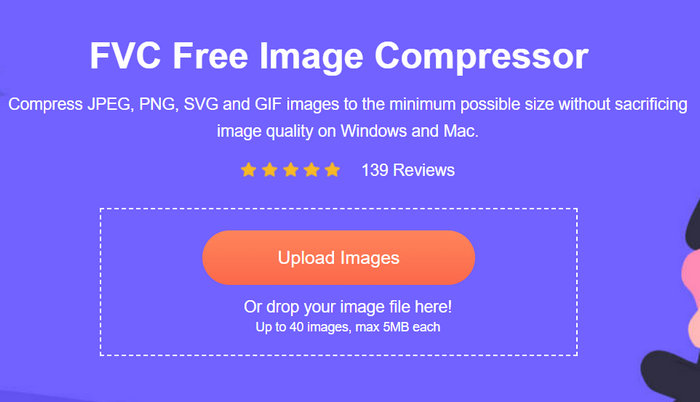
ขั้นตอนที่ 2 จากนั้นคลิก Upload Images เพื่ออัปโหลดไฟล์ JPEG ที่คุณต้องการบีบอัด เครื่องมือจะบีบอัดให้โดยอัตโนมัติ.
ขั้นตอนที่ 3 หลังจากบีบอัดเสร็จแล้ว คุณสามารถดูตัวอย่างขนาดไฟล์ใหม่ของไฟล์ JPEG ที่ถูกบีบอัดได้ ขั้นตอนสุดท้ายให้คลิก Download All เพื่อบันทึกรูปภาพของคุณ.
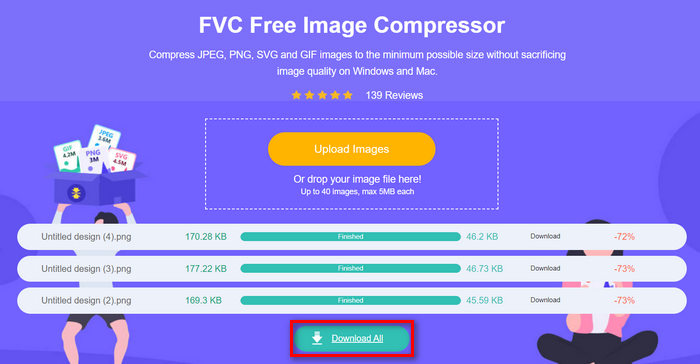
ด้วย FVC Free Image Compressor คุณสามารถบีบอัดไฟล์ JPEG ได้อย่างมีประสิทธิภาพ วิธีนี้ช่วยให้คุณอัปโหลดและส่งรูปภาพที่บีบอัดใหม่ไปยังแพลตฟอร์มต่างๆ ได้อย่างง่ายดาย และเมื่อใช้บนเว็บไซต์ รูปภาพจะโหลดเร็วขึ้น เครื่องมือบีบอัดนี้ไม่เพียงแต่ประหยัดเวลา แต่ยังช่วยให้มั่นใจได้ว่ารูปภาพของคุณจะคงคุณภาพไว้หลังการบีบอัดอีกด้วย
ส่วนที่ 2. การบีบอัด JPEG บน Windows
หากคุณเป็นผู้ใช้ Windows ก็มีเครื่องมือในตัวที่ให้คุณบีบอัดไฟล์ JPEG ได้อย่างง่ายดาย การใช้เครื่องมือเหล่านี้จะช่วยให้คุณย่อขนาดไฟล์ภาพได้อย่างรวดเร็วโดยยังคงคุณภาพของภาพเอาไว้ได้ ซึ่งอาจเป็นประโยชน์อย่างยิ่งเมื่อคุณต้องอัปโหลดภาพไปยังเว็บไซต์ ส่งภาพทางอีเมล หรือประหยัดพื้นที่จัดเก็บบนอุปกรณ์ของคุณ
วิธีที่ 1. การใช้โปรแกรม Paint
Windows Paint เป็นแอปวาดภาพที่มีฟีเจอร์แก้ไขภาพที่ยอดเยี่ยม เช่น การครอบตัด การปรับขนาด เป็นต้น โดยมีวิธีการดังนี้:
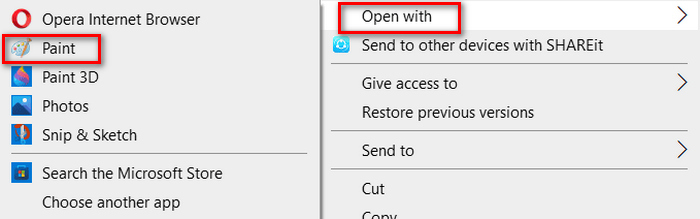
ขั้นตอนที่ 1 คลิกขวาที่รูปภาพ JPEG ที่คุณต้องการบีบอัด เลือก Open With แล้วเลือก Paint.
ขั้นตอนที่ 2 ไปที่แท็บ Home แล้วเลือก Resize and Skew.
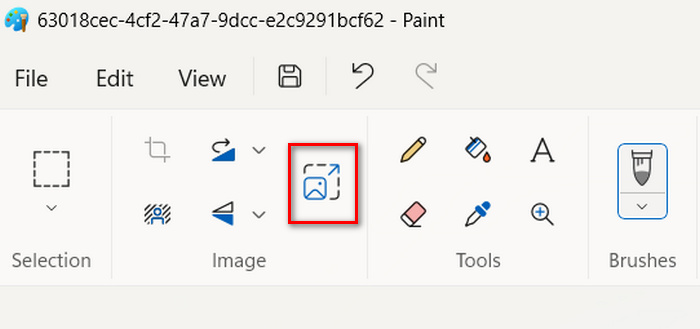
ขั้นตอนที่ 3 หลังจากนั้นให้คลิกปุ่ม Resize and Skew ที่นี่คุณสามารถปรับขนาดภาพได้โดยเปลี่ยนเป็นแบบ percentage หรือขนาดเป็นหน่วย pixel เมื่อได้ขนาดตามที่ต้องการแล้ว ให้คลิกปุ่ม OK.
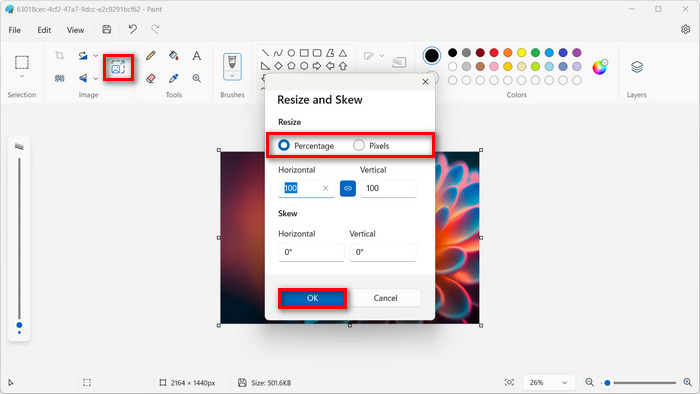
ขั้นตอนที่ 4 เมื่อปรับขนาดเรียบร้อยแล้ว ให้คลิก File และเลือก Save เพื่อบันทึกรูปภาพที่ถูกบีบอัด.
การใช้ Paint เพื่อบีบอัดไฟล์ JPEG เหมาะสำหรับผู้ใช้ Windows ที่ต้องการการบีบอัดแบบพื้นฐานเท่านั้น อย่างไรก็ตาม หากคุณต้องการผลลัพธ์ที่ดูเป็นมืออาชีพ ยังมีเครื่องมืออื่นที่ขั้นตอนใช้งานง่ายพอ ๆ กัน แต่ให้คุณภาพการบีบอัดที่ยอดเยี่ยมกว่า.
วิธีที่ 2. การใช้ภาพถ่าย
แอป Photos เป็นเครื่องมือในตัวของ Windows ซึ่งมักใช้เพื่อดูรูปภาพบน Windows อย่างไรก็ตาม แอปใหม่นี้ช่วยให้คุณแก้ไขและปรับขนาดรูปภาพ JPEG ได้อย่างง่ายดายด้วยการคลิกเพียงไม่กี่ครั้ง ดังต่อไปนี้:
ขั้นตอนที่ 1 คลิกขวาที่รูปภาพ JPEG ที่คุณต้องการบีบอัด เลือก Open With แล้วเลือก Photos app.
ขั้นตอนที่ 2 จากนั้นคลิกที่จุดไข่ปลา (สามจุด) มุมบนขวา แล้วเลือก Resize image จากเมนู.
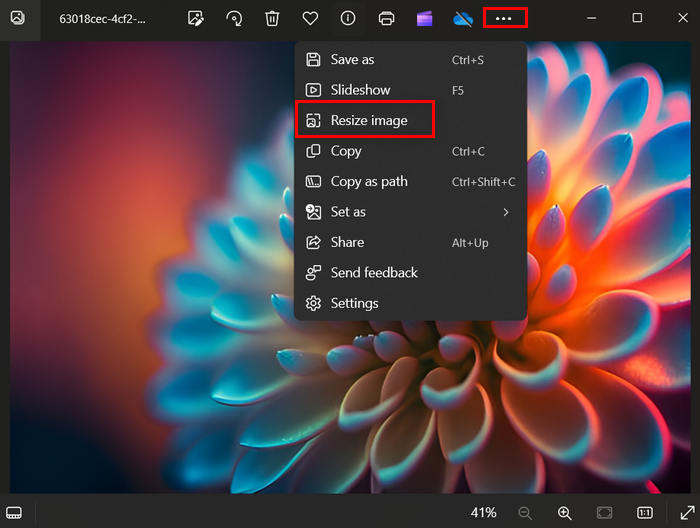
ขั้นตอนที่ 3 จากตรงนี้ คุณสามารถบีบอัดไฟล์ JPEG ได้โดยการเปลี่ยนค่า Pixel และ Percentage ของรูปภาพ.
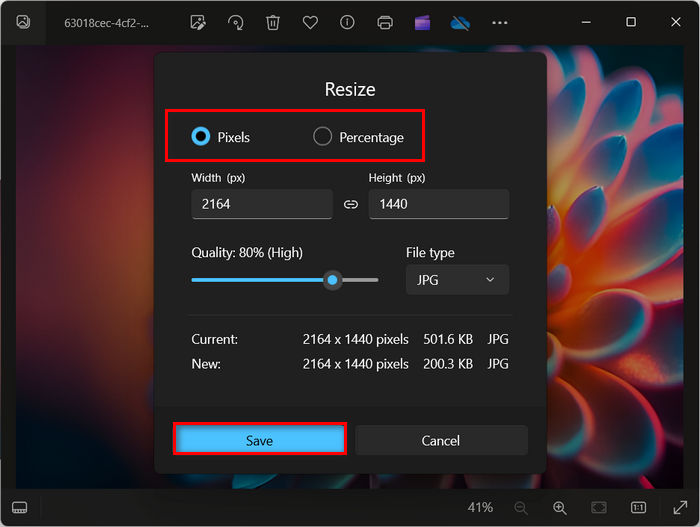
ขั้นตอนที่ 4 ขั้นตอนสุดท้ายให้คลิกปุ่ม Save.
การใช้ Photos ถือเป็นตัวเลือกที่ดีที่สุดเมื่อต้องบีบอัดไฟล์ JPEG แม้ว่าจะตรงไปตรงมาและง่ายมาก แต่ก็ไม่เหมาะอย่างยิ่งเมื่อคุณต้องบีบอัดไฟล์จำนวนมาก
ส่วนที่ 3. บีบอัด JPEG บน Mac
เช่นเดียวกับใน Windows มีเครื่องมือในตัวที่มีประโยชน์ที่ช่วยให้คุณบีบอัดไฟล์ JPEG บน Mac ได้ คุณสามารถเข้าถึงเครื่องมือเหล่านี้ได้อย่างง่ายดายและไม่จำเป็นต้องดาวน์โหลดเพิ่มเติม ทำให้การบีบอัดไฟล์ภาพต่างๆ สะดวกยิ่งขึ้น ในที่นี้ เราจะมาดูขั้นตอนต่างๆ โดยใช้เครื่องมือในตัว 2 ตัวที่นิยมใช้กันมากที่สุดใน MacOS
การดำเนินการด่วน
Quick Actions เป็นฟีเจอร์ที่มีอยู่ใน macOS ซึ่งช่วยให้ผู้ใช้สามารถบีบอัดไฟล์ JPEG ได้อย่างรวดเร็วและสะดวกด้วยฟีเจอร์การแก้ไขในตัว
วิธีใช้ Quick Actions เพื่อบีบอัด JPEG บน Mac มีดังนี้
ขั้นตอนที่ 1 คลิกขวาที่รูปภาพที่คุณต้องการบีบอัด.
ขั้นตอนที่ 2 จากเมนูคลิกขวา เลือก Quick Actions แล้วเลือก Convert Image.
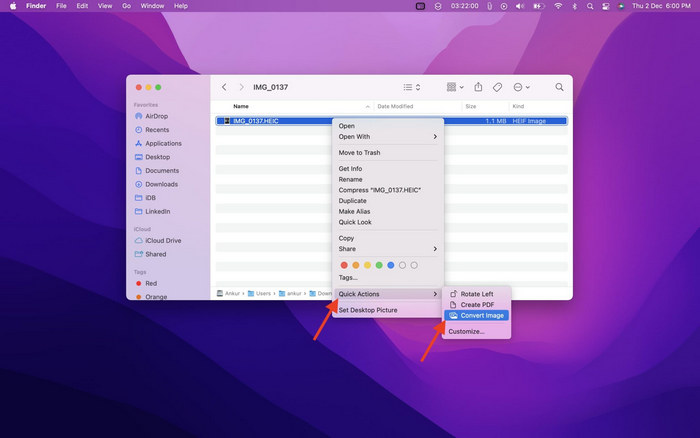
ขั้นตอนที่ 3 คลิกช่อง Image Size แล้วเลือก Small, Medium หรือ Large จากเมนูดรอปดาวน์ ซึ่งจะแสดงขนาดไฟล์ที่สอดคล้องกันให้ด้วย.
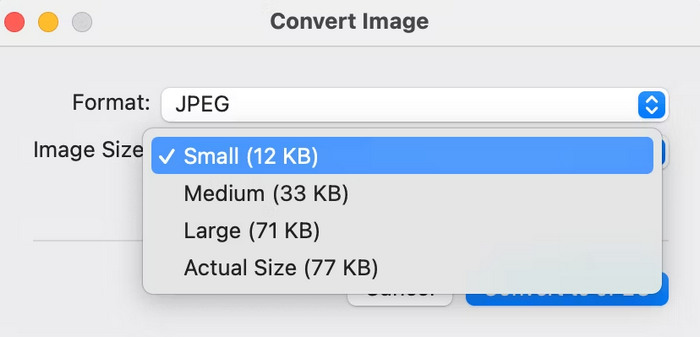
ขั้นตอนที่ 4 ทำเครื่องหมายที่ Preserve Metadata หากต้องการเก็บข้อมูลทั้งหมดของรูปภาพไว้.
โดยรวมแล้ว การใช้ Quick Actions ทำให้การบีบอัดไฟล์ JPEG บน Mac ง่ายขึ้นมาก นั่นหมายความว่าคุณสามารถแปลงและย่อขนาดรูปภาพ ได้โดยไม่ต้องติดตั้งแอปเพิ่มเติมหรือทำตามขั้นตอนที่ซับซ้อน อย่างไรก็ตาม วิธีนี้ยังขาดฟีเจอร์ขั้นสูงบางอย่างที่ช่วยรักษาคุณภาพของรูปภาพที่ถูกบีบอัดได้ดียิ่งขึ้น.
ดูตัวอย่าง
Preview คือเครื่องมือดูรูปภาพในตัว เครื่องมือนี้ช่วยให้คุณดูไฟล์รูปภาพต่างๆ ได้ และยังมีประโยชน์อย่างยิ่งในการบีบอัดไฟล์ JPEG
หากต้องการทำเช่นนี้ ให้ทำตามขั้นตอนด้านล่าง:
ขั้นตอนที่ 1 ขั้นแรก ให้เปิดแอป Preview บนเครื่อง Mac ของคุณ.
ขั้นตอนที่ 2 จากนั้น เปิดไฟล์รูปภาพที่คุณต้องการบีบอัดขนาด โดยไปที่แท็บ File แล้วคลิกปุ่ม Open.
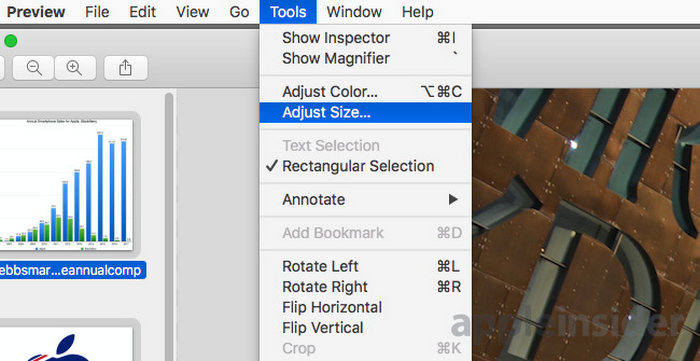
ขั้นตอนที่ 3 จากนั้น ไปที่แท็บ Tool ในแถบเมนู แล้วคลิก Adjust Size.
ขั้นตอนที่ 4 เลือก Resample Image หากคุณต้องการลดขนาดไฟล์รูปภาพ.
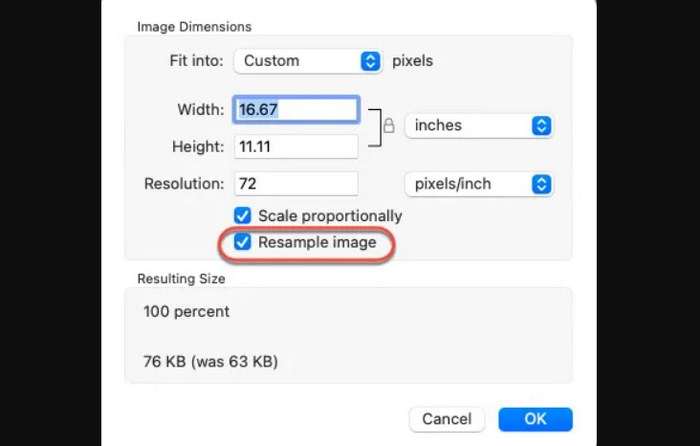
ขั้นตอนที่ 5 ตอนนี้ให้เปลี่ยนค่าของ Resolution ไฟล์ของคุณ เมื่อเปลี่ยนเรียบร้อยแล้ว ระบบจะแสดงขนาดไฟล์ใหม่ที่ด้านล่าง.
เช่นเดียวกับ Quick Actions, Preview บน Mac ก็เป็นเครื่องมือบีบอัดไฟล์ JPEG ที่ยอดเยี่ยมเช่นกัน ความแตกต่างเพียงอย่างเดียวคือ คุณสามารถควบคุมขนาดรูปภาพได้ตามต้องการ ข้อเสียเพียงอย่างเดียวของทั้งสองเครื่องมือนี้เมื่อเปรียบเทียบกับเครื่องมือบีบอัดไฟล์โดยเฉพาะก็คือคุณภาพของผลลัพธ์ที่ได้
ส่วนที่ 4 คำถามที่พบบ่อยเกี่ยวกับการบีบอัดรูปภาพ JPG
ทำไมไฟล์ JPG ของฉันถึงใหญ่มาก?
ไฟล์ JPEG มักจะมีขนาดใหญ่เนื่องจากสามารถจัดเก็บข้อมูลโดยละเอียด โดยเฉพาะในรูปภาพที่มีความละเอียดสูง นอกจากนี้ ไฟล์เหล่านี้ยังได้รับการบันทึกด้วยการบีบอัดข้อมูลขั้นต่ำ ทำให้เก็บข้อมูลได้มากขึ้นและส่งผลให้ไฟล์มีขนาดใหญ่ขึ้น
JPG และ JPEG เหมือนกันหรือเปล่า?
ใช่ คำว่า JPG และ JPEG มักใช้แทนกันได้ แต่ทั้งสองคำนี้มักจะหมายถึงรูปแบบไฟล์เดียวกันที่ใช้สำหรับจัดเก็บรูปภาพดิจิทัลที่บีบอัด เหตุผลที่ผู้ใช้สับสนระหว่างทั้งสองคำนี้กับรูปแบบไฟล์เหล่านี้ก็เพราะว่ามีจำนวนอักขระที่ใช้
JPG เทียบกับ PNG: อันไหนดีกว่า?
การเลือกใช้รูปแบบไฟล์ขึ้นอยู่กับความต้องการของคุณ ตัวอย่างเช่น JPG แทน PNG, JPG เหมาะสำหรับรูปถ่ายและรูปภาพที่มีสีซับซ้อนหรือมีการไล่ระดับสีเนื่องจากการบีบอัดที่มีประสิทธิภาพซึ่งรักษาคุณภาพที่ดีด้วยขนาดไฟล์ที่เล็กกว่า ในทางกลับกัน รูปแบบไฟล์ PNG เหมาะสำหรับรูปภาพที่มีขอบคม ข้อความซับซ้อน หรือกราฟิกที่มีสีทึบ นอกจากนี้ยังรองรับการบีบอัดแบบไม่สูญเสียข้อมูลซึ่งช่วยรักษาคุณภาพของรูปภาพ แต่ในทางกลับกัน จะใช้ขนาดไฟล์ที่ใหญ่กว่าเมื่อเทียบกับ JPG
ฉันจะบีบอัดรูปภาพ JPEG หลายภาพเป็นชุดบน Windows ได้อย่างไร
คุณสามารถบีบอัดรูปภาพ JPEG หลายภาพพร้อมกันบน Windows ได้โดยใช้เครื่องมือเช่น FVC Free Image Compressor เครื่องมือนี้ช่วยให้คุณบีบอัดรูปภาพได้สูงสุดถึง 40 ภาพพร้อมกัน ทำให้ปรับขนาดและบีบอัดไฟล์หลายไฟล์ได้อย่างมีประสิทธิภาพด้วยการคลิกเพียงครั้งเดียว
ฉันสามารถบีบอัดภาพ JPEG โดยไม่สูญเสียคุณภาพได้หรือไม่
การบีบอัดไฟล์ JPEG มักจะต้องแลกมาด้วยขนาดไฟล์และคุณภาพของภาพ แม้ว่าการลดขนาดไฟล์อาจทำให้สูญเสียคุณภาพไปบ้าง แต่การใช้เครื่องมือบีบอัดขั้นสูง เช่น FVC Free Image Compressor จะช่วยให้คุณบีบอัดไฟล์ JPEG ได้พร้อมทั้งลดการสูญเสียคุณภาพที่สังเกตเห็นได้ให้เหลือน้อยที่สุด
สรุป
หากคุณรู้วิธีที่ถูกต้องและมีเครื่องมือที่เหมาะสมในการบีบอัด JPG คุณก็ไม่จำเป็นต้องกังวลว่าจะสูญเสียคุณภาพของภาพหลังการบีบอัด เราเข้าใจถึงความจำเป็นในการลดขนาดไฟล์รูปภาพ ดังนั้นการเลือกวิธีการและเครื่องมือที่เหมาะสมซึ่งช่วยตอบโจทย์ความต้องการด้านการบีบอัดของคุณจึงเป็นเรื่องสำคัญ ไม่ว่าคุณจะเลือกใช้ FVC Free Image Compressor หรือเครื่องมือที่มีมาให้ในตัวทั้งบน Windows และ Mac เพียงเลือกวิธีที่คุณคิดว่าเหมาะกับความต้องการของคุณมากที่สุด.
แล้วคุณยังรออะไรอยู่ เริ่มบีบอัดไฟล์ภาพของคุณวันนี้เลย!
-
 คู่มือแนะนำเกี่ยวกับ Bigjpg – บทวิจารณ์และทางเลือกอื่น
 หนึ่งในโปรแกรมขยายรูปภาพที่ดีที่สุดบนอินเทอร์เน็ตคือ Bigjpg ตัวขยายรูปภาพนี้สามารถขยายขนาดรูปภาพของคุณได้ อ่านคำแนะนำนี้เพื่อทราบข้อมูลเพิ่มเติมเกี่ยวกับเครื่องมือ
-
 5 วิธีที่ดีที่สุดในการลดขนาดภาพบนอุปกรณ์ใด ๆ
 เรียนรู้วิธีที่มีประสิทธิภาพในการปรับขนาดหรือบีบอัดขนาดภาพโดยคลิกที่โพสต์นี้ ค้นพบเครื่องมือปรับขนาดรูปภาพที่ยอดเยี่ยมและคำแนะนำทีละขั้นตอน
-
 ลบบุคคลออกจากรูปภาพ: การแก้ไขรูปภาพที่ง่ายและรวดเร็ว
 คุณต้องการกำจัดผู้คนออกจากรูปภาพของคุณหรือไม่? อ่านบทความนี้ในขณะที่เราแสดงวิธีที่ดีที่สุดและง่ายที่สุดในการลบคนออกจากรูปภาพโดยใช้แอพ
