


 Video Converter Ultimate
 บันทึกหน้าจอ
 ซ่อมวิดีโอ
 ดาวน์โหลดอย่างปลอดภัย
วิธีที่เร็วที่สุดในการแปลง FLAC และ WAV (ออฟไลน์ / ออนไลน์)
Free Lossless Audio Codec หรือที่รู้จักกันทั่วไปในชื่อ FLAC เป็นรูปแบบไฟล์เสียงที่มีลักษณะคล้ายกับ MP3 อย่างมาก โดยให้คุณภาพเสียงที่ยอดเยี่ยมในขณะที่ใช้พื้นที่บนดิสก์ค่อนข้างน้อย นอกจากนี้รูปแบบไฟล์ประเภทนี้ยังเป็นแบบไม่สูญเสียข้อมูล (lossless) ซึ่งหมายความว่าข้อมูลเสียงส่วนใหญ่ยังคงถูกเก็บรักษาไว้แม้จะผ่านกระบวนการบีบอัดก็ตาม ในอีกแง่หนึ่ง ก็มีบางกรณีที่คุณจำเป็นต้องแปลงไฟล์ FLAC ไปเป็นรูปแบบอื่นอย่างเช่น WAV หากคุณต้องการยกระดับประสบการณ์การฟังให้ถึงคุณภาพสูงสุดและเหนือกว่า แล้วคุณควรเลือกใช้อันไหนระหว่างสองแบบนี้? มาดูต่อด้านล่างว่าคุณจะสามารถใช้ทั้งสองแบบได้อย่างไรด้วยเครื่องมือ แปลง FLAC เป็น WAV ที่ดีที่สุดในตอนนี้.

ส่วนที่ 1 แปลง FLAC และ WAV แบบออฟไลน์
Video Converter Ultimate เป็นเครื่องมือระดับท็อปสำหรับแปลงไฟล์ไปเป็นรูปแบบเสียงใดก็ได้ รวมถึง WAV และ FLAC โปรแกรมนี้มีฟีเจอร์แปลงไฟล์แบบกลุ่ม ทำให้คุณสามารถแปลงไฟล์เสียงหลายไฟล์พร้อมกันได้ในครั้งเดียว นอกจากนี้ คุณยังสามารถดึงคุณภาพของทุกเพลงออกมาได้สูงสุด เพราะโปรแกรมเปิดโอกาสให้ผู้ใช้ปรับค่าทางเทคนิคของไฟล์ขาออกได้ เช่น อัตราการสุ่มตัวอย่าง (sample rate) และบิตเรต (bitrate) หากคุณต้องการแปลง WAV เป็น FLAC แบบกลุ่ม หรือสลับกัน อ่านคู่มือแบบย่อที่เราเตรียมไว้ด้านล่างนี้.
ขั้นตอนที่ 1. เปิดโปรแกรมบนอุปกรณ์ของคุณโดยเลือกปุ่ม ดาวน์โหลดฟรี ที่เหมาะสมด้านล่าง จากนั้นทำตามคำแนะนำบนหน้าจอเพื่อเริ่มใช้งานโปรแกรม เมื่อการติดตั้งเสร็จสิ้น คุณจะสามารถทำความคุ้นเคยกับหน้าตาอินเทอร์เฟซได้ทันที.
ดาวน์โหลดฟรีสำหรับ Windows 7 หรือใหม่กว่าดาวน์โหลดอย่างปลอดภัย
ดาวน์โหลดฟรีสำหรับ MacOS 10.7 หรือใหม่กว่าดาวน์โหลดอย่างปลอดภัย
ขั้นตอนที่ 2. กดไอคอน เพิ่ม บนหน้าจอหลักแล้วนำเข้าไฟล์เสียงที่คุณต้องการใช้งาน หลังจากนั้นคุณจะถูกนำไปยังหน้าตัวอย่างของไฟล์ที่นำเข้า หากต้องการแปลงไฟล์จำนวนมาก คุณสามารถอัปโหลดแบบโฟลเดอร์ได้ เพียงเลือกจากไดเรกทอรีของคุณว่าโฟลเดอร์ใดที่มีไฟล์เสียงทั้งหมดที่คุณต้องการ.
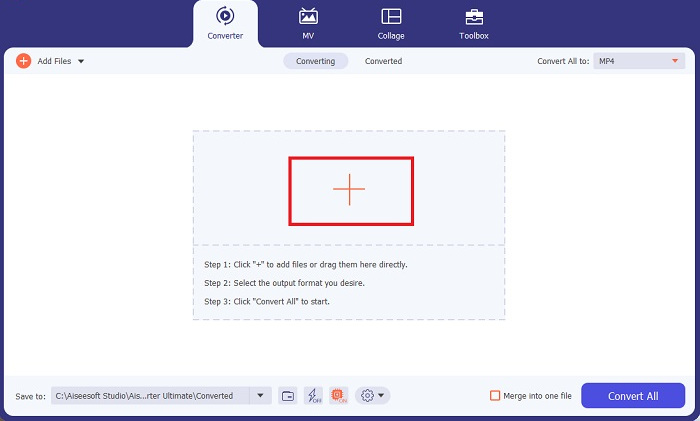
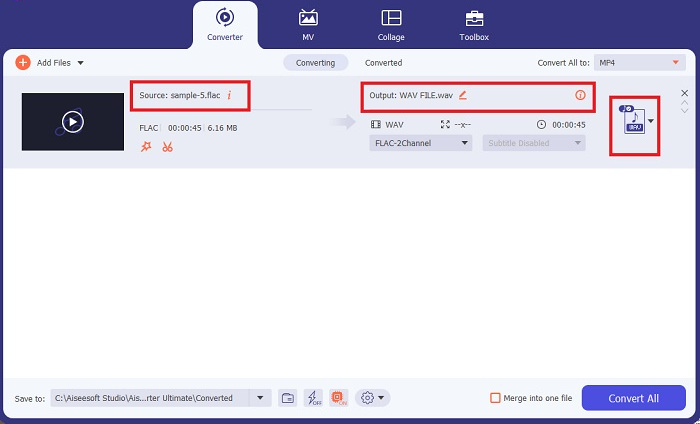
ขั้นตอนที่ 3. ตอนนี้คุณสามารถเปลี่ยนรูปแบบไฟล์ขาออกได้โดยคลิกที่ปุ่ม ตัวแปลง ด้านบนหน้าจอของโปรแกรม จากนั้นเลือก WAV จากแท็บตัวเลือก เอาต์พุตเสียง ในขณะเดียวกัน คุณสามารถปรับค่า sample rate และ bitrate ของไฟล์ขาออกให้ตรงกับคุณภาพที่คุณต้องการได้.
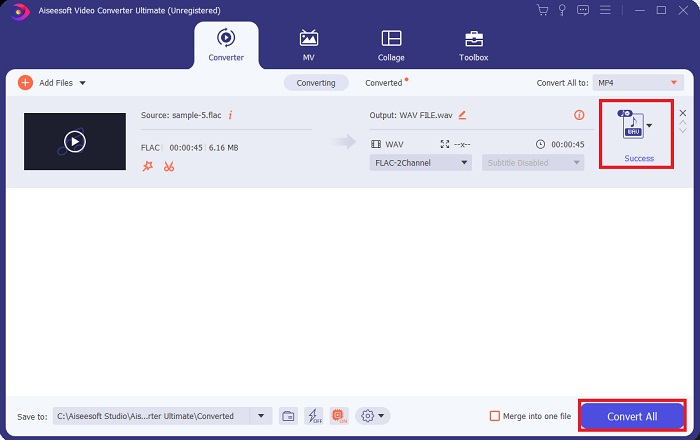
ขั้นตอนที่ 4. สำหรับขั้นตอนสุดท้าย เริ่มกระบวนการแปลงไฟล์โดยคลิกปุ่ม แปลงทั้งหมด ด้านล่าง หลังจากนั้นโปรแกรมจะเปิดโฟลเดอร์เอาต์พุตให้อัตโนมัติเพื่อให้คุณตรวจสอบรูปแบบใหม่ของไฟล์ได้.
ข้อดี
- สามารถแปลงไฟล์เสียง FLAC เป็น WAV เป็นแบทช์ได้
- โปรแกรมทำงานได้ดีกับทั้ง Windows และ Mac OS
- มีความเร็วในการแปลงที่รวดเร็ว
จุดด้อย
- ต้องชำระค่าสมัครสมาชิกหลังจากทดลองใช้ฟรี
- โปรแกรมไม่ทำงานบนอุปกรณ์ Linux OS
ส่วนที่ 2 แปลง FLAC เป็น WAV หรือ WAV เป็น FLAC ออนไลน์
แม้ว่าเครื่องมือค้นหาของคุณอาจแสดงตัวเลือกตัวแปลง FLAC เป็น WAV หรือ WAV เป็น FLAC ออนไลน์มากมาย นี่คือสิ่งที่เราทำได้เพื่อช่วยลดความยุ่งยากของคุณ Free Audio Converter Online เป็นตัวเลือกที่ยอดเยี่ยมหากคุณไม่ต้องการติดตั้งโปรแกรมบนเดสก์ท็อป ตัวแปลงออนไลน์นี้ทำงานได้อย่างราบรื่น พร้อมให้ความปลอดภัยและการปกป้องข้อมูลส่วนบุคคลของคุณขณะดำเนินการแปลง นอกจากนี้คุณยังสามารถใช้ประโยชน์จากฟีเจอร์แปลงไฟล์แบบกลุ่มของซอฟต์แวร์ได้เช่นเดียวกับการใช้โปรแกรมบนเดสก์ท็อป.
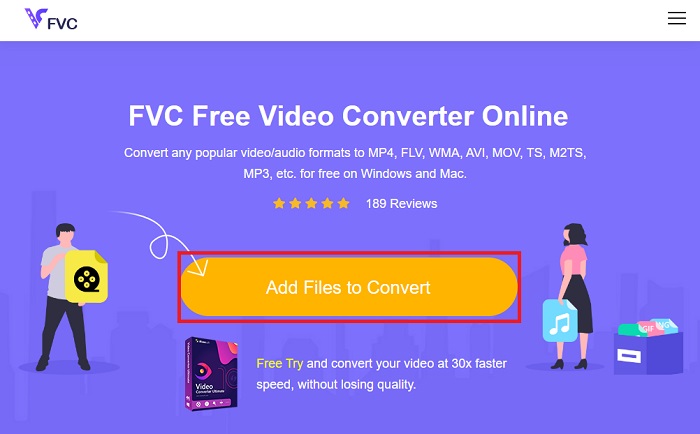
ขั้นตอนที่ 1. คลิกลิงก์ด้านบนเพื่อเข้าสู่เว็บไซต์หลักของ Free Online Video Converter จากนั้นเลือก เพิ่มไฟล์เพื่อแปลง บนหน้าจอหลักและอัปโหลดไฟล์เสียงของคุณ.
ขั้นตอนที่ 2. หน้าตัวอย่างไฟล์ต้นฉบับของคุณจะแสดงบนหน้าจอ จากพาเนลเดียวกันให้เลื่อนลงด้านล่างแล้วเลือกสกุลไฟล์ขาออกที่คุณต้องการ.
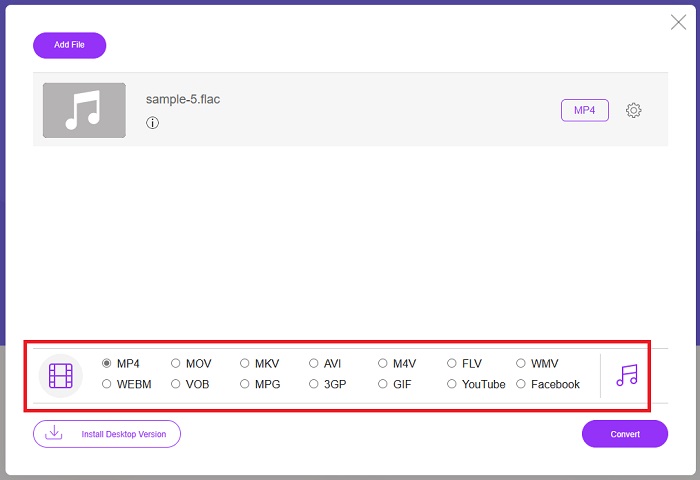
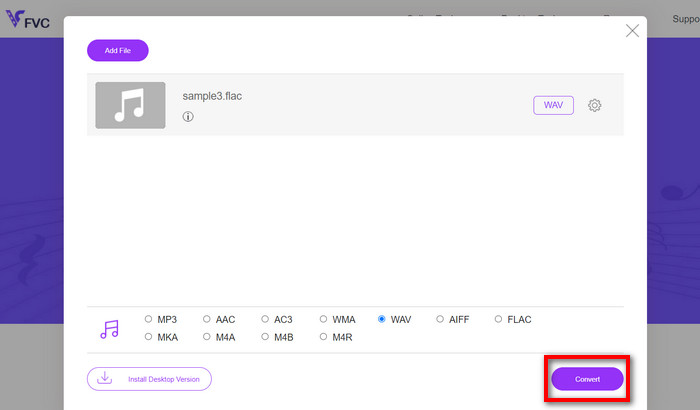
ขั้นตอนที่ 3. กดปุ่ม แปลง เพื่อเปลี่ยนไฟล์ FLAC ให้เป็นรูปแบบ WAV หากคุณต้องการแปลงไฟล์อื่น ให้ทำซ้ำขั้นตอนตามคู่มือนี้ตั้งแต่ต้น.
ข้อดี
- ใช้งานได้กับเครื่องมือค้นหาใดๆ เช่น Google Chrome, Safari, Firefox และอื่นๆ
- มีรูปแบบไฟล์เสียงยอดนิยมต่างๆ เช่น MP3, AAC และ WMA
- ผู้ใช้สามารถเพลิดเพลินกับการแปลงไม่จำกัดต่อวัน
จุดด้อย
- ความเร็วในการแปลงขึ้นอยู่กับความแรงของการเชื่อมต่ออินเทอร์เน็ต
อ่านเพิ่มเติม:
แปลง FLAC เป็น MP3 เพื่อคงคุณภาพเสียง
ขั้นตอนง่าย ๆ ในการแปลง WAV เป็น OGG เพื่อขนาดไฟล์เสียงที่เหมาะสม
ส่วนที่ 3 คำถามที่พบบ่อยเกี่ยวกับการแปลง FLAC และ WAV
การแปลงไฟล์จาก FLAC เป็น WAV คุณภาพจะลดลงหรือไม่
การแปลงไฟล์เสียงของคุณจาก FLAC เป็น WAV จะไม่ทำให้คุณภาพลดลงเนื่องจากความละเอียดของไฟล์นั้นไม่ได้ถูกบีบอัด อย่างไรก็ตาม สมมติว่าคุณแปลงไฟล์จาก WAV เป็น FLAC ในกรณีนั้น คุณอาจสังเกตเห็นการเปลี่ยนแปลงเล็กน้อย โดยเฉพาะอย่างยิ่งสำหรับผู้ที่หูค่อนข้างมีรายละเอียด หากคุณต้องการความช่วยเหลือในการตัดสินใจว่าจะเก็บไว้ที่ใด นี่คือมุมมองบางส่วนที่คุณสามารถดูได้ รูปแบบไฟล์เสียง FLAC เป็นตัวเลือกที่ดีสำหรับจัดเก็บเพลงจำนวนมาก ในขณะที่ไฟล์ WAV มีขนาดใหญ่กว่าแต่เหมาะสำหรับการตัดต่อเสียง
WAV เป็นรูปแบบเสียงที่มีความละเอียดสูงสุดหรือไม่
WAV เป็นตัวย่อของ Waveform Audio File Format ที่พัฒนาโดย IBM และ Microsoft รูปแบบนี้ถือเป็นรูปแบบที่มีความละเอียดสูงสุดในอุตสาหกรรมเพลงดิจิทัล เนื่องจากมีความถี่เสียงที่ดิบและไม่มีการประนีประนอม
ตัวแปลง FLAC เป็น WAV ออนไลน์ที่ดีที่สุดคืออะไร
ไม่ต้องสงสัยเลยว่า FVC Free Online Video Converter เป็นตัวแปลง FLAC เป็น WAV ฟรีที่ดีที่สุดทางออนไลน์ คุณไม่จำเป็นต้องมีความชำนาญด้านเทคนิคในการแปลงไฟล์วิดีโอและไฟล์เสียงใดๆ โดยใช้ซอฟต์แวร์นี้ มันสามารถทำงานของคุณได้อย่างมีประสิทธิภาพเพราะใช้งานง่ายและมีความเร็วในการแปลงที่เหนือชั้น ยิ่งไปกว่านั้น โปรแกรมออนไลน์นี้ยังมีรูปแบบเสียงยอดนิยมที่เรารู้จัก
สรุป
การแปลงไฟล์สามารถทำได้ทั้งสองทาง ไม่ว่าจะเป็นจาก FLAC เป็น WAV หรือ WAV เป็น FLAC เนื่องจากทั้งสองรูปแบบไฟล์นี้แพร่หลายในโลกดนตรีดิจิทัลในปัจจุบัน การเลือกใช้อันไหนอาจขึ้นอยู่กับงานที่คุณต้องการใช้ ด้วยเครื่องมือที่กล่าวมาข้างต้น คุณสามารถสลับเปลี่ยนรูปแบบไปมาได้ทุกเมื่อ ทำตามขั้นตอนที่กล่าวไว้ด้านบนเพื่อแปลง FLAC เป็น WAV หรือ WAV เป็น FLAC แล้วคุณจะไม่พบปัญหาใด ๆ ในการใช้งานเลย.
-
 ค้นหาวิธีการแปลง MP3 เป็นรูปแบบ WAV
 คุณต้องการทราบวิธีการแปลง MP3 เป็น WAV หรือไม่? พิจารณาว่าเครื่องมือใดให้การแปลงคุณภาพดีที่สุดที่คุณจะได้รับ
-
 WAV Player - แอพเล่น WAV 5 อันดับแรกสำหรับ Android, iPhone, PC และ Mac
 จะเล่นไฟล์ WAV บนโทรศัพท์ Android ได้อย่างไร? เครื่องเล่นอะไรสามารถเล่น WAV ได้? โพสต์นี้แชร์ 5 เครื่องเล่น WAV ฟรีที่ดีที่สุดสำหรับ Android, iPhone, Mac และ PC
-
 ตัวแก้ไขข้อมูลเมตา FLAC 3 อันดับแรกบน Mac และ Windows [อัปเดต 2023]
 คุณต้องการเปลี่ยนข้อมูลเมตา FLAC หรือไม่ ในกรณีนี้ คุณต้องอ่านบทความนี้ เนื่องจากเราให้ความรู้เพียงพอเกี่ยวกับตัวแก้ไขข้อมูลเมตา FLAC ล่าสุดจึงจะสามารถใช้ได้
