


 Video Converter Ultimate
 บันทึกหน้าจอ
 ซ่อมวิดีโอ
วิธีการแปลง DivX เป็น WMV อย่างง่ายดาย: วิธีการออฟไลน์และออนไลน์
DivX เป็นวิดีโอโค้เดกสำหรับการบีบอัด ที่ใช้บีบอัดไฟล์วิดีโอให้มีขนาดตามที่ผู้ใช้ต้องการ ส่วนไฟล์ WMV คือไฟล์ Windows Media Video ที่สามารถบีบอัดวิดีโอด้วยรูปแบบการบีบอัดของไมโครซอฟท์ โปรดจำไว้ว่า DivX และ WMV ไม่ได้รองรับกันได้เสมอไป แม้ว่าปัจจุบันวิดีโอส่วนใหญ่จะถูกเข้ารหัสด้วย DivX และเก็บในรูปแบบ WMV แต่อาจมีบางครั้งที่คุณจำเป็นต้องแปลงไฟล์ DivX เป็นรูปแบบ WMV ตามสถานการณ์ โชคดีที่เรามีตัวแปลงไฟล์ DivX เป็น WMV ให้คุณใช้งานได้อย่างรวดเร็ว ทั้งแบบออฟไลน์และออนไลน์.

ส่วนที่ 1 วิธีที่ยอดเยี่ยมในการแปลง DivX เป็น WMV [ออฟไลน์]
Video Converter Ultimate อาจเป็นตัวเลือกที่เหมาะที่สุด หากคุณกำลังมองหาโปรแกรมที่สามารถทำทุกขั้นตอนให้เสร็จได้ในครั้งเดียว พร้อมทั้งมีฟีเจอร์เพิ่มเติมสำหรับการตัดต่ออื่น ๆ ไม่เพียงแต่รองรับรูปแบบไฟล์วิดีโอมากมาย แต่ยังให้คุณแก้ไขวิดีโอและเสียงต่อได้ในด้านคุณภาพ รวมถึงปรับแต่งคลิปด้วยเอฟเฟกต์ต่าง ๆ ซอฟต์แวร์นี้เป็นตัวแปลงไฟล์แบบครบวงจร ต่อไปนี้คือขั้นตอนที่คุณต้องทำเพื่อใช้โปรแกรมนี้:
ขั้นตอนที่ 1: ติดตั้งซอฟต์แวร์ลงในคอมพิวเตอร์ของคุณโดยคลิกปุ่ม ดาวน์โหลดฟรี ด้านล่างให้ตรงกับระบบปฏิบัติการที่คุณใช้ รอให้ไฟล์ .exe ดาวน์โหลดเสร็จ จากนั้นเปิดไฟล์เพื่อเริ่มการติดตั้ง เมื่อคุณติดตั้งเสร็จแล้ว ให้คลิก เริ่มเลย เพื่อเปิดโปรแกรม.
ดาวน์โหลดฟรีสำหรับ Windows 7 หรือใหม่กว่าดาวน์โหลดอย่างปลอดภัย
ดาวน์โหลดฟรีสำหรับ MacOS 10.7 หรือใหม่กว่าดาวน์โหลดอย่างปลอดภัย
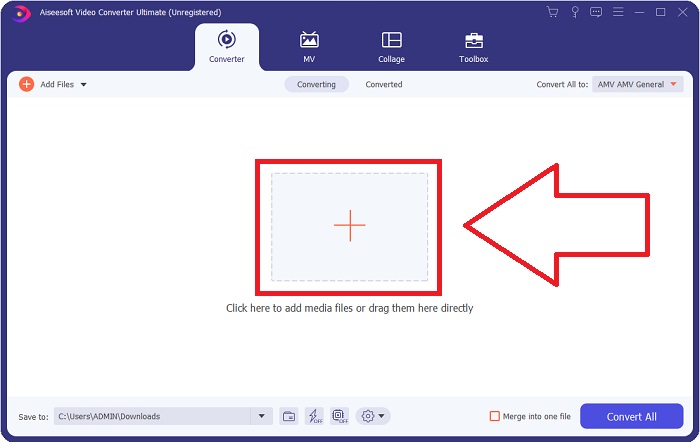
ขั้นตอนที่ 2: จะมีหน้าต่างพร้อมอินเทอร์เฟซที่มีปุ่ม + อยู่ตรงกลาง ปุ่มนี้ไว้สำหรับนำเข้าไฟล์วิดีโอที่คุณต้องการแปลง หรือคุณสามารถลากและวางไฟล์ลงไปได้อย่างสะดวก.
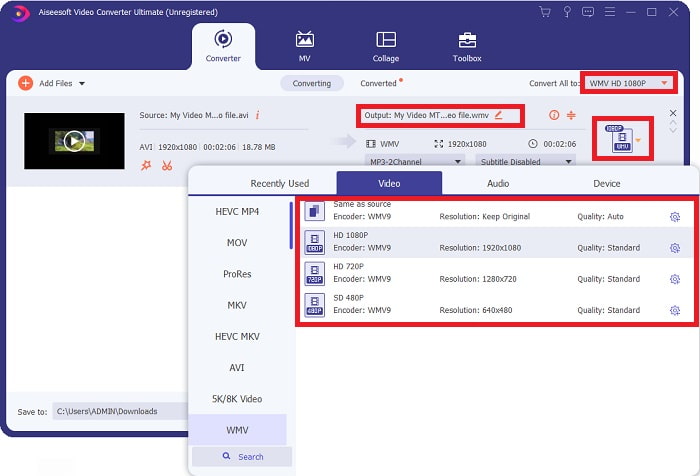
ขั้นตอนที่ 3: เมื่อคุณนำเข้าไฟล์เสร็จแล้ว ระบบจะแสดงรูปแบบไฟล์วิดีโอปัจจุบันของคุณทางด้านขวาของไฟล์ ให้คลิกที่ส่วนนั้น แล้วรูปแบบไฟล์ที่มีให้เลือกทั้งหมดจะแสดงขึ้นมา คุณสามารถเลื่อนลงหรือพิมพ์คำว่า WMV ในช่องค้นหาเพื่อเลือก นอกจากนี้ยังมีตัวเลือกคุณภาพวิดีโอทางด้านขวาของแท็บให้เลือกด้วย.
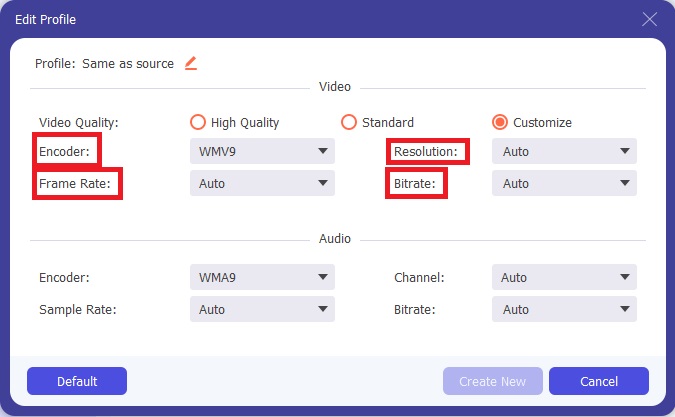
ขั้นตอนที่ 4: หากต้องการตัวเลือกเพิ่มเติม ให้คลิกไอคอนรูปเฟืองที่อยู่ถัดจากคุณภาพวิดีโอที่คุณเลือก จะมีหน้าต่างอีกบานหนึ่งปรากฏขึ้น คุณสามารถแก้ไขความละเอียด (resolution) อัตราเฟรม (frame rate) บิตเรต (bitrate) และอื่น ๆ ได้ตามที่ต้องการ หากพอใจกับการปรับค่าทั้งหมดแล้ว ให้คลิกปุ่ม Create New ที่มุมขวาล่างเพื่อบันทึกการตั้งค่า.
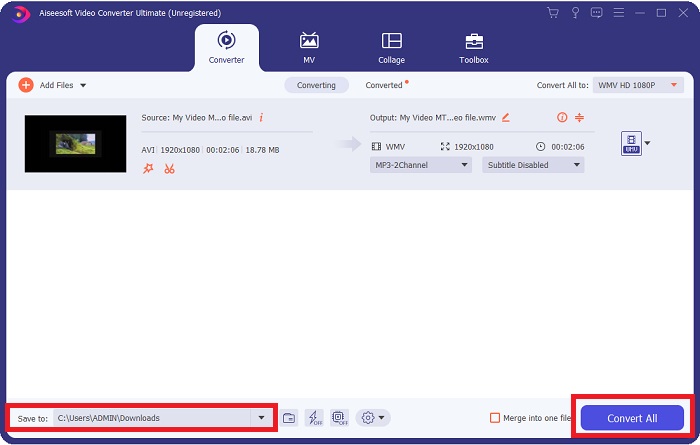
ขั้นตอนที่ 5: เมื่อตั้งค่าวิดีโอเสร็จเป็นที่พอใจแล้ว ให้คลิกปุ่ม Convert All ที่มุมขวาล่างเพื่อเริ่มกระบวนการแปลงไฟล์ และรอจนกว่าจะเสร็จสิ้น.
ส่วนที่ 2 วิธีอื่นที่ใช้ในการแปลง DivX เป็น WMV [ออนไลน์]
เป็นไปได้ที่จะเก็บตัวแปลงวิดีโอไว้ตลอดเวลาโดยไม่ต้องติดตั้งซอฟต์แวร์ใดๆ ยังสามารถแปลงวิดีโอได้อย่างรวดเร็วและง่ายดายโดยไม่ต้องติดตั้งอะไรเลย Video Converter Ultimate มีคู่ออนไลน์ที่คุณสามารถใช้ได้ในการกวาดครั้งเดียว มันยังคงมีตัวเลือกเพิ่มเติมและรองรับรูปแบบมากมาย ในการใช้เครื่องมือเว็บนี้ ให้ทำตามขั้นตอนง่ายๆ เหล่านี้:
ขั้นตอนที่ 1: เริ่มได้โดยการคลิกที่ลิงก์นี้ ระบบจะพาคุณไปยังเครื่องมือออนไลน์ ที่หน้าดังกล่าวคุณจะพบปุ่ม Add Files to Convert อยู่ตรงกลาง คลิกเพื่อดาวน์โหลดตัวเรียกใช้งาน (launcher) ที่คุณต้องใช้ในการนำเข้าไฟล์วิดีโอได้อย่างสะดวก.
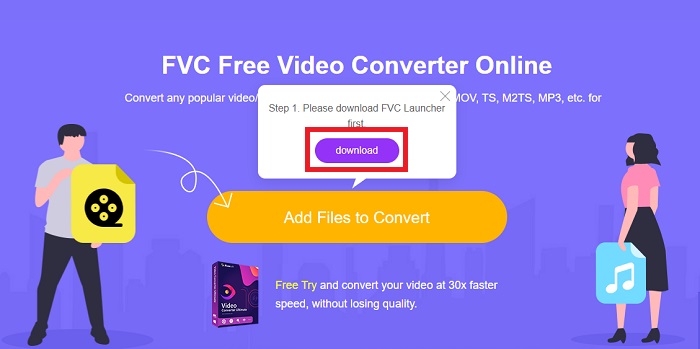
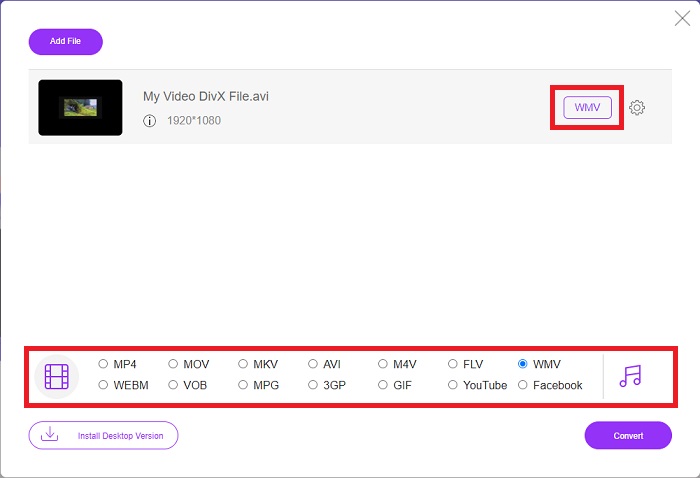
ขั้นตอนที่ 2: เมื่อดาวน์โหลดตัวเรียกใช้งานเสร็จแล้ว ให้คลิกปุ่มเดิมอีกครั้งเพื่อเลือกไฟล์ที่คุณต้องการแปลง จากนั้นคุณสามารถเลือก WMV จากรายการรูปแบบไฟล์ที่อยู่ด้านล่างของหน้าต่างได้.
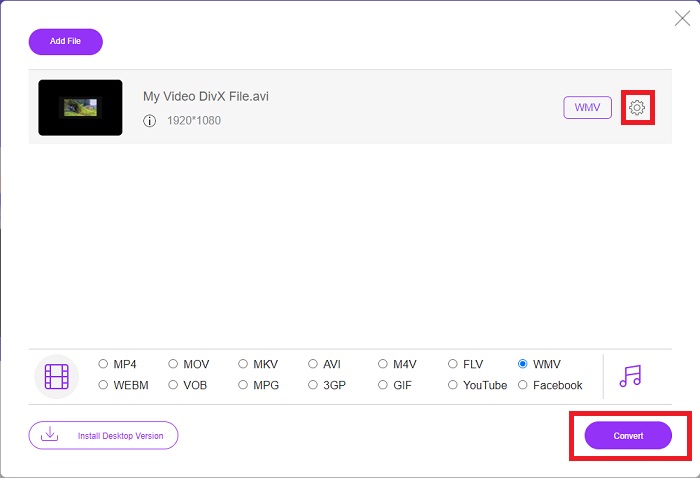
ขั้นตอนที่ 3: คุณจะพบไอคอนรูปเฟืองทางด้านขวาเพื่อใช้ปรับการตั้งค่า เช่น ความละเอียด อัตราเฟรม และค่าอื่น ๆ คล้ายกับในซอฟต์แวร์ตัวเต็ม เมื่อต้องการบันทึกการเปลี่ยนแปลง ให้คลิกปุ่ม Ok แล้วคุณก็สามารถเริ่มกระบวนการแปลงไฟล์ได้ ให้คลิกปุ่ม Convert ที่มุมขวาล่างและรอจนกว่าจะเสร็จ.
ที่เกี่ยวข้อง:
ส่วนที่ 3 DivX กับ WMV: ข้อมูลที่คุณควรทราบ
สำหรับการเปรียบเทียบระหว่างสองรูปแบบที่กล่าวถึง คุณสามารถอ่านส่วนนี้เพื่อทราบข้อมูลที่จำเป็นทั้งหมด:
DivX เป็นแบรนด์ของตัวแปลงสัญญาณวิดีโอที่สร้างโดย DivX, LLC ตัวแปลงสัญญาณวิดีโอนี้ทำงานได้ดีที่สุดกับแอปพลิเคชัน Windows แม้ว่าผู้ใช้อาจพบโค้ดนี้ในคอนโซลเกม นาฬิกาปลุก เครื่องเสียงในรถยนต์ และอุปกรณ์อื่นๆ ตัวแปลงสัญญาณวิดีโอ MPEG-4 ตอนที่ 2, HEVC Ultra HD และ H.264/MPEG-4 AVC DivX Plus High Definition เป็นตัวแปลงสัญญาณ DivX หลักสามตัวที่ใช้ในปัจจุบัน
ในทางกลับกัน WMV (Windows Media Video) คือชุดของตัวแปลงสัญญาณวิดีโอและรูปแบบการเข้ารหัสที่ Microsoft เผยแพร่โดยเป็นส่วนหนึ่งของกรอบงาน Windows Media จุดประสงค์คือเพื่อแข่งขันกับรูปแบบ RM บนแอปพลิเคชันการสตรีมทางอินเทอร์เน็ต จุดประสงค์คือเพื่อจัดเก็บภาพยนตร์ที่บีบอัดและแม้กระทั่งส่ง Blu-ray/DVD
| ดิจิตอลวิดีโอเอ็กซ์เพรส (DivX) | วินโดว์มีเดียวิดีโอ (WMV) | |
| นามสกุลไฟล์ | .divx | .wmv |
| นักพัฒนา | DivX Networks อิงค์ | Microsoft |
| โปรแกรมสนับสนุน | ◆ เครื่องเล่น DVD/Blu-ray ◆ นาฬิกาปลุก ◆เครื่องเสียงรถยนต์ ◆ X-Box 360 | ◆ VLC Media Player ◆ MPlayer ◆เครื่องเล่นสื่อคลาสสิก ◆ Windows Media Player |
ส่วนที่ 4 คำถามที่พบบ่อยเกี่ยวกับ DivX เป็น WMV Conversion
ยังใช้ DivX อยู่หรือไม่
DIVX (Digital Video Express) เป็นรูปแบบวิดีโอดิจิทัลที่ถูกยกเลิก ซึ่งเป็นความพยายามที่ล้มเหลวในสหรัฐอเมริกาในการพัฒนาทางเลือกอื่นแทนการเช่าวิดีโอ
ข้อจำกัดของ WMV คืออะไร?
เนื่องจาก WMV เป็นรูปแบบ Windows การค้นหาเครื่องเล่นสื่อของ Apple หรือ Linux สามารถเล่นภาพยนตร์ WMV ได้ WMV ไม่ใช่รูปแบบวิดีโอสตรีมมิ่งหลักด้วยเหตุนี้
อันไหนมีการบันทึกความคมชัดสูงกว่ากัน?
แม้ว่าทั้ง WMV และ DivX สามารถบันทึกที่ 1280x720 ได้ แต่อันหนึ่งต้องมีคุณภาพสูงกว่าอีกอันหนึ่ง ตัวแปลงสัญญาณเหล่านี้สามารถบันทึกได้หลายระดับคุณภาพที่ความละเอียดที่แน่นอน แต่อัตราบิตจะแตกต่างกันไปตามการทำให้ไฟล์มีขนาดเล็กลง แม้ว่ารูปภาพ WMV จะเหนือกว่า แต่ DivX ก็สร้างไฟล์ที่เร็วขึ้นห้าเท่าและเล็กกว่า 50 เปอร์เซ็นต์
สรุป
ทุกสิ่งที่พิจารณา การมีคอนเวอร์เตอร์อยู่ข้างๆ นั้นเป็นสิ่งที่สนับสนุน ดังนั้นในยามจำเป็น คุณไม่จำเป็นต้องเจอปัญหาใดๆ ในการหาคอนเวอร์เตอร์ที่ดีทางออนไลน์ Video Converter Ultimate และเครื่องมือออนไลน์ที่คู่กันแนะนำสำหรับผู้บริโภควิดีโอหรือผู้สร้าง เนื่องจากมีให้มากกว่าตัวแปลงอื่นๆ นอกจากนี้ยังมอบความสะดวกสบายสูงสุดให้กับคุณ เนื่องจากมีอินเทอร์เฟซที่ผู้เริ่มต้นใช้งานได้อย่างง่ายดายแม้กระทั่ง
-
 4 วิธีในการแปลง DivX เป็น MOV ฟรี [ออนไลน์และออฟไลน์]
 คุณมีปัญหากับข้อจำกัดของ DivX หรือคุณไม่มีเครื่องเล่นสื่อเพื่อเข้าถึงวิดีโอในรูปแบบนี้ หากคุณต้องการแปลงเป็นรูปแบบ MOV ให้อ่านบทความนี้ต่อเพื่อเติมช่องว่าง
-
 ตัวแปลงที่ผ่านการรับรอง 2 ตัวที่ใช้ในการแปลงไฟล์ DivX เป็นรูปแบบ FLV [2022]
 คุณต้องการทราบวิธีการแปลงไฟล์ DivX ของคุณเป็น FLV หรือไม่? จากนั้นอ่านบทความนี้เพื่อรับทราบวิธีการดำเนินการและตัวแปลงที่คุณสามารถใช้ได้
-
 คำแนะนำง่ายๆ เกี่ยวกับวิธีการเปลี่ยน GIF ของคุณเป็น WMV บน Windows/Mac
 คุณต้องการทราบวิธีการแปลงรูปแบบ GIF เป็น WMV หรือไม่? จากนั้นทำตามบทความนี้เนื่องจากจะแสดงโซลูชันต่างๆ ที่คุณสามารถเลือกได้
