


 Video Converter Ultimate
 บันทึกหน้าจอ
 ซ่อมวิดีโอ
4 วิธีที่ง่ายที่สุดในการแปลงไฟล์ F4V เป็น AVI Media File Format
Macromedia เปิดตัว F4V และต่อมา Adobe ได้พัฒนาเพื่อแข่งขันกับพื้นที่จัดเก็บวิดีโอที่ทันสมัยและมีคุณภาพสูง นอกจากนี้ยังสร้างเป็นรูปแบบทดแทน FLV เนื่องจาก FLV มีข้อจำกัด คำอธิบายเพิ่มเติมคือไฟล์ F4V ใช้รูปแบบไฟล์สื่อพื้นฐาน ISO พร้อมตัวแปลงสัญญาณ H.264 เพื่อลดขนาดไฟล์ แม้ว่ารูปแบบจะมีเอาต์พุตคุณภาพสูง แต่ F4V มีความเข้ากันได้ต่ำกว่ารูปแบบอื่น และไม่เพียงเท่านั้น แต่รูปแบบนี้ยังถูกเลิกใช้เนื่องจาก Adobe Flash Player ได้หยุดให้บริการแล้ว
ดังนั้น หากคุณพบปัญหาเดียวกันกับคนอื่น ๆ เพราะไฟล์ .f4v ของพวกเขาไม่สามารถเล่นบนโปรแกรมเล่นวิดีโอได้ ให้อ่านต่อด้านล่าง เราได้รวบรวมเครื่องมือต่าง ๆ ที่จะช่วยให้คุณเล่นไฟล์ .f4v ที่เล่นไม่ได้ โดยการแปลงฟอร์แมตให้เป็น AVI ตอนนี้มาดูกันต่อว่าเราจะแปลง F4V เป็น AVI ด้วยเครื่องมือออนไลน์และออฟไลน์ที่มีอยู่ได้อย่างไร.

ส่วนที่ 1 เรียนรู้วิธีการแปลง F4V เป็น AVI ด้วย Phenomenal F4V เป็น AVI Converter
หากคุณกำลังมองหาตัวแปลงไฟล์ที่ดีที่สุดเพื่อช่วยแก้ปัญหานี้ FVC Video Converter Ultimate น่าจะเป็นตัวช่วยที่ใช่ เราได้ทดลองใช้ด้วยตัวเองและอ่านความคิดเห็นของผู้ใช้หลายคน พบว่า Ultimate ไม่ได้เป็นแค่ชื่อ แต่ประสิทธิภาพและฟีเจอร์ของซอฟต์แวร์ก็ยอดเยี่ยมไม่แพ้กัน หนึ่งในฟีเจอร์ที่น่าประทับใจมากคือการแปลงไฟล์ที่รวดเร็วและการเร่งด้วยฮาร์ดแวร์ ทำให้ผู้ใช้ไม่ต้องรอนาน.
นอกจากนี้ หากคุณต้องการสร้าง GIF เร่งความเร็ววิดีโอหรือทำให้ช้าลง เล่นย้อนกลับ เพิ่มระดับเสียง ฯลฯ เนื่องจากเครื่องมือนี้มีฟีเจอร์ขั้นสูงให้ใช้งาน คุณจึงจำเป็นต้องจ่ายเงินก่อนจึงจะใช้ได้ แต่ไม่ต้องกังวลเพราะราคาไม่เกินร้อยดอลลาร์ ดังนั้น หากคุณยังอยู่ในช่วงตัดสินใจว่าจะซื้อดีหรือไม่ ลองอ่านขั้นตอนด้านล่างและแปลงไฟล์ F4V เป็น AVI ตามขั้นตอนเหล่านี้ได้เลย.
ขั้นตอนที่ 1 ก่อนที่คุณจะใช้เครื่องมือทรงพลังนี้ได้ คุณต้องดาวน์โหลดมาติดตั้งบนเดสก์ท็อปของคุณก่อน จากนั้นติดตั้งและตั้งค่าอย่างรวดเร็ว แล้วคลิก Start Now เพื่อเปิดโปรแกรม.
ดาวน์โหลดฟรีสำหรับ Windows 7 หรือใหม่กว่าดาวน์โหลดอย่างปลอดภัย
ดาวน์โหลดฟรีสำหรับ MacOS 10.7 หรือใหม่กว่าดาวน์โหลดอย่างปลอดภัย
ขั้นตอนที่ 2 เมื่อเปิดโปรแกรมแล้ว ให้ไปที่ Add Files หรือคลิกปุ่ม + จากนั้นจะมีหน้าต่างโฟลเดอร์แสดงขึ้นมา ให้หาไฟล์นามสกุล .f4v แล้วคลิก Open.
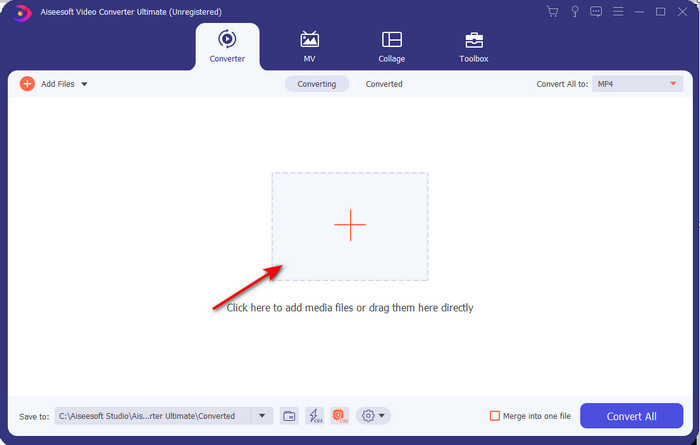
ขั้นตอนที่ 3 หลังจากเพิ่มไฟล์แล้ว ให้คลิก Convert All to ที่มุมขวาบนของหน้าต่างโปรแกรม แล้วเลือกฟอร์แมต AVI.
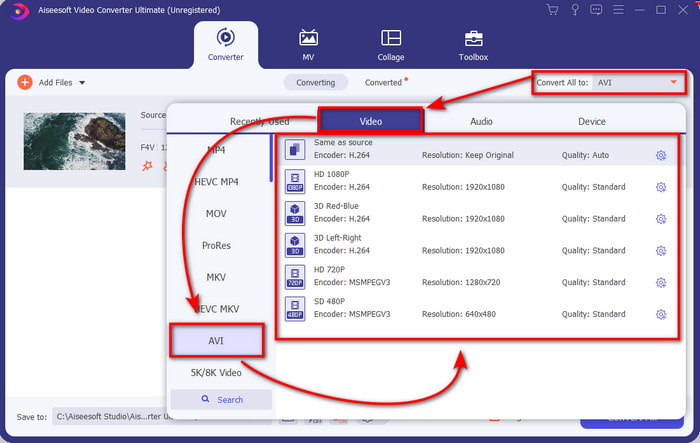
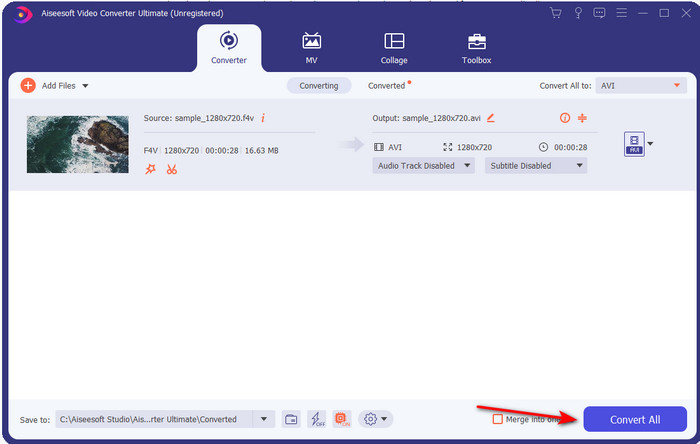
ขั้นตอนที่ 4 ตอนนี้เพื่อเริ่มต้นกระบวนการแปลงไฟล์ ให้คลิก Convert All แล้วรอไม่กี่นาทีเพื่อแปลงไฟล์ F4V ให้เป็น AVI.
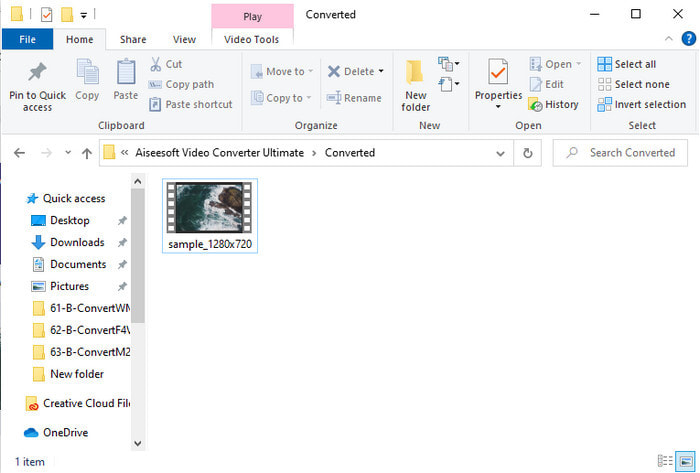
ขั้นตอนที่ 5 เมื่อเสร็จแล้ว โฟลเดอร์ไฟล์จะเปิดขึ้นโดยอัตโนมัติบนเดสก์ท็อปของคุณ พร้อมไฟล์ .f4v ที่ถูกแปลงแล้วจากขั้นตอนด้านบน ให้คลิกไฟล์วิดีโอเพื่อดูวิดีโอที่เคยเล่นไม่ได้บนเดสก์ท็อปของคุณ หรือจะโอนย้ายไปยังโทรศัพท์ก็ได้หากต้องการ.
ส่วนที่ 2 เรียนรู้วิธีแปลง F4V เป็น AVI ออนไลน์ด้วย 3 Web Converter ที่พร้อมใช้งาน
1. FVC โปรแกรมแปลงวิดีโอออนไลน์ฟรี
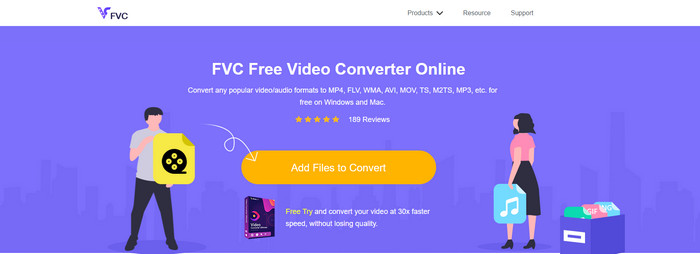
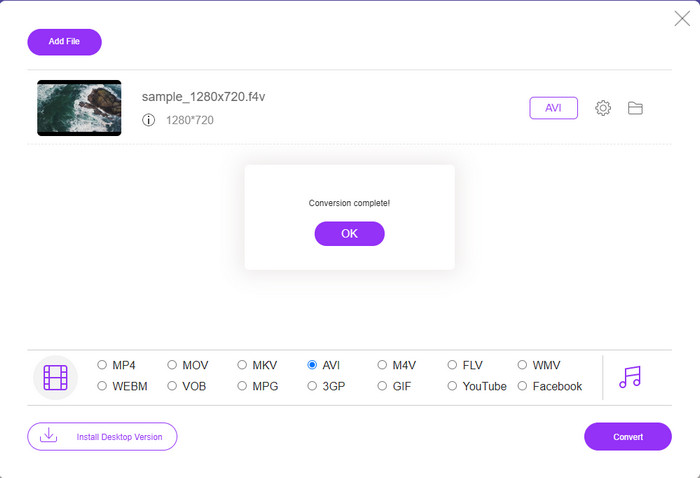
หากคุณอยากรู้ว่าตัวแปลงไฟล์ออนไลน์ตัวไหนดีที่สุด FVC Free Video Converter Online อาจเป็นคำตอบ ทุกฟีเจอร์ที่คุณน่าจะอยากใช้มีพร้อมอยู่ที่นี่ คุณสามารถเปลี่ยนบิตเรตและ fps ของวิดีโอเพื่อให้ได้คุณภาพที่ดีขึ้นก่อนแปลงไฟล์ มีผู้ใช้อินเทอร์เน็ตนับล้านคนชื่นชมประสิทธิภาพโดยรวมของเว็บทูลตัวนี้ นอกจากนี้ เครื่องมือนี้ยังรองรับฟอร์แมตในระดับกลางให้เลือกอัปโหลดหลายรูปแบบ อย่างไรก็ตาม คุณจะไม่สามารถปรับแต่งวิดีโอให้ดูอลังการได้เหมือนกับที่ตัว Ultimate ทำได้ ถึงอย่างนั้น หากคุณอยากลองแปลง F4V เป็น AVI ให้ทำตามขั้นตอนด้านล่าง.
ขั้นตอนที่ 1 คลิกลิงก์นี้เพื่อไปที่ FVC Free Video Converter Online.
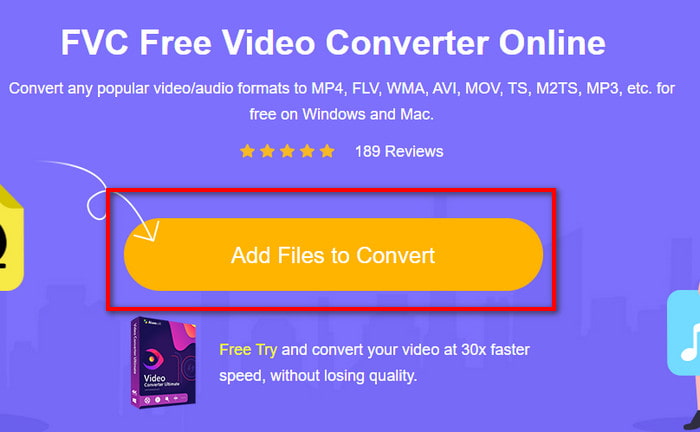
ขั้นตอนที่ 2 จากนั้นกด Add Files to Convert เพื่อเรียกใช้เครื่องมือ แล้วเลือกไฟล์ที่คุณต้องการจะแปลงเป็นฟอร์แมตใหม่จากโฟลเดอร์ โดยคลิก Open.
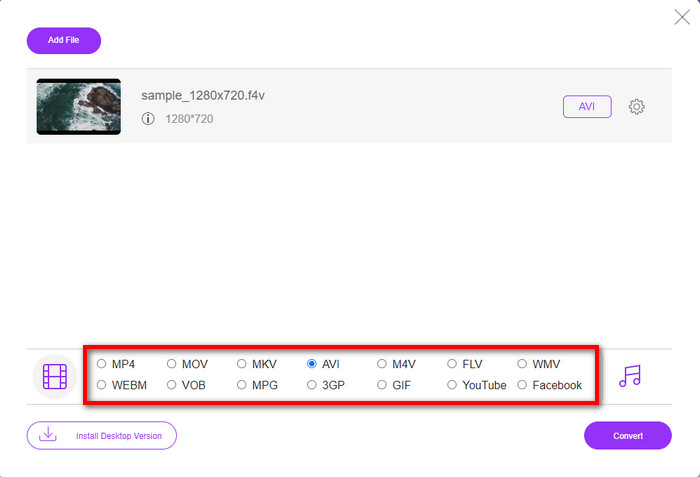
ขั้นตอนที่ 3 เมื่อเพิ่มไฟล์เข้ามาแล้ว ให้เลือกฟอร์แมต AVI ที่ด้านล่างจากรายการฟอร์แมตที่คุณต้องการแปลง.
ขั้นตอนที่ 4 หลังจากเลือกฟอร์แมต AVI แล้ว ก็ถึงเวลาที่จะเริ่มแปลงไฟล์โดยคลิกปุ่ม Convert.
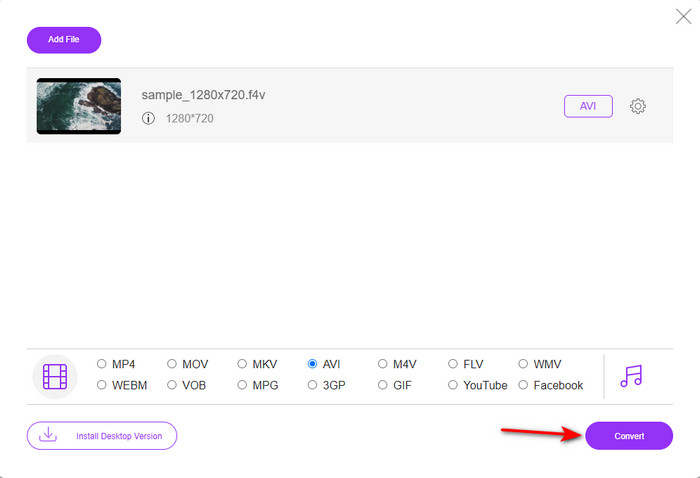
ขั้นตอนที่ 5 รอสักครู่เพื่อให้ไฟล์ดาวน์โหลด จากนั้นจะมีโฟลเดอร์แสดงขึ้นมาพร้อมไฟล์ที่แปลงแล้ว.
2. ซัมซาร์
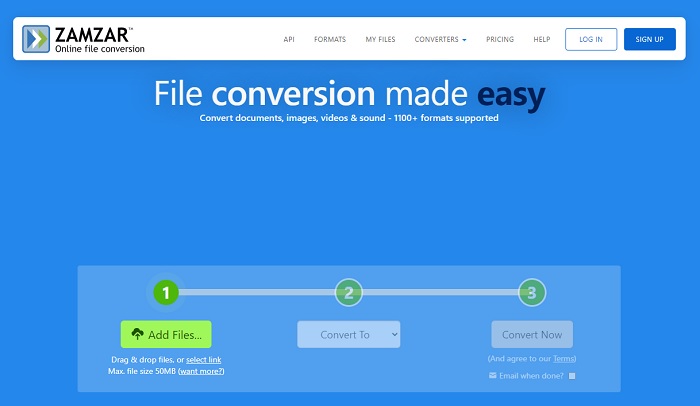
อีกหนึ่งตัวเลือกตัวแปลงไฟล์ออนไลน์ที่คุณสามารถใช้ได้คือ Zamzar เช่นเดียวกับตัวแปลงไฟล์อื่น ๆ เครื่องมือนี้จำเป็นต้องใช้อินเทอร์เน็ตในการใช้งานหรือเข้าถึง เครื่องมือออนไลน์ทั้งหมดที่นำเสนอในที่นี้ล้วนต้องใช้อินเทอร์เน็ตเพื่อให้การแปลงไฟล์ทำงานได้ เนื่องจากมีผู้ใช้จำนวนมาก Zamzar จึงกลายเป็นที่นิยมเพราะรองรับฟอร์แมตไฟล์หลากหลายให้คุณเลือกใช้ นอกจากนี้ยังให้บริการฟรี แต่อย่างไรก็ตามมีข้อจำกัดด้านขนาดไฟล์ที่สามารถแปลงได้ ดังนั้น หากไฟล์ .f4v ของคุณมีขนาดเกิน 50MB คุณจะไม่สามารถแปลงไฟล์ด้วยเครื่องมือนี้ได้ตามที่ระบุไว้ แต่ถ้าไฟล์ของคุณเล็กกว่านั้น คุณสามารถลองใช้เพื่อแปลง F4V เป็น AVI ออนไลน์ ได้ โดยทำตามขั้นตอนด้านล่าง.
ขั้นตอนที่ 1 เปิดเว็บเบราว์เซอร์ของคุณแล้วค้นหา Zamzar.
ขั้นตอนที่ 2 กด Add Files แล้วเลือกไฟล์ที่คุณต้องการแปลง จากนั้นเลือกฟอร์แมต AVI ตรงช่อง Convert to แล้วคลิก Convert.
ขั้นตอนที่ 3 รอให้กระบวนการแปลงเสร็จ จากนั้นจะมีหน้าใหม่แสดงขึ้นมา ให้คลิก Download เพื่อบันทึกไฟล์.
3. แปลงไฟล์
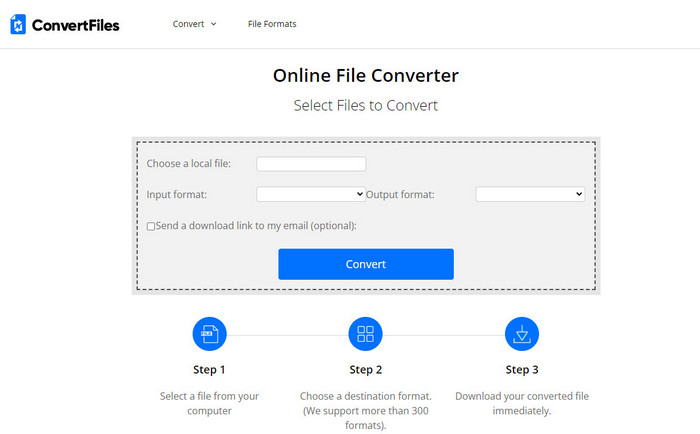
หากคุณต้องการกระบวนการแปลงไฟล์ที่ง่ายและใช้เวลาเพียงไม่กี่นาที ลองใช้ ConvertFiles เครื่องมือนี้ทำงานได้ดีทั้งระหว่างการแปลงและหลังการแปลงไฟล์ อย่างไรก็ตาม โฆษณาจำนวนมากบนหน้าจอทำให้การใช้งานไม่ค่อยสะดวก อีกทั้งกระบวนการแปลงใช้เวลานานกว่าตัวแปลงไฟล์ออนไลน์และออฟไลน์ตัวอื่น ๆ แต่ขนาดไฟล์ที่คุณสามารถอัปโหลดได้นั้นใหญ่กว่า Zamzar พอสมควร ดังนั้นหากคุณต้องการใช้เครื่องมือนี้เพื่อแปลงไฟล์ F4V เป็น AVI ให้ทำตามขั้นตอนต่อไปนี้.
ขั้นตอนที่ 1 ไปที่เว็บเบราว์เซอร์ของคุณ ค้นหา ConvertFiles แล้วเปิดเว็บไซต์.
ขั้นตอนที่ 2 คลิก Choose a Local File เพื่อเปิดโฟลเดอร์แล้วเลือกไฟล์ จากนั้นที่ส่วน Output Format ให้เลือก AVI แล้วคลิก Convert เพื่อเริ่มการแปลงไฟล์.
ขั้นตอนที่ 3 หลังจากแปลงเสร็จแล้ว ให้คลิกลิงก์ URL สีน้ำเงินที่แสดงขึ้น ซึ่งจะพาคุณไปยังหน้าเว็บใหม่ จากนั้นคลิกลิงก์นั้นเพื่อดาวน์โหลดไฟล์ฟอร์แมตที่แปลงแล้ว.
ส่วนที่ 3 รูปแบบใดดีกว่า F4V กับ AVI
F4V และ AVI ทำหน้าที่คอนเทนเนอร์อย่างดีที่สุด อย่างไรก็ตาม มีรูปแบบเหล่านี้มากมายที่เหมือนกัน และจุดประสงค์ไม่เหมือนกัน ตัวอย่างเช่น หากคุณต้องการจัดเก็บวิดีโอคุณภาพสูงในขนาดไฟล์ที่เล็ก และถือและปกป้องข้อมูลวิดีโอ DRM MPEG-4 F4V เป็นตัวเลือกที่ดีที่สุด แต่สมมติว่าคุณต้องการจัดเก็บวิดีโอคุณภาพสูงที่รองรับการเล่นสื่อที่ซิงโครไนซ์ ในกรณีนั้น คุณต้องเลือกรูปแบบ AVI เนื่องจากมีคอนเทนเนอร์ที่แตกต่างกันสำหรับทั้งเสียงและวิดีโอ แม้จะเป็นเช่นนั้น ขนาดไฟล์ AVI นั้นใหญ่เกินไปที่จะจัดการโดยอุปกรณ์จำนวนมากและแม้แต่เดสก์ท็อปเพราะไม่มีการบีบอัด
ส่วนที่ 4 คำถามที่พบบ่อยเกี่ยวกับ F4V เป็น AVI Conversion
การแปลง F4V จะลดความละเอียดลงหลังจากแปลงหรือไม่
ความละเอียดของวิดีโอจะต้องรักษาคุณภาพดั้งเดิมไว้แม้หลังจากที่คุณแปลงเป็นรูปแบบใหม่แล้ว ในบางกรณี ผู้ใช้จำนวนมากพบว่าคุณภาพของ F4V ลดลง เหตุผลหนึ่งต้องเป็นว่าอัตราคุณภาพที่คุณตั้งไว้ต่ำ หรือเครื่องมือที่คุณใช้ไม่รองรับวิดีโอ 1080 หรือ 4k
เหตุใดจึงไม่สามารถเล่น F4V บนเครื่องเล่นสื่อของฉันได้
ฟอร์แมตนี้สามารถเล่นได้บนโปรแกรมเล่นสื่อหลายตัว แต่ก็ไม่ใช่ว่าโปรแกรมเล่นทุกตัวจะรองรับ ดังนั้น หากคุณต้องการดูวิดีโอในฟอร์แมตนี้ วิธีที่ดีที่สุดคือแปลงเป็นฟอร์แมตอื่น หรือหาโปรแกรมเล่นวิดีโอของผู้พัฒนารายอื่นมาติดตั้งเพื่อดูวิดีโอ F4V ของคุณ.
ฉันต้องบีบอัด F4V เพื่อลดขนาดหรือไม่
ขนาดไฟล์ F4V จะไม่ใหญ่เท่าฟอร์แมต AVI อย่างไรก็ตาม หากคุณลองบีบอัดไฟล์ชนิดนี้มากเกินไป อาจทำให้คุณภาพวิดีโอลดลงได้ ที่นี่คุณสามารถเรียนรู้วิธีบีบอัดวิดีโอ F4V ของคุณ.
สรุป
เมื่อเราจบบทความนี้ ตอนนี้เรามีข้อมูลเชิงลึกว่า F4V คืออะไรและทำไมคุณต้องแปลงเป็น ซอฟต์แวร์ออนไลน์และออฟไลน์ทั้งหมดที่กล่าวถึงในบทความนี้ทำงานได้ดี แม้ว่าเครื่องมือทั้งหมดจะยอดเยี่ยม แต่ FVC Video Converter Ultimate ยังคงโดดเด่นกว่าที่อื่น เนื่องจากซอฟต์แวร์นี้ทำงานได้ดี คุณจึงไม่มีการเชื่อมต่ออินเทอร์เน็ต และเครื่องมือนี้สามารถดำเนินการแปลงให้เสร็จสิ้นภายในชั่วพริบตา ดังนั้นตอนนี้ หากคุณต้องการสัมผัสประสบการณ์การแปลงที่น่าอัศจรรย์ที่เรากำลังพูดถึง ให้ดาวน์โหลดเลย
-
 วิธีการแปลง TS เป็น AVI / MKV / MOV / WMV ออนไลน์และฟรีบน Win / Mac
 ต้องการแปลงไฟล์ TS เป็น AVI / MKV / MOV / WMV อย่างรวดเร็วหรือไม่? บทความนี้แสดงตัวแปลงวิดีโอออนไลน์และออฟไลน์พร้อมคู่มือฉบับสมบูรณ์ บางทีคุณอาจได้รับตัวแปลง TS ฟรีที่ดีที่สุดที่นี่
-
 [ฟรี & ออนไลน์] 7 วิธีในการแปลง MTS เป็น AVI บน Mac/Windows Computer
 วิธีการแปลง MTS เป็น AVI ได้อย่างง่ายดาย? ในคู่มือนี้คุณจะพบ 7 วิธีที่ง่ายและฟรีในการแปลงไฟล์ MTS เป็น AVI บน Windows หรือ Mac โดยไม่สูญเสียคุณภาพ
-
 สอนการแปลงไฟล์ MP4 เป็น AVI ด้วยตัวแปลงวิดีโอฟรี 7 ตัว
 ต้องการรับวิธีการแปลงวิดีโอ AVI เป็น MP4 ฟรีหรือไม่ คุณไม่ควรพลาดบทความนี้ 7 วิธีในการแปลงไฟล์ AVI เป็น MP4 ฟรีบน Windows, Mac, iPhone, Android และทางออนไลน์
