


 Video Converter Ultimate
 บันทึกหน้าจอ
 ซ่อมวิดีโอ
 ดาวน์โหลดอย่างปลอดภัย
วิธีง่ายๆ ในการแปลง M4V เป็น DivX ฟรี
Since M4V players are DRM-protected files, Blu-ray players and DVD players cannot read this file format. So if you want to play your M4V files on a DVD or Blu-ray player, you need to convert them to a DivX file format. Fortunately, we tested the most known online, offline, and freeware converters and chose the best to use among them. So, read this article until the end to know the simple ways to convert M4V to DivX for free, using the best converters.

ส่วนที่ 1 วิธีการแปลงไฟล์ M4V เป็น DivX โดยใช้โปรแกรมเดสก์ท็อป
If you are looking for the best offline converter known in the market, FVC Video Converter Ultimate is the answer for you. This offline converter lets you convert your M4V file to a DivX file because it supports over 1000+ file formats. It is also available on all known media platforms, including Mac and Windows. Moreover, it has a feature to create a GIF and 3D Video. So, if you are interested in using this converter to convert M4V to DivX on Mac, follow these simples steps below.
Step 1. Download FVC Video Converter Ultimate on Mac by clicking the Download button below. Follow the installation process, and then open the application.
ดาวน์โหลดฟรีสำหรับ Windows 7 หรือใหม่กว่าดาวน์โหลดอย่างปลอดภัย
ดาวน์โหลดฟรีสำหรับ MacOS 10.7 หรือใหม่กว่าดาวน์โหลดอย่างปลอดภัย
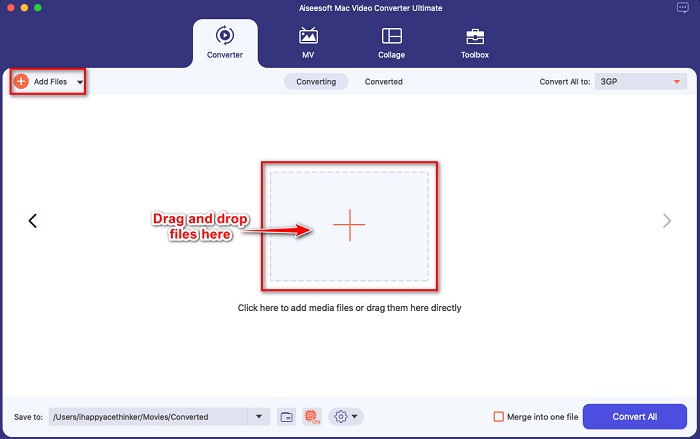
Step 2. After opening the app, upload your M4V file by clicking the Add Files button, or drag and drop your file to the + sign button. Then your file will be uploaded on the software’s interface.
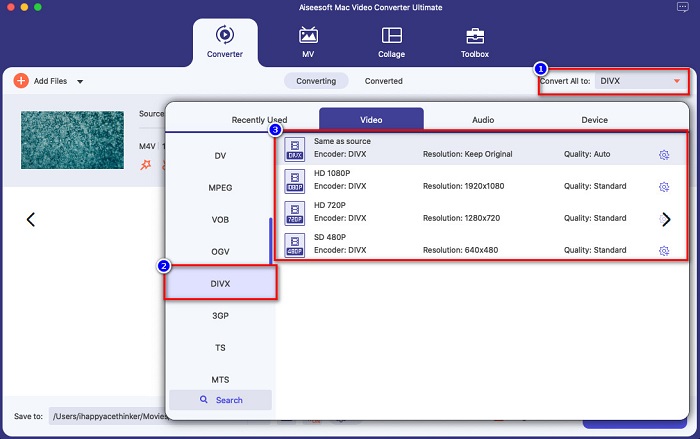
Step 3. Next, choose the output format you want by clicking the Convert All to button. Then click the DivX file format. You can also select the video quality that you want.
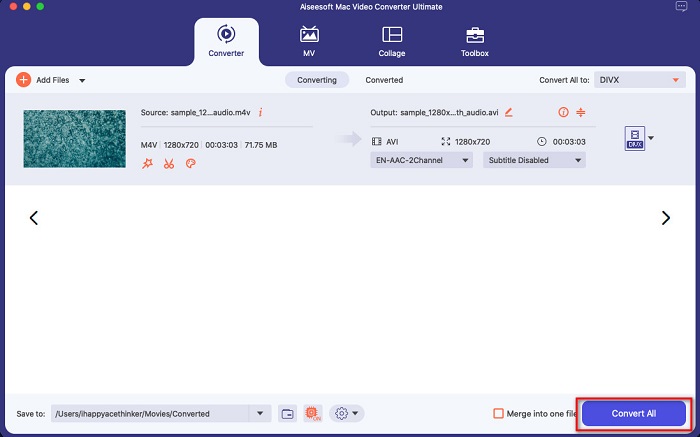
Step 4. Click the Convert All button to convert your M4V file to DivX file format for the last step. Then wait for a few seconds to finish the conversion process.
และนั่นแหล่ะ! ในการแปลง M4V เป็น DivX เพียงทำตามขั้นตอนง่าย ๆ ด้านบน
ข้อดี
- รองรับไฟล์ได้หลายรูปแบบ รวมถึง M4V, DivX, WMV, AVI, FLV, MOV, MP4 และอีกมากมาย
- สามารถรวมไฟล์หลายรูปแบบเป็นไฟล์เดียวได้
- มีคุณสมบัติที่คุณสามารถบีบอัดไฟล์ได้
- พร้อมใช้งานบนแพลตฟอร์มข้ามสื่อทั้งหมด เช่น Mac และ Windows
จุดด้อย
- ให้แอปพลิเคชันใช้คุณสมบัติพิเศษของมัน
ส่วนที่ 2 วิธีการแปลง M4V เป็น DivX โดยใช้ตัวแปลงออนไลน์
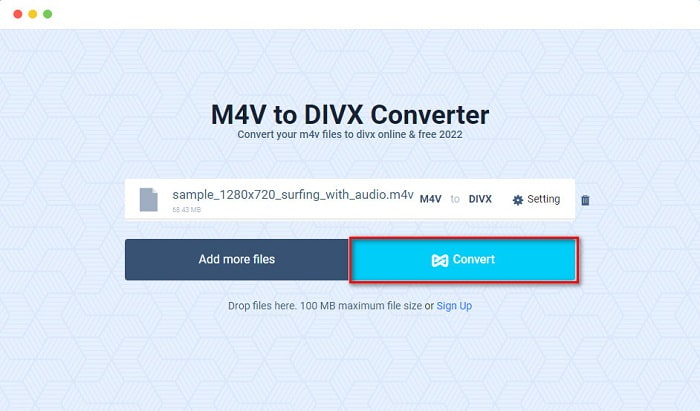
One of the reasons people choose to convert files online is that it is more convenient. Therefore, we present you with an online tool that can meet your standard for the best online tool, which is Evano. This online converter is easy-to-use and does not contain ads. However, since it is web-based, you may experience having a slow conversion process. In addition, it can only support a few file formats like M4V, DivX, XviD, WebM, FLV, and others. Nonetheless, it is still an effective way to convert M4V to DivX.
Here are the steps to convert M4V to DivX using Evano:
Step 1. On your browser, search Evano. Then on the software’s main interface, click the Choose Files button. Your computer folders will appear, then select your M4V file.

Step 2. After, click the word Select to choose the output format you want. Click the DivX file format.
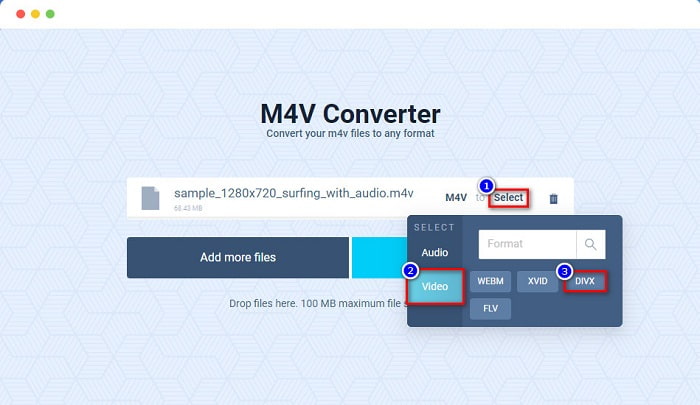
Step 3. To finish, click the Convert button to convert your M4V file to DivX file format.
ส่วนที่ 3 วิธีการแปลง M4V เป็น DivX โดยใช้เครื่องมือฟรีแวร์
Another way to convert your M4V to DivX is by using a freeware converter. One of the known freeware converters is Prism. This freeware converter supports various file formats like M4V, DivX, AVI, MP4, MOV, SWF, VOB, and more, and you can download it for free. However, you might have difficulty learning the software’s interface because it has a hard-to-understand GUI.
Steps in using Prism to convert your M4V file to DivX file format:
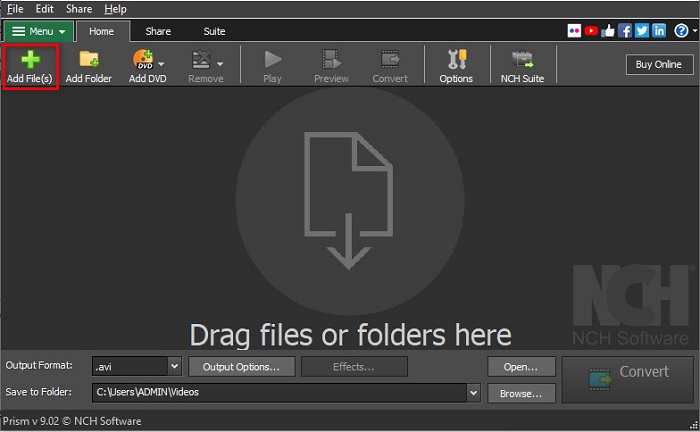
Step 1. Download the Prism file converter by searching it on your browser. And then, follow the installation process, then open the app. On the software’s first interface, click the Add Files option. Your computer files will appear where you will upload your M4V file.
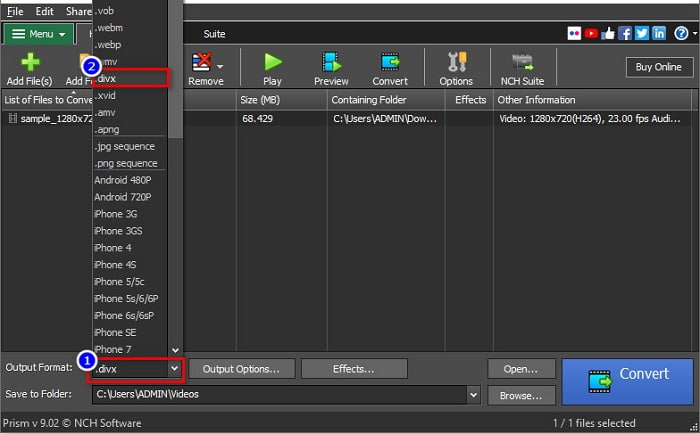
Step 2. Then, on the drop-down button beside Output Format, choose .divx file format.
Step 3. Lastly, click the Convert button at the bottom right corner of the software’s interface. Then your M4V to DivX will start to convert.
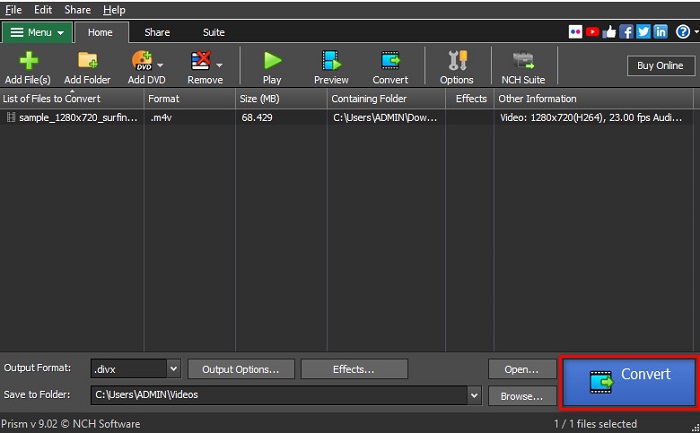
และนั่นคือวิธีที่คุณสามารถแปลง M4V เป็น DivX โดยใช้โปรแกรมแปลงฟรีแวร์
ส่วนที่ 4 M4V กับ DivX
มีความสับสนหากคุณต้องการแปลงไฟล์ M4V ของคุณเป็นรูปแบบไฟล์ DivX? ส่วนนี้จะเรียนรู้เกี่ยวกับความแตกต่างระหว่างรูปแบบไฟล์ M4V และรูปแบบไฟล์ DivX
ไฟล์ M4V เป็นรูปแบบคอนเทนเนอร์ไฟล์ หรือที่เรียกว่าไฟล์วิดีโอ iTunes Apple พัฒนารูปแบบไฟล์นี้ จึงทำให้สามารถเล่นได้ในอุปกรณ์ macOS วัตถุประสงค์หลักในการสร้างไฟล์ประเภทนี้คือเพื่อใส่การป้องกัน DRM ของ Fair Play ของ Apple กับสิ่งใดๆ จาก iTunes Store เพื่อป้องกันมิให้ผู้ใดคัดลอกไฟล์ประเภทนี้บนอุปกรณ์ใดๆ ที่ Apple ไม่ได้สร้างขึ้น
ในทางกลับกัน DivX เป็นรูปแบบไฟล์ที่บีบอัดไฟล์ให้มีขนาดไฟล์ที่สิบสองของขนาดไฟล์ดั้งเดิมโดยไม่ทำลายคุณภาพ ยิ่งไปกว่านั้น มันไม่ใช้พื้นที่บนอุปกรณ์ของคุณมากนัก ด้วยไฟล์คุณภาพสูง
| M4V | VS | DivX |
| ไม่บีบอัด | การบีบอัด | บีบอัด |
| แอปเปิ้ล | นักพัฒนา | DivX, Inc. |
| ◆ VideoLAN VLC Media Player ◆เครื่องเล่นสื่อคลาสสิก ◆ KM ผู้เล่น | โปรแกรมที่รองรับ | ◆ VideoLAN VLC Media Player ◆ DivX ◆ Apple QuickTime Player ◆ RealNetworks เครื่องมือสร้างวิดีโอเรียลไทม์ |
ส่วนที่ 5. คำถามที่พบบ่อยเกี่ยวกับการแปลง M4V เป็น DivX
คุณสามารถเล่นไฟล์ M4V บน Windows Media Player ได้หรือไม่?
ใช่. Windows Media Player สามารถเปิดไฟล์ M4V ได้เช่นเดียวกับโปรแกรมเล่นสื่อ QuickTime บน Mac
คุณสามารถใช้ Handbrake ในการแปลง M4V เป็น DivX ได้หรือไม่
Unfortunately, no. Handbrake does not DivX file format because it can only support limited file formats. Clik here to learn more available M4V players.
M4V หรือ MP4 อันไหนดีกว่ากัน?
M4V และ MP4 มีคุณภาพวิดีโอเกือบเท่ากัน แต่มีนามสกุลไฟล์ต่างกัน อย่างไรก็ตาม M4V จัดเก็บข้อมูลเพิ่มเติมสำหรับคำบรรยายและการป้องกัน DRM สำหรับความเป็นส่วนตัวของข้อมูล นอกจากนี้ อุปกรณ์จำนวนมากขึ้นรองรับ M4V มากกว่ารูปแบบ MP4
การเปลี่ยน M4V เป็น DivX ส่งผลต่อขนาดไฟล์หรือไม่
ใช่. เมื่อคุณแปลงไฟล์ M4V เป็นรูปแบบไฟล์ DivX ขนาดไฟล์จะลดลง
สรุป
คุณสามารถหาตัวแปลงไฟล์ออนไลน์และออฟไลน์ได้มากมายบนเว็บ แต่มีเพียงไม่กี่คนเท่านั้นที่สามารถทำให้ไฟล์ของคุณดีที่สุด ตัวแปลงหลายตัวไม่มีคุณสมบัติในการปรับปรุงไฟล์วิดีโอของคุณ และตัวอื่น ๆ ไม่รองรับรูปแบบไฟล์มากมาย ดังนั้น หากคุณกำลังมองหาตัวแปลงที่ดีที่สุดเพื่อแปลง M4V เป็น DivX คุณอาจต้องการใช้ FVC Video Converter Ultimate ไม่ต้องสงสัยเลยว่านี่เป็นตัวเลือกแรกสำหรับผู้ใช้ทุกคนที่ต้องการความช่วยเหลือในการแปลงรูปแบบไฟล์ ดังนั้นสิ่งที่คุณรอ? ดาวน์โหลดแอปนี้ทันทีและสัมผัสกับคุณสมบัติที่ยอดเยี่ยมที่มีให้
-
 2 ตัวแปลง M4V เป็น FLV ที่ได้รับอนุมัติเพื่อแปลง M4V เป็น FLV [2022]
 คุณต้องการทราบเคล็ดลับในการแปลง M4V เป็น FLV หรือไม่? ในการเล่นไฟล์บนเครื่องเล่นสื่อของคุณ? จากนั้นทำตามบทความนี้ในขณะที่เรามีแนวคิดเพียงพอเกี่ยวกับวิธีการทำ
-
 วิธีแปลง M4V เป็น WMV อย่างรวดเร็วโดยไม่ทำลายคุณภาพ
 กำลังมองหาวิธีง่ายๆ ในการแปลงวิดีโอ M4V เป็น WMV หรือไม่? ในบทความนี้ คุณจะได้เรียนรู้วิธีเปลี่ยนวิดีโอ M4V ที่ดาวน์โหลดจาก iTunes เป็น WMV เพื่อให้คุณสามารถเพลิดเพลินกับวิดีโอเหล่านั้นบนอุปกรณ์อื่นๆ
-
 วิธีเปลี่ยน iTunes M4V เป็น MKV บน Mac และ Windows [วิธีที่เร็วที่สุด]
 หากคุณต้องการแปลง M4V เป็น MKV บน Mac คุณต้องอ่านบทความนี้ เนื่องจากเราให้ข้อเท็จจริงเกี่ยวกับตัวแปลงที่จะช่วยคุณในกระบวนการแปลง
