


 Video Converter Ultimate
 บันทึกหน้าจอ
 ซ่อมวิดีโอ
 ดาวน์โหลดอย่างปลอดภัย
2 วิธีที่น่าจดจำที่สุดในการแปลง OGV เป็น M4V บน Mac และ Windows
คุณยังไม่รู้วิธีแปลงไฟล์ OGV เป็น M4V ใช่ไหมล่ะ ถ้าอย่างนั้นให้ไปที่บทความแนะนำนี้ แล้วคุณจะได้พบข้อมูลสำคัญอื่น ๆ ที่คุณต้องการ บทความนี้จะแนะนำขั้นตอนแบบไม่ยุ่งยากในการแปลง OGV เป็น M4V บน Mac และ Windows คุณตื่นเต้นที่จะเรียนรู้วิธีเหล่านี้หรือยัง ถ้าใช่ ก็อ่านบทความนี้ให้จบเลย!

ตอนที่ 1: รู้เบื้องต้นเกี่ยวกับ OGV และ M4V
| ชื่อ | OGV | M4V |
| ชื่อไฟล์ | ไฟล์วิดีโอ OGG Vorbis | วิดีโอ PEG-4 |
| นามสกุลไฟล์ | .ogv | .m4v |
| พัฒนาโดย | Xiph.org | บริษัท แอปเปิ้ล. |
| คำอธิบาย | Microsoft Media Player รับผิดชอบไฟล์ OGV เป็นหลัก ไฟล์วิดีโอ OGG มีนามสกุลไฟล์ "OGV" ในระหว่างการเล่นสื่อ ไฟล์ OGV อาจมีสตรีมวิดีโอ เสียง ข้อความ ข้อมูลข้อความนำเสนอ และข้อมูลเมตาหลายสตรีม Theora มักถูกใช้เพื่อเข้ารหัสวิดีโอที่บันทึกเป็นไฟล์ OGV วิดีโอคุณภาพสูงอาจจัดเก็บในบิตเรตต่ำด้วยตัวแปลงสัญญาณ Theora เป็นวิธีการบีบอัดวิดีโอแบบโอเพ่นซอร์สแบบสูญเสีย ในไฟล์ OGV คุณยังสามารถรวมตัวแปลงสัญญาณวิดีโอ Daala, Tarkin และ Dirac ได้อีกด้วย สตรีมเสียงของ OGV สามารถเข้ารหัสด้วย FLAC, Opus, Vorbis หรือ Speex ไฟล์ OGV สามารถดูและเล่นได้บนเครื่องเล่นวิดีโอ เช่น VLC และอื่นๆ | Apple พัฒนารูปแบบวิดีโอ M4V เป็นวิธีการเก็บวิดีโอและคล้ายกับรูปแบบ MP4 อย่างไรก็ตาม การป้องกันการคัดลอก DRM อาจเป็นไฟล์ M4V ในครั้งนี้ ซึ่งสร้างความแตกต่าง Apple ใช้มาตรฐานการเข้ารหัส M4V ใน iTunes Store การป้องกันการคัดลอกแบบ FairPlay ของ Apple ช่วยป้องกันการคัดลอกไฟล์ M4V ที่ไม่ต้องการ QuickTime หมายถึงวิดีโอ M4V ที่มี FairPlay DRM เป็น 'สื่อ AVC0' |
| รายละเอียดทางเทคนิค | superset ที่เข้ากันได้แบบย้อนกลับทำให้รูปแบบการบีบอัดวิดีโอของ Theora เข้ากันได้กับรูปแบบการบีบอัดวิดีโอ VP3 โดยพื้นฐานแล้ว VP3 และ Theora สามารถรวมกันได้โดยไม่ต้องบีบอัดใหม่ เนื่องจาก Theora เป็นชุดที่เหนือกว่าของ VP3 | ไฟล์ M4V สามารถป้องกันได้โดยใช้การป้องกันการคัดลอก FairPlay ของ Apple เพื่อป้องกันการจำลองแบบโดยไม่ได้รับอนุญาต เฉพาะคอมพิวเตอร์ที่ได้รับอนุมัติ (ผ่าน iTunes) ที่มีบัญชีที่ใช้ในการซื้อวิดีโอเท่านั้นที่สามารถเล่นไฟล์ M4V ที่มีการป้องกันด้วย FairPlay ได้ |
| โปรแกรมที่เกี่ยวข้อง | FFmpeg MPlayer VLC Media Player | แอปเปิ้ลไอทูนส์ โปรแกรมเล่น Apple QuickTime VLC Media Player เครื่องเล่นซูม มีเดียเพลเยอร์คลาสสิก K-เครื่องเล่นมัลติมีเดีย ผู้เล่นตัวจริง |
| ประเภทไมม์ | วิดีโอ/ogg | วิดีโอ/x-m4v |
ตอนที่ 2: วิธีแปลง OGV เป็น M4V โดยใช้เครื่องมือออนไลน์
หากต้องการแปลง OGV เป็นรูปแบบไฟล์ M4V ได้อย่างง่ายดาย คุณเพียงแค่ต้องมีโปรแกรมแปลงไฟล์ที่เชื่อถือได้ ดังนั้นในส่วนนี้ เราจะแสดงวิธีแปลง OGV เป็น M4V โดยใช้ FVC Free Video Converter Online ด้วยเครื่องมือนี้ คุณสามารถแปลงไฟล์หลากหลายประเภท เช่น MP4, MOV, VOB, MOV, AVI, FLV และอื่น ๆ นอกจากนี้ยังรองรับการแปลงแบบเป็นชุด (Batch Conversion) ทำให้คุณสามารถแปลงไฟล์หลายไฟล์ได้โดยไม่เสียคุณภาพ อีกทั้งเพียงไม่กี่คลิก คุณก็สามารถแปลงไฟล์ของคุณได้ทันที เพราะมีอินเทอร์เฟซที่ใช้งานง่าย ด้วยขั้นตอนพื้นฐานเหล่านี้ คุณจะเห็นได้ว่าตัวแปลงวิดีโอนี้เหมาะอย่างยิ่งสำหรับผู้เริ่มต้น คุณยังสามารถปรับความละเอียดได้สูงสุดถึง 1920x1080 และเปลี่ยนบิตเรตได้สูงสุด 20000 kbps ท้ายที่สุด ยังสามารถเปลี่ยนอัตราเฟรมได้สูงสุด 60fps นอกจากนี้ คุณยังแก้ไขเสียงได้โดยเข้าไปที่การตั้งค่าเสียง คุณสามารถปรับบิตเรตและอัตราการสุ่มตัวอย่าง (Sample Rate) ของเสียงได้ อีกทั้งยังรองรับรูปแบบเสียงอย่าง FLAC, MP3, AC3, AAC และอื่น ๆ อีกด้วย.
คุณสมบัติเด่น
◆ แปลงรูปแบบวิดีโอต่างๆ เช่น OGV, M4V, MP4, AVI, FLV, MKV และอื่นๆ
◆ เสนอการแปลงเป็นชุด
◆ แก้ไขบิตเรต อัตราเฟรม และความละเอียดของวิดีโอ
◆ รองรับรูปแบบเสียง เช่น MP3, AC3, AAC, FLAC, WAV เป็นต้น
◆ แก้ไขบิตเรตและอัตราตัวอย่างของเสียง
แปลงไฟล์ OGV ของคุณเป็นรูปแบบ M4V โดยใช้ FVC Free Video Converter Online ทำตามขั้นตอนง่ายๆ ด้านล่าง
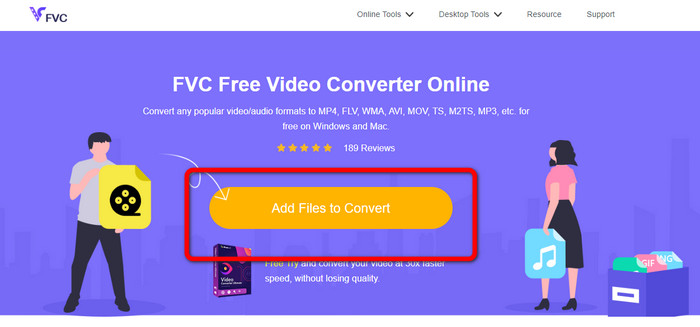
ขั้นตอนที่ 1: ไปที่เว็บไซต์ FVC Free Video Converter Online จากนั้นเพื่ออัปโหลดไฟล์วิดีโอ OGV ให้กดปุ่ม Add Files to Convert โฟลเดอร์ของคุณจะแสดงบนหน้าจอ แล้วเลือกวิดีโอที่คุณต้องการแปลง.
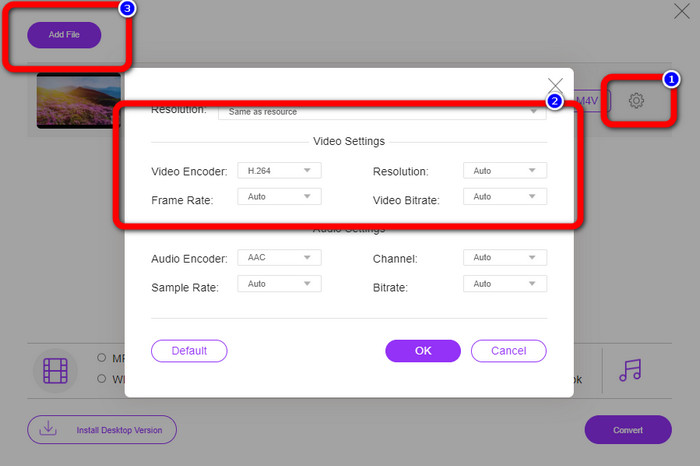
ขั้นตอนที่ 2: หลังจากอัปโหลดไฟล์วิดีโอ OGV แล้ว คุณสามารถเปลี่ยนบิตเรต อัตราเฟรม และความละเอียดได้โดยคลิกที่ไอคอน Setting จากนั้นคลิก OK นอกจากนี้ หากต้องการเพิ่มไฟล์อื่น ๆ คุณสามารถกดปุ่ม Add File ที่มุมซ้ายบนของอินเทอร์เฟซ.
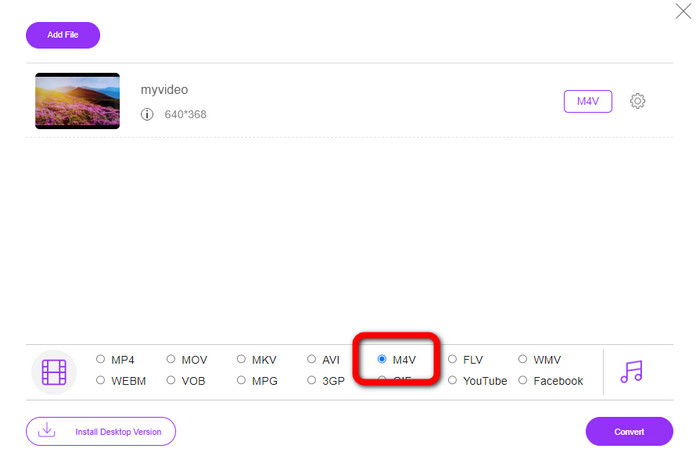
ขั้นตอนที่ 3: หลังจากปรับแต่งไฟล์วิดีโอ OGV แล้ว ให้เลือกไฟล์รูปแบบ M4V จากตัวเลือกฟอร์แมตที่ส่วนล่างของอินเทอร์เฟซ จากนั้นบันทึกวิดีโอของคุณไปยังตำแหน่งที่ต้องการ.
ตอนที่ 3: คำแนะนำอย่างง่ายในการแปลง OGV เป็น M4V ออฟไลน์
ในแง่ของแอปพลิเคชันออฟไลน์ คุณสามารถใช้ Video Converter Ultimate เพื่อแปลง OGV เป็น M4V บน Mac และ Windows เครื่องมือนี้เป็นตัวแปลงที่สามารถดาวน์โหลดได้ที่ยอดเยี่ยม สามารถแปลงไฟล์หลายไฟล์ได้อย่างง่ายดายเพราะช่วยให้ผู้ใช้สามารถแปลงเป็นชุดได้ นอกจากนี้ยังมีกระบวนการแปลงที่รวดเร็วเป็นพิเศษ ซึ่งเร็วกว่าตัวแปลงอื่นๆ ถึง 30 เท่า ด้วยวิธีนี้ คุณสามารถแปลงวิดีโอจำนวนมากได้ด้วยตัวคนเดียว นอกจากนี้ แม้ว่าคุณจะแปลงวิดีโอ คุณก็ยังสามารถปรับแต่งหรือแก้ไขได้โดยใช้เครื่องมือตัดต่อวิดีโอ คุณสามารถเพิ่มตัวกรอง ตัดวิดีโอ ปรับปรุงวิดีโอ และอื่นๆ
ยิ่งไปกว่านั้น Video Converter Ultimate ยังมีฟีเจอร์อื่น ๆ ให้คุณได้ใช้งานอีกมาก คุณสามารถซิงก์เสียงให้ตรงกับวิดีโอได้ เพราะมีฟังก์ชัน Audio Sync และหากคุณต้องการเพิ่มระดับเสียงของวิดีโอ ก็สามารถทำได้เช่นกัน คุณสามารถเพิ่มได้สูงสุดถึง 200% เนื่องจากเครื่องมือนี้มีฟังก์ชันเพิ่มเสียง (Volume Booster) คุณต้องลองใช้ตัวแปลงวิดีโอนี้ด้วยตนเองเพื่อค้นพบฟีเจอร์อื่น ๆ อีกมากมาย.
คุณสมบัติเด่น
◆ แปลงไฟล์วิดีโอ เช่น M4V, OGV, SWF, MP4, AVI, FLV, MOV, VOB, MKV, WMV และอื่นๆ
◆ สามารถสร้างคอลลาจที่น่าสนใจ
◆ มีเครื่องมือตัดต่อวิดีโอสำหรับปรับปรุงวิดีโอ เช่น ตัวเพิ่มคุณภาพวิดีโอ การแก้ไขสี ทริมเมอร์ ตัวลบลายน้ำ และอื่นๆ
◆ สร้างมิวสิควิดีโอได้
◆ ปรับความเร็วของวิดีโอ
◆ นำเสนอคอมเพรสเซอร์วิดีโอและเสียง
◆ ปรับแต่งวิดีโอ 3 มิติจาก 2 มิติ
ขั้นตอนที่ 1: หากคุณต้องการดาวน์โหลด Video Converter Ultimate ให้คลิกปุ่ม Download ด้านล่าง จากนั้นเปิดโปรแกรมหลังจากติดตั้งเสร็จสิ้น.
ดาวน์โหลดฟรีสำหรับ Windows 7 หรือใหม่กว่าดาวน์โหลดอย่างปลอดภัย
ดาวน์โหลดฟรีสำหรับ MacOS 10.7 หรือใหม่กว่าดาวน์โหลดอย่างปลอดภัย
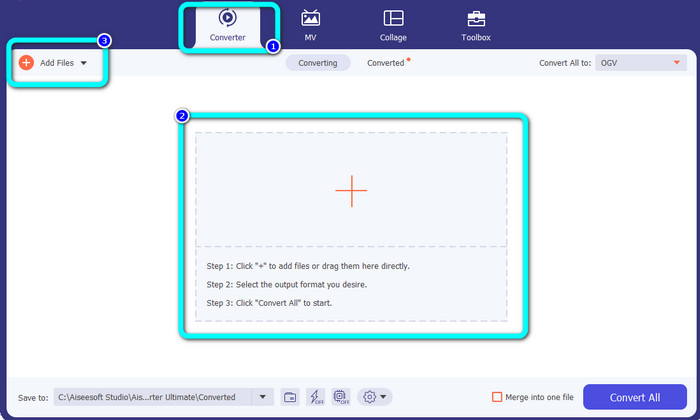
ขั้นตอนที่ 2: เลือกแถบ Converter แล้วคลิกปุ่มสัญลักษณ์ Plus เพื่อเพิ่มไฟล์วิดีโอ OGV คุณยังสามารถคลิกปุ่ม Add Files หรือวางไฟล์ลงไปในช่องโดยตรงได้เช่นกัน.
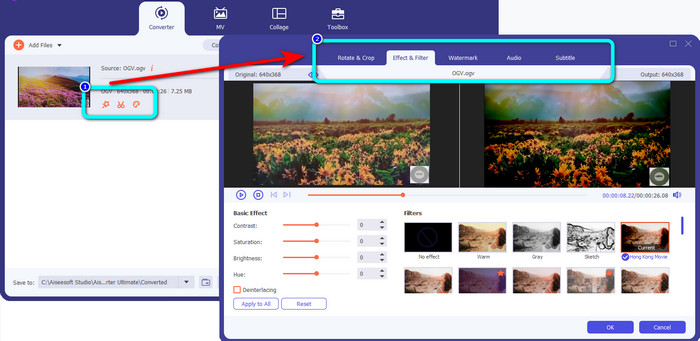
ขั้นตอนที่ 3: หากคุณต้องการแก้ไขวิดีโอ OGV ของคุณ ให้คลิกที่ไอคอนในช่องแรก ด้วยวิธีนี้คุณสามารถครอบตัดและหมุนวิดีโอ รวมถึงเพิ่มฟิลเตอร์ ลายน้ำ และอื่น ๆ ได้ จากนั้นหลังจากแก้ไขวิดีโอเสร็จแล้ว ให้เลือก OK.
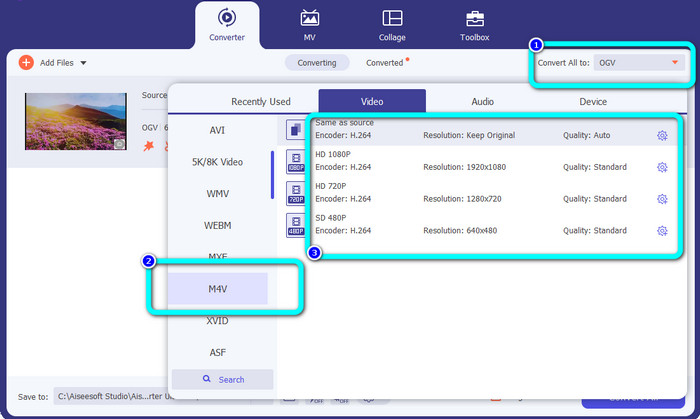
ขั้นตอนที่ 4: หลังจากนั้น หากต้องการแปลง OGV เป็น M4V ให้ไปที่ปุ่ม Convert All to เพื่อแสดงตัวเลือกฟอร์แมต แล้วเลือกไฟล์รูปแบบ M4V และเลือกระดับความละเอียดที่คุณต้องการ.
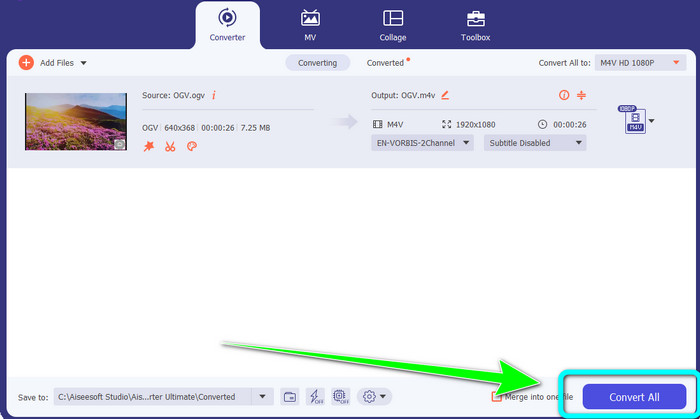
ขั้นตอนที่ 5: สำหรับขั้นตอนสุดท้าย ให้คลิกปุ่ม Convert All เพื่อแปลงไฟล์ OGV เป็นรูปแบบ M4V และบันทึกวิดีโอลงในอุปกรณ์ของคุณ.
อ่านเพิ่มเติม:
2 วิธีเด็ดในการแปลงไฟล์ M2TS เป็น M4V
เรียนรู้และค้นพบวิธีที่ดีที่สุดในการแปลงไฟล์ MXF เป็น M4V
ส่วนที่ 4: คำถามที่พบบ่อยเกี่ยวกับการแปลง OGV เป็น M4V
OGV ขาดทุนหรือไม่?
ใช่. รูปแบบ OGV ที่รวมกับมาตรฐานการบีบอัดวิดีโอโอเพ่นซอร์สที่เรียกว่านามสกุลไฟล์ .ogv นั้นถูกสร้างขึ้นโดย Xiph.org เป็นหลัก; มันมีความเกี่ยวข้องอย่างใกล้ชิดกับ OGG Vorbis และสามารถใช้สำหรับพื้นที่เก็บข้อมูลที่สูญหายหรือการสตรีมออนไลน์
การแปลง OGV เป็น MP4 ใช้เวลานานเท่าไหร่
ทั้งนี้ขึ้นอยู่กับโปรแกรมแปลงไฟล์ที่คุณใช้ หากคุณต้องการโปรแกรมแปลงไฟล์ที่มีความเร็วในการแปลงสูง ให้ใช้ Video Converter Ultimate ซึ่งให้ความเร็วในการแปลงเร็วกว่าปกติถึง 30 เท่า.
ฉันสามารถเปิดไฟล์ M4V บนอุปกรณ์ทั้งหมดได้หรือไม่
แต่น่าเสียดายที่ไม่ได้. คุณสามารถเข้าถึงไฟล์ M4V ผ่านคอมพิวเตอร์ที่ได้รับอนุญาตจาก Apple เท่านั้น หากคุณต้องการเล่นวิดีโอบนอุปกรณ์ทั้งหมด คุณสามารถแปลงวิดีโอของคุณเป็นไฟล์ MP4
สรุป
การแปลง OGV เป็น M4V บน Mac และ Windows นั้นทำได้ไม่ยาก ตราบใดที่คุณรู้จักโปรแกรมที่ใช้งานได้จริง บทความนี้ได้แนะนำให้คุณรู้จักกับ 2 โปรแกรมยอดเยี่ยมในการแปลง OGV เป็น M4V ได้อย่างง่ายและรวดเร็ว ในส่วนของตัวแปลงออนไลน์ คุณสามารถใช้ FVC Free Video Converter Online ได้ ส่วนการแปลงไฟล์แบบออฟไลน์ คุณสามารถใช้ Video Converter Ultimate.
-
 ตัวแปลง OGV เป็น FLV ที่ยอดเยี่ยมที่คุณไม่ควรพลาด [พิสูจน์แล้ว]
 หากคุณสงสัยว่าจะแปลงไฟล์ OGV เป็น FLV อย่างรวดเร็วได้อย่างไร บทความนี้จะแสดงตัวแปลงเดียวที่คุณต้องการ
-
 5 ตัวแปลง OGV เป็น WMV ที่เป็นประโยชน์เพื่อแปลงไฟล์ OGV ของคุณ
 มีตัวแปลง OGV เป็น WMV 5 แบบที่คุณสามารถใช้เพื่อแปลงไฟล์ OGV บทความนี้ให้ข้อเท็จจริงที่ชัดเจนเกี่ยวกับตัวแปลง 5 ogv ที่มีอยู่
-
 วิธีที่น่าประหลาดใจในการแปลง OGV เป็น MKV อย่างมีประสิทธิภาพและง่ายดาย
 คำแนะนำนี้จะให้ขั้นตอนที่ไม่ยุ่งยากในการแปลง OGV เป็น MKV โดยไม่สูญเสียข้อมูล ลองใช้ตัวแปลงที่น่าเชื่อถือที่สุดเหล่านี้ แล้วสัมผัสกับฟังก์ชันที่ยอดเยี่ยม
