


 Video Converter Ultimate
 บันทึกหน้าจอ
 ซ่อมวิดีโอ
เรียนรู้ 3 วิธีในการแปลง VOB เป็น AVI ออนไลน์และออฟไลน์
ไฟล์ VOB ใช้เพื่อจัดเก็บสตรีมส่วนตัวและใช้การบีบอัดวิดีโอแบบสูญเสียข้อมูล เช่น MPEG-2 นอกจากนี้ยังมีโครงสร้างเกือบเหมือนกันถ้าเราจะเปรียบเทียบทั้งสอง อย่างไรก็ตาม ไฟล์ .vob มีข้อจำกัดและข้อกำหนดก่อนที่คุณจะสามารถใช้งานได้ และด้วยเหตุนี้ คุณจึงไม่สามารถเล่นไฟล์ VOB บนเครื่องเล่นสื่อในพื้นที่ของคุณได้อย่างง่ายดาย ดังนั้น เพื่อประหยัดเวลาของคุณในการค้นหาวิธีการเปิด เราขอแนะนำให้คุณแปลงไฟล์โดยเลือกตัวแปลงด้านล่าง ในกรณีนั้น เราขอเสนอตัวแปลงที่ดีที่สุดให้คุณทราบและเรียนรู้วิธีแปลง VOB เป็น AVI ออนไลน์หรือออฟไลน์ด้วยเครื่องมือที่อยู่ในรายการ
ส่วนที่ 1 วิธีการแปลง VOB เป็น AVI Online
หากคุณมีงบจำกัด ขอแนะนำให้คุณเลือกใช้เครื่องมือฟรีสำหรับใช้งานเอง จากการที่เราได้ค้นหาบนอินเทอร์เน็ต เราพบว่ามีเครื่องมือหนึ่งที่ขึ้นชื่อว่าเป็นตัวแปลงไฟล์ออนไลน์ที่ดีที่สุด นั่นคือ FVC Free Video Converter นอกจากนี้ เครื่องมือนี้ยังให้ความเรียบง่ายต่อการใช้งานกับผู้ใช้ทุกคนที่เคยลองใช้มาแล้ว และทุกคนต่างประทับใจกับประสิทธิภาพของเครื่องมือนี้ ดังนั้น หากคุณอยากประทับใจในความสามารถของตัวแปลงไฟล์นี้เช่นกัน ให้ลองแปลงไฟล์ VOB เป็นไฟล์ AVI โดยทำตามขั้นตอนด้านล่างนี้.
ขั้นตอนที่ 1. หากต้องการไปยังเว็บไซต์ของตัวแปลงไฟล์โดยตรง ให้คลิกที่ ลิงก์นี้.
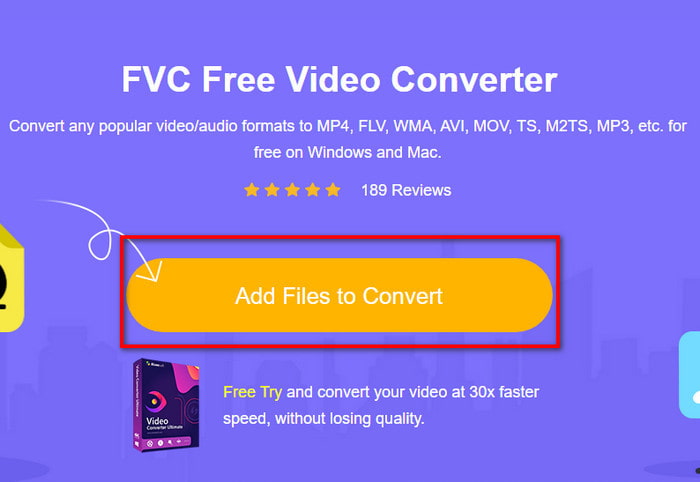
ขั้นตอนที่ 2. บนหน้าเว็บไซต์ ให้คลิกที่ Add Files to Convert เพื่อดาวน์โหลดตัวติดตั้ง ไม่ต้องกังวลเพราะมีขนาดเพียงไม่กี่กิโลไบต์ จากนั้นคลิกอีกครั้งเพื่อเปิดใช้งานเครื่องมือ แล้วค้นหาไฟล์ในโฟลเดอร์ที่ต้องการ เมื่อค้นหาเจอแล้วให้คลิก Open ต่อไป.
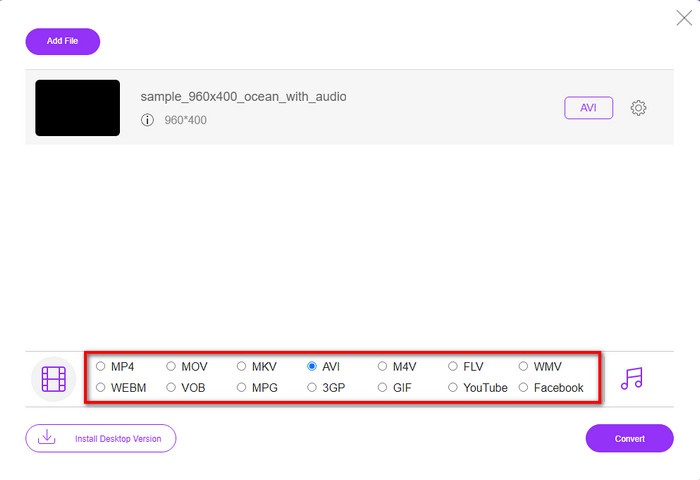
ขั้นตอนที่ 3. หน้าต่างอินเทอร์เฟซใหม่ของ FVC จะปรากฏบนหน้าจอของคุณ จากรายการด้านล่าง ให้เลือกเป็นรูปแบบ AVI หรือรูปแบบอื่นที่คุณต้องการจะแปลง.
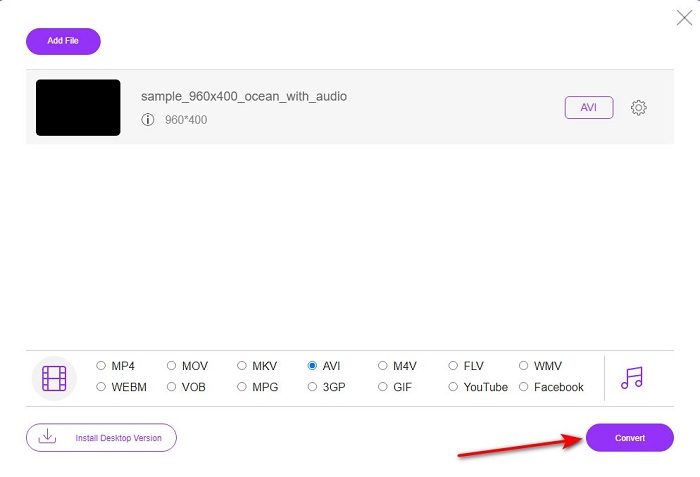
ขั้นตอนที่ 4. เมื่อเลือกชนิดไฟล์เรียบร้อยแล้ว ให้เริ่มกระบวนการแปลงไฟล์โดยคลิก Convert.
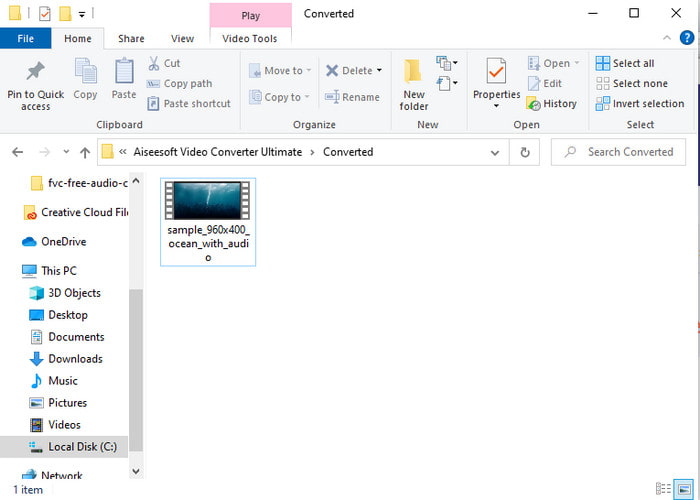
ขั้นตอนที่ 5. กระบวนการนี้จะใช้เวลาประมาณไม่ถึงหนึ่งนาที เมื่อการแปลงเสร็จสิ้น จะมีโฟลเดอร์เปิดขึ้นมา ซึ่งภายในจะมีไฟล์ที่เพิ่งแปลงเสร็จใหม่ล่าสุด.
ส่วนที่ 2 วิธีการแปลง VOB เป็น AVI บน Windows และ Mac
ใช้ Phenomenal Converter: FVC Video Converter Ultimate
หากคุณต้องการดาวน์โหลดตัวแปลง VOB เป็น AVI จะต้องเป็นตัวเลือกที่ดีที่สุดที่คุณอยากทำ FVC Video Converter Ultimate ใช้งานได้จริงตามชื่อของมันในฐานะเครื่องมือขั้นสูงสุดที่แก้ไขทุกสถานการณ์สุดท้ายที่คุณทำได้ โดยเฉพาะอย่างยิ่งในการแปลง ซอฟต์แวร์นี้แตกต่างจากเครื่องมือทั้งสองที่กล่าวถึงอย่างมาก บางทีคุณอาจกำลังคิดว่าทำไม และมันก็เป็นเพียงเพราะมันเข้ากับทุกคนได้อย่างสมบูรณ์แบบ ไม่ว่าคุณจะเป็นมือโปรหรือมือใหม่ ประสิทธิภาพโดยรวมที่เราพบเมื่อลองใช้เครื่องมือนี้น่าทึ่งอยู่แล้ว และเราประทับใจที่การแปลงสามารถทำได้เร็วเพียงใด และตอนนี้ หากคุณต้องการสัมผัสประสบการณ์การเปลี่ยนแปลงอันมหัศจรรย์ เรากำลังพูดถึงให้ทำตามขั้นตอนที่ระบุด้านล่าง
ขั้นตอนที่ 1. ก่อนใช้งาน คุณจะต้องดาวน์โหลดโปรแกรมมาก่อน จากนั้นติดตั้งโปรแกรมให้เรียบร้อย ทำการตั้งค่าแล้วคลิก Start Now.
ดาวน์โหลดฟรีสำหรับ Windows 7 หรือใหม่กว่าดาวน์โหลดอย่างปลอดภัย
ดาวน์โหลดฟรีสำหรับ MacOS 10.7 หรือใหม่กว่าดาวน์โหลดอย่างปลอดภัย
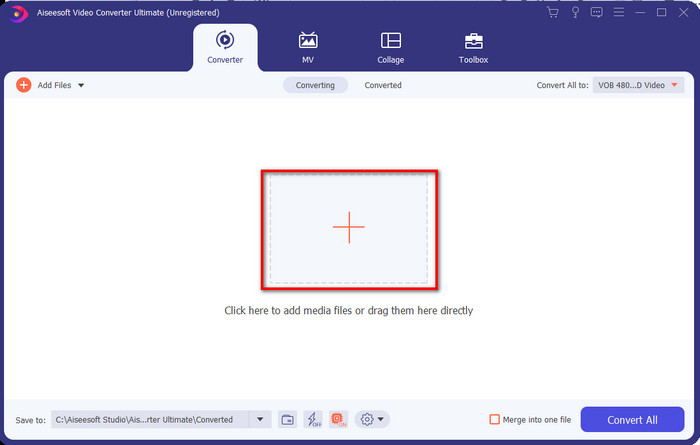
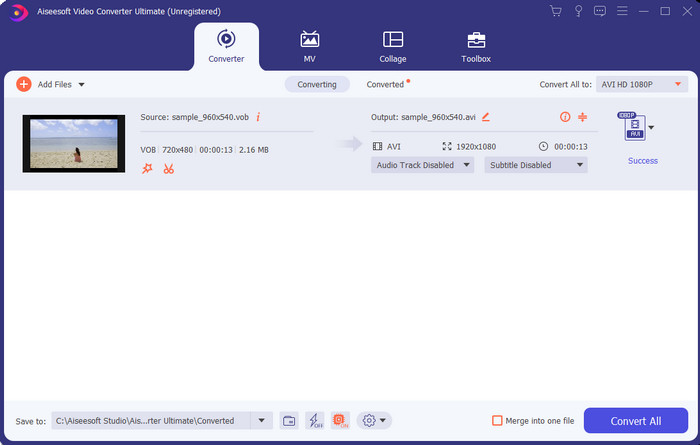
ขั้นตอนที่ 2. เมื่อติดตั้งเสร็จแล้ว ให้เปิดซอฟต์แวร์ จากนั้นจะมีอินเทอร์เฟซลักษณะนี้แสดงขึ้นกลางหน้าจอ คลิกปุ่ม + ตรงกลางอินเทอร์เฟซ แล้วจะมีหน้าต่างโฟลเดอร์เปิดขึ้นบนหน้าจอของคุณ คลิก Open เพื่อไปยังขั้นตอนถัดไปของกระบวนการ.
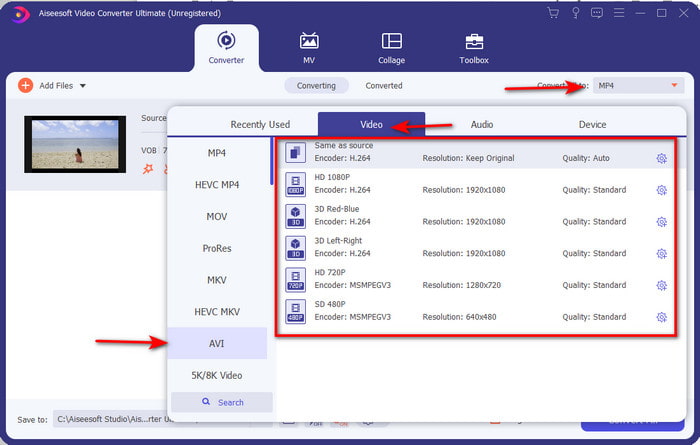
ขั้นตอนที่ 3. คลิกปุ่ม Convert All ที่มุมซ้ายบนของอินเทอร์เฟซ แล้วเลือกไฟล์รูปแบบ AVI จากหมวดหมู่วิดีโอในรายการ.
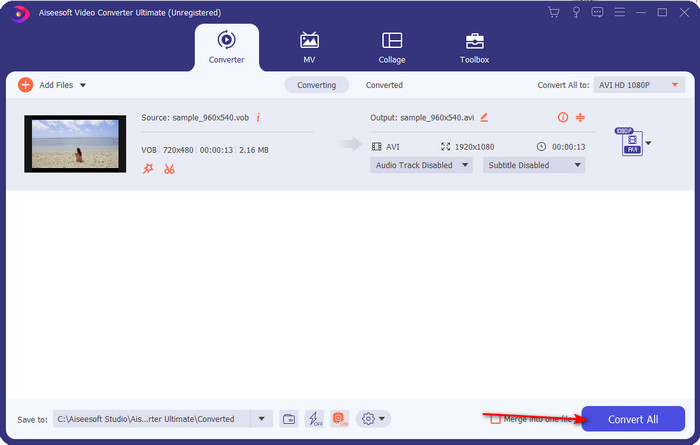
ขั้นตอนที่ 4. เมื่อเลือกชนิดไฟล์เสร็จแล้ว ให้คลิก Convert All เพื่อเริ่มการแปลงไฟล์.
ขั้นตอนที่ 5. ไม่ต้องกังวลเรื่องรอนานเพราะใช้เวลาเพียงไม่กี่วินาที จากนั้นจะมีโฟลเดอร์เปิดขึ้นอัตโนมัติบนหน้าจอของคุณ พร้อมด้วยไฟล์มีเดียที่เพิ่งแปลงเสร็จเมื่อครู่นี้ ให้คลิกเพื่อเปิดรับชมและเพลิดเพลินกับเวอร์ชันใหม่ของไฟล์ .vob ของคุณ.
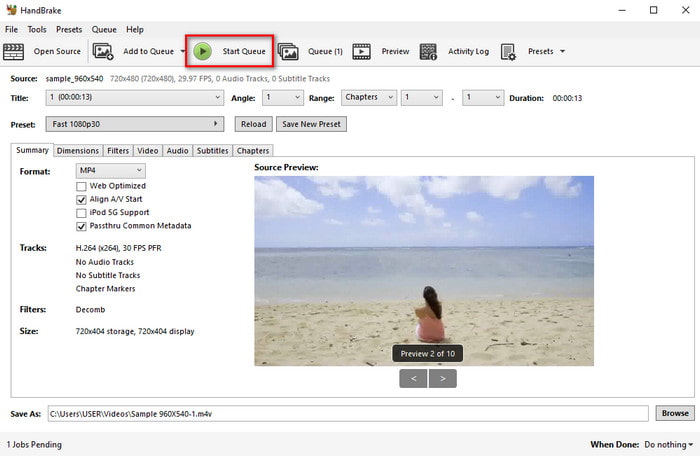
ใช้เครื่องมือฟรี: HandBrake
หากคุณกำลังมองหาเครื่องมือฟรีแล้วละก็ HandBrake จะช่วยคุณได้ และไม่จำเป็นต้องเชื่อมต่ออินเทอร์เน็ตในการใช้งาน คล้ายกับ FVC Video Converter Ultimate ทั้งยังสามารถดาวน์โหลดและใช้งานได้ฟรีสำหรับทุกคนที่มีคอมพิวเตอร์ไม่ว่าจะที่บ้าน ที่ทำงาน หรือที่อื่น ๆ อย่างไรก็ตาม หากคุณดาวน์โหลดเครื่องมือนี้ คุณจะต้องดาวน์โหลดไฟล์แยกที่เรียกว่า .NET 5.0 ก่อนจึงจะสามารถใช้งานได้ ผู้ใช้บางคนรู้สึกรำคาญเล็กน้อยเพราะหลังจากดาวน์โหลดโปรแกรมแล้ว ยังต้องดาวน์โหลดไฟล์อีกชุดหนึ่ง แต่หากคุณต้องการกระบวนการแปลงไฟล์ที่มีประสิทธิภาพและฟรี ให้ลองใช้ HandBrake เพื่อแปลงไฟล์ VOB เป็น AVI โดยทำตามขั้นตอนด้านล่าง.
ขั้นตอนที่ 1. ติดตั้งโปรแกรมลงในไดรฟ์คอมพิวเตอร์ของคุณก่อน.
ขั้นตอนที่ 2. คลิกเมนู File แล้วค้นหาไฟล์ .vob ในโฟลเดอร์ของคุณ.
ขั้นตอนที่ 3. คลิก Format และเลือกรูปแบบจากรายการที่มีอยู่ จากนั้นคลิก Start Queue.
ส่วนที่ 3 ซึ่งเป็นตัวแปลงที่ดีที่สุดที่จะใช้ในการแปลงไฟล์ VOB เป็นรูปแบบ AVI
| คุณสมบัติ | FVC แปลงวิดีโอฟรี | FVC Video Converter Ultimate | เบรกมือ |
| การแปลงรูปแบบ |  | | |
| การเร่งความเร็วของฮาร์ดแวร์และการแปลง |  | | |
| การเชื่อมต่ออินเทอร์เน็ต | | | |
| ตัวเพิ่มประสิทธิภาพหรือตัดต่อวิดีโอ | | | |
| โปรแกรมที่รองรับ | เครื่องมือบนเว็บ | เครื่องมือบนเดสก์ท็อป | เครื่องมือบนเดสก์ท็อป |
ส่วนที่ 4. คำถามที่พบบ่อยเกี่ยวกับ VOB และ AVI
ไฟล์อื่น ๆ ที่ VOB สามารถมีได้มีอะไรบ้าง?
VOB เป็นรูปแบบ DVD แบบมัลติเพล็กซ์ และด้วยเหตุนี้จึงสามารถประกอบด้วยวิดีโอและเสียงไม่เพียงเท่านั้น แต่ยังมีคำบรรยาย เนื้อหาการนำทาง และเมนูอีกด้วย
เหตุใดฉันจึงไม่สามารถเล่นไฟล์ VOB บนเครื่องเล่นสื่อของฉันได้
หนึ่งในสาเหตุที่ไฟล์ VOB ไม่สามารถเล่นบนโปรแกรมเล่นมีเดียของคุณได้ เป็นเพราะรูปแบบไฟล์นี้ได้รับการรองรับจากโปรแกรมเล่นมีเดียเพียงจำนวนน้อย คุณสามารถคลิกที่นี่เพื่อดู โปรแกรมเล่นไฟล์ VOB ที่มีให้เลือกใช้งาน หากคุณยังพบปัญหาอยู่ หนึ่งในทางออกที่เป็นไปได้คือการแปลงไฟล์ด้วยตัวแปลงไฟล์ที่แนะนำไว้ด้านบน.
ทำไมไฟล์ VOB ถึงใหญ่เกินไป?
เหตุผลเดียวที่รูปแบบนี้มีขนาดใหญ่มากคือมีข้อมูลต่างๆ ที่ดีวีดีควรมี นอกจากนี้ เราไม่สามารถละทิ้งความเป็นไปได้ของความยาวของวิดีโอ หรือคลิกที่นี่เพื่อเรียนรู้วิธีบีบอัดไฟล์ VOB
สรุป
ดังนั้นตอนนี้ ถ้าคุณต้องการแปลงไฟล์ VOB ก็สามารถทำได้ง่ายๆ ด้วยความช่วยเหลือของเครื่องมือที่มีอยู่ด้านบน นอกจากนั้น FVC Video Converter Ultimate ยังเป็นตัวแปลงที่โดดเด่นจากเครื่องมือออนไลน์และออฟไลน์อื่นๆ ที่กล่าวถึง เพราะคุณสามารถแปลง VOB เป็น AVI ใน Windows และแม้แต่บน Mac ได้อย่างง่ายดาย หากคุณยังไม่รู้ว่าจะใช้งานอะไร เราขอแนะนำให้คุณดาวน์โหลดเครื่องมือมหัศจรรย์เพื่อสัมผัสกับผลลัพธ์ที่ชัดเจนและต้องทึ่ง
-
 VOB เป็น MP4 - 3 วิธีในการแปลงไฟล์ VOB เป็น MP4 ฟรีใน Bulk
 บทความนี้แนะนำตัวแปลง VOB เป็น MP4 ฟรี 3 รายการและบทช่วยสอนที่เกี่ยวข้อง คุณสามารถแปลงไฟล์ VOB เป็น MP4 ได้ฟรีบน Windows / Mac / ออนไลน์ได้อย่างง่ายดาย
-
 วิธีที่ดีที่สุดในการแปลง VOB เป็น FLV [รวมฟรีและออนไลน์]
 ต้องการแปลงไฟล์ VOB เป็นไฟล์ FLV หรือไม่? คุณสามารถทำงานให้เสร็จสมบูรณ์ได้อย่างง่ายดายด้วยตัวแปลงเดสก์ท็อปหรือออนไลน์ อ่านคู่มือนี้และเรียนรู้วิธีแปลง VOB เป็น FLV อย่างง่ายดายและรวดเร็ว
-
 ไฟล์ VOB คืออะไรและจะเปลี่ยนไฟล์ VOB เป็น GIF ฟรีได้อย่างไร
 คุณต้องการทราบข้อมูลเพิ่มเติมเกี่ยวกับไฟล์ VOB และวิธีแชร์หลังจากถูกริปหรือไม่? หรือทำไมคุณต้องแปลง VOB เป็น GIF จากนั้นอ่านบทความนี้อย่างละเอียด
