


 Video Converter Ultimate
 บันทึกหน้าจอ
 ซ่อมวิดีโอ
 ดาวน์โหลดอย่างปลอดภัย
ขั้นตอนที่เร็วที่สุดในการแปลง VOB เป็น M4V บน Windows และ Mac
DVDs typically employ the file format VOB or Video Object. This file is often retained in the DVD's root-level VIDEO TS folder. However, the internet now has a considerable number of media files. Additionally, DVDs are less prevalent today and are not widely supported by devices and programs. If that is the reason, you need a format supported by numerous devices and programs like the M4V file format. You will be grateful because you will learn the most useful methods to convert VOB to M4V using online and downloadable software.

ตอนที่ 1: ความแตกต่างระหว่าง VOB และ M4V
| VOB | M4V | |
| ชื่อเต็ม | วัตถุวิดีโอ | วิดีโอ MPEG-4 |
| นามสกุลไฟล์ | .vob | .m4v |
| คำอธิบาย | วิดีโอ เสียง คำบรรยาย เมนูดีวีดี และเนื้อหาอื่นๆ ทั้งหมดรวมอยู่ในไฟล์เดียวโดยใช้รูปแบบคอนเทนเนอร์ VOB รูปแบบ VOB ซึ่งอิงตามสตรีมระบบ MPEG-2 และสามารถเล่นได้บนอุปกรณ์สื่อต่างๆ มักจะจัดเก็บไว้ในโฟลเดอร์ VIDEO TS ที่รูทของแผ่นดิสก์ | Apple สร้างรูปแบบคอนเทนเนอร์วิดีโอ M4V ซึ่งใช้ในการเผยแพร่เนื้อหาเสียงและวิดีโอผ่าน iTunes ไฟล์ M4V จะเหมือนกันกับไฟล์ MP4 ยกเว้นความเป็นไปได้ในการใช้การป้องกันการคัดลอก DRM |
| พัฒนาโดย | ดีวีดีฟอรั่ม | แอปเปิ้ล |
| ประเภทไมม์ | วิดีโอ/ดีวีดี วิดีโอ/Mpeg | วิดีโอ/x-m4v |
| ตัวแปลงสัญญาณวิดีโอ | MPEG-1 MPEG-2 | H.264 |
| ตัวแปลงสัญญาณเสียง | เอ็มพีทู เอซี-3 กพท | AAC ดอลบี้ดิจิตอล |
| โปรแกรมที่เกี่ยวข้อง | มีเดียเพลเยอร์คลาสสิก Windows Media Player VLC Media Player Potplayer GOMPlayer | โปรแกรม QuickTime Player iTunes มีเดียเพลเยอร์คลาสสิก K-เครื่องเล่นมัลติมีเดีย MPlayer VLC Media Player |
ตอนที่ 2: ทำไมคุณต้องแปลง VOB เป็น M4V
เหตุผลหลักที่คุณต้องแปลง VOB เป็น M4V คือแอปพลิเคชันจำนวนมากไม่รองรับไฟล์ VOB ไม่ว่าอะไรจะเกิดขึ้น หากคุณมีวิดีโอ VOB บน Mac คุณอาจประสบปัญหาได้ วางลงใน QuickTime สำหรับเล่นหรือ iMovie/FCP สำหรับตัดต่อ ดังนั้น คุณต้องแปลงไฟล์ .vob เป็นรูปแบบที่ Mac รองรับได้ เช่น M4V
ส่วนที่ 3: วิธีแปลง VOB เป็น M4V โดยใช้ Mac
The best converter you can use to convert VOB to M4V using Mac is the FVC Video Converter Ultimate. This converter is not the same as the other converter you can see on the internet. The other converter only offers a normal conversion speed process. But in this application, you will experience more exciting things. Video Converter Ultimate offers an ultra-speed conversion process, which is 30x faster than the average speed. Also, assuming that you want to convert two or more files, this application is for you. It allows batch conversion, wherein you can upload more files and convert them in a single procedure. With this batch conversion, you can save more time. Moreover, while converting, you can still edit your video. You can enhance, edit, and crop your video because it has more options while you are in the Converting process. In addition, you can still improve your VOB video file using this converter.
คุณสมบัติเด่น
◆ แปลงรูปแบบไฟล์วิดีโอมากกว่า 100 รูปแบบ รวมถึง MP4, VOB, M4V, WMV, MKV, AVI, FLV, MTS เป็นต้น
◆ เสนอตัวสร้างภาพตัดปะพร้อมเทมเพลตและตัวกรองที่มีอยู่
◆ สามารถสร้างมิวสิควิดีโอด้วยธีมฟรี มันสามารถรวมวิดีโอและรูปภาพ
◆ มี Toolbox ที่มีเครื่องมือแก้ไขมากมาย เช่น ตัวเพิ่มคุณภาพวิดีโอ ทริมเมอร์ ตัวครอป ฯลฯ
◆ แปลงไฟล์รูปภาพ เช่น PNG, JPG, BMP, TIFF และอื่นๆ
◆ สร้างวิดีโอ 3 มิติที่กำหนดเองจาก 2 มิติ
◆ It can slow down and speed up a video from 0.125x to 8x faster.
ทำตามขั้นตอนพื้นฐานด้านล่างเพื่อแปลง VOB เป็น M4V บน Mac โดยใช้ FVC Video Converter Ultimate
Step 1: Search the FVC Video Converter Ultimate on your browser. You can also click the Download button below. Choose the Mac version. Then, launch the application.
ดาวน์โหลดฟรีสำหรับ Windows 7 หรือใหม่กว่าดาวน์โหลดอย่างปลอดภัย
ดาวน์โหลดฟรีสำหรับ MacOS 10.7 หรือใหม่กว่าดาวน์โหลดอย่างปลอดภัย
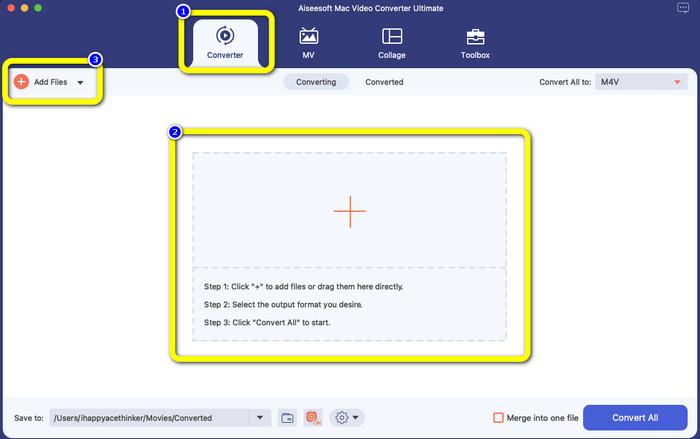
Step 2: Select the Converter panel when the interface already pops up. Click the Plus icon or the Add Files button to add your VOB file. You can also drag your video file directly to the box.
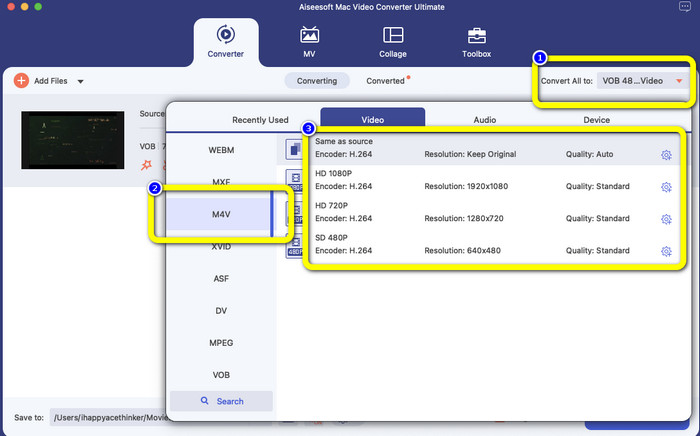
Step 3: Click the Convert All to button to see the format options. After that, select the M4V file format. You can also choose the resolution for your video from 480p to 1080p, or you can stay on the original quality.
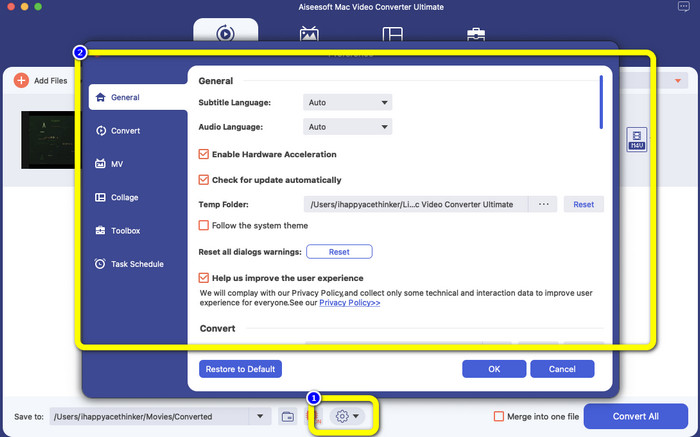
Step 4: Before converting, you can edit your video, like putting a subtitle or audio language and more, by clicking the Preference icon on the lower part of the interface.
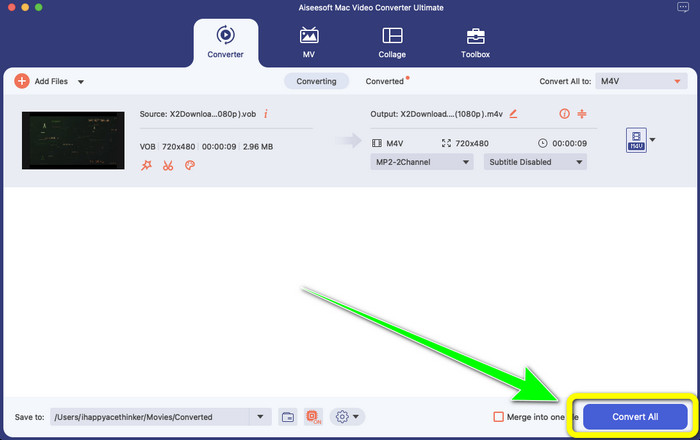
Step 5: If you are done making some changes to your VOB video, click the Convert button to convert your VOB file to M4V format. Then, save your video on your Mac.
ตอนที่ 4: วิธีง่ายๆ ในการแปลง VOB เป็น M4V ออนไลน์ฟรี
If you want to convert VOB to M4V for free online, you can try FreeFileConvert. This online converter can easily convert different files. It only has three steps to convert your VOB video file to M4V format, which makes it perfect for non-professional users. Also, after 24 hours, all converted files are deleted from the server and are no longer available. You can also delete your file using the Delete button after a file has been converted. Moreover, FreeFileConvert is not only good for video conversion. It also allows you to convert images, documents, vectors, audio, archive, e-book, and presentation, which makes it convenient for users. However, this online tool has a slow conversion process, so you must consume more time. It also requires an internet connection to operate.
Step 1: Visit the FreeFileConvert website.
Step 2: Select the Choose File button to add your VOB video file.
Step 3: Click the Convert File to button to see the format options and select M4V file format.
Step 4: For the last step, select the Convert button. Download the final video after the conversion process.
ส่วนที่ 5: คำถามที่พบบ่อยเกี่ยวกับการแปลง VOB เป็น M4V
1. รูปแบบไฟล์ทั่วไปในการแปลงไฟล์ VOB เป็นรูปแบบใด
เนื่องจาก MP4 เป็นนามสกุลไฟล์มัลติมีเดียทั่วไปและเป็นรูปแบบคอนเทนเนอร์สำหรับจัดเก็บข้อมูลวิดีโอ เสียง และคำบรรยาย จึงเป็นรูปแบบวิดีโอที่ดีที่สุดในการแปลงไฟล์วิดีโอ VOB ที่ไม่รองรับของคุณ อุปกรณ์พกพาจำนวนมาก รวมถึงผลิตภัณฑ์ Apple รองรับรูปแบบ MP4
2. ฉันจะแปลงรูปแบบไฟล์ VOB โดยไม่สูญเสียคุณภาพได้อย่างไร
คุณสามารถใช้ FVC Video Converter Ultimate เครื่องมือออฟไลน์นี้สามารถแปลงไฟล์ได้หลายไฟล์โดยไม่เปลี่ยนคุณภาพวิดีโอ
3. ไฟล์ VOB สามารถเล่นบน Android ได้หรือไม่?
No. Videos are stored on DVDs using the VOB (Video Object) container format. VOB files are typically not supported by Android. You need to convert your VOB to MP4 or other video formats supported by Android devices if you wish to play them on Android smartphones or tablets.
สรุป
Now you have learned the differences between VOB and M4V. Also, this article shows you the easiest procedure to convert VOB to M4V. If you prefer an application with a fast conversion process, you can use FVC Video Converter Ultimate. This converter can convert various files 30x faster than other converters.
-
 วิธีบีบอัดไฟล์ VOB ออนไลน์และฟรี [ไม่ดาวน์โหลด]
 คุณกำลังมองหาวิธีบีบอัดไฟล์ VOB หรือไม่? เรียนรู้วิธีที่ดีที่สุดในการทำให้ไฟล์ VOB มีขนาดเล็กลงในบทความนี้
-
 คู่มือการเข้าร่วมไฟล์ M4V บน Windows และ Mac ฟรี
 หากคุณกำลังมองหาวิธีแก้ปัญหาในการรวมไฟล์วิดีโอ M4V ให้เป็นไฟล์เดียว อย่าพลาดข้อความนี้ ที่นี่เราจะพูดถึงสองวิธีที่ดีที่สุดในการรวมไฟล์วิดีโอ M4V
-
 แปลง VOB เป็น 3PG บน Windows และ Mac ฟรี [Losslessly]
 วิธีแปลง VOB เป็น 3GP บน Windows และ Mac บทความนี้นำเสนอวิธีแก้ปัญหาที่ดีที่สุดสำหรับคุณในการแปลง VOB เป็น 3GP
