


 Video Converter Ultimate
 บันทึกหน้าจอ
 ซ่อมวิดีโอ
 ดาวน์โหลดอย่างปลอดภัย
3 โปรแกรมที่น่าทึ่งในการแปลง WAV เป็นเสียงเรียกเข้าโดยไม่ต้องปวดหัวเรื่องเทคโนโลยี
เมื่อลงลึกสู่โลกของรูปแบบไฟล์เสียง การแปลง WAV เป็นเสียงเรียกเข้า ถือเป็นแง่มุมที่น่าสนใจของการประมวลผลไฟล์เสียงดิจิทัล เมื่อเทคโนโลยีก้าวหน้าและความต้องการด้านเสียงของเราพัฒนาขึ้น การมีความชำนาญในกระบวนการแปลงรูปแบบนี้จึงมีคุณค่าเพิ่มมากขึ้น ในการสำรวจครั้งนี้ เราจะค้นพบวิธีการแปลงระหว่างรูปแบบเหล่านี้อย่างลื่นไหล ไม่ว่าคุณจะเป็นผู้หลงใหลด้านเสียงระดับมืออาชีพหรือแค่สงสัยเกี่ยวกับกลไกเบื้องหลังรูปแบบเหล่านี้ การเดินทางครั้งนี้สัญญาว่าจะให้ทั้งสาระและความเพลิดเพลิน มาออกเดินทางในโลกแห่งเสียงนี้ไปด้วยกัน และขยายความรู้ของเราเกี่ยวกับการแปลงไฟล์จาก WAV เป็นเสียงเรียกเข้าให้มากยิ่งขึ้นกันเถอะ.

ส่วนที่ 1 วิธีที่ดีที่สุดในการแปลง WAV เป็นเสียงเรียกเข้า
กำลังมองหาวิธีแปลงไฟล์ WAV เป็นเสียงเรียกเข้าแบบง่ายสุด ๆ อยู่หรือเปล่า? ขอแนะนำ Video Converter Ultimate ผู้ช่วยคู่ใจด้านการแปลงไฟล์เสียงของคุณ เครื่องมือนี้มาพร้อมอินเทอร์เฟซที่ใช้งานง่ายและมีความเป็นมืออาชีพ แม้แต่ผู้ใช้ที่ไม่เก่งเทคโนโลยีก็ใช้งานได้อย่างสบาย คุณสามารถตัด ครอป และปรับแต่งวิดีโอของคุณได้อย่างไม่ยุ่งยาก นอกจากนี้ การประมวลผลแบบชุดยังช่วยประหยัดเวลาและแรงเมื่อต้องจัดการไฟล์จำนวนมากอีกด้วย.
คุณสมบัติเด่น
◆ โปรไฟล์เอาท์พุตที่ตั้งไว้ล่วงหน้า: เลือกจากตัวเลือกโปรไฟล์เอาท์พุตที่กำหนดไว้ล่วงหน้าซึ่งปรับแต่งมาสำหรับอุปกรณ์และแพลตฟอร์มที่แตกต่างกัน เพื่อให้มั่นใจถึงความเข้ากันได้ในการเล่นที่เหมาะสมที่สุด
◆ การตั้งค่าที่ปรับแต่งได้: ปรับแต่งกระบวนการแปลงของคุณด้วยการตั้งค่าที่ปรับได้สำหรับความละเอียด บิตเรต อัตราเฟรม และอื่นๆ ตามความต้องการเฉพาะของคุณ
◆ การเร่งความเร็วของ GPU: ใช้ประโยชน์จากพลังของ GPU ของคุณเพื่อเร่งกระบวนการแปลงเพิ่มเติม เพิ่มประสิทธิภาพสูงสุดในขณะที่รักษาคุณภาพไว้
◆ การสนับสนุนคำบรรยายและแทร็กเสียง: รวมคำบรรยายและแทร็กเสียงหลายแทร็กในวิดีโอของคุณได้อย่างราบรื่น ทำให้สามารถแสดงเนื้อหาได้หลายภาษาและหลากหลาย
ด้วย Video Converter Ultimate คุณสามารถแปลง WAV เป็นเสียงเรียกเข้าได้อย่างง่ายดาย มาแบ่งมันออกเป็นสี่ขั้นตอนง่ายๆ:
ขั้นตอนที่ 1 ดาวน์โหลดและติดตั้ง Video Converter Ultimate
รับโปรแกรมได้โดยคลิกที่ปุ่ม ดาวน์โหลดฟรี ด้านล่าง คุณสามารถดาวน์โหลดโปรแกรมนี้ได้ทั้งบน Windows และ Mac ดังนั้นคุณจึงสามารถแปลงไฟล์ WAV บน Windows ได้เช่นเดียวกับบน Mac เมื่อดาวน์โหลดเสร็จแล้ว ให้รันตัวติดตั้งและทำตามคำแนะนำบนหน้าจอเพื่อติดตั้งเครื่องมือนี้ลงในคอมพิวเตอร์ของคุณ.
ดาวน์โหลดฟรีสำหรับ Windows 7 ขึ้นไปดาวน์โหลดอย่างปลอดภัย
ดาวน์โหลดฟรีสำหรับ MacOS 10.7 หรือใหม่กว่าดาวน์โหลดอย่างปลอดภัย
ขั้นตอนที่ 2 เพิ่มไฟล์เสียงที่ต้องการแปลง
หลังจากเปิดใช้งาน Video Converter Ultimate บนคอมพิวเตอร์แล้ว ให้คลิกปุ่ม Add Files หรือเพียงแค่ลากและวางไฟล์เสียง WAV ของคุณลงในอินเทอร์เฟซของเครื่องมือ รายการไฟล์ที่เพิ่มเข้ามาจะปรากฏขึ้นทันที และคุณสามารถจัดเรียงลำดับไฟล์ใหม่ตามต้องการได้อย่างง่ายดาย.
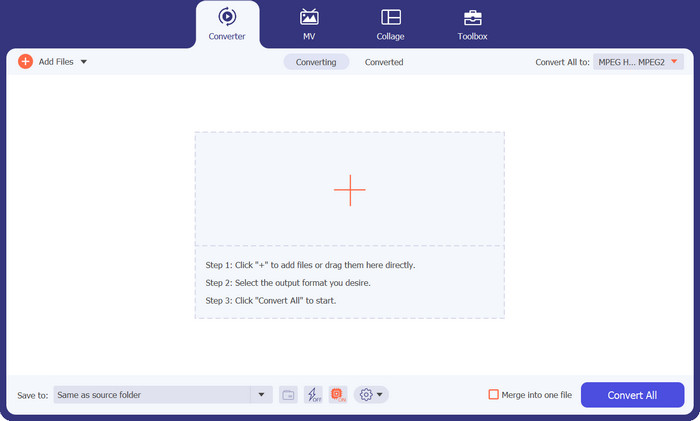
ขั้นตอนที่ 3 เลือกรูปแบบเอาต์พุต
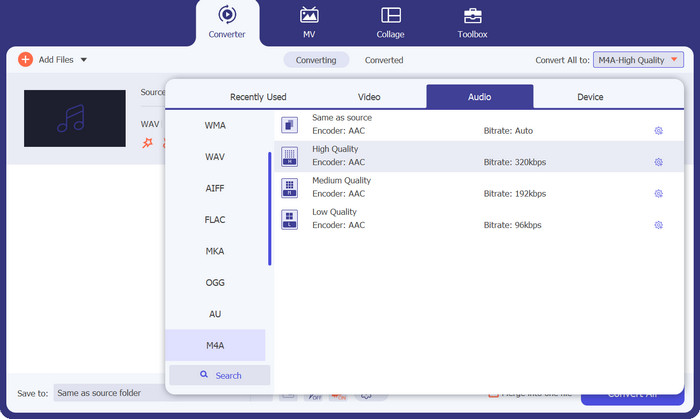
ค้นหาส่วน Convert All to ที่ด้านบนของอินเทอร์เฟซเครื่องมือ คลิกเมนูแบบเลื่อนลงเพื่อดูรายชื่อรูปแบบไฟล์เอาต์พุตที่รองรับภายใต้แท็บ Audio เลื่อนดูตัวเลือกต่าง ๆ แล้วเลือก M4R เป็นรูปแบบเอาต์พุตที่ต้องการสำหรับไฟล์เสียงของคุณ.
ขั้นตอนที่ 4 แปลงไฟล์
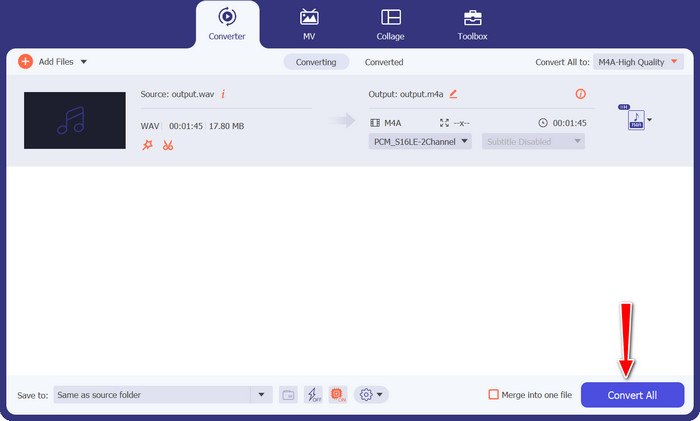
เมื่อกำหนดค่าทุกอย่างเรียบร้อยแล้ว คุณก็พร้อมเริ่มกระบวนการแปลงไฟล์ เลือกโฟลเดอร์ปลายทางที่ต้องการบันทึกไฟล์ที่แปลงเสร็จ จากนั้นคลิกปุ่ม Convert All เครื่องมือจะทำการประมวลผลและแปลงไฟล์ให้คุณอย่างมีประสิทธิภาพ.
ส่วนที่ 2 วิธีที่ดีที่สุดในการแปลง WAV เป็นเสียงเรียกเข้าออนไลน์
Free Audio Converter Online เป็นตัวแปลงไฟล์ที่เรียบง่ายแต่ทรงพลัง มาพร้อมอินเทอร์เฟซที่ใช้งานง่ายจนใคร ๆ ก็ใช้ได้สบาย ๆ ไม่ต้องกังวลกับศัพท์เทคนิคหรือคำโฆษณาซับซ้อน มีแต่ตัวเลือกตรงไปตรงมาที่ช่วยให้คุณทำงานได้สำเร็จอย่างไม่ยุ่งยาก และที่สำคัญคือ ทุกอย่างทำงานบนออนไลน์ทั้งหมด จึงไม่ต้องติดตั้งโปรแกรมให้รกคอมพิวเตอร์ของคุณ.
ไม่เพียงแต่รองรับ WAV ถึง M4R เหมือนแชมป์เปี้ยนเท่านั้น แต่ยังมีคุณสมบัติเจ๋งๆ มากมายอีกด้วย คุณสามารถแปลงไฟล์เสียงได้หลากหลายรูปแบบ เช่น MP3, AAC, OGG และอื่นๆ อีกมากมาย เพื่อตอบสนองทุกความต้องการในการแปลงไฟล์เสียงของคุณ นอกจากนี้ กระบวนการนี้ยังเร็วปานสายฟ้า ดังนั้นคุณจึงไม่ต้องกระตุกนิ้วโป้งรอให้ความมหัศจรรย์เกิดขึ้น
คุณสมบัติเด่น
◆ ความยืดหยุ่นของรูปแบบ: โปรแกรมแปลงเสียงออนไลน์ฟรีรองรับรูปแบบเสียงที่หลากหลาย ทำให้สามารถแปลงไฟล์เสียงระหว่างรูปแบบยอดนิยม เช่น MP3, WAV, AAC, FLAC และอื่นๆ ได้อย่างราบรื่น
◆ ไม่จำเป็นต้องติดตั้ง: ในฐานะเครื่องมือออนไลน์ ไม่จำเป็นต้องติดตั้งซอฟต์แวร์ใดๆ บนคอมพิวเตอร์ของคุณ เพียงเข้าถึงตัวแปลงผ่านเว็บเบราว์เซอร์ของคุณและเริ่มการแปลงทันที
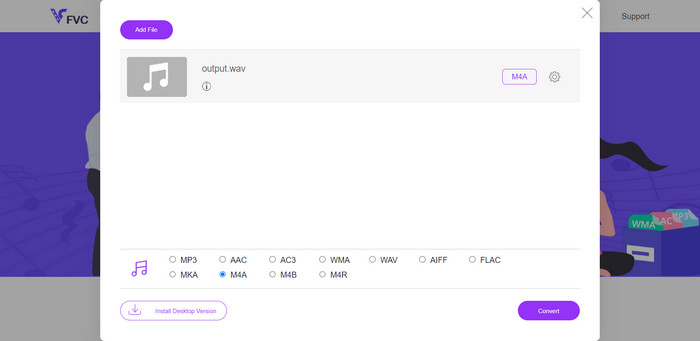
ขั้นตอนที่ 1 ก่อนอื่น ให้เปิดเว็บเบราว์เซอร์ของคุณแล้วไปที่เว็บไซต์ Free Audio Converter Online จากนั้นมองหาปุ่ม Add Files to Convert ที่ใช้งานได้ง่าย.
ขั้นตอนที่ 2 เมื่อเตรียมไฟล์เสียง WAV ของคุณเรียบร้อยแล้ว ก็ถึงเวลาเลือกฟอร์แมตเอาต์พุตที่ต้องการ ให้ค้นหา M4R จากรายชื่อฟอร์แมตที่มีอยู่แล้วคลิกเลือกอย่างมั่นใจ.
ขั้นตอนที่ 3 เมื่อกำหนดค่าทั้งหมดเรียบร้อย ก็ถึงขั้นตอนสุดท้ายแล้ว เพียงคลิกปุ่ม Convert แล้วปล่อยให้ตัวแปลงออนไลน์ทำงานของมัน ในเวลาไม่นาน ไฟล์ของคุณก็จะถูกแปลงเป็นรูปแบบ M4R ได้อย่างง่ายดายด้วยตัวแปลงฟรีตัวนี้.
ส่วนที่ 3 แปลง WAV เป็น Ringtone ใน Audacity
Audacity คือสิ่งที่คุณต้องทำในการแปลงไฟล์เสียงจากรูปแบบหนึ่งไปเป็นอีกรูปแบบหนึ่ง ไม่ว่าคุณจะต้องการแปลง MP3 เป็น WAV หรือ FLAC เป็น MP3 ก็ตาม ก็มีทุกอย่างที่คุณต้องการ! ไม่ต้องปวดหัวกับรูปแบบอีกต่อไป - เพียงแค่แปลงเสียงได้อย่างราบรื่นเพียงปลายนิ้วสัมผัส ส่วนที่ดีที่สุด? Audacity นั้นฟรีโดยสมบูรณ์! ไม่มีการสมัครสมาชิกแอบแฝงหรือค่าใช้จ่ายแอบแฝง เพียงดาวน์โหลดและปล่อยให้การผจญภัยทางเสียงเริ่มต้นขึ้น ตอนนี้ ทำตามคำแนะนำด้านล่างเพื่อเรียนรู้วิธีแปลง WAV ใน Audacity
ขั้นตอนที่ 1 เปิดโปรแกรม Audacity บนคอมพิวเตอร์ของคุณ หากคุณยังไม่มีโปรแกรมนี้ ให้ไปที่เว็บไซต์ของพวกเขา (ระบุที่อยู่เว็บไซต์) แล้วดาวน์โหลดซอฟต์แวร์ได้ฟรี จากนั้นไปที่เมนู File ด้านบนแล้วคลิก Open ค้นหาไฟล์เสียง WAV ที่คุณต้องการแปลงและคลิก Open เพื่อนำเข้าไฟล์นั้นเข้าสู่ Audacity.
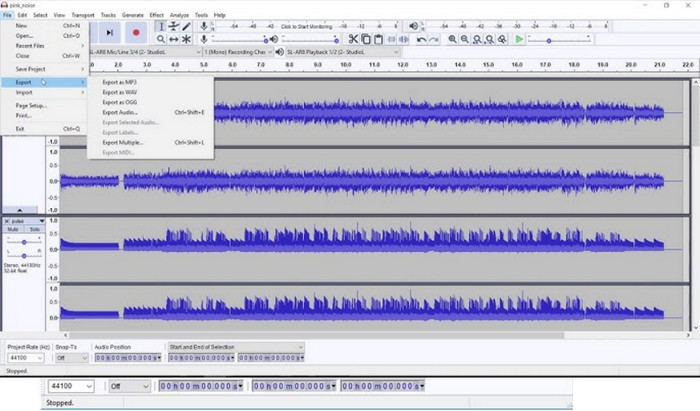
ขั้นตอนที่ 2 เมื่อไฟล์ WAV ของคุณอยู่ใน Audacity แล้ว ให้กลับไปที่เมนู File แล้วเลือก Export > Export as M4A จะมีหน้าต่างเด้งขึ้นมาให้คุณตั้งชื่อไฟล์และเลือกตำแหน่งที่ต้องการบันทึกไฟล์ แล้วคลิก Save เพื่อดำเนินการต่อ.
ขั้นตอนที่ 3 ก่อนที่การแปลงจะเริ่มต้น Audacity จะเปิดหน้าต่างตัวเลือกการส่งออกไฟล์ M4A ให้คุณกำหนดคุณภาพและการตั้งค่าอื่น ๆ ตามความต้องการ เมื่อกำหนดค่าเสร็จแล้ว ให้คลิก OK และ Audacity จะทำการแปลงไฟล์ WAV ของคุณเป็นรูปแบบ M4A ได้อย่างราบรื่น.
อ่านเพิ่มเติม:
แนวทางวิธีแปลงไฟล์ M4A เป็น WAV [สำหรับ PC และ Mac]
วิธีแก้ไขคุณสมบัติของไฟล์ WAV บน Windows 10/11 และ Mac [มีวิธีแก้ไขแล้ว]
ส่วนที่ 4 การเปรียบเทียบทั้งสามโปรแกรม
ด้านล่างนี้เป็นตารางเปรียบเทียบ Video Converter Ultimate, Free Audio Converter Online และ Audacity ในด้านต่างๆ:
| Video Converter Ultimate | ตัวแปลงเสียงออนไลน์ฟรี | ความกล้า | |
| รูปแบบการแปลง | รองรับรูปแบบวิดีโอและเสียงเช่น MP4, AVI, MOV, MP3, WAV และอื่น ๆ อย่างกว้างขวาง | รองรับรูปแบบเสียงที่หลากหลาย เช่น MP3, WAV, AAC, FLAC เป็นต้น | ความเข้ากันได้ของรูปแบบกว้างรวมถึง WAV, MP3, FLAC, AAC และอื่น ๆ |
| หน้าจอผู้ใช้ | ส่วนต่อประสานที่ใช้งานง่ายพร้อมการออกแบบที่เรียบง่ายเพื่อการนำทางที่ง่ายดาย | อินเทอร์เฟซออนไลน์ที่เรียบง่ายและใช้งานง่าย เข้าถึงได้ผ่านเว็บเบราว์เซอร์ | UI ที่ใช้งานง่ายและตรงไปตรงมา เหมาะสำหรับทั้งผู้เริ่มต้นและผู้เชี่ยวชาญ |
| ความเร็วในการแปลง | การแปลงความเร็วสูงเพื่อประมวลผลไฟล์อย่างรวดเร็วโดยไม่สูญเสียคุณภาพ | การแปลงที่มีประสิทธิภาพและรวดเร็วเพื่อการพลิกกลับที่รวดเร็ว | ความเร็วในการประมวลผลจะแตกต่างกันไปขึ้นอยู่กับความซับซ้อนในการแก้ไขเสียง |
| ความสามารถในการแก้ไข | เครื่องมือตัดต่อวิดีโอและเสียงขั้นพื้นฐาน ช่วยให้สามารถตัดแต่ง ครอบตัด และเอฟเฟกต์ได้ | เน้นไปที่การแปลงเสียงเป็นหลัก โดยไม่มีฟีเจอร์การแก้ไขขั้นสูง | ความสามารถในการแก้ไขเสียงขั้นสูง รวมถึงการรองรับหลายแทร็ก |
| การแปลงแบทช์ | รองรับการประมวลผลแบบแบตช์เพื่อแปลงไฟล์หลายไฟล์พร้อมกัน | ไม่ได้ระบุว่ามีการแปลงเป็นชุดหรือไม่ | ไม่ได้ระบุว่ามีการแปลงเป็นชุดหรือไม่ |
| ความพร้อมใช้งานของแพลตฟอร์ม | ใช้ได้กับทั้งระบบปฏิบัติการ Windows และ Mac | สามารถเข้าถึงได้จากอุปกรณ์ใด ๆ ที่มีการเชื่อมต่ออินเทอร์เน็ต | พร้อมใช้งานสำหรับแพลตฟอร์ม Windows, macOS และ Linux |
ส่วนที่ 5. คำถามที่พบบ่อยเกี่ยวกับ WAV เพื่อแปลงเสียงเรียกเข้า
ฉันสามารถแปลง FFmpeg WAV เป็น M4R ได้หรือไม่
ใช่ คุณสามารถใช้ FFmpeg เพื่อแปลง WAV เป็น M4R FFmpeg เป็นเฟรมเวิร์กมัลติมีเดียโอเพ่นซอร์สที่ทรงพลัง ซึ่งรองรับรูปแบบเสียงและวิดีโอที่หลากหลาย ทำให้เป็นเครื่องมืออเนกประสงค์สำหรับการจัดการและการแปลงสื่อ
ฉันสามารถแปลง WAV เป็น WMA ได้หรือไม่
ได้ คุณสามารถแปลง WAV เป็น WMA (Windows Media Audio) ได้โดยใช้วิธีการและเครื่องมือซอฟต์แวร์ต่างๆ ที่มี คุณสามารถใช้ Windows Media Player เพื่อดำเนินการนี้ได้
การแปลงไฟล์เสียงส่งผลต่อข้อมูลเมตาของไฟล์หรือไม่
ในบางกรณี การแปลงไฟล์เสียงอาจเปลี่ยนแปลงหรือลบข้อมูลเมตา (เช่น ชื่อเพลง ศิลปิน อัลบั้ม) หากต้องการเก็บข้อมูลเมตา ให้ใช้รูปแบบที่รองรับ เช่น MP3 หรือ M4A
การแปลงเสียงถูกกฎหมายหรือไม่?
การแปลงไฟล์เสียงเพื่อการใช้งานส่วนตัวโดยทั่วไปถือว่าถูกกฎหมาย อย่างไรก็ตาม การแจกจ่ายเนื้อหาที่มีลิขสิทธิ์ซ้ำโดยไม่ได้รับอนุญาตถือเป็นสิ่งผิดกฎหมาย
สรุป
การแปลงไฟล์เสียงมีบทบาทสำคัญในการทำให้ไฟล์สื่อดิจิทัลของเรามีความเข้ากันได้และยืดหยุ่นต่อการใช้งาน ไม่ว่าคุณจะต้องการแปลงไฟล์ WAV เป็น M4R เป็น MP3 เป็น WMA หรือเป็นรูปแบบอื่น ๆ ก็มีเครื่องมือและวิธีการหลากหลายที่ช่วยให้กระบวนการนี้เป็นไปอย่างราบรื่น.
-
 ตัวแปลง WAV เป็น MP3 อันดับต้น ๆ ที่น่าลองในปี 2023
 กำลังมองหาตัวแปลง WAV เป็น MP3 ที่เชื่อถือได้อยู่ใช่ไหม อ่านบทวิจารณ์เชิงลึกของเราและค้นพบเครื่องมือที่ดีที่สุดในการแปลงไฟล์เสียงของคุณอย่างง่ายดาย
-
 WAV Player - แอพเล่น WAV 5 อันดับแรกสำหรับ Android, iPhone, PC และ Mac
 จะเล่นไฟล์ WAV บนโทรศัพท์ Android ได้อย่างไร? เครื่องเล่นอะไรสามารถเล่น WAV ได้? โพสต์นี้แชร์ 5 เครื่องเล่น WAV ฟรีที่ดีที่สุดสำหรับ Android, iPhone, Mac และ PC
-
 FLAC กับ WAV: รูปแบบเสียงใดที่เหมาะกับคุณมากกว่ากัน
 เรียนรู้เพิ่มเติมเกี่ยวกับการเปรียบเทียบเชิงลึกระหว่างคุณภาพ FLAC กับ WAV เราให้ข้อดีข้อเสียและวิธีที่มีประสิทธิภาพในการแปลงระหว่างไฟล์
