


 Video Converter Ultimate
 บันทึกหน้าจอ
 ซ่อมวิดีโอ
ตัวแปลงออนไลน์และออฟไลน์ 3 อันดับแรกที่ใช้ในการแปลงไฟล์ XviD เป็นรูปแบบ AVI
XviD เป็นโค้เดกที่รู้จักกันอย่างแพร่หลายเพราะเป็นคู่แข่งของ DivX ที่สำคัญโค้เดกนี้เป็นโอเพนซอร์สและได้รับการรองรับโดยสัญญาอนุญาต GNU โค้เดกนี้ใช้สำหรับบีบอัดและคลายการบีบอัดไฟล์ที่อยู่ในรูปแบบของคุณ แม้ว่าโค้เดกนี้จะช่วยให้วิดีโอของคุณมีขนาดเล็กลง แต่ก็ยังมีโปรแกรมเล่นสื่อบางตัวที่ไม่สามารถประมวลผลโค้เดกนี้ได้ ดังนั้น หากโปรแกรมเล่นสื่อของคุณไม่รองรับโค้เดก XviD คุณจำเป็นต้องแปลงไฟล์ให้เป็น AVI ด้านล่างนี้คือโปรแกรมแปลงไฟล์ที่ได้รับความนิยมซึ่งใช้ในการแปลง XviD เป็น AVI.
ส่วนที่ 1 XviD และ AVI - ภาพรวม
คำอธิบายเพิ่มเติมเกี่ยวกับ XviD คือตัวแปลงสัญญาณนี้ไม่ใช่รูปแบบหรือคอนเทนเนอร์ เช่น AVI หรือคอนเทนเนอร์สื่ออื่นๆ ด้วยความช่วยเหลือของ XviD ไฟล์วิดีโอของคุณสามารถบีบอัดให้มีขนาดเล็กลงได้โดยไม่ทำลายคุณภาพของไฟล์ นอกจากนี้ XviD ยังสามารถเข้ารหัส AVI ให้เล็กลงได้ อย่างไรก็ตาม ไม่ใช่ทุกรูปแบบ AVI ที่ใช้ XviD เป็นตัวแปลงสัญญาณ เนื่องจากรูปแบบ AVI เป็นรูปแบบที่สามารถเข้าถึงได้ซึ่งไม่มีการบีบอัด หากคุณมีไฟล์ภายใต้ชื่อไฟล์ .avi ให้คาดหวังว่าไฟล์นี้จะมีขนาดใหญ่ บางทีคุณอาจสงสัยว่าทำไมคุณต้องแปลง XviD เพียงเพราะเครื่องเล่นสื่อบางตัวไม่รองรับตัวแปลงสัญญาณนี้ ตอนนี้ เรามาลองเปลี่ยนไฟล์ที่เล่นไม่ได้ของคุณให้เป็นไฟล์ที่เล่นได้โดยเรียนรู้วิธีแปลงไฟล์ XviD เป็น AVI
ส่วนที่ 2 วิธีที่ 1 และ 2 ในการแปลง XviD เป็น AVI ออฟไลน์
วิธีที่ 1 FVC Video Converter Ultimate
หากต้องการแปลงไฟล์ที่เข้ารหัสเป็นนามสกุล .xvid คุณควรปล่อยให้มืออาชีพช่วยจัดการแปลงไฟล์นี้เป็นไฟล์ใหม่ FVC Video Converter Ultimate ไม่ได้มีดีแค่แปลงไฟล์หรือรูปแบบให้เป็นเวอร์ชันใหม่เท่านั้น แต่คุณยังสามารถใช้เครื่องมือนี้ตัดต่อวิดีโอ เพิ่มประสิทธิภาพเสียง สร้าง GIF เร่งความเร็ววิดีโอ และอื่น ๆ ได้อีกมากมาย ซอฟต์แวร์นี้เปรียบเสมือนมีดสวิส เป็นเครื่องมือสารพัดประโยชน์ที่คุณจะต้องชอบ อย่างไรก็ตาม ก่อนใช้งานคุณต้องซื้อโปรแกรมนี้เพื่อปลดล็อกฟีเจอร์ขั้นสูงที่มีให้ โดยรวมแล้ว ซอฟต์แวร์นี้สามารถแปลงได้เกือบทุกฟอร์แมตไปเป็นรูปแบบใหม่ได้มากกว่า 200 แบบให้คุณเลือก ตอนนี้หากคุณอยากรู้ว่าจะแปลง XviD เป็น AVI ด้วยเครื่องมือนี้อย่างไร ให้ดูขั้นตอนด้านล่างต่อไปนี้.
ขั้นตอนที่ 1. กดปุ่มดาวน์โหลดเพื่อติดตั้งซอฟต์แวร์ลงในไดรฟ์ของคุณ จากนั้นติดตั้งตามขั้นตอนที่กำหนดไว้ แล้วกด Start Now เพื่อเปิดใช้งานโปรแกรม.
ดาวน์โหลดฟรีสำหรับ Windows 7 หรือใหม่กว่าดาวน์โหลดอย่างปลอดภัย
ดาวน์โหลดฟรีสำหรับ MacOS 10.7 หรือใหม่กว่าดาวน์โหลดอย่างปลอดภัย
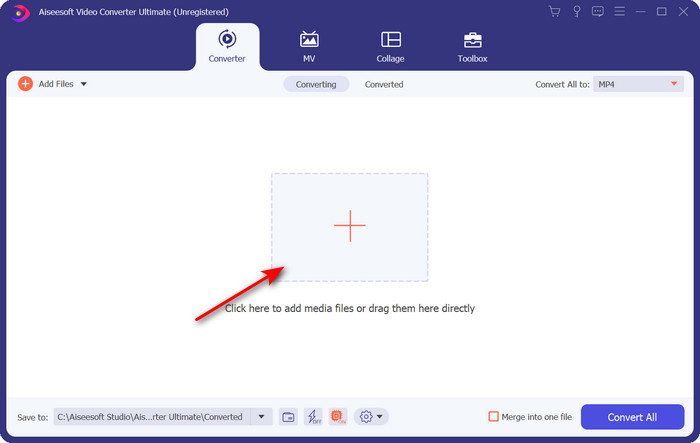
ขั้นตอนที่ 2. หลังจากคุณคลิก Start Now โปรแกรมจะถูกเปิดขึ้น ตรงกลางหน้าจอให้กดปุ่ม + เพื่อใส่ไฟล์นามสกุล .xvid แล้วคลิก Open.
ขั้นตอนที่ 3. เมื่อต้องการเปลี่ยนรูปแบบเป็น AVI ให้คลิก Convert All to: แล้วเลือกฟอร์แมต AVI จากนั้นเลือกระดับความละเอียด โปรดจำไว้ว่ายิ่งความละเอียดสูง คุณภาพยิ่งดี แต่ขนาดไฟล์ก็จะใหญ่ขึ้นด้วย.
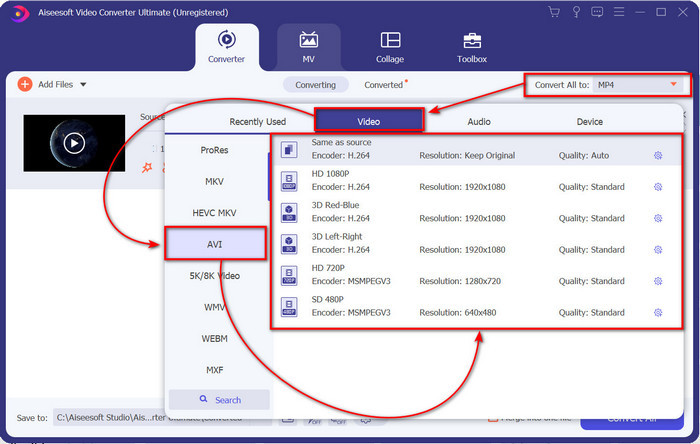
ขั้นตอนที่ 4. เมื่อคุณเลือกรูปแบบเสร็จแล้ว ให้เริ่มแปลงไฟล์โดยกดปุ่ม Convert All.
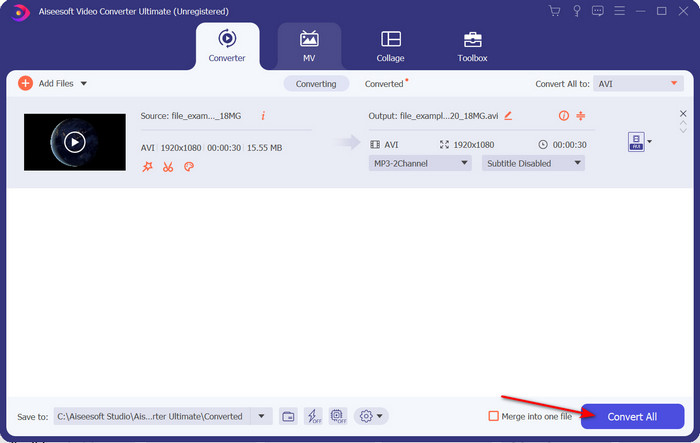
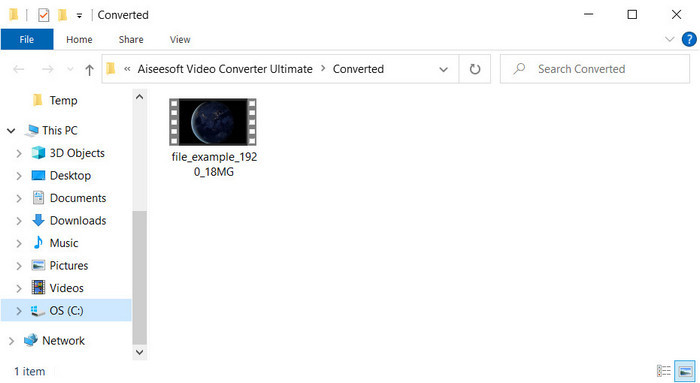
ขั้นตอนที่ 5. การแปลงไฟล์จะใช้เวลาไม่ถึงหนึ่งนาที หลังจากแปลงเสร็จจะมีโฟลเดอร์แสดงขึ้นมาพร้อมไฟล์ AVI เพื่อดูวิดีโอที่แปลงแล้วให้ดับเบิลคลิกที่ไฟล์และเพลิดเพลินกับการรับชม.
วิธีที่ 2 VLC
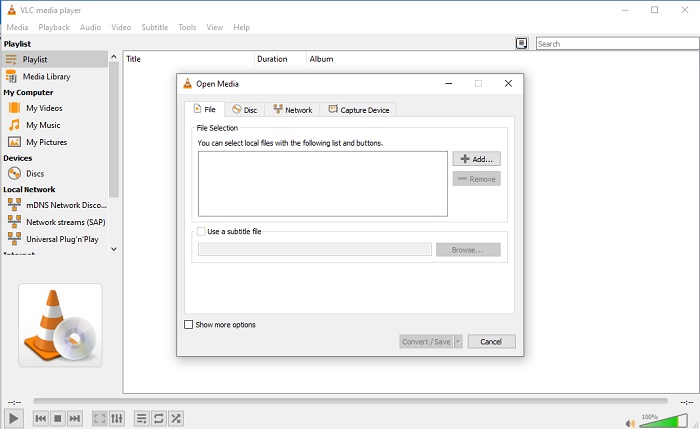
หากคุณกำลังมองหาตัวแปลง XviD เป็น AVI ฟรี ลองใช้ VLC ซอฟต์แวร์โอเพนซอร์ซนี้ไม่ได้มีไว้สำหรับเล่นวิดีโอเท่านั้น แต่คุณยังสามารถใช้เครื่องมือนี้เพื่อแปลงไฟล์หรือรูปแบบได้อีกด้วย แม้ว่าเครื่องมือจะยังใช้งานได้ฟรี แต่คุณสามารถเลือกรูปแบบต่างๆ สำหรับตัวแปลงนี้ได้เท่านั้น ตอนนี้ ถ้าคุณต้องการแปลงไฟล์ XviD ของคุณเป็นรูปแบบใหม่ เช่น AVI ให้ทำตามขั้นตอนด้านล่าง
ขั้นตอนที่ 1. เปิดโปรแกรม VLC บนเดสก์ท็อปของคุณแล้วคลิกเมนู Media จากนั้นเลือก Convert/Save.
ขั้นตอนที่ 2. กด Add ค้นหาไฟล์ในโฟลเดอร์แล้วคลิก Open จากนั้นกด Convert/Save.
ขั้นตอนที่ 3. เปลี่ยนฟอร์แมตโดยคลิกปุ่ม drop-down จากนั้นคลิก Browse เพื่อเลือกโฟลเดอร์ปลายทาง แล้วคลิก Start.
ส่วนที่ 3 วิธีฟรีที่ดีที่สุด 3 วิธีในการแปลง XviD เป็น AVI
วิธีที่ 3 โปรแกรมแปลงวิดีโอ FVC ฟรีออนไลน์
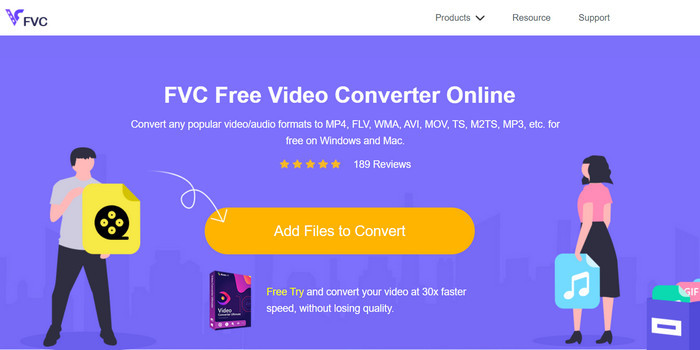
คุณกำลังมองหาเว็บแปลงไฟล์ที่ใช้แปลง XviD เป็น AVI ออนไลน์และฟรีอยู่หรือไม่? FVC Free Video Converter Online คือเว็บแปลงไฟล์ที่ดีที่สุดที่คุณสามารถใช้ผ่านเบราว์เซอร์ได้ เครื่องมือออนไลน์นี้ช่วยผู้ใช้จำนวนมากจัดการปัญหาการแปลงไฟล์มาแล้ว และคุณอาจเป็นคนต่อไป ข้อดีอย่างหนึ่งคือคุณไม่ต้องติดตั้งซอฟต์แวร์ลงในคอมพิวเตอร์ เพราะสามารถเข้าใช้ผ่านเบราว์เซอร์ที่คุณชื่นชอบได้ทุกที่ทุกเวลา อย่างไรก็ตาม ข้อเสียคือคุณจะไม่สามารถใช้เครื่องมือนี้ได้หากไม่มีดาต้าหรือสัญญาณอินเทอร์เน็ตในพื้นที่ของคุณ นอกจากนี้ เครื่องมือนี้ยังเป็นตัวเลือกที่ดีสำหรับการแปลงรูปแบบไฟล์ ดังนั้นลองใช้ซอฟต์แวร์ออนไลน์ตัวนี้กันดู และทำตามขั้นตอนต่อไปนี้.
ขั้นตอนที่ 1. หากต้องการเข้าใช้เครื่องมือออนไลน์นี้ คุณต้องคลิกที่ ลิงก์ นี้.
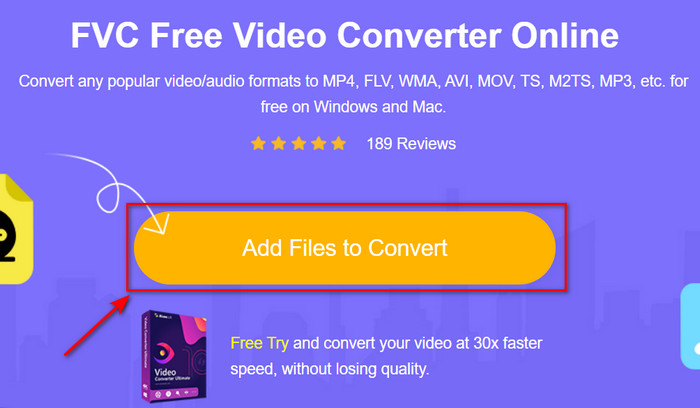
ขั้นตอนที่ 2. จากนั้นคลิก Add Files to Convert เพื่อเปิดหน้าเว็บเครื่องมือ แล้วจะมีหน้าต่างโฟลเดอร์เด้งขึ้นมา ให้ค้นหาไฟล์ .xvid ในโฟลเดอร์นั้น แล้วคลิก Open.
ขั้นตอนที่ 3. หลังจากอัปโหลดไฟล์แล้ว ให้เลือกฟอร์แมต AVI ใต้เมนูย่อย.
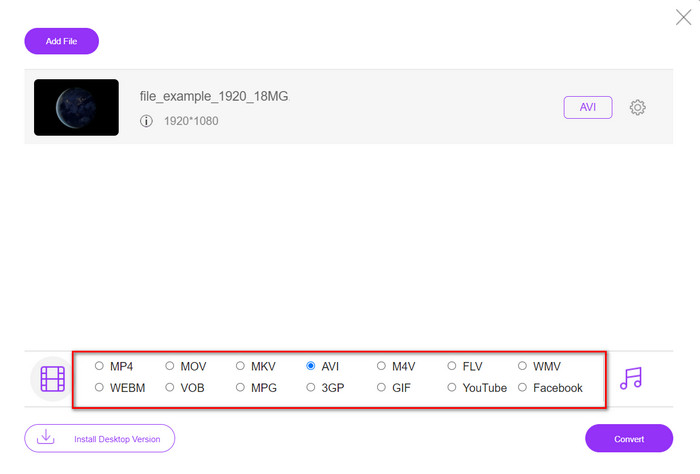
ขั้นตอนที่ 4. เมื่อเลือกฟอร์แมตเสร็จแล้ว ให้คลิก Convert เพื่อเริ่มแปลงรูปแบบไฟล์.

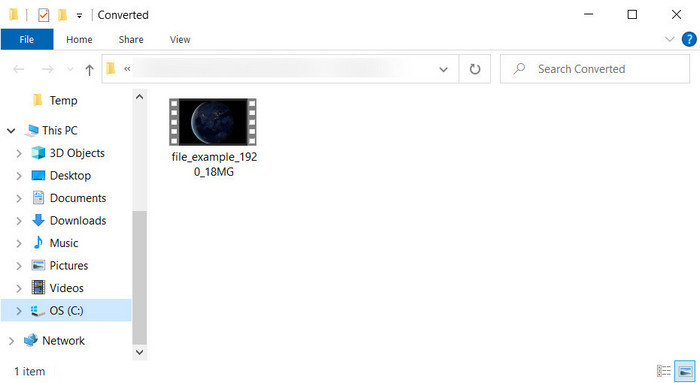
ขั้นตอนที่ 5. จะมีหน้าต่างโฟลเดอร์เด้งขึ้นมาบนหน้าจอของคุณพร้อมไฟล์ .avi ใหม่.
ส่วนที่ 4 คำถามที่พบบ่อยเกี่ยวกับการแปลง XviD เป็น AVI
หลังจากแปลง XviD เป็น AVI แล้ว คุณภาพเท่าเดิมหรือไม่?
แน่นอนว่าคุณภาพของไฟล์วิดีโอ XviD จะต้องไม่เปลี่ยนแปลงหลังจากการแปลง อย่างไรก็ตาม หากคุณเปลี่ยนคุณภาพของเอาต์พุตและตั้งค่าเป็นต่ำหรือปานกลาง ให้คาดหวังการเปลี่ยนแปลงของคุณภาพ โดยเฉพาะอย่างยิ่งถ้า XviD ของคุณเป็น 1080 หรือ 4k พิกเซล
ขนาดไฟล์ของ XviD เปลี่ยนไปหลังจากแปลงแล้วหรือไม่?
ขึ้นอยู่กับรูปแบบที่คุณจะเปลี่ยนเป็น; ตัวอย่างเช่น เมื่อคุณเปลี่ยน .xvid เป็น .avi คาดว่าขนาดไฟล์ของวิดีโอจะเปลี่ยนแปลงเล็กน้อย แต่ก็ไม่น่าจะต่างจากขนาดเดิมมากนัก
ฉันจะเล่นวิดีโอ Xvid ได้ที่ไหน
หากคุณกำลังมองหาโปรแกรมเล่นสื่อที่ดีที่สุดซึ่งรองรับโค้เดก XviD ให้ลองคลิกที่ลิงก์นี้ เราได้รวบรวมโปรแกรมเล่น XviD ชั้นนำ 7 ตัวสำหรับ Windows, Mac, iOS และ Android ไว้ให้แล้ว.
สรุป
ท้ายที่สุดแล้ว การแปลง XviD สามารถทำได้อย่างรวดเร็วหากคุณใช้เครื่องมือที่มีให้ด้านบน นอกจากนี้ เครื่องมือที่กล่าวมาทั้งหมดยังมีประสิทธิภาพดีเยี่ยมและช่วยคุณแก้ปัญหาเกี่ยวกับ XviD ได้ ดังนั้นตอนนี้ขึ้นอยู่กับคุณแล้วว่าจะเลือกโปรแกรมแปลงไฟล์ตัวใด ไม่ว่าจะเป็นการดาวน์โหลดติดตั้งลงเครื่องหรือใช้งานออนไลน์ แบบใดก็ตามคุณสามารถคาดหวังผลลัพธ์ที่ยอดเยี่ยมได้ แต่หากคุณยังตัดสินใจไม่ได้ เราขอแนะนำให้ดาวน์โหลด FVC Video Converter Ultimate เพื่อให้ได้ผลงานที่ยอดเยี่ยมยิ่งขึ้น อีกทั้งหากคุณดาวน์โหลดโปรแกรมนี้ คุณจะสามารถแปลงไฟล์และทำอย่างอื่นได้อีกมากมาย เพียงกดปุ่มดาวน์โหลด.
-
 วิธีแปลง M2TS เป็น AVI ด้วยตัวแปลงที่ดีที่สุดบนเว็บและเดสก์ท็อป
 ต้องการแปลงไฟล์ M2TS ของคุณเป็นรูปแบบ AVI หรือไม่? จากนั้นอ่านเนื้อหานี้ในขณะที่เราระบุข้อมูลโดยละเอียดเกี่ยวกับวิธีการแปลงและเครื่องมือที่คุณสามารถใช้ได้คืออะไร
-
 4 ตัวแปลง MXF อันดับต้น ๆ เพื่อแปลง MXF เป็น AVI [ฟรีและจ่ายเงิน]
 ไฟล์ MXF คืออะไร? วิธีแปลง MXF เป็น AVI? นี่คือคำถามสองสามข้อที่เราตอบ ดังนั้น หากคุณมีคำถามเดียวกัน โปรดอ่านบทความนี้
-
 4 วิธีที่มีประสิทธิภาพที่สุดในการแปลงไฟล์ 3GP เป็นรูปแบบ AVI [2025]
 ฉันสามารถแปลงไฟล์ 3GP เป็น AVI ได้หรือไม่ คุณสามารถแปลงได้อย่างง่ายดายหากคุณลองใช้เครื่องมือเหล่านี้ในขณะที่เรารวบรวมวิธีแก้ปัญหาที่เป็นไปได้ทั้งหมดสำหรับปัญหาการแปลง 3GP เป็น AVI ของคุณ
