


 Video Converter Ultimate
 บันทึกหน้าจอ
 ซ่อมวิดีโอ
การสนทนาสั้น ๆ เกี่ยวกับวิธีการเพิ่มรูปภาพในโพสต์วิดีโอ Tiktok อย่างมืออาชีพ
TikTok มียอดดาวน์โหลดทั่วโลกแล้วมากกว่าหนึ่งพันล้านครั้ง และยังคงเติบโตต่อเนื่อง ผู้ใช้ต่างชื่นชอบแอปนี้ เพราะช่วยให้เราถ่ายวิดีโอความยาวไม่เกิน 3 นาที และดูวิดีโอของคนอื่นจากทั่วโลกได้ ในขณะที่ TikTok พัฒนาตัวเองให้ดีขึ้นเรื่อย ๆ ก็มีฟีเจอร์มากมายให้คุณใช้ทำให้วิดีโอของคุณไม่เหมือนใคร หนึ่งในนั้นคือการใส่รูปภาพลงในวิดีโอ อย่างไรก็ตาม การเพิ่มรูปภาพขณะถ่ายวิดีโอบน TikTok อาจจะดูยุ่งยากสำหรับผู้ใช้บางคน โชคดีที่เราได้หาวิธีสอนคุณวิธีใส่รูปในวิดีโอ TikTokด้วย 3 วิธีให้คุณเรียนรู้และทำตามได้.

ส่วนที่ 1. วิธีใส่รูปภาพในวิดีโอ TikTok โดยใช้ฟีเจอร์ Tiktok ในตัวสองตัว
ก่อนที่เราจะเริ่ม เราขอแจ้งให้คุณทราบว่าทั้งสองวิธีที่เราเพิ่มในบทความนี้มีอยู่ใน Tiktok แล้ว ดังนั้นตอนนี้ โปรดเลือกวิธีที่คุณเหมาะสมที่สุดและเพลิดเพลินกับการถ่ายวิดีโอของคุณด้วยรูปภาพ
วิธีที่ 1 วิธีใช้รูปภาพเป็นพื้นหลังใน Tiktok Video
สมมติว่าคุณต้องการใช้ภาพที่คุณมีเป็นพื้นหลัง เราช่วยคุณได้ โปรดอ่านขั้นตอนโดยละเอียดที่เราให้ไว้ด้านล่างและเรียนรู้วิธีใส่วิดีโอและรูปภาพใน Tiktok
ขั้นตอนที่ 1. ดาวน์โหลดแอป TikTok จาก Play Store หรือ App Store แล้วเปิดแอปขึ้นมา.
ขั้นตอนที่ 2. จากนั้นให้แตะปุ่ม + แล้วไปที่ เอฟเฟ็กต์ (Effects).
ขั้นตอนที่ 3. เลื่อนเมนูเพื่อดูตัวเลือกต่าง ๆ จากนั้นมองหาเอฟเฟ็กต์ หน้าจอเขียว (Green Screen) แล้วแตะเลือก จากนั้นเลือกตัวเลือกที่ให้เลือกรูปภาพ แล้วเลือกรูปที่คุณต้องการใช้เป็นพื้นหลัง.
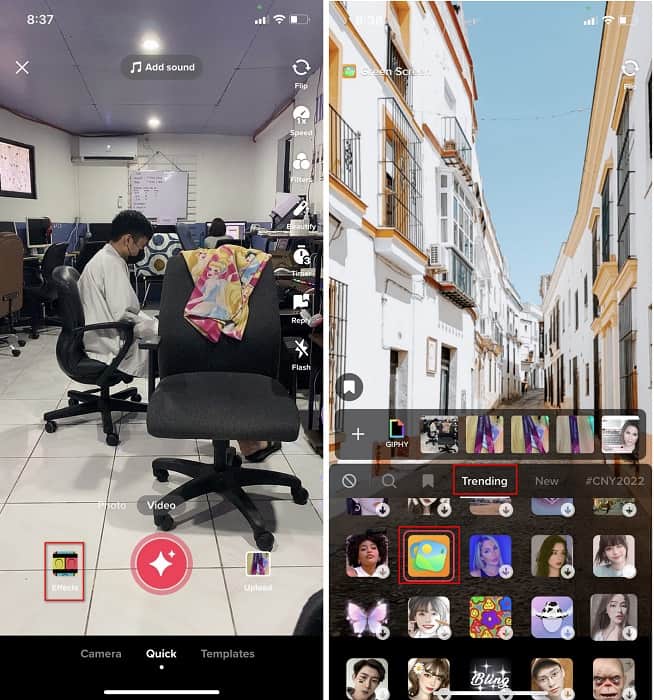
ขั้นตอนที่ 4. แตะปุ่มวงกลม REC เพื่อเริ่มถ่ายวิดีโอพร้อมพื้นหลังเป็นรูปภาพ แตะซ้ำอีกครั้งเพื่อหยุด จากนั้นแตะ ถัดไป (Next) แล้วเลือก ฉบับร่าง (Drafts) เพื่อบันทึกวิดีโอไว้ในโฟลเดอร์บัญชีของคุณ.
วิธีที่ 2 วิธีเพิ่มรูปภาพใน Tiktok ขณะถ่ายวิดีโอ
วิธีนี้เป็นที่นิยมเพราะผู้ใช้ส่วนใหญ่ใช้รูปภาพที่เพิ่มนี้ของศิลปินโปรด เพื่อน ครอบครัว อุปกรณ์ ฯลฯ บางทีคุณอาจมีไอเดียอยู่แล้ว และตอนนี้เพื่อสอนวิธีเพิ่มรูปภาพในวิดีโอ TikTok ให้ทำตามขั้นตอนด้านล่าง
ขั้นตอนที่ 1. ให้เข้าไปที่ Play Store หรือ App Store ดาวน์โหลดแอป TikTok แล้วเปิดแอปเพื่อทำตามขั้นตอนต่อไปนี้.
ขั้นตอนที่ 2. กดปุ่ม + แล้วแตะไปที่ เอฟเฟ็กต์ (Effects).
ขั้นตอนที่ 3. แตะที่แท็บ มาแรง (Trending) แล้วมองหาไอคอนรูปภาพ (image) จากนั้นแตะเลือก ต่อไปให้เลือกรูปภาพที่ต้องการ แล้ววางตำแหน่งบนหน้าจอตามที่คุณต้องการ.
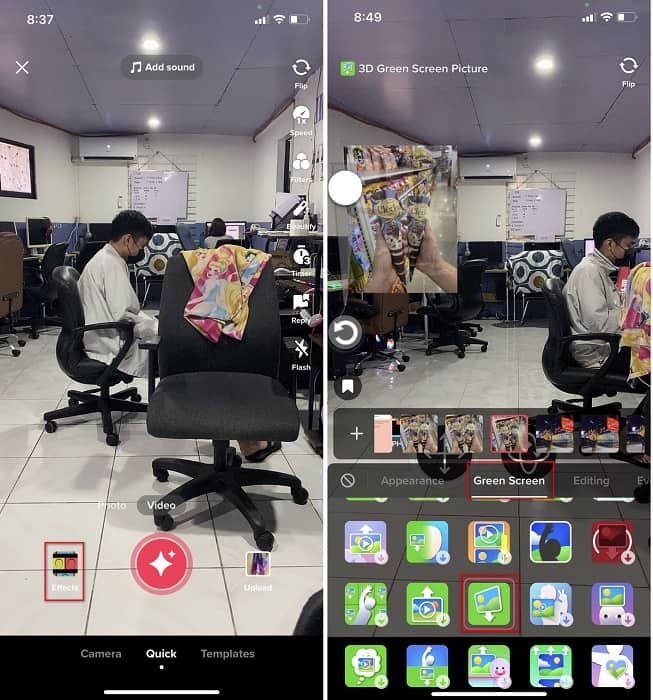
ขั้นตอนที่ 4. แตะปุ่มสีแดงเพื่อเริ่มบันทึก เมื่อถ่ายเสร็จให้แตะปุ่มเดิมอีกครั้งเพื่อหยุด จากนั้นกด ถัดไป (Next) แล้วเลือก ฉบับร่าง (Drafts) เพื่อยังไม่โพสต์ลงบัญชี TikTok ของคุณทันที.
ส่วนที่ 2 วิธีเพิ่มรูปภาพลงในวิดีโอ TikTok โดยใช้ Ultimate Way บน Windows และ Mac
อยากรู้เคล็ดลับและเรียนรู้วิธีใส่รูปในวิดีโอ TikTok ใช่ไหม? ไม่พอใจกับตัวแก้ไขวิดีโอที่มีใน TikTok อยู่แล้วใช่หรือไม่? ถ้าอย่างนั้น คุณควรใช้Video Converter Ultimate หากคุณชอบตัดต่อวิดีโอ คุณสามารถใช้เครื่องมือนี้เพื่อใส่รูปภาพ เอฟเฟ็กต์ ฟิลเตอร์ และอื่น ๆ ลงในวิดีโอ TikTok ของคุณก่อนจะโพสต์บน TikTok.
ด้วยเครื่องมือนี้ คุณสามารถสร้างวิดีโอที่น่าประทับใจเพื่อสร้างความประทับใจให้ผู้ใช้รายอื่นด้วยผลลัพธ์สุดท้าย อย่างไรก็ตาม คุณไม่สามารถดาวน์โหลดเครื่องมือบนโทรศัพท์ของคุณได้ เนื่องจากไม่รองรับเครื่องมือนี้ แต่คุณสามารถทำได้มากขึ้นถ้าคุณมีเดสก์ท็อปและเครื่องมือนี้ คุณต้องการเพิ่มรูปภาพลงในวิดีโอ Tiktok ของคุณหรือไม่? ทำตามบทช่วยสอนด้านล่างเพื่อทราบวิธีเพิ่มรูปภาพในวิดีโอ Tiktok
ขั้นตอนที่ 1. ตอนนี้คุณสามารถดาวน์โหลดโปรแกรม Ultimate บน Windows และ Mac ได้โดยคลิกปุ่มดาวน์โหลดด้านล่าง จากนั้นติดตั้งโปรแกรมให้เรียบร้อย แล้วเปิดเครื่องมือขึ้นมาทำงานบนคอมพิวเตอร์ของคุณ ก่อนจะไปขั้นตอนถัดไป คุณควรทำความคุ้นเคยกับหน้าตาโปรแกรมก่อน หากคุณคุ้นเคยดีแล้ว ให้ไปยังขั้นตอนต่อไป.
ดาวน์โหลดฟรีสำหรับ Windows 7 หรือใหม่กว่าดาวน์โหลดอย่างปลอดภัย
ดาวน์โหลดฟรีสำหรับ MacOS 10.7 หรือใหม่กว่าดาวน์โหลดอย่างปลอดภัย
ขั้นตอนที่ 2. คลิกที่ส่วน กล่องเครื่องมือ (Toolbox) แล้วหาตัวเลือก ลายน้ำวิดีโอ (Video Watermark).
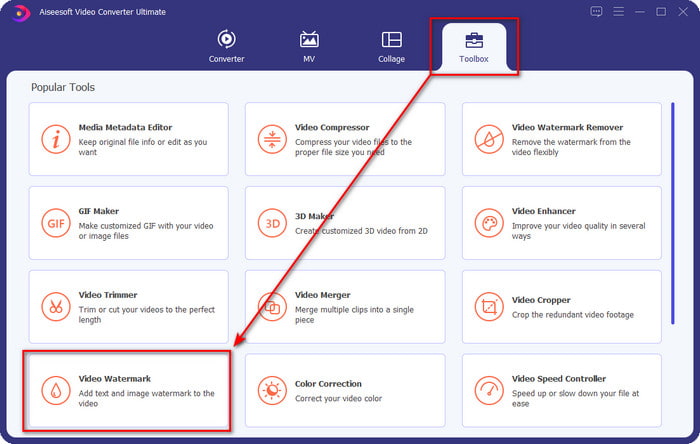
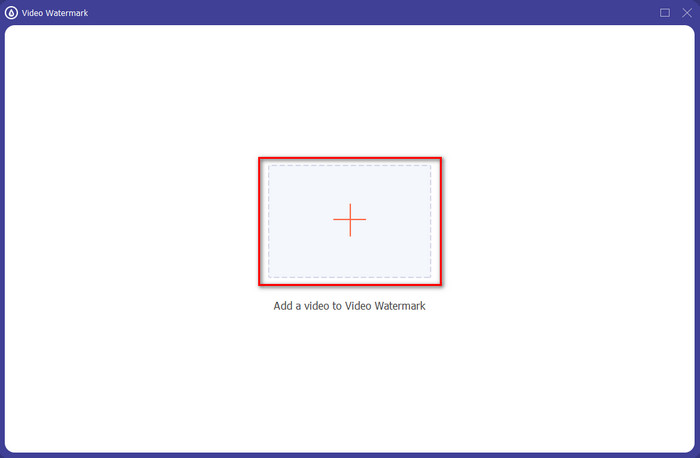
ขั้นตอนที่ 3. เพิ่มไฟล์วิดีโอโดยคลิกสัญลักษณ์ + จากนั้นค้นหาไฟล์ในโฟลเดอร์ที่เปิดขึ้นบนหน้าจอ คลิกไฟล์แล้วกด เปิด (Open) เพื่ออัปโหลดไฟล์.
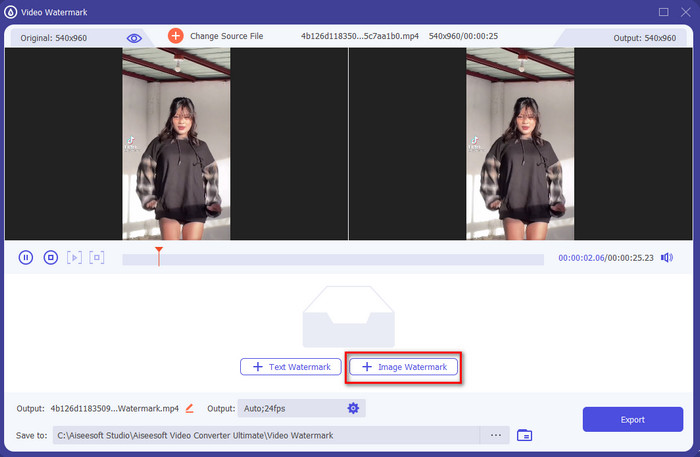
ขั้นตอนที่ 4. บนหน้าต่างใหม่ ให้คลิก ลายน้ำรูปภาพ (Image Watermark) จะมีหน้าต่างโฟลเดอร์อื่นเปิดขึ้นบนหน้าจอ ให้ค้นหารูปภาพที่คุณต้องการเพิ่มแล้วกด เปิด (Open).
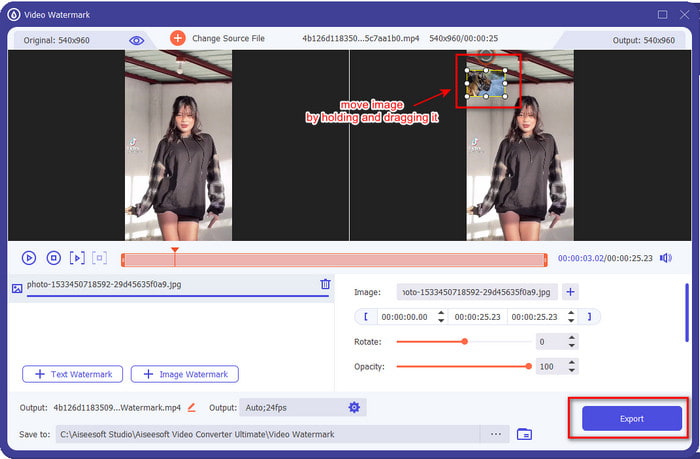
ขั้นตอนที่ 5. ปรับขนาดรูปภาพด้วยการลากกรอบอัตราส่วน (frame ratio)ของรูป กดค้างแล้วลากรูปภาพไปวางตำแหน่งที่คุณต้องการ หลังจากเสร็จแล้วให้คลิกปุ่ม ส่งออก (Export) เพื่อบันทึกวิดีโอ TikTok ที่มีรูปภาพใส่ไว้เรียบร้อยแล้ว.
ส่วนที่ 3 คำถามที่พบบ่อยเกี่ยวกับวิธีการเพิ่มรูปภาพในวิดีโอ TikTok
ฉันจะลบลายน้ำ Tiktok ได้อย่างไร
หากต้องการเรียนรู้วิธีลบลายน้ำของ TikTok คุณสามารถคลิกเข้าไปอ่านบทความนี้เพื่อดูวิธีการทำอย่างละเอียด รายละเอียดในโพสต์นั้นจะแนะนำวิธีลบลายน้ำ TikTok บนวิดีโอที่ส่งออกมาได้อย่างมีประสิทธิภาพ ไม่ต้องกังวลเพราะขั้นตอนทำตามได้ง่ายและเข้าใจไม่ยาก.
การใช้ TikTok ปลอดภัยหรือไม่?
ใช้ TikTok ได้อย่างปลอดภัย อย่างไรก็ตาม วิดีโอบางรายการท้าทายผู้ใช้คนอื่นๆ ให้ทำการแสดงผาดโผนที่ท้าทายความตายซึ่งไม่ปลอดภัยสำหรับทุกเพศทุกวัย นอกจากนี้ แอปไม่มีการเข้ารหัสแบบ end-to-end ดังนั้นการสื่อสารระหว่างผู้รับและผู้ส่งจึงไม่ถูกเข้ารหัส หรือกล่าวได้ว่าได้รับการปกป้องอย่างเรียบง่าย นอกจากนั้น หลักฐานบางส่วนกล่าวว่า TikTok ได้รวบรวมไบโอเมตริกซ์ของผู้ใช้ เฉพาะเจาะจง มันจะขโมยเสียงและใบหน้า ดังนั้น อย่าลืมใช้แอปนี้อย่างชาญฉลาดและอย่าเพิ่มข้อมูลที่สำคัญเกี่ยวกับตัวคุณมากเกินไป
ทำไม Tiktok ถึงเป็นพิษ?
วัฒนธรรมที่ผู้ใช้ Tiktok สร้างขึ้นในยุคนี้กลายเป็นสิ่งมีพิษ และผู้ใช้บางคนมองว่าแอปแชร์วิดีโอไม่ดีต่อสุขภาพ โดยเฉพาะอย่างยิ่งสำหรับเด็กเล็ก เป็นเรื่องที่หลีกเลี่ยงไม่ได้ที่จะเห็นเนื้อหาที่ไม่เหมาะสม เช่น อคติเกี่ยวกับสัญชาติของบุคคล การกีดกันทางเพศ มาตรฐานความงามสำหรับทุกคน และการกลั่นแกล้ง แม้ว่าสิ่งนี้จะหลีกเลี่ยงไม่ได้ แต่ก็ยังมีเนื้อหาที่พิสูจน์ว่าผู้ใช้ TikTok ไม่ได้เป็นพิษทุกคน และเรายังคงเชื่อว่ามีโอกาสที่จะเปลี่ยนความเป็นพิษนี้และทำให้มันกลายเป็นชุมชนที่สงบสุขและเต็มไปด้วยความรัก
สรุป
ตอนนี้เมื่อเรารู้แล้ววิธีใส่รูปในวิดีโอ TikTok ก็ถึงเวลาที่คุณจะได้แชร์วิดีโอ TikTok ที่มีรูปภาพของคุณ เพื่อส่งต่อความสนุกและวิดีโอแปลกใหม่ให้ทุกคน อย่างไรก็ตาม การถ่ายไปพร้อมกับรูปภาพอาจทำให้การเคลื่อนไหวของคุณถูกจำกัด เพราะรูปอาจบดบังหน้าจอบางส่วน แต่เดี๋ยวก่อน อย่าเพิ่งเสียใจ คุณสามารถถ่ายวิดีโอก่อน แล้วโอนไฟล์ไปยังคอมพิวเตอร์ จากนั้นใช้Video Converter Ultimate เพื่อใส่รูปภาพทีหลังก็ได้ ด้วยวิธีนี้คุณจะสามารถทำอะไรได้มากขึ้นกับวิดีโอ TikTok และทำให้วิดีโอดูโดดเด่นกว่าวิดีโออื่น ๆ แล้วคุณจะรออะไรอยู่ล่ะ? ดาวน์โหลดโปรแกรมนี้ลงในคอมพิวเตอร์ของคุณตอนนี้เลย เพื่อเริ่มสร้างวิดีโอ TikTok ที่สุดยอดและน่าประทับใจที่สุด!
-
 วิธีที่ดีที่สุดในการเพิ่มลายน้ำให้กับวิดีโอใน Photoshop บน Windows & Mac
 ต้องการทราบวิธีการเพิ่มลายน้ำให้กับวิดีโอใน Photoshop? ในกรณีนั้น บทความนี้จะให้ข้อมูลบางอย่างที่คุณจำเป็นต้องรู้
-
 3 วิธีแก้ปัญหาที่ดีที่สุดเกี่ยวกับวิธีลบลายน้ำออกจากวิดีโออย่างง่ายดาย
 ต้องการลบลายน้ำที่น่ารำคาญในวิดีโอหรือไม่? ด้วยบล็อกนี้ คุณสามารถเรียนรู้แนวคิดต่างๆ ในการลบลายน้ำบนวิดีโอ
-
 4 วิธีที่ดีที่สุดในการเพิ่มลายน้ำบนวิดีโออย่างรวดเร็ว
 มาเรียนรู้วิธีเพิ่มลายน้ำให้กับวิดีโอบน Windows, Mac, Online, iOS และ Android พร้อมขั้นตอนโดยละเอียดหากคุณอ่านบทความนี้
