


 Video Converter Ultimate
 บันทึกหน้าจอ
 ซ่อมวิดีโอ
คำแนะนำที่ดีที่สุดเกี่ยวกับวิธีการเพิ่มข้อความลงในวิดีโอพร้อมรายละเอียดขั้นตอนแต่ละอย่าง
ต้องการสร้างวิดีโอสอนใช้งานใช่ไหม? ตามหลักแล้ว ผู้ใช้มักจะรู้สึกเบื่อ โดยเฉพาะเมื่อดูวิดีโอสอนที่ติดตามยาก แม้ว่าคุณจะมีเนื้อหาที่ยอดเยี่ยม แต่ผู้ใช้ก็อาจรู้สึกว่าวิดีโอของคุณดูไม่น่าดึงดูดนัก และความสนใจของผู้ใช้อาจหมดลงภายในไม่กี่นาที แต่คุณรู้ไหมว่าคุณสามารถใส่ข้อความลงในวิดีโอเพื่อทำให้วิดีโอดูน่าสนใจยิ่งขึ้นสำหรับผู้ใช้ได้? ถ้าอย่างนั้นทำไมไม่ลองล่ะ? และเพื่อช่วยคุณใส่ข้อความลงในวิดีโอ คุณจำเป็นต้องอ่านบทความนี้ให้จบเพื่อไม่ให้พลาดรายละเอียดสำคัญ.

ส่วนที่ 1 วิธีที่เป็นมืออาชีพที่สุดในการเพิ่มข้อความลงในวิดีโอโดยใช้ Ultimate Tool
บล็อกเกอร์และคอนเทนต์ครีเอเตอร์ส่วนใหญ่มักชอบสร้างวิดีโอพร้อมข้อความ และด้วย Video Converter Ultimate คุณก็สามารถสร้างวิดีโอที่ยอดเยี่ยมได้ เครื่องมือนี้รองรับฟีเจอร์การตัดต่อที่คุณจะต้องชอบใช้หลังจากใส่ข้อความลงในวิดีโอแล้ว อีกทั้งยังช่วยให้วิดีโอของคุณมีความน่าสนใจมากขึ้น ดูสวยงามอย่างไม่น่าเชื่อได้เพียงไม่กี่คลิก คุณไม่รู้สึกทึ่งกับเครื่องมือนี้บ้างเลยหรือ? พวกเราก็ทึ่งกับมันเช่นกัน เพื่อใส่ข้อความอย่างรวดเร็ว ให้ทำตามขั้นตอนวิธีใส่ข้อความลงในวิดีโอเพียงไม่กี่คลิกก็สำเร็จ.
ขั้นตอน วิธีใส่ข้อความลงในวิดีโอเป็นลายน้ำด้วยเครื่องมือ Ultimate
ขั้นตอนที่ 1 ดาวน์โหลดโปรแกรมลงในไดรฟ์ Windows หรือ Mac ของคุณ จากนั้นติดตั้งโปรแกรมอย่างรวดเร็วและเปิดใช้งาน คู่มือด้านล่างที่เราเขียนไว้เข้าใจและทำตามได้ง่าย.
ดาวน์โหลดฟรีสำหรับ Windows 7 หรือใหม่กว่าดาวน์โหลดอย่างปลอดภัย
ดาวน์โหลดฟรีสำหรับ MacOS 10.7 หรือใหม่กว่าดาวน์โหลดอย่างปลอดภัย
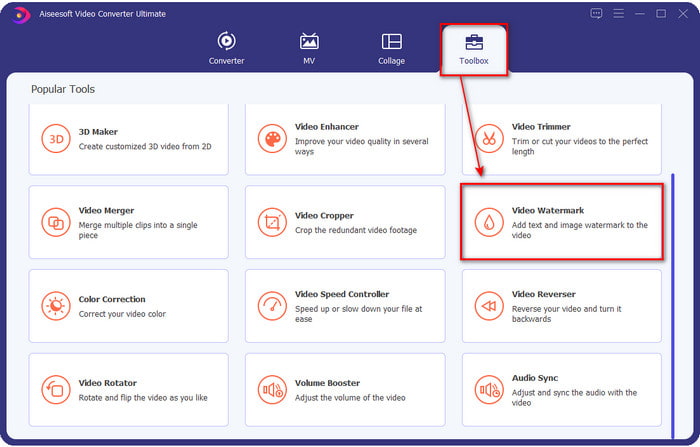
ขั้นตอนที่ 2 ในส่วนของ Toolbox ให้หาหมวด Video Watermark แล้วเปิดใช้งาน.
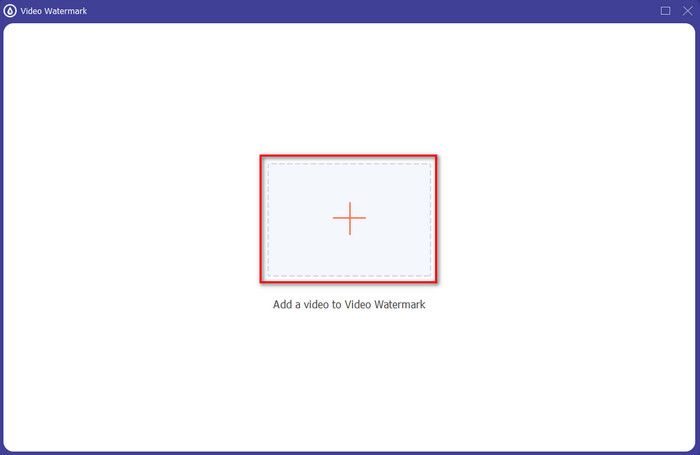
ขั้นตอนที่ 3 กดปุ่ม + จากนั้นโฟลเดอร์ไฟล์ในไดรฟ์จะเปิดขึ้น ค้นหาไฟล์ในโฟลเดอร์ของคุณแล้วติ๊ก Open เพื่อเพิ่มไฟล์เข้าไปในคิวสำหรับทำลายน้ำ.
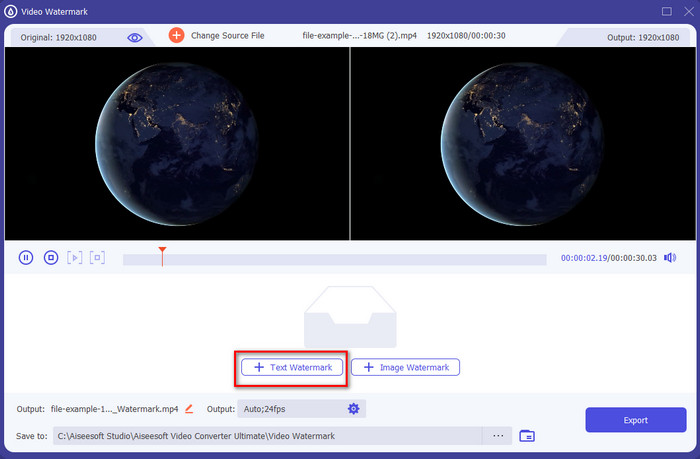
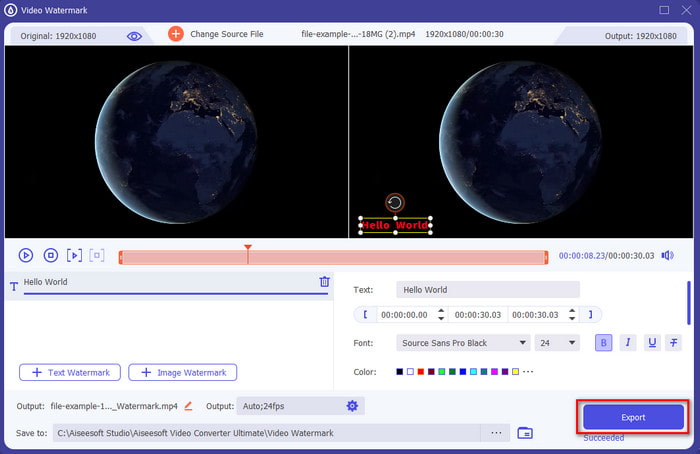
ขั้นตอนที่ 4 ที่บริเวณกึ่งล่างของหน้าต่างใหม่ที่เปิดขึ้น ให้คลิก Text Watermark เพื่อทำการวางข้อความทับบนวิดีโอ.
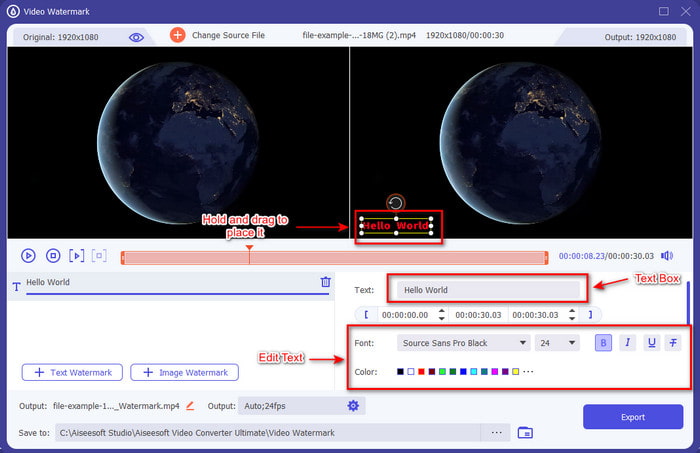
ขั้นตอนที่ 5 หลังจากคลิกแล้ว ให้ใส่ข้อความลงในกล่องข้อความ จากนั้นเปลี่ยนรูปแบบตัวอักษร สี และขนาดตามที่คุณต้องการ กดค้างแล้วลากลายน้ำข้อความไปวางไว้ตรงจุดใดก็ได้ภายในวิดีโอ.
ขั้นตอนที่ 6 เมื่อต้องการดาวน์โหลดไฟล์ลงในไดรฟ์ของคุณให้สำเร็จ ให้กดปุ่ม Export การส่งออกใช้เวลาไม่ถึงหนึ่งนาทีด้วยกระบวนการอัลตร้าเฟาสต์ที่เครื่องมือนี้รองรับ เสร็จแล้ว! ตอนนี้คุณก็ใส่ลายน้ำข้อความลงบนวิดีโอของคุณได้สำเร็จแบบง่าย ๆ แล้ว.
ข้อดี
- รองรับคุณสมบัติการแก้ไขขั้นสูงเพื่อทำให้วิดีโอของคุณและเพิ่มข้อความได้ดีกว่าเครื่องมืออื่นๆ
- ปรับเปลี่ยนได้ในทุกสถานการณ์และบนแพลตฟอร์ม เช่น Windows และ Mac
- รองรับรูปแบบวิดีโอมากกว่า 200 รูปแบบที่คุณสามารถอัปโหลดและส่งออกเป็น MP4, AVI, MOV, MKV, WMV, FLV และอื่นๆ
จุดด้อย
- จำเป็นต้องซื้อเครื่องมือ
ที่เกี่ยวข้อง:
ส่วนที่ 2 วิธีที่สะดวกในการเพิ่มหรือใส่ข้อความบนวิดีโอในอุปกรณ์ iOS
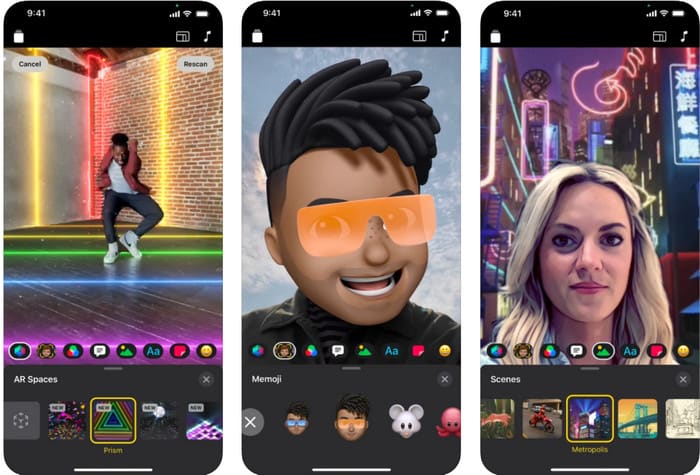
คุณสามารถใช้แอป Clips เพื่อใส่ข้อความลงในวิดีโอบน iPhone หรือ iPad ได้ เครื่องมือนี้รองรับทั้งการบันทึกและตัดต่อวิดีโอในตัว และยังดาวน์โหลดฟรีจาก App Store หากคุณต้องการ แม้ว่าเครื่องมือนี้จะฟรี แต่คุณไม่สามารถใช้บน Android ได้เนื่องจากไม่รองรับ ดังนั้นขั้นตอนด้านล่างนี้จึงไม่เหมาะสำหรับผู้ใช้ Android.
ขั้นตอนที่ 1 ดาวน์โหลดแอป Clips ลงบนอุปกรณ์ iOS ของคุณแล้วเปิดใช้งาน.
ขั้นตอนที่ 2 แตะไอคอนหลายภาพ จากนั้นเลือก Photos หาไฟ้วิดีโอจากแกลเลอรี่ แตะเลือกไฟล์ แล้วกด Add และสุดท้ายกด Add to Project.
ขั้นตอนที่ 3 แตะวิดีโอแล้วกด Effects จากนั้นใต้เมนูนี้ให้กด Aa เพื่อเลือกข้อความเคลื่อนไหวที่คุณต้องการเพิ่ม พิมพ์ข้อความที่ต้องการ กดปุ่ม Export แล้วเลือก Save Video.
ข้อดี
- รองรับคุณสมบัติการแก้ไขกึ่งขั้นสูง
- ดาวน์โหลดฟรีบนอุปกรณ์ iOS ใด ๆ
- รองรับไม่เพียงแต่การแก้ไขแต่ยังบันทึก
จุดด้อย
- คุณลักษณะการแก้ไขบางอย่างที่มีให้นั้นมีข้อบกพร่องและข้อบกพร่องที่ยังคงเกิดขึ้น
- เวอร์ชันใหม่กลายเป็นสิ่งที่แย่กว่าเวอร์ชันก่อนๆ
ส่วนที่ 3 วิธีเพิ่มข้อความลงในวิดีโอบนเว็บฟรี
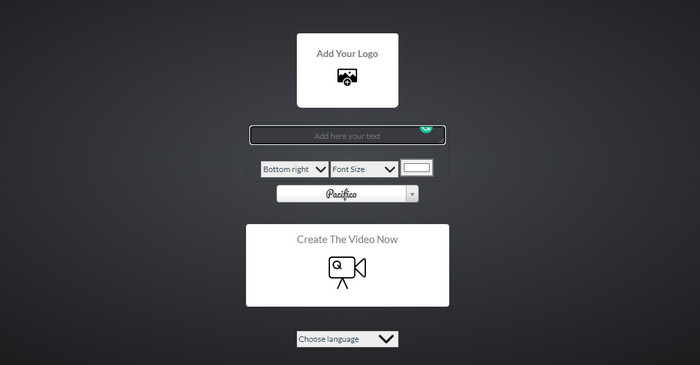
คุณต้องการเพิ่มข้อความในวิดีโอออนไลน์หรือไม่? คุณสามารถใช้เพื่อใช้งาน voice2v.com ได้ฟรี เครื่องมือเว็บนี้สนับสนุนการเพิ่มลายน้ำข้อความฟรีบนวิดีโอ MP4 ได้อย่างง่ายดาย แม้ว่าเครื่องมือนี้จะสนับสนุนลายน้ำเพิ่มฟรี แต่คุณไม่สามารถวางลายน้ำได้อย่างอิสระที่ใดก็ได้นอกเหนือจากตัวเลือกที่แสดง แต่หากต้องการ คุณยังสามารถทำตามขั้นตอนด้านล่าง
ขั้นตอนที่ 1 เปิดเบราว์เซอร์ของคุณและค้นหาเว็บไซต์ทางการของ voice2v.com
ขั้นตอนที่ 2 คลิก Upload Your Video เพื่อใส่วิดีโอที่คุณต้องการทำลายน้ำ.
ขั้นตอนที่ 3 ในกล่องข้อความ ให้พิมพ์ลายน้ำที่คุณต้องการ จากนั้นคลิกปุ่มดรอปดาวน์เพื่อเปลี่ยนตำแหน่งของลายน้ำ รูปแบบตัวอักษร ขนาด และสี กด Create The Video Now แล้วจึงกดไอคอนจุดสามจุดเพื่อดาวน์โหลด.
ข้อดี
- ไม่จำเป็นต้องดาวน์โหลดแอปหรือซอฟต์แวร์
- เข้าฟรีทุกบราวเซอร์
- คุณสมบัติการแก้ไขที่เรียบง่ายแต่มีประสิทธิภาพ
จุดด้อย
- ไม่มีบานหน้าต่างแสดงตัวอย่างเพื่อดูว่าลายน้ำอยู่ที่ไหน
- คุณไม่สามารถวางลายน้ำได้อย่างอิสระในตำแหน่งที่คุณต้องการ
ส่วนที่ 4 คำถามที่พบบ่อยเกี่ยวกับการเพิ่มข้อความลงในวิดีโอ
ฉันสามารถเพิ่มแอนิเมชั่นบนลายน้ำข้อความได้หรือไม่
ใช่ คุณทำได้ แต่โปรแกรมแก้ไขบางตัวไม่รองรับแอนิเมชันบนลายน้ำข้อความ ดังนั้น หากคุณต้องการเพิ่มลายน้ำข้อความแอนิเมชั่น ให้ใช้เครื่องมือที่มีชุดฟีเจอร์ระดับมืออาชีพที่รองรับลายน้ำแอนิเมชั่น
ที่ใดที่ดีที่สุดสำหรับลายน้ำข้อความ?
หากคุณต้องการรบกวนเล็กน้อย คุณสามารถวางลายน้ำไว้ที่ขอบของวิดีโอ แต่ถ้าคุณจะเพิ่มความปลอดภัยเป็นพิเศษให้กับงานของคุณ คุณสามารถเพิ่มลายน้ำที่ส่วนตรงกลางของวิดีโอได้ ทำงานได้ดีขึ้นอยู่กับความต้องการของคุณ
ลายน้ำข้อความเพิ่มขนาดไฟล์ต้นฉบับของวิดีโอหรือไม่
ประการแรก ขนาดไฟล์ของวิดีโอต้นฉบับจากวิดีโอลายน้ำจะเปลี่ยนไป ขนาดไฟล์จะเพิ่มขึ้นเนื่องจากคุณเพิ่มองค์ประกอบอื่นลงในวิดีโอ แต่การเพิ่มนี้จะไม่ส่งผลต่อขนาดไฟล์ของวิดีโอในลักษณะที่จะเพิ่มขนาดเป็นสองเท่า และถ้าคุณเคยพบว่าขนาดไฟล์ของวิดีโอของคุณเพิ่มขึ้นเป็นสองเท่า นั่นหมายความว่าเครื่องมือที่คุณใช้ในการเพิ่มลายน้ำข้อความทำสิ่งนั้น ไม่ใช่คุณ
สรุป
โดยสรุปแล้ว เครื่องมือเหล่านี้ที่เราเลือกคือการคัดเลือก ซึ่งหมายความว่าเราเลือกเฉพาะเครื่องมือที่ดีที่สุดที่คุณสามารถใช้เพื่อเพิ่มลายน้ำข้อความเท่านั้น ด้วยความแตกต่าง เครื่องมือนี้จึงสร้างผลกระทบอย่างน่าทึ่งในการเพิ่มข้อความเป็นลายน้ำบนวิดีโอของคุณ
แม้ว่าเครื่องมือเหล่านี้จะมีฟีเจอร์ที่แตกต่างกันออกไป แต่เรายังคงคิดว่า Video Converter Ultimate ให้โอกาสเราในการเป็นมากกว่าตัวแก้ไข เนื่องจากเครื่องมือนี้สร้างการเชื่อมต่อที่แน่นแฟ้นกับผู้ใช้และตัวเครื่องมือ เมื่อดูขั้นตอนต่างๆ เราสามารถพูดได้ว่าเครื่องมือนี้ดึงดูดผู้ใช้ให้มีความยุ่งยากน้อยลงในการเพิ่มข้อความเป็นลายน้ำแต่ก็น่าเพลิดเพลิน มันดึงดูดความสนใจของคุณหรือไม่? ถ้าเป็นเช่นนั้น ให้ดาวน์โหลดเครื่องมือบนเดสก์ท็อปของคุณและสนุกกับการใช้มัน!
-
 วิธีเพิ่มเสียงและเพลงลงในวิดีโอฟรีบนคอมพิวเตอร์ / โทรศัพท์ของคุณ
 บทความนี้แสดง 4 วิธีง่ายๆในการเพิ่มเสียงลงในวิดีโอฟรี ไม่ว่าคุณต้องการเพิ่มแทร็กเสียงใดลงในวิดีโอของคุณคุณสามารถรับผลลัพธ์ที่น่าพึงพอใจได้ที่นี่
-
 เปลี่ยน GIF เป็นรูปแบบวิดีโอ: แปลง GIF Memes เป็นวิดีโอ [2021]
 กำหนดวิธีการแปลง GIF เป็นรูปแบบวิดีโอด้วยความช่วยเหลือของเครื่องมือที่แสดงด้านล่าง เลือกข้อใดและเรียนรู้วิธีดำเนินการ เนื่องจากเรารวบรวมหลักฐานเพียงพอ
-
 แอพ GIF ที่ยอดเยี่ยมสำหรับวิดีโอสำหรับอุปกรณ์ Android และ iOS
 คุณรู้หรือไม่ว่าคุณสามารถแปลง GIF เป็นรูปแบบวิดีโอใดก็ได้ที่คุณต้องการโดยใช้โทรศัพท์ของคุณ เลือกแอพที่ดีที่สุดบน Android หรือ iOS ของคุณ
