


 Video Converter Ultimate
 บันทึกหน้าจอ
 ซ่อมวิดีโอ
 ดาวน์โหลดอย่างปลอดภัย
โปรแกรมบีบอัดวิดีโอ: ค้นหาโปรแกรมที่ดีที่สุดในการบีบอัดวิดีโอ
การทำงานกับวิดีโอไม่ใช่เรื่องง่าย จะเป็นการดีที่สุดหากคุณพิจารณาหลายๆ แง่มุม โดยเฉพาะขนาดไฟล์ เมื่อคุณแชร์สิ่งเหล่านั้นเพื่อโปรโมตอยู่ตลอดเวลา วิดีโอจะต้องผ่านขั้นตอนบางอย่างก่อนที่จะปรับใช้สำหรับการแชร์และการดู หนึ่งในนั้นคือกระบวนการบีบอัดเพื่อลดขนาดไฟล์ คุณจะต้องปฏิบัติตามขนาดที่นำไปใช้ตามที่กำหนด เช่น Messenger ซึ่งรับไฟล์ขนาด 25MB ทั้งนี้ขึ้นอยู่กับแพลตฟอร์มที่คุณกำลังอัปโหลด
เพื่อช่วยคุณจัดการปัญหานี้ เราได้คัดสรรรายชื่อโปรแกรมบีบอัดวิดีโอฟรีและแบบเสียเงินมาไว้ให้แล้ว คุณสามารถเรียนรู้เกี่ยวกับแต่ละโปรแกรมได้มากขึ้นจากความคิดเห็นของเรา หลังจากที่ได้ทดลองใช้งานจริงมาแล้ว โดยไม่ให้เสียเวลา มาดูโปรแกรมต่าง ๆ ด้านล่างนี้กันเลย.

ส่วนที่ 1 สุดยอดโปรแกรมบีบอัดวิดีโอ 2 ตัวสำหรับ Windows และ Mac
1. Video Converter Ultimate
เครื่องมือแรกในรายการที่เราขอแนะนำคือโปรแกรมบีบอัดขนาดวิดีโอระดับมืออาชีพที่มีชื่อว่า Video Converter Ultimate ซึ่งเป็นแอปเดสก์ท็อปที่คุณสามารถใช้บีบอัดวิดีโอเพื่อแชร์ทั้งแบบออนไลน์และออฟไลน์ อย่างที่ทราบกันว่าแทบทุกแพลตฟอร์มสื่อออนไลน์ที่เราใช้แชร์ไฟล์มักจะมีการจำกัดขนาดไฟล์ นอกจากนี้อาจเป็นเพราะฮาร์ดไดรฟ์ของคุณใกล้จะเต็ม การบีบอัดไฟล์จึงเป็นสิ่งที่จำเป็นต้องทำ.
เครื่องมือนี้ช่วยให้คุณใช้ฟังก์ชันต่างๆ เพื่อลดขนาดวิดีโอของคุณ คุณสามารถใช้แถบเลื่อนหรือกำหนดค่าที่แน่นอนของขนาดไฟล์ที่คุณต้องการได้ นอกจากนี้ ไม่จำเป็นต้องกังวลเกี่ยวกับความเข้ากันได้ของรูปแบบเนื่องจากโปรแกรมรองรับรูปแบบวิดีโอทั้งหมด หากคุณต้องการบันทึกไฟล์วิดีโอในรูปแบบอื่น คุณสามารถส่งออกเป็นรูปแบบวิดีโอได้ เช่น WEBM, MOV, MKV, MP4 และอื่นๆ อีกมากมาย
รูปแบบที่รองรับ: MP4, MKV, WEBM, MOV, AVI, WMV, M4V, ASF, VOB, OGV, MPG, FLV, SWF เป็นต้น.
ขั้นตอนที่ 1. หากคุณต้องการบีบอัดด้วยโปรแกรมนี้ ให้ดาวน์โหลดและติดตั้งแอปบีบอัดวิดีโอนี้ลงในคอมพิวเตอร์ของคุณ คุณสามารถคลิกปุ่ม ดาวน์โหลดฟรี เพื่อดาวน์โหลดได้ จากนั้นเปิดไฟล์ติดตั้งและทำตามตัวช่วยติดตั้งเพื่อทำการติดตั้งอย่างถูกต้อง.
ดาวน์โหลดฟรีสำหรับ Windows 7 ขึ้นไปดาวน์โหลดอย่างปลอดภัย
ดาวน์โหลดฟรีสำหรับ MacOS 10.7 หรือใหม่กว่าดาวน์โหลดอย่างปลอดภัย
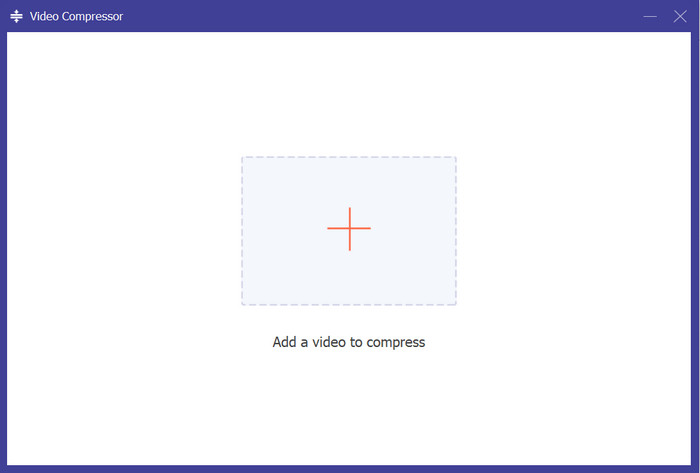
ขั้นตอนที่ 2. เปิดโปรแกรมและไปที่แท็บ กล่องเครื่องมือ (Toolbox) จากนั้นคุณจะเห็นเครื่องมือ Video Compressor ทันที ให้คลิกและอัปโหลดไฟล์วิดีโอของคุณโดยกดปุ่มสัญลักษณ์บวกจากหน้าต่างอัปโหลด.
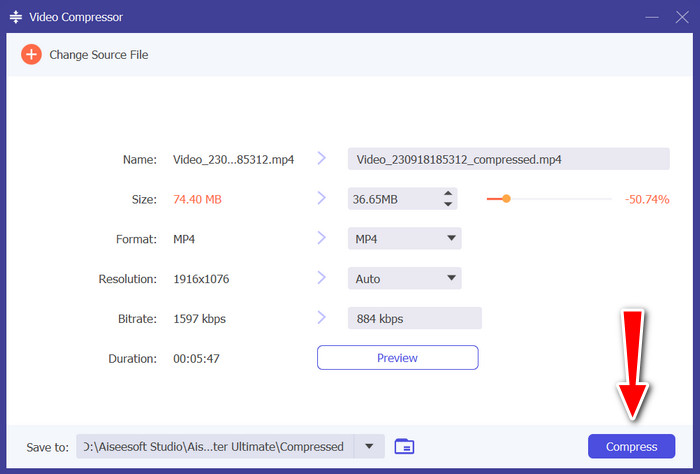
ขั้นตอนที่ 3. หลังจากอัปโหลดวิดีโอแล้ว หน้าต่างตัวบีบอัดวิดีโอจะปรากฏขึ้น คุณสามารถเลื่อนแถบปรับเพื่อบีบอัดวิดีโอได้ จากนั้นคลิกปุ่ม Compress มุมขวาล่างเพื่อเริ่มกระบวนการบีบอัด.
2. เบรกมือ
หากคุณต้องการความช่วยเหลือในการแบ่งปันวิดีโอ คุณอาจใช้ HandBrake เพื่อบีบอัดไฟล์วิดีโอของคุณ เป็นฟรีและเป็นโอเพ่นซอร์ส ช่วยให้คุณสามารถปรับแต่งแอปตามรสนิยมของคุณได้ เมื่อพูดถึงความสามารถในการบีบอัด เครื่องมือนี้เหมาะที่สุดสำหรับการบีบอัดวิดีโอ MP4 บนพีซีหรือ Mac คุณสามารถลดขนาดไฟล์ได้อย่างมีประสิทธิภาพโดยไม่ต้องเสียเงินที่หามาอย่างยากลำบาก นอกจากนี้ เครื่องมือนี้ยังเปิดสำหรับผู้ใช้ Mac, Windows และ Linux ทำให้เป็นคอมเพรสเซอร์ขนาดวิดีโอที่เข้ากันได้กับแพลตฟอร์มพีซีจำนวนมาก
หากคุณต้องการแปลง คุณสามารถใช้กระบวนการแปลงเป็นชุดของโปรแกรมที่รองรับรูปแบบต่างๆ มากมาย ยิ่งไปกว่านั้น คุณยังสามารถแปลงไฟล์เสียงของคุณเป็นรูปแบบเสียงยอดนิยม MP3 ได้อีกด้วย สิ่งเดียวที่คุณต้องพิจารณาคือเวอร์ชันที่คอมพิวเตอร์ของคุณใช้งานอยู่ มีบางกรณีที่เครื่องมือนี้ใช้ไม่ได้กับพีซีและ Mac เวอร์ชันต่ำกว่าอีกต่อไป
รูปแบบที่รองรับ: MP4, MKV, MPEG4, AVC และ HEVC.
ขั้นตอนที่ 1. เช่นเดียวกัน คุณจำเป็นต้องดาวน์โหลดโปรแกรมก่อน โดยไปที่เว็บไซต์ทางการผ่านเว็บเบราว์เซอร์ของคุณ จากนั้นดาวน์โหลดไฟล์ติดตั้งของตัวบีบอัดวิดีโอสำหรับ Mac และ Windows.
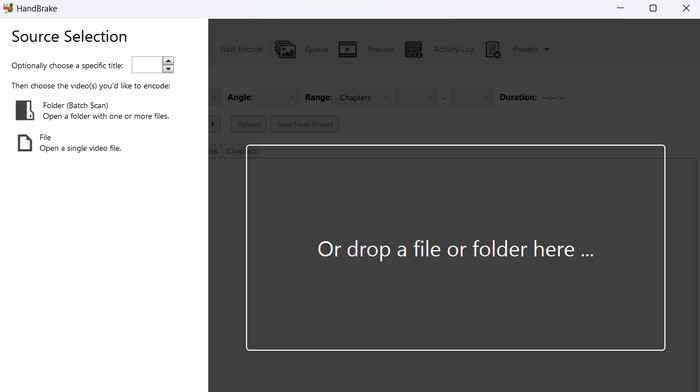
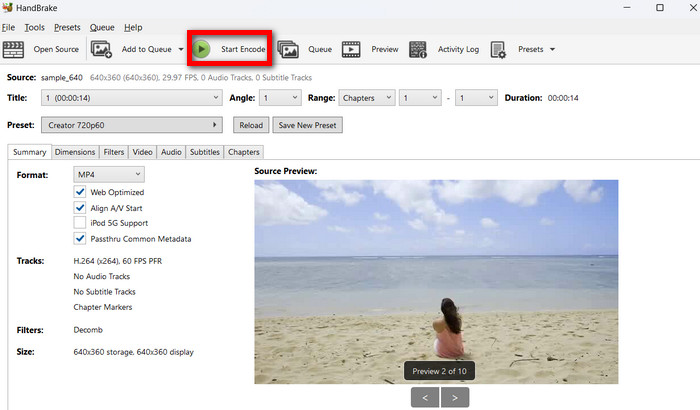
ขั้นตอนที่ 2. ต่อไป เปิดโปรแกรมบนคอมพิวเตอร์ของคุณและคลิกปุ่ม File ที่มุมซ้ายบนของอินเทอร์เฟซ หรือคุณจะลากและวางไฟล์วิดีโอที่ต้องการบีบอัดเข้ามาก็ได้.
ขั้นตอนที่ 3. จากนั้นไปที่เมนูโดยติ๊กเลือก Presets > Web แล้วเลือกพรีเซ็ตตามที่คุณต้องการ คลิก Add Preset หลังจากเลือกพรีเซ็ตแล้ว.
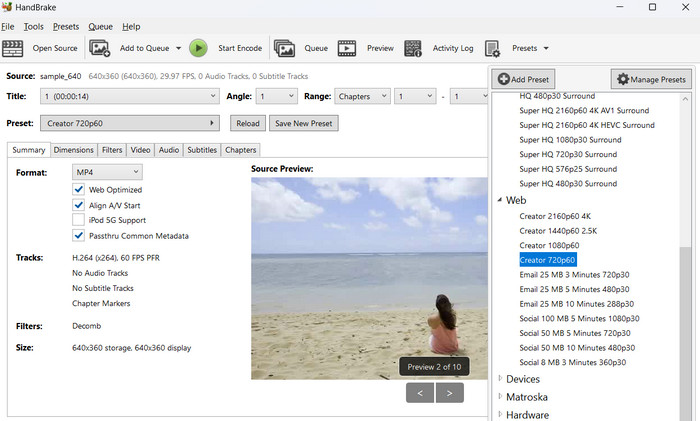
ขั้นตอนที่ 4. จากอินเทอร์เฟซของโปรแกรม คุณจะเห็นปุ่ม Start Encode เพื่อเริ่มบีบอัดวิดีโอของคุณ.
ส่วนที่ 2 โปรแกรมบีบอัดวิดีโอออนไลน์ยอดนิยม
หากคุณไม่ชอบดาวน์โหลดโปรแกรมเดสก์ท็อปบนคอมพิวเตอร์ของคุณ คุณสามารถเลือกโปรแกรมบีบอัดวิดีโอออนไลน์ที่ดีที่สุดได้ สิ่งเหล่านี้จะไม่กินพื้นที่บนพื้นที่เก็บข้อมูลของคุณ แต่จะต้องมีการเชื่อมต่ออินเทอร์เน็ตเพื่อดำเนินการตามกระบวนการ อย่างไรก็ตาม ลองดูเครื่องมือออนไลน์ที่เราคัดสรรมา
1. โปรแกรมบีบอัดวิดีโอ FVC ออนไลน์
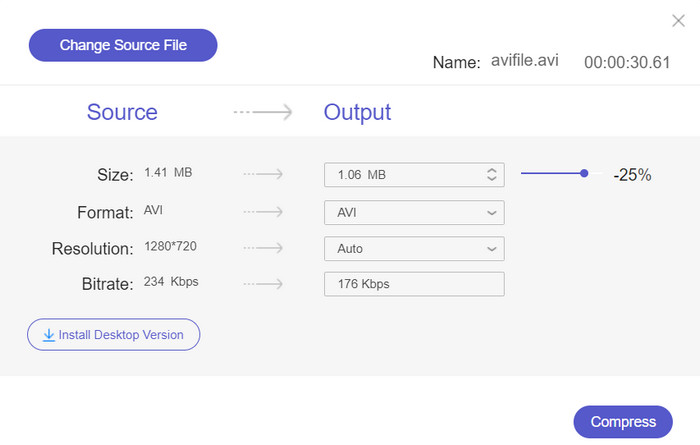
ด้วย FVC Video Compressor Online คุณไม่ต้องกังวลเรื่องพื้นที่ว่างในคอมพิวเตอร์ เพราะไม่จำเป็นต้องดาวน์โหลดโปรแกรมใด ๆ มันเป็นเครื่องมือออนไลน์ที่ให้คุณบีบอัดไฟล์วิดีโอได้อย่างรวดเร็วและง่ายดาย จุดเด่นของเครื่องมือนี้คือไม่มีลายน้ำติดอยู่ในไฟล์ผลลัพธ์ คุณจึงสามารถเพลิดเพลินกับวิดีโอที่บีบอัดแล้วโดยไม่มีลายน้ำ นอกจากนี้ยังสามารถบีบอัดไฟล์แบบเป็นชุดผ่านตัวลดขนาดวิดีโอนี้ได้ ช่วยประหยัดเวลา ผู้ใช้หลายคนยังชื่นชมว่าเป็นเครื่องมือที่ใช้งานง่าย เนื่องจากอินเทอร์เฟซที่เรียบง่ายแต่ดูทันสมัย.
รูปแบบที่รองรับ: MP4, FLV, AVI, MOV, TS, M2TS, MKV, WMV, WebM, M4V เป็นต้น.
2. Veed.io
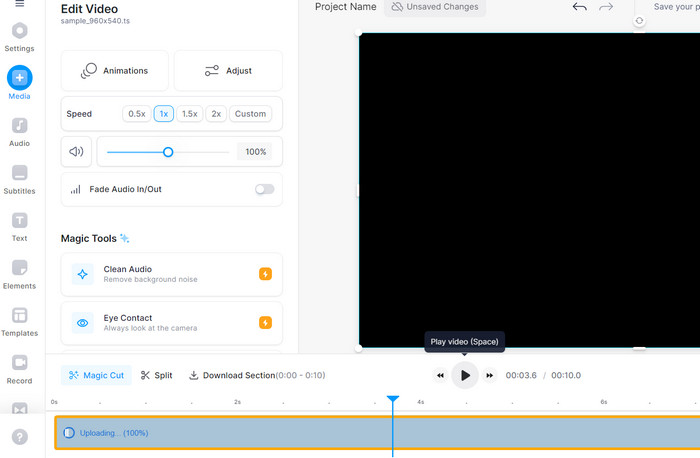
Veed.io เป็นโปรแกรมบนเว็บชื่อดังที่ใช้สำหรับบีบอัดวิดีโอออนไลน์ เครื่องมือนี้ช่วยให้คุณสามารถอัปโหลดวิดีโอจากแหล่งไฟล์ต่าง ๆ รวมถึง Dropbox, Facebook, YouTube และอื่น ๆ ยิ่งไปกว่านั้น ยังสามารถบีบอัดไฟล์เสียงด้วยคุณภาพที่ไม่มีการสูญเสีย พูดง่ายๆ ก็คือเครื่องมือนี้รองรับทั้งไฟล์วิดีโอและไฟล์เสียงสำหรับการบีบอัด
รูปแบบที่รองรับ: ASF, AVI, FLAC, FLV, GIF, M4V, MKV, MOV, MP4, WEBM และ WMV.
ส่วนที่ 3 แอปบีบอัดวิดีโอสำหรับ iPhone และ Android
บางคนอาจนึกถึงแอปบนอุปกรณ์เคลื่อนที่เมื่อต้องการความสะดวกสบาย สิ่งนี้เกิดขึ้นกับคอมเพรสเซอร์ที่เป็นผู้ใช้อุปกรณ์พกพาระดับฮาร์ดคอร์หรือเพียงต้องการบีบอัดวิดีโอเพียงปลายนิ้วสัมผัส ดังนั้นเราจึงได้รวบรวมโปรแกรมบีบอัดวิดีโอที่ดีที่สุดสำหรับอุปกรณ์ Android และ iOS ตรวจสอบพวกเขาด้านล่าง
1. วิดคอมแพค
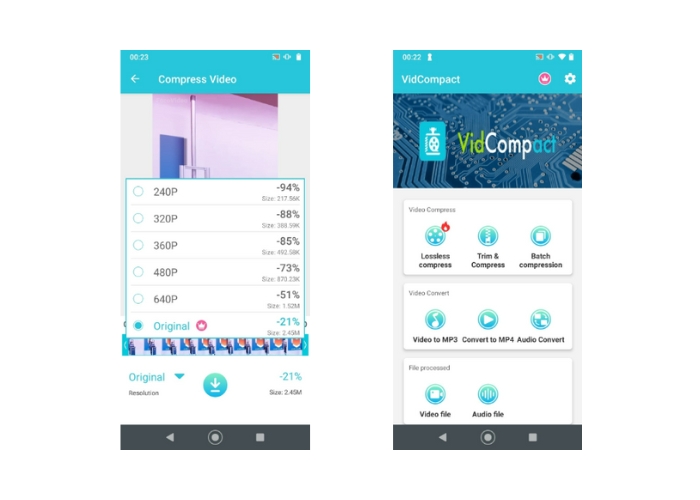
หากคุณกำลังมองหาโซลูชันอื่นที่สามารถบีบอัดไฟล์วิดีโอใด ๆ บนสมาร์ทโฟน VidCompact ก็เป็นหนึ่งในข้อพิจารณาของคุณ ในทำนองเดียวกัน มันมีความเข้ากันได้ที่คุณต้องการเมื่อต้องการบีบอัดไฟล์วิดีโอต่าง ๆ จากอุปกรณ์มือถือของคุณ นอกจากนั้น คุณยังสามารถใช้ทริมเมอร์ ตัวแปลง และตัวแปลง MP3 ของโปรแกรมได้ ดังนั้น หากคุณต้องการตัดไฟล์วิดีโอให้สั้น เครื่องมือนี้ก็ช่วยได้มากเช่นกันในการตัดไฟล์เหล่านั้น นอกจากนี้ตัวแปลงยังช่วยให้คุณเล่นไฟล์ของคุณบนแพลตฟอร์มต่างๆ ตอนนี้ เมื่อไฟล์เสียงบางไฟล์จำเป็นต้องแปลงเป็น MP3 นี่คือแอปที่คุณควรพิจารณาใช้
รูปแบบที่รองรับ: MP4, FLV, AVI, MOV เป็นต้น.
ขั้นตอนที่ 1. เปิด Google Play Store บนอุปกรณ์ Android ของคุณ แล้วค้นหา VidCompact ในช่องค้นหา หาตัวแอป VidCompact จากผลการค้นหา จากนั้นแตะที่แอป แล้วแตะปุ่ม ติดตั้ง (Install) เพื่อดาวน์โหลดและติดตั้งลงในอุปกรณ์ของคุณ.
ขั้นตอนที่ 2. หลังจากติดตั้งเสร็จแล้ว ให้เปิดแอปบีบอัดวิดีโอบน Android นี้ จากนั้นแตะตัวเลือก Trim & Compress จากหน้าจอหลัก ค้นหาและเลือกไฟล์วิดีโอที่คุณต้องการบีบอัดโดยการแตะที่ไฟล์ คุณสามารถเลือกหลายวิดีโอได้หากต้องการ.
ขั้นตอนที่ 3. เมื่อคุณตั้งค่าการบีบอัดได้ตามต้องการแล้ว ให้มองหาปุ่ม Start.
2. การบีบอัดวิดีโอ - ย่อขนาดวิดีโอ
ลองใช้ Video Compress - Shrink Vids หากคุณต้องการบีบอัดวิดีโอโดยไม่ลดคุณภาพลง ช่วยให้คุณสามารถควบคุมขนาด อัตราเฟรม และคุณภาพของไฟล์เอาต์พุต ซึ่งทั้งหมดนี้ส่งผลต่อขนาดสื่อโดยรวมของวิดีโอ นอกจากนี้คุณยังสามารถควบคุมความเร็วการบีบอัดได้อีกด้วย นอกจากนี้ เครื่องมือนี้ยังมีประโยชน์สำหรับการจัดเก็บวิดีโอ HD และ 4K เนื่องจากสามารถบีบอัดได้อย่างง่ายดายโดยใช้โปรแกรมมือถือนี้
รูปแบบที่รองรับ: MP4 และ MKV.
ขั้นตอนที่ 1. หากต้องการใช้แอพบีบอัดวิดีโอบน iPhone นี้ ให้ติดตั้งจาก App Store บน iPhone ของคุณ แล้วเปิดแอปทันทีหลังการติดตั้ง.
ขั้นตอนที่ 2. จากนั้นแตะปุ่ม + ที่หน้าจอหลักเพื่อเลือกวิดีโอจากอุปกรณ์มือถือของคุณ จะมีหน้าต่างแจ้งเตือนขอสิทธิ์เข้าถึงแกลเลอรี ให้แตะ Allow Full Access เพื่ออนุญาต จากนั้นเลือกวิดีโอเป้าหมายที่ต้องการบีบอัด.
ขั้นตอนที่ 3. ต่อไป ปรับแถบเลื่อนบิตเรตเพื่อให้ได้ขนาดไฟล์ตามที่ต้องการ คุณจะเห็นข้อมูลเกี่ยวกับวิดีโอ รวมถึงขนาดโดยประมาณหลังบีบอัดที่ด้านบนของอินเทอร์เฟซ กด CONTINUE เพื่อดำเนินการบีบอัด.
อ่านเพิ่มเติม:
คู่มือบีบอัดวิดีโอเพื่อส่งอีเมลบน iPhone/Android/ออนไลน์
ค้นพบตัวตัด MP4 ที่ดีที่สุดพร้อมขั้นตอนและข้อมูล
ส่วนที่ 4 การเปรียบเทียบตัวบีบอัดวิดีโอ
นี่คือแผนภูมิเปรียบเทียบโดยเปรียบเทียบประเด็นสำคัญของแต่ละเครื่องมือที่เราตรวจสอบก่อนหน้านี้ นี่อาจเป็นปัจจัยกำหนดว่าคุณจะใช้แอปใด
| คอมเพรสเซอร์วิดีโอ | รูปแบบที่รองรับ | ราคา | ความเร็ว | คุณภาพ |
| Video Converter Ultimate | เกือบทุกรูปแบบ | ชำระเงินแล้ว ราคาจะแตกต่างกันไป | เร็ว | ดีถึงดีเยี่ยม |
| เบรกมือ | จำกัดเฉพาะ MP4 และ MKV แต่สามารถขยายได้ด้วยตัวแปลงสัญญาณเพิ่มเติม | ฟรี | ตัวแปร | ดีถึงดีเยี่ยม |
| โปรแกรมบีบอัดวิดีโอ FVC ออนไลน์ | MP4, AVI, MKV, MOV และอื่นๆ | ฟรี | ตัวแปร | ดีถึงดีเยี่ยม |
| Veed.io | รองรับรูปแบบยอดนิยม | ฟรี (มีข้อจำกัด) | ตัวแปร | ดีถึงดีเยี่ยม |
| VidCompact | MP4, MKV, AVI และอื่นๆ | ฟรี | ตัวแปร | ดีถึงดีเยี่ยม |
| โปรแกรมบีบอัดวิดีโอ – ลดขนาดวิดีโอ | จำกัด เฉพาะ MP4 และ MKV | ฟรี | ตัวแปร | ดีถึงดีเยี่ยม |
ส่วนที่ 5. คำถามที่พบบ่อยเกี่ยวกับโปรแกรมบีบอัดวิดีโอที่ดีที่สุด
ฉันจะบีบอัดวิดีโอขนาด 10 GB ฟรีได้อย่างไร
หากต้องการบีบอัดวิดีโอขนาด 10 GB ฟรี คุณสามารถใช้ซอฟต์แวร์ เช่น HandBrake หรือเครื่องมือออนไลน์ เช่น FVC Video Compressor เครื่องมือเหล่านี้ช่วยให้คุณสามารถลดขนาดไฟล์ของวิดีโอโดยยังคงคุณภาพที่ยอมรับได้
ฉันจะบีบอัดไฟล์ MP4 ขนาดใหญ่ได้อย่างไร
หากต้องการบีบอัดไฟล์ MP4 ขนาดใหญ่ คุณสามารถใช้ซอฟต์แวร์บีบอัดไฟล์ เช่น WinZip, 7-Zip หรือยูทิลิตี้การบีบอัดไฟล์ในตัวในระบบปฏิบัติการของคุณ คลิกขวาที่ไฟล์ เลือก บีบอัด หรือ ส่งไปที่ และเลือกรูปแบบการบีบอัด เช่น ZIP
MP4 ถูกบีบอัดเสมอหรือไม่?
ไม่ ไฟล์ MP4 ไม่ได้ถูกบีบอัดเสมอไป MP4 เป็นรูปแบบคอนเทนเนอร์ที่ประกอบด้วยสตรีมวิดีโอและเสียงที่บีบอัดและไม่มีการบีบอัด เนื้อหาภายในไฟล์ MP4 จะถูกบีบอัดหรือไม่นั้นขึ้นอยู่กับการตั้งค่าการเข้ารหัสที่ใช้เมื่อสร้างวิดีโอ
สรุป
ตอนนี้คุณได้เรียนรู้เกี่ยวกับตัวบีบอัดวิดีโอสำหรับทุกแพลตฟอร์มเรียบร้อยแล้ว ลองบีบอัดวิดีโอของคุณเพื่อประหยัดพื้นที่จัดเก็บในอุปกรณ์ ไม่ว่าจะเป็นมือถือหรือคอมพิวเตอร์ นอกจากนี้ คุณยังสามารถแชร์วิดีโอไปยังเว็บไซต์โปรดได้อย่างอิสระไร้ข้อจำกัดเรื่องขนาดไฟล์.
-
 6 ซอฟต์แวร์ย้อนกลับวิดีโอล่าสุด/แอพ/เว็บไซต์สำหรับทุกแพลตฟอร์ม
 ต้องการทราบตัวเลือกอื่นๆ ที่คุณสามารถใช้กับวิดีโอย้อนกลับได้หรือไม่ จากนั้นลองอ่านบทความนี้เพื่อดูซอฟต์แวร์แปลงกลับวิดีโอต่างๆ ด้านล่าง
-
 สุดยอดคอมเพรสเซอร์ GIF 10 อันดับสำหรับผู้ใช้เดสก์ท็อปและออนไลน์
 ในโพสต์นี้ คุณจะได้เรียนรู้เกี่ยวกับโปรแกรมบีบอัด GIF ที่ดีที่สุดเพื่อช่วยคุณแก้ไขปัญหาเกี่ยวกับไฟล์ GIF ขนาดใหญ่ ลองตรวจสอบและรับข้อมูลเชิงลึกที่ดีที่สุด
-
 Google Drive บีบอัดวิดีโอหรือไม่ ค้นหาและเปิดเผยที่นี่
 ในโพสต์นี้ เราได้รวบรวมวิธีที่เป็นไปได้ในการบีบอัดวิดีโอสำหรับ Google Drive ค้นหาตัวเลือกที่เหมาะสมสำหรับคุณและนำไปใช้กับวิดีโอของคุณ
