


 Video Converter Ultimate
 บันทึกหน้าจอ
 ซ่อมวิดีโอ
4 วิธีที่ง่ายที่สุดในการเปลี่ยนความละเอียดของวิดีโอด้วยขั้นตอนที่ครอบคลุม
มีเหตุผลมากมายว่าทำไมคุณจึงจำเป็นต้องเปลี่ยนความละเอียดของวิดีโอ เหตุผลหนึ่งอาจเป็นการประหยัดพื้นที่จัดเก็บวิดีโอ ไม่ว่าคุณจะมีเหตุผลใด คู่มือนี้จะสอนวิธีทั้ง 4 วิธีในการลดหรือเพิ่มคุณภาพของวิดีโอให้สูงขึ้น โดยไม่ต้องเสียเวลาไปมากกว่านี้ มาดูโปรแกรมแปลงความละเอียดวิดีโอที่คุณสามารถใช้ในการเปลี่ยนความละเอียดของวิดีโอกันเลย.

ส่วนที่ 1 วิธีที่ 1: สุดยอดเครื่องมือเดสก์ท็อปเพื่อเปลี่ยนความละเอียดวิดีโอใน Windows และ macOS
Video Converter Ultimate คือเครื่องมือที่ครบเครื่องที่สุดสำหรับงานนี้ เพราะสามารถช่วยคุณแปลงได้ไม่เพียงแต่รูปแบบไฟล์วิดีโอเท่านั้น แต่ยังรวมถึงคุณภาพของวิดีโอได้ภายในไม่กี่คลิก เครื่องมือนี้รองรับการแปลงความละเอียดด้วยความเร็วสูงมาก ทำให้คุณสามารถแปลงคุณภาพวิดีโอให้เป็นระดับสูงสุดหรือมาตรฐานได้อย่างง่ายดาย ช่างน่าใช้ซอฟต์แวร์นี้จริง ๆ อยากรู้เพิ่มเติมหรือไม่? หากใช่ เครื่องมือนี้รองรับทั้งแพลตฟอร์มเดสก์ท็อป แม้ว่าจะรองรับทั้ง Windows และ Mac แต่คุณสมบัติที่เห็นใน Windows ก็มีให้ใช้บน Mac หรือในทางกลับกัน เรารู้ว่าเครื่องมือนี้มีจุดเด่นบางอย่าง จึงนำมาใส่ไว้ในรายการนี้ ดังนั้นหากตอนนี้คุณต้องการคำแนะนำแบบทีละขั้นตอน คุณสามารถทำตามคู่มือแบบเขียนด้านล่างเพื่อเรียนรู้วิธีเปลี่ยนความละเอียดวิดีโอได้อย่างสำเร็จ.
ขั้นตอนที่ 1. คลิกปุ่มที่เหมาะสมเพื่อดาวน์โหลดโปรแกรมลงในไดรฟ์ของคุณให้สำเร็จ เปิดไฟล์ที่ดาวน์โหลดมาและทำตามขั้นตอนการติดตั้งที่แสดงบนหน้าจอ หลังจากติดตั้งเสร็จสมบูรณ์แล้ว ให้เปิดโปรแกรมแปลงความละเอียดวิดีโอและไปยังขั้นตอนถัดไป.
ดาวน์โหลดฟรีสำหรับ Windows 7 หรือใหม่กว่าดาวน์โหลดอย่างปลอดภัย
ดาวน์โหลดฟรีสำหรับ MacOS 10.7 หรือใหม่กว่าดาวน์โหลดอย่างปลอดภัย
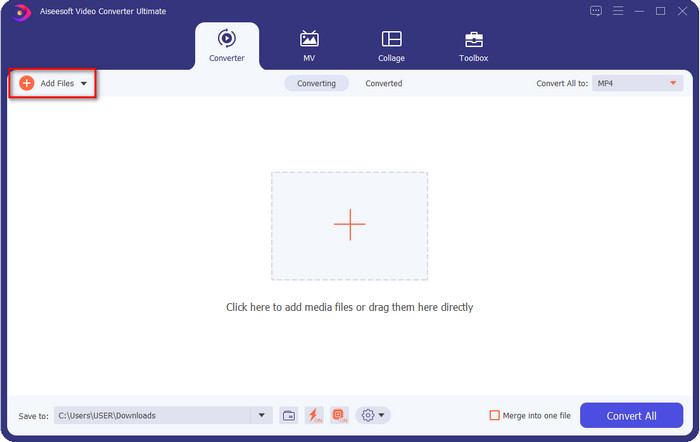
ขั้นตอนที่ 2. หากต้องการเพิ่มไฟล์วิดีโอที่คุณต้องการเปลี่ยนความละเอียด ให้คลิกปุ่ม Add File จากนั้นค้นหาไฟล์ในโฟลเดอร์ของคอมพิวเตอร์ที่ปรากฏขึ้น คลิกไฟล์นั้น แล้วกด Open.
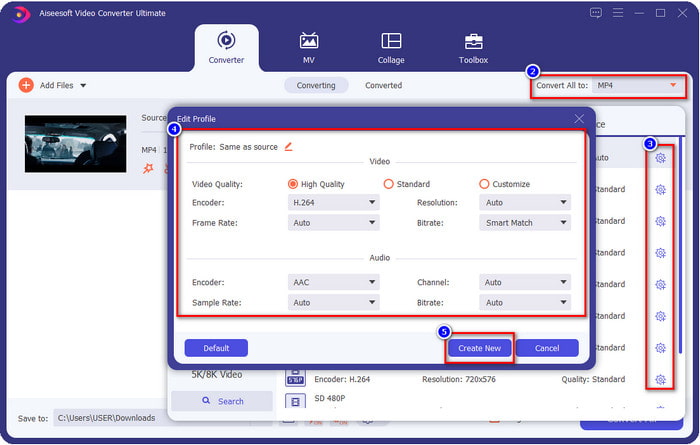
ขั้นตอนที่ 3. มองไปที่ส่วนมุมขวาด้านบนแล้วคลิกปุ่มดรอปดาวน์บนหน้าหลัก เลือกรูปแบบวิดีโอที่คุณต้องการ เช่น MP4, MOV, AVI, MKV, FLV และอื่น ๆ อีกกว่า 200 รูปแบบมีให้เลือกที่นี่ หลังจากเลือกรูปแบบแล้ว ให้คลิกปุ่มรูปเฟืองเพื่อแก้ไขโปรไฟล์ของรูปแบบนั้น ที่นี่คุณสามารถปรับความละเอียดให้สูงขึ้นหรือต่ำลง เปลี่ยนตัวเข้ารหัส (encoder), คุณภาพ, บิตเรต และอื่น ๆ เพื่อเพิ่มหรือลดความละเอียดวิดีโอ เมื่อต้องการบันทึกการปรับเปลี่ยน ให้คลิก Create New.
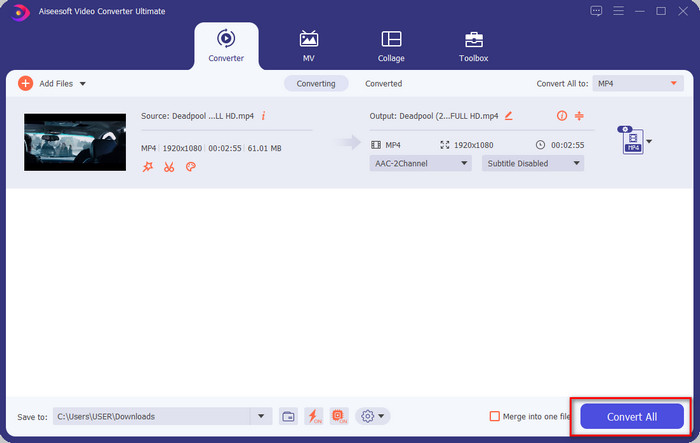
ขั้นตอนที่ 4. สุดท้ายให้คลิก Convert All เพื่อเริ่มกระบวนการแปลงความละเอียด ด้วยวิธีนี้ คุณก็ได้แปลงความละเอียดของวิดีโอเรียบร้อยแล้วด้วยความช่วยเหลือจาก Video Converter Ultimate.
ส่วนที่ 2 วิธีที่ 2: วิธีที่ง่ายและฟรีในการเปลี่ยนความละเอียดของวิดีโอออนไลน์
ต้องการเปลี่ยนความละเอียดวิดีโอแบบออนไลน์หรือไม่? ถ้าอย่างนั้นคุณต้องใช้เวอร์ชันออนไลน์ฟรีของเครื่องมือสุดครบชุดนี้ คือ FVC Free Video Converter Online เครื่องมือนี้ช่วยให้คุณแปลงความละเอียดของวิดีโอได้ฟรี เนื่องจากเป็นเครื่องมือออนไลน์ จึงจำเป็นต้องมีการเชื่อมต่ออินเทอร์เน็ตเพื่อให้ทำงานได้ นอกจากนี้เครื่องมือนี้ไม่รองรับไฟล์วิดีโอทุกประเภท จึงมีข้อจำกัดเกี่ยวกับรูปแบบไฟล์วิดีโอที่สามารถเพิ่มได้ ทีนี้มาลองใช้เครื่องมือนี้เพื่อเปลี่ยนความละเอียดกัน โดยทำตามขั้นตอนด้านล่าง.
ขั้นตอนที่ 1. หากต้องการเปิดโปรแกรมแปลงความละเอียดวิดีโอออนไลน์ ให้คลิก ลิงก์นี้ เพื่อเปิดเครื่องมือโดยตรง.
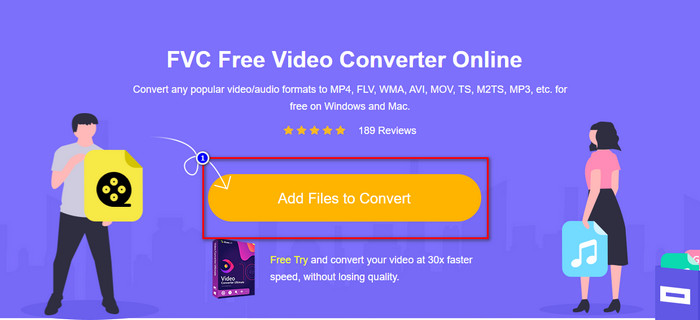
ขั้นตอนที่ 2. กด Add Files to Convert เพื่อดาวน์โหลดตัวเรียกใช้งาน (launcher) สำหรับผู้ใช้ครั้งแรก จากนั้นคลิกอีกครั้งหลังจากที่คุณดาวน์โหลดตัวติดตั้งแล้ว หลังจากคลิกแล้วจะมีหน้าต่างโฟลเดอร์แสดงขึ้นมา ให้ค้นหาไฟล์วิดีโอในโฟลเดอร์แล้วคลิก Open.
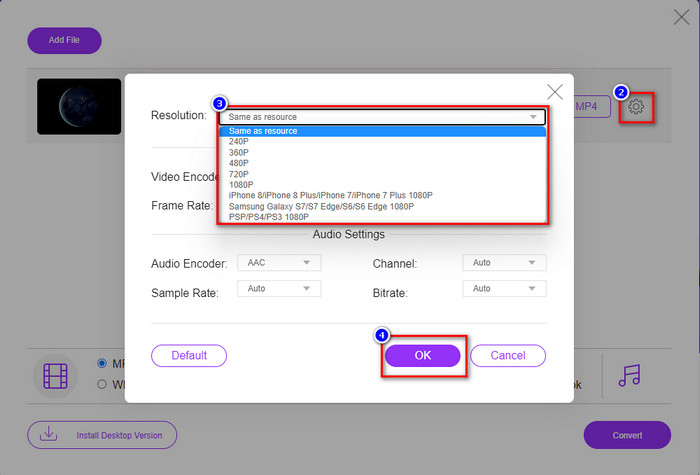
ขั้นตอนที่ 3. คลิกปุ่มรูปเฟืองเพื่อเปิดหน้าต่างใหม่สำหรับเปลี่ยนความละเอียดวิดีโอ บนส่วนบนสุดของหน้าต่างใหม่ ให้คลิก Resolution เลือกความละเอียดวิดีโอที่คุณต้องการ แล้วคลิก OK เพื่อบันทึก.
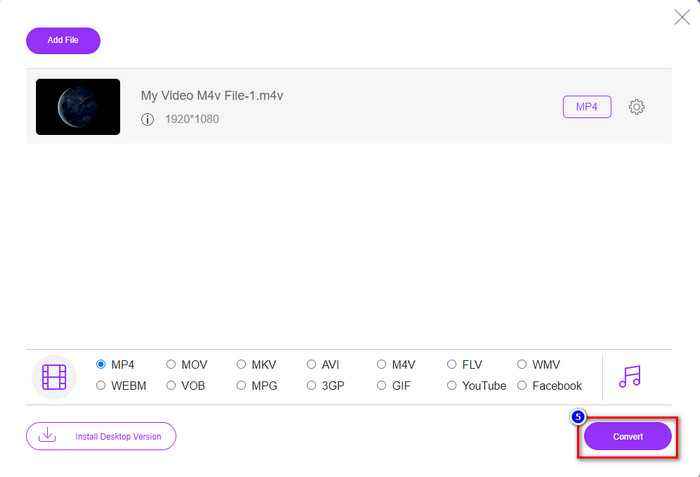
ขั้นตอนที่ 4. เลือกรูปแบบไฟล์จากรายการที่ตั้งค่าไว้ แล้วคลิก Convert เพื่อเริ่มกระบวนการแปลงความละเอียด.
ที่เกี่ยวข้อง:
ส่วนที่ 3 วิธีที่ 3: วิธีเปลี่ยนความละเอียดวิดีโอบน iPhone และ Android
วิธีการเหล่านี้ไม่สามารถแปลงความละเอียดของวิดีโอได้ แต่คุณสามารถถ่ายวิดีโอที่มีความละเอียดต่ำกว่าหรือสูงกว่าได้ นอกจากนี้ เรามาดูกันว่าเราจะเปลี่ยนความละเอียดของวิดีโอได้อย่างไรเมื่อเราถ่ายวิดีโอ
1. ความละเอียดวิดีโอ iPhone ในตัว
หากคุณเป็นผู้ใช้ iOS คุณสามารถเปลี่ยนความละเอียดของวิดีโอได้หากต้องการ อย่างไรก็ตาม คุณไม่พบมันบนกล้อง ดังนั้นหากไม่พบ คุณสามารถทำตามขั้นตอนด้านล่างเพื่อทราบวิธีเปลี่ยนความละเอียดวิดีโอบน iPhone ก่อนที่คุณจะถ่ายวิดีโอ
ขั้นตอนเหล่านี้นำมาจากรุ่น iPhone X เพื่อให้ขั้นตอนอาจแตกต่างไปจากชื่อหรือฟังก์ชันที่คล้ายกับ iPhone รุ่นอื่นๆ เล็กน้อย
ขั้นตอนที่ 1. เปิด การตั้งค่า (Settings) บน iPhone ของคุณ.
ขั้นตอนที่ 2. ภายใต้เมนูการตั้งค่า ให้หา กล้อง (Camera) แล้วคลิกเข้าไป.
ขั้นตอนที่ 3. คลิก Record Video แล้วเลือกความละเอียดที่คุณต้องการขณะถ่ายวิดีโอ จากนั้นกลับไปที่หน้าจอหลัก เปิดแอปกล้องของคุณ และถ่ายวิดีโอด้วยความละเอียดที่คุณตั้งค่าไว้ในเมนูการตั้งค่า.
2. ความละเอียดวิดีโอ Android ในตัว
สำหรับผู้ใช้ Android คุณสามารถเข้าถึงความละเอียดของวิดีโอได้โดยตรงบนกล้องของคุณ ขั้นตอนที่เรามีให้นั้นไม่ซับซ้อนเท่า iPhone เพราะคุณไม่จำเป็นต้องตั้งค่า ดังนั้นตอนนี้ หากต้องการเปลี่ยนความละเอียดวิดีโอบน Android ให้ทำตามคำแนะนำด้านล่าง
ขั้นตอนเหล่านี้นำมาจาก Redmi 10 ดังนั้นขั้นตอนอาจแตกต่างกันเล็กน้อยกับอุปกรณ์ Android อื่นๆ เช่น ชื่อหรือฟังก์ชันการทำงาน
ขั้นตอนที่ 1. บนโทรศัพท์ของคุณ ให้แตะที่แอป Camera เพื่อเปิด.
ขั้นตอนที่ 2. หลังจากเปิดแล้ว ให้ไปที่โหมด Video จากนั้นแตะที่ไอคอนเส้นขนานสามเส้น แล้วเลือกความละเอียดวิดีโอที่คุณต้องการ.
ขั้นตอนที่ 3. กดปุ่มสีแดงเพื่อเริ่มบันทึกวิดีโอด้วยความละเอียดที่ตั้งค่าไว้.
ส่วนที่ 4 คำถามที่พบบ่อยเกี่ยวกับการเปลี่ยนความละเอียดวิดีโอ
ความละเอียดของวิดีโอคืออะไร?
จำนวนพิกเซลที่มีอยู่ต่อเฟรมคือสิ่งที่เราเรียกว่าความละเอียดของวิดีโอ นอกจากนี้ยังควบคุมรายละเอียดที่คุณเห็นในวิดีโอเดียว เช่น ความชัดเจนของภาพ นอกจากนี้ยังมีความละเอียดวิดีโอที่แตกต่างกัน เราเรียกว่าความละเอียดสูงขึ้นตั้งแต่ HD ขึ้นไปซึ่งใช้เฟรมที่มีคุณภาพต่อวินาทีมากกว่า แม้ว่าความละเอียดที่ต่ำกว่าจะเริ่มต้นจาก SD และต่ำกว่า ความละเอียดของวิดีโอนี้จะมีแบนด์วิดท์น้อยกว่าความละเอียดที่สูงกว่า แต่มีเฟรมที่มีคุณภาพที่เล็กกว่าต่อวินาที
1080 เป็นความละเอียดวิดีโอที่ดีที่สุดหรือไม่?
สร้างความละเอียดวิดีโอที่ผู้ใช้เลือกมากที่สุดรายหนึ่งซึ่งมักเลือกบน Youtube และแอปสตรีมวิดีโออื่นๆ แต่ก็ไม่ใช่ตัวเลือกที่ดีที่สุดเสมอไปในการชมวิดีโอคุณภาพสูงเพราะอาจใช้เวลาในการบัฟเฟอร์วิดีโอมากกว่า 720 ดังนั้น ครั้งต่อไปที่คุณดูวิดีโอออนไลน์ เราชอบที่จะใช้ 720 มากกว่า 1080 เพื่อโหลด วิดีโอเร็วขึ้นมาก และจะไม่มีการเปลี่ยนแปลงคุณภาพทั้งสองอย่างมีนัยสำคัญหากคุณเปลี่ยน
การลดความละเอียดส่งผลต่อคุณภาพหรือไม่
ใช่ จะมีการเปลี่ยนแปลงเมื่อคุณลดคุณภาพวิดีโอลง ตัวอย่างเช่น หากวิดีโอของคุณเป็นแบบ HD คุณเปลี่ยนเป็น SD คุณภาพจะเปลี่ยนไปอย่างมาก ดังนั้น หากคุณเปลี่ยนความละเอียดของวิดีโอ คุณจะเห็นการเปลี่ยนแปลงอย่างกะทันหัน แต่ก็ยังสามารถรับชมได้แม้หลังจากนั้น
สรุป
ในที่สุด เราก็สามารถเปลี่ยนความละเอียดของวิดีโอได้ตามต้องการแล้ว แม้ว่าคุณจะสามารถใช้เครื่องมือต่างๆ มากมายเพื่อเปลี่ยนคุณภาพวิดีโอ แต่เรายังคงนำเสนอเครื่องมือออนไลน์ ออฟไลน์ และในตัวที่ปลอดภัยที่สุดและดีที่สุด เราหวังว่าบทความนี้จะช่วยคุณเปลี่ยนความละเอียด หากคุณมีคำถามเพิ่มเติม คุณสามารถแสดงความคิดเห็นด้านล่าง และเราจะตอบกลับความคิดเห็นของคุณอย่างแน่นอน
-
 รีวิวซอฟต์แวร์ 10 HD Video Converter (ฟรีและเชิงพาณิชย์)
 อ่านและเปรียบเทียบเพื่อรับซอฟต์แวร์แปลงวิดีโอ HD ที่ดีที่สุดจาก 10 คำแนะนำ นี่คือบทวิจารณ์โดยละเอียดของตัวแปลงวิดีโอ HD แต่ละรายการสำหรับหลายแพลตฟอร์ม
-
 แนวทางในการแปลง M4A เป็น WAV [PC และ Mac]
 เรียนรู้เพิ่มเติมเกี่ยวกับวิธีการแปลง M4A เป็น WAV ด้วยขั้นตอนโดยละเอียดและเครื่องมือต่างๆ ที่คุณสามารถเลือกได้
-
 ทางเลือกที่ยอดเยี่ยมในการแปลง MKV เป็นรูปแบบ AVI
 เรียนรู้วิธีการแปลงวิดีโอ MKV ด้วยขั้นตอนง่าย ๆ ที่มีให้สำหรับคุณโดยเฉพาะ คุณต้องการที่จะรู้ว่าอย่างไร? จากนั้นคลิกลิงก์นี้เพื่อเรียนรู้เพิ่มเติม
