


 Video Converter Ultimate
 บันทึกหน้าจอ
 ซ่อมวิดีโอ
 ดาวน์โหลดอย่างปลอดภัย
4 วิธีที่ง่ายที่สุดในการเปลี่ยนการเล่นวิดีโอความเร็วบนเดสก์ท็อป เว็บ และโทรศัพท์
ผู้ใช้ส่วนใหญ่พยายามหาวิธีที่มีประสิทธิภาพในการดูวิดีโอความยาวหนึ่งชั่วโมงให้จบในเวลาน้อยกว่าหนึ่งชั่วโมง วิธีแก้ปัญหาเดียวที่สามารถช่วยได้ก็คือการเปลี่ยนความเร็วการเล่นของวิดีโอที่คุณกำลังดูอยู่ โปรแกรมตัดต่อวิดีโอส่วนใหญ่ที่คุณหาได้ในท้องตลาดสามารถช่วยคุณทำงานนี้ให้เสร็จได้ แต่คำถามคือ โปรแกมเหล่านั้นเชื่อถือได้จริงหรือไม่? ระหว่างที่เราศึกษาแต่ละโปรแกรม เราพบว่าคุณสามารถปรับความเร็ววิดีโอได้ทั้งบนเดสก์ท็อป ออนไลน์ อุปกรณ์ iOS และ Android หากคุณอยากรู้วิธีทำ คุณต้องอ่านบล็อกนี้ต่อไป เพราะเรารวมเครื่องมือและแอปที่สามารถช่วยคุณไว้แล้ว.

ส่วนที่ 1 วิธีที่ดีที่สุดที่แนะนำในการเปลี่ยนความเร็ววิดีโอบน Windows และ Mac อย่างง่ายดาย
หากต้องการเปลี่ยนความเร็ววิดีโอได้อย่างง่ายดาย คุณจำเป็นต้องเลือกเครื่องมือที่ดีที่สุดซึ่งให้ผลลัพธ์ที่ยอดเยี่ยมได้แม้เพียงไม่กี่คลิก—ขอแนะนำ FVC Video Converter Ultimate เครื่องมือนี้สามารถปรับความเร็วของวิดีโอที่คุณมีได้อย่างมีประสิทธิภาพทุกที่ทุกเวลา นอกจากนี้ คุณยังสามารถเปลี่ยนความเร็ววิดีโอได้ไม่ว่ารูปแบบไฟล์จะเป็น MP4, MOV, AVI, FLV, TS, RMVB หรือมากกว่า 1000 รูปแบบ การอัปโหลดไฟล์มาที่นี่จึงรวดเร็วและง่ายดาย ไม่ว่าคุณจะเป็นผู้ใช้ Windows หรือ Mac เพียงดาวน์โหลดซอฟต์แวร์บนระบบปฏิบัติการนั้น ก็จะช่วยให้คุณเปลี่ยนความเร็วการเล่นวิดีโอได้ในไม่กี่คลิก.
นอกจากฟังก์ชันควบคุมความเร็ววิดีโอแล้ว เครื่องมือนี้ยังมีกล่องเครื่องมือมัลติฟังก์ชั่นที่น่าภาคภูมิใจที่สามารถช่วยงานอื่นๆ ได้ เช่น การเพิ่มข้อมูลเมตา การสร้าง GIF การลบลายน้ำ และอื่นๆ อีกมากมาย แม้ว่าเครื่องมือนี้สามารถดาวน์โหลดได้ แต่คุณจะสังเกตได้ในขณะใช้งานว่าคุณไม่จำเป็นต้องมีประสบการณ์ในการแก้ไขมากนัก เพราะเครื่องมือนี้ใช้งานง่าย มีฟังก์ชั่นและคุณสมบัติที่เรายังไม่ได้เขียนที่จะเน้นผลิตภัณฑ์นี้ แต่ถ้าคุณต้องการเรียนรู้วิธีเปลี่ยนความเร็วของวิดีโอ โปรดอ่านรายละเอียดเพื่อทราบ
ข้อดีของการใช้ Ultimate Software เป็น Video Speed Changer:
◆ อินเทอร์เฟซที่ใช้งานง่าย ดังนั้นพวกเขาจะเรียนรู้วิธีการใช้งานภายในไม่กี่นาที
◆ อัปโหลดวิดีโอมากกว่า 1,000 รายการเพื่อเพิ่มความเร็วในการเล่น
◆ User-Friendly เพื่อช่วยให้ผู้ใช้ได้สัมผัสประสบการณ์ที่ดีที่สุด
◆ ฟังก์ชันอื่นๆ อยู่ใน Toolbox เช่น การตัดต่อวิดีโอขั้นพื้นฐานและขั้นสูง
◆ เป็นตัวเลือกแรกของผู้ใช้เกือบล้านคนที่ดาวน์โหลด
◆ พร้อมใช้งานบน Windows และ Mac เพื่อดาวน์โหลดเครื่องมือได้อย่างง่ายดาย
ขั้นตอนในการเปลี่ยนความเร็ววิดีโอโดยใช้ซอฟต์แวร์ขั้นสูงสุด:
ขั้นตอนที่ 1. คุณสามารถติดตั้งซอฟต์แวร์ตัวนี้ได้ทั้งบนระบบ Windows และ Mac โดยคลิกปุ่มดาวน์โหลด ดำเนินการติดตั้งให้เสร็จหลังจากคลิกไฟล์ที่คุณดาวน์โหลด จากนั้นเปิดโปรแกรมเพื่อเริ่มใช้งาน.
ดาวน์โหลดฟรีสำหรับ Windows 7 หรือใหม่กว่าดาวน์โหลดอย่างปลอดภัย
ดาวน์โหลดฟรีสำหรับ MacOS 10.7 หรือใหม่กว่าดาวน์โหลดอย่างปลอดภัย
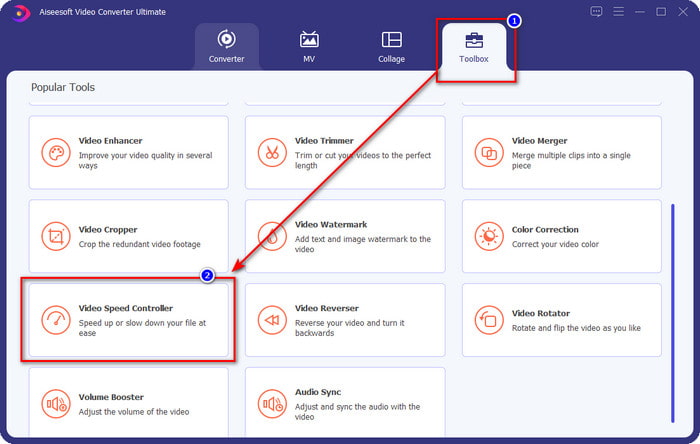
ขั้นตอนที่ 2. เมื่อคุณเปิดโปรแกรมแล้ว ให้ไปที่ส่วน Toolbox จากนั้นเปิด Video Speed Controller ขึ้นมา ไม่ต้องกังวล คุณไม่จำเป็นต้องดาวน์โหลดทรัพยากรเพิ่มเติมใด ๆ เพื่อใช้เครื่องมือนี้.
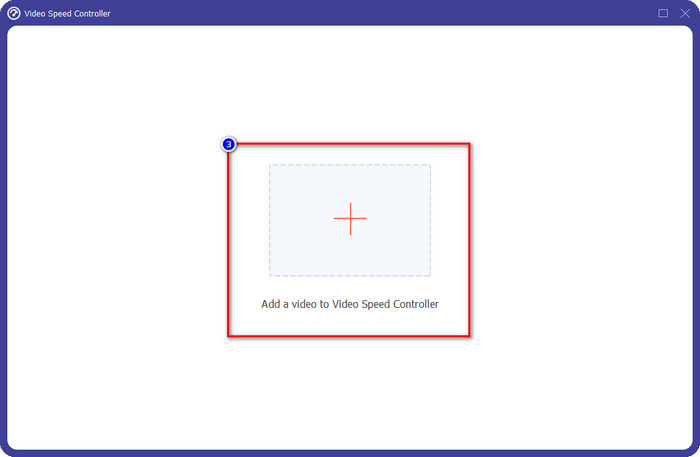
ขั้นตอนที่ 3. กดไอคอน + เพิ่มไฟล์ที่คุณมีจากโฟลเดอร์ คลิกไฟล์นั้นแล้วกด Open เพื่ออัปโหลดวิดีโอที่คุณต้องการ.
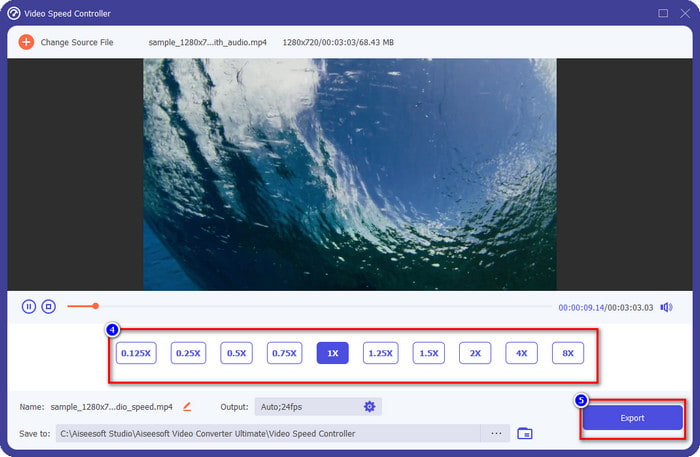
ขั้นตอนที่ 4. เลือกความเร็วการเล่นจากรายการที่คุณต้องการ เรามีตัวเลือกความเร็วในการเล่นหลายแบบให้คุณเลือก จากนั้นคลิก Export เพื่อบันทึกวิดีโอที่คุณได้เปลี่ยนความเร็วแล้ว ภายในเวลาไม่ถึงนาที คุณก็สามารถเปลี่ยนความเร็ววิดีโอของคุณเรียบร้อย และสามารถเพลิดเพลินกับการรับชมในเวลาที่สั้นลงได้.
ส่วนที่ 2 วิธีฟรีที่ดีที่สุดในการเปลี่ยนความเร็ววิดีโอบนเว็บ
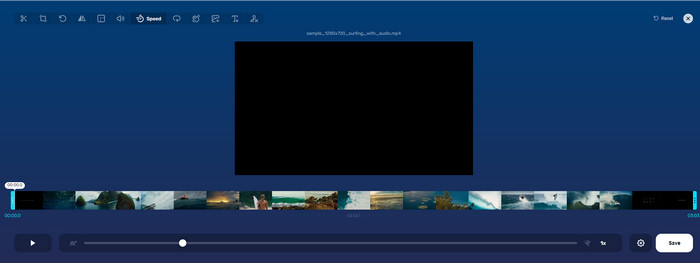
ด้วยความช่วยเหลือของ Online Video Cutter คุณสามารถเปลี่ยนความเร็ววิดีโอออนไลน์ได้ฟรี ต่างจากเครื่องมือแรก คุณไม่จำเป็นต้องดาวน์โหลดตัวติดตั้งหรือทรัพยากรเพิ่มเติมใด ๆ บนเดสก์ท็อปของคุณเพื่อใช้เว็บทูลนี้ นอกจากฟังก์ชันการเปลี่ยนความเร็วแล้ว คุณยังสามารถใช้เครื่องมือนี้ทำการตัดต่อพื้นฐานอื่น ๆ ได้ แม้ว่าเครื่องมือนี้จะดี แต่คุณไม่สามารถอัปโหลดวิดีโอได้ทุกฟอร์แมต เพราะฟอร์แมตที่รองรับมีจำกัด หากต้องการใช้ ให้ทำตามขั้นตอนด้านล่างนี้.
ขั้นตอนที่ 1. เปิดเบราว์เซอร์ที่คุณต้องการใช้แล้วค้นหาเว็บทูลนี้.
ขั้นตอนที่ 2. เปิดเว็บทูล จากนั้นคลิก Open File หาไฟล์วิดีโอที่คุณมีแล้วอัปโหลดขึ้นไป.
ขั้นตอนที่ 3. ลากตัวเลื่อนไปทางซ้ายหรือขวาเพื่อเปลี่ยนความเร็ว เมื่อพอใจกับอัตราความเร็วแล้วให้คลิกปุ่ม Save.
ส่วนที่ 3 โปรแกรมตัดต่อวิดีโอที่ดีที่สุดบน iOS เพื่อเปลี่ยนความเร็ววิดีโอฟรี
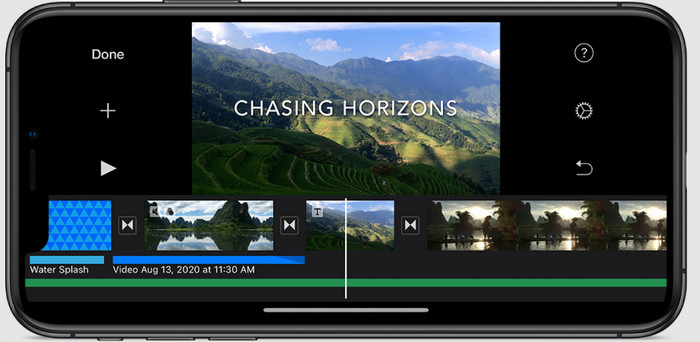
สำหรับผู้ใช้ iOS คุณสามารถใช้ iMovie เพื่อเรียนรู้วิธีเปลี่ยนความเร็ววิดีโอบน iPhone ได้ฟรี แม้ว่าเครื่องมือนี้จะเป็นโปรแกรมตัดต่อวิดีโอแบบเนทีฟบน Mac คุณก็ยังมีตัวเลือกว่าจะดาวน์โหลดแอปบนอุปกรณ์ของคุณหรือไม่ ตัวเลือกนี้พิสูจน์ให้เห็นว่าผู้ใช้ iOS สามารถเก็บตัวแก้ไขไว้ได้หรือไม่ เพื่อประหยัดพื้นที่ในการจัดเก็บ แต่ถ้าคุณมีแอพใน iPhone คุณสามารถทำตามขั้นตอนที่เราเพิ่มด้านล่างเพื่อทราบว่าเครื่องมือนี้ทำงานอย่างไร
ขั้นตอนที่ 1. ดาวน์โหลดจากนั้นเปิดแอปบน iPhone ของคุณ แล้วในหน้าโปรเจกต์ให้แตะสัญลักษณ์ + จากนั้นแตะ Movie.
ขั้นตอนที่ 2. แตะเลือกวิดีโอที่คุณต้องการเร่งความเร็ว จากนั้นที่ด้านล่างของหน้าจอให้แตะ Create Movie เพื่ออัปโหลดวิดีโอลงบนไทม์ไลน์.
ขั้นตอนที่ 3. แตะที่คลิปวิดีโอที่คุณอัปโหลด แล้วคลิกไอคอนตัวควบคุมความเร็ว จากนั้นปรับความเร็ววิดีโอโดยการลากตัวเลื่อนบน iPhone ของคุณ คลิก Done เพื่อบันทึก แล้วส่งออกหากคุณต้องการ.
ส่วนที่ 4 วิธีที่ดีที่สุดในการเปลี่ยนการเล่นความเร็ววิดีโอบนอุปกรณ์ Android โดยใช้ตัวแก้ไขในตัว
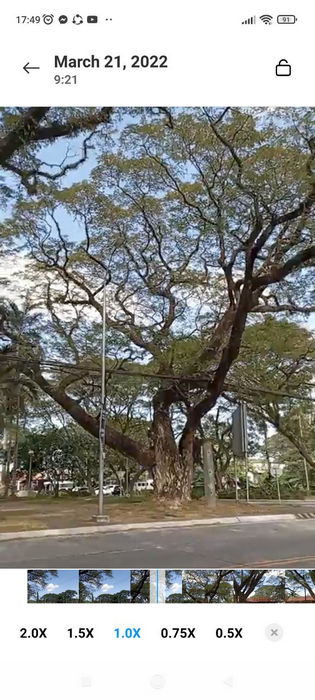
การดาวน์โหลดแอปจะไม่เกิดขึ้นหากคุณเป็นผู้ใช้แอนดรอยด์ เปลี่ยนความเร็ววิดีโอบนโทรศัพท์ของคุณด้วยโปรแกรมตัดต่อวิดีโอในตัว ด้วยตัวแก้ไขนี้ คุณสามารถทำการตัดต่อพื้นฐานที่จำเป็นสำหรับวิดีโอของคุณเพื่อให้ดูดีขึ้นกว่าเดิม คุณสามารถค้นหาตัวแก้ไขนี้ในแกลเลอรีหรืออัลบั้มบน Android ของคุณ หากคุณต้องการทราบวิธีใช้งาน ข้อมูลต่อไปนี้จะช่วยคุณได้
ขั้นตอนที่ 1. เปิดแอปแกลเลอรีหรืออัลบั้ม จากนั้นแตะเลือกวิดีโอที่คุณต้องการเปลี่ยนความเร็ว.
ขั้นตอนที่ 2. คลิก Edit เพื่อไปต่อ.
ขั้นตอนที่ 3. แตะส่วน Playback Speed จากนั้นเปลี่ยนความเร็วตามความต้องการของคุณ.
ส่วนที่ 5. คำถามที่พบบ่อยเกี่ยวกับการเปลี่ยนความเร็ววิดีโอ
ฉันสามารถเปลี่ยนความเร็วบน YouTube ได้ไหม
ใช่แล้ว คุณสามารถเปลี่ยนการเล่นวิดีโอบน YouTube ได้ แม้ว่าคุณจะไม่ได้ดาวน์โหลดซอฟต์แวร์เพื่อดำเนินการก็ตาม ทำตามขั้นตอนเพื่อทราบวิธีเปลี่ยนความเร็วของวิดีโอบน YouTube ขั้นแรกให้เปิด YouTube ค้นหาวิดีโอที่คุณต้องการรับชมในรูปแบบดัดแปลง คลิกไอคอนฟันเฟือง และด้านล่าง ความเร็วในการเล่น เลือกความเร็วที่คุณต้องการบรรลุ และเพลิดเพลิน
การเปลี่ยนความเร็วจะทำให้ระยะเวลาของวิดีโอสั้นลงหรือไม่
ขึ้นอยู่กับว่าคุณเปลี่ยนความเร็วอย่างไร หากคุณทำให้วิดีโอช้าลง คาดว่าระยะเวลาของวิดีโอจะนานขึ้นเนื่องจากคุณเล่นในโหมดช้า แต่ถ้าคุณเปลี่ยนความเร็วเป็นสูง ระยะเวลาของวิดีโอที่คุณกำลังเล่นจะสั้นกว่าต้นฉบับ หากต้องการทราบข้อมูลเพิ่มเติมเกี่ยวกับการเปลี่ยนความเร็วของวิดีโอ คุณต้องอ่านรายละเอียดต่อไปนี้ที่เราเพิ่มไว้ด้านบน
เปลี่ยนความเร็วแล้วคุณภาพจะมีผลไหม?
ขึ้นอยู่กับความเร็วของวิดีโอที่คุณตั้งไว้ คุณภาพอาจลดลงหรือคงอยู่ หากคุณเล่นวิดีโอแปดครั้งขึ้นไป ให้คาดหวังวิดีโอที่คุณจะเล่น อย่างไรก็ตาม คุณจะไม่เห็นความแตกต่างมากนักนอกจากการเล่น ในด้านคุณภาพ การเล่นจะยังคงเหมือนเดิม
สรุป
ตอนนี้เมื่อเรามีไอเดียแล้วว่าจะแก้ไขความเร็ววิดีโอบนเดสก์ท็อป ออนไลน์ และบนโทรศัพท์ได้อย่างไร ก็ถึงเวลาตัดสินใจว่าเราควรใช้วิธีไหน หากคุณไม่ต้องการดาวน์โหลดซอฟต์แวร์ลงเดสก์ท็อปเพื่อประหยัดพื้นที่และลดขั้นตอนการติดตั้ง คุณควรอ่านในส่วนที่สองของบทความนี้ แต่หากคุณเป็นผู้ใช้ iOS หรือ Android ส่วนที่สามและสี่จะเหมาะกับคุณ หากคุณต้องการใช้โปรแกรมตัดต่อวิดีโอที่ดีที่สุดบน Windows และ Mac คุณต้องดาวน์โหลด FVC Video Converter Ultimate มันคือเครื่องมือควบคุมความเร็ววิดีโอที่ดีที่สุดสำหรับการเปลี่ยนความเร็วการเล่นวิดีโอบนเดสก์ท็อปของคุณได้อย่างง่ายดาย แล้วคุณรออะไรอยู่? ดาวน์โหลดได้เลยตอนนี้และรับโปรโมชันสุดคุ้มที่มีไว้ให้เฉพาะคุณ!
-
 วิธีเพิ่มความเร็ววิดีโอใน Premiere Pro และทางเลือกอื่น
 คุณต้องการทราบวิธีใช้ Premiere Pro เพื่อเพิ่มความเร็ววิดีโอหรือไม่? ถ้าอย่างนั้นคุณก็มาถูกบทความแล้ว เพราะเรามีขั้นตอนและทางเลือกอื่นๆ ในราคาที่เอื้อมถึง
-
 2 วิธีง่ายๆ ในการเร่งความเร็ววิดีโอบน TikTok
 คุณต้องการทราบเคล็ดลับในการเร่งความเร็ววิดีโอบน TikTok หรือไม่? จากนั้นอ่านบทความนี้เพื่อให้มีแนวคิดในการทำและรู้ว่าเครื่องมืออีก 2 อย่างจะช่วยคุณได้อย่างไร
-
 เคล็ดลับที่ยอดเยี่ยมของปี 2021: วิธีเพิ่มความเร็ววิดีโอบน iMovie
 เพื่อนของคุณแนะนำ iMovie เพื่อช่วยคุณเกี่ยวกับวิธีเร่งความเร็ววิดีโอโดยใช้ระบบปฏิบัติการ iOS แต่คุณไม่รู้ว่าต้องทำอย่างไร ดูข้อมูลเพิ่มเติมเกี่ยวกับเรื่องนี้เมื่อคุณอ่านบทความนี้เพิ่มเติม
